Alt Text That Helps Both SEO and Accessibility
Write alt text that improves search rankings and screen reader access. Includes a repeatable formula, real-world examples, and a self-audit checklist.
# Alt Text That Helps Both SEO and Accessibility
Every image on your website has a hidden text field called alt text. Most small business owners either leave it blank or stuff it with keywords. Both approaches cost you traffic and shut out potential customers.
Alt text — short for "alternative text" — is the description you attach to an image in your site's HTML. Screen readers read it aloud so visually impaired visitors understand what the image shows. Search engines read it to determine what the image depicts and whether it's relevant to a query.
Get alt text right, and you improve search visibility while making your site usable for everyone. Get it wrong, and you lose an entire discovery channel.
This guide covers exactly how to write effective alt text, with real examples, a repeatable formula, and a checklist you can work through today.
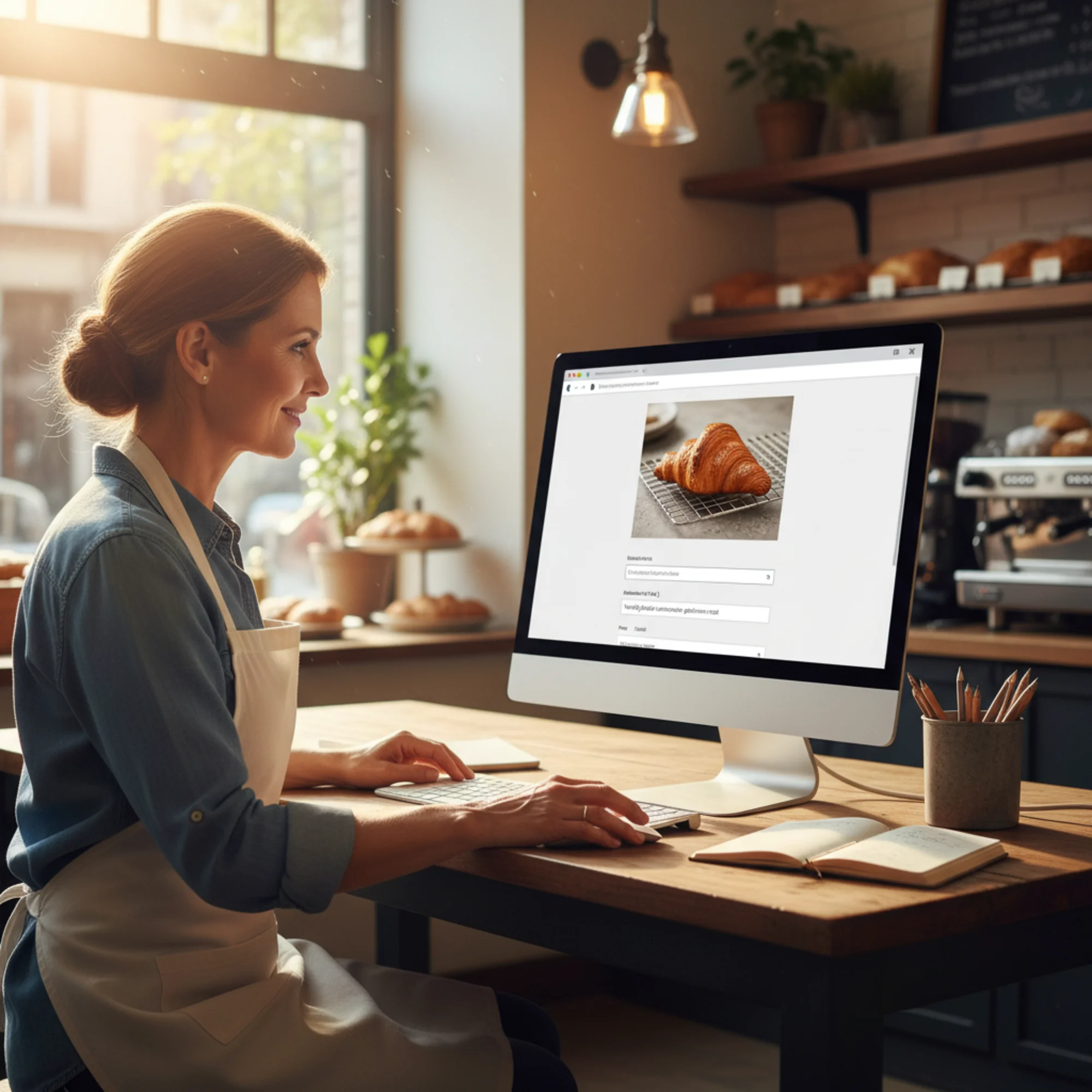
Why Alt Text Matters More Than You Think
The SEO side
Google cannot see images the way humans do. It relies on alt text, surrounding page content, and file names to understand what an image shows. According to Google's image best practices, alt text is a primary signal for Google Images ranking.
Google Images is not a niche traffic source. For product-based businesses, image search drives significant discovery — people searching for "custom wedding cake" or "reclaimed wood dining table" often start in the Images tab. If your images have no alt text, they're invisible to that entire channel.
The accessibility side
Roughly 1 in 4 adults in the United States has some type of disability, according to the CDC. Many use screen readers or other assistive technology to browse the web. When a screen reader encounters an image with no alt text, it either skips it or reads the file name — which sounds something like "IMG underscore 4 7 2 3 dot jpeg."
That's not just a poor experience. It can make your site genuinely unusable. For many businesses, accessibility is also a legal requirement under the ADA and similar regulations.
They're the same job
Here's what most guides miss: good alt text for SEO and good alt text for accessibility are the same thing. A description that helps a screen reader user understand an image is exactly the description that helps Google understand it too.
You don't need two strategies. You need one clear approach.
What Bad Alt Text Looks Like
Before fixing anything, let's look at the most common mistakes.
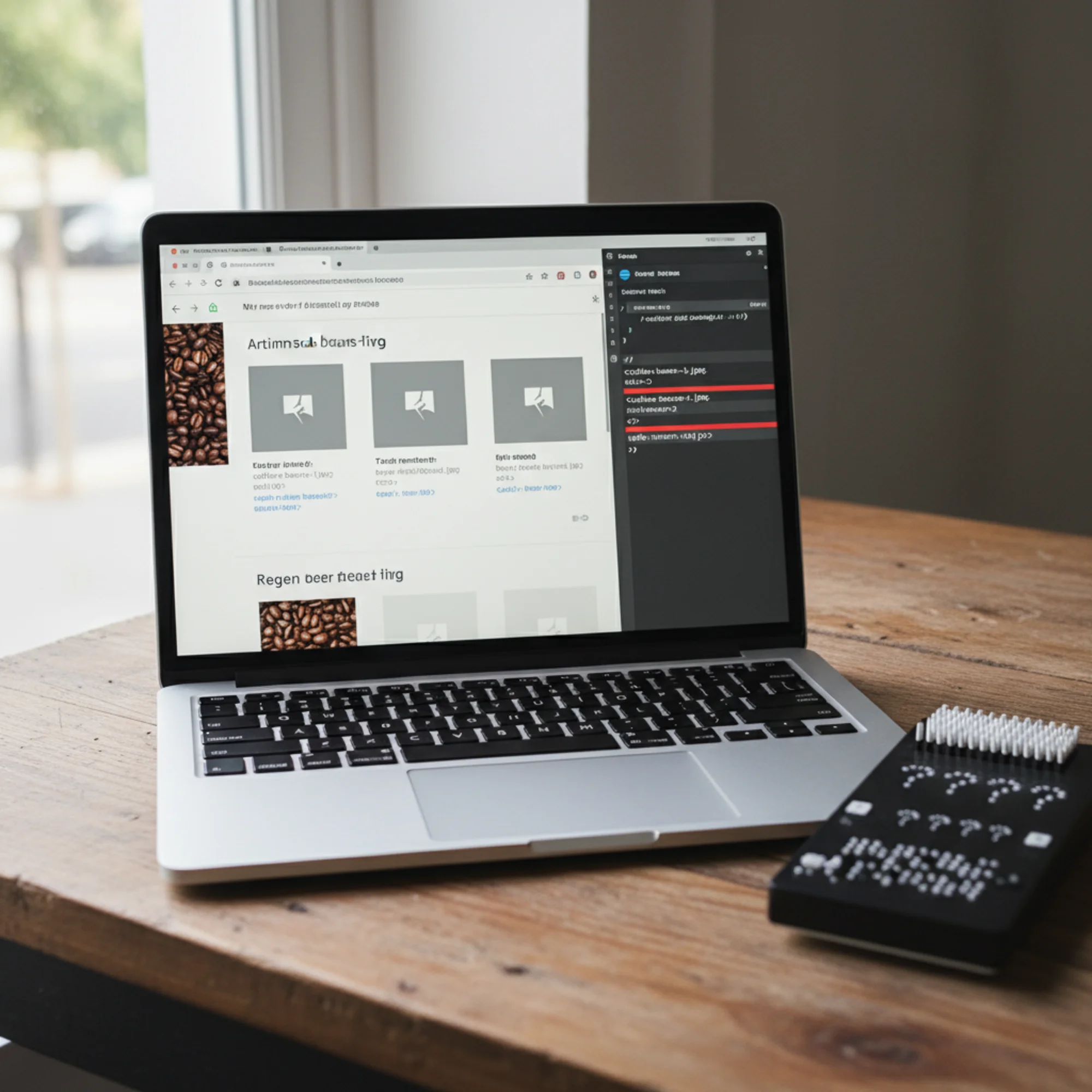
Mistake 1: Empty alt text
html

An empty alt attribute tells screen readers to skip the image. That's correct for purely decorative images (a background pattern or divider line), but wrong for any image that carries meaning — products, team photos, diagrams, or anything that supports your content.
Mistake 2: No alt attribute at all
html
Worse than empty. Without the alt attribute, some screen readers read the file name aloud. Google gets nothing useful either.
Mistake 3: Keyword stuffing
html
This helps nobody. Screen reader users hear a string of disconnected keywords. Google recognizes keyword stuffing and may discount the signal entirely. Google's guidelines explicitly warn against filling alt attributes with keywords.
Mistake 4: Generic descriptions
html

Technically present but practically useless. Neither a human nor a search engine learns what the image actually shows.
Mistake 5: Starting with "Image of" or "Photo of"
html
Screen readers already announce that the element is an image. Starting with "image of" creates redundancy — the user hears "image: image of our team." Drop the prefix and describe what's shown.
The Alt Text Formula That Works
Apply this formula to any image:
[What or who] + [doing what or looking how] + [relevant context]
Keep it under 125 characters when practical. Be specific. Be factual. Include a relevant keyword only if it fits naturally.
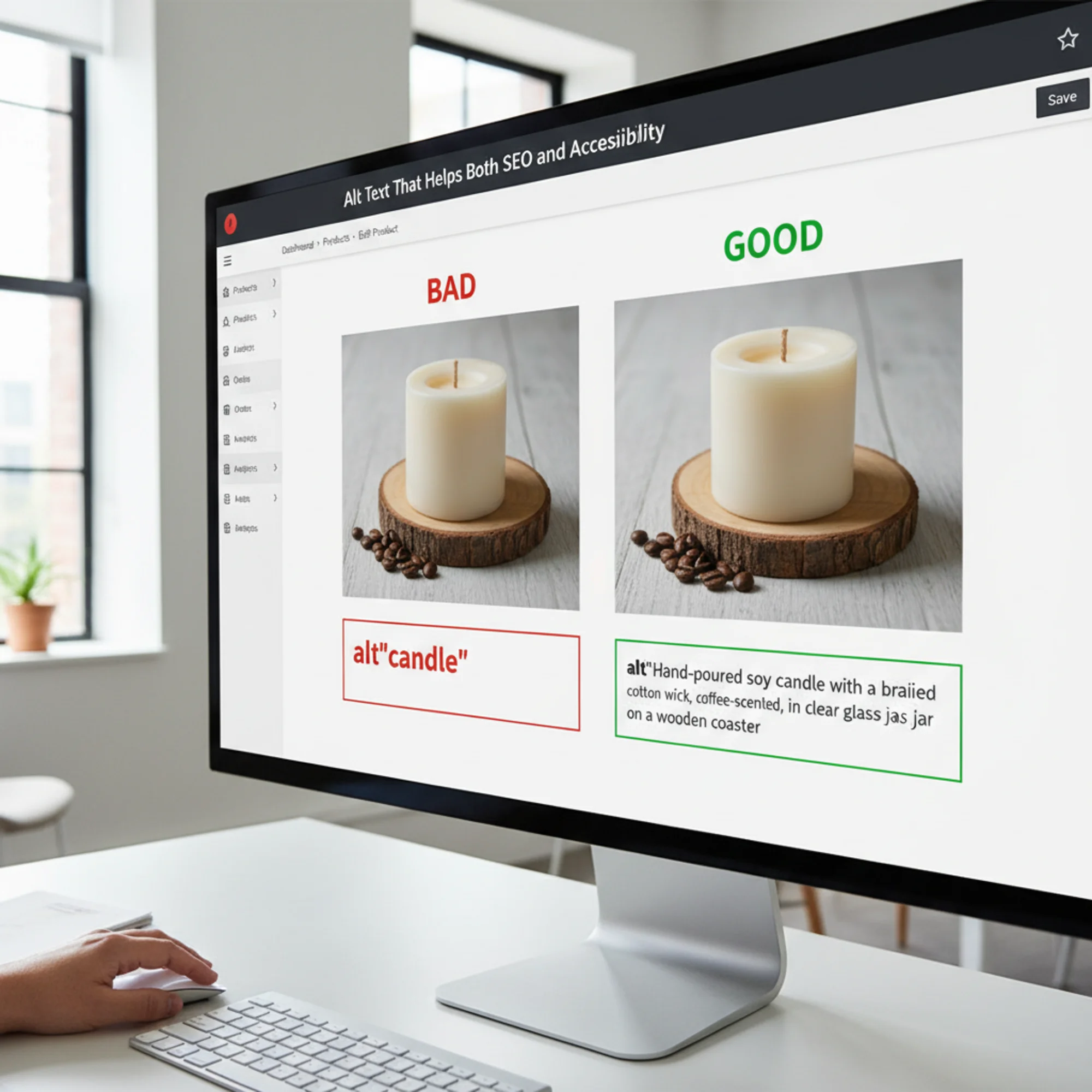
Product photo
Bad: alt="candle"
Good: alt="Hand-poured soy lavender candle in a ceramic jar on a wooden shelf"
The good version tells both users and Google what the product is, what it's made of, and how it's displayed. "Soy lavender candle" is a natural keyword — accurate, not stuffed.
Team or about page photo
Bad: alt="team"
Good: alt="Three members of the Greenleaf Landscaping crew planting shrubs at a residential job site"
Before-and-after photo
Bad: alt="before and after"
Good: alt="Kitchen before renovation with dated oak cabinets, next to the same kitchen after with white shaker cabinets and quartz countertops"
Logo
Bad: alt="logo"
Good: alt="Riverside Dental clinic logo"
For logos, the company name is sufficient. No need to describe the visual design.
Decorative image
If an image is purely decorative, use an empty alt attribute intentionally:
html

This tells screen readers to skip it, which is the correct behavior per the W3C images tutorial.
Walkthrough: Auditing and Fixing Alt Text on a Real Page
Let's walk through how a bakery called Sweet Maple would audit and fix alt text on their homepage.
Step 1: Find your images
Right-click any image in Chrome and choose "Inspect" to see the HTML. Or, faster: run a free audit with FreeSiteAudit to get a report of every image on your site with its current alt text status.
Step 2: List every image and its current alt text
Sweet Maple's homepage has six images:
| Image | Current alt text | Problem |
|---|---|---|
| Hero banner (storefront) | "" (empty) | Missing description |
| Croissant close-up | "food" | Too generic |
| Wedding cake | "best wedding cake bakery Austin Texas cakes" | Keyword stuffed |
| Owner portrait | No alt attribute | Missing entirely |
| Interior photo | "image of bakery" | Redundant prefix |
| Decorative swirl | "" (empty) | Correct — decorative |
Step 3: Rewrite each one
| Image | New alt text |
|---|---|
| Hero banner | "Sweet Maple Bakery storefront on South Congress Avenue in Austin" |
| Croissant close-up | "Freshly baked butter croissant with flaky layers on a cooling rack" |
| Wedding cake | "Three-tier white wedding cake with fresh peonies by Sweet Maple Bakery" |
| Owner portrait | "Maria Chen, owner and head baker at Sweet Maple Bakery" |
| Interior photo | "Customers ordering at the Sweet Maple counter with pastry display case" |
| Decorative swirl | "" (keep empty) |
Step 4: Update your site
In most website builders:
- WordPress: Edit the page, click the image, fill in the "Alt Text" field in the right sidebar.
- Squarespace: Click the image, select the pencil icon, enter the description in "Image description."
- Shopify: Go to the page editor, click the image, fill in the alt text field.
- Wix: Click the image, go to Settings, add alt text under "What's in the image?"
If you're editing HTML directly, add or update the alt attribute inside the
Step 5: Verify
Run another audit to confirm all meaningful images have descriptive alt text. Check that none exceed 125 characters and none read like keyword lists.
The Quick-Fix Checklist
Work through this for every page on your site:
- [ ] Every meaningful image has a filled-in alt attribute.
- [ ] Decorative images use
alt=""(empty, not missing). - [ ] No alt text starts with "image of" or "photo of."
- [ ] No keyword stuffing — if it reads like a search query, rewrite it as a sentence.
- [ ] Product images include the product name and a key detail (material, color, or style).
- [ ] Portrait photos include the person's name and role.
- [ ] Alt text stays under 125 characters. Longer descriptions belong in surrounding body text.
- [ ] File names are descriptive:
butter-croissant.jpgbeatsIMG_4723.jpg. - [ ] Complex images (charts, infographics) have extended descriptions in body text, not crammed into the alt attribute.
Common Questions
Should I put keywords in alt text?
Only when they fit naturally. If you're describing a product photo and your keyword is the product name, it belongs there. If you have to force it, leave it out. Google rewards accurate descriptions, not keyword density. This aligns with Google's broader helpful content guidelines — write for users first.
How long should alt text be?
One clear sentence, under 125 characters. Some assistive technologies truncate longer values. If an image needs extensive explanation (a chart or infographic), put the full description in the body text and keep the alt text as a summary.
Does alt text affect page speed?
No. Alt text is a tiny string in your HTML with zero impact on load time. It's one of the rare improvements that costs nothing in performance. If page speed is a concern, focus on image compression and format optimization — those are the factors that affect Core Web Vitals.
What about CSS background images?
CSS background images don't support alt attributes. If a background image carries meaning, consider using an aria-label or a screen-reader-only CSS class.
Does every image need alt text?
Every image needs the alt attribute. But not every image needs a description. Decorative images should have alt="" — an intentionally empty value that tells assistive technology to skip the image. Every meaningful image needs a real description.
What Good Alt Text Gets You
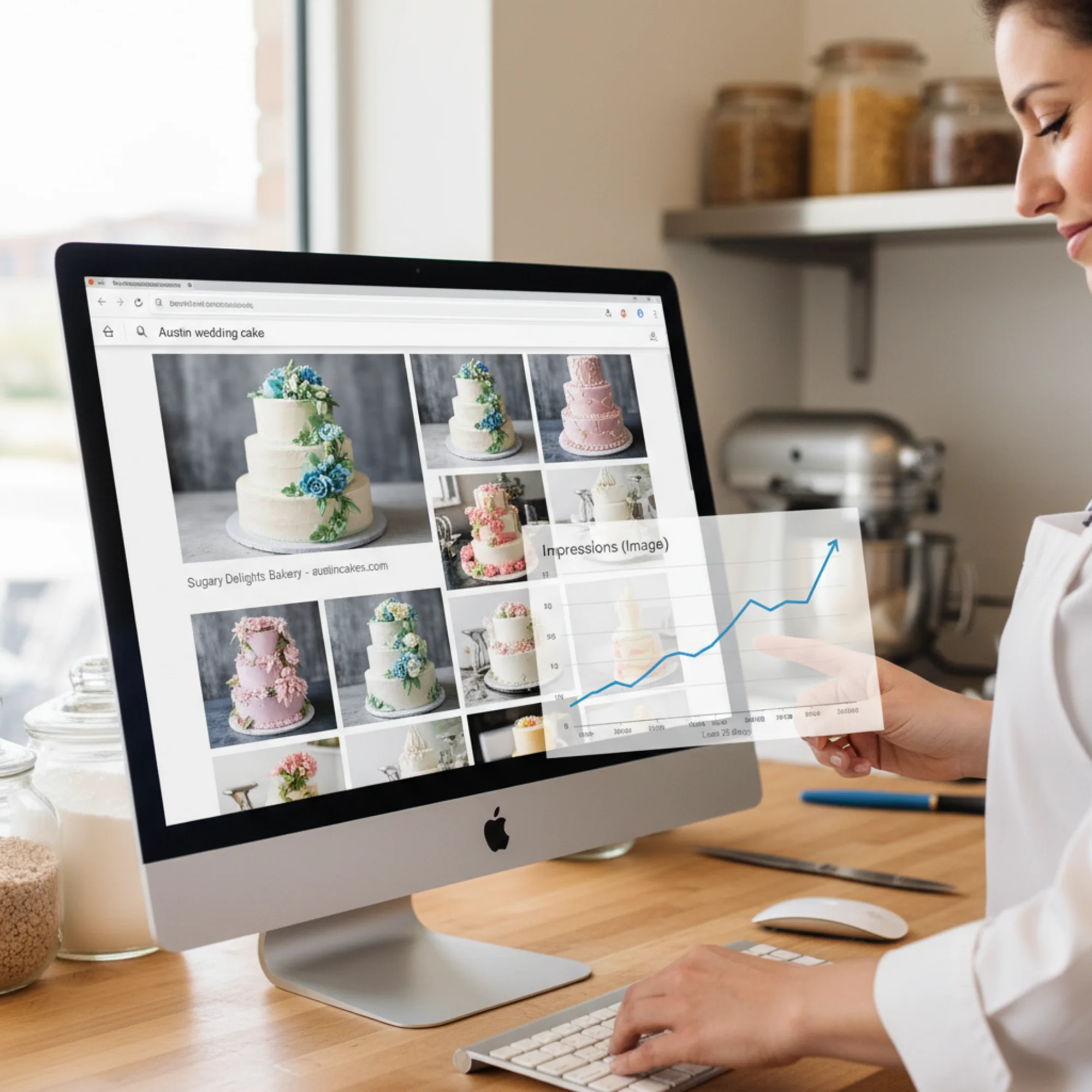
When Sweet Maple fixes their alt text across 30 images, several things change:
Search visibility improves. Their wedding cake photos start appearing in Google Image results for "Austin wedding cake" and "three-tier wedding cake with flowers." Each image becomes a potential entry point to their site.
Accessibility compliance improves. Their site becomes usable for visitors with screen readers — including people actively searching for local bakeries.
Graceful degradation improves. When images fail to load (slow connections, email previews, browser issues), alt text displays in place. Visitors still understand what was supposed to be there.
Legal risk decreases. ADA-related web accessibility lawsuits have increased steadily. Proper alt text is one of the most fundamental and frequently cited requirements.
All of this from writing a few accurate sentences.
Where to Start Right Now
You don't need to fix your entire site at once. Prioritize in this order:
- Homepage images — highest traffic, first impression.
- Product or service images — directly tied to revenue.
- Blog post images — often the largest volume; tackle in batches.
- About and team page — important for trust, lower urgency.
For each image, spend 15 seconds writing a clear, specific description using the formula. That's all it takes.
To see exactly which images on your site need attention right now, run a free audit with FreeSiteAudit. The report flags every image with missing or empty alt text so you know where to start — no signup required.
Sources
- Google Images Best Practices — Primary reference for how Google uses alt text to index and rank images.
- W3C WAI Images Tutorial — Authoritative accessibility guidelines for image descriptions, including decorative vs. informative images.
- Web Vitals — Google's performance metrics; relevant context for why alt text is a zero-cost improvement compared to image optimization.
- Google: Creating Helpful Content — Google's content quality guidelines that reinforce writing for users first, not search engines.
Check your website for free
Get an instant score and your top 3 critical issues in under 60 seconds.
Get Your Free Audit →