Broken Internal Links: The Silent SEO Killer
Broken internal links waste crawl budget, frustrate visitors, and quietly drag your rankings down. Here's how to find and fix them before they cost you.
# Broken Internal Links: The Silent SEO Killer
You redesigned your site six months ago. Traffic has been slipping ever since, but nothing obvious is broken. Your content is solid. Your hosting is fine. Google Search Console shows some crawl errors, but you're not sure what they mean.
There's a good chance the problem is broken internal links — and they've been quietly undermining your site the entire time.

Broken internal links are one of the most common and most overlooked technical SEO problems for small business websites. They don't throw dramatic errors. They don't crash your site. They just sit there, sending visitors and search engines into dead ends, draining your authority, and costing you customers you'll never know about.
This guide covers exactly what broken internal links are, why they matter more than most people realize, and how to find and fix every one on your site.
What Is a Broken Internal Link?
An internal link is any link on your website that points to another page on the same site. Your navigation menu, footer links, blog post cross-links, product links from category pages — all internal links.
A broken internal link points to a page that no longer exists or has moved. When someone clicks it, they get a 404 "Page Not Found" error instead of the content they expected.
The most common causes:
- You deleted a page but didn't update all the links pointing to it
- You changed a URL (like renaming
/servicesto/our-services) without setting up a redirect - A site redesign changed your URL structure and old links weren't updated
- A typo in a link — maybe
/about-uswas typed as/abot-ussomewhere - A CMS plugin or theme update changed how URLs are generated
That last one catches many small business owners off guard. You didn't change anything, but a WordPress update restructured your portfolio URLs, and now every blog post linking to your work samples hits a dead end.
Why Broken Internal Links Hurt More Than You Think
Most people see broken links as a minor annoyance — a visitor clicks, gets a 404, hits the back button. Not ideal, but not a disaster.
The real damage goes deeper.
1. You're Wasting Google's Crawl Budget
Google allocates a limited number of pages to crawl per visit — your crawl budget. Every time Googlebot follows a broken link and hits a 404, that's a wasted crawl. The page it could have discovered and indexed instead gets skipped.
For a small site with 50 pages and 15 broken links, Google could spend a meaningful share of each crawl chasing dead ends instead of indexing your content.
Google's documentation on crawlable links makes clear that the structure and health of your internal links directly affects how well Google discovers and understands your pages.
2. You're Leaking Link Authority
Internal links pass authority (sometimes called "link equity") from one page to another. When your homepage links to your services page, it signals to Google that the services page matters.
When that link is broken, the authority goes nowhere. Your most important pages end up weaker than they should be because the internal links that should feed them authority are pointing into the void.
3. Your Visitors Are Hitting Dead Ends
This is the most direct damage. Encountering a 404 error dramatically increases the chance a visitor leaves your site entirely.
Think about it from your customer's perspective. They're reading about kitchen renovations and click a link that says "See our portfolio of completed projects." They land on a 404 page. They don't hunt around your site looking for the portfolio. They leave. They go back to Google and click the next result. You just lost a potential customer, and you'll never know it happened.

4. Google's Helpful Content Standards Get Harder to Meet
Google's helpful content guidelines emphasize that good content should provide a satisfying user experience. A site riddled with broken links signals neglect — that the site isn't maintained, that the information might be outdated, that the business might not be paying attention.
There's no specific "broken links penalty" in Google's algorithm. But the cumulative effect of poor user experience — higher bounce rates, lower time on site, fewer pages per session — tells Google your site isn't delivering what searchers need.
A Real-World Scenario: The Bakery That Couldn't Figure Out the Traffic Drop
Here's how this plays out in practice.
Sarah runs a bakery in Austin. She has a WordPress site with about 60 pages: a homepage, service pages for weddings and custom orders, a blog with 40 posts, a gallery, and standard pages like About and Contact.
Last fall, she hired a designer to refresh the site. It looked great — but the designer changed the URL structure. Blog posts went from /blog/post-name to /articles/post-name. Service pages changed from /wedding-cakes to /services/wedding-cakes.
The designer set up redirects for the main service pages but forgot about the blog. Nobody updated the internal links within the blog posts themselves.
The result:
- 28 blog posts linked to other posts using the old
/blog/URLs — all now broken - 12 blog posts linked to service pages using old URLs — broken
- The footer still had three old links — broken
- The sitemap was regenerated, but Google kept finding broken links through the old internal link structure
Over three months, Sarah's organic traffic dropped steadily. She thought it was seasonal. It wasn't.
When she finally ran a site audit, she found 43 broken internal links. Fixing them took about two hours. Traffic started recovering within weeks.
The lesson: a redesign without a link audit is a ticking time bomb.
How to Find Broken Internal Links on Your Site
You have several options, from quick and free to thorough and automated.
Option 1: Run a Free Site Audit
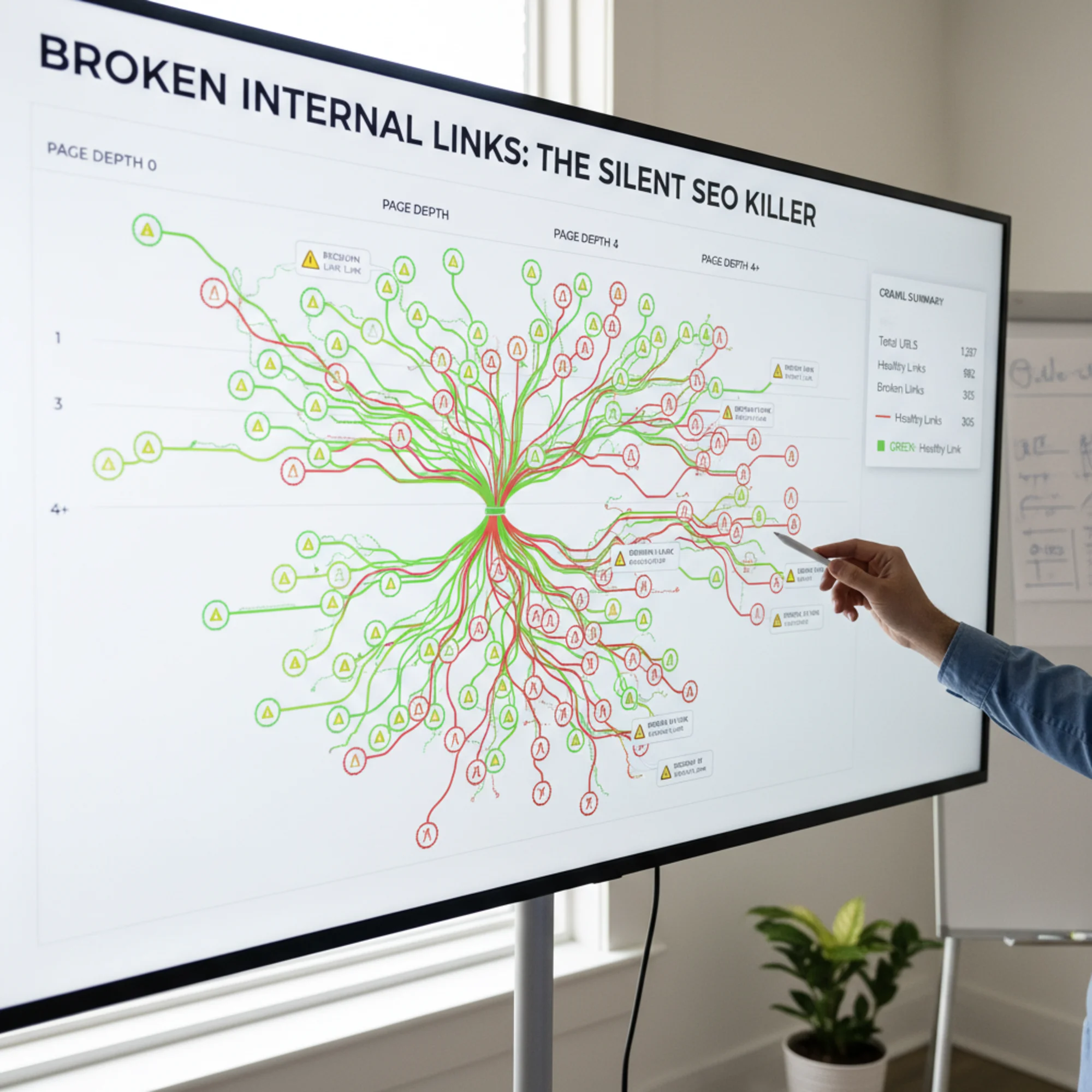
The fastest way to find broken internal links is to run a crawl-based audit of your entire site. Tools like FreeSiteAudit spider your site the way Google does, following every internal link and flagging the ones that return errors.
This catches everything — broken links in your navigation, footer, sidebar, blog content, and anywhere else. It takes a few minutes and gives you a complete list.
Option 2: Check Google Search Console
If you have Google Search Console set up (and you should), go to the Pages report and look for pages with the "Not found (404)" status. This shows pages Google tried to crawl and got a 404.
The limitation: Search Console only shows pages Google has tried to crawl recently. If a broken link points to a page Google has given up on, it might not appear here.
Option 3: Manual Spot-Check
For very small sites, you can manually click through every link on every page. This works if you have fewer than 20 pages and patience.
Be thorough: check links in your header, footer, sidebar, body content, image links, and button links. Don't forget links inside blog posts — that's where most broken links hide.
How to Fix Broken Internal Links: A Step-by-Step Approach
Once you've found your broken links, here's how to fix them systematically.
Step 1: Categorize Each Broken Link
For each broken link, determine which category it falls into:
- Page moved: The content exists at a different URL
- Page deleted: The content no longer exists
- Typo: The link was simply typed wrong
- Outdated: The link pointed to content that's been replaced
Step 2: Fix Typos First
These are the easiest wins. If /abot-us should be /about-us, fix the link and move on.
Step 3: Update Links to Moved Pages
If the page moved from /blog/post-name to /articles/post-name, do two things:
- Update the internal link to point to the new URL
- Set up a 301 redirect from the old URL to the new one (this catches external links and bookmarks)
The redirect alone isn't enough. Internal links should point directly to the correct URL, not bounce through a redirect. Each hop adds latency and can lose a small amount of link authority. Google's documentation on URL consolidation reinforces the importance of clean, direct URL structures.
Step 4: Handle Deleted Pages
If the page is gone with no replacement:
- Find the closest alternative page on your site covering a similar topic
- Update the internal link to point to that alternative
- Set up a 301 redirect from the old URL to the alternative
- If there's genuinely no alternative, remove the link entirely rather than leaving it broken
Step 5: Update Surrounding Content
Don't just fix the URL — reread the sentence around the link. If the text says "Check out our 2023 pricing" and that page is gone, update the text too. Broken context is almost as bad as a broken link.
Step 6: Verify Your Fixes
Run your site audit again after making changes. It's common to fix most links and miss a few tucked away in older blog posts.
Preventing Broken Links Going Forward
Fixing broken links once is good. Keeping them fixed is better. Here's a maintenance routine:
- [ ] Run a site audit monthly. Five minutes once a month prevents hours of damage control later.
- [ ] Before any redesign, export a complete list of every URL on your site. After the redesign, verify every old URL still works or has a redirect.
- [ ] When deleting any page, search your site for links to that page first. Update or remove them.
- [ ] When changing any URL, always set up a 301 redirect from the old URL to the new one.
- [ ] After CMS or plugin updates, spot-check internal links to make sure nothing changed unexpectedly.
- [ ] Keep your sitemap current. A sitemap with broken URLs sends Google on the same wild goose chase as a broken link.
The Compounding Cost of Doing Nothing
Broken internal links are dangerous because they compound. One broken link today isn't a catastrophe. But every time you update your site, change a URL, delete a page, or update a plugin without checking, you risk adding more.
Six months later, you have 30 or 40 broken links, and your site is hemorrhaging crawl budget, authority, and visitors — without any visible sign. Your site still loads. Your content still looks fine. But behind the scenes, Google spends less time indexing your good content, your important pages get less internal authority, and visitors bounce off 404 pages you don't know about.
By the time you notice the traffic drop, the damage has been accumulating for months.
Don't Forget Page Speed
Broken internal links can indirectly affect your Core Web Vitals scores. When a user clicks a broken link and lands on a 404, the browser still loads that error page. If your 404 page is heavy, that's a poor experience compounded.
If you have redirect chains (link → redirect → redirect → final page), each hop adds latency. Clean, direct internal links keep your site fast and your visitors on track.
Take Action Today
Broken internal links are one of the highest-impact, lowest-effort fixes you can make to your website. You don't need to be technical. You don't need to hire a developer. You just need to know where the problems are.
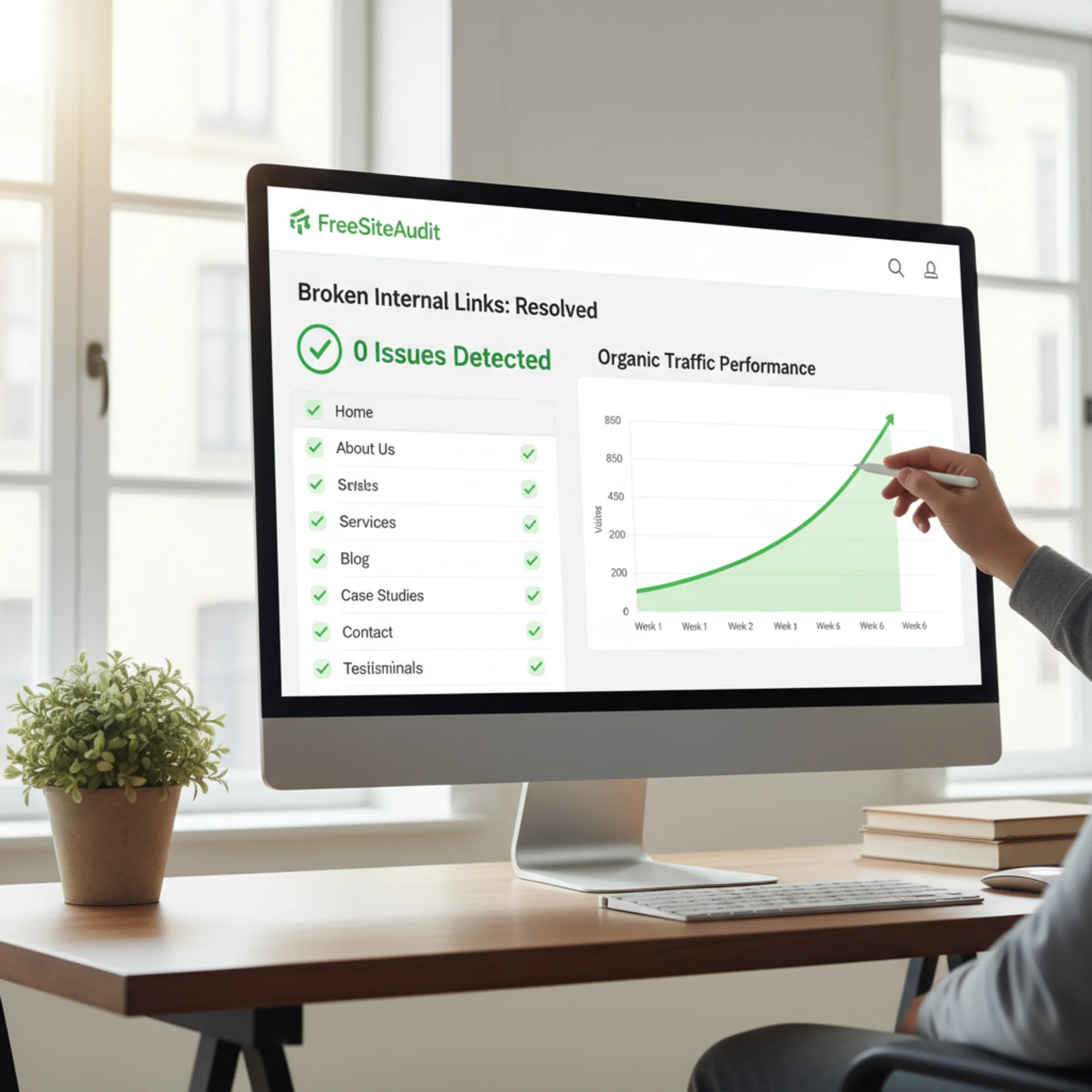
Run a free site audit with FreeSiteAudit to get a complete picture of your internal link health in minutes. You'll see exactly which links are broken, where they are, and what they point to. Then use the steps above to fix them systematically.
Every day those broken links stay in place, your site works against you. Fix them, and you stop losing the traffic and customers you've already earned.
Sources
- Google Search Central — Creating Helpful, Reliable, People-First Content: https://developers.google.com/search/docs/fundamentals/creating-helpful-content
- Google Search Central — Crawlable Links: https://developers.google.com/search/docs/crawling-indexing/links-crawlable
- Google Search Central — Consolidate Duplicate URLs: https://developers.google.com/search/docs/crawling-indexing/consolidate-duplicate-urls
- web.dev — Web Vitals: https://web.dev/articles/vitals
Check your website for free
Get an instant score and your top 3 critical issues in under 60 seconds.
Get Your Free Audit →