CDN Setup for Small Business Websites: A Beginner's Guide
A plain-English walkthrough of what a CDN does, when your small business site actually needs one, and how to set one up without breaking anything on your site.
# CDN Setup for Small Business Websites: A Beginner's Guide
If you run a small business website and someone has told you "you need a CDN," you've probably nodded politely and then quietly Googled what a CDN even is. Good news: the concept is simple, the setup is usually free or cheap, and you do not need a developer to do it.
This guide explains what a CDN actually does, when your site needs one (and when it doesn't), and how to set one up step by step without breaking anything. No jargon dump. No fake "studies show 47.3%" stats. Just the parts that matter for a small business operator.

What a CDN Is, in Plain English
CDN stands for Content Delivery Network. Forget the name for a second.
Picture this: your website lives on one server, probably in one city. Maybe it's in Virginia, or Frankfurt, or Sydney. When someone in Tokyo visits, their browser has to pull every image, every script, and every font across the ocean. That trip takes time — not a lot, but enough that your hero image takes an extra second to appear and your bounce rate quietly climbs.
A CDN is a network of servers spread across the world. When you turn one on, copies of your site's static files (images, CSS, JavaScript, fonts) get cached on those servers. The next time someone in Tokyo visits, they get the files from a Tokyo server, not from Virginia. Same site, much faster delivery.
That's it. That's the whole idea.
When a Small Business Actually Needs a CDN
You do not need a CDN for every website. Be honest about your situation.
You probably need one if:
- You sell or ship to customers outside your home country
- Your audience is geographically spread (a US business with East and West Coast customers counts)
- Your site has heavy images, video, or large hero sections
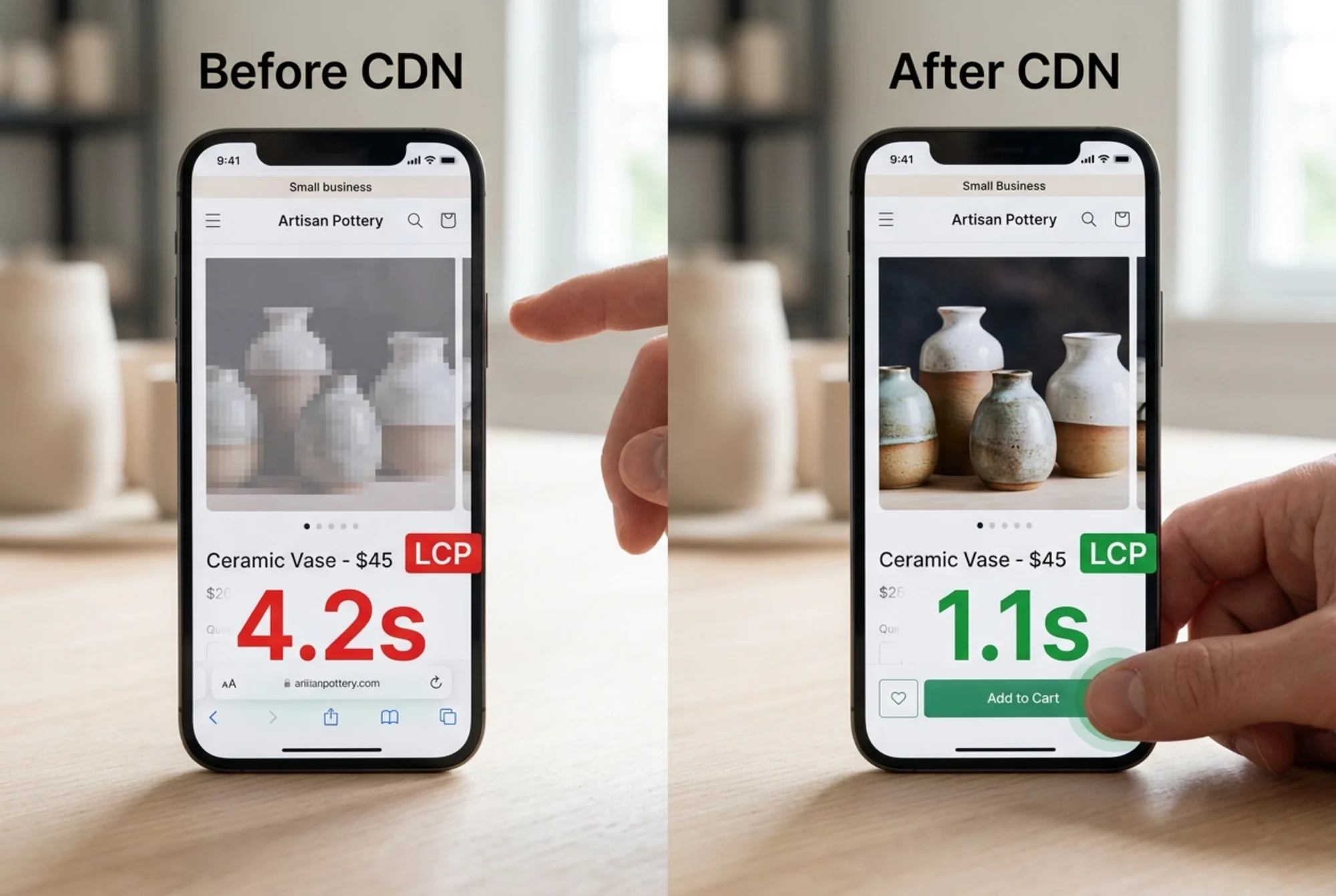
- You're seeing slow Largest Contentful Paint (LCP) scores
- You've ever had a traffic spike crash your site
- You run on WordPress or any platform where you don't fully control the server
You probably don't need one if:
- You run a strictly local business (one neighborhood plumber, one town bakery)
- Your site is text-only and loads in under a second already
- Your hosting provider already includes a CDN — many do; check before paying for another
For most small business sites with photos, product pages, or a blog, a CDN will help. And the free tiers from Cloudflare and Bunny.net are genuinely good enough.
Why Speed Matters Beyond "It Feels Faster"
Google's Core Web Vitals are part of how your site gets ranked in search. Largest Contentful Paint — how long it takes for your main visual element to show up — is one of the three core metrics, alongside Interaction to Next Paint and Cumulative Layout Shift. Slow image delivery is one of the most common reasons LCP fails.
A CDN doesn't fix every speed problem, but it knocks out one of the biggest categories: distance. And distance is something you can't fix by optimizing code or compressing images.

A Real Scenario: Maya's Candle Shop
Maya runs a small candle business out of Portland on a self-hosted WordPress site with WooCommerce. She sells nationally. Her product pages have beautiful, high-resolution photos — about 2 MB each before optimization.
A customer in Miami clicks her product page. Without a CDN:
- Browser requests the page from her single origin server in Oregon
- The HTML loads in about 300ms
- The browser then requests six product images, each 2 MB
- Those images travel from Oregon to Miami over a single long route
- Total load time: 6.4 seconds
The customer waits. Maybe. More likely they bounce. Either way, Maya's LCP is bad and her conversion rate is worse than it should be.
With a CDN in place:
- The first Miami visitor's images get cached on a CDN edge server in Atlanta
- Every subsequent Miami visitor pulls those images from Atlanta — a much shorter trip
- Page loads in 1.8 seconds
- LCP passes
- Customers actually scroll to "Add to Cart"
Maya didn't change a single image. She just got the existing images delivered from a closer location.
The Three Realistic Options for Small Businesses
You don't need to compare twenty CDN providers. Pick from these three.
Cloudflare (Free Tier) — The default recommendation. The free tier is generous and includes basic DDoS protection, SSL, and caching. Setup involves pointing your domain's nameservers to Cloudflare. Good for almost any site.
Bunny.net — Pay-as-you-go, very cheap (often under $1/month for small sites). Cleaner dashboard than Cloudflare, no plan tiers to compare. Good if you want simple per-GB pricing without a free-tier hard sell.
Your Host's Built-In CDN — Shopify, Webflow, Squarespace, Wix, and many managed WordPress hosts include CDN service automatically. If you're on one of these, you may already have what you need. Check before adding another layer.
That's the list. Don't overthink it.
Step-by-Step: Setting Up Cloudflare on a WordPress Site
This is the most common small business scenario. Here's exactly what to do.

Before you start:
- Have your domain registrar login ready (GoDaddy, Namecheap, Google Domains, etc.)
- Write down your current DNS records somewhere safe — this is your backup
- Don't do this during a busy sales day. Pick a quiet evening
Step 1: Create a free Cloudflare account. Sign up at cloudflare.com and add your site by entering your domain.
Step 2: Let Cloudflare scan your existing DNS records. It will pull what's currently set up — A records, MX records (for email), TXT records, and so on. Verify the list matches what you have. If your email is on Google Workspace, make sure the MX records are present. Missing MX records means broken email.
Step 3: Choose the Free plan. It's at the bottom of the plan list. Don't get pushed into Pro yet.
Step 4: Update your nameservers. Cloudflare will give you two nameservers like kate.ns.cloudflare.com and walt.ns.cloudflare.com. Log in to your registrar, find the nameserver settings, and replace what's there with Cloudflare's.
Step 5: Wait. Nameserver propagation can take a few minutes to a few hours. Cloudflare will email you when it's active.
Step 6: Turn on basic settings. Once active, go to SSL/TLS and set it to "Full" or "Full (strict)" if your origin already has an SSL certificate. Under Speed > Optimization, enable Auto Minify for HTML, CSS, and JavaScript. Under Caching, set Browser Cache TTL to at least 4 hours.
Step 7: Test. Visit your site. Click through a few pages. Submit a form. Send a test email to yourself. If anything is broken, revert the nameservers at your registrar and you're back to where you started.
For most small business sites, the whole process takes 30 to 45 minutes including waiting.
Setting Up a CDN on Shopify, Squarespace, or Wix
Short version: you don't have to. All three platforms include CDN delivery by default. Your product images, theme assets, and pages are already cached at edge locations.
If your Shopify or Squarespace site feels slow, the problem usually isn't "no CDN." It's oversized images, too many third-party scripts (chat widgets, analytics, popups), or a heavy theme. A CDN won't fix those. Image optimization and a script audit will.
Common Mistakes That Break Things
Forgetting MX records during DNS migration. Your email stops working. Always confirm MX records are present before changing nameservers.
Caching dynamic content. Logged-in dashboards, shopping carts, and admin pages should not be cached. Cloudflare's defaults usually get this right, but if you have a custom dashboard, check it.
Setting cache TTL too aggressively. If you update your CSS and visitors still see the old version, your TTL is too long or you forgot to purge the cache. Most CDN dashboards have a "Purge Everything" button — use it after big design changes.
Assuming a CDN fixes everything. A CDN delivers static files faster. It does not speed up a bloated database query, a slow third-party script, or a misconfigured server. If your origin response time is 4 seconds, no CDN will save you.
A Quick Pre-Setup Checklist
Before you flip the switch:
- [ ] Domain registrar login confirmed
- [ ] Current DNS records exported or screenshotted
- [ ] MX records noted separately
- [ ] SSL certificate status checked
- [ ] Recent backup of your site
- [ ] A quiet time window picked (not a Black Friday Tuesday)
- [ ] A friend or second device ready to verify the site from outside your network
Five minutes of prep saves an hour of panic.
What to Check After It's Live
Once your CDN is active, do these in order:
- Visit your site in a private browser window. Confirm it loads correctly.
- Test the contact form. Submit a real entry and confirm you receive it.
- Test checkout if you sell online. Run a small test order or use test mode.
- Send yourself an email from your business address. Confirm email is still flowing.
- Run a speed test. Google PageSpeed Insights or similar. Compare before and after.
- Check from a different geographic location. Ask a friend in another city to load your site, or use a tool like WebPageTest with a remote test location.
If something looks off, the issue is almost always a DNS record that didn't carry over. Go back to your records list and check.
When You Should Pay for the Upgrade
Free CDN tiers are enough for most small businesses. Consider paid tiers if:
- You're getting real DDoS attempts, not just spam
- You need image optimization built in (Cloudflare Polish, for example)
- You need deeper analytics than the free tier provides
- You're serving large video files
- You have compliance needs (HIPAA, certain finance rules)
For a typical ecommerce small business selling under 100 orders a day, free Cloudflare or a few dollars a month on Bunny.net is plenty.
How This Connects to Your Audit Score
If you've run a website audit and seen poor LCP scores, image delivery flags, or "serve static assets from a CDN" warnings, this is the fix. Setting up a CDN is one of the highest-leverage things you can do for site speed because it addresses a fundamental physics problem — distance — that you can't optimize away with better code.
But a CDN is one piece. You also need properly sized images, lazy loading, minimal third-party scripts, and a reasonable origin server. To find out which of these your site is missing, run a free audit at FreeSiteAudit. You'll get a specific list of what's slowing your site down, what's fine, and what to tackle first.
If your audit specifically flagged a slow page load issue, work through CDN setup first, then image optimization, then script reduction. In that order — that sequence tends to fix the most for the least effort.
The Short Version
If you remember nothing else:
- A CDN delivers your site's static files from servers closer to your visitors.
- For most small businesses with any geographic spread, a CDN helps.
- Cloudflare's free tier is the default starting point.
- Setup takes under an hour, mostly waiting for DNS to propagate.
- Confirm your DNS records — especially MX for email — before switching nameservers.
- A CDN won't fix a bloated site. It only fixes distance.
Set it up once, verify it works, and then move on to the next bottleneck. That's the small business way: fix the thing that matters most, then go run your business.
Sources
Check your website for free
Get an instant score and your top 3 critical issues in under 60 seconds.
Get Your Free Audit →