Crawlability Audit: Is Google Indexing Your Site Correctly?
A plain-English crawlability audit for small business owners — how to check if Google can find, crawl, and index your pages, and what to fix when it can't.
# Crawlability Audit: Is Google Indexing Your Site Correctly?
You can have the best content, the cleanest design, and the most competitive prices in your town. None of it matters if Google can't find your pages, can't read them, or decides not to put them in its index.
That's what a crawlability audit is about. It's not glamorous, but it's the foundation everything else sits on. If your pages aren't indexed, your SEO work is invisible.
This guide is written for owners and operators, not engineers. By the end, you'll know how to check if Google is indexing your site correctly, what to look for when it isn't, and what to do about it.
What "crawlability" actually means
There are three steps Google takes before your page can rank:
- Discovery — Google learns your URL exists, usually through links from other pages or a sitemap you submitted.
- Crawling — Googlebot (Google's automated visitor) requests the URL and downloads the page.
- Indexing — Google processes the page, decides it's worth storing, and adds it to the searchable index.
"Crawlability" covers steps 1 and 2. "Indexability" covers step 3. A crawlability audit checks all three, because a problem at any stage means the page won't appear in search.
A page can be crawlable but not indexed (Google saw it and chose not to include it). It can be indexed but not crawlable anymore (a leftover from before you broke something). It can also be discoverable but never crawled, because you accidentally told Google not to.
The five things that go wrong most often
Here's what we find on most small business sites we scan:
- A
robots.txtfile blocking pages it shouldn't. Often a leftover from a developer who set up a staging site months ago. - A
noindextag on important pages. Usually inherited from a theme or plugin default. - A missing or stale sitemap. Either it doesn't exist, or it lists URLs that 404.
- Orphan pages. Pages with no internal links pointing to them, so Google has no path to discover them.
- Duplicate content with no canonical signal. Google sees ten versions of the same page and indexes none, or the wrong one.
If you fix only these five, you'll already be ahead of most local competitors.
Step 1: Check what Google has actually indexed
Open Google and type:
site:yourdomain.com
Replace yourdomain.com with your own. The number of results is a rough count of how many of your pages Google has indexed.
Compare that to the number of pages you think you have. If you have 40 pages on your site and site: shows 8, you have an indexing problem. If it shows 400, you have a duplication problem — Google is indexing variants you don't know about, like printer-friendly pages, internal search results, or paginated archives.
This is a rough check, not a precise one. The real numbers live in Google Search Console.
Step 2: Set up Google Search Console
If you're running a small business website and you don't have Search Console set up, stop reading and do this first. It's free, it's official, and it tells you exactly what Google sees.
Go to search.google.com/search-console, add your property, and verify ownership. Verification can be done by uploading a small file, adding a DNS record, or pasting a tag into your site header. Most CMS platforms have a built-in field for it. Once verified, give it a few days to collect data, then come back to it.
Step 3: Read the Page Indexing report
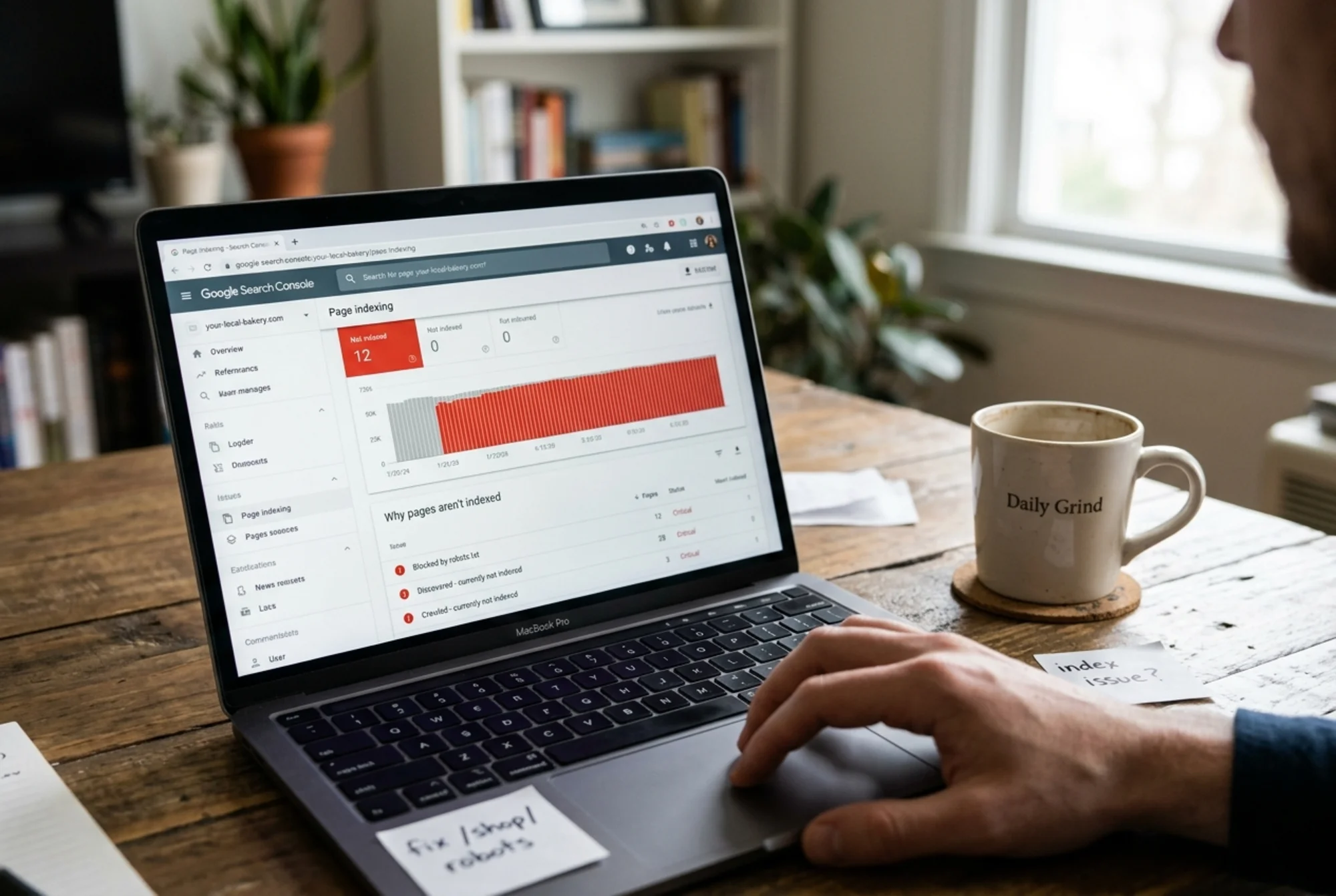
In Search Console, open Indexing → Pages. You'll see two numbers: pages indexed, and pages not indexed. Below that is a list of reasons why pages aren't indexed.
The reasons you'll most often see, and what they mean in plain English:
- Blocked by robots.txt — Your
robots.txtfile is telling Google not to crawl these. Sometimes intentional, often not. - Excluded by 'noindex' tag — A meta tag on the page is telling Google not to index it.
- Discovered – currently not indexed — Google knows the URL exists but hasn't gotten around to crawling it. Often a sign that Google doesn't think your site is important enough to spend time on yet.
- Crawled – currently not indexed — Google crawled the page and chose not to index it. Usually a quality or duplication signal.
- Page with redirect — The URL redirects to another page. Google indexes the destination, not this one.
- Not found (404) — The URL returns "page not found." Either a broken link or a deleted page.
- Soft 404 — The page returns a 200 OK status but looks empty or unhelpful to Google.
- Duplicate without user-selected canonical — Google found two or more pages with similar content and picked a different one as the primary.
Click into any reason to see the affected URLs. That's your to-fix list.
Step 4: Inspect your `robots.txt`
Type yourdomain.com/robots.txt into your browser. You should see a small text file. Look for lines like:
User-agent: *
Disallow: /
That tells every crawler to ignore your entire site. If you see this on a live site, that's an emergency.
More common patterns:
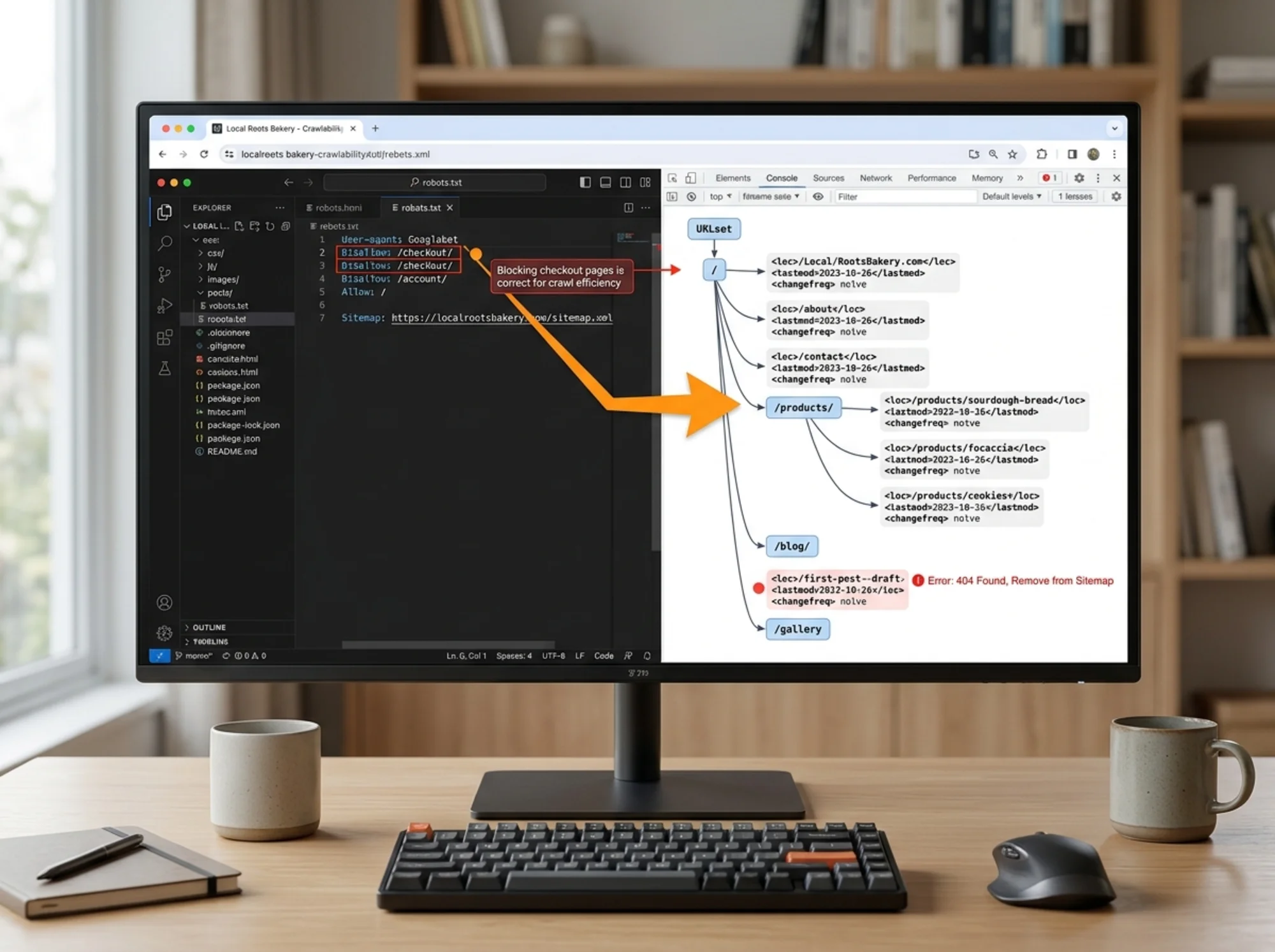
Disallow: /wp-admin/
Disallow: /cart/
Disallow: /checkout/
These are fine — you don't need Google indexing admin pages or shopping carts. The danger is when something legitimate gets caught up, like Disallow: /blog/ on a site where the blog is meant to be public.
Google's documentation on robots.txt is the authoritative reference if you're unsure what a line does.
Step 5: Check your sitemap
A sitemap is a list of your important URLs in a format Google can read. Most platforms (WordPress with Yoast or Rank Math, Shopify, Squarespace, Wix) generate one automatically at yourdomain.com/sitemap.xml or /sitemap_index.xml.
Open it. Look for:
- URLs you don't recognize (could be old or unwanted pages)
- URLs missing that should be there (your services pages, your contact page)
- URLs that 404 when you click them
Then in Search Console, go to Indexing → Sitemaps and make sure your sitemap is submitted. If it says "Couldn't fetch" or "Has errors," that's your next fix.
Step 6: Use the URL Inspection tool
In Search Console, paste any URL from your site into the search bar at the top. You'll get a report showing whether the URL is on Google, when it was last crawled, whether it's indexable, and any issues blocking indexing.
If a page should be indexed but isn't, hit Request Indexing. This doesn't guarantee Google will index it, but it pushes the page into the queue.
A walkthrough: the bakery with the invisible menu page
Here's a pattern we see often.
A small bakery launched a new website. The home page, About, and Contact all ranked fine. The Menu page — the one customers actually search for — wasn't showing up.
The owner ran the site:bakery.com check and saw 6 pages indexed out of 11. The Menu was missing.
In Search Console, the Menu URL showed "Excluded by 'noindex' tag." They opened their page builder, scrolled to SEO settings, and found a checkbox: "Hide this page from search engines." It had been ticked by default when the page was duplicated from a draft.
They unchecked it, saved, submitted the URL for indexing, and within four days the Menu page was live in Google results. Within two weeks, it was the top entry for "[bakery name] menu."
Total time to fix: 90 seconds. Total time it had been broken: four months.
That's why a crawlability audit pays off. The fixes are usually small. The cost of not finding them is large.
A quick crawlability checklist
Run through this once a quarter:
- [ ]
site:yourdomain.comreturns roughly the number of pages you expect - [ ]
yourdomain.com/robots.txtdoesn't block anything important - [ ] Your XML sitemap exists, is current, and is submitted in Search Console
- [ ] Search Console Pages report shows no surprise "Not indexed" categories
- [ ] Every important page (home, services, contact, top blog posts) is indexed when checked individually
- [ ] No
noindextags on pages that should be public - [ ] No important pages are orphans — they all have at least one internal link pointing to them
- [ ] Canonical tags point to the version of each page you want indexed
What about "crawl budget"?
You've probably read about crawl budget — the idea that Google only spends a limited amount of time on your site. For most small business sites (under a few thousand pages), this isn't a concern. Google will happily crawl everything.
Crawl budget matters for huge e-commerce catalogs, news sites, and marketplaces. If that's not you, focus on the basics in this guide instead.
When to fix it yourself vs. call someone
Most of what's in this guide, you can do yourself in an afternoon. Specifically:
- Checking Search Console
- Reading your robots.txt
- Looking at your sitemap
- Removing accidental
noindextags in your CMS
Call a developer if:
- Your robots.txt blocks the whole site and you don't know why
- Your sitemap is broken at the server level
- Your CMS is generating duplicate URLs you can't control
- You're seeing thousands of "Crawled – currently not indexed" pages
The bottom line
Crawlability problems are usually obvious once you know where to look, and most of them are quick to fix. They're also easy to miss if you're not looking. Themes change defaults. Plugins update. Developers leave staging settings behind. A site that was perfectly indexed six months ago can quietly drift into trouble.
A quarterly crawlability check is one of the highest-leverage habits a small business operator can build.
Run a free crawlability audit
If you'd rather not click through Search Console reports yourself, run a free website audit with FreeSiteAudit. We'll scan your site, check your robots.txt and sitemap, flag pages Google may be having trouble with, and give you a plain-English report of what to fix first — no signup, no credit card.
You can also browse our common crawl fixes, check our guide to sitemap errors, or see how we tailor audits for small business sites.
Sources
- Google Search Central: Creating helpful, reliable, people-first content
- Google Search Central: Sitemaps overview
- Google Search Central: Introduction to robots.txt
Check your website for free
Get an instant score and your top 3 critical issues in under 60 seconds.
Get Your Free Audit →