Duplicate Titles and Meta Descriptions: A Fast Cleanup Plan
Find and fix duplicate title tags and meta descriptions that confuse search engines and cost you clicks. A step-by-step cleanup plan for any business site.
# Duplicate Titles and Meta Descriptions: A Fast Cleanup Plan
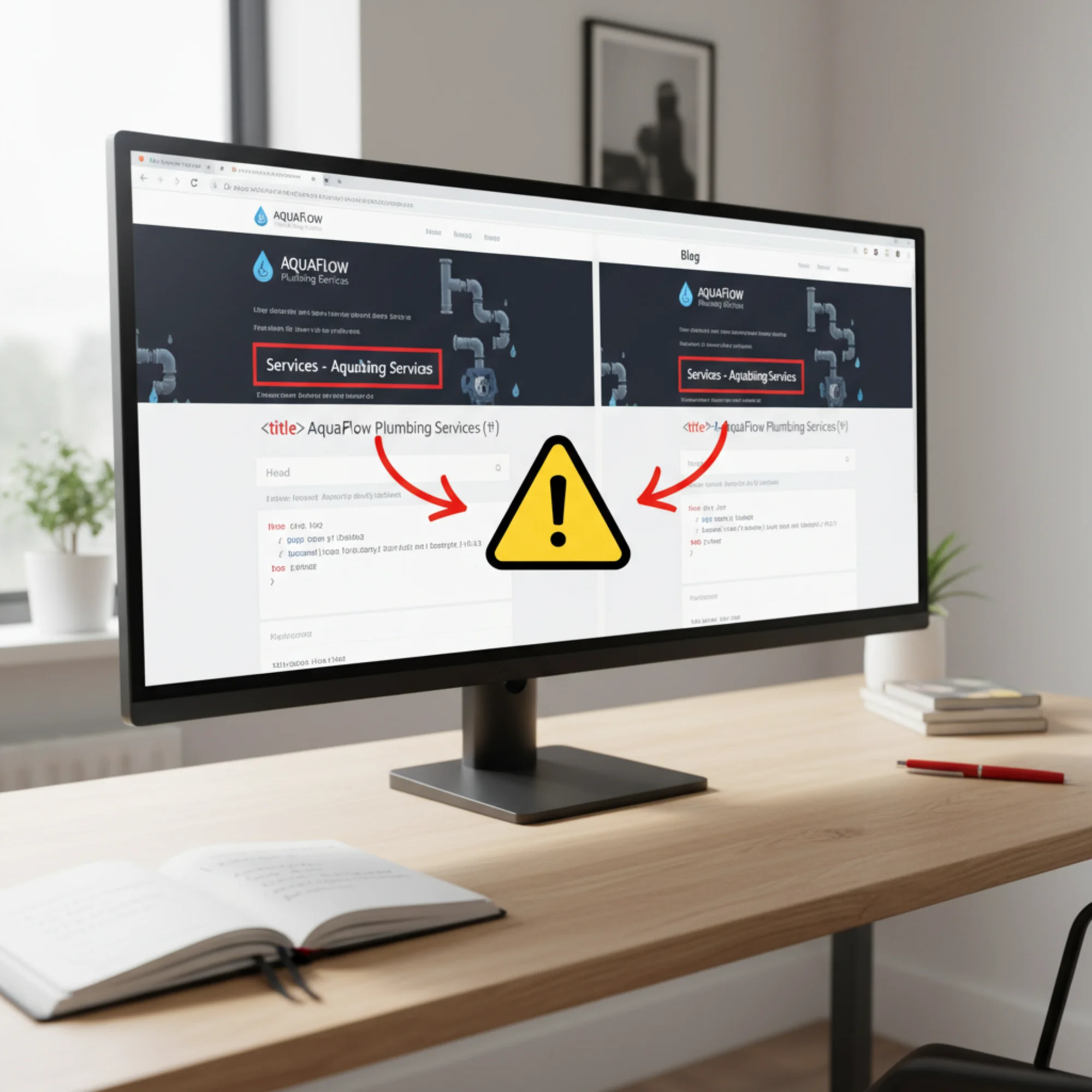
Every page on your website has a title tag and a meta description. They appear in browser tabs, search results, and social media previews. When two or more pages share the same title or description, search engines struggle to determine which page to show. Visitors cannot tell which link to click. And your traffic takes a quiet, steady hit that most site owners never notice.
This is one of the most common issues we see when people run their first site audit. It is also one of the fastest to fix.
This guide walks you through finding every duplicate, prioritizing what to change, writing better tags, and verifying your work — all without touching code or hiring a developer.
Why Duplicate Titles and Descriptions Matter
Search engines use your title tag as a primary signal for understanding what a page is about. According to Google's documentation on title links, the title tag is one of the main ways Google determines the relevance of a page. When two pages share the same title, Google has to guess which one matters more. It often guesses wrong.
Meta descriptions do not directly affect rankings, but they heavily influence whether someone clicks your listing. A unique, specific description acts like a small advertisement for that page. When every page shows the same description, none of them stand out and your click-through rate drops.
Here is what happens in practice:
- Google may rewrite your titles. When Google detects duplicate or unhelpful titles, it often generates its own version from page content. These auto-generated titles are rarely better than what you would write.
- Pages compete against each other. Two pages with the same title targeting the same query split your ranking power. Instead of one strong result, you get two weak ones.
- Visitors lose trust. If someone sees three links from your site with the same title, your business looks careless or spammy.
A Real-World Example
Imagine you run a plumbing company. You have separate pages for drain cleaning, water heater repair, and emergency plumbing. But every page has the title: "ABC Plumbing — Professional Plumbing Services." And every page has the same description: "ABC Plumbing provides professional plumbing services in the greater metro area. Call today for a free estimate."
When someone searches "drain cleaning near me," Google sees three pages that all claim to be about the same generic thing. It might show your homepage instead of your drain cleaning page. Or a competitor with a specific title like "Drain Cleaning — Same Day Appointments" wins the click instead.
This is not hypothetical. This pattern appears on the majority of small business sites we audit.
Step 1: Find Every Duplicate
Before you fix anything, you need a complete list of which pages share titles and which share descriptions.
The Fast Way: Run an Automated Audit
The quickest approach is a site audit tool that crawls your pages and flags duplicates automatically. When you run a free site audit with FreeSiteAudit, duplicate titles and descriptions appear as specific issues in your report, grouped so you can see exactly which pages are affected.
The Manual Way: Use a Spreadsheet
If you have a small site with fewer than 20 pages:
- Open every page on your site.
- Right-click and select "View Page Source."
- Search for
</code> to find the title tag.</li><li>Search for <code class="bg-surface-panel px-1.5 py-0.5 rounded text-sm text-accent-strong"><meta name="description"</code> to find the meta description.</li><li>Record the URL, title, and description in a spreadsheet.</li><li>Sort by title to spot duplicates, then sort by description.</li></ol><p class="text-text-secondary leading-relaxed my-4">This works for small sites, but it misses pages you might forget about — old landing pages, tag archives, pagination pages, or test pages that are still live.</p><h3 class="text-xl font-semibold text-text-primary mt-8 mb-3">What Counts as a Duplicate</h3><p class="text-text-secondary leading-relaxed my-4">Two titles do not need to be identical to cause problems:</p><ul class="list-disc pl-5 space-y-1.5 my-4 text-text-secondary"><li><strong class="text-text-primary">Exact duplicates:</strong> "About Us" and "About Us."</li><li><strong class="text-text-primary">Near-duplicates:</strong> "About Us | ABC Plumbing" and "About Us — ABC Plumbing" — same effective title, different punctuation.</li><li><strong class="text-text-primary">Template defaults:</strong> Every page showing "My WordPress Site — Just another WordPress site."</li><li><strong class="text-text-primary">Missing titles:</strong> Pages with no title tag at all. Search engines treat these similarly to duplicates because they generate the same kind of generic replacement.</li></ul><figure class="my-8"><img src="/blog-images/blog-duplicate-titles-and-meta-descriptions-a-fast-cleanup-plan-2-a-google-search-results-page-with-three-listings-from-the-sa.webp" alt="A Google search results page with three listings from the same plumbing company all showing the same generic title and meta description, a business owner frowning at the results on a laptop screen" class="w-full rounded-lg border border-border" loading="lazy"/><figcaption class="text-sm text-text-muted italic mt-2 text-center">A Google search results page with three listings from the same plumbing company all showing the same generic title and meta description, a business owner frowning at the results on a laptop screen</figcaption></figure><h2 class="text-2xl font-bold text-text-primary mt-10 mb-4">Step 2: Prioritize Which Pages to Fix First</h2><p class="text-text-secondary leading-relaxed my-4">You do not need to fix everything at once. Focus on what drives the most value.</p><h3 class="text-xl font-semibold text-text-primary mt-8 mb-3">High Priority</h3><ul class="list-disc pl-5 space-y-1.5 my-4 text-text-secondary"><li><strong class="text-text-primary">Your homepage.</strong> If it shares a title with any other page, fix it immediately.</li><li><strong class="text-text-primary">Service or product pages.</strong> These should be bringing in search traffic. Each one needs a distinct title.</li><li><strong class="text-text-primary">Location pages.</strong> If you serve multiple areas, each location page must have a unique title that includes the city or neighborhood.</li><li><strong class="text-text-primary">Pages that already get traffic.</strong> Check your analytics. Any page receiving search visits deserves a unique title and description.</li></ul><h3 class="text-xl font-semibold text-text-primary mt-8 mb-3">Medium Priority</h3><ul class="list-disc pl-5 space-y-1.5 my-4 text-text-secondary"><li><strong class="text-text-primary">Blog posts.</strong> Duplicate titles here usually mean your CMS template is overriding post titles. Fix the template once and all posts benefit.</li><li><strong class="text-text-primary">Category or tag pages.</strong> These often auto-generate titles like "Category Archives — Site Name" for every category.</li></ul><h3 class="text-xl font-semibold text-text-primary mt-8 mb-3">Lower Priority</h3><ul class="list-disc pl-5 space-y-1.5 my-4 text-text-secondary"><li><strong class="text-text-primary">Legal pages</strong> (privacy policy, terms of service). These rarely rank for anything, but should still have unique titles.</li><li><strong class="text-text-primary">Utility pages</strong> (login, cart, thank-you). Fix when you get to them.</li></ul><h2 class="text-2xl font-bold text-text-primary mt-10 mb-4">Step 3: Write Better Titles and Descriptions</h2><p class="text-text-secondary leading-relaxed my-4">For each duplicate, write a unique title and description that accurately represents what that specific page covers.</p><figure class="my-8"><img src="/blog-images/blog-duplicate-titles-and-meta-descriptions-a-fast-cleanup-plan-3-a-color-coded-spreadsheet-audit-with-columns-for-page-url-ol.webp" alt="A color-coded spreadsheet audit with columns for page URL, old title, old description, and rewritten replacement, several rows highlighted green for completed fixes and yellow for in-progress edits" class="w-full rounded-lg border border-border" loading="lazy"/><figcaption class="text-sm text-text-muted italic mt-2 text-center">A color-coded spreadsheet audit with columns for page URL, old title, old description, and rewritten replacement, several rows highlighted green for completed fixes and yellow for in-progress edits</figcaption></figure><h3 class="text-xl font-semibold text-text-primary mt-8 mb-3">Title Tag Guidelines</h3><p class="text-text-secondary leading-relaxed my-4"><strong class="text-text-primary">Keep it under 60 characters.</strong> Google typically displays the first 50–60 characters. Anything longer gets truncated.</p><p class="text-text-secondary leading-relaxed my-4"><strong class="text-text-primary">Put important words first.</strong> "Drain Cleaning in Portland — ABC Plumbing" beats "ABC Plumbing — Drain Cleaning in Portland." People scan left to right. So does Google.</p><p class="text-text-secondary leading-relaxed my-4"><strong class="text-text-primary">Be specific.</strong> Every title should answer: "What will I find on this page?" If two pages give the same answer, your titles are not specific enough.</p><p class="text-text-secondary leading-relaxed my-4"><strong class="text-text-primary">Include your business name, but do not lead with it.</strong> Unless someone is searching for your brand, the service or topic should come first.</p><p class="text-text-secondary leading-relaxed my-4"><strong class="text-text-primary">Skip keyword stuffing.</strong> "Plumber | Plumbing | Plumbing Services | Best Plumber" is not a title. It is a spam signal.</p><h3 class="text-xl font-semibold text-text-primary mt-8 mb-3">Title Tag Examples</h3><p class="text-text-secondary leading-relaxed my-4">Returning to the plumbing company:</p><div class="my-6 overflow-x-auto rounded-lg border border-border"><table class="w-full text-sm"><thead><tr class="bg-surface-panel/60"><th class="px-4 py-3 text-left font-semibold text-text-primary border-b border-border">Page</th><th class="px-4 py-3 text-left font-semibold text-text-primary border-b border-border">Before</th><th class="px-4 py-3 text-left font-semibold text-text-primary border-b border-border">After</th></tr></thead><tbody><tr class=""><td class="px-4 py-3 text-text-secondary border-b border-border/50">Homepage</td><td class="px-4 py-3 text-text-secondary border-b border-border/50">ABC Plumbing — Professional Plumbing Services</td><td class="px-4 py-3 text-text-secondary border-b border-border/50">ABC Plumbing — Licensed Plumber in Portland, OR</td></tr><tr class="bg-surface-panel/30"><td class="px-4 py-3 text-text-secondary border-b border-border/50">Drain Cleaning</td><td class="px-4 py-3 text-text-secondary border-b border-border/50">ABC Plumbing — Professional Plumbing Services</td><td class="px-4 py-3 text-text-secondary border-b border-border/50">Drain Cleaning — Same Day Service | ABC Plumbing</td></tr><tr class=""><td class="px-4 py-3 text-text-secondary border-b border-border/50">Water Heater</td><td class="px-4 py-3 text-text-secondary border-b border-border/50">ABC Plumbing — Professional Plumbing Services</td><td class="px-4 py-3 text-text-secondary border-b border-border/50">Water Heater Repair & Installation | ABC Plumbing</td></tr><tr class="bg-surface-panel/30"><td class="px-4 py-3 text-text-secondary border-b border-border/50">Emergency</td><td class="px-4 py-3 text-text-secondary border-b border-border/50">ABC Plumbing — Professional Plumbing Services</td><td class="px-4 py-3 text-text-secondary border-b border-border/50">24/7 Emergency Plumber in Portland | ABC Plumbing</td></tr></tbody></table></div><p class="text-text-secondary leading-relaxed my-4">Each title is now unique. Each one tells Google and visitors exactly what the page covers.</p><h3 class="text-xl font-semibold text-text-primary mt-8 mb-3">Meta Description Guidelines</h3><p class="text-text-secondary leading-relaxed my-4"><strong class="text-text-primary">Keep it between 120 and 155 characters.</strong> This is the sweet spot for search result display.</p><p class="text-text-secondary leading-relaxed my-4"><strong class="text-text-primary">Include a reason to click.</strong> What makes this page worth visiting? A specific detail, a benefit, or a call to action.</p><p class="text-text-secondary leading-relaxed my-4"><strong class="text-text-primary">Do not repeat your title.</strong> The description should add information the title does not cover.</p><p class="text-text-secondary leading-relaxed my-4"><strong class="text-text-primary">Write for a real person.</strong> You are talking to someone scanning 10 search results and deciding which to click.</p><h3 class="text-xl font-semibold text-text-primary mt-8 mb-3">Meta Description Examples</h3><div class="my-6 overflow-x-auto rounded-lg border border-border"><table class="w-full text-sm"><thead><tr class="bg-surface-panel/60"><th class="px-4 py-3 text-left font-semibold text-text-primary border-b border-border">Page</th><th class="px-4 py-3 text-left font-semibold text-text-primary border-b border-border">Before</th><th class="px-4 py-3 text-left font-semibold text-text-primary border-b border-border">After</th></tr></thead><tbody><tr class=""><td class="px-4 py-3 text-text-secondary border-b border-border/50">Drain Cleaning</td><td class="px-4 py-3 text-text-secondary border-b border-border/50">ABC Plumbing provides professional plumbing services in the greater metro area. Call today for a free estimate.</td><td class="px-4 py-3 text-text-secondary border-b border-border/50">Slow drains? Our Portland team clears clogs the same day. Flat-rate pricing, no overtime charges. Book online or call now.</td></tr><tr class="bg-surface-panel/30"><td class="px-4 py-3 text-text-secondary border-b border-border/50">Water Heater</td><td class="px-4 py-3 text-text-secondary border-b border-border/50">ABC Plumbing provides professional plumbing services in the greater metro area. Call today for a free estimate.</td><td class="px-4 py-3 text-text-secondary border-b border-border/50">Tank or tankless water heater repair and installation in Portland. Licensed, insured, and usually at your door within 2 hours.</td></tr><tr class=""><td class="px-4 py-3 text-text-secondary border-b border-border/50">Emergency</td><td class="px-4 py-3 text-text-secondary border-b border-border/50">ABC Plumbing provides professional plumbing services in the greater metro area. Call today for a free estimate.</td><td class="px-4 py-3 text-text-secondary border-b border-border/50">Burst pipes or flooding? Our emergency plumbers are available 24/7 in Portland. Average response time: 45 minutes.</td></tr></tbody></table></div><p class="text-text-secondary leading-relaxed my-4">Each description gives the visitor a specific reason to click that listing over the others.</p><h2 class="text-2xl font-bold text-text-primary mt-10 mb-4">Step 4: Make the Changes</h2><p class="text-text-secondary leading-relaxed my-4">How you update titles and descriptions depends on your website platform.</p><h3 class="text-xl font-semibold text-text-primary mt-8 mb-3">WordPress</h3><ol class="list-decimal pl-5 space-y-1.5 my-4 text-text-secondary"><li>Install Yoast SEO or Rank Math if you do not already have one.</li><li>Open each page or post in the editor.</li><li>Scroll to the SEO section.</li><li>Enter your new title in the "SEO Title" field and your description in the "Meta Description" field.</li><li>Save the page.</li></ol><p class="text-text-secondary leading-relaxed my-4">For category and tag archives, go to Posts → Categories (or Tags), click Edit, and fill in the SEO fields.</p><h3 class="text-xl font-semibold text-text-primary mt-8 mb-3">Squarespace</h3><ol class="list-decimal pl-5 space-y-1.5 my-4 text-text-secondary"><li>Open the page in the editor.</li><li>Click the gear icon for page settings.</li><li>Go to the SEO tab.</li><li>Enter your title and description.</li><li>Save.</li></ol><h3 class="text-xl font-semibold text-text-primary mt-8 mb-3">Shopify</h3><ol class="list-decimal pl-5 space-y-1.5 my-4 text-text-secondary"><li>Go to the page, product, or collection in your admin panel.</li><li>Scroll to the bottom and click "Edit website SEO."</li><li>Update the page title and meta description.</li><li>Save.</li></ol><h3 class="text-xl font-semibold text-text-primary mt-8 mb-3">Wix</h3><ol class="list-decimal pl-5 space-y-1.5 my-4 text-text-secondary"><li>Open the page in the editor.</li><li>Click "Page SEO" in the left panel (or go to Site Pages → Page Settings → SEO).</li><li>Enter your custom title and description.</li><li>Save and publish.</li></ol><h3 class="text-xl font-semibold text-text-primary mt-8 mb-3">Custom-Built Sites</h3><p class="text-text-secondary leading-relaxed my-4">Edit the <code class="bg-surface-panel px-1.5 py-0.5 rounded text-sm text-accent-strong"><title></code> tag and <code class="bg-surface-panel px-1.5 py-0.5 rounded text-sm text-accent-strong"><meta name="description" content="..."></code> tag directly in each page's HTML. If your site uses a templating system, make sure individual pages can override the default template values.</p><h2 class="text-2xl font-bold text-text-primary mt-10 mb-4">Step 5: Verify Your Fixes</h2><p class="text-text-secondary leading-relaxed my-4">After making changes, check your work.</p><h3 class="text-xl font-semibold text-text-primary mt-8 mb-3">Immediate Checks</h3><ul class="list-disc pl-5 space-y-1.5 my-4 text-text-secondary"><li><strong class="text-text-primary">View page source</strong> on each updated page to confirm the new tags appear in the HTML.</li><li><strong class="text-text-primary">Check browser tabs.</strong> Open several pages in separate tabs. Every tab should show a different title.</li><li><strong class="text-text-primary">Run your audit again.</strong> Use <a href="/tools/site-audit" class="text-accent hover:text-accent-strong underline">FreeSiteAudit</a> to re-crawl your site and confirm the duplicates are gone.</li></ul><h3 class="text-xl font-semibold text-text-primary mt-8 mb-3">Follow-Up Checks (1–2 Weeks Later)</h3><ul class="list-disc pl-5 space-y-1.5 my-4 text-text-secondary"><li><strong class="text-text-primary">Google Search Console.</strong> Check the Performance report for shifts in impressions and clicks as Google re-indexes your pages.</li><li><strong class="text-text-primary">Search for your site directly.</strong> Type <code class="bg-surface-panel px-1.5 py-0.5 rounded text-sm text-accent-strong">site:yourdomain.com</code> into Google and review the titles and descriptions shown. Google can take days or weeks to reflect changes.</li></ul><figure class="my-8"><img src="/blog-images/blog-duplicate-titles-and-meta-descriptions-a-fast-cleanup-plan-4-a-side-by-side-before-and-after-google-search-results-compar.webp" alt="A side-by-side before-and-after Google search results comparison for a plumbing site, the left showing identical grey duplicate listings, the right showing distinct keyword-rich titles with improved click-through rate arrows pointing up" class="w-full rounded-lg border border-border" loading="lazy"/><figcaption class="text-sm text-text-muted italic mt-2 text-center">A side-by-side before-and-after Google search results comparison for a plumbing site, the left showing identical grey duplicate listings, the right showing distinct keyword-rich titles with improved click-through rate arrows pointing up</figcaption></figure><h2 class="text-2xl font-bold text-text-primary mt-10 mb-4">Common Mistakes to Avoid</h2><p class="text-text-secondary leading-relaxed my-4"><strong class="text-text-primary">Do not use the same formula for every page.</strong> Titles like "[Keyword] — [City] | [Business Name]" on every page technically avoids exact duplicates but still looks templated and generic to both users and search engines.</p><p class="text-text-secondary leading-relaxed my-4"><strong class="text-text-primary">Do not ignore pagination.</strong> If your blog has Page 1, Page 2, and Page 3 of the same category, each paginated page often carries the same title. Add "— Page 2" or use rel=next/prev markup.</p><p class="text-text-secondary leading-relaxed my-4"><strong class="text-text-primary">Do not forget auto-generated pages.</strong> Many CMS platforms create author archives, date archives, and internal search results pages — all of which can have duplicate titles.</p><p class="text-text-secondary leading-relaxed my-4"><strong class="text-text-primary">Do not change URLs when you change titles.</strong> Updating a title tag does not require changing the page URL. Changing URLs creates redirects you have to manage. Just change the title and description.</p><p class="text-text-secondary leading-relaxed my-4"><strong class="text-text-primary">Do not write descriptions longer than 155 characters.</strong> Google will truncate them, and the cutoff often lands mid-sentence.</p><h2 class="text-2xl font-bold text-text-primary mt-10 mb-4">Start With a Free Audit</h2><p class="text-text-secondary leading-relaxed my-4">If you are not sure whether your site has duplicate titles or descriptions, the fastest way to find out is to run a scan. <strong class="text-text-primary"><a href="/tools/site-audit" class="text-accent hover:text-accent-strong underline">Run a free audit with FreeSiteAudit</a></strong> and you will get a clear report showing every duplicate, every missing tag, and exactly which pages need attention. It takes less than a minute, and you will know exactly where to start.</p><hr class="my-8 border-border"/><h2 class="text-2xl font-bold text-text-primary mt-10 mb-4">Sources</h2><ul class="list-disc pl-5 space-y-1.5 my-4 text-text-secondary"><li>Google Search Central — <a href="https://developers.google.com/search/docs/fundamentals/creating-helpful-content" class="text-accent hover:text-accent-strong underline">Creating helpful, reliable, people-first content</a></li><li>Google Search Central — <a href="https://developers.google.com/search/docs/appearance/title-link" class="text-accent hover:text-accent-strong underline">How Google generates title links</a></li></ul></div><div class="mt-10 border-t border-border pt-8 space-y-6"><div><h3 class="text-sm font-semibold text-text-muted uppercase tracking-wider mb-3">Related Tools</h3><div class="flex flex-wrap gap-2"><a class="inline-flex items-center gap-1.5 bg-surface-panel/60 hover:bg-surface-panel text-sm text-text-secondary hover:text-accent px-3 py-1.5 rounded-lg transition-colors" href="/tools/meta-title-checker">Meta Title Checker<!-- --> →</a><a class="inline-flex items-center gap-1.5 bg-surface-panel/60 hover:bg-surface-panel text-sm text-text-secondary hover:text-accent px-3 py-1.5 rounded-lg transition-colors" href="/tools/meta-description-checker">Meta Description Checker<!-- --> →</a></div></div><div><h3 class="text-sm font-semibold text-text-muted uppercase tracking-wider mb-3">Related Fixes</h3><div class="flex flex-wrap gap-2"><a class="inline-flex items-center gap-1.5 bg-surface-panel/60 hover:bg-surface-panel text-sm text-text-secondary hover:text-accent px-3 py-1.5 rounded-lg transition-colors" href="/fixes/seo-title-001">SEO-TITLE-001<!-- --> →</a></div></div></div><div class="mt-12"></div><div class="mt-6 bg-gradient-to-r from-accent-subtle to-accent-subtle/50 border border-accent-border rounded-xl p-8 text-center"><h2 class="text-2xl font-bold mb-2">Check your website for free</h2><p class="text-text-muted mb-6">Get an instant score and your top 3 critical issues in under 60 seconds.</p><a class="inline-block bg-accent hover:bg-accent-strong text-text-inverse font-semibold px-10 py-3.5 rounded-lg transition-colors" href="/#free-audit">Get Your Free Audit →</a></div></article><footer class="border-t border-border mt-auto"><nav aria-label="Footer navigation" class="max-w-6xl mx-auto px-4 py-8 sm:py-12"><div class="grid grid-cols-2 md:grid-cols-3 gap-8 lg:flex lg:flex-row lg:flex-wrap lg:justify-between lg:gap-x-6"><div class="col-span-2 md:col-span-1 lg:max-w-[14rem]"><a class="text-lg font-bold tracking-tight" href="/"><span class="text-accent">Free</span>SiteAudit</a><p class="text-text-muted text-sm mt-3 leading-relaxed">Website audits for business owners and agencies. Find issues, fix them, grow.</p></div><div><h4 class="text-sm font-semibold text-text-secondary mb-3 lg:whitespace-nowrap">Solutions</h4><ul class="space-y-2"><li><a class="text-sm text-text-muted hover:text-text-secondary transition-colors lg:whitespace-nowrap" href="/#free-audit">Free Website Audit</a></li><li><a class="text-sm text-text-muted hover:text-text-secondary transition-colors lg:whitespace-nowrap" href="/agencies">For Agencies</a></li><li><a class="text-sm text-text-muted hover:text-text-secondary transition-colors lg:whitespace-nowrap" href="/pricing">Pricing</a></li><li><a class="text-sm text-text-muted hover:text-text-secondary transition-colors lg:whitespace-nowrap" href="/demo">Demo Report</a></li><li><a class="text-sm text-text-muted hover:text-text-secondary transition-colors lg:whitespace-nowrap" href="/dashboard">Dashboard</a></li></ul></div><div><h4 class="text-sm font-semibold text-text-secondary mb-3 lg:whitespace-nowrap">Industries</h4><ul class="space-y-2"><li><a class="text-sm text-text-muted hover:text-text-secondary transition-colors lg:whitespace-nowrap" href="/industries/saas">SaaS Apps</a></li><li><a class="text-sm text-text-muted hover:text-text-secondary transition-colors lg:whitespace-nowrap" href="/industries/dev-portfolios">Dev Portfolios</a></li><li><a class="text-sm text-text-muted hover:text-text-secondary transition-colors lg:whitespace-nowrap" href="/industries/blogs">Blogs & Content</a></li><li><a class="text-sm text-text-muted hover:text-text-secondary transition-colors lg:whitespace-nowrap" href="/industries/courses">Course Sites</a></li><li><a class="text-sm text-text-muted hover:text-text-secondary transition-colors lg:whitespace-nowrap" href="/industries/agency-sites">Agency Sites</a></li><li><a class="text-sm text-text-muted hover:text-text-secondary transition-colors lg:whitespace-nowrap" href="/industries">All Industries</a></li></ul></div><div><h4 class="text-sm font-semibold text-text-secondary mb-3 lg:whitespace-nowrap">Compare & Results</h4><ul class="space-y-2"><li><a class="text-sm text-text-muted hover:text-text-secondary transition-colors lg:whitespace-nowrap" href="/blog/freesiteaudit-vs-semrush">vs Semrush</a></li><li><a class="text-sm text-text-muted hover:text-text-secondary transition-colors lg:whitespace-nowrap" href="/blog/freesiteaudit-vs-seoptimer-vs-seo-site-checkup">vs SEOptimer</a></li><li><a class="text-sm text-text-muted hover:text-text-secondary transition-colors lg:whitespace-nowrap" href="/case-studies">Success Stories</a></li><li><a class="text-sm text-text-muted hover:text-text-secondary transition-colors lg:whitespace-nowrap" href="https://findbackflowtesters.com">FindBackflowTesters.com</a></li><li><a class="text-sm text-text-muted hover:text-text-secondary transition-colors lg:whitespace-nowrap" href="https://freesiteaudit.com">FreeSiteAudit.com</a></li></ul></div><div><h4 class="text-sm font-semibold text-text-secondary mb-3 lg:whitespace-nowrap">Resources</h4><ul class="space-y-2"><li><a class="text-sm text-text-muted hover:text-text-secondary transition-colors lg:whitespace-nowrap" href="/blog">Blog</a></li><li><a class="text-sm text-text-muted hover:text-text-secondary transition-colors lg:whitespace-nowrap" href="/tools">Free Tools</a></li><li><a class="text-sm text-text-muted hover:text-text-secondary transition-colors lg:whitespace-nowrap" href="/fixes">Fix Library</a></li><li><a class="text-sm text-text-muted hover:text-text-secondary transition-colors lg:whitespace-nowrap" href="/about">About</a></li><li><a class="text-sm text-text-muted hover:text-text-secondary transition-colors lg:whitespace-nowrap" href="mailto:hello@freesiteaudit.com">Contact</a></li></ul></div><div><h4 class="text-sm font-semibold text-text-secondary mb-3 lg:whitespace-nowrap">Legal</h4><ul class="space-y-2"><li><a class="text-sm text-text-muted hover:text-text-secondary transition-colors lg:whitespace-nowrap" href="/privacy">Privacy Policy</a></li><li><a class="text-sm text-text-muted hover:text-text-secondary transition-colors lg:whitespace-nowrap" href="/terms">Terms of Service</a></li></ul></div><div><h4 class="text-sm font-semibold text-text-secondary mb-3 lg:whitespace-nowrap">Platforms</h4><ul class="space-y-2"><li><a class="text-sm text-text-muted hover:text-text-secondary transition-colors lg:whitespace-nowrap" href="/platforms/wordpress">WordPress</a></li><li><a class="text-sm text-text-muted hover:text-text-secondary transition-colors lg:whitespace-nowrap" href="/platforms/shopify">Shopify</a></li><li><a class="text-sm text-text-muted hover:text-text-secondary transition-colors lg:whitespace-nowrap" href="/platforms/webflow">Webflow</a></li><li><a class="text-sm text-text-muted hover:text-text-secondary transition-colors lg:whitespace-nowrap" href="/platforms/wix">Wix</a></li><li><a class="text-sm text-text-muted hover:text-text-secondary transition-colors lg:whitespace-nowrap" href="/platforms/squarespace">Squarespace</a></li></ul></div></div><div class="border-t border-border-subtle mt-10 pt-6 flex flex-col sm:flex-row items-center justify-between gap-3 text-xs text-text-muted"><span>© <!-- -->2026<!-- --> FreeSiteAudit. All rights reserved.</span><div class="flex items-center gap-4"><a class="hover:text-text-secondary transition-colors" href="/privacy">Privacy</a><a class="hover:text-text-secondary transition-colors" href="/terms">Terms</a></div></div></nav></footer></div><!--$--><!--/$--></main><button aria-label="Contact us" class="fixed right-4 z-40 flex items-center gap-2 rounded-full bg-accent text-accent-foreground font-semibold text-sm h-12 px-5 shadow-accent-glow hover:bg-accent-strong hover:shadow-accent-glow-lg transition-all duration-200 bottom-[calc(1rem+env(safe-area-inset-bottom))] sm:bottom-6"><svg class="w-5 h-5" fill="none" viewBox="0 0 24 24" stroke="currentColor" stroke-width="2"><path stroke-linecap="round" stroke-linejoin="round" d="M8.625 12a.375.375 0 11-.75 0 .375.375 0 01.75 0zm4.125 0a.375.375 0 11-.75 0 .375.375 0 01.75 0zm4.125 0a.375.375 0 11-.75 0 .375.375 0 01.75 0zM2.25 12.76c0 1.6 1.123 2.994 2.707 3.227 1.087.16 2.185.283 3.293.369V21l4.076-4.076a1.526 1.526 0 011.037-.443 48.282 48.282 0 005.68-.494c1.584-.233 2.707-1.626 2.707-3.228V6.741c0-1.602-1.123-2.995-2.707-3.228A48.394 48.394 0 0012 3c-2.392 0-4.744.175-7.043.513C3.373 3.746 2.25 5.14 2.25 6.741v6.018z"></path></svg><span class="hidden sm:inline">Contact Us</span></button></div><button aria-label="Switch to light mode" aria-pressed="false" class="fixed right-4 z-40 flex items-center justify-center rounded-full w-10 h-10 border border-border bg-surface-elevated text-text-secondary hover:text-text-primary hover:bg-surface-panel shadow-panel-sm transition-all duration-200 bottom-[calc(1rem+env(safe-area-inset-bottom)+3.75rem)] sm:bottom-[5.25rem]"><svg class="w-[18px] h-[18px]" fill="none" viewBox="0 0 24 24" stroke="currentColor" stroke-width="2"><path stroke-linecap="round" stroke-linejoin="round" d="M12 3v2.25m6.364.386l-1.591 1.591M21 12h-2.25m-.386 6.364l-1.591-1.591M12 18.75V21m-4.773-4.227l-1.591 1.591M5.25 12H3m4.227-4.773L5.636 5.636M15.75 12a3.75 3.75 0 11-7.5 0 3.75 3.75 0 017.5 0z"></path></svg></button><script src="/_next/static/chunks/webpack-092588108e816234.js" id="_R_" async=""></script><script>(self.__next_f=self.__next_f||[]).push([0])</script><script>self.__next_f.push([1,"1:\"$Sreact.fragment\"\n8:I[57150,[],\"\"]\n:HL[\"/_next/static/media/4473ecc91f70f139-s.p.woff\",\"font\",{\"crossOrigin\":\"\",\"type\":\"font/woff\"}]\n:HL[\"/_next/static/media/463dafcda517f24f-s.p.woff\",\"font\",{\"crossOrigin\":\"\",\"type\":\"font/woff\"}]\n:HL[\"/_next/static/css/ce06d03cd29772c1.css\",\"style\"]\n:HL[\"/_next/static/css/5adad2ac1ae9f57d.css\",\"style\"]\n2:Tbac,"])</script><script>self.__next_f.push([1,"{\"@context\":\"https://schema.org\",\"@type\":\"FAQPage\",\"mainEntity\":[{\"@type\":\"Question\",\"name\":\"Is the free audit really free?\",\"acceptedAnswer\":{\"@type\":\"Answer\",\"text\":\"Yes, completely free. Just enter your URL — no account, no email, no credit card. You get your overall score and top issues instantly. Want more? Create a free account to save your report and get 2 pro scan credits.\"}},{\"@type\":\"Question\",\"name\":\"How long until I get my report?\",\"acceptedAnswer\":{\"@type\":\"Answer\",\"text\":\"The Quick Scan is typically under 60 seconds. Paid reports are generated and emailed within 2–3 minutes of payment.\"}},{\"@type\":\"Question\",\"name\":\"What do you analyze?\",\"acceptedAnswer\":{\"@type\":\"Answer\",\"text\":\"9 categories: SEO \u0026 Search Visibility, Website Performance \u0026 Speed, Mobile Experience, Security \u0026 Privacy, Accessibility, Content \u0026 Messaging, Technical Health, Trust \u0026 Credibility, and Local SEO \u0026 Google Business. Each category is scored independently, and we provide specific evidence and fix instructions for every issue found.\"}},{\"@type\":\"Question\",\"name\":\"Do I need technical knowledge?\",\"acceptedAnswer\":{\"@type\":\"Answer\",\"text\":\"Not at all. Reports are written in plain language with prioritized, step-by-step recommendations. Each issue is labeled with who can fix it, and many are things you can do yourself without touching code.\"}},{\"@type\":\"Question\",\"name\":\"How accurate is the analysis?\",\"acceptedAnswer\":{\"@type\":\"Answer\",\"text\":\"We analyze your actual live website, checking real page speed, real HTML structure, and real content. Every finding comes with specific evidence from your site, so you can verify it yourself.\"}},{\"@type\":\"Question\",\"name\":\"Is my data safe?\",\"acceptedAnswer\":{\"@type\":\"Answer\",\"text\":\"Absolutely. We only use your email to deliver your report. No spam, no sharing with third parties. We analyze publicly accessible pages (the same thing Google sees). We never store passwords, we don't access admin panels, and we never sell your data. All connections are encrypted with 256-bit SSL. See our Privacy Policy for full details.\"}},{\"@type\":\"Question\",\"name\":\"Can I see a sample report before buying?\",\"acceptedAnswer\":{\"@type\":\"Answer\",\"text\":\"Yes! Check out our interactive demo report to see exactly what a full audit looks like, with real findings, evidence, and fix instructions you can explore.\"}},{\"@type\":\"Question\",\"name\":\"How do I cancel my subscription?\",\"acceptedAnswer\":{\"@type\":\"Answer\",\"text\":\"You can cancel anytime from your dashboard. Just click \\\"Manage Subscription\\\" to open the billing portal. Your audit access continues until the end of your current billing period.\"}},{\"@type\":\"Question\",\"name\":\"Who built FreeSiteAudit?\",\"acceptedAnswer\":{\"@type\":\"Answer\",\"text\":\"FreeSiteAudit was built by web professionals who wanted to make professional-grade website audits accessible to every business owner. We combined real-world SEO and web development experience with automation to deliver clear, actionable reports.\"}}]}"])</script><script>self.__next_f.push([1,"0:{\"P\":null,\"b\":\"-9an3myectMknnFpEO_Qj\",\"p\":\"\",\"c\":[\"\",\"blog\",\"duplicate-titles-and-meta-descriptions-a-fast-cleanup-plan\"],\"i\":false,\"f\":[[[\"\",{\"children\":[\"blog\",{\"children\":[[\"slug\",\"duplicate-titles-and-meta-descriptions-a-fast-cleanup-plan\",\"d\"],{\"children\":[\"__PAGE__\",{}]}]}]},\"$undefined\",\"$undefined\",true],[\"\",[\"$\",\"$1\",\"c\",{\"children\":[[[\"$\",\"link\",\"0\",{\"rel\":\"stylesheet\",\"href\":\"/_next/static/css/ce06d03cd29772c1.css\",\"precedence\":\"next\",\"crossOrigin\":\"$undefined\",\"nonce\":\"$undefined\"}],[\"$\",\"link\",\"1\",{\"rel\":\"stylesheet\",\"href\":\"/_next/static/css/5adad2ac1ae9f57d.css\",\"precedence\":\"next\",\"crossOrigin\":\"$undefined\",\"nonce\":\"$undefined\"}]],[\"$\",\"html\",null,{\"lang\":\"en\",\"suppressHydrationWarning\":true,\"children\":[[\"$\",\"head\",null,{\"children\":[[\"$\",\"script\",null,{\"dangerouslySetInnerHTML\":{\"__html\":\"(function(){try{var t=localStorage.getItem('theme');if(!t)t='dark';document.documentElement.classList.add(t);document.documentElement.style.colorScheme=t;var m=document.querySelector('meta[name=\\\"theme-color\\\"]');if(m)m.content=t==='light'?'#faf9fe':'#09090b'}catch(e){document.documentElement.classList.add('dark');document.documentElement.style.colorScheme='dark'}})()\"}}],[\"$\",\"link\",null,{\"rel\":\"icon\",\"href\":\"/favicon.ico\",\"sizes\":\"any\"}],[\"$\",\"meta\",null,{\"name\":\"theme-color\",\"content\":\"#09090b\"}],[\"$\",\"link\",null,{\"rel\":\"preconnect\",\"href\":\"https://js.stripe.com\"}],[\"$\",\"link\",null,{\"rel\":\"dns-prefetch\",\"href\":\"https://js.stripe.com\"}],[\"$\",\"link\",null,{\"rel\":\"preconnect\",\"href\":\"https://api.stripe.com\"}],[\"$\",\"link\",null,{\"rel\":\"dns-prefetch\",\"href\":\"https://api.stripe.com\"}],[[\"$\",\"script\",\"0\",{\"type\":\"application/ld+json\",\"dangerouslySetInnerHTML\":{\"__html\":\"{\\\"@context\\\":\\\"https://schema.org\\\",\\\"@type\\\":\\\"Organization\\\",\\\"@id\\\":\\\"https://freesiteaudit.com/#organization\\\",\\\"name\\\":\\\"FreeSiteAudit\\\",\\\"url\\\":\\\"https://freesiteaudit.com\\\",\\\"logo\\\":{\\\"@type\\\":\\\"ImageObject\\\",\\\"url\\\":\\\"https://freesiteaudit.com/logo.png\\\",\\\"width\\\":\\\"200\\\",\\\"height\\\":\\\"60\\\"},\\\"description\\\":\\\"Free instant website audit tool for small businesses. Check your SEO, speed, mobile-friendliness \u0026 security in seconds.\\\",\\\"sameAs\\\":[],\\\"contactPoint\\\":{\\\"@type\\\":\\\"ContactPoint\\\",\\\"contactType\\\":\\\"Customer Service\\\",\\\"availableLanguage\\\":[\\\"English\\\"]}}\"}}],[\"$\",\"script\",\"1\",{\"type\":\"application/ld+json\",\"dangerouslySetInnerHTML\":{\"__html\":\"{\\\"@context\\\":\\\"https://schema.org\\\",\\\"@type\\\":\\\"ProfessionalService\\\",\\\"@id\\\":\\\"https://freesiteaudit.com/#business\\\",\\\"name\\\":\\\"FreeSiteAudit\\\",\\\"url\\\":\\\"https://freesiteaudit.com\\\",\\\"logo\\\":\\\"https://freesiteaudit.com/logo.png\\\",\\\"description\\\":\\\"Professional website audit and SEO analysis service for small businesses. Get instant insights and actionable recommendations.\\\",\\\"priceRange\\\":\\\"Free - $$\\\",\\\"areaServed\\\":{\\\"@type\\\":\\\"Place\\\",\\\"name\\\":\\\"Worldwide\\\"},\\\"hasOfferCatalog\\\":{\\\"@type\\\":\\\"OfferCatalog\\\",\\\"name\\\":\\\"Website Audit Services\\\",\\\"itemListElement\\\":[{\\\"@type\\\":\\\"Offer\\\",\\\"itemOffered\\\":{\\\"@type\\\":\\\"Service\\\",\\\"name\\\":\\\"Free Website Audit\\\",\\\"description\\\":\\\"2 free website audits per week with AI-powered analysis\\\"},\\\"price\\\":\\\"0\\\",\\\"priceCurrency\\\":\\\"USD\\\"},{\\\"@type\\\":\\\"Offer\\\",\\\"itemOffered\\\":{\\\"@type\\\":\\\"Service\\\",\\\"name\\\":\\\"Starter Plan\\\",\\\"description\\\":\\\"5 website audits per week with priority support\\\"},\\\"price\\\":\\\"19.00\\\",\\\"priceCurrency\\\":\\\"USD\\\"}]}}\"}}],[\"$\",\"script\",\"2\",{\"type\":\"application/ld+json\",\"dangerouslySetInnerHTML\":{\"__html\":\"{\\\"@context\\\":\\\"https://schema.org\\\",\\\"@type\\\":\\\"WebSite\\\",\\\"@id\\\":\\\"https://freesiteaudit.com/#website\\\",\\\"url\\\":\\\"https://freesiteaudit.com\\\",\\\"name\\\":\\\"FreeSiteAudit\\\",\\\"description\\\":\\\"Free website audit tool for small businesses\\\",\\\"publisher\\\":{\\\"@id\\\":\\\"https://freesiteaudit.com/#organization\\\"}}\"}}],[\"$\",\"script\",\"3\",{\"type\":\"application/ld+json\",\"dangerouslySetInnerHTML\":{\"__html\":\"$2\"}}]]]}],\"$L3\"]}]]}],{\"children\":[\"blog\",\"$L4\",{\"children\":[[\"slug\",\"duplicate-titles-and-meta-descriptions-a-fast-cleanup-plan\",\"d\"],\"$L5\",{\"children\":[\"__PAGE__\",\"$L6\",{},null,false]},null,false]},null,false]},null,false],\"$L7\",false]],\"m\":\"$undefined\",\"G\":[\"$8\",[]],\"s\":false,\"S\":true}\n"])</script><script>self.__next_f.push([1,"9:I[7143,[\"7177\",\"static/chunks/app/layout-2ca08483bb34668c.js\"],\"GoogleAnalytics\"]\na:I[43347,[\"7177\",\"static/chunks/app/layout-2ca08483bb34668c.js\"],\"PostHogProvider\"]\nb:I[47212,[\"7177\",\"static/chunks/app/layout-2ca08483bb34668c.js\"],\"WebVitals\"]\nc:I[63479,[\"7177\",\"static/chunks/app/layout-2ca08483bb34668c.js\"],\"ThemeProvider\"]\nd:I[9766,[],\"\"]\ne:I[98924,[],\"\"]\nf:I[65534,[\"7177\",\"static/chunks/app/layout-2ca08483bb34668c.js\"],\"ConditionalFooter\"]\n10:I[28923,[\"7177\",\"static/chunks/app/layout-2ca08483bb34668c.js\"],\"default\"]\n11:I[49196,[\"7177\",\"static/chunks/app/layout-2ca08483bb34668c.js\"],\"ThemeToggle\"]\n13:I[24431,[],\"OutletBoundary\"]\n15:I[15278,[],\"AsyncMetadataOutlet\"]\n17:I[24431,[],\"ViewportBoundary\"]\n19:I[24431,[],\"MetadataBoundary\"]\n1a:\"$Sreact.suspense\"\n"])</script><script>self.__next_f.push([1,"3:[\"$\",\"body\",null,{\"className\":\"__variable_1e4310 __variable_c3aa02 antialiased bg-surface-body text-text-primary\",\"children\":[[\"$\",\"a\",null,{\"href\":\"#main-content\",\"className\":\"sr-only focus:not-sr-only focus:fixed focus:top-4 focus:left-4 focus:z-[100] focus:bg-accent focus:text-accent-foreground focus:px-4 focus:py-2 focus:rounded-lg focus:font-semibold focus:text-sm focus:outline-none focus:shadow-lg\",\"children\":\"Skip to main content\"}],[\"$\",\"$L9\",null,{}],[\"$\",\"$La\",null,{}],[\"$\",\"$Lb\",null,{}],[\"$\",\"$Lc\",null,{\"children\":[[\"$\",\"div\",null,{\"className\":\"flex flex-col min-h-screen\",\"children\":[[\"$\",\"main\",null,{\"id\":\"main-content\",\"children\":[\"$\",\"$Ld\",null,{\"parallelRouterKey\":\"children\",\"error\":\"$undefined\",\"errorStyles\":\"$undefined\",\"errorScripts\":\"$undefined\",\"template\":[\"$\",\"$Le\",null,{}],\"templateStyles\":\"$undefined\",\"templateScripts\":\"$undefined\",\"notFound\":[[[\"$\",\"title\",null,{\"children\":\"404: This page could not be found.\"}],[\"$\",\"div\",null,{\"style\":{\"fontFamily\":\"system-ui,\\\"Segoe UI\\\",Roboto,Helvetica,Arial,sans-serif,\\\"Apple Color Emoji\\\",\\\"Segoe UI Emoji\\\"\",\"height\":\"100vh\",\"textAlign\":\"center\",\"display\":\"flex\",\"flexDirection\":\"column\",\"alignItems\":\"center\",\"justifyContent\":\"center\"},\"children\":[\"$\",\"div\",null,{\"children\":[[\"$\",\"style\",null,{\"dangerouslySetInnerHTML\":{\"__html\":\"body{color:#000;background:#fff;margin:0}.next-error-h1{border-right:1px solid rgba(0,0,0,.3)}@media (prefers-color-scheme:dark){body{color:#fff;background:#000}.next-error-h1{border-right:1px solid rgba(255,255,255,.3)}}\"}}],[\"$\",\"h1\",null,{\"className\":\"next-error-h1\",\"style\":{\"display\":\"inline-block\",\"margin\":\"0 20px 0 0\",\"padding\":\"0 23px 0 0\",\"fontSize\":24,\"fontWeight\":500,\"verticalAlign\":\"top\",\"lineHeight\":\"49px\"},\"children\":404}],[\"$\",\"div\",null,{\"style\":{\"display\":\"inline-block\"},\"children\":[\"$\",\"h2\",null,{\"style\":{\"fontSize\":14,\"fontWeight\":400,\"lineHeight\":\"49px\",\"margin\":0},\"children\":\"This page could not be found.\"}]}]]}]}]],[]],\"forbidden\":\"$undefined\",\"unauthorized\":\"$undefined\"}]}],[\"$\",\"$Lf\",null,{}],[\"$\",\"$L10\",null,{}]]}],[\"$\",\"$L11\",null,{}]]}]]}]\n"])</script><script>self.__next_f.push([1,"4:[\"$\",\"$1\",\"c\",{\"children\":[null,[\"$\",\"$Ld\",null,{\"parallelRouterKey\":\"children\",\"error\":\"$undefined\",\"errorStyles\":\"$undefined\",\"errorScripts\":\"$undefined\",\"template\":[\"$\",\"$Le\",null,{}],\"templateStyles\":\"$undefined\",\"templateScripts\":\"$undefined\",\"notFound\":\"$undefined\",\"forbidden\":\"$undefined\",\"unauthorized\":\"$undefined\"}]]}]\n5:[\"$\",\"$1\",\"c\",{\"children\":[null,[\"$\",\"$Ld\",null,{\"parallelRouterKey\":\"children\",\"error\":\"$undefined\",\"errorStyles\":\"$undefined\",\"errorScripts\":\"$undefined\",\"template\":[\"$\",\"$Le\",null,{}],\"templateStyles\":\"$undefined\",\"templateScripts\":\"$undefined\",\"notFound\":\"$undefined\",\"forbidden\":\"$undefined\",\"unauthorized\":\"$undefined\"}]]}]\n6:[\"$\",\"$1\",\"c\",{\"children\":[\"$L12\",null,[\"$\",\"$L13\",null,{\"children\":[\"$L14\",[\"$\",\"$L15\",null,{\"promise\":\"$@16\"}]]}]]}]\n7:[\"$\",\"$1\",\"h\",{\"children\":[null,[[\"$\",\"$L17\",null,{\"children\":\"$L18\"}],[\"$\",\"meta\",null,{\"name\":\"next-size-adjust\",\"content\":\"\"}]],[\"$\",\"$L19\",null,{\"children\":[\"$\",\"div\",null,{\"hidden\":true,\"children\":[\"$\",\"$1a\",null,{\"fallback\":null,\"children\":\"$L1b\"}]}]}]]}]\n"])</script><script>self.__next_f.push([1,"1c:I[41654,[\"5953\",\"static/chunks/app/blog/%5Bslug%5D/page-594ce9f3ae4ecbe2.js\"],\"MarketingNav\"]\n1d:I[23732,[\"5953\",\"static/chunks/app/blog/%5Bslug%5D/page-594ce9f3ae4ecbe2.js\"],\"default\"]\n"])</script><script>self.__next_f.push([1,"12:[[[\"$\",\"script\",\"0\",{\"type\":\"application/ld+json\",\"dangerouslySetInnerHTML\":{\"__html\":\"{\\\"@context\\\":\\\"https://schema.org\\\",\\\"@type\\\":\\\"Article\\\",\\\"headline\\\":\\\"Duplicate Titles and Meta Descriptions: A Fast Cleanup Plan\\\",\\\"description\\\":\\\"Find and fix duplicate title tags and meta descriptions that confuse search engines and cost you clicks. A step-by-step cleanup plan for any business site.\\\",\\\"author\\\":{\\\"@type\\\":\\\"Person\\\",\\\"name\\\":\\\"FreeSiteAudit\\\"},\\\"publisher\\\":{\\\"@id\\\":\\\"https://freesiteaudit.com/#organization\\\"},\\\"datePublished\\\":\\\"2026-04-17T00:00:00.000Z\\\",\\\"dateModified\\\":\\\"2026-04-17T00:00:00.000Z\\\",\\\"mainEntityOfPage\\\":{\\\"@type\\\":\\\"WebPage\\\",\\\"@id\\\":\\\"https://freesiteaudit.com/blog/duplicate-titles-and-meta-descriptions-a-fast-cleanup-plan\\\"}}\"}}],[\"$\",\"script\",\"1\",{\"type\":\"application/ld+json\",\"dangerouslySetInnerHTML\":{\"__html\":\"{\\\"@context\\\":\\\"https://schema.org\\\",\\\"@type\\\":\\\"BreadcrumbList\\\",\\\"itemListElement\\\":[{\\\"@type\\\":\\\"ListItem\\\",\\\"position\\\":1,\\\"name\\\":\\\"Home\\\",\\\"item\\\":\\\"https://freesiteaudit.com\\\"},{\\\"@type\\\":\\\"ListItem\\\",\\\"position\\\":2,\\\"name\\\":\\\"Blog\\\",\\\"item\\\":\\\"https://freesiteaudit.com/blog\\\"},{\\\"@type\\\":\\\"ListItem\\\",\\\"position\\\":3,\\\"name\\\":\\\"Duplicate Titles and Meta Descriptions: A Fast Cleanup Plan\\\",\\\"item\\\":\\\"https://freesiteaudit.com/blog/duplicate-titles-and-meta-descriptions-a-fast-cleanup-plan\\\"}]}\"}}]],[\"$\",\"div\",null,{\"className\":\"min-h-screen\",\"children\":[[\"$\",\"$L1c\",null,{}],[\"$\",\"article\",null,{\"className\":\"max-w-3xl mx-auto px-4 py-16\",\"children\":[[\"$\",\"$L1d\",null,{\"items\":[{\"label\":\"Blog\",\"href\":\"/blog\"},{\"label\":\"Duplicate Titles and Meta Descriptions: A Fast Cleanup Plan\"}]}],[\"$\",\"div\",null,{\"className\":\"mb-8\",\"children\":[[\"$\",\"div\",null,{\"className\":\"flex items-center gap-3 text-sm text-text-muted mb-4\",\"children\":[[\"$\",\"time\",null,{\"children\":\"April 17, 2026\"}],[\"$\",\"span\",null,{\"children\":\"·\"}],[\"$\",\"span\",null,{\"children\":\"12 min read\"}],[[\"$\",\"span\",null,{\"children\":\"·\"}],[\"$\",\"span\",null,{\"className\":\"text-accent/70\",\"children\":\"Issues \u0026 Fixes\"}]]]}],[\"$\",\"h1\",null,{\"className\":\"text-3xl sm:text-4xl font-bold tracking-tight mb-4\",\"children\":\"Duplicate Titles and Meta Descriptions: A Fast Cleanup Plan\"}],[\"$\",\"p\",null,{\"className\":\"text-lg text-text-muted\",\"children\":\"Find and fix duplicate title tags and meta descriptions that confuse search engines and cost you clicks. A step-by-step cleanup plan for any business site.\"}]]}],[\"$\",\"div\",null,{\"className\":\"border-t border-border pt-8\",\"children\":[[\"$\",\"p\",\"0\",{\"className\":\"text-text-secondary leading-relaxed my-4\",\"dangerouslySetInnerHTML\":{\"__html\":\"# Duplicate Titles and Meta Descriptions: A Fast Cleanup Plan\"}}],[\"$\",\"p\",\"2\",{\"className\":\"text-text-secondary leading-relaxed my-4\",\"dangerouslySetInnerHTML\":{\"__html\":\"Every page on your website has a title tag and a meta description. They appear in browser tabs, search results, and social media previews. When two or more pages share the same title or description, search engines struggle to determine which page to show. Visitors cannot tell which link to click. And your traffic takes a quiet, steady hit that most site owners never notice.\"}}],[\"$\",\"p\",\"4\",{\"className\":\"text-text-secondary leading-relaxed my-4\",\"dangerouslySetInnerHTML\":{\"__html\":\"This is one of the most common issues we see when people run their first site audit. It is also one of the fastest to fix.\"}}],[\"$\",\"p\",\"6\",{\"className\":\"text-text-secondary leading-relaxed my-4\",\"dangerouslySetInnerHTML\":{\"__html\":\"This guide walks you through finding every duplicate, prioritizing what to change, writing better tags, and verifying your work — all without touching code or hiring a developer.\"}}],[\"$\",\"h2\",\"8\",{\"className\":\"text-2xl font-bold text-text-primary mt-10 mb-4\",\"children\":\"Why Duplicate Titles and Descriptions Matter\"}],\"$L1e\",\"$L1f\",\"$L20\",\"$L21\",\"$L22\",\"$L23\",\"$L24\",\"$L25\",\"$L26\",\"$L27\",\"$L28\",\"$L29\",\"$L2a\",\"$L2b\",\"$L2c\",\"$L2d\",\"$L2e\",\"$L2f\",\"$L30\",\"$L31\",\"$L32\",\"$L33\",\"$L34\",\"$L35\",\"$L36\",\"$L37\",\"$L38\",\"$L39\",\"$L3a\",\"$L3b\",\"$L3c\",\"$L3d\",\"$L3e\",\"$L3f\",\"$L40\",\"$L41\",\"$L42\",\"$L43\",\"$L44\",\"$L45\",\"$L46\",\"$L47\",\"$L48\",\"$L49\",\"$L4a\",\"$L4b\",\"$L4c\",\"$L4d\",\"$L4e\",\"$L4f\",\"$L50\",\"$L51\",\"$L52\",\"$L53\",\"$L54\",\"$L55\",\"$L56\",\"$L57\",\"$L58\",\"$L59\",\"$L5a\",\"$L5b\",\"$L5c\",\"$L5d\",\"$L5e\",\"$L5f\",\"$L60\",\"$L61\",\"$L62\",\"$L63\",\"$L64\",\"$L65\",\"$L66\",\"$L67\",\"$L68\",\"$L69\",\"$L6a\",\"$L6b\",\"$L6c\",\"$L6d\",\"$L6e\"]}],\"$L6f\",\"$L70\",\"$L71\"]}],\"$L72\"]}]]\n"])</script><script>self.__next_f.push([1,"73:I[52619,[\"5953\",\"static/chunks/app/blog/%5Bslug%5D/page-594ce9f3ae4ecbe2.js\"],\"\"]\n74:I[25266,[\"5953\",\"static/chunks/app/blog/%5Bslug%5D/page-594ce9f3ae4ecbe2.js\"],\"default\"]\n1e:[\"$\",\"p\",\"10\",{\"className\":\"text-text-secondary leading-relaxed my-4\",\"dangerouslySetInnerHTML\":{\"__html\":\"Search engines use your title tag as a primary signal for understanding what a page is about. According to \u003ca href=\\\"https://developers.google.com/search/docs/appearance/title-link\\\" class=\\\"text-accent hover:text-accent-strong underline\\\"\u003eGoogle's documentation on title links\u003c/a\u003e, the title tag is one of the main ways Google determines the relevance of a page. When two pages share the same title, Google has to guess which one matters more. It often guesses wrong.\"}}]\n1f:[\"$\",\"p\",\"12\",{\"className\":\"text-text-secondary leading-relaxed my-4\",\"dangerouslySetInnerHTML\":{\"__html\":\"Meta descriptions do not directly affect rankings, but they heavily influence whether someone clicks your listing. A unique, specific description acts like a small advertisement for that page. When every page shows the same description, none of them stand out and your click-through rate drops.\"}}]\n20:[\"$\",\"p\",\"14\",{\"className\":\"text-text-secondary leading-relaxed my-4\",\"dangerouslySetInnerHTML\":{\"__html\":\"Here is what happens in practice:\"}}]\n"])</script><script>self.__next_f.push([1,"21:[\"$\",\"ul\",\"ul-19\",{\"className\":\"list-disc pl-5 space-y-1.5 my-4 text-text-secondary\",\"children\":[[\"$\",\"li\",\"0\",{\"dangerouslySetInnerHTML\":{\"__html\":\"\u003cstrong class=\\\"text-text-primary\\\"\u003eGoogle may rewrite your titles.\u003c/strong\u003e When Google detects duplicate or unhelpful titles, it often generates its own version from page content. These auto-generated titles are rarely better than what you would write.\"}}],[\"$\",\"li\",\"1\",{\"dangerouslySetInnerHTML\":{\"__html\":\"\u003cstrong class=\\\"text-text-primary\\\"\u003ePages compete against each other.\u003c/strong\u003e Two pages with the same title targeting the same query split your ranking power. Instead of one strong result, you get two weak ones.\"}}],[\"$\",\"li\",\"2\",{\"dangerouslySetInnerHTML\":{\"__html\":\"\u003cstrong class=\\\"text-text-primary\\\"\u003eVisitors lose trust.\u003c/strong\u003e If someone sees three links from your site with the same title, your business looks careless or spammy.\"}}]]}]\n"])</script><script>self.__next_f.push([1,"22:[\"$\",\"h3\",\"20\",{\"className\":\"text-xl font-semibold text-text-primary mt-8 mb-3\",\"children\":\"A Real-World Example\"}]\n23:[\"$\",\"p\",\"22\",{\"className\":\"text-text-secondary leading-relaxed my-4\",\"dangerouslySetInnerHTML\":{\"__html\":\"Imagine you run a plumbing company. You have separate pages for drain cleaning, water heater repair, and emergency plumbing. But every page has the title: \\\"ABC Plumbing — Professional Plumbing Services.\\\" And every page has the same description: \\\"ABC Plumbing provides professional plumbing services in the greater metro area. Call today for a free estimate.\\\"\"}}]\n24:[\"$\",\"p\",\"24\",{\"className\":\"text-text-secondary leading-relaxed my-4\",\"dangerouslySetInnerHTML\":{\"__html\":\"When someone searches \\\"drain cleaning near me,\\\" Google sees three pages that all claim to be about the same generic thing. It might show your homepage instead of your drain cleaning page. Or a competitor with a specific title like \\\"Drain Cleaning — Same Day Appointments\\\" wins the click instead.\"}}]\n25:[\"$\",\"p\",\"26\",{\"className\":\"text-text-secondary leading-relaxed my-4\",\"dangerouslySetInnerHTML\":{\"__html\":\"This is not hypothetical. This pattern appears on the majority of small business sites we audit.\"}}]\n"])</script><script>self.__next_f.push([1,"26:[\"$\",\"figure\",\"img-29\",{\"className\":\"my-8\",\"children\":[[\"$\",\"img\",null,{\"src\":\"/blog-images/blog-duplicate-titles-and-meta-descriptions-a-fast-cleanup-plan-1-a-split-screen-showing-two-browser-tabs-from-the-same-small-.webp\",\"alt\":\"A split-screen showing two browser tabs from the same small business plumbing website with identical title tags highlighted in red, a warning triangle icon between them indicating a duplicate SEO issue\",\"className\":\"w-full rounded-lg border border-border\",\"loading\":\"lazy\"}],[\"$\",\"figcaption\",null,{\"className\":\"text-sm text-text-muted italic mt-2 text-center\",\"children\":\"A split-screen showing two browser tabs from the same small business plumbing website with identical title tags highlighted in red, a warning triangle icon between them indicating a duplicate SEO issue\"}]]}]\n"])</script><script>self.__next_f.push([1,"27:[\"$\",\"h2\",\"31\",{\"className\":\"text-2xl font-bold text-text-primary mt-10 mb-4\",\"children\":\"Step 1: Find Every Duplicate\"}]\n28:[\"$\",\"p\",\"33\",{\"className\":\"text-text-secondary leading-relaxed my-4\",\"dangerouslySetInnerHTML\":{\"__html\":\"Before you fix anything, you need a complete list of which pages share titles and which share descriptions.\"}}]\n29:[\"$\",\"h3\",\"35\",{\"className\":\"text-xl font-semibold text-text-primary mt-8 mb-3\",\"children\":\"The Fast Way: Run an Automated Audit\"}]\n2a:[\"$\",\"p\",\"37\",{\"className\":\"text-text-secondary leading-relaxed my-4\",\"dangerouslySetInnerHTML\":{\"__html\":\"The quickest approach is a site audit tool that crawls your pages and flags duplicates automatically. When you run a \u003ca href=\\\"/tools/site-audit\\\" class=\\\"text-accent hover:text-accent-strong underline\\\"\u003efree site audit with FreeSiteAudit\u003c/a\u003e, duplicate titles and descriptions appear as specific issues in your report, grouped so you can see exactly which pages are affected.\"}}]\n2b:[\"$\",\"h3\",\"39\",{\"className\":\"text-xl font-semibold text-text-primary mt-8 mb-3\",\"children\":\"The Manual Way: Use a Spreadsheet\"}]\n2c:[\"$\",\"p\",\"41\",{\"className\":\"text-text-secondary leading-relaxed my-4\",\"dangerouslySetInnerHTML\":{\"__html\":\"If you have a small site with fewer than 20 pages:\"}}]\n"])</script><script>self.__next_f.push([1,"2d:[\"$\",\"ol\",\"ol-49\",{\"className\":\"list-decimal pl-5 space-y-1.5 my-4 text-text-secondary\",\"children\":[[\"$\",\"li\",\"0\",{\"dangerouslySetInnerHTML\":{\"__html\":\"Open every page on your site.\"}}],[\"$\",\"li\",\"1\",{\"dangerouslySetInnerHTML\":{\"__html\":\"Right-click and select \\\"View Page Source.\\\"\"}}],[\"$\",\"li\",\"2\",{\"dangerouslySetInnerHTML\":{\"__html\":\"Search for \u003ccode class=\\\"bg-surface-panel px-1.5 py-0.5 rounded text-sm text-accent-strong\\\"\u003e\u003ctitle\u003e\u003c/code\u003e to find the title tag.\"}}],[\"$\",\"li\",\"3\",{\"dangerouslySetInnerHTML\":{\"__html\":\"Search for \u003ccode class=\\\"bg-surface-panel px-1.5 py-0.5 rounded text-sm text-accent-strong\\\"\u003e\u003cmeta name=\\\"description\\\"\u003c/code\u003e to find the meta description.\"}}],[\"$\",\"li\",\"4\",{\"dangerouslySetInnerHTML\":{\"__html\":\"Record the URL, title, and description in a spreadsheet.\"}}],[\"$\",\"li\",\"5\",{\"dangerouslySetInnerHTML\":{\"__html\":\"Sort by title to spot duplicates, then sort by description.\"}}]]}]\n"])</script><script>self.__next_f.push([1,"2e:[\"$\",\"p\",\"50\",{\"className\":\"text-text-secondary leading-relaxed my-4\",\"dangerouslySetInnerHTML\":{\"__html\":\"This works for small sites, but it misses pages you might forget about — old landing pages, tag archives, pagination pages, or test pages that are still live.\"}}]\n2f:[\"$\",\"h3\",\"52\",{\"className\":\"text-xl font-semibold text-text-primary mt-8 mb-3\",\"children\":\"What Counts as a Duplicate\"}]\n30:[\"$\",\"p\",\"54\",{\"className\":\"text-text-secondary leading-relaxed my-4\",\"dangerouslySetInnerHTML\":{\"__html\":\"Two titles do not need to be identical to cause problems:\"}}]\n"])</script><script>self.__next_f.push([1,"31:[\"$\",\"ul\",\"ul-60\",{\"className\":\"list-disc pl-5 space-y-1.5 my-4 text-text-secondary\",\"children\":[[\"$\",\"li\",\"0\",{\"dangerouslySetInnerHTML\":{\"__html\":\"\u003cstrong class=\\\"text-text-primary\\\"\u003eExact duplicates:\u003c/strong\u003e \\\"About Us\\\" and \\\"About Us.\\\"\"}}],[\"$\",\"li\",\"1\",{\"dangerouslySetInnerHTML\":{\"__html\":\"\u003cstrong class=\\\"text-text-primary\\\"\u003eNear-duplicates:\u003c/strong\u003e \\\"About Us | ABC Plumbing\\\" and \\\"About Us — ABC Plumbing\\\" — same effective title, different punctuation.\"}}],[\"$\",\"li\",\"2\",{\"dangerouslySetInnerHTML\":{\"__html\":\"\u003cstrong class=\\\"text-text-primary\\\"\u003eTemplate defaults:\u003c/strong\u003e Every page showing \\\"My WordPress Site — Just another WordPress site.\\\"\"}}],[\"$\",\"li\",\"3\",{\"dangerouslySetInnerHTML\":{\"__html\":\"\u003cstrong class=\\\"text-text-primary\\\"\u003eMissing titles:\u003c/strong\u003e Pages with no title tag at all. Search engines treat these similarly to duplicates because they generate the same kind of generic replacement.\"}}]]}]\n"])</script><script>self.__next_f.push([1,"32:[\"$\",\"figure\",\"img-62\",{\"className\":\"my-8\",\"children\":[[\"$\",\"img\",null,{\"src\":\"/blog-images/blog-duplicate-titles-and-meta-descriptions-a-fast-cleanup-plan-2-a-google-search-results-page-with-three-listings-from-the-sa.webp\",\"alt\":\"A Google search results page with three listings from the same plumbing company all showing the same generic title and meta description, a business owner frowning at the results on a laptop screen\",\"className\":\"w-full rounded-lg border border-border\",\"loading\":\"lazy\"}],[\"$\",\"figcaption\",null,{\"className\":\"text-sm text-text-muted italic mt-2 text-center\",\"children\":\"A Google search results page with three listings from the same plumbing company all showing the same generic title and meta description, a business owner frowning at the results on a laptop screen\"}]]}]\n"])</script><script>self.__next_f.push([1,"33:[\"$\",\"h2\",\"64\",{\"className\":\"text-2xl font-bold text-text-primary mt-10 mb-4\",\"children\":\"Step 2: Prioritize Which Pages to Fix First\"}]\n34:[\"$\",\"p\",\"66\",{\"className\":\"text-text-secondary leading-relaxed my-4\",\"dangerouslySetInnerHTML\":{\"__html\":\"You do not need to fix everything at once. Focus on what drives the most value.\"}}]\n35:[\"$\",\"h3\",\"68\",{\"className\":\"text-xl font-semibold text-text-primary mt-8 mb-3\",\"children\":\"High Priority\"}]\n"])</script><script>self.__next_f.push([1,"36:[\"$\",\"ul\",\"ul-74\",{\"className\":\"list-disc pl-5 space-y-1.5 my-4 text-text-secondary\",\"children\":[[\"$\",\"li\",\"0\",{\"dangerouslySetInnerHTML\":{\"__html\":\"\u003cstrong class=\\\"text-text-primary\\\"\u003eYour homepage.\u003c/strong\u003e If it shares a title with any other page, fix it immediately.\"}}],[\"$\",\"li\",\"1\",{\"dangerouslySetInnerHTML\":{\"__html\":\"\u003cstrong class=\\\"text-text-primary\\\"\u003eService or product pages.\u003c/strong\u003e These should be bringing in search traffic. Each one needs a distinct title.\"}}],[\"$\",\"li\",\"2\",{\"dangerouslySetInnerHTML\":{\"__html\":\"\u003cstrong class=\\\"text-text-primary\\\"\u003eLocation pages.\u003c/strong\u003e If you serve multiple areas, each location page must have a unique title that includes the city or neighborhood.\"}}],[\"$\",\"li\",\"3\",{\"dangerouslySetInnerHTML\":{\"__html\":\"\u003cstrong class=\\\"text-text-primary\\\"\u003ePages that already get traffic.\u003c/strong\u003e Check your analytics. Any page receiving search visits deserves a unique title and description.\"}}]]}]\n"])</script><script>self.__next_f.push([1,"37:[\"$\",\"h3\",\"75\",{\"className\":\"text-xl font-semibold text-text-primary mt-8 mb-3\",\"children\":\"Medium Priority\"}]\n38:[\"$\",\"ul\",\"ul-79\",{\"className\":\"list-disc pl-5 space-y-1.5 my-4 text-text-secondary\",\"children\":[[\"$\",\"li\",\"0\",{\"dangerouslySetInnerHTML\":{\"__html\":\"\u003cstrong class=\\\"text-text-primary\\\"\u003eBlog posts.\u003c/strong\u003e Duplicate titles here usually mean your CMS template is overriding post titles. Fix the template once and all posts benefit.\"}}],[\"$\",\"li\",\"1\",{\"dangerouslySetInnerHTML\":{\"__html\":\"\u003cstrong class=\\\"text-text-primary\\\"\u003eCategory or tag pages.\u003c/strong\u003e These often auto-generate titles like \\\"Category Archives — Site Name\\\" for every category.\"}}]]}]\n39:[\"$\",\"h3\",\"80\",{\"className\":\"text-xl font-semibold text-text-primary mt-8 mb-3\",\"children\":\"Lower Priority\"}]\n3a:[\"$\",\"ul\",\"ul-84\",{\"className\":\"list-disc pl-5 space-y-1.5 my-4 text-text-secondary\",\"children\":[[\"$\",\"li\",\"0\",{\"dangerouslySetInnerHTML\":{\"__html\":\"\u003cstrong class=\\\"text-text-primary\\\"\u003eLegal pages\u003c/strong\u003e (privacy policy, terms of service). These rarely rank for anything, but should still have unique titles.\"}}],[\"$\",\"li\",\"1\",{\"dangerouslySetInnerHTML\":{\"__html\":\"\u003cstrong class=\\\"text-text-primary\\\"\u003eUtility pages\u003c/strong\u003e (login, cart, thank-you). Fix when you get to them.\"}}]]}]\n3b:[\"$\",\"h2\",\"85\",{\"className\":\"text-2xl font-bold text-text-primary mt-10 mb-4\",\"children\":\"Step 3: Write Better Titles and Descriptions\"}]\n3c:[\"$\",\"p\",\"87\",{\"className\":\"text-text-secondary leading-relaxed my-4\",\"dangerouslySetInnerHTML\":{\"__html\":\"For each duplicate, write a unique title and description that accurately represents what that specific page covers.\"}}]\n"])</script><script>self.__next_f.push([1,"3d:[\"$\",\"figure\",\"img-90\",{\"className\":\"my-8\",\"children\":[[\"$\",\"img\",null,{\"src\":\"/blog-images/blog-duplicate-titles-and-meta-descriptions-a-fast-cleanup-plan-3-a-color-coded-spreadsheet-audit-with-columns-for-page-url-ol.webp\",\"alt\":\"A color-coded spreadsheet audit with columns for page URL, old title, old description, and rewritten replacement, several rows highlighted green for completed fixes and yellow for in-progress edits\",\"className\":\"w-full rounded-lg border border-border\",\"loading\":\"lazy\"}],[\"$\",\"figcaption\",null,{\"className\":\"text-sm text-text-muted italic mt-2 text-center\",\"children\":\"A color-coded spreadsheet audit with columns for page URL, old title, old description, and rewritten replacement, several rows highlighted green for completed fixes and yellow for in-progress edits\"}]]}]\n"])</script><script>self.__next_f.push([1,"3e:[\"$\",\"h3\",\"92\",{\"className\":\"text-xl font-semibold text-text-primary mt-8 mb-3\",\"children\":\"Title Tag Guidelines\"}]\n3f:[\"$\",\"p\",\"94\",{\"className\":\"text-text-secondary leading-relaxed my-4\",\"dangerouslySetInnerHTML\":{\"__html\":\"\u003cstrong class=\\\"text-text-primary\\\"\u003eKeep it under 60 characters.\u003c/strong\u003e Google typically displays the first 50–60 characters. Anything longer gets truncated.\"}}]\n40:[\"$\",\"p\",\"96\",{\"className\":\"text-text-secondary leading-relaxed my-4\",\"dangerouslySetInnerHTML\":{\"__html\":\"\u003cstrong class=\\\"text-text-primary\\\"\u003ePut important words first.\u003c/strong\u003e \\\"Drain Cleaning in Portland — ABC Plumbing\\\" beats \\\"ABC Plumbing — Drain Cleaning in Portland.\\\" People scan left to right. So does Google.\"}}]\n41:[\"$\",\"p\",\"98\",{\"className\":\"text-text-secondary leading-relaxed my-4\",\"dangerouslySetInnerHTML\":{\"__html\":\"\u003cstrong class=\\\"text-text-primary\\\"\u003eBe specific.\u003c/strong\u003e Every title should answer: \\\"What will I find on this page?\\\" If two pages give the same answer, your titles are not specific enough.\"}}]\n42:[\"$\",\"p\",\"100\",{\"className\":\"text-text-secondary leading-relaxed my-4\",\"dangerouslySetInnerHTML\":{\"__html\":\"\u003cstrong class=\\\"text-text-primary\\\"\u003eInclude your business name, but do not lead with it.\u003c/strong\u003e Unless someone is searching for your brand, the service or topic should come first.\"}}]\n43:[\"$\",\"p\",\"102\",{\"className\":\"text-text-secondary leading-relaxed my-4\",\"dangerouslySetInnerHTML\":{\"__html\":\"\u003cstrong class=\\\"text-text-primary\\\"\u003eSkip keyword stuffing.\u003c/strong\u003e \\\"Plumber | Plumbing | Plumbing Services | Best Plumber\\\" is not a title. It is a spam signal.\"}}]\n44:[\"$\",\"h3\",\"104\",{\"className\":\"text-xl font-semibold text-text-primary mt-8 mb-3\",\"children\":\"Title Tag Examples\"}]\n45:[\"$\",\"p\",\"106\",{\"className\":\"text-text-secondary leading-relaxed my-4\",\"dangerouslySetInnerHTML\":{\"__html\":\"Returning to the plumbing company:\"}}]\n"])</script><script>self.__next_f.push([1,"46:[\"$\",\"div\",\"table-114\",{\"className\":\"my-6 overflow-x-auto rounded-lg border border-border\",\"children\":[\"$\",\"table\",null,{\"className\":\"w-full text-sm\",\"children\":[[\"$\",\"thead\",null,{\"children\":[\"$\",\"tr\",null,{\"className\":\"bg-surface-panel/60\",\"children\":[[\"$\",\"th\",\"0\",{\"className\":\"px-4 py-3 text-left font-semibold text-text-primary border-b border-border\",\"dangerouslySetInnerHTML\":{\"__html\":\"Page\"}}],[\"$\",\"th\",\"1\",{\"className\":\"px-4 py-3 text-left font-semibold text-text-primary border-b border-border\",\"dangerouslySetInnerHTML\":{\"__html\":\"Before\"}}],[\"$\",\"th\",\"2\",{\"className\":\"px-4 py-3 text-left font-semibold text-text-primary border-b border-border\",\"dangerouslySetInnerHTML\":{\"__html\":\"After\"}}]]}]}],[\"$\",\"tbody\",null,{\"children\":[[\"$\",\"tr\",\"0\",{\"className\":\"\",\"children\":[[\"$\",\"td\",\"0\",{\"className\":\"px-4 py-3 text-text-secondary border-b border-border/50\",\"dangerouslySetInnerHTML\":{\"__html\":\"Homepage\"}}],[\"$\",\"td\",\"1\",{\"className\":\"px-4 py-3 text-text-secondary border-b border-border/50\",\"dangerouslySetInnerHTML\":{\"__html\":\"ABC Plumbing — Professional Plumbing Services\"}}],[\"$\",\"td\",\"2\",{\"className\":\"px-4 py-3 text-text-secondary border-b border-border/50\",\"dangerouslySetInnerHTML\":{\"__html\":\"ABC Plumbing — Licensed Plumber in Portland, OR\"}}]]}],[\"$\",\"tr\",\"1\",{\"className\":\"bg-surface-panel/30\",\"children\":[[\"$\",\"td\",\"0\",{\"className\":\"px-4 py-3 text-text-secondary border-b border-border/50\",\"dangerouslySetInnerHTML\":{\"__html\":\"Drain Cleaning\"}}],[\"$\",\"td\",\"1\",{\"className\":\"px-4 py-3 text-text-secondary border-b border-border/50\",\"dangerouslySetInnerHTML\":{\"__html\":\"ABC Plumbing — Professional Plumbing Services\"}}],[\"$\",\"td\",\"2\",{\"className\":\"px-4 py-3 text-text-secondary border-b border-border/50\",\"dangerouslySetInnerHTML\":{\"__html\":\"Drain Cleaning — Same Day Service \u0026#124; ABC Plumbing\"}}]]}],[\"$\",\"tr\",\"2\",{\"className\":\"\",\"children\":[[\"$\",\"td\",\"0\",{\"className\":\"px-4 py-3 text-text-secondary border-b border-border/50\",\"dangerouslySetInnerHTML\":{\"__html\":\"Water Heater\"}}],[\"$\",\"td\",\"1\",{\"className\":\"px-4 py-3 text-text-secondary border-b border-border/50\",\"dangerouslySetInnerHTML\":{\"__html\":\"ABC Plumbing — Professional Plumbing Services\"}}],[\"$\",\"td\",\"2\",{\"className\":\"px-4 py-3 text-text-secondary border-b border-border/50\",\"dangerouslySetInnerHTML\":{\"__html\":\"Water Heater Repair \u0026 Installation \u0026#124; ABC Plumbing\"}}]]}],[\"$\",\"tr\",\"3\",{\"className\":\"bg-surface-panel/30\",\"children\":[[\"$\",\"td\",\"0\",{\"className\":\"px-4 py-3 text-text-secondary border-b border-border/50\",\"dangerouslySetInnerHTML\":{\"__html\":\"Emergency\"}}],[\"$\",\"td\",\"1\",{\"className\":\"px-4 py-3 text-text-secondary border-b border-border/50\",\"dangerouslySetInnerHTML\":{\"__html\":\"ABC Plumbing — Professional Plumbing Services\"}}],[\"$\",\"td\",\"2\",{\"className\":\"px-4 py-3 text-text-secondary border-b border-border/50\",\"dangerouslySetInnerHTML\":{\"__html\":\"24/7 Emergency Plumber in Portland \u0026#124; ABC Plumbing\"}}]]}]]}]]}]}]\n"])</script><script>self.__next_f.push([1,"47:[\"$\",\"p\",\"115\",{\"className\":\"text-text-secondary leading-relaxed my-4\",\"dangerouslySetInnerHTML\":{\"__html\":\"Each title is now unique. Each one tells Google and visitors exactly what the page covers.\"}}]\n48:[\"$\",\"h3\",\"117\",{\"className\":\"text-xl font-semibold text-text-primary mt-8 mb-3\",\"children\":\"Meta Description Guidelines\"}]\n49:[\"$\",\"p\",\"119\",{\"className\":\"text-text-secondary leading-relaxed my-4\",\"dangerouslySetInnerHTML\":{\"__html\":\"\u003cstrong class=\\\"text-text-primary\\\"\u003eKeep it between 120 and 155 characters.\u003c/strong\u003e This is the sweet spot for search result display.\"}}]\n4a:[\"$\",\"p\",\"121\",{\"className\":\"text-text-secondary leading-relaxed my-4\",\"dangerouslySetInnerHTML\":{\"__html\":\"\u003cstrong class=\\\"text-text-primary\\\"\u003eInclude a reason to click.\u003c/strong\u003e What makes this page worth visiting? A specific detail, a benefit, or a call to action.\"}}]\n4b:[\"$\",\"p\",\"123\",{\"className\":\"text-text-secondary leading-relaxed my-4\",\"dangerouslySetInnerHTML\":{\"__html\":\"\u003cstrong class=\\\"text-text-primary\\\"\u003eDo not repeat your title.\u003c/strong\u003e The description should add information the title does not cover.\"}}]\n4c:[\"$\",\"p\",\"125\",{\"className\":\"text-text-secondary leading-relaxed my-4\",\"dangerouslySetInnerHTML\":{\"__html\":\"\u003cstrong class=\\\"text-text-primary\\\"\u003eWrite for a real person.\u003c/strong\u003e You are talking to someone scanning 10 search results and deciding which to click.\"}}]\n4d:[\"$\",\"h3\",\"127\",{\"className\":\"text-xl font-semibold text-text-primary mt-8 mb-3\",\"children\":\"Meta Description Examples\"}]\n"])</script><script>self.__next_f.push([1,"4e:[\"$\",\"div\",\"table-134\",{\"className\":\"my-6 overflow-x-auto rounded-lg border border-border\",\"children\":[\"$\",\"table\",null,{\"className\":\"w-full text-sm\",\"children\":[[\"$\",\"thead\",null,{\"children\":[\"$\",\"tr\",null,{\"className\":\"bg-surface-panel/60\",\"children\":[[\"$\",\"th\",\"0\",{\"className\":\"px-4 py-3 text-left font-semibold text-text-primary border-b border-border\",\"dangerouslySetInnerHTML\":{\"__html\":\"Page\"}}],[\"$\",\"th\",\"1\",{\"className\":\"px-4 py-3 text-left font-semibold text-text-primary border-b border-border\",\"dangerouslySetInnerHTML\":{\"__html\":\"Before\"}}],[\"$\",\"th\",\"2\",{\"className\":\"px-4 py-3 text-left font-semibold text-text-primary border-b border-border\",\"dangerouslySetInnerHTML\":{\"__html\":\"After\"}}]]}]}],[\"$\",\"tbody\",null,{\"children\":[[\"$\",\"tr\",\"0\",{\"className\":\"\",\"children\":[[\"$\",\"td\",\"0\",{\"className\":\"px-4 py-3 text-text-secondary border-b border-border/50\",\"dangerouslySetInnerHTML\":{\"__html\":\"Drain Cleaning\"}}],[\"$\",\"td\",\"1\",{\"className\":\"px-4 py-3 text-text-secondary border-b border-border/50\",\"dangerouslySetInnerHTML\":{\"__html\":\"ABC Plumbing provides professional plumbing services in the greater metro area. Call today for a free estimate.\"}}],[\"$\",\"td\",\"2\",{\"className\":\"px-4 py-3 text-text-secondary border-b border-border/50\",\"dangerouslySetInnerHTML\":{\"__html\":\"Slow drains? Our Portland team clears clogs the same day. Flat-rate pricing, no overtime charges. Book online or call now.\"}}]]}],[\"$\",\"tr\",\"1\",{\"className\":\"bg-surface-panel/30\",\"children\":[[\"$\",\"td\",\"0\",{\"className\":\"px-4 py-3 text-text-secondary border-b border-border/50\",\"dangerouslySetInnerHTML\":{\"__html\":\"Water Heater\"}}],[\"$\",\"td\",\"1\",{\"className\":\"px-4 py-3 text-text-secondary border-b border-border/50\",\"dangerouslySetInnerHTML\":{\"__html\":\"ABC Plumbing provides professional plumbing services in the greater metro area. Call today for a free estimate.\"}}],[\"$\",\"td\",\"2\",{\"className\":\"px-4 py-3 text-text-secondary border-b border-border/50\",\"dangerouslySetInnerHTML\":{\"__html\":\"Tank or tankless water heater repair and installation in Portland. Licensed, insured, and usually at your door within 2 hours.\"}}]]}],[\"$\",\"tr\",\"2\",{\"className\":\"\",\"children\":[[\"$\",\"td\",\"0\",{\"className\":\"px-4 py-3 text-text-secondary border-b border-border/50\",\"dangerouslySetInnerHTML\":{\"__html\":\"Emergency\"}}],[\"$\",\"td\",\"1\",{\"className\":\"px-4 py-3 text-text-secondary border-b border-border/50\",\"dangerouslySetInnerHTML\":{\"__html\":\"ABC Plumbing provides professional plumbing services in the greater metro area. Call today for a free estimate.\"}}],[\"$\",\"td\",\"2\",{\"className\":\"px-4 py-3 text-text-secondary border-b border-border/50\",\"dangerouslySetInnerHTML\":{\"__html\":\"Burst pipes or flooding? Our emergency plumbers are available 24/7 in Portland. Average response time: 45 minutes.\"}}]]}]]}]]}]}]\n"])</script><script>self.__next_f.push([1,"4f:[\"$\",\"p\",\"135\",{\"className\":\"text-text-secondary leading-relaxed my-4\",\"dangerouslySetInnerHTML\":{\"__html\":\"Each description gives the visitor a specific reason to click that listing over the others.\"}}]\n50:[\"$\",\"h2\",\"137\",{\"className\":\"text-2xl font-bold text-text-primary mt-10 mb-4\",\"children\":\"Step 4: Make the Changes\"}]\n51:[\"$\",\"p\",\"139\",{\"className\":\"text-text-secondary leading-relaxed my-4\",\"dangerouslySetInnerHTML\":{\"__html\":\"How you update titles and descriptions depends on your website platform.\"}}]\n52:[\"$\",\"h3\",\"141\",{\"className\":\"text-xl font-semibold text-text-primary mt-8 mb-3\",\"children\":\"WordPress\"}]\n53:[\"$\",\"ol\",\"ol-148\",{\"className\":\"list-decimal pl-5 space-y-1.5 my-4 text-text-secondary\",\"children\":[[\"$\",\"li\",\"0\",{\"dangerouslySetInnerHTML\":{\"__html\":\"Install Yoast SEO or Rank Math if you do not already have one.\"}}],[\"$\",\"li\",\"1\",{\"dangerouslySetInnerHTML\":{\"__html\":\"Open each page or post in the editor.\"}}],[\"$\",\"li\",\"2\",{\"dangerouslySetInnerHTML\":{\"__html\":\"Scroll to the SEO section.\"}}],[\"$\",\"li\",\"3\",{\"dangerouslySetInnerHTML\":{\"__html\":\"Enter your new title in the \\\"SEO Title\\\" field and your description in the \\\"Meta Description\\\" field.\"}}],[\"$\",\"li\",\"4\",{\"dangerouslySetInnerHTML\":{\"__html\":\"Save the page.\"}}]]}]\n54:[\"$\",\"p\",\"149\",{\"className\":\"text-text-secondary leading-relaxed my-4\",\"dangerouslySetInnerHTML\":{\"__html\":\"For category and tag archives, go to Posts → Categories (or Tags), click Edit, and fill in the SEO fields.\"}}]\n55:[\"$\",\"h3\",\"151\",{\"className\":\"text-xl font-semibold text-text-primary mt-8 mb-3\",\"children\":\"Squarespace\"}]\n56:[\"$\",\"ol\",\"ol-158\",{\"className\":\"list-decimal pl-5 space-y-1.5 my-4 text-text-secondary\",\"children\":[[\"$\",\"li\",\"0\",{\"dangerouslySetInnerHTML\":{\"__html\":\"Open the page in the editor.\"}}],[\"$\",\"li\",\"1\",{\"dangerouslySetInnerHTML\":{\"__html\":\"Click the gear icon for page settings.\"}}],[\"$\",\"li\",\"2\",{\"dangerouslySetInnerHTML\":{\"__html\":\"Go to the SEO tab.\"}}],[\"$\",\"li\",\"3\",{\"dangerouslySetInnerHTML\":{\"__html\":\"Enter your title and description.\"}}],[\"$\""])</script><script>self.__next_f.push([1,",\"li\",\"4\",{\"dangerouslySetInnerHTML\":{\"__html\":\"Save.\"}}]]}]\n57:[\"$\",\"h3\",\"159\",{\"className\":\"text-xl font-semibold text-text-primary mt-8 mb-3\",\"children\":\"Shopify\"}]\n58:[\"$\",\"ol\",\"ol-165\",{\"className\":\"list-decimal pl-5 space-y-1.5 my-4 text-text-secondary\",\"children\":[[\"$\",\"li\",\"0\",{\"dangerouslySetInnerHTML\":{\"__html\":\"Go to the page, product, or collection in your admin panel.\"}}],[\"$\",\"li\",\"1\",{\"dangerouslySetInnerHTML\":{\"__html\":\"Scroll to the bottom and click \\\"Edit website SEO.\\\"\"}}],[\"$\",\"li\",\"2\",{\"dangerouslySetInnerHTML\":{\"__html\":\"Update the page title and meta description.\"}}],[\"$\",\"li\",\"3\",{\"dangerouslySetInnerHTML\":{\"__html\":\"Save.\"}}]]}]\n59:[\"$\",\"h3\",\"166\",{\"className\":\"text-xl font-semibold text-text-primary mt-8 mb-3\",\"children\":\"Wix\"}]\n5a:[\"$\",\"ol\",\"ol-172\",{\"className\":\"list-decimal pl-5 space-y-1.5 my-4 text-text-secondary\",\"children\":[[\"$\",\"li\",\"0\",{\"dangerouslySetInnerHTML\":{\"__html\":\"Open the page in the editor.\"}}],[\"$\",\"li\",\"1\",{\"dangerouslySetInnerHTML\":{\"__html\":\"Click \\\"Page SEO\\\" in the left panel (or go to Site Pages → Page Settings → SEO).\"}}],[\"$\",\"li\",\"2\",{\"dangerouslySetInnerHTML\":{\"__html\":\"Enter your custom title and description.\"}}],[\"$\",\"li\",\"3\",{\"dangerouslySetInnerHTML\":{\"__html\":\"Save and publish.\"}}]]}]\n5b:[\"$\",\"h3\",\"173\",{\"className\":\"text-xl font-semibold text-text-primary mt-8 mb-3\",\"children\":\"Custom-Built Sites\"}]\n5c:[\"$\",\"p\",\"175\",{\"className\":\"text-text-secondary leading-relaxed my-4\",\"dangerouslySetInnerHTML\":{\"__html\":\"Edit the \u003ccode class=\\\"bg-surface-panel px-1.5 py-0.5 rounded text-sm text-accent-strong\\\"\u003e\u003ctitle\u003e\u003c/code\u003e tag and \u003ccode class=\\\"bg-surface-panel px-1.5 py-0.5 rounded text-sm text-accent-strong\\\"\u003e\u003cmeta name=\\\"description\\\" content=\\\"...\\\"\u003e\u003c/code\u003e tag directly in each page's HTML. If your site uses a templating system, make sure individual pages can override the default template values.\"}}]\n5d:[\"$\",\"h2\",\"177\",{\"className\":\"text-2xl font-bold text-text-primary mt-10 mb-4\",\"children\":\"Step 5: Verify Your Fixes\"}]\n5e:[\"$\",\"p\",\"179\",{\"className\":\"t"])</script><script>self.__next_f.push([1,"ext-text-secondary leading-relaxed my-4\",\"dangerouslySetInnerHTML\":{\"__html\":\"After making changes, check your work.\"}}]\n5f:[\"$\",\"h3\",\"181\",{\"className\":\"text-xl font-semibold text-text-primary mt-8 mb-3\",\"children\":\"Immediate Checks\"}]\n"])</script><script>self.__next_f.push([1,"60:[\"$\",\"ul\",\"ul-186\",{\"className\":\"list-disc pl-5 space-y-1.5 my-4 text-text-secondary\",\"children\":[[\"$\",\"li\",\"0\",{\"dangerouslySetInnerHTML\":{\"__html\":\"\u003cstrong class=\\\"text-text-primary\\\"\u003eView page source\u003c/strong\u003e on each updated page to confirm the new tags appear in the HTML.\"}}],[\"$\",\"li\",\"1\",{\"dangerouslySetInnerHTML\":{\"__html\":\"\u003cstrong class=\\\"text-text-primary\\\"\u003eCheck browser tabs.\u003c/strong\u003e Open several pages in separate tabs. Every tab should show a different title.\"}}],[\"$\",\"li\",\"2\",{\"dangerouslySetInnerHTML\":{\"__html\":\"\u003cstrong class=\\\"text-text-primary\\\"\u003eRun your audit again.\u003c/strong\u003e Use \u003ca href=\\\"/tools/site-audit\\\" class=\\\"text-accent hover:text-accent-strong underline\\\"\u003eFreeSiteAudit\u003c/a\u003e to re-crawl your site and confirm the duplicates are gone.\"}}]]}]\n"])</script><script>self.__next_f.push([1,"61:[\"$\",\"h3\",\"187\",{\"className\":\"text-xl font-semibold text-text-primary mt-8 mb-3\",\"children\":\"Follow-Up Checks (1–2 Weeks Later)\"}]\n62:[\"$\",\"ul\",\"ul-191\",{\"className\":\"list-disc pl-5 space-y-1.5 my-4 text-text-secondary\",\"children\":[[\"$\",\"li\",\"0\",{\"dangerouslySetInnerHTML\":{\"__html\":\"\u003cstrong class=\\\"text-text-primary\\\"\u003eGoogle Search Console.\u003c/strong\u003e Check the Performance report for shifts in impressions and clicks as Google re-indexes your pages.\"}}],[\"$\",\"li\",\"1\",{\"dangerouslySetInnerHTML\":{\"__html\":\"\u003cstrong class=\\\"text-text-primary\\\"\u003eSearch for your site directly.\u003c/strong\u003e Type \u003ccode class=\\\"bg-surface-panel px-1.5 py-0.5 rounded text-sm text-accent-strong\\\"\u003esite:yourdomain.com\u003c/code\u003e into Google and review the titles and descriptions shown. Google can take days or weeks to reflect changes.\"}}]]}]\n"])</script><script>self.__next_f.push([1,"63:[\"$\",\"figure\",\"img-193\",{\"className\":\"my-8\",\"children\":[[\"$\",\"img\",null,{\"src\":\"/blog-images/blog-duplicate-titles-and-meta-descriptions-a-fast-cleanup-plan-4-a-side-by-side-before-and-after-google-search-results-compar.webp\",\"alt\":\"A side-by-side before-and-after Google search results comparison for a plumbing site, the left showing identical grey duplicate listings, the right showing distinct keyword-rich titles with improved click-through rate arrows pointing up\",\"className\":\"w-full rounded-lg border border-border\",\"loading\":\"lazy\"}],[\"$\",\"figcaption\",null,{\"className\":\"text-sm text-text-muted italic mt-2 text-center\",\"children\":\"A side-by-side before-and-after Google search results comparison for a plumbing site, the left showing identical grey duplicate listings, the right showing distinct keyword-rich titles with improved click-through rate arrows pointing up\"}]]}]\n"])</script><script>self.__next_f.push([1,"64:[\"$\",\"h2\",\"195\",{\"className\":\"text-2xl font-bold text-text-primary mt-10 mb-4\",\"children\":\"Common Mistakes to Avoid\"}]\n65:[\"$\",\"p\",\"197\",{\"className\":\"text-text-secondary leading-relaxed my-4\",\"dangerouslySetInnerHTML\":{\"__html\":\"\u003cstrong class=\\\"text-text-primary\\\"\u003eDo not use the same formula for every page.\u003c/strong\u003e Titles like \\\"[Keyword] — [City] | [Business Name]\\\" on every page technically avoids exact duplicates but still looks templated and generic to both users and search engines.\"}}]\n66:[\"$\",\"p\",\"199\",{\"className\":\"text-text-secondary leading-relaxed my-4\",\"dangerouslySetInnerHTML\":{\"__html\":\"\u003cstrong class=\\\"text-text-primary\\\"\u003eDo not ignore pagination.\u003c/strong\u003e If your blog has Page 1, Page 2, and Page 3 of the same category, each paginated page often carries the same title. Add \\\"— Page 2\\\" or use rel=next/prev markup.\"}}]\n67:[\"$\",\"p\",\"201\",{\"className\":\"text-text-secondary leading-relaxed my-4\",\"dangerouslySetInnerHTML\":{\"__html\":\"\u003cstrong class=\\\"text-text-primary\\\"\u003eDo not forget auto-generated pages.\u003c/strong\u003e Many CMS platforms create author archives, date archives, and internal search results pages — all of which can have duplicate titles.\"}}]\n68:[\"$\",\"p\",\"203\",{\"className\":\"text-text-secondary leading-relaxed my-4\",\"dangerouslySetInnerHTML\":{\"__html\":\"\u003cstrong class=\\\"text-text-primary\\\"\u003eDo not change URLs when you change titles.\u003c/strong\u003e Updating a title tag does not require changing the page URL. Changing URLs creates redirects you have to manage. Just change the title and description.\"}}]\n69:[\"$\",\"p\",\"205\",{\"className\":\"text-text-secondary leading-relaxed my-4\",\"dangerouslySetInnerHTML\":{\"__html\":\"\u003cstrong class=\\\"text-text-primary\\\"\u003eDo not write descriptions longer than 155 characters.\u003c/strong\u003e Google will truncate them, and the cutoff often lands mid-sentence.\"}}]\n6a:[\"$\",\"h2\",\"207\",{\"className\":\"text-2xl font-bold text-text-primary mt-10 mb-4\",\"children\":\"Start With a Free Audit\"}]\n6b:[\"$\",\"p\",\"209\",{\"className\":\"text-text-secondary leading-relaxed my-4\",\"dangerouslySetInnerHTML\":{\"__h"])</script><script>self.__next_f.push([1,"tml\":\"If you are not sure whether your site has duplicate titles or descriptions, the fastest way to find out is to run a scan. \u003cstrong class=\\\"text-text-primary\\\"\u003e\u003ca href=\\\"/tools/site-audit\\\" class=\\\"text-accent hover:text-accent-strong underline\\\"\u003eRun a free audit with FreeSiteAudit\u003c/a\u003e\u003c/strong\u003e and you will get a clear report showing every duplicate, every missing tag, and exactly which pages need attention. It takes less than a minute, and you will know exactly where to start.\"}}]\n6c:[\"$\",\"hr\",\"211\",{\"className\":\"my-8 border-border\"}]\n6d:[\"$\",\"h2\",\"213\",{\"className\":\"text-2xl font-bold text-text-primary mt-10 mb-4\",\"children\":\"Sources\"}]\n6e:[\"$\",\"ul\",\"ul-217\",{\"className\":\"list-disc pl-5 space-y-1.5 my-4 text-text-secondary\",\"children\":[[\"$\",\"li\",\"0\",{\"dangerouslySetInnerHTML\":{\"__html\":\"Google Search Central — \u003ca href=\\\"https://developers.google.com/search/docs/fundamentals/creating-helpful-content\\\" class=\\\"text-accent hover:text-accent-strong underline\\\"\u003eCreating helpful, reliable, people-first content\u003c/a\u003e\"}}],[\"$\",\"li\",\"1\",{\"dangerouslySetInnerHTML\":{\"__html\":\"Google Search Central — \u003ca href=\\\"https://developers.google.com/search/docs/appearance/title-link\\\" class=\\\"text-accent hover:text-accent-strong underline\\\"\u003eHow Google generates title links\u003c/a\u003e\"}}]]}]\n"])</script><script>self.__next_f.push([1,"6f:[\"$\",\"div\",null,{\"className\":\"mt-10 border-t border-border pt-8 space-y-6\",\"children\":[[\"$\",\"div\",null,{\"children\":[[\"$\",\"h3\",null,{\"className\":\"text-sm font-semibold text-text-muted uppercase tracking-wider mb-3\",\"children\":\"Related Tools\"}],[\"$\",\"div\",null,{\"className\":\"flex flex-wrap gap-2\",\"children\":[[\"$\",\"$L73\",\"meta-title-checker\",{\"href\":\"/tools/meta-title-checker\",\"className\":\"inline-flex items-center gap-1.5 bg-surface-panel/60 hover:bg-surface-panel text-sm text-text-secondary hover:text-accent px-3 py-1.5 rounded-lg transition-colors\",\"children\":[\"Meta Title Checker\",\" →\"]}],[\"$\",\"$L73\",\"meta-description-checker\",{\"href\":\"/tools/meta-description-checker\",\"className\":\"inline-flex items-center gap-1.5 bg-surface-panel/60 hover:bg-surface-panel text-sm text-text-secondary hover:text-accent px-3 py-1.5 rounded-lg transition-colors\",\"children\":[\"Meta Description Checker\",\" →\"]}]]}]]}],[\"$\",\"div\",null,{\"children\":[[\"$\",\"h3\",null,{\"className\":\"text-sm font-semibold text-text-muted uppercase tracking-wider mb-3\",\"children\":\"Related Fixes\"}],[\"$\",\"div\",null,{\"className\":\"flex flex-wrap gap-2\",\"children\":[[\"$\",\"$L73\",\"seo-title-001\",{\"href\":\"/fixes/seo-title-001\",\"className\":\"inline-flex items-center gap-1.5 bg-surface-panel/60 hover:bg-surface-panel text-sm text-text-secondary hover:text-accent px-3 py-1.5 rounded-lg transition-colors\",\"children\":[\"SEO-TITLE-001\",\" →\"]}]]}]]}],false]}]\n"])</script><script>self.__next_f.push([1,"70:[\"$\",\"div\",null,{\"className\":\"mt-12\",\"children\":[\"$\",\"$L74\",null,{\"sourcePage\":\"/blog\"}]}]\n71:[\"$\",\"div\",null,{\"className\":\"mt-6 bg-gradient-to-r from-accent-subtle to-accent-subtle/50 border border-accent-border rounded-xl p-8 text-center\",\"children\":[[\"$\",\"h2\",null,{\"className\":\"text-2xl font-bold mb-2\",\"children\":\"Check your website for free\"}],[\"$\",\"p\",null,{\"className\":\"text-text-muted mb-6\",\"children\":\"Get an instant score and your top 3 critical issues in under 60 seconds.\"}],[\"$\",\"$L73\",null,{\"href\":\"/#free-audit\",\"className\":\"inline-block bg-accent hover:bg-accent-strong text-text-inverse font-semibold px-10 py-3.5 rounded-lg transition-colors\",\"children\":\"Get Your Free Audit →\"}]]}]\n"])</script><script>self.__next_f.push([1,"72:[\"$\",\"footer\",null,{\"className\":\"border-t border-border mt-auto\",\"children\":[\"$\",\"nav\",null,{\"aria-label\":\"Footer navigation\",\"className\":\"max-w-6xl mx-auto px-4 py-8 sm:py-12\",\"children\":[[\"$\",\"div\",null,{\"className\":\"grid grid-cols-2 md:grid-cols-3 gap-8 lg:flex lg:flex-row lg:flex-wrap lg:justify-between lg:gap-x-6\",\"children\":[[\"$\",\"div\",null,{\"className\":\"col-span-2 md:col-span-1 lg:max-w-[14rem]\",\"children\":[[\"$\",\"$L73\",null,{\"href\":\"/\",\"className\":\"text-lg font-bold tracking-tight\",\"children\":[[\"$\",\"span\",null,{\"className\":\"text-accent\",\"children\":\"Free\"}],\"SiteAudit\"]}],[\"$\",\"p\",null,{\"className\":\"text-text-muted text-sm mt-3 leading-relaxed\",\"children\":\"Website audits for business owners and agencies. Find issues, fix them, grow.\"}]]}],[[\"$\",\"div\",\"Solutions\",{\"children\":[[\"$\",\"h4\",null,{\"className\":\"text-sm font-semibold text-text-secondary mb-3 lg:whitespace-nowrap\",\"children\":\"Solutions\"}],[\"$\",\"ul\",null,{\"className\":\"space-y-2\",\"children\":[[\"$\",\"li\",\"Free Website Audit\",{\"children\":[\"$\",\"$L73\",null,{\"href\":\"/#free-audit\",\"className\":\"text-sm text-text-muted hover:text-text-secondary transition-colors lg:whitespace-nowrap\",\"children\":\"Free Website Audit\"}]}],[\"$\",\"li\",\"For Agencies\",{\"children\":[\"$\",\"$L73\",null,{\"href\":\"/agencies\",\"className\":\"text-sm text-text-muted hover:text-text-secondary transition-colors lg:whitespace-nowrap\",\"children\":\"For Agencies\"}]}],[\"$\",\"li\",\"Pricing\",{\"children\":[\"$\",\"$L73\",null,{\"href\":\"/pricing\",\"className\":\"text-sm text-text-muted hover:text-text-secondary transition-colors lg:whitespace-nowrap\",\"children\":\"Pricing\"}]}],[\"$\",\"li\",\"Demo Report\",{\"children\":[\"$\",\"$L73\",null,{\"href\":\"/demo\",\"className\":\"text-sm text-text-muted hover:text-text-secondary transition-colors lg:whitespace-nowrap\",\"children\":\"Demo Report\"}]}],[\"$\",\"li\",\"Dashboard\",{\"children\":[\"$\",\"$L73\",null,{\"href\":\"/dashboard\",\"className\":\"text-sm text-text-muted hover:text-text-secondary transition-colors lg:whitespace-nowrap\",\"children\":\"Dashboard\"}]}]]}]]}],[\"$\",\"div\",\"Industries\",{\"children\":[[\"$\",\"h4\",null,{\"className\":\"text-sm font-semibold text-text-secondary mb-3 lg:whitespace-nowrap\",\"children\":\"Industries\"}],[\"$\",\"ul\",null,{\"className\":\"space-y-2\",\"children\":[[\"$\",\"li\",\"SaaS Apps\",{\"children\":[\"$\",\"$L73\",null,{\"href\":\"/industries/saas\",\"className\":\"text-sm text-text-muted hover:text-text-secondary transition-colors lg:whitespace-nowrap\",\"children\":\"SaaS Apps\"}]}],[\"$\",\"li\",\"Dev Portfolios\",{\"children\":[\"$\",\"$L73\",null,{\"href\":\"/industries/dev-portfolios\",\"className\":\"text-sm text-text-muted hover:text-text-secondary transition-colors lg:whitespace-nowrap\",\"children\":\"Dev Portfolios\"}]}],[\"$\",\"li\",\"Blogs \u0026 Content\",{\"children\":[\"$\",\"$L73\",null,{\"href\":\"/industries/blogs\",\"className\":\"text-sm text-text-muted hover:text-text-secondary transition-colors lg:whitespace-nowrap\",\"children\":\"Blogs \u0026 Content\"}]}],[\"$\",\"li\",\"Course Sites\",{\"children\":[\"$\",\"$L73\",null,{\"href\":\"/industries/courses\",\"className\":\"text-sm text-text-muted hover:text-text-secondary transition-colors lg:whitespace-nowrap\",\"children\":\"Course Sites\"}]}],[\"$\",\"li\",\"Agency Sites\",{\"children\":[\"$\",\"$L73\",null,{\"href\":\"/industries/agency-sites\",\"className\":\"text-sm text-text-muted hover:text-text-secondary transition-colors lg:whitespace-nowrap\",\"children\":\"Agency Sites\"}]}],[\"$\",\"li\",\"All Industries\",{\"children\":[\"$\",\"$L73\",null,{\"href\":\"/industries\",\"className\":\"text-sm text-text-muted hover:text-text-secondary transition-colors lg:whitespace-nowrap\",\"children\":\"All Industries\"}]}]]}]]}],[\"$\",\"div\",\"Compare \u0026 Results\",{\"children\":[[\"$\",\"h4\",null,{\"className\":\"text-sm font-semibold text-text-secondary mb-3 lg:whitespace-nowrap\",\"children\":\"Compare \u0026 Results\"}],[\"$\",\"ul\",null,{\"className\":\"space-y-2\",\"children\":[[\"$\",\"li\",\"vs Semrush\",{\"children\":[\"$\",\"$L73\",null,{\"href\":\"/blog/freesiteaudit-vs-semrush\",\"className\":\"text-sm text-text-muted hover:text-text-secondary transition-colors lg:whitespace-nowrap\",\"children\":\"vs Semrush\"}]}],[\"$\",\"li\",\"vs SEOptimer\",{\"children\":[\"$\",\"$L73\",null,{\"href\":\"/blog/freesiteaudit-vs-seoptimer-vs-seo-site-checkup\",\"className\":\"text-sm text-text-muted hover:text-text-secondary transition-colors lg:whitespace-nowrap\",\"children\":\"vs SEOptimer\"}]}],\"$L75\",\"$L76\",\"$L77\"]}]]}],\"$L78\",\"$L79\",\"$L7a\"]]}],\"$L7b\"]}]}]\n"])</script><script>self.__next_f.push([1,"75:[\"$\",\"li\",\"Success Stories\",{\"children\":[\"$\",\"$L73\",null,{\"href\":\"/case-studies\",\"className\":\"text-sm text-text-muted hover:text-text-secondary transition-colors lg:whitespace-nowrap\",\"children\":\"Success Stories\"}]}]\n76:[\"$\",\"li\",\"FindBackflowTesters.com\",{\"children\":[\"$\",\"$L73\",null,{\"href\":\"https://findbackflowtesters.com\",\"className\":\"text-sm text-text-muted hover:text-text-secondary transition-colors lg:whitespace-nowrap\",\"children\":\"FindBackflowTesters.com\"}]}]\n77:[\"$\",\"li\",\"FreeSiteAudit.com\",{\"children\":[\"$\",\"$L73\",null,{\"href\":\"https://freesiteaudit.com\",\"className\":\"text-sm text-text-muted hover:text-text-secondary transition-colors lg:whitespace-nowrap\",\"children\":\"FreeSiteAudit.com\"}]}]\n"])</script><script>self.__next_f.push([1,"78:[\"$\",\"div\",\"Resources\",{\"children\":[[\"$\",\"h4\",null,{\"className\":\"text-sm font-semibold text-text-secondary mb-3 lg:whitespace-nowrap\",\"children\":\"Resources\"}],[\"$\",\"ul\",null,{\"className\":\"space-y-2\",\"children\":[[\"$\",\"li\",\"Blog\",{\"children\":[\"$\",\"$L73\",null,{\"href\":\"/blog\",\"className\":\"text-sm text-text-muted hover:text-text-secondary transition-colors lg:whitespace-nowrap\",\"children\":\"Blog\"}]}],[\"$\",\"li\",\"Free Tools\",{\"children\":[\"$\",\"$L73\",null,{\"href\":\"/tools\",\"className\":\"text-sm text-text-muted hover:text-text-secondary transition-colors lg:whitespace-nowrap\",\"children\":\"Free Tools\"}]}],[\"$\",\"li\",\"Fix Library\",{\"children\":[\"$\",\"$L73\",null,{\"href\":\"/fixes\",\"className\":\"text-sm text-text-muted hover:text-text-secondary transition-colors lg:whitespace-nowrap\",\"children\":\"Fix Library\"}]}],[\"$\",\"li\",\"About\",{\"children\":[\"$\",\"$L73\",null,{\"href\":\"/about\",\"className\":\"text-sm text-text-muted hover:text-text-secondary transition-colors lg:whitespace-nowrap\",\"children\":\"About\"}]}],[\"$\",\"li\",\"Contact\",{\"children\":[\"$\",\"$L73\",null,{\"href\":\"mailto:hello@freesiteaudit.com\",\"className\":\"text-sm text-text-muted hover:text-text-secondary transition-colors lg:whitespace-nowrap\",\"children\":\"Contact\"}]}]]}]]}]\n"])</script><script>self.__next_f.push([1,"79:[\"$\",\"div\",\"Legal\",{\"children\":[[\"$\",\"h4\",null,{\"className\":\"text-sm font-semibold text-text-secondary mb-3 lg:whitespace-nowrap\",\"children\":\"Legal\"}],[\"$\",\"ul\",null,{\"className\":\"space-y-2\",\"children\":[[\"$\",\"li\",\"Privacy Policy\",{\"children\":[\"$\",\"$L73\",null,{\"href\":\"/privacy\",\"className\":\"text-sm text-text-muted hover:text-text-secondary transition-colors lg:whitespace-nowrap\",\"children\":\"Privacy Policy\"}]}],[\"$\",\"li\",\"Terms of Service\",{\"children\":[\"$\",\"$L73\",null,{\"href\":\"/terms\",\"className\":\"text-sm text-text-muted hover:text-text-secondary transition-colors lg:whitespace-nowrap\",\"children\":\"Terms of Service\"}]}]]}]]}]\n"])</script><script>self.__next_f.push([1,"7a:[\"$\",\"div\",\"Platforms\",{\"children\":[[\"$\",\"h4\",null,{\"className\":\"text-sm font-semibold text-text-secondary mb-3 lg:whitespace-nowrap\",\"children\":\"Platforms\"}],[\"$\",\"ul\",null,{\"className\":\"space-y-2\",\"children\":[[\"$\",\"li\",\"WordPress\",{\"children\":[\"$\",\"$L73\",null,{\"href\":\"/platforms/wordpress\",\"className\":\"text-sm text-text-muted hover:text-text-secondary transition-colors lg:whitespace-nowrap\",\"children\":\"WordPress\"}]}],[\"$\",\"li\",\"Shopify\",{\"children\":[\"$\",\"$L73\",null,{\"href\":\"/platforms/shopify\",\"className\":\"text-sm text-text-muted hover:text-text-secondary transition-colors lg:whitespace-nowrap\",\"children\":\"Shopify\"}]}],[\"$\",\"li\",\"Webflow\",{\"children\":[\"$\",\"$L73\",null,{\"href\":\"/platforms/webflow\",\"className\":\"text-sm text-text-muted hover:text-text-secondary transition-colors lg:whitespace-nowrap\",\"children\":\"Webflow\"}]}],[\"$\",\"li\",\"Wix\",{\"children\":[\"$\",\"$L73\",null,{\"href\":\"/platforms/wix\",\"className\":\"text-sm text-text-muted hover:text-text-secondary transition-colors lg:whitespace-nowrap\",\"children\":\"Wix\"}]}],[\"$\",\"li\",\"Squarespace\",{\"children\":[\"$\",\"$L73\",null,{\"href\":\"/platforms/squarespace\",\"className\":\"text-sm text-text-muted hover:text-text-secondary transition-colors lg:whitespace-nowrap\",\"children\":\"Squarespace\"}]}]]}]]}]\n"])</script><script>self.__next_f.push([1,"7b:[\"$\",\"div\",null,{\"className\":\"border-t border-border-subtle mt-10 pt-6 flex flex-col sm:flex-row items-center justify-between gap-3 text-xs text-text-muted\",\"children\":[[\"$\",\"span\",null,{\"children\":[\"© \",2026,\" FreeSiteAudit. All rights reserved.\"]}],[\"$\",\"div\",null,{\"className\":\"flex items-center gap-4\",\"children\":[[\"$\",\"$L73\",null,{\"href\":\"/privacy\",\"className\":\"hover:text-text-secondary transition-colors\",\"children\":\"Privacy\"}],[\"$\",\"$L73\",null,{\"href\":\"/terms\",\"className\":\"hover:text-text-secondary transition-colors\",\"children\":\"Terms\"}]]}]]}]\n"])</script><script>self.__next_f.push([1,"18:[[\"$\",\"meta\",\"0\",{\"charSet\":\"utf-8\"}],[\"$\",\"meta\",\"1\",{\"name\":\"viewport\",\"content\":\"width=device-width, initial-scale=1\"}]]\n14:null\n"])</script><script>self.__next_f.push([1,"7c:I[80622,[],\"IconMark\"]\n"])</script><script>self.__next_f.push([1,"16:{\"metadata\":[[\"$\",\"title\",\"0\",{\"children\":\"Duplicate Titles and Meta Descriptions: A Fast Cleanup Plan - FreeSiteAudit\"}],[\"$\",\"meta\",\"1\",{\"name\":\"description\",\"content\":\"Find and fix duplicate title tags and meta descriptions that confuse search engines and cost you clicks. A step-by-step cleanup plan for any business site.\"}],[\"$\",\"meta\",\"2\",{\"name\":\"author\",\"content\":\"FreeSiteAudit\"}],[\"$\",\"link\",\"3\",{\"rel\":\"manifest\",\"href\":\"/site.webmanifest\",\"crossOrigin\":\"$undefined\"}],[\"$\",\"meta\",\"4\",{\"name\":\"keywords\",\"content\":\"free website audit,free site audit,website audit tool,SEO audit free,website checker,site audit,small business website audit,check my website SEO,website score,local business SEO,website performance test,free SEO check\"}],[\"$\",\"meta\",\"5\",{\"name\":\"creator\",\"content\":\"FreeSiteAudit\"}],[\"$\",\"meta\",\"6\",{\"name\":\"robots\",\"content\":\"index, follow\"}],[\"$\",\"meta\",\"7\",{\"name\":\"googlebot\",\"content\":\"index, follow, max-video-preview:-1, max-image-preview:large, max-snippet:-1\"}],[\"$\",\"link\",\"8\",{\"rel\":\"canonical\",\"href\":\"https://freesiteaudit.com/blog/duplicate-titles-and-meta-descriptions-a-fast-cleanup-plan\"}],[\"$\",\"meta\",\"9\",{\"property\":\"og:title\",\"content\":\"Duplicate Titles and Meta Descriptions: A Fast Cleanup Plan\"}],[\"$\",\"meta\",\"10\",{\"property\":\"og:description\",\"content\":\"Find and fix duplicate title tags and meta descriptions that confuse search engines and cost you clicks. A step-by-step cleanup plan for any business site.\"}],[\"$\",\"meta\",\"11\",{\"property\":\"og:type\",\"content\":\"article\"}],[\"$\",\"meta\",\"12\",{\"property\":\"article:published_time\",\"content\":\"April 17, 2026\"}],[\"$\",\"meta\",\"13\",{\"name\":\"twitter:card\",\"content\":\"summary_large_image\"}],[\"$\",\"meta\",\"14\",{\"name\":\"twitter:title\",\"content\":\"Free Site Audit | Website SEO Checker\"}],[\"$\",\"meta\",\"15\",{\"name\":\"twitter:description\",\"content\":\"Free website audit for small businesses. Get your score and top issues instantly.\"}],[\"$\",\"meta\",\"16\",{\"name\":\"twitter:image\",\"content\":\"https://freesiteaudit.com/og-image.png\"}],[\"$\",\"link\",\"17\",{\"rel\":\"icon\",\"href\":\"/favicon.ico\",\"sizes\":\"any\"}],[\"$\",\"link\",\"18\",{\"rel\":\"icon\",\"href\":\"/favicon.svg\",\"type\":\"image/svg+xml\"}],[\"$\",\"link\",\"19\",{\"rel\":\"icon\",\"href\":\"/favicon-16x16.png\",\"sizes\":\"16x16\",\"type\":\"image/png\"}],[\"$\",\"link\",\"20\",{\"rel\":\"icon\",\"href\":\"/favicon-32x32.png\",\"sizes\":\"32x32\",\"type\":\"image/png\"}],[\"$\",\"link\",\"21\",{\"rel\":\"apple-touch-icon\",\"href\":\"/apple-touch-icon.png\",\"sizes\":\"180x180\",\"type\":\"image/png\"}],[\"$\",\"$L7c\",\"22\",{}]],\"error\":null,\"digest\":\"$undefined\"}\n"])</script><script>self.__next_f.push([1,"1b:\"$16:metadata\"\n"])</script></body></html>