Eliminating Unused CSS: A Step-by-Step Guide for Small Business Sites
A plain-English walkthrough for finding and removing unused CSS on your website without breaking your design, with tools, examples, and a safe rollout plan.
# Eliminating Unused CSS: A Step-by-Step Guide for Small Business Sites
If your site feels sluggish on phones, there's a good chance your CSS file is bigger than it needs to be. Most small business sites ship stylesheets stuffed with rules that no real visitor ever triggers. The browser still has to download every byte, parse it, and figure out what to ignore. That time costs you customers.
This guide walks you through finding unused CSS, removing it safely, and confirming the change actually helped. No jargon, no terminal commands, no developer required. Just a clear process you can follow in an afternoon.
What "unused CSS" actually means
CSS is the code that tells the browser how your site should look: colors, fonts, spacing, button styles, hover effects, mobile layout. Most sites built on WordPress, Shopify, Squarespace, Wix, or a custom theme load one or more CSS files on every page.
The problem is those files almost always contain rules for things the page doesn't use. Common culprits:
- A theme bundles styles for blogs, e-commerce, contact forms, sliders, and a dozen other features your homepage doesn't touch.
- A page builder plugin loads its full stylesheet on every page, even pages built without it.
- A third-party widget (chat, reviews, cookie banner) you removed months ago is still loading its CSS.
- The icon font you use ships hundreds of glyphs when you only display eight.
The browser downloads all of it before it can finish drawing the page. Google's Core Web Vitals — the performance signals that influence both user experience and ranking — are sensitive to this. Largest Contentful Paint and Interaction to Next Paint both suffer when there's a wall of CSS in the way.
Why this matters for a small business
A few practical consequences if you ignore unused CSS:
- Mobile visitors leave. Most small business traffic is mobile. A slow first paint on a 4G connection feels broken, and people back out.
- Local SEO suffers. Google uses Core Web Vitals as a ranking input. A slow site loses ground to a faster competitor with thinner content.
- Paid ads cost more. Ad platforms factor landing page experience into quality scores. A bloated page raises your cost per click.
- Conversions drop. Every second before a "Book Now" or "Add to Cart" button becomes interactive is another chance for the visitor to give up.
You don't need a perfectly optimized site. You need one that isn't carrying obvious dead weight.

Before you touch anything: back up
This is non-negotiable. Before editing CSS, theme files, or plugin settings:
- Take a full backup. Most hosts (SiteGround, Kinsta, Shopify, Squarespace) have a one-click option. Use it.
- Work on a staging copy if you can. WordPress hosts usually offer this. Shopify lets you duplicate a theme. Squarespace lets you preview unpublished changes.
- Screenshot key pages on desktop and mobile: home, top product or service page, contact, blog, checkout. You'll compare against these later.
If you remove a rule that some hidden component actually needed, you want to undo the change in seconds, not hours.
Step 1: Measure what you have today
Don't guess. Get a number you can compare against later.
Run your homepage and one important inner page (a product or service page) through:
- Google PageSpeed Insights
- A general site audit tool, such as a free website audit, which surfaces unused CSS alongside other Core Web Vitals issues
Note three numbers per page:
- Total CSS transferred (KB)
- Largest Contentful Paint (LCP), in seconds
- The specific "Reduce unused CSS" warning, with the file sizes it lists
Write them down in a text file or spreadsheet. Without a baseline, you'll have no idea whether your work helped, hurt, or did nothing.
Step 2: See exactly which CSS is unused
The most direct way to see this in your own browser:
- Open your site in Google Chrome.
- Right-click anywhere and choose Inspect.
- In DevTools, press Ctrl+Shift+P (Windows) or Cmd+Shift+P (Mac).
- Type Coverage and pick Show Coverage.
- Click the round reload button in the Coverage panel.
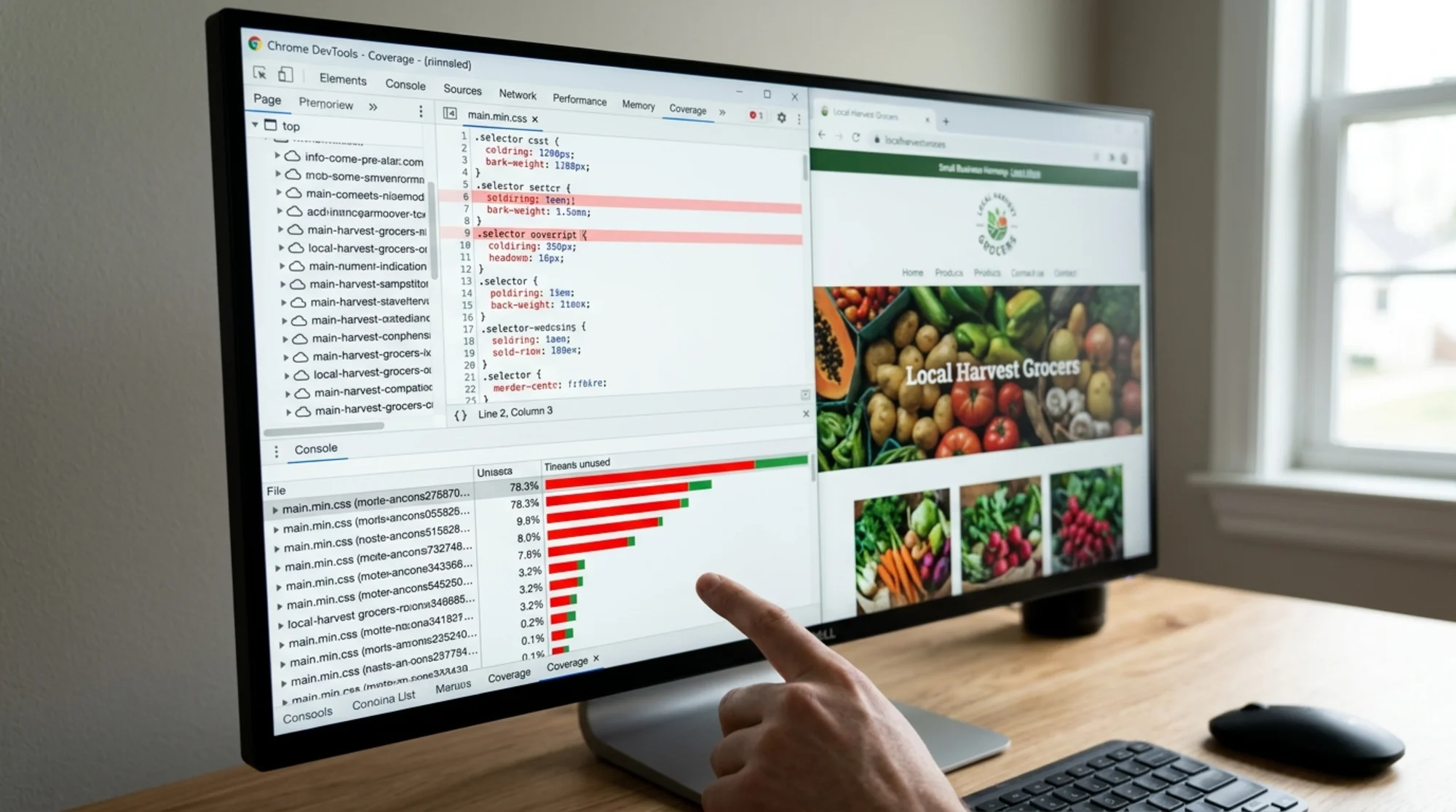
You'll see every CSS and JavaScript file the page loads, with a red/green bar showing how much of each is unused. Click any CSS file to see selectors highlighted line by line: green was used, red was not.
A typical small business homepage might show something like:
theme.css— 240 KB, 78% unusedplugin-slider.css— 35 KB, 100% unusedchat-widget.css— 18 KB, 92% unusedfontawesome.css— 75 KB, 95% unused
This is your map. The big-percentage, big-size items at the top are where the easy wins live.
One caveat: "unused on this page" isn't the same as "unused on every page." A blog stylesheet may look 100% unused on the homepage but be essential on /blog. Check more than one page before deleting anything.
Step 3: Categorize what you find
Sort each unused chunk into one of four buckets. This is the part most guides skip, and it's what prevents broken sites.
Bucket A — Truly dead code. A plugin you uninstalled, a widget you removed, a feature you stopped using. Nothing on the live site uses it.
Bucket B — Used on other pages. Blog styles, checkout styles, contact form styles. Unused on the homepage, essential elsewhere.
Bucket C — Used on interaction. Styles for hover menus, click modals, mobile navigation below a certain width. Coverage marks these "unused" because the user didn't interact during the test.
Bucket D — Used in rare edge cases. Error messages, empty states, the "out of stock" banner. Real, but invisible most of the time.
Only Bucket A is safe to delete outright. Bucket B should be loaded only on the pages that need it. Buckets C and D you almost always leave alone.
Step 4: Remove the easy wins
Start with Bucket A. Where you find unused CSS depends on your platform.
WordPress
- Remove abandoned plugins. Go to Plugins → Installed Plugins. Anything you're not using, deactivate and delete. The CSS and JS stop loading immediately.
- Audit your theme. If your theme has toggles to disable features you don't use (sliders, portfolio sections, comments styling), turn them off.
- Use a performance plugin carefully. Tools like WP Rocket, Perfmatters, or FlyingPress have a "Remove Unused CSS" feature. They scan each page, build a slim per-page stylesheet, and load the rest only when needed. Enable on staging first. Test every page type. Watch for broken styling on menus, popups, and forms.
Shopify
- Remove unused apps. Apps inject CSS into your storefront, and uninstalled apps sometimes leave residue. After uninstalling, check
theme.liquidfor any hard-coded asset references the app added. - Trim your theme. In Online Store → Themes → Edit code, look at
assets/theme.css(or.scss). Sections you've disabled in the customizer still ship their CSS unless you remove the section from the code.
Squarespace, Wix, and other hosted builders
These platforms give you limited control. Focus on what you can change:
- Remove unused sections, blocks, and widgets from each page.
- Uninstall integrations you no longer use.
- In Squarespace, audit any Custom CSS in Design → Custom CSS and delete rules for elements that no longer exist.
Custom-built sites
If a developer built your site, send them your DevTools Coverage findings as a list. Ask them specifically to:
- Split CSS by page type so the homepage doesn't load checkout styles.
- Defer non-critical CSS (load it after the main content paints).
- Inline the small block of "critical CSS" needed for the top of the page.
Step 5: Defer or split the rest
For Bucket B (styles used elsewhere), the goal isn't to delete them but to stop loading them where they aren't needed.
Two practical patterns:
Conditional loading. Only load blog.css on blog pages. Only load woocommerce.css on shop pages. In WordPress, plugins like Asset CleanUp do this through a UI with no code. On custom sites, a developer can do it in a few lines.
Critical CSS + deferred load. A small inline block of CSS handles the first screen the visitor sees. Everything else loads after the page becomes interactive. Most performance plugins automate this. The page looks complete almost immediately, even while the full stylesheet is still arriving.
This is the technique that usually moves LCP the most. Pair it with handling render-blocking resources and you'll often see a meaningful jump in PageSpeed scores.
Step 6: Test like a customer
After each change, don't just look at numbers. Walk through the site as a visitor would.
A mini-checklist:
- [ ] Homepage looks correct on desktop and mobile
- [ ] Main navigation opens and closes (especially the mobile hamburger menu)
- [ ] Forms render correctly and submit
- [ ] Product or service pages display images, prices, and buttons
- [ ] Add-to-cart, book-now, or contact buttons work
- [ ] Checkout or contact form completes end-to-end
- [ ] Popups (cookie banner, newsletter, chat) appear with correct styling
- [ ] Hover states on menus and buttons still work
- [ ] Blog posts and archive pages render
If something breaks, the most recent change is almost always the cause. Roll back that change and try a less aggressive option (load the CSS only on that page type, for example).
Step 7: Measure again
Run the same tools you used in Step 1. Compare:
- Total CSS transferred — should be smaller, often 40–70% on the pages you optimized
- LCP — should be faster, especially on mobile
- "Reduce unused CSS" warning — should be smaller or gone
If your numbers barely moved, unused CSS wasn't the bottleneck. Look next at images, fonts, and JavaScript.

A short walkthrough: the local bakery example
Picture a small bakery on WordPress with a popular theme and seven active plugins.
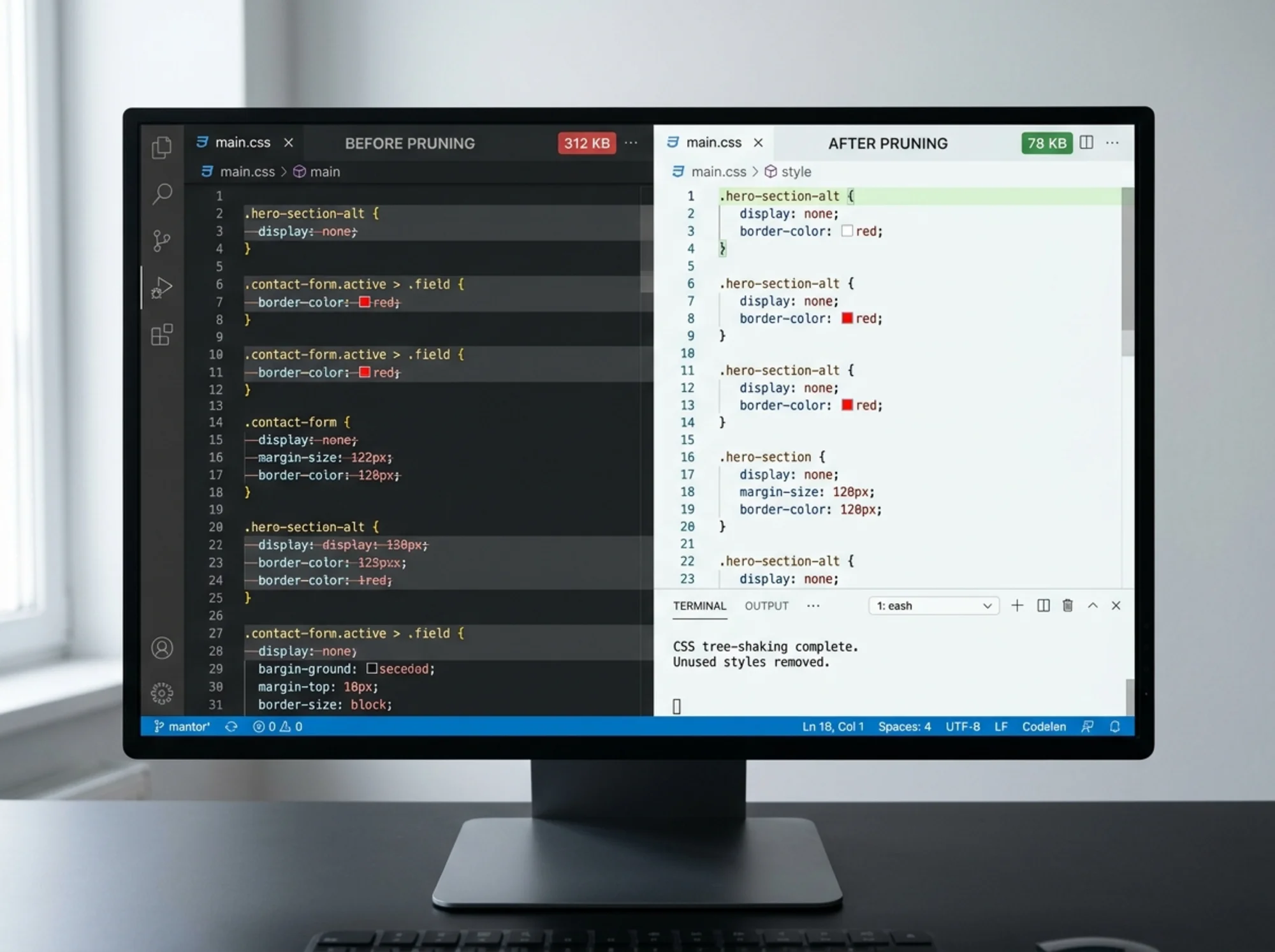
Baseline: Homepage transfers 312 KB of CSS. LCP on mobile is 4.1 seconds. PageSpeed mobile score: 58.
Coverage report finds:
- 100 KB from a slider plugin that hasn't been used in eight months
- 75 KB from an icon font with only twelve icons actually displayed
- 60 KB from a previous theme's leftover files
- 40 KB of blog styles on a homepage that doesn't show blog posts
Actions taken:
- Deleted the slider plugin entirely. CSS drops by 100 KB.
- Replaced the icon font with twelve inline SVG icons. Another 70 KB gone.
- Removed leftover files from the previous theme via SFTP. Another 55 KB gone.
- Enabled "Remove Unused CSS" in a performance plugin, after testing the menu page, contact form, and online order flow on a staging copy.
Result: Homepage CSS down to 78 KB. LCP at 1.9 seconds on mobile. PageSpeed mobile score: 89. Online order form still works. Newsletter popup still appears with correct styling.
Total time: about three hours, including testing. No new design, no rebuild, no developer.
Things that go wrong, and how to spot them
A few patterns to watch for:
- Menu styles vanish on mobile. The hamburger uses styles that only activate at small widths. Aggressive removal sometimes strips these. Test on an actual phone, not just a resized browser window.
- Forms look broken after a plugin update. Some performance plugins re-scan after each update and may temporarily drop styles. Re-run their optimization process.
- Third-party scripts inject styles you can't see in your files. Chat widgets, review platforms, and analytics tools often add CSS at runtime. Coverage will show them. Usually safest to leave them.
- Pages look right but Search Console reports layout shift. Removing CSS used for placeholder elements can cause Cumulative Layout Shift. Check Search Console's Core Web Vitals report a week after changes.
A simple rollout plan
If you're nervous, work in this order:
- Back up.
- Measure baseline.
- Remove deactivated plugins and theme features you don't use.
- Re-measure. Test the site.
- Conditionally load CSS by page type.
- Re-measure. Test the site.
- Enable critical CSS / deferred loading via a performance plugin or developer.
- Re-measure. Test the site.
Treat each step as its own checkpoint. If something breaks, you know exactly which change caused it.
Run a free check before and after
The fastest way to confirm whether unused CSS is genuinely a problem on your site — and to track whether your fixes worked — is to scan it. Run a free website audit and look at the unused CSS findings for your homepage and top inner page. The audit will also flag related issues — render-blocking scripts, oversized images, missing compression — so you know whether CSS is the right thing to focus on first.
For most small business sites, cutting unused CSS is one of the highest-leverage, lowest-risk performance wins available. You don't need to be a developer to make a real dent. You need a baseline, a backup, the Coverage panel, and the patience to test as you go.
Sources
- Web Vitals overview: https://web.dev/articles/vitals
- Google's guidance on helpful, people-first content: https://developers.google.com/search/docs/fundamentals/creating-helpful-content
Check your website for free
Get an instant score and your top 3 critical issues in under 60 seconds.
Get Your Free Audit →