Google Search Console as a Free Site Audit Tool: A Small Business Guide
Plain-English guide to using Google Search Console as a free site audit tool: what to check, what to fix, and what to safely ignore for small businesses.
# Google Search Console as a Free Site Audit Tool: A Small Business Guide
If you own a small business website and you've never opened Google Search Console, you're leaving free diagnostic information on the table. Google itself tells you which pages it sees, which ones it ignored, which queries bring people to your site, and which technical problems are quietly costing you traffic. You don't need a paid SEO tool to find most of these issues — you need an hour and a willingness to click through six or seven reports.
This guide walks through exactly how to use Google Search Console (GSC) as a free site audit tool: what to look at, in what order, and what to actually do about what you find.

What Google Search Console Actually Is
Google Search Console is a free service that shows how your site appears in Google Search. It's not analytics — it doesn't tell you what visitors do on your site. It tells you what happens before they arrive: what Google indexes, what it ranks, what it skips, and what it complains about.
For a small business, that's enough to find the majority of issues that hurt organic traffic. The same reports an SEO consultant would charge you $500 to read are sitting in your GSC account for free.
To use it, verify ownership of your site once (via a DNS record, HTML file, Google Analytics tag, or Google Tag Manager). Give it 24–72 hours to populate data, and you're ready.
The Order to Audit In
Don't open Search Console and click around at random. Work through these reports in this order — each answers a specific question.
- Page indexing — Is Google even seeing my pages?
- Performance — Which pages and queries are actually working?
- Core Web Vitals — Is my site fast enough on mobile?
- Mobile Usability / HTTPS — Are there device or security blockers?
- Sitemaps — Have I told Google what to look at?
- Manual Actions / Security Issues — Has Google penalized me?
- Enhancements (Structured Data) — Are my rich results valid?
1. Page Indexing: Is Google Even Seeing Your Site?
Open the "Pages" report under "Indexing." You'll see two numbers: "Indexed" and "Not indexed." Both matter.
Indexed is the count of URLs Google has in its index and can show in search results. If you have 80 published pages and only 12 are indexed, you have a problem — most of your site is invisible.
Not indexed lists the reasons Google chose to skip pages:
- Crawled - currently not indexed — Google looked at the page but didn't think it was worth keeping. Usually a thin content, near-duplicate, or quality signal.
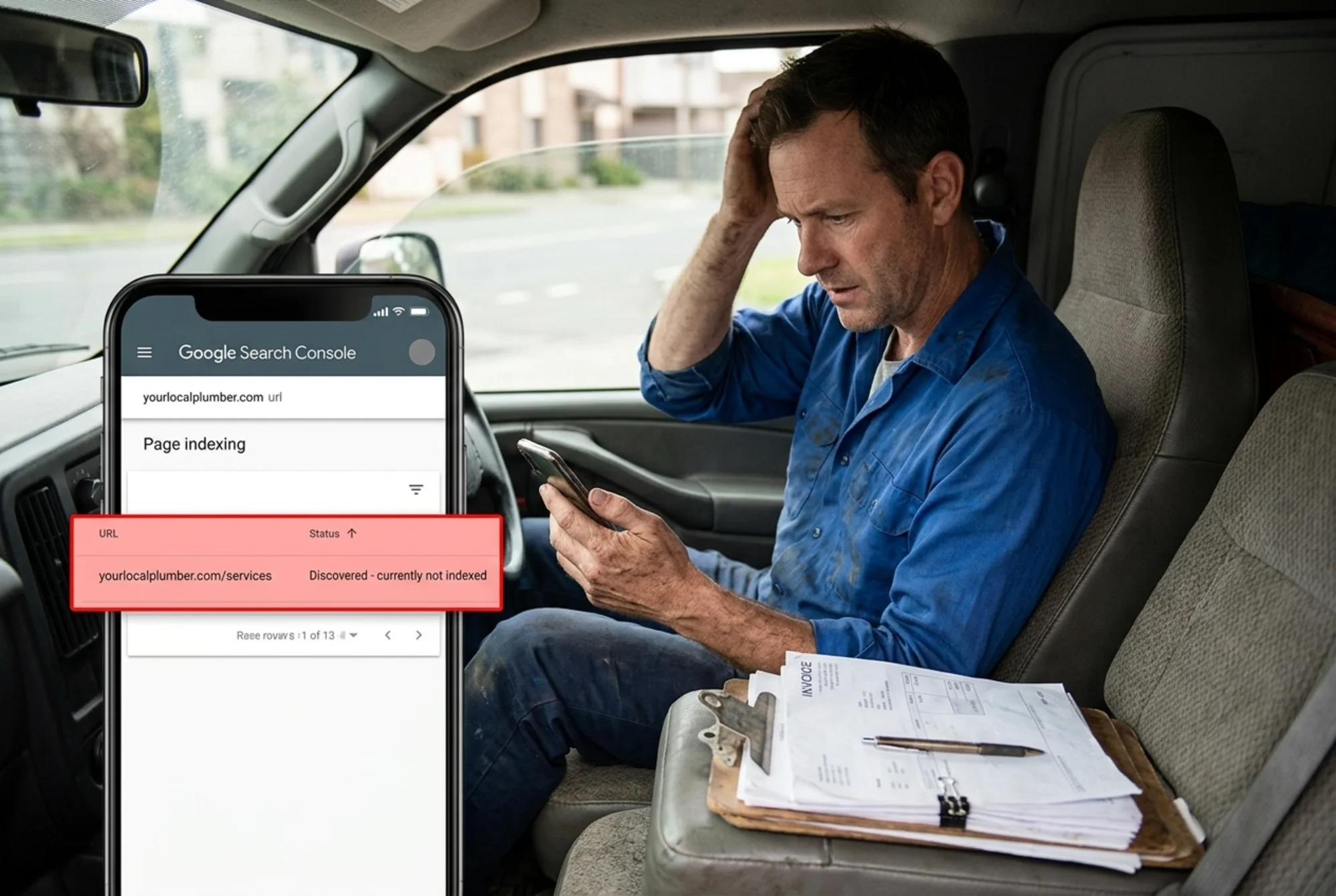
- Discovered - currently not indexed — Google knows the URL exists but hasn't crawled it. Often a crawl budget or authority signal.
- Page with redirect — usually expected.
- Not found (404) — fine unless those pages used to rank.
- Excluded by 'noindex' tag — verify this is intentional. Plugin updates sometimes flip these accidentally.
- Blocked by robots.txt — fine for admin pages, a problem if it's blocking your products.
- Duplicate, Google chose different canonical — sometimes correct, sometimes a sign your canonicals are wrong.
Mini-checklist:
- Are your core money pages (services, products, contact, about) all indexed?
- Are any important pages stuck in "Crawled - currently not indexed"? Improve content depth and internal linking.
- Is your homepage indexed under one canonical URL, not three variants?
2. Performance: What's Actually Working
The Performance report is where you'll spend most of your audit time. Set the date range to "Last 3 months" and look at four metrics: clicks, impressions, average CTR, and average position.
Three quick wins this report hands you:
a) "Almost ranking" queries. Filter for queries on positions 8–20 and sort by position ascending. These are searches where Google is testing your page on page two. A small content update — better headline, clearer answer in the first paragraph, a section heading that matches the query — often pushes them onto page one.
b) High impressions, low CTR. A page with 5,000 impressions and 50 clicks (1% CTR) has a title or meta description problem. Google is showing it; no one clicks. Rewrite the title to match query intent more specifically.
c) Content gaps. Click into individual pages and look at the queries triggering them. If your "kitchen remodeling Chicago" page also ranks for "kitchen cabinet refinishing Chicago," that's a hint to write a dedicated page on cabinet refinishing.
A concrete example: a local accounting firm I worked with had a "small business tax services" page sitting at 3,200 impressions, average position 11.4, and a 0.8% CTR. Two changes: rewrote the title to mention the city, and added a clearly-formatted FAQ section answering the top five queries from their GSC data. Six weeks later, position was 6.2, CTR was 3.1%, and clicks roughly quadrupled. No new content, no link-building — just listening to what GSC was already telling them.
3. Core Web Vitals: Is Your Site Fast Enough?
Under "Experience" > "Core Web Vitals," Google grades your URLs as Good, Needs Improvement, or Poor on three metrics:
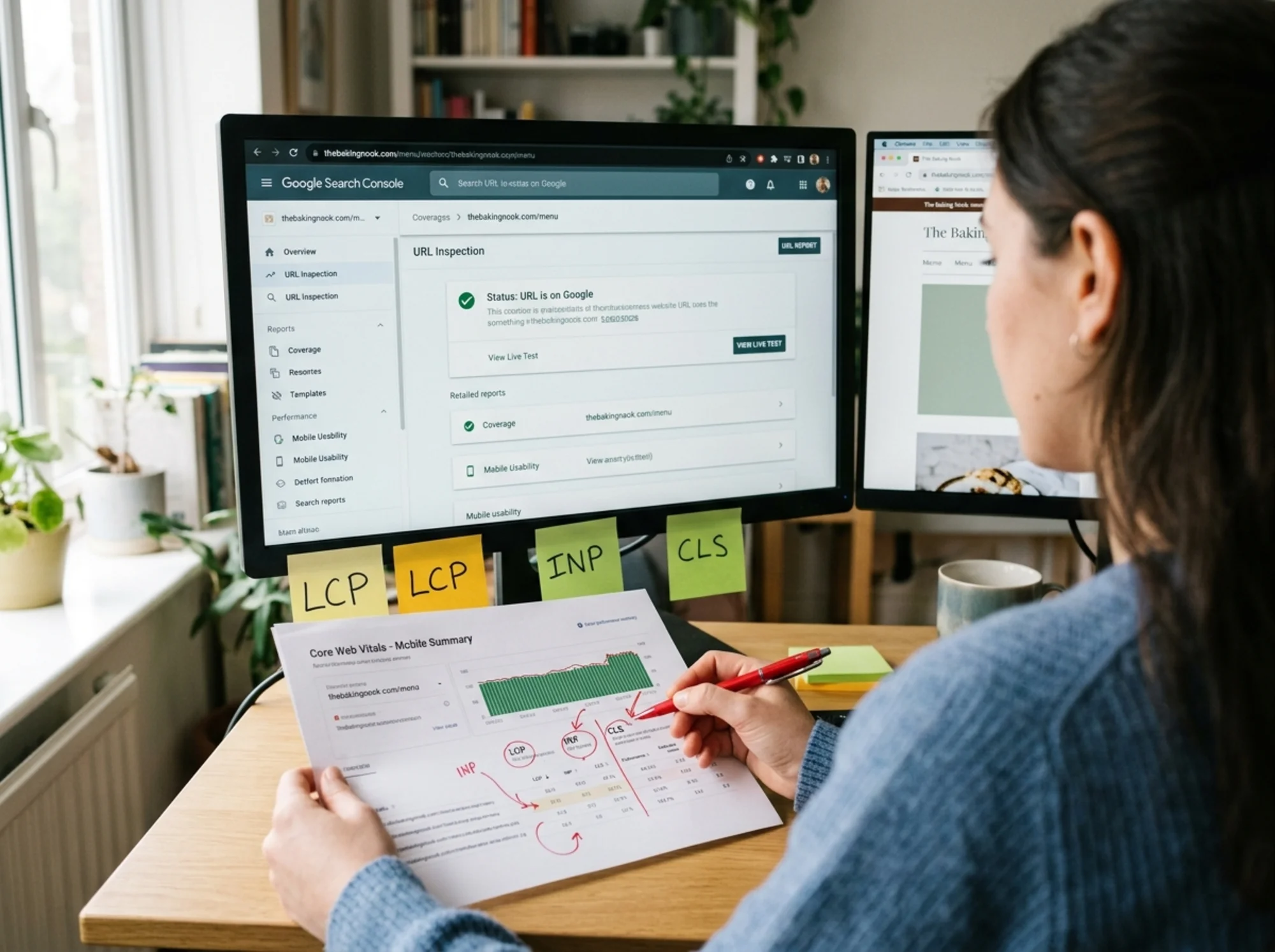
- LCP (Largest Contentful Paint) — how fast the main content loads. Target: under 2.5 seconds.
- INP (Interaction to Next Paint) — how responsive the page feels when tapped. Target: under 200 milliseconds.
- CLS (Cumulative Layout Shift) — whether things jump around as the page loads. Target: under 0.1.
These thresholds come from Google's own Web Vitals documentation and are calibrated to real user behavior data.
Most small business sites fail on mobile LCP because of:
- Huge hero images that aren't compressed
- Slow shared hosting
- Heavy third-party scripts (chat widgets, popups, A/B tools)
- Render-blocking fonts or CSS
Quick fixes:
- Compress hero images to WebP, target under 200 KB.
- Set explicit
widthandheightattributes on images so the browser reserves space (fixes CLS). - Defer or async non-essential scripts.
- If you're on entry-level shared hosting with steady traffic, upgrade.
For a deeper walkthrough of the specific fixes, see our Core Web Vitals fix guide.
4. Mobile Usability and HTTPS
Most small business traffic is mobile. Check the URL Inspection tool on representative pages and look for:
- Text too small to read
- Clickable elements too close together
- Content wider than the screen
- Viewport not set
These aren't dramatic ranking factors, but they cause bounces — and bounces compound into lower rankings over time.
Under "Experience" > "HTTPS," every page should be served over HTTPS. If anything is flagged as "Not HTTPS," fix it before anything else — Chrome marks HTTP pages as "Not Secure," and that alone hurts conversions.
5. Sitemaps: Telling Google What to Look At
Under "Indexing" > "Sitemaps," you should have at least one sitemap submitted (typically sitemap.xml or sitemap_index.xml). Status should be "Success."
What to check:
- Submitted URL count roughly matches your actual page count.
- Indexed count is high relative to submitted count.
- No "Couldn't fetch" errors.
WordPress with Yoast or Rank Math generates the sitemap automatically. Shopify and Wix put it at /sitemap.xml by default. Submit it once. Done.
If your Indexed count is much smaller than Submitted, return to the Page indexing report and dig into the reasons. The indexing fix guide covers the most common causes.
6. Manual Actions and Security Issues
Under "Security & Manual Actions," you want "No issues detected" on both reports. Always check this first on any site you've inherited or bought. A manual action — Google's term for a human penalty — will tank your traffic, and you won't recover until you fix the underlying issue and request a review.
The most common manual actions on small business sites: unnatural inbound links from old SEO campaigns, thin or scraped content, and structured data abuse.
If you see a manual action, don't panic — but treat it as your top priority. Google's message tells you exactly what's wrong.
7. Enhancements: Are Your Rich Results Valid?
If you've added structured data — for articles, products, FAQs, reviews, local business info — GSC validates it under "Enhancements." Each schema type gets its own report.
Common issues:
- Missing required fields (e.g.,
authorordatePublishedon Article schema) - Invalid values (price formatted incorrectly, dates in the wrong format)
- Schema that doesn't match the visible page content
Structured data matters because it unlocks rich results — star ratings, FAQ accordions, recipe cards, event listings. For a small business, FAQ schema on your services page or LocalBusiness schema on your contact page is often the highest-leverage improvement you can make. Google's developer docs on Article structured data spell out the specifics if you publish blog content.
What GSC Won't Tell You
Honest limits matter. Google Search Console will not show you:
- Backlinks beyond a sampled subset (the Links report is partial)
- Competitor data of any kind
- Content quality assessment (it doesn't read your writing)
- Conversion data (use Analytics for that)
- Off-Google search traffic (Bing, DuckDuckGo, etc.)
It also lags 1–3 days on most reports, so don't expect real-time data.
This is where a dedicated audit tool helps: GSC tells you Google's view of your site, but it doesn't combine that with content scoring, accessibility checks, broken link scans, or a prioritized to-do list. For that combined view, run a free website audit with FreeSiteAudit — a scored report covering technical SEO, content quality, performance, and indexability in one place, designed for small business sites.
A Realistic 60-Minute Audit Routine
If you have an hour a month, here's the routine to keep your site healthy:
Minutes 0–10:
- Check Security & Manual Actions. Both should say "No issues."
- Check Page indexing totals. Indexed count stable or growing? Any "Not indexed" categories spiking?
Minutes 10–25:
- Open Performance. Compare last 28 days vs. previous 28 days.
- Note any pages with big drops in clicks. Investigate those URLs.
- Pick 3–5 queries on positions 8–20 and choose one to improve this month.
Minutes 25–40:
- Check Core Web Vitals. Any URLs newly flagged as "Poor"?
- If yes, run URL Inspection on one example and read the specifics.
Minutes 40–55:
- Scan Sitemaps. Status "Success"? Submitted vs. indexed gap reasonable?
- Spot-check Enhancements reports for new validation errors.
Minutes 55–60:
- Write down two action items. That's it.
The trap with site audits isn't finding problems — it's finding a hundred problems and fixing none. Pick two things a month and ship them. In a year you'll have addressed 24 real issues. That moves the needle.

When GSC Surfaces a Bigger Problem
Sometimes Search Console exposes something that isn't a quick fix:
- "Crawled - currently not indexed" keeps growing. Usually a content quality signal — Google is telling you your pages aren't differentiated enough to keep. The fix is editorial: better content, fewer thin pages, clearer purpose per URL. Google's helpful-content guidance is the right north star.
- Core Web Vitals stuck in "Poor" no matter what you change. Could be a theme, hosting, or plugin problem. Sometimes the right move is a platform migration, not another optimization pass.
- Indexed pages keep dropping despite no changes. Check for accidental
noindextags from a recent plugin update, or a robots.txt change.
These problems usually need outside help — a developer, an SEO consultant, or a tool that scores the underlying issues for you. But GSC is what surfaces them in the first place, which is why getting comfortable with it is worth the hour.
Bottom Line
Google Search Console is the closest thing to Google telling you, in plain terms, what it thinks of your site. It's free, it's official, and it covers the highest-leverage diagnostics any small business site needs: indexing, search performance, page experience, mobile, security, and structured data.
Set up GSC if you haven't. Spend an hour a month on it. Fix two things. Repeat.
When you want a second opinion that combines what GSC sees with content quality, accessibility, broken link checks, and a prioritized fix list, run a free audit with FreeSiteAudit — no signup gymnastics, no upsell wall, just a real report.
Sources
Check your website for free
Get an instant score and your top 3 critical issues in under 60 seconds.
Get Your Free Audit →