# Headless CMS SEO Checklist for Content Teams
Headless CMS platforms give content teams real flexibility: write once, publish everywhere, use whatever frontend framework you want. But that flexibility comes with a cost — SEO responsibilities that used to be handled automatically by WordPress or Squarespace now fall squarely on your team.
This checklist is for content editors, marketers, and small business operators publishing through a headless CMS (Contentful, Sanity, Prismic, Strapi, Storyblok, or similar) who want to make sure Google can actually find, read, and rank their pages.
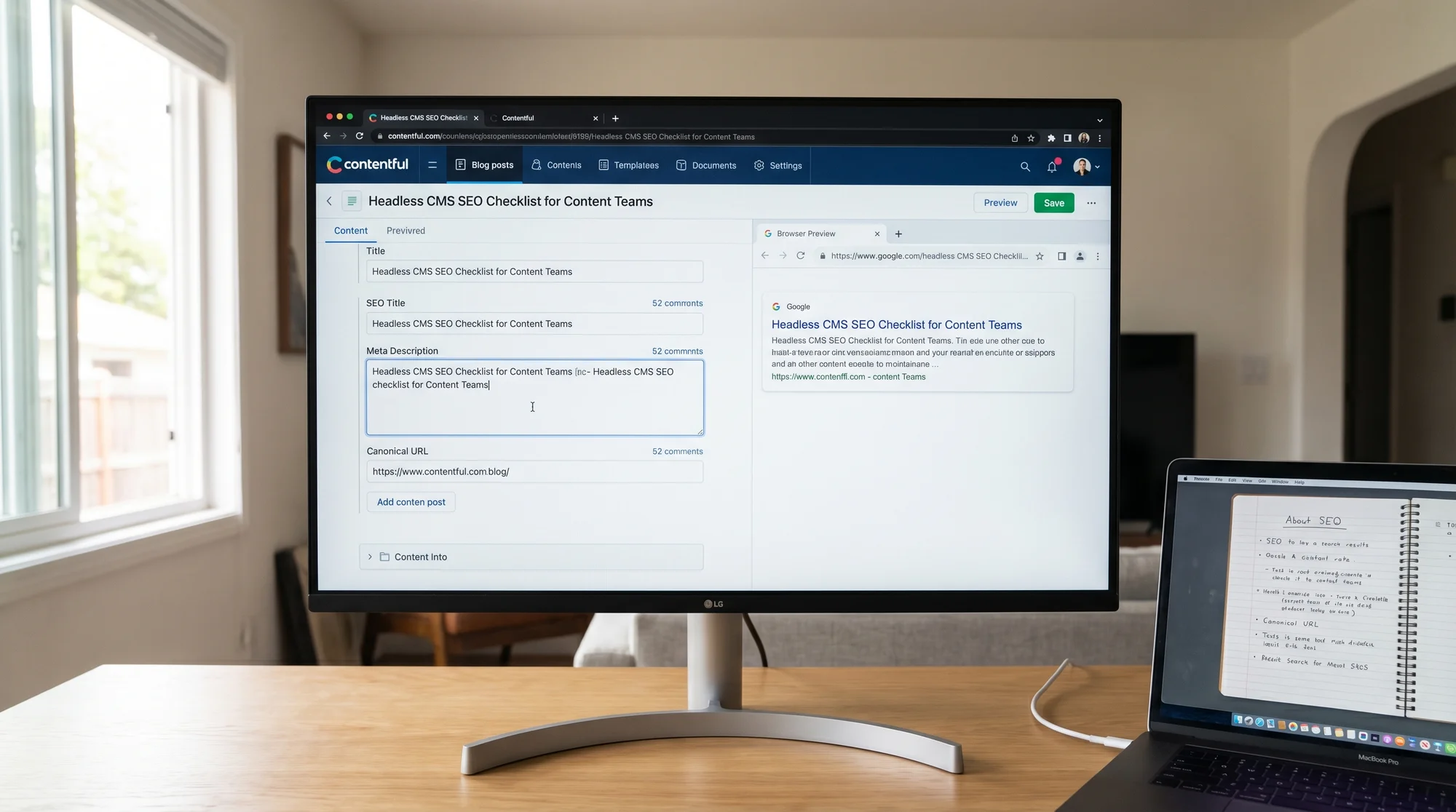
A content editor's screen showing a headless CMS interface (like Contentful or Sanity) with a blog post open, fields for SEO title and meta description visible, and a browser preview panel showing how the published page will render in search results Why Headless CMS Creates SEO Blind Spots In a traditional CMS like WordPress, SEO plugins (Yoast, RankMath) automatically inject meta tags, handle sitemaps, and flag missing fields when you publish. The system nudges you.
In a headless setup, your CMS stores content as raw data — JSON fields, not HTML. A separate frontend (Next.js, Gatsby, Nuxt, Astro) pulls that data and renders the page. That means:
Meta tags won't appear unless your developer explicitly wires them up. Structured data has to be built into your template code, not added via a plugin. Sitemaps need to be generated by your frontend, not your CMS. Canonical URLs, robots directives, and Open Graph tags are all opt-in. The result: content teams publish hundreds of pages thinking they're live and indexed, while Google either can't crawl them or is indexing the wrong version.
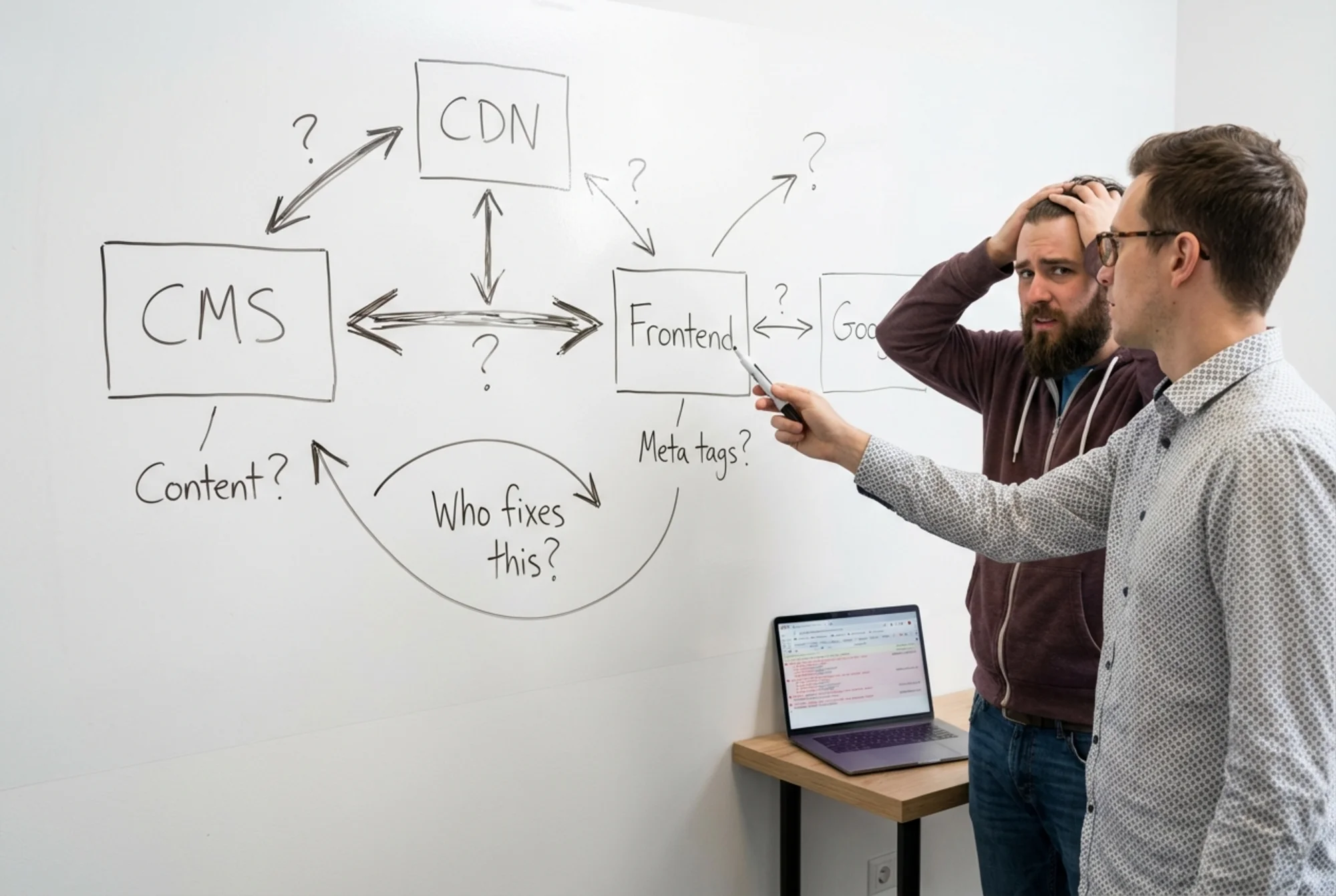
A developer and a marketer at a whiteboard covered in disconnected boxes labeled "CMS," "CDN," "Frontend," and "Google," with arrows going nowhere, representing the confusion of who owns SEO in a headless setup Once the plumbing is set up correctly, headless CMS SEO is highly reliable and scalable. The checklist below covers both the setup layer (one-time developer tasks) and the publishing layer (what content teams should verify every time).
Part 1: The Setup Checklist (Do This Once) These items need developer involvement. If you're a non-technical operator, bring this list to your developer and confirm each is in place before your team starts publishing at scale.
1. SEO Fields Exist in Your Content Model Your CMS should have explicit fields for SEO title and meta description on every content type (blog posts, landing pages, product pages). Don't rely on the page's H1 or intro text to be used automatically — that produces duplicate or truncated titles in search results.
What to check:
Does your content model have a dedicated seoTitle field (separate from the display title)? Does it have a metaDescription field with a character limit enforced (ideally 150–160 characters)? Are these fields required before publishing, or optional (and therefore routinely skipped)? Fix if missing: Ask your developer to add these fields and map them to the </code> and <code class="bg-surface-panel px-1.5 py-0.5 rounded text-sm text-accent-strong"><meta name="description"></code> tags in the frontend's <code class="bg-surface-panel px-1.5 py-0.5 rounded text-sm text-accent-strong"><head></code>.</p><hr class="my-8 border-border"/><h3 class="text-xl font-semibold text-text-primary mt-8 mb-3">2. Canonical URLs Are Rendered Correctly</h3><p class="text-text-secondary leading-relaxed my-4">Canonical tags tell Google which version of a page is the "official" one. In headless setups, the same content can appear at multiple URLs — with and without trailing slashes, via preview environments, or through CDN edge caching.</p><p class="text-text-secondary leading-relaxed my-4"><strong class="text-text-primary">What to check:</strong></p><ul class="list-disc pl-5 space-y-1.5 my-4 text-text-secondary"><li>Every published page has a <code class="bg-surface-panel px-1.5 py-0.5 rounded text-sm text-accent-strong"><link rel="canonical" href="[full URL]" /></code> tag in the HTML <code class="bg-surface-panel px-1.5 py-0.5 rounded text-sm text-accent-strong"><head></code>.</li><li>The canonical URL matches exactly what you want indexed — no <code class="bg-surface-panel px-1.5 py-0.5 rounded text-sm text-accent-strong">www</code> vs. non-<code class="bg-surface-panel px-1.5 py-0.5 rounded text-sm text-accent-strong">www</code> mismatches, no HTTP vs. HTTPS inconsistencies.</li><li>Preview and staging environments use <code class="bg-surface-panel px-1.5 py-0.5 rounded text-sm text-accent-strong">noindex</code> or point their canonical to the production URL.</li></ul><p class="text-text-secondary leading-relaxed my-4"><strong class="text-text-primary">How to verify:</strong> Open a published page, right-click → View Page Source, and search for <code class="bg-surface-panel px-1.5 py-0.5 rounded text-sm text-accent-strong">canonical</code>. If it's not there, it's not set.</p><hr class="my-8 border-border"/><h3 class="text-xl font-semibold text-text-primary mt-8 mb-3">3. Your Sitemap Is Generated and Submitted</h3><p class="text-text-secondary leading-relaxed my-4">A sitemap tells Google what pages exist on your site. In a headless setup, this has to be dynamically generated by your frontend, pulling page slugs from your CMS via API.</p><p class="text-text-secondary leading-relaxed my-4"><strong class="text-text-primary">What to check:</strong></p><ul class="list-disc pl-5 space-y-1.5 my-4 text-text-secondary"><li><code class="bg-surface-panel px-1.5 py-0.5 rounded text-sm text-accent-strong">yourdomain.com/sitemap.xml</code> exists and returns valid XML.</li><li>It includes all important page types (blog posts, service pages, landing pages).</li><li>It's submitted in Google Search Console.</li><li>It updates automatically when you publish new content.</li></ul><p class="text-text-secondary leading-relaxed my-4"><strong class="text-text-primary">Common failure mode:</strong> The sitemap was set up once for static pages but doesn't update when new blog posts are published because the generation step isn't triggered on new CMS entries.</p><hr class="my-8 border-border"/><h3 class="text-xl font-semibold text-text-primary mt-8 mb-3">4. Robots.txt Is Correct</h3><p class="text-text-secondary leading-relaxed my-4"><strong class="text-text-primary">What to check:</strong></p><ul class="list-disc pl-5 space-y-1.5 my-4 text-text-secondary"><li><code class="bg-surface-panel px-1.5 py-0.5 rounded text-sm text-accent-strong">yourdomain.com/robots.txt</code> exists and doesn't accidentally block all crawlers (<code class="bg-surface-panel px-1.5 py-0.5 rounded text-sm text-accent-strong">Disallow: /</code> blocks everything).</li><li>Preview and staging URLs are blocked from indexing.</li><li>The sitemap URL is referenced: <code class="bg-surface-panel px-1.5 py-0.5 rounded text-sm text-accent-strong">Sitemap: https://yourdomain.com/sitemap.xml</code></li></ul><hr class="my-8 border-border"/><h3 class="text-xl font-semibold text-text-primary mt-8 mb-3">5. Core Web Vitals Are Being Measured</h3><p class="text-text-secondary leading-relaxed my-4">Google uses Core Web Vitals — Largest Contentful Paint (LCP), Interaction to Next Paint (INP), and Cumulative Layout Shift (CLS) — as ranking signals. Headless frontends can be fast, but JavaScript-heavy rendering will tank performance if not configured carefully.</p><p class="text-text-secondary leading-relaxed my-4">According to <a href="https://web.dev/articles/vitals" class="text-accent hover:text-accent-strong underline">web.dev</a>, the targets are:</p><ul class="list-disc pl-5 space-y-1.5 my-4 text-text-secondary"><li>LCP: under 2.5 seconds</li><li>INP: under 200 milliseconds</li><li>CLS: under 0.1</li></ul><p class="text-text-secondary leading-relaxed my-4"><strong class="text-text-primary">What to check:</strong></p><ul class="list-disc pl-5 space-y-1.5 my-4 text-text-secondary"><li>Run your domain through Google Search Console's Core Web Vitals report.</li><li>Check PageSpeed Insights for your most important pages.</li><li>If you're using client-side rendering (a React SPA fetching content on load), LCP will likely be slow. Server-side rendering (SSR) or static site generation (SSG) is almost always better for SEO.</li></ul><hr class="my-8 border-border"/><h2 class="text-2xl font-bold text-text-primary mt-10 mb-4">Part 2: The Publishing Checklist (Every Time)</h2><p class="text-text-secondary leading-relaxed my-4">Once the foundation is in place, content teams need a consistent pre-publish workflow.</p><figure class="my-8"><img src="/blog-images/blog-headless-cms-seo-checklist-for-content-teams-3-a-side-by-side-view-of-a-headless-cms-content-model-showing-.webp" alt="A side-by-side view of a headless CMS content model showing structured fields (title, slug, canonical URL, og:image, schema type) being mapped to a rendered HTML page with visible meta tags in the browser's view-source panel" class="w-full rounded-lg border border-border" loading="lazy"/><figcaption class="text-sm text-text-muted italic mt-2 text-center">A side-by-side view of a headless CMS content model showing structured fields (title, slug, canonical URL, og:image, schema type) being mapped to a rendered HTML page with visible meta tags in the browser's view-source panel</figcaption></figure><h3 class="text-xl font-semibold text-text-primary mt-8 mb-3">6. SEO Title Is Set and Under 60 Characters</h3><p class="text-text-secondary leading-relaxed my-4">The SEO title (not the article H1) is what appears in search results. It should:</p><ul class="list-disc pl-5 space-y-1.5 my-4 text-text-secondary"><li>Include your primary keyword near the front</li><li>Be under 60 characters (Google truncates longer titles in SERPs)</li><li>Be unique — not identical to another page on your site</li></ul><hr class="my-8 border-border"/><h3 class="text-xl font-semibold text-text-primary mt-8 mb-3">7. Meta Description Is Written (Not Auto-Generated)</h3><p class="text-text-secondary leading-relaxed my-4">Google often pulls its own snippet, but a well-written description improves click-through rate when Google does use it.</p><ul class="list-disc pl-5 space-y-1.5 my-4 text-text-secondary"><li>Target 140–155 characters</li><li>Include the primary keyword naturally</li><li>End with a mild action prompt</li></ul><p class="text-text-secondary leading-relaxed my-4">Don't leave this blank. A missing meta description often results in Google pulling random text from the page — sometimes a nav label or footer item.</p><hr class="my-8 border-border"/><h3 class="text-xl font-semibold text-text-primary mt-8 mb-3">8. Slug Is Clean and Keyword-Rich</h3><p class="text-text-secondary leading-relaxed my-4">Your URL slug should be short, lowercase, hyphen-separated, and include your primary keyword.</p><p class="text-text-secondary leading-relaxed my-4"><strong class="text-text-primary">Good:</strong> <code class="bg-surface-panel px-1.5 py-0.5 rounded text-sm text-accent-strong">/blog/headless-cms-seo-checklist</code></p><p class="text-text-secondary leading-relaxed my-4"><strong class="text-text-primary">Bad:</strong> <code class="bg-surface-panel px-1.5 py-0.5 rounded text-sm text-accent-strong">/blog/post-20240412-153200</code> or <code class="bg-surface-panel px-1.5 py-0.5 rounded text-sm text-accent-strong">/blog/hCMS_SEO_ChkList_v2</code></p><p class="text-text-secondary leading-relaxed my-4">Check that your CMS isn't auto-generating slugs from titles with special characters, capital letters, or timestamps.</p><hr class="my-8 border-border"/><h3 class="text-xl font-semibold text-text-primary mt-8 mb-3">9. H1 Exists and Is Used Once</h3><p class="text-text-secondary leading-relaxed my-4">Every page should have exactly one H1. In headless CMS setups, the H1 is often rendered by the frontend template using the <code class="bg-surface-panel px-1.5 py-0.5 rounded text-sm text-accent-strong">title</code> field, which means content editors can't always see or control it directly.</p><p class="text-text-secondary leading-relaxed my-4"><strong class="text-text-primary">What to verify:</strong> View the page source after publishing and confirm there's a single <code class="bg-surface-panel px-1.5 py-0.5 rounded text-sm text-accent-strong"><h1></code> tag. Multiple H1s muddy Google's understanding of the page's main topic.</p><hr class="my-8 border-border"/><h3 class="text-xl font-semibold text-text-primary mt-8 mb-3">10. Open Graph Tags Are Populated</h3><p class="text-text-secondary leading-relaxed my-4">When someone shares your page on LinkedIn or Slack, Open Graph (OG) tags control what preview appears. Missing OG tags result in broken previews with no image or a random thumbnail.</p><p class="text-text-secondary leading-relaxed my-4"><strong class="text-text-primary">Fields to check on every page:</strong></p><ul class="list-disc pl-5 space-y-1.5 my-4 text-text-secondary"><li><code class="bg-surface-panel px-1.5 py-0.5 rounded text-sm text-accent-strong">og:title</code> — usually matches your SEO title</li><li><code class="bg-surface-panel px-1.5 py-0.5 rounded text-sm text-accent-strong">og:description</code> — usually matches your meta description</li><li><code class="bg-surface-panel px-1.5 py-0.5 rounded text-sm text-accent-strong">og:image</code> — a featured image, minimum 1200×630px</li><li><code class="bg-surface-panel px-1.5 py-0.5 rounded text-sm text-accent-strong">og:url</code> — the canonical URL of the page</li></ul><p class="text-text-secondary leading-relaxed my-4">Many headless setups use a single <code class="bg-surface-panel px-1.5 py-0.5 rounded text-sm text-accent-strong">SEO</code> component that handles all of this — confirm your CMS fields feed into it.</p><hr class="my-8 border-border"/><h3 class="text-xl font-semibold text-text-primary mt-8 mb-3">11. Structured Data Is Implemented for Key Content Types</h3><p class="text-text-secondary leading-relaxed my-4">Structured data (Schema.org markup) helps Google understand what your content is — an article, FAQ, product, or local business. Google can use it to generate rich results (article bylines, FAQ dropdowns) that increase click-through rates.</p><p class="text-text-secondary leading-relaxed my-4">Per <a href="https://developers.google.com/search/docs/appearance/structured-data/article" class="text-accent hover:text-accent-strong underline">Google's structured data guidelines</a>, Article schema should include at minimum:</p><ul class="list-disc pl-5 space-y-1.5 my-4 text-text-secondary"><li><code class="bg-surface-panel px-1.5 py-0.5 rounded text-sm text-accent-strong">headline</code></li><li><code class="bg-surface-panel px-1.5 py-0.5 rounded text-sm text-accent-strong">datePublished</code></li><li><code class="bg-surface-panel px-1.5 py-0.5 rounded text-sm text-accent-strong">dateModified</code></li><li><code class="bg-surface-panel px-1.5 py-0.5 rounded text-sm text-accent-strong">author</code> (with <code class="bg-surface-panel px-1.5 py-0.5 rounded text-sm text-accent-strong">name</code>)</li><li><code class="bg-surface-panel px-1.5 py-0.5 rounded text-sm text-accent-strong">image</code></li></ul><p class="text-text-secondary leading-relaxed my-4"><strong class="text-text-primary">Example:</strong> A marketing agency running a blog on Contentful + Next.js publishes 10 posts per month with zero structured data. After a developer adds an <code class="bg-surface-panel px-1.5 py-0.5 rounded text-sm text-accent-strong">Article</code> JSON-LD block to the blog post template — a one-time task — Google Search Console begins showing rich result eligibility within 2–3 weeks. Article bylines and publish dates appear in SERPs, adding credibility and lifting click-through rate.</p><p class="text-text-secondary leading-relaxed my-4"><strong class="text-text-primary">What content teams can do:</strong> Ensure your CMS content model has fields for <code class="bg-surface-panel px-1.5 py-0.5 rounded text-sm text-accent-strong">author name</code>, <code class="bg-surface-panel px-1.5 py-0.5 rounded text-sm text-accent-strong">publish date</code>, and <code class="bg-surface-panel px-1.5 py-0.5 rounded text-sm text-accent-strong">featured image</code>. If those fields exist, a developer can wire up the schema in the template.</p><hr class="my-8 border-border"/><h3 class="text-xl font-semibold text-text-primary mt-8 mb-3">12. Internal Links Are Present and Intentional</h3><p class="text-text-secondary leading-relaxed my-4">Every page should link to at least 2–3 other relevant pages on your site. Internal links help Google understand site structure, pass authority between pages, and keep users engaged.</p><p class="text-text-secondary leading-relaxed my-4"><strong class="text-text-primary">What to check when publishing:</strong></p><ul class="list-disc pl-5 space-y-1.5 my-4 text-text-secondary"><li>Does the article naturally reference other pages you've written? Link to them.</li><li>Is there a link to a relevant product, service, or tool page?</li><li>Are there any orphan pages — pages with no internal links pointing to them?</li></ul><hr class="my-8 border-border"/><h3 class="text-xl font-semibold text-text-primary mt-8 mb-3">13. Images Have Alt Text</h3><p class="text-text-secondary leading-relaxed my-4">Every image should have descriptive alt text. In a headless CMS, images are stored in a media library with optional alt fields — these are commonly left blank.</p><p class="text-text-secondary leading-relaxed my-4">Write alt text as if describing the image to someone who can't see it. Include the relevant keyword only when it genuinely describes what's in the image.</p><hr class="my-8 border-border"/><h3 class="text-xl font-semibold text-text-primary mt-8 mb-3">14. The Page Is Actually Indexable</h3><p class="text-text-secondary leading-relaxed my-4">Pages can end up with <code class="bg-surface-panel px-1.5 py-0.5 rounded text-sm text-accent-strong">noindex</code> set due to a staging environment variable left in production config, a CMS <code class="bg-surface-panel px-1.5 py-0.5 rounded text-sm text-accent-strong">robots</code> field set to <code class="bg-surface-panel px-1.5 py-0.5 rounded text-sm text-accent-strong">noindex</code> by default, or a developer temporarily blocking indexing during launch who forgot to revert it.</p><p class="text-text-secondary leading-relaxed my-4"><strong class="text-text-primary">How to verify:</strong> After publishing, paste the URL into Google's URL Inspection tool in Search Console. It will confirm whether the page is indexable and when it was last crawled.</p><hr class="my-8 border-border"/><h2 class="text-2xl font-bold text-text-primary mt-10 mb-4">Part 3: Ongoing Monitoring Checklist</h2><p class="text-text-secondary leading-relaxed my-4">Publishing isn't the end of the SEO workflow. Run these checks at least monthly.</p><h3 class="text-xl font-semibold text-text-primary mt-8 mb-3">15. Monitor Crawl Errors in Search Console</h3><p class="text-text-secondary leading-relaxed my-4">Google Search Console's Coverage report shows pages returning 404s, blocked by robots.txt, or excluded for other reasons. In headless setups, URL structure changes and slug updates are common sources of crawl errors.</p><p class="text-text-secondary leading-relaxed my-4"><strong class="text-text-primary">Fix:</strong> When you change a slug, set up a 301 redirect from the old URL to the new one. In Next.js, this is done in <code class="bg-surface-panel px-1.5 py-0.5 rounded text-sm text-accent-strong">next.config.js</code>.</p><hr class="my-8 border-border"/><h3 class="text-xl font-semibold text-text-primary mt-8 mb-3">16. Check Indexed Page Count</h3><p class="text-text-secondary leading-relaxed my-4">If you have 200 published pages but only 80 are indexed, something is wrong. Common causes: sitemap not updating, pages rendering blank due to JavaScript errors, or duplicate content being filtered out.</p><p class="text-text-secondary leading-relaxed my-4"><strong class="text-text-primary">Quick check:</strong> Search <code class="bg-surface-panel px-1.5 py-0.5 rounded text-sm text-accent-strong">site:yourdomain.com</code> in Google to see a rough count of indexed pages.</p><hr class="my-8 border-border"/><h3 class="text-xl font-semibold text-text-primary mt-8 mb-3">17. Run a Full Site Audit Regularly</h3><p class="text-text-secondary leading-relaxed my-4">A structured audit catches issues manual checks miss — broken internal links, thin content, missing meta tags at scale, redirect chains, and Core Web Vitals regressions.</p><p class="text-text-secondary leading-relaxed my-4">You can run a free audit at <a href="https://freesiteaudit.com" class="text-accent hover:text-accent-strong underline">FreeSiteAudit</a>. It scans your live pages and surfaces the SEO issues most likely to affect rankings, including the technical problems headless CMS setups commonly introduce.</p><figure class="my-8"><img src="/blog-images/blog-headless-cms-seo-checklist-for-content-teams-4-a-small-business-website-s-google-search-console-dashboard-s.webp" alt="A small business website's Google Search Console dashboard showing a sharp increase in indexed pages and click-through rate after implementing structured data and proper canonical tags via a headless CMS workflow" class="w-full rounded-lg border border-border" loading="lazy"/><figcaption class="text-sm text-text-muted italic mt-2 text-center">A small business website's Google Search Console dashboard showing a sharp increase in indexed pages and click-through rate after implementing structured data and proper canonical tags via a headless CMS workflow</figcaption></figure><hr class="my-8 border-border"/><h2 class="text-2xl font-bold text-text-primary mt-10 mb-4">The Short Version: Headless CMS SEO Checklist</h2><p class="text-text-secondary leading-relaxed my-4"><strong class="text-text-primary">One-time setup (developer tasks):</strong></p><ul class="list-disc pl-5 space-y-1.5 my-4 text-text-secondary"><li>[ ] SEO title + meta description fields in content model</li><li>[ ] Canonical URL rendered in <code class="bg-surface-panel px-1.5 py-0.5 rounded text-sm text-accent-strong"><head></code></li><li>[ ] Dynamic sitemap generated and submitted</li><li>[ ] <code class="bg-surface-panel px-1.5 py-0.5 rounded text-sm text-accent-strong">robots.txt</code> correct and non-blocking</li><li>[ ] Core Web Vitals measured and within targets</li><li>[ ] Open Graph tags wired up in frontend</li><li>[ ] Structured data templates built for key content types</li></ul><p class="text-text-secondary leading-relaxed my-4"><strong class="text-text-primary">Every publish (content team tasks):</strong></p><ul class="list-disc pl-5 space-y-1.5 my-4 text-text-secondary"><li>[ ] SEO title written, under 60 characters</li><li>[ ] Meta description written, 140–155 characters</li><li>[ ] Slug is clean, lowercase, keyword-relevant</li><li>[ ] Single H1 confirmed</li><li>[ ] OG image uploaded (1200×630px minimum)</li><li>[ ] Author name and publish date fields populated</li><li>[ ] 2–3 internal links added</li><li>[ ] All image alt text filled in</li><li>[ ] Page is indexable (no <code class="bg-surface-panel px-1.5 py-0.5 rounded text-sm text-accent-strong">noindex</code> flag)</li></ul><p class="text-text-secondary leading-relaxed my-4"><strong class="text-text-primary">Monthly monitoring:</strong></p><ul class="list-disc pl-5 space-y-1.5 my-4 text-text-secondary"><li>[ ] Search Console crawl errors reviewed</li><li>[ ] Indexed page count matches published page count</li><li>[ ] Full site audit run to catch regressions</li></ul><hr class="my-8 border-border"/><h2 class="text-2xl font-bold text-text-primary mt-10 mb-4">Wrapping Up</h2><p class="text-text-secondary leading-relaxed my-4">Headless CMS platforms don't do SEO for you — they give you the infrastructure to do it well, if your team knows what to check. Most items in this checklist are set once by a developer. After that, the publishing workflow is straightforward. The failure mode is teams that skip setup and assume the frontend handles SEO automatically.</p><p class="text-text-secondary leading-relaxed my-4">If you're not sure whether your site's SEO plumbing is working correctly, run a free audit at <a href="https://freesiteaudit.com" class="text-accent hover:text-accent-strong underline">FreeSiteAudit</a>. It scans your live pages and surfaces missing metadata, canonical issues, and crawlability problems — no setup required.</p><hr class="my-8 border-border"/><h2 class="text-2xl font-bold text-text-primary mt-10 mb-4">Sources</h2><ul class="list-disc pl-5 space-y-1.5 my-4 text-text-secondary"><li>Google Search Central: <a href="https://developers.google.com/search/docs/fundamentals/creating-helpful-content" class="text-accent hover:text-accent-strong underline">Creating helpful, reliable, people-first content</a></li><li>Google Search Central: <a href="https://developers.google.com/search/docs/appearance/structured-data/article" class="text-accent hover:text-accent-strong underline">Article structured data</a></li><li>web.dev: <a href="https://web.dev/articles/vitals" class="text-accent hover:text-accent-strong underline">Core Web Vitals</a></li></ul></div><div class="mt-12"></div><div class="mt-6 bg-gradient-to-r from-accent-subtle to-accent-subtle/50 border border-accent-border rounded-xl p-8 text-center"><h2 class="text-2xl font-bold mb-2">Check your website for free</h2><p class="text-text-muted mb-6">Get an instant score and your top 3 critical issues in under 60 seconds.</p><a class="inline-block bg-accent hover:bg-accent-strong text-text-inverse font-semibold px-10 py-3.5 rounded-lg transition-colors" href="/#free-audit">Get Your Free Audit →</a></div></article><footer class="border-t border-border mt-auto"><nav aria-label="Footer navigation" class="max-w-6xl mx-auto px-4 py-8 sm:py-12"><div class="grid grid-cols-2 md:grid-cols-3 gap-8 lg:flex lg:flex-row lg:flex-wrap lg:justify-between lg:gap-x-6"><div class="col-span-2 md:col-span-1 lg:max-w-[14rem]"><a class="text-lg font-bold tracking-tight" href="/"><span class="text-accent">Free</span>SiteAudit</a><p class="text-text-muted text-sm mt-3 leading-relaxed">Website audits for business owners and agencies. Find issues, fix them, grow.</p></div><div><h4 class="text-sm font-semibold text-text-secondary mb-3 lg:whitespace-nowrap">Solutions</h4><ul class="space-y-2"><li><a class="text-sm text-text-muted hover:text-text-secondary transition-colors lg:whitespace-nowrap" href="/#free-audit">Free Website Audit</a></li><li><a class="text-sm text-text-muted hover:text-text-secondary transition-colors lg:whitespace-nowrap" href="/agencies">For Agencies</a></li><li><a class="text-sm text-text-muted hover:text-text-secondary transition-colors lg:whitespace-nowrap" href="/pricing">Pricing</a></li><li><a class="text-sm text-text-muted hover:text-text-secondary transition-colors lg:whitespace-nowrap" href="/demo">Demo Report</a></li><li><a class="text-sm text-text-muted hover:text-text-secondary transition-colors lg:whitespace-nowrap" href="/dashboard">Dashboard</a></li></ul></div><div><h4 class="text-sm font-semibold text-text-secondary mb-3 lg:whitespace-nowrap">Industries</h4><ul class="space-y-2"><li><a class="text-sm text-text-muted hover:text-text-secondary transition-colors lg:whitespace-nowrap" href="/industries/saas">SaaS Apps</a></li><li><a class="text-sm text-text-muted hover:text-text-secondary transition-colors lg:whitespace-nowrap" href="/industries/dev-portfolios">Dev Portfolios</a></li><li><a class="text-sm text-text-muted hover:text-text-secondary transition-colors lg:whitespace-nowrap" href="/industries/blogs">Blogs & Content</a></li><li><a class="text-sm text-text-muted hover:text-text-secondary transition-colors lg:whitespace-nowrap" href="/industries/courses">Course Sites</a></li><li><a class="text-sm text-text-muted hover:text-text-secondary transition-colors lg:whitespace-nowrap" href="/industries/agency-sites">Agency Sites</a></li><li><a class="text-sm text-text-muted hover:text-text-secondary transition-colors lg:whitespace-nowrap" href="/industries">All Industries</a></li></ul></div><div><h4 class="text-sm font-semibold text-text-secondary mb-3 lg:whitespace-nowrap">Compare & Results</h4><ul class="space-y-2"><li><a class="text-sm text-text-muted hover:text-text-secondary transition-colors lg:whitespace-nowrap" href="/blog/freesiteaudit-vs-semrush">vs Semrush</a></li><li><a class="text-sm text-text-muted hover:text-text-secondary transition-colors lg:whitespace-nowrap" href="/blog/freesiteaudit-vs-seoptimer-vs-seo-site-checkup">vs SEOptimer</a></li><li><a class="text-sm text-text-muted hover:text-text-secondary transition-colors lg:whitespace-nowrap" href="/case-studies">Success Stories</a></li><li><a class="text-sm text-text-muted hover:text-text-secondary transition-colors lg:whitespace-nowrap" href="https://findbackflowtesters.com">FindBackflowTesters.com</a></li><li><a class="text-sm text-text-muted hover:text-text-secondary transition-colors lg:whitespace-nowrap" href="https://freesiteaudit.com">FreeSiteAudit.com</a></li></ul></div><div><h4 class="text-sm font-semibold text-text-secondary mb-3 lg:whitespace-nowrap">Resources</h4><ul class="space-y-2"><li><a class="text-sm text-text-muted hover:text-text-secondary transition-colors lg:whitespace-nowrap" href="/blog">Blog</a></li><li><a class="text-sm text-text-muted hover:text-text-secondary transition-colors lg:whitespace-nowrap" href="/tools">Free Tools</a></li><li><a class="text-sm text-text-muted hover:text-text-secondary transition-colors lg:whitespace-nowrap" href="/fixes">Fix Library</a></li><li><a class="text-sm text-text-muted hover:text-text-secondary transition-colors lg:whitespace-nowrap" href="/about">About</a></li><li><a class="text-sm text-text-muted hover:text-text-secondary transition-colors lg:whitespace-nowrap" href="mailto:hello@freesiteaudit.com">Contact</a></li></ul></div><div><h4 class="text-sm font-semibold text-text-secondary mb-3 lg:whitespace-nowrap">Legal</h4><ul class="space-y-2"><li><a class="text-sm text-text-muted hover:text-text-secondary transition-colors lg:whitespace-nowrap" href="/privacy">Privacy Policy</a></li><li><a class="text-sm text-text-muted hover:text-text-secondary transition-colors lg:whitespace-nowrap" href="/terms">Terms of Service</a></li></ul></div><div><h4 class="text-sm font-semibold text-text-secondary mb-3 lg:whitespace-nowrap">Platforms</h4><ul class="space-y-2"><li><a class="text-sm text-text-muted hover:text-text-secondary transition-colors lg:whitespace-nowrap" href="/platforms/wordpress">WordPress</a></li><li><a class="text-sm text-text-muted hover:text-text-secondary transition-colors lg:whitespace-nowrap" href="/platforms/shopify">Shopify</a></li><li><a class="text-sm text-text-muted hover:text-text-secondary transition-colors lg:whitespace-nowrap" href="/platforms/webflow">Webflow</a></li><li><a class="text-sm text-text-muted hover:text-text-secondary transition-colors lg:whitespace-nowrap" href="/platforms/wix">Wix</a></li><li><a class="text-sm text-text-muted hover:text-text-secondary transition-colors lg:whitespace-nowrap" href="/platforms/squarespace">Squarespace</a></li></ul></div></div><div class="border-t border-border-subtle mt-10 pt-6 flex flex-col sm:flex-row items-center justify-between gap-3 text-xs text-text-muted"><span>© <!-- -->2026<!-- --> FreeSiteAudit. All rights reserved.</span><div class="flex items-center gap-4"><a class="hover:text-text-secondary transition-colors" href="/privacy">Privacy</a><a class="hover:text-text-secondary transition-colors" href="/terms">Terms</a></div></div></nav></footer></div><!--$--><!--/$--></main><button aria-label="Contact us" class="fixed right-4 z-40 flex items-center gap-2 rounded-full bg-accent text-accent-foreground font-semibold text-sm h-12 px-5 shadow-accent-glow hover:bg-accent-strong hover:shadow-accent-glow-lg transition-all duration-200 bottom-[calc(1rem+env(safe-area-inset-bottom))] sm:bottom-6"><svg class="w-5 h-5" fill="none" viewBox="0 0 24 24" stroke="currentColor" stroke-width="2"><path stroke-linecap="round" stroke-linejoin="round" d="M8.625 12a.375.375 0 11-.75 0 .375.375 0 01.75 0zm4.125 0a.375.375 0 11-.75 0 .375.375 0 01.75 0zm4.125 0a.375.375 0 11-.75 0 .375.375 0 01.75 0zM2.25 12.76c0 1.6 1.123 2.994 2.707 3.227 1.087.16 2.185.283 3.293.369V21l4.076-4.076a1.526 1.526 0 011.037-.443 48.282 48.282 0 005.68-.494c1.584-.233 2.707-1.626 2.707-3.228V6.741c0-1.602-1.123-2.995-2.707-3.228A48.394 48.394 0 0012 3c-2.392 0-4.744.175-7.043.513C3.373 3.746 2.25 5.14 2.25 6.741v6.018z"></path></svg><span class="hidden sm:inline">Contact Us</span></button></div><button aria-label="Switch to light mode" aria-pressed="false" class="fixed right-4 z-40 flex items-center justify-center rounded-full w-10 h-10 border border-border bg-surface-elevated text-text-secondary hover:text-text-primary hover:bg-surface-panel shadow-panel-sm transition-all duration-200 bottom-[calc(1rem+env(safe-area-inset-bottom)+3.75rem)] sm:bottom-[5.25rem]"><svg class="w-[18px] h-[18px]" fill="none" viewBox="0 0 24 24" stroke="currentColor" stroke-width="2"><path stroke-linecap="round" stroke-linejoin="round" d="M12 3v2.25m6.364.386l-1.591 1.591M21 12h-2.25m-.386 6.364l-1.591-1.591M12 18.75V21m-4.773-4.227l-1.591 1.591M5.25 12H3m4.227-4.773L5.636 5.636M15.75 12a3.75 3.75 0 11-7.5 0 3.75 3.75 0 017.5 0z"></path></svg></button><script src="/_next/static/chunks/webpack-092588108e816234.js" id="_R_" async=""></script><script>(self.__next_f=self.__next_f||[]).push([0])</script><script>self.__next_f.push([1,"1:\"$Sreact.fragment\"\n8:I[57150,[],\"\"]\n:HL[\"/_next/static/media/4473ecc91f70f139-s.p.woff\",\"font\",{\"crossOrigin\":\"\",\"type\":\"font/woff\"}]\n:HL[\"/_next/static/media/463dafcda517f24f-s.p.woff\",\"font\",{\"crossOrigin\":\"\",\"type\":\"font/woff\"}]\n:HL[\"/_next/static/css/ce06d03cd29772c1.css\",\"style\"]\n:HL[\"/_next/static/css/5adad2ac1ae9f57d.css\",\"style\"]\n2:Tbac,"])</script><script>self.__next_f.push([1,"{\"@context\":\"https://schema.org\",\"@type\":\"FAQPage\",\"mainEntity\":[{\"@type\":\"Question\",\"name\":\"Is the free audit really free?\",\"acceptedAnswer\":{\"@type\":\"Answer\",\"text\":\"Yes, completely free. Just enter your URL — no account, no email, no credit card. You get your overall score and top issues instantly. Want more? Create a free account to save your report and get 2 pro scan credits.\"}},{\"@type\":\"Question\",\"name\":\"How long until I get my report?\",\"acceptedAnswer\":{\"@type\":\"Answer\",\"text\":\"The Quick Scan is typically under 60 seconds. Paid reports are generated and emailed within 2–3 minutes of payment.\"}},{\"@type\":\"Question\",\"name\":\"What do you analyze?\",\"acceptedAnswer\":{\"@type\":\"Answer\",\"text\":\"9 categories: SEO \u0026 Search Visibility, Website Performance \u0026 Speed, Mobile Experience, Security \u0026 Privacy, Accessibility, Content \u0026 Messaging, Technical Health, Trust \u0026 Credibility, and Local SEO \u0026 Google Business. Each category is scored independently, and we provide specific evidence and fix instructions for every issue found.\"}},{\"@type\":\"Question\",\"name\":\"Do I need technical knowledge?\",\"acceptedAnswer\":{\"@type\":\"Answer\",\"text\":\"Not at all. Reports are written in plain language with prioritized, step-by-step recommendations. Each issue is labeled with who can fix it, and many are things you can do yourself without touching code.\"}},{\"@type\":\"Question\",\"name\":\"How accurate is the analysis?\",\"acceptedAnswer\":{\"@type\":\"Answer\",\"text\":\"We analyze your actual live website, checking real page speed, real HTML structure, and real content. Every finding comes with specific evidence from your site, so you can verify it yourself.\"}},{\"@type\":\"Question\",\"name\":\"Is my data safe?\",\"acceptedAnswer\":{\"@type\":\"Answer\",\"text\":\"Absolutely. We only use your email to deliver your report. No spam, no sharing with third parties. We analyze publicly accessible pages (the same thing Google sees). We never store passwords, we don't access admin panels, and we never sell your data. All connections are encrypted with 256-bit SSL. See our Privacy Policy for full details.\"}},{\"@type\":\"Question\",\"name\":\"Can I see a sample report before buying?\",\"acceptedAnswer\":{\"@type\":\"Answer\",\"text\":\"Yes! Check out our interactive demo report to see exactly what a full audit looks like, with real findings, evidence, and fix instructions you can explore.\"}},{\"@type\":\"Question\",\"name\":\"How do I cancel my subscription?\",\"acceptedAnswer\":{\"@type\":\"Answer\",\"text\":\"You can cancel anytime from your dashboard. Just click \\\"Manage Subscription\\\" to open the billing portal. Your audit access continues until the end of your current billing period.\"}},{\"@type\":\"Question\",\"name\":\"Who built FreeSiteAudit?\",\"acceptedAnswer\":{\"@type\":\"Answer\",\"text\":\"FreeSiteAudit was built by web professionals who wanted to make professional-grade website audits accessible to every business owner. We combined real-world SEO and web development experience with automation to deliver clear, actionable reports.\"}}]}"])</script><script>self.__next_f.push([1,"0:{\"P\":null,\"b\":\"23djxc4YWdrEwqJ0FoqV6\",\"p\":\"\",\"c\":[\"\",\"blog\",\"headless-cms-seo-checklist-for-content-teams\"],\"i\":false,\"f\":[[[\"\",{\"children\":[\"blog\",{\"children\":[[\"slug\",\"headless-cms-seo-checklist-for-content-teams\",\"d\"],{\"children\":[\"__PAGE__\",{}]}]}]},\"$undefined\",\"$undefined\",true],[\"\",[\"$\",\"$1\",\"c\",{\"children\":[[[\"$\",\"link\",\"0\",{\"rel\":\"stylesheet\",\"href\":\"/_next/static/css/ce06d03cd29772c1.css\",\"precedence\":\"next\",\"crossOrigin\":\"$undefined\",\"nonce\":\"$undefined\"}],[\"$\",\"link\",\"1\",{\"rel\":\"stylesheet\",\"href\":\"/_next/static/css/5adad2ac1ae9f57d.css\",\"precedence\":\"next\",\"crossOrigin\":\"$undefined\",\"nonce\":\"$undefined\"}]],[\"$\",\"html\",null,{\"lang\":\"en\",\"suppressHydrationWarning\":true,\"children\":[[\"$\",\"head\",null,{\"children\":[[\"$\",\"script\",null,{\"dangerouslySetInnerHTML\":{\"__html\":\"(function(){try{var t=localStorage.getItem('theme');if(!t)t='dark';document.documentElement.classList.add(t);document.documentElement.style.colorScheme=t;var m=document.querySelector('meta[name=\\\"theme-color\\\"]');if(m)m.content=t==='light'?'#faf9fe':'#09090b'}catch(e){document.documentElement.classList.add('dark');document.documentElement.style.colorScheme='dark'}})()\"}}],[\"$\",\"link\",null,{\"rel\":\"icon\",\"href\":\"/favicon.ico\",\"sizes\":\"any\"}],[\"$\",\"meta\",null,{\"name\":\"theme-color\",\"content\":\"#09090b\"}],[\"$\",\"link\",null,{\"rel\":\"preconnect\",\"href\":\"https://js.stripe.com\"}],[\"$\",\"link\",null,{\"rel\":\"dns-prefetch\",\"href\":\"https://js.stripe.com\"}],[\"$\",\"link\",null,{\"rel\":\"preconnect\",\"href\":\"https://api.stripe.com\"}],[\"$\",\"link\",null,{\"rel\":\"dns-prefetch\",\"href\":\"https://api.stripe.com\"}],[[\"$\",\"script\",\"0\",{\"type\":\"application/ld+json\",\"dangerouslySetInnerHTML\":{\"__html\":\"{\\\"@context\\\":\\\"https://schema.org\\\",\\\"@type\\\":\\\"Organization\\\",\\\"@id\\\":\\\"https://freesiteaudit.com/#organization\\\",\\\"name\\\":\\\"FreeSiteAudit\\\",\\\"url\\\":\\\"https://freesiteaudit.com\\\",\\\"logo\\\":{\\\"@type\\\":\\\"ImageObject\\\",\\\"url\\\":\\\"https://freesiteaudit.com/logo.png\\\",\\\"width\\\":\\\"200\\\",\\\"height\\\":\\\"60\\\"},\\\"description\\\":\\\"Free instant website audit tool for small businesses. Check your SEO, speed, mobile-friendliness \u0026 security in seconds.\\\",\\\"sameAs\\\":[],\\\"contactPoint\\\":{\\\"@type\\\":\\\"ContactPoint\\\",\\\"contactType\\\":\\\"Customer Service\\\",\\\"availableLanguage\\\":[\\\"English\\\"]}}\"}}],[\"$\",\"script\",\"1\",{\"type\":\"application/ld+json\",\"dangerouslySetInnerHTML\":{\"__html\":\"{\\\"@context\\\":\\\"https://schema.org\\\",\\\"@type\\\":\\\"ProfessionalService\\\",\\\"@id\\\":\\\"https://freesiteaudit.com/#business\\\",\\\"name\\\":\\\"FreeSiteAudit\\\",\\\"url\\\":\\\"https://freesiteaudit.com\\\",\\\"logo\\\":\\\"https://freesiteaudit.com/logo.png\\\",\\\"description\\\":\\\"Professional website audit and SEO analysis service for small businesses. Get instant insights and actionable recommendations.\\\",\\\"priceRange\\\":\\\"Free - $$\\\",\\\"areaServed\\\":{\\\"@type\\\":\\\"Place\\\",\\\"name\\\":\\\"Worldwide\\\"},\\\"hasOfferCatalog\\\":{\\\"@type\\\":\\\"OfferCatalog\\\",\\\"name\\\":\\\"Website Audit Services\\\",\\\"itemListElement\\\":[{\\\"@type\\\":\\\"Offer\\\",\\\"itemOffered\\\":{\\\"@type\\\":\\\"Service\\\",\\\"name\\\":\\\"Free Website Audit\\\",\\\"description\\\":\\\"2 free website audits per week with AI-powered analysis\\\"},\\\"price\\\":\\\"0\\\",\\\"priceCurrency\\\":\\\"USD\\\"},{\\\"@type\\\":\\\"Offer\\\",\\\"itemOffered\\\":{\\\"@type\\\":\\\"Service\\\",\\\"name\\\":\\\"Starter Plan\\\",\\\"description\\\":\\\"5 website audits per week with priority support\\\"},\\\"price\\\":\\\"19.00\\\",\\\"priceCurrency\\\":\\\"USD\\\"}]}}\"}}],[\"$\",\"script\",\"2\",{\"type\":\"application/ld+json\",\"dangerouslySetInnerHTML\":{\"__html\":\"{\\\"@context\\\":\\\"https://schema.org\\\",\\\"@type\\\":\\\"WebSite\\\",\\\"@id\\\":\\\"https://freesiteaudit.com/#website\\\",\\\"url\\\":\\\"https://freesiteaudit.com\\\",\\\"name\\\":\\\"FreeSiteAudit\\\",\\\"description\\\":\\\"Free website audit tool for small businesses\\\",\\\"publisher\\\":{\\\"@id\\\":\\\"https://freesiteaudit.com/#organization\\\"}}\"}}],[\"$\",\"script\",\"3\",{\"type\":\"application/ld+json\",\"dangerouslySetInnerHTML\":{\"__html\":\"$2\"}}]]]}],\"$L3\"]}]]}],{\"children\":[\"blog\",\"$L4\",{\"children\":[[\"slug\",\"headless-cms-seo-checklist-for-content-teams\",\"d\"],\"$L5\",{\"children\":[\"__PAGE__\",\"$L6\",{},null,false]},null,false]},null,false]},null,false],\"$L7\",false]],\"m\":\"$undefined\",\"G\":[\"$8\",[]],\"s\":false,\"S\":true}\n"])</script><script>self.__next_f.push([1,"9:I[7143,[\"7177\",\"static/chunks/app/layout-2ca08483bb34668c.js\"],\"GoogleAnalytics\"]\na:I[43347,[\"7177\",\"static/chunks/app/layout-2ca08483bb34668c.js\"],\"PostHogProvider\"]\nb:I[47212,[\"7177\",\"static/chunks/app/layout-2ca08483bb34668c.js\"],\"WebVitals\"]\nc:I[63479,[\"7177\",\"static/chunks/app/layout-2ca08483bb34668c.js\"],\"ThemeProvider\"]\nd:I[9766,[],\"\"]\ne:I[98924,[],\"\"]\nf:I[65534,[\"7177\",\"static/chunks/app/layout-2ca08483bb34668c.js\"],\"ConditionalFooter\"]\n10:I[28923,[\"7177\",\"static/chunks/app/layout-2ca08483bb34668c.js\"],\"default\"]\n11:I[49196,[\"7177\",\"static/chunks/app/layout-2ca08483bb34668c.js\"],\"ThemeToggle\"]\n13:I[24431,[],\"OutletBoundary\"]\n15:I[15278,[],\"AsyncMetadataOutlet\"]\n17:I[24431,[],\"ViewportBoundary\"]\n19:I[24431,[],\"MetadataBoundary\"]\n1a:\"$Sreact.suspense\"\n"])</script><script>self.__next_f.push([1,"3:[\"$\",\"body\",null,{\"className\":\"__variable_1e4310 __variable_c3aa02 antialiased bg-surface-body text-text-primary\",\"children\":[[\"$\",\"a\",null,{\"href\":\"#main-content\",\"className\":\"sr-only focus:not-sr-only focus:fixed focus:top-4 focus:left-4 focus:z-[100] focus:bg-accent focus:text-accent-foreground focus:px-4 focus:py-2 focus:rounded-lg focus:font-semibold focus:text-sm focus:outline-none focus:shadow-lg\",\"children\":\"Skip to main content\"}],[\"$\",\"$L9\",null,{}],[\"$\",\"$La\",null,{}],[\"$\",\"$Lb\",null,{}],[\"$\",\"$Lc\",null,{\"children\":[[\"$\",\"div\",null,{\"className\":\"flex flex-col min-h-screen\",\"children\":[[\"$\",\"main\",null,{\"id\":\"main-content\",\"children\":[\"$\",\"$Ld\",null,{\"parallelRouterKey\":\"children\",\"error\":\"$undefined\",\"errorStyles\":\"$undefined\",\"errorScripts\":\"$undefined\",\"template\":[\"$\",\"$Le\",null,{}],\"templateStyles\":\"$undefined\",\"templateScripts\":\"$undefined\",\"notFound\":[[[\"$\",\"title\",null,{\"children\":\"404: This page could not be found.\"}],[\"$\",\"div\",null,{\"style\":{\"fontFamily\":\"system-ui,\\\"Segoe UI\\\",Roboto,Helvetica,Arial,sans-serif,\\\"Apple Color Emoji\\\",\\\"Segoe UI Emoji\\\"\",\"height\":\"100vh\",\"textAlign\":\"center\",\"display\":\"flex\",\"flexDirection\":\"column\",\"alignItems\":\"center\",\"justifyContent\":\"center\"},\"children\":[\"$\",\"div\",null,{\"children\":[[\"$\",\"style\",null,{\"dangerouslySetInnerHTML\":{\"__html\":\"body{color:#000;background:#fff;margin:0}.next-error-h1{border-right:1px solid rgba(0,0,0,.3)}@media (prefers-color-scheme:dark){body{color:#fff;background:#000}.next-error-h1{border-right:1px solid rgba(255,255,255,.3)}}\"}}],[\"$\",\"h1\",null,{\"className\":\"next-error-h1\",\"style\":{\"display\":\"inline-block\",\"margin\":\"0 20px 0 0\",\"padding\":\"0 23px 0 0\",\"fontSize\":24,\"fontWeight\":500,\"verticalAlign\":\"top\",\"lineHeight\":\"49px\"},\"children\":404}],[\"$\",\"div\",null,{\"style\":{\"display\":\"inline-block\"},\"children\":[\"$\",\"h2\",null,{\"style\":{\"fontSize\":14,\"fontWeight\":400,\"lineHeight\":\"49px\",\"margin\":0},\"children\":\"This page could not be found.\"}]}]]}]}]],[]],\"forbidden\":\"$undefined\",\"unauthorized\":\"$undefined\"}]}],[\"$\",\"$Lf\",null,{}],[\"$\",\"$L10\",null,{}]]}],[\"$\",\"$L11\",null,{}]]}]]}]\n"])</script><script>self.__next_f.push([1,"4:[\"$\",\"$1\",\"c\",{\"children\":[null,[\"$\",\"$Ld\",null,{\"parallelRouterKey\":\"children\",\"error\":\"$undefined\",\"errorStyles\":\"$undefined\",\"errorScripts\":\"$undefined\",\"template\":[\"$\",\"$Le\",null,{}],\"templateStyles\":\"$undefined\",\"templateScripts\":\"$undefined\",\"notFound\":\"$undefined\",\"forbidden\":\"$undefined\",\"unauthorized\":\"$undefined\"}]]}]\n5:[\"$\",\"$1\",\"c\",{\"children\":[null,[\"$\",\"$Ld\",null,{\"parallelRouterKey\":\"children\",\"error\":\"$undefined\",\"errorStyles\":\"$undefined\",\"errorScripts\":\"$undefined\",\"template\":[\"$\",\"$Le\",null,{}],\"templateStyles\":\"$undefined\",\"templateScripts\":\"$undefined\",\"notFound\":\"$undefined\",\"forbidden\":\"$undefined\",\"unauthorized\":\"$undefined\"}]]}]\n6:[\"$\",\"$1\",\"c\",{\"children\":[\"$L12\",null,[\"$\",\"$L13\",null,{\"children\":[\"$L14\",[\"$\",\"$L15\",null,{\"promise\":\"$@16\"}]]}]]}]\n7:[\"$\",\"$1\",\"h\",{\"children\":[null,[[\"$\",\"$L17\",null,{\"children\":\"$L18\"}],[\"$\",\"meta\",null,{\"name\":\"next-size-adjust\",\"content\":\"\"}]],[\"$\",\"$L19\",null,{\"children\":[\"$\",\"div\",null,{\"hidden\":true,\"children\":[\"$\",\"$1a\",null,{\"fallback\":null,\"children\":\"$L1b\"}]}]}]]}]\n"])</script><script>self.__next_f.push([1,"1c:I[41654,[\"5953\",\"static/chunks/app/blog/%5Bslug%5D/page-594ce9f3ae4ecbe2.js\"],\"MarketingNav\"]\n1d:I[23732,[\"5953\",\"static/chunks/app/blog/%5Bslug%5D/page-594ce9f3ae4ecbe2.js\"],\"default\"]\n"])</script><script>self.__next_f.push([1,"12:[[[\"$\",\"script\",\"0\",{\"type\":\"application/ld+json\",\"dangerouslySetInnerHTML\":{\"__html\":\"{\\\"@context\\\":\\\"https://schema.org\\\",\\\"@type\\\":\\\"Article\\\",\\\"headline\\\":\\\"Headless CMS SEO Checklist for Content Teams\\\",\\\"description\\\":\\\"A plain-English SEO checklist for content teams on headless CMS platforms — covering metadata, structured data, rendering, and what to audit before publishing.\\\",\\\"author\\\":{\\\"@type\\\":\\\"Person\\\",\\\"name\\\":\\\"FreeSiteAudit\\\"},\\\"publisher\\\":{\\\"@id\\\":\\\"https://freesiteaudit.com/#organization\\\"},\\\"datePublished\\\":\\\"2026-03-23T00:00:00.000Z\\\",\\\"dateModified\\\":\\\"2026-03-23T00:00:00.000Z\\\",\\\"mainEntityOfPage\\\":{\\\"@type\\\":\\\"WebPage\\\",\\\"@id\\\":\\\"https://freesiteaudit.com/blog/headless-cms-seo-checklist-for-content-teams\\\"}}\"}}],[\"$\",\"script\",\"1\",{\"type\":\"application/ld+json\",\"dangerouslySetInnerHTML\":{\"__html\":\"{\\\"@context\\\":\\\"https://schema.org\\\",\\\"@type\\\":\\\"BreadcrumbList\\\",\\\"itemListElement\\\":[{\\\"@type\\\":\\\"ListItem\\\",\\\"position\\\":1,\\\"name\\\":\\\"Home\\\",\\\"item\\\":\\\"https://freesiteaudit.com\\\"},{\\\"@type\\\":\\\"ListItem\\\",\\\"position\\\":2,\\\"name\\\":\\\"Blog\\\",\\\"item\\\":\\\"https://freesiteaudit.com/blog\\\"},{\\\"@type\\\":\\\"ListItem\\\",\\\"position\\\":3,\\\"name\\\":\\\"Headless CMS SEO Checklist for Content Teams\\\",\\\"item\\\":\\\"https://freesiteaudit.com/blog/headless-cms-seo-checklist-for-content-teams\\\"}]}\"}}]],[\"$\",\"div\",null,{\"className\":\"min-h-screen\",\"children\":[[\"$\",\"$L1c\",null,{}],[\"$\",\"article\",null,{\"className\":\"max-w-3xl mx-auto px-4 py-16\",\"children\":[[\"$\",\"$L1d\",null,{\"items\":[{\"label\":\"Blog\",\"href\":\"/blog\"},{\"label\":\"Headless CMS SEO Checklist for Content Teams\"}]}],[\"$\",\"div\",null,{\"className\":\"mb-8\",\"children\":[[\"$\",\"div\",null,{\"className\":\"flex items-center gap-3 text-sm text-text-muted mb-4\",\"children\":[[\"$\",\"time\",null,{\"children\":\"March 23, 2026\"}],[\"$\",\"span\",null,{\"children\":\"·\"}],[\"$\",\"span\",null,{\"children\":\"12 min read\"}],[[\"$\",\"span\",null,{\"children\":\"·\"}],[\"$\",\"span\",null,{\"className\":\"text-accent/70\",\"children\":\"CMS \u0026 Platforms\"}]]]}],[\"$\",\"h1\",null,{\"className\":\"text-3xl sm:text-4xl font-bold tracking-tight mb-4\",\"children\":\"Headless CMS SEO Checklist for Content Teams\"}],[\"$\",\"p\",null,{\"className\":\"text-lg text-text-muted\",\"children\":\"A plain-English SEO checklist for content teams on headless CMS platforms — covering metadata, structured data, rendering, and what to audit before publishing.\"}]]}],[\"$\",\"div\",null,{\"className\":\"border-t border-border pt-8\",\"children\":[[\"$\",\"p\",\"0\",{\"className\":\"text-text-secondary leading-relaxed my-4\",\"dangerouslySetInnerHTML\":{\"__html\":\"# Headless CMS SEO Checklist for Content Teams\"}}],[\"$\",\"p\",\"2\",{\"className\":\"text-text-secondary leading-relaxed my-4\",\"dangerouslySetInnerHTML\":{\"__html\":\"Headless CMS platforms give content teams real flexibility: write once, publish everywhere, use whatever frontend framework you want. But that flexibility comes with a cost — SEO responsibilities that used to be handled automatically by WordPress or Squarespace now fall squarely on your team.\"}}],[\"$\",\"p\",\"4\",{\"className\":\"text-text-secondary leading-relaxed my-4\",\"dangerouslySetInnerHTML\":{\"__html\":\"This checklist is for content editors, marketers, and small business operators publishing through a headless CMS (Contentful, Sanity, Prismic, Strapi, Storyblok, or similar) who want to make sure Google can actually find, read, and rank their pages.\"}}],[\"$\",\"figure\",\"img-7\",{\"className\":\"my-8\",\"children\":[[\"$\",\"img\",null,{\"src\":\"/blog-images/blog-headless-cms-seo-checklist-for-content-teams-1-a-content-editor-s-screen-showing-a-headless-cms-interface-l.webp\",\"alt\":\"A content editor's screen showing a headless CMS interface (like Contentful or Sanity) with a blog post open, fields for SEO title and meta description visible, and a browser preview panel showing how the published page will render in search results\",\"className\":\"w-full rounded-lg border border-border\",\"loading\":\"lazy\"}],\"$L1e\"]}],\"$L1f\",\"$L20\",\"$L21\",\"$L22\",\"$L23\",\"$L24\",\"$L25\",\"$L26\",\"$L27\",\"$L28\",\"$L29\",\"$L2a\",\"$L2b\",\"$L2c\",\"$L2d\",\"$L2e\",\"$L2f\",\"$L30\",\"$L31\",\"$L32\",\"$L33\",\"$L34\",\"$L35\",\"$L36\",\"$L37\",\"$L38\",\"$L39\",\"$L3a\",\"$L3b\",\"$L3c\",\"$L3d\",\"$L3e\",\"$L3f\",\"$L40\",\"$L41\",\"$L42\",\"$L43\",\"$L44\",\"$L45\",\"$L46\",\"$L47\",\"$L48\",\"$L49\",\"$L4a\",\"$L4b\",\"$L4c\",\"$L4d\",\"$L4e\",\"$L4f\",\"$L50\",\"$L51\",\"$L52\",\"$L53\",\"$L54\",\"$L55\",\"$L56\",\"$L57\",\"$L58\",\"$L59\",\"$L5a\",\"$L5b\",\"$L5c\",\"$L5d\",\"$L5e\",\"$L5f\",\"$L60\",\"$L61\",\"$L62\",\"$L63\",\"$L64\",\"$L65\",\"$L66\",\"$L67\",\"$L68\",\"$L69\",\"$L6a\",\"$L6b\",\"$L6c\",\"$L6d\",\"$L6e\",\"$L6f\",\"$L70\",\"$L71\",\"$L72\",\"$L73\",\"$L74\",\"$L75\",\"$L76\",\"$L77\",\"$L78\",\"$L79\",\"$L7a\",\"$L7b\",\"$L7c\",\"$L7d\",\"$L7e\",\"$L7f\",\"$L80\",\"$L81\",\"$L82\",\"$L83\",\"$L84\",\"$L85\",\"$L86\",\"$L87\",\"$L88\",\"$L89\",\"$L8a\",\"$L8b\",\"$L8c\",\"$L8d\",\"$L8e\",\"$L8f\",\"$L90\",\"$L91\",\"$L92\",\"$L93\"]}],\"$L94\",\"$L95\",\"$L96\"]}],\"$L97\"]}]]\n"])</script><script>self.__next_f.push([1,"98:I[25266,[\"5953\",\"static/chunks/app/blog/%5Bslug%5D/page-594ce9f3ae4ecbe2.js\"],\"default\"]\n99:I[52619,[\"5953\",\"static/chunks/app/blog/%5Bslug%5D/page-594ce9f3ae4ecbe2.js\"],\"\"]\n1e:[\"$\",\"figcaption\",null,{\"className\":\"text-sm text-text-muted italic mt-2 text-center\",\"children\":\"A content editor's screen showing a headless CMS interface (like Contentful or Sanity) with a blog post open, fields for SEO title and meta description visible, and a browser preview panel showing how the published page will render in search results\"}]\n1f:[\"$\",\"hr\",\"9\",{\"className\":\"my-8 border-border\"}]\n20:[\"$\",\"h2\",\"11\",{\"className\":\"text-2xl font-bold text-text-primary mt-10 mb-4\",\"children\":\"Why Headless CMS Creates SEO Blind Spots\"}]\n21:[\"$\",\"p\",\"13\",{\"className\":\"text-text-secondary leading-relaxed my-4\",\"dangerouslySetInnerHTML\":{\"__html\":\"In a traditional CMS like WordPress, SEO plugins (Yoast, RankMath) automatically inject meta tags, handle sitemaps, and flag missing fields when you publish. The system nudges you.\"}}]\n22:[\"$\",\"p\",\"15\",{\"className\":\"text-text-secondary leading-relaxed my-4\",\"dangerouslySetInnerHTML\":{\"__html\":\"In a headless setup, your CMS stores content as raw data — JSON fields, not HTML. A separate frontend (Next.js, Gatsby, Nuxt, Astro) pulls that data and renders the page. That means:\"}}]\n"])</script><script>self.__next_f.push([1,"23:[\"$\",\"ul\",\"ul-21\",{\"className\":\"list-disc pl-5 space-y-1.5 my-4 text-text-secondary\",\"children\":[[\"$\",\"li\",\"0\",{\"dangerouslySetInnerHTML\":{\"__html\":\"\u003cstrong class=\\\"text-text-primary\\\"\u003eMeta tags won't appear unless your developer explicitly wires them up.\u003c/strong\u003e\"}}],[\"$\",\"li\",\"1\",{\"dangerouslySetInnerHTML\":{\"__html\":\"\u003cstrong class=\\\"text-text-primary\\\"\u003eStructured data has to be built into your template code, not added via a plugin.\u003c/strong\u003e\"}}],[\"$\",\"li\",\"2\",{\"dangerouslySetInnerHTML\":{\"__html\":\"\u003cstrong class=\\\"text-text-primary\\\"\u003eSitemaps need to be generated by your frontend, not your CMS.\u003c/strong\u003e\"}}],[\"$\",\"li\",\"3\",{\"dangerouslySetInnerHTML\":{\"__html\":\"\u003cstrong class=\\\"text-text-primary\\\"\u003eCanonical URLs, robots directives, and Open Graph tags are all opt-in.\u003c/strong\u003e\"}}]]}]\n"])</script><script>self.__next_f.push([1,"24:[\"$\",\"p\",\"22\",{\"className\":\"text-text-secondary leading-relaxed my-4\",\"dangerouslySetInnerHTML\":{\"__html\":\"The result: content teams publish hundreds of pages thinking they're live and indexed, while Google either can't crawl them or is indexing the wrong version.\"}}]\n"])</script><script>self.__next_f.push([1,"25:[\"$\",\"figure\",\"img-25\",{\"className\":\"my-8\",\"children\":[[\"$\",\"img\",null,{\"src\":\"/blog-images/blog-headless-cms-seo-checklist-for-content-teams-2-a-developer-and-a-marketer-at-a-whiteboard-covered-in-discon.webp\",\"alt\":\"A developer and a marketer at a whiteboard covered in disconnected boxes labeled \\\"CMS,\\\" \\\"CDN,\\\" \\\"Frontend,\\\" and \\\"Google,\\\" with arrows going nowhere, representing the confusion of who owns SEO in a headless setup\",\"className\":\"w-full rounded-lg border border-border\",\"loading\":\"lazy\"}],[\"$\",\"figcaption\",null,{\"className\":\"text-sm text-text-muted italic mt-2 text-center\",\"children\":\"A developer and a marketer at a whiteboard covered in disconnected boxes labeled \\\"CMS,\\\" \\\"CDN,\\\" \\\"Frontend,\\\" and \\\"Google,\\\" with arrows going nowhere, representing the confusion of who owns SEO in a headless setup\"}]]}]\n"])</script><script>self.__next_f.push([1,"26:[\"$\",\"p\",\"27\",{\"className\":\"text-text-secondary leading-relaxed my-4\",\"dangerouslySetInnerHTML\":{\"__html\":\"Once the plumbing is set up correctly, headless CMS SEO is highly reliable and scalable. The checklist below covers both the setup layer (one-time developer tasks) and the publishing layer (what content teams should verify every time).\"}}]\n27:[\"$\",\"hr\",\"29\",{\"className\":\"my-8 border-border\"}]\n28:[\"$\",\"h2\",\"31\",{\"className\":\"text-2xl font-bold text-text-primary mt-10 mb-4\",\"children\":\"Part 1: The Setup Checklist (Do This Once)\"}]\n29:[\"$\",\"p\",\"33\",{\"className\":\"text-text-secondary leading-relaxed my-4\",\"dangerouslySetInnerHTML\":{\"__html\":\"These items need developer involvement. If you're a non-technical operator, bring this list to your developer and confirm each is in place before your team starts publishing at scale.\"}}]\n2a:[\"$\",\"h3\",\"35\",{\"className\":\"text-xl font-semibold text-text-primary mt-8 mb-3\",\"children\":\"1. SEO Fields Exist in Your Content Model\"}]\n2b:[\"$\",\"p\",\"37\",{\"className\":\"text-text-secondary leading-relaxed my-4\",\"dangerouslySetInnerHTML\":{\"__html\":\"Your CMS should have explicit fields for SEO title and meta description on every content type (blog posts, landing pages, product pages). Don't rely on the page's H1 or intro text to be used automatically — that produces duplicate or truncated titles in search results.\"}}]\n2c:[\"$\",\"p\",\"39\",{\"className\":\"text-text-secondary leading-relaxed my-4\",\"dangerouslySetInnerHTML\":{\"__html\":\"\u003cstrong class=\\\"text-text-primary\\\"\u003eWhat to check:\u003c/strong\u003e\"}}]\n"])</script><script>self.__next_f.push([1,"2d:[\"$\",\"ul\",\"ul-43\",{\"className\":\"list-disc pl-5 space-y-1.5 my-4 text-text-secondary\",\"children\":[[\"$\",\"li\",\"0\",{\"dangerouslySetInnerHTML\":{\"__html\":\"Does your content model have a dedicated \u003ccode class=\\\"bg-surface-panel px-1.5 py-0.5 rounded text-sm text-accent-strong\\\"\u003eseoTitle\u003c/code\u003e field (separate from the display title)?\"}}],[\"$\",\"li\",\"1\",{\"dangerouslySetInnerHTML\":{\"__html\":\"Does it have a \u003ccode class=\\\"bg-surface-panel px-1.5 py-0.5 rounded text-sm text-accent-strong\\\"\u003emetaDescription\u003c/code\u003e field with a character limit enforced (ideally 150–160 characters)?\"}}],[\"$\",\"li\",\"2\",{\"dangerouslySetInnerHTML\":{\"__html\":\"Are these fields required before publishing, or optional (and therefore routinely skipped)?\"}}]]}]\n"])</script><script>self.__next_f.push([1,"2e:[\"$\",\"p\",\"44\",{\"className\":\"text-text-secondary leading-relaxed my-4\",\"dangerouslySetInnerHTML\":{\"__html\":\"\u003cstrong class=\\\"text-text-primary\\\"\u003eFix if missing:\u003c/strong\u003e Ask your developer to add these fields and map them to the \u003ccode class=\\\"bg-surface-panel px-1.5 py-0.5 rounded text-sm text-accent-strong\\\"\u003e\u003ctitle\u003e\u003c/code\u003e and \u003ccode class=\\\"bg-surface-panel px-1.5 py-0.5 rounded text-sm text-accent-strong\\\"\u003e\u003cmeta name=\\\"description\\\"\u003e\u003c/code\u003e tags in the frontend's \u003ccode class=\\\"bg-surface-panel px-1.5 py-0.5 rounded text-sm text-accent-strong\\\"\u003e\u003chead\u003e\u003c/code\u003e.\"}}]\n2f:[\"$\",\"hr\",\"46\",{\"className\":\"my-8 border-border\"}]\n30:[\"$\",\"h3\",\"48\",{\"className\":\"text-xl font-semibold text-text-primary mt-8 mb-3\",\"children\":\"2. Canonical URLs Are Rendered Correctly\"}]\n31:[\"$\",\"p\",\"50\",{\"className\":\"text-text-secondary leading-relaxed my-4\",\"dangerouslySetInnerHTML\":{\"__html\":\"Canonical tags tell Google which version of a page is the \\\"official\\\" one. In headless setups, the same content can appear at multiple URLs — with and without trailing slashes, via preview environments, or through CDN edge caching.\"}}]\n32:[\"$\",\"p\",\"52\",{\"className\":\"text-text-secondary leading-relaxed my-4\",\"dangerouslySetInnerHTML\":{\"__html\":\"\u003cstrong class=\\\"text-text-primary\\\"\u003eWhat to check:\u003c/strong\u003e\"}}]\n"])</script><script>self.__next_f.push([1,"33:[\"$\",\"ul\",\"ul-56\",{\"className\":\"list-disc pl-5 space-y-1.5 my-4 text-text-secondary\",\"children\":[[\"$\",\"li\",\"0\",{\"dangerouslySetInnerHTML\":{\"__html\":\"Every published page has a \u003ccode class=\\\"bg-surface-panel px-1.5 py-0.5 rounded text-sm text-accent-strong\\\"\u003e\u003clink rel=\\\"canonical\\\" href=\\\"[full URL]\\\" /\u003e\u003c/code\u003e tag in the HTML \u003ccode class=\\\"bg-surface-panel px-1.5 py-0.5 rounded text-sm text-accent-strong\\\"\u003e\u003chead\u003e\u003c/code\u003e.\"}}],[\"$\",\"li\",\"1\",{\"dangerouslySetInnerHTML\":{\"__html\":\"The canonical URL matches exactly what you want indexed — no \u003ccode class=\\\"bg-surface-panel px-1.5 py-0.5 rounded text-sm text-accent-strong\\\"\u003ewww\u003c/code\u003e vs. non-\u003ccode class=\\\"bg-surface-panel px-1.5 py-0.5 rounded text-sm text-accent-strong\\\"\u003ewww\u003c/code\u003e mismatches, no HTTP vs. HTTPS inconsistencies.\"}}],[\"$\",\"li\",\"2\",{\"dangerouslySetInnerHTML\":{\"__html\":\"Preview and staging environments use \u003ccode class=\\\"bg-surface-panel px-1.5 py-0.5 rounded text-sm text-accent-strong\\\"\u003enoindex\u003c/code\u003e or point their canonical to the production URL.\"}}]]}]\n"])</script><script>self.__next_f.push([1,"34:[\"$\",\"p\",\"57\",{\"className\":\"text-text-secondary leading-relaxed my-4\",\"dangerouslySetInnerHTML\":{\"__html\":\"\u003cstrong class=\\\"text-text-primary\\\"\u003eHow to verify:\u003c/strong\u003e Open a published page, right-click → View Page Source, and search for \u003ccode class=\\\"bg-surface-panel px-1.5 py-0.5 rounded text-sm text-accent-strong\\\"\u003ecanonical\u003c/code\u003e. If it's not there, it's not set.\"}}]\n35:[\"$\",\"hr\",\"59\",{\"className\":\"my-8 border-border\"}]\n36:[\"$\",\"h3\",\"61\",{\"className\":\"text-xl font-semibold text-text-primary mt-8 mb-3\",\"children\":\"3. Your Sitemap Is Generated and Submitted\"}]\n37:[\"$\",\"p\",\"63\",{\"className\":\"text-text-secondary leading-relaxed my-4\",\"dangerouslySetInnerHTML\":{\"__html\":\"A sitemap tells Google what pages exist on your site. In a headless setup, this has to be dynamically generated by your frontend, pulling page slugs from your CMS via API.\"}}]\n38:[\"$\",\"p\",\"65\",{\"className\":\"text-text-secondary leading-relaxed my-4\",\"dangerouslySetInnerHTML\":{\"__html\":\"\u003cstrong class=\\\"text-text-primary\\\"\u003eWhat to check:\u003c/strong\u003e\"}}]\n39:[\"$\",\"ul\",\"ul-70\",{\"className\":\"list-disc pl-5 space-y-1.5 my-4 text-text-secondary\",\"children\":[[\"$\",\"li\",\"0\",{\"dangerouslySetInnerHTML\":{\"__html\":\"\u003ccode class=\\\"bg-surface-panel px-1.5 py-0.5 rounded text-sm text-accent-strong\\\"\u003eyourdomain.com/sitemap.xml\u003c/code\u003e exists and returns valid XML.\"}}],[\"$\",\"li\",\"1\",{\"dangerouslySetInnerHTML\":{\"__html\":\"It includes all important page types (blog posts, service pages, landing pages).\"}}],[\"$\",\"li\",\"2\",{\"dangerouslySetInnerHTML\":{\"__html\":\"It's submitted in Google Search Console.\"}}],[\"$\",\"li\",\"3\",{\"dangerouslySetInnerHTML\":{\"__html\":\"It updates automatically when you publish new content.\"}}]]}]\n3a:[\"$\",\"p\",\"71\",{\"className\":\"text-text-secondary leading-relaxed my-4\",\"dangerouslySetInnerHTML\":{\"__html\":\"\u003cstrong class=\\\"text-text-primary\\\"\u003eCommon failure mode:\u003c/strong\u003e The sitemap was set up once for static pages but doesn't update when new blog posts are published because the generation step isn't triggered on new CMS entries.\"}}]\n3b:[\"$\",\"hr\",\"73\",{\"cl"])</script><script>self.__next_f.push([1,"assName\":\"my-8 border-border\"}]\n3c:[\"$\",\"h3\",\"75\",{\"className\":\"text-xl font-semibold text-text-primary mt-8 mb-3\",\"children\":\"4. Robots.txt Is Correct\"}]\n3d:[\"$\",\"p\",\"77\",{\"className\":\"text-text-secondary leading-relaxed my-4\",\"dangerouslySetInnerHTML\":{\"__html\":\"\u003cstrong class=\\\"text-text-primary\\\"\u003eWhat to check:\u003c/strong\u003e\"}}]\n"])</script><script>self.__next_f.push([1,"3e:[\"$\",\"ul\",\"ul-81\",{\"className\":\"list-disc pl-5 space-y-1.5 my-4 text-text-secondary\",\"children\":[[\"$\",\"li\",\"0\",{\"dangerouslySetInnerHTML\":{\"__html\":\"\u003ccode class=\\\"bg-surface-panel px-1.5 py-0.5 rounded text-sm text-accent-strong\\\"\u003eyourdomain.com/robots.txt\u003c/code\u003e exists and doesn't accidentally block all crawlers (\u003ccode class=\\\"bg-surface-panel px-1.5 py-0.5 rounded text-sm text-accent-strong\\\"\u003eDisallow: /\u003c/code\u003e blocks everything).\"}}],[\"$\",\"li\",\"1\",{\"dangerouslySetInnerHTML\":{\"__html\":\"Preview and staging URLs are blocked from indexing.\"}}],[\"$\",\"li\",\"2\",{\"dangerouslySetInnerHTML\":{\"__html\":\"The sitemap URL is referenced: \u003ccode class=\\\"bg-surface-panel px-1.5 py-0.5 rounded text-sm text-accent-strong\\\"\u003eSitemap: https://yourdomain.com/sitemap.xml\u003c/code\u003e\"}}]]}]\n"])</script><script>self.__next_f.push([1,"3f:[\"$\",\"hr\",\"82\",{\"className\":\"my-8 border-border\"}]\n40:[\"$\",\"h3\",\"84\",{\"className\":\"text-xl font-semibold text-text-primary mt-8 mb-3\",\"children\":\"5. Core Web Vitals Are Being Measured\"}]\n41:[\"$\",\"p\",\"86\",{\"className\":\"text-text-secondary leading-relaxed my-4\",\"dangerouslySetInnerHTML\":{\"__html\":\"Google uses Core Web Vitals — Largest Contentful Paint (LCP), Interaction to Next Paint (INP), and Cumulative Layout Shift (CLS) — as ranking signals. Headless frontends can be fast, but JavaScript-heavy rendering will tank performance if not configured carefully.\"}}]\n42:[\"$\",\"p\",\"88\",{\"className\":\"text-text-secondary leading-relaxed my-4\",\"dangerouslySetInnerHTML\":{\"__html\":\"According to \u003ca href=\\\"https://web.dev/articles/vitals\\\" class=\\\"text-accent hover:text-accent-strong underline\\\"\u003eweb.dev\u003c/a\u003e, the targets are:\"}}]\n43:[\"$\",\"ul\",\"ul-92\",{\"className\":\"list-disc pl-5 space-y-1.5 my-4 text-text-secondary\",\"children\":[[\"$\",\"li\",\"0\",{\"dangerouslySetInnerHTML\":{\"__html\":\"LCP: under 2.5 seconds\"}}],[\"$\",\"li\",\"1\",{\"dangerouslySetInnerHTML\":{\"__html\":\"INP: under 200 milliseconds\"}}],[\"$\",\"li\",\"2\",{\"dangerouslySetInnerHTML\":{\"__html\":\"CLS: under 0.1\"}}]]}]\n44:[\"$\",\"p\",\"93\",{\"className\":\"text-text-secondary leading-relaxed my-4\",\"dangerouslySetInnerHTML\":{\"__html\":\"\u003cstrong class=\\\"text-text-primary\\\"\u003eWhat to check:\u003c/strong\u003e\"}}]\n45:[\"$\",\"ul\",\"ul-97\",{\"className\":\"list-disc pl-5 space-y-1.5 my-4 text-text-secondary\",\"children\":[[\"$\",\"li\",\"0\",{\"dangerouslySetInnerHTML\":{\"__html\":\"Run your domain through Google Search Console's Core Web Vitals report.\"}}],[\"$\",\"li\",\"1\",{\"dangerouslySetInnerHTML\":{\"__html\":\"Check PageSpeed Insights for your most important pages.\"}}],[\"$\",\"li\",\"2\",{\"dangerouslySetInnerHTML\":{\"__html\":\"If you're using client-side rendering (a React SPA fetching content on load), LCP will likely be slow. Server-side rendering (SSR) or static site generation (SSG) is almost always better for SEO.\"}}]]}]\n46:[\"$\",\"hr\",\"98\",{\"className\":\"my-8 border-border\"}]\n47:[\"$\",\"h2\",\"100\",{\"className\":\"text-2xl font-bold text-"])</script><script>self.__next_f.push([1,"text-primary mt-10 mb-4\",\"children\":\"Part 2: The Publishing Checklist (Every Time)\"}]\n48:[\"$\",\"p\",\"102\",{\"className\":\"text-text-secondary leading-relaxed my-4\",\"dangerouslySetInnerHTML\":{\"__html\":\"Once the foundation is in place, content teams need a consistent pre-publish workflow.\"}}]\n"])</script><script>self.__next_f.push([1,"49:[\"$\",\"figure\",\"img-105\",{\"className\":\"my-8\",\"children\":[[\"$\",\"img\",null,{\"src\":\"/blog-images/blog-headless-cms-seo-checklist-for-content-teams-3-a-side-by-side-view-of-a-headless-cms-content-model-showing-.webp\",\"alt\":\"A side-by-side view of a headless CMS content model showing structured fields (title, slug, canonical URL, og:image, schema type) being mapped to a rendered HTML page with visible meta tags in the browser's view-source panel\",\"className\":\"w-full rounded-lg border border-border\",\"loading\":\"lazy\"}],[\"$\",\"figcaption\",null,{\"className\":\"text-sm text-text-muted italic mt-2 text-center\",\"children\":\"A side-by-side view of a headless CMS content model showing structured fields (title, slug, canonical URL, og:image, schema type) being mapped to a rendered HTML page with visible meta tags in the browser's view-source panel\"}]]}]\n"])</script><script>self.__next_f.push([1,"4a:[\"$\",\"h3\",\"107\",{\"className\":\"text-xl font-semibold text-text-primary mt-8 mb-3\",\"children\":\"6. SEO Title Is Set and Under 60 Characters\"}]\n4b:[\"$\",\"p\",\"109\",{\"className\":\"text-text-secondary leading-relaxed my-4\",\"dangerouslySetInnerHTML\":{\"__html\":\"The SEO title (not the article H1) is what appears in search results. It should:\"}}]\n4c:[\"$\",\"ul\",\"ul-113\",{\"className\":\"list-disc pl-5 space-y-1.5 my-4 text-text-secondary\",\"children\":[[\"$\",\"li\",\"0\",{\"dangerouslySetInnerHTML\":{\"__html\":\"Include your primary keyword near the front\"}}],[\"$\",\"li\",\"1\",{\"dangerouslySetInnerHTML\":{\"__html\":\"Be under 60 characters (Google truncates longer titles in SERPs)\"}}],[\"$\",\"li\",\"2\",{\"dangerouslySetInnerHTML\":{\"__html\":\"Be unique — not identical to another page on your site\"}}]]}]\n4d:[\"$\",\"hr\",\"114\",{\"className\":\"my-8 border-border\"}]\n4e:[\"$\",\"h3\",\"116\",{\"className\":\"text-xl font-semibold text-text-primary mt-8 mb-3\",\"children\":\"7. Meta Description Is Written (Not Auto-Generated)\"}]\n4f:[\"$\",\"p\",\"118\",{\"className\":\"text-text-secondary leading-relaxed my-4\",\"dangerouslySetInnerHTML\":{\"__html\":\"Google often pulls its own snippet, but a well-written description improves click-through rate when Google does use it.\"}}]\n50:[\"$\",\"ul\",\"ul-123\",{\"className\":\"list-disc pl-5 space-y-1.5 my-4 text-text-secondary\",\"children\":[[\"$\",\"li\",\"0\",{\"dangerouslySetInnerHTML\":{\"__html\":\"Target 140–155 characters\"}}],[\"$\",\"li\",\"1\",{\"dangerouslySetInnerHTML\":{\"__html\":\"Include the primary keyword naturally\"}}],[\"$\",\"li\",\"2\",{\"dangerouslySetInnerHTML\":{\"__html\":\"End with a mild action prompt\"}}]]}]\n51:[\"$\",\"p\",\"124\",{\"className\":\"text-text-secondary leading-relaxed my-4\",\"dangerouslySetInnerHTML\":{\"__html\":\"Don't leave this blank. A missing meta description often results in Google pulling random text from the page — sometimes a nav label or footer item.\"}}]\n52:[\"$\",\"hr\",\"126\",{\"className\":\"my-8 border-border\"}]\n53:[\"$\",\"h3\",\"128\",{\"className\":\"text-xl font-semibold text-text-primary mt-8 mb-3\",\"children\":\"8. Slug Is Clean and Keyword-Rich\"}]\n54:[\"$\","])</script><script>self.__next_f.push([1,"\"p\",\"130\",{\"className\":\"text-text-secondary leading-relaxed my-4\",\"dangerouslySetInnerHTML\":{\"__html\":\"Your URL slug should be short, lowercase, hyphen-separated, and include your primary keyword.\"}}]\n55:[\"$\",\"p\",\"132\",{\"className\":\"text-text-secondary leading-relaxed my-4\",\"dangerouslySetInnerHTML\":{\"__html\":\"\u003cstrong class=\\\"text-text-primary\\\"\u003eGood:\u003c/strong\u003e \u003ccode class=\\\"bg-surface-panel px-1.5 py-0.5 rounded text-sm text-accent-strong\\\"\u003e/blog/headless-cms-seo-checklist\u003c/code\u003e\"}}]\n56:[\"$\",\"p\",\"133\",{\"className\":\"text-text-secondary leading-relaxed my-4\",\"dangerouslySetInnerHTML\":{\"__html\":\"\u003cstrong class=\\\"text-text-primary\\\"\u003eBad:\u003c/strong\u003e \u003ccode class=\\\"bg-surface-panel px-1.5 py-0.5 rounded text-sm text-accent-strong\\\"\u003e/blog/post-20240412-153200\u003c/code\u003e or \u003ccode class=\\\"bg-surface-panel px-1.5 py-0.5 rounded text-sm text-accent-strong\\\"\u003e/blog/hCMS_SEO_ChkList_v2\u003c/code\u003e\"}}]\n57:[\"$\",\"p\",\"135\",{\"className\":\"text-text-secondary leading-relaxed my-4\",\"dangerouslySetInnerHTML\":{\"__html\":\"Check that your CMS isn't auto-generating slugs from titles with special characters, capital letters, or timestamps.\"}}]\n58:[\"$\",\"hr\",\"137\",{\"className\":\"my-8 border-border\"}]\n59:[\"$\",\"h3\",\"139\",{\"className\":\"text-xl font-semibold text-text-primary mt-8 mb-3\",\"children\":\"9. H1 Exists and Is Used Once\"}]\n5a:[\"$\",\"p\",\"141\",{\"className\":\"text-text-secondary leading-relaxed my-4\",\"dangerouslySetInnerHTML\":{\"__html\":\"Every page should have exactly one H1. In headless CMS setups, the H1 is often rendered by the frontend template using the \u003ccode class=\\\"bg-surface-panel px-1.5 py-0.5 rounded text-sm text-accent-strong\\\"\u003etitle\u003c/code\u003e field, which means content editors can't always see or control it directly.\"}}]\n5b:[\"$\",\"p\",\"143\",{\"className\":\"text-text-secondary leading-relaxed my-4\",\"dangerouslySetInnerHTML\":{\"__html\":\"\u003cstrong class=\\\"text-text-primary\\\"\u003eWhat to verify:\u003c/strong\u003e View the page source after publishing and confirm there's a single \u003ccode class=\\\"bg-surface-panel px-1.5 py-0.5 rounded text-sm text-accent-strong\\\"\u003e\u003ch1\u003e\u003c/code\u003e ta"])</script><script>self.__next_f.push([1,"g. Multiple H1s muddy Google's understanding of the page's main topic.\"}}]\n5c:[\"$\",\"hr\",\"145\",{\"className\":\"my-8 border-border\"}]\n5d:[\"$\",\"h3\",\"147\",{\"className\":\"text-xl font-semibold text-text-primary mt-8 mb-3\",\"children\":\"10. Open Graph Tags Are Populated\"}]\n5e:[\"$\",\"p\",\"149\",{\"className\":\"text-text-secondary leading-relaxed my-4\",\"dangerouslySetInnerHTML\":{\"__html\":\"When someone shares your page on LinkedIn or Slack, Open Graph (OG) tags control what preview appears. Missing OG tags result in broken previews with no image or a random thumbnail.\"}}]\n5f:[\"$\",\"p\",\"151\",{\"className\":\"text-text-secondary leading-relaxed my-4\",\"dangerouslySetInnerHTML\":{\"__html\":\"\u003cstrong class=\\\"text-text-primary\\\"\u003eFields to check on every page:\u003c/strong\u003e\"}}]\n"])</script><script>self.__next_f.push([1,"60:[\"$\",\"ul\",\"ul-156\",{\"className\":\"list-disc pl-5 space-y-1.5 my-4 text-text-secondary\",\"children\":[[\"$\",\"li\",\"0\",{\"dangerouslySetInnerHTML\":{\"__html\":\"\u003ccode class=\\\"bg-surface-panel px-1.5 py-0.5 rounded text-sm text-accent-strong\\\"\u003eog:title\u003c/code\u003e — usually matches your SEO title\"}}],[\"$\",\"li\",\"1\",{\"dangerouslySetInnerHTML\":{\"__html\":\"\u003ccode class=\\\"bg-surface-panel px-1.5 py-0.5 rounded text-sm text-accent-strong\\\"\u003eog:description\u003c/code\u003e — usually matches your meta description\"}}],[\"$\",\"li\",\"2\",{\"dangerouslySetInnerHTML\":{\"__html\":\"\u003ccode class=\\\"bg-surface-panel px-1.5 py-0.5 rounded text-sm text-accent-strong\\\"\u003eog:image\u003c/code\u003e — a featured image, minimum 1200×630px\"}}],[\"$\",\"li\",\"3\",{\"dangerouslySetInnerHTML\":{\"__html\":\"\u003ccode class=\\\"bg-surface-panel px-1.5 py-0.5 rounded text-sm text-accent-strong\\\"\u003eog:url\u003c/code\u003e — the canonical URL of the page\"}}]]}]\n"])</script><script>self.__next_f.push([1,"61:[\"$\",\"p\",\"157\",{\"className\":\"text-text-secondary leading-relaxed my-4\",\"dangerouslySetInnerHTML\":{\"__html\":\"Many headless setups use a single \u003ccode class=\\\"bg-surface-panel px-1.5 py-0.5 rounded text-sm text-accent-strong\\\"\u003eSEO\u003c/code\u003e component that handles all of this — confirm your CMS fields feed into it.\"}}]\n62:[\"$\",\"hr\",\"159\",{\"className\":\"my-8 border-border\"}]\n63:[\"$\",\"h3\",\"161\",{\"className\":\"text-xl font-semibold text-text-primary mt-8 mb-3\",\"children\":\"11. Structured Data Is Implemented for Key Content Types\"}]\n64:[\"$\",\"p\",\"163\",{\"className\":\"text-text-secondary leading-relaxed my-4\",\"dangerouslySetInnerHTML\":{\"__html\":\"Structured data (Schema.org markup) helps Google understand what your content is — an article, FAQ, product, or local business. Google can use it to generate rich results (article bylines, FAQ dropdowns) that increase click-through rates.\"}}]\n65:[\"$\",\"p\",\"165\",{\"className\":\"text-text-secondary leading-relaxed my-4\",\"dangerouslySetInnerHTML\":{\"__html\":\"Per \u003ca href=\\\"https://developers.google.com/search/docs/appearance/structured-data/article\\\" class=\\\"text-accent hover:text-accent-strong underline\\\"\u003eGoogle's structured data guidelines\u003c/a\u003e, Article schema should include at minimum:\"}}]\n"])</script><script>self.__next_f.push([1,"66:[\"$\",\"ul\",\"ul-171\",{\"className\":\"list-disc pl-5 space-y-1.5 my-4 text-text-secondary\",\"children\":[[\"$\",\"li\",\"0\",{\"dangerouslySetInnerHTML\":{\"__html\":\"\u003ccode class=\\\"bg-surface-panel px-1.5 py-0.5 rounded text-sm text-accent-strong\\\"\u003eheadline\u003c/code\u003e\"}}],[\"$\",\"li\",\"1\",{\"dangerouslySetInnerHTML\":{\"__html\":\"\u003ccode class=\\\"bg-surface-panel px-1.5 py-0.5 rounded text-sm text-accent-strong\\\"\u003edatePublished\u003c/code\u003e\"}}],[\"$\",\"li\",\"2\",{\"dangerouslySetInnerHTML\":{\"__html\":\"\u003ccode class=\\\"bg-surface-panel px-1.5 py-0.5 rounded text-sm text-accent-strong\\\"\u003edateModified\u003c/code\u003e\"}}],[\"$\",\"li\",\"3\",{\"dangerouslySetInnerHTML\":{\"__html\":\"\u003ccode class=\\\"bg-surface-panel px-1.5 py-0.5 rounded text-sm text-accent-strong\\\"\u003eauthor\u003c/code\u003e (with \u003ccode class=\\\"bg-surface-panel px-1.5 py-0.5 rounded text-sm text-accent-strong\\\"\u003ename\u003c/code\u003e)\"}}],[\"$\",\"li\",\"4\",{\"dangerouslySetInnerHTML\":{\"__html\":\"\u003ccode class=\\\"bg-surface-panel px-1.5 py-0.5 rounded text-sm text-accent-strong\\\"\u003eimage\u003c/code\u003e\"}}]]}]\n"])</script><script>self.__next_f.push([1,"67:[\"$\",\"p\",\"172\",{\"className\":\"text-text-secondary leading-relaxed my-4\",\"dangerouslySetInnerHTML\":{\"__html\":\"\u003cstrong class=\\\"text-text-primary\\\"\u003eExample:\u003c/strong\u003e A marketing agency running a blog on Contentful + Next.js publishes 10 posts per month with zero structured data. After a developer adds an \u003ccode class=\\\"bg-surface-panel px-1.5 py-0.5 rounded text-sm text-accent-strong\\\"\u003eArticle\u003c/code\u003e JSON-LD block to the blog post template — a one-time task — Google Search Console begins showing rich result eligibility within 2–3 weeks. Article bylines and publish dates appear in SERPs, adding credibility and lifting click-through rate.\"}}]\n68:[\"$\",\"p\",\"174\",{\"className\":\"text-text-secondary leading-relaxed my-4\",\"dangerouslySetInnerHTML\":{\"__html\":\"\u003cstrong class=\\\"text-text-primary\\\"\u003eWhat content teams can do:\u003c/strong\u003e Ensure your CMS content model has fields for \u003ccode class=\\\"bg-surface-panel px-1.5 py-0.5 rounded text-sm text-accent-strong\\\"\u003eauthor name\u003c/code\u003e, \u003ccode class=\\\"bg-surface-panel px-1.5 py-0.5 rounded text-sm text-accent-strong\\\"\u003epublish date\u003c/code\u003e, and \u003ccode class=\\\"bg-surface-panel px-1.5 py-0.5 rounded text-sm text-accent-strong\\\"\u003efeatured image\u003c/code\u003e. If those fields exist, a developer can wire up the schema in the template.\"}}]\n69:[\"$\",\"hr\",\"176\",{\"className\":\"my-8 border-border\"}]\n6a:[\"$\",\"h3\",\"178\",{\"className\":\"text-xl font-semibold text-text-primary mt-8 mb-3\",\"children\":\"12. Internal Links Are Present and Intentional\"}]\n6b:[\"$\",\"p\",\"180\",{\"className\":\"text-text-secondary leading-relaxed my-4\",\"dangerouslySetInnerHTML\":{\"__html\":\"Every page should link to at least 2–3 other relevant pages on your site. Internal links help Google understand site structure, pass authority between pages, and keep users engaged.\"}}]\n6c:[\"$\",\"p\",\"182\",{\"className\":\"text-text-secondary leading-relaxed my-4\",\"dangerouslySetInnerHTML\":{\"__html\":\"\u003cstrong class=\\\"text-text-primary\\\"\u003eWhat to check when publishing:\u003c/strong\u003e\"}}]\n6d:[\"$\",\"ul\",\"ul-186\",{\"className\":\"list-disc pl-5 space-y-1.5 my-4 text-text-secon"])</script><script>self.__next_f.push([1,"dary\",\"children\":[[\"$\",\"li\",\"0\",{\"dangerouslySetInnerHTML\":{\"__html\":\"Does the article naturally reference other pages you've written? Link to them.\"}}],[\"$\",\"li\",\"1\",{\"dangerouslySetInnerHTML\":{\"__html\":\"Is there a link to a relevant product, service, or tool page?\"}}],[\"$\",\"li\",\"2\",{\"dangerouslySetInnerHTML\":{\"__html\":\"Are there any orphan pages — pages with no internal links pointing to them?\"}}]]}]\n6e:[\"$\",\"hr\",\"187\",{\"className\":\"my-8 border-border\"}]\n6f:[\"$\",\"h3\",\"189\",{\"className\":\"text-xl font-semibold text-text-primary mt-8 mb-3\",\"children\":\"13. Images Have Alt Text\"}]\n70:[\"$\",\"p\",\"191\",{\"className\":\"text-text-secondary leading-relaxed my-4\",\"dangerouslySetInnerHTML\":{\"__html\":\"Every image should have descriptive alt text. In a headless CMS, images are stored in a media library with optional alt fields — these are commonly left blank.\"}}]\n71:[\"$\",\"p\",\"193\",{\"className\":\"text-text-secondary leading-relaxed my-4\",\"dangerouslySetInnerHTML\":{\"__html\":\"Write alt text as if describing the image to someone who can't see it. Include the relevant keyword only when it genuinely describes what's in the image.\"}}]\n72:[\"$\",\"hr\",\"195\",{\"className\":\"my-8 border-border\"}]\n73:[\"$\",\"h3\",\"197\",{\"className\":\"text-xl font-semibold text-text-primary mt-8 mb-3\",\"children\":\"14. The Page Is Actually Indexable\"}]\n74:[\"$\",\"p\",\"199\",{\"className\":\"text-text-secondary leading-relaxed my-4\",\"dangerouslySetInnerHTML\":{\"__html\":\"Pages can end up with \u003ccode class=\\\"bg-surface-panel px-1.5 py-0.5 rounded text-sm text-accent-strong\\\"\u003enoindex\u003c/code\u003e set due to a staging environment variable left in production config, a CMS \u003ccode class=\\\"bg-surface-panel px-1.5 py-0.5 rounded text-sm text-accent-strong\\\"\u003erobots\u003c/code\u003e field set to \u003ccode class=\\\"bg-surface-panel px-1.5 py-0.5 rounded text-sm text-accent-strong\\\"\u003enoindex\u003c/code\u003e by default, or a developer temporarily blocking indexing during launch who forgot to revert it.\"}}]\n75:[\"$\",\"p\",\"201\",{\"className\":\"text-text-secondary leading-relaxed my-4\",\"dangerouslySetInnerHTML\":{\"__html\":\"\u003cstr"])</script><script>self.__next_f.push([1,"ong class=\\\"text-text-primary\\\"\u003eHow to verify:\u003c/strong\u003e After publishing, paste the URL into Google's URL Inspection tool in Search Console. It will confirm whether the page is indexable and when it was last crawled.\"}}]\n76:[\"$\",\"hr\",\"203\",{\"className\":\"my-8 border-border\"}]\n77:[\"$\",\"h2\",\"205\",{\"className\":\"text-2xl font-bold text-text-primary mt-10 mb-4\",\"children\":\"Part 3: Ongoing Monitoring Checklist\"}]\n78:[\"$\",\"p\",\"207\",{\"className\":\"text-text-secondary leading-relaxed my-4\",\"dangerouslySetInnerHTML\":{\"__html\":\"Publishing isn't the end of the SEO workflow. Run these checks at least monthly.\"}}]\n79:[\"$\",\"h3\",\"209\",{\"className\":\"text-xl font-semibold text-text-primary mt-8 mb-3\",\"children\":\"15. Monitor Crawl Errors in Search Console\"}]\n7a:[\"$\",\"p\",\"211\",{\"className\":\"text-text-secondary leading-relaxed my-4\",\"dangerouslySetInnerHTML\":{\"__html\":\"Google Search Console's Coverage report shows pages returning 404s, blocked by robots.txt, or excluded for other reasons. In headless setups, URL structure changes and slug updates are common sources of crawl errors.\"}}]\n7b:[\"$\",\"p\",\"213\",{\"className\":\"text-text-secondary leading-relaxed my-4\",\"dangerouslySetInnerHTML\":{\"__html\":\"\u003cstrong class=\\\"text-text-primary\\\"\u003eFix:\u003c/strong\u003e When you change a slug, set up a 301 redirect from the old URL to the new one. In Next.js, this is done in \u003ccode class=\\\"bg-surface-panel px-1.5 py-0.5 rounded text-sm text-accent-strong\\\"\u003enext.config.js\u003c/code\u003e.\"}}]\n7c:[\"$\",\"hr\",\"215\",{\"className\":\"my-8 border-border\"}]\n7d:[\"$\",\"h3\",\"217\",{\"className\":\"text-xl font-semibold text-text-primary mt-8 mb-3\",\"children\":\"16. Check Indexed Page Count\"}]\n7e:[\"$\",\"p\",\"219\",{\"className\":\"text-text-secondary leading-relaxed my-4\",\"dangerouslySetInnerHTML\":{\"__html\":\"If you have 200 published pages but only 80 are indexed, something is wrong. Common causes: sitemap not updating, pages rendering blank due to JavaScript errors, or duplicate content being filtered out.\"}}]\n7f:[\"$\",\"p\",\"221\",{\"className\":\"text-text-secondary leading-relaxed my-4\",\"dangerouslySetI"])</script><script>self.__next_f.push([1,"nnerHTML\":{\"__html\":\"\u003cstrong class=\\\"text-text-primary\\\"\u003eQuick check:\u003c/strong\u003e Search \u003ccode class=\\\"bg-surface-panel px-1.5 py-0.5 rounded text-sm text-accent-strong\\\"\u003esite:yourdomain.com\u003c/code\u003e in Google to see a rough count of indexed pages.\"}}]\n80:[\"$\",\"hr\",\"223\",{\"className\":\"my-8 border-border\"}]\n81:[\"$\",\"h3\",\"225\",{\"className\":\"text-xl font-semibold text-text-primary mt-8 mb-3\",\"children\":\"17. Run a Full Site Audit Regularly\"}]\n82:[\"$\",\"p\",\"227\",{\"className\":\"text-text-secondary leading-relaxed my-4\",\"dangerouslySetInnerHTML\":{\"__html\":\"A structured audit catches issues manual checks miss — broken internal links, thin content, missing meta tags at scale, redirect chains, and Core Web Vitals regressions.\"}}]\n83:[\"$\",\"p\",\"229\",{\"className\":\"text-text-secondary leading-relaxed my-4\",\"dangerouslySetInnerHTML\":{\"__html\":\"You can run a free audit at \u003ca href=\\\"https://freesiteaudit.com\\\" class=\\\"text-accent hover:text-accent-strong underline\\\"\u003eFreeSiteAudit\u003c/a\u003e. It scans your live pages and surfaces the SEO issues most likely to affect rankings, including the technical problems headless CMS setups commonly introduce.\"}}]\n"])</script><script>self.__next_f.push([1,"84:[\"$\",\"figure\",\"img-232\",{\"className\":\"my-8\",\"children\":[[\"$\",\"img\",null,{\"src\":\"/blog-images/blog-headless-cms-seo-checklist-for-content-teams-4-a-small-business-website-s-google-search-console-dashboard-s.webp\",\"alt\":\"A small business website's Google Search Console dashboard showing a sharp increase in indexed pages and click-through rate after implementing structured data and proper canonical tags via a headless CMS workflow\",\"className\":\"w-full rounded-lg border border-border\",\"loading\":\"lazy\"}],[\"$\",\"figcaption\",null,{\"className\":\"text-sm text-text-muted italic mt-2 text-center\",\"children\":\"A small business website's Google Search Console dashboard showing a sharp increase in indexed pages and click-through rate after implementing structured data and proper canonical tags via a headless CMS workflow\"}]]}]\n"])</script><script>self.__next_f.push([1,"85:[\"$\",\"hr\",\"234\",{\"className\":\"my-8 border-border\"}]\n86:[\"$\",\"h2\",\"236\",{\"className\":\"text-2xl font-bold text-text-primary mt-10 mb-4\",\"children\":\"The Short Version: Headless CMS SEO Checklist\"}]\n87:[\"$\",\"p\",\"238\",{\"className\":\"text-text-secondary leading-relaxed my-4\",\"dangerouslySetInnerHTML\":{\"__html\":\"\u003cstrong class=\\\"text-text-primary\\\"\u003eOne-time setup (developer tasks):\u003c/strong\u003e\"}}]\n"])</script><script>self.__next_f.push([1,"88:[\"$\",\"ul\",\"ul-246\",{\"className\":\"list-disc pl-5 space-y-1.5 my-4 text-text-secondary\",\"children\":[[\"$\",\"li\",\"0\",{\"dangerouslySetInnerHTML\":{\"__html\":\"[ ] SEO title + meta description fields in content model\"}}],[\"$\",\"li\",\"1\",{\"dangerouslySetInnerHTML\":{\"__html\":\"[ ] Canonical URL rendered in \u003ccode class=\\\"bg-surface-panel px-1.5 py-0.5 rounded text-sm text-accent-strong\\\"\u003e\u003chead\u003e\u003c/code\u003e\"}}],[\"$\",\"li\",\"2\",{\"dangerouslySetInnerHTML\":{\"__html\":\"[ ] Dynamic sitemap generated and submitted\"}}],[\"$\",\"li\",\"3\",{\"dangerouslySetInnerHTML\":{\"__html\":\"[ ] \u003ccode class=\\\"bg-surface-panel px-1.5 py-0.5 rounded text-sm text-accent-strong\\\"\u003erobots.txt\u003c/code\u003e correct and non-blocking\"}}],[\"$\",\"li\",\"4\",{\"dangerouslySetInnerHTML\":{\"__html\":\"[ ] Core Web Vitals measured and within targets\"}}],[\"$\",\"li\",\"5\",{\"dangerouslySetInnerHTML\":{\"__html\":\"[ ] Open Graph tags wired up in frontend\"}}],[\"$\",\"li\",\"6\",{\"dangerouslySetInnerHTML\":{\"__html\":\"[ ] Structured data templates built for key content types\"}}]]}]\n"])</script><script>self.__next_f.push([1,"89:[\"$\",\"p\",\"247\",{\"className\":\"text-text-secondary leading-relaxed my-4\",\"dangerouslySetInnerHTML\":{\"__html\":\"\u003cstrong class=\\\"text-text-primary\\\"\u003eEvery publish (content team tasks):\u003c/strong\u003e\"}}]\n"])</script><script>self.__next_f.push([1,"8a:[\"$\",\"ul\",\"ul-257\",{\"className\":\"list-disc pl-5 space-y-1.5 my-4 text-text-secondary\",\"children\":[[\"$\",\"li\",\"0\",{\"dangerouslySetInnerHTML\":{\"__html\":\"[ ] SEO title written, under 60 characters\"}}],[\"$\",\"li\",\"1\",{\"dangerouslySetInnerHTML\":{\"__html\":\"[ ] Meta description written, 140–155 characters\"}}],[\"$\",\"li\",\"2\",{\"dangerouslySetInnerHTML\":{\"__html\":\"[ ] Slug is clean, lowercase, keyword-relevant\"}}],[\"$\",\"li\",\"3\",{\"dangerouslySetInnerHTML\":{\"__html\":\"[ ] Single H1 confirmed\"}}],[\"$\",\"li\",\"4\",{\"dangerouslySetInnerHTML\":{\"__html\":\"[ ] OG image uploaded (1200×630px minimum)\"}}],[\"$\",\"li\",\"5\",{\"dangerouslySetInnerHTML\":{\"__html\":\"[ ] Author name and publish date fields populated\"}}],[\"$\",\"li\",\"6\",{\"dangerouslySetInnerHTML\":{\"__html\":\"[ ] 2–3 internal links added\"}}],[\"$\",\"li\",\"7\",{\"dangerouslySetInnerHTML\":{\"__html\":\"[ ] All image alt text filled in\"}}],[\"$\",\"li\",\"8\",{\"dangerouslySetInnerHTML\":{\"__html\":\"[ ] Page is indexable (no \u003ccode class=\\\"bg-surface-panel px-1.5 py-0.5 rounded text-sm text-accent-strong\\\"\u003enoindex\u003c/code\u003e flag)\"}}]]}]\n"])</script><script>self.__next_f.push([1,"8b:[\"$\",\"p\",\"258\",{\"className\":\"text-text-secondary leading-relaxed my-4\",\"dangerouslySetInnerHTML\":{\"__html\":\"\u003cstrong class=\\\"text-text-primary\\\"\u003eMonthly monitoring:\u003c/strong\u003e\"}}]\n8c:[\"$\",\"ul\",\"ul-262\",{\"className\":\"list-disc pl-5 space-y-1.5 my-4 text-text-secondary\",\"children\":[[\"$\",\"li\",\"0\",{\"dangerouslySetInnerHTML\":{\"__html\":\"[ ] Search Console crawl errors reviewed\"}}],[\"$\",\"li\",\"1\",{\"dangerouslySetInnerHTML\":{\"__html\":\"[ ] Indexed page count matches published page count\"}}],[\"$\",\"li\",\"2\",{\"dangerouslySetInnerHTML\":{\"__html\":\"[ ] Full site audit run to catch regressions\"}}]]}]\n8d:[\"$\",\"hr\",\"263\",{\"className\":\"my-8 border-border\"}]\n8e:[\"$\",\"h2\",\"265\",{\"className\":\"text-2xl font-bold text-text-primary mt-10 mb-4\",\"children\":\"Wrapping Up\"}]\n8f:[\"$\",\"p\",\"267\",{\"className\":\"text-text-secondary leading-relaxed my-4\",\"dangerouslySetInnerHTML\":{\"__html\":\"Headless CMS platforms don't do SEO for you — they give you the infrastructure to do it well, if your team knows what to check. Most items in this checklist are set once by a developer. After that, the publishing workflow is straightforward. The failure mode is teams that skip setup and assume the frontend handles SEO automatically.\"}}]\n90:[\"$\",\"p\",\"269\",{\"className\":\"text-text-secondary leading-relaxed my-4\",\"dangerouslySetInnerHTML\":{\"__html\":\"If you're not sure whether your site's SEO plumbing is working correctly, run a free audit at \u003ca href=\\\"https://freesiteaudit.com\\\" class=\\\"text-accent hover:text-accent-strong underline\\\"\u003eFreeSiteAudit\u003c/a\u003e. It scans your live pages and surfaces missing metadata, canonical issues, and crawlability problems — no setup required.\"}}]\n91:[\"$\",\"hr\",\"271\",{\"className\":\"my-8 border-border\"}]\n92:[\"$\",\"h2\",\"273\",{\"className\":\"text-2xl font-bold text-text-primary mt-10 mb-4\",\"children\":\"Sources\"}]\n"])</script><script>self.__next_f.push([1,"93:[\"$\",\"ul\",\"ul-278\",{\"className\":\"list-disc pl-5 space-y-1.5 my-4 text-text-secondary\",\"children\":[[\"$\",\"li\",\"0\",{\"dangerouslySetInnerHTML\":{\"__html\":\"Google Search Central: \u003ca href=\\\"https://developers.google.com/search/docs/fundamentals/creating-helpful-content\\\" class=\\\"text-accent hover:text-accent-strong underline\\\"\u003eCreating helpful, reliable, people-first content\u003c/a\u003e\"}}],[\"$\",\"li\",\"1\",{\"dangerouslySetInnerHTML\":{\"__html\":\"Google Search Central: \u003ca href=\\\"https://developers.google.com/search/docs/appearance/structured-data/article\\\" class=\\\"text-accent hover:text-accent-strong underline\\\"\u003eArticle structured data\u003c/a\u003e\"}}],[\"$\",\"li\",\"2\",{\"dangerouslySetInnerHTML\":{\"__html\":\"web.dev: \u003ca href=\\\"https://web.dev/articles/vitals\\\" class=\\\"text-accent hover:text-accent-strong underline\\\"\u003eCore Web Vitals\u003c/a\u003e\"}}]]}]\n"])</script><script>self.__next_f.push([1,"94:null\n95:[\"$\",\"div\",null,{\"className\":\"mt-12\",\"children\":[\"$\",\"$L98\",null,{\"sourcePage\":\"/blog\"}]}]\n96:[\"$\",\"div\",null,{\"className\":\"mt-6 bg-gradient-to-r from-accent-subtle to-accent-subtle/50 border border-accent-border rounded-xl p-8 text-center\",\"children\":[[\"$\",\"h2\",null,{\"className\":\"text-2xl font-bold mb-2\",\"children\":\"Check your website for free\"}],[\"$\",\"p\",null,{\"className\":\"text-text-muted mb-6\",\"children\":\"Get an instant score and your top 3 critical issues in under 60 seconds.\"}],[\"$\",\"$L99\",null,{\"href\":\"/#free-audit\",\"className\":\"inline-block bg-accent hover:bg-accent-strong text-text-inverse font-semibold px-10 py-3.5 rounded-lg transition-colors\",\"children\":\"Get Your Free Audit →\"}]]}]\n"])</script><script>self.__next_f.push([1,"97:[\"$\",\"footer\",null,{\"className\":\"border-t border-border mt-auto\",\"children\":[\"$\",\"nav\",null,{\"aria-label\":\"Footer navigation\",\"className\":\"max-w-6xl mx-auto px-4 py-8 sm:py-12\",\"children\":[[\"$\",\"div\",null,{\"className\":\"grid grid-cols-2 md:grid-cols-3 gap-8 lg:flex lg:flex-row lg:flex-wrap lg:justify-between lg:gap-x-6\",\"children\":[[\"$\",\"div\",null,{\"className\":\"col-span-2 md:col-span-1 lg:max-w-[14rem]\",\"children\":[[\"$\",\"$L99\",null,{\"href\":\"/\",\"className\":\"text-lg font-bold tracking-tight\",\"children\":[[\"$\",\"span\",null,{\"className\":\"text-accent\",\"children\":\"Free\"}],\"SiteAudit\"]}],[\"$\",\"p\",null,{\"className\":\"text-text-muted text-sm mt-3 leading-relaxed\",\"children\":\"Website audits for business owners and agencies. Find issues, fix them, grow.\"}]]}],[[\"$\",\"div\",\"Solutions\",{\"children\":[[\"$\",\"h4\",null,{\"className\":\"text-sm font-semibold text-text-secondary mb-3 lg:whitespace-nowrap\",\"children\":\"Solutions\"}],[\"$\",\"ul\",null,{\"className\":\"space-y-2\",\"children\":[[\"$\",\"li\",\"Free Website Audit\",{\"children\":[\"$\",\"$L99\",null,{\"href\":\"/#free-audit\",\"className\":\"text-sm text-text-muted hover:text-text-secondary transition-colors lg:whitespace-nowrap\",\"children\":\"Free Website Audit\"}]}],[\"$\",\"li\",\"For Agencies\",{\"children\":[\"$\",\"$L99\",null,{\"href\":\"/agencies\",\"className\":\"text-sm text-text-muted hover:text-text-secondary transition-colors lg:whitespace-nowrap\",\"children\":\"For Agencies\"}]}],[\"$\",\"li\",\"Pricing\",{\"children\":[\"$\",\"$L99\",null,{\"href\":\"/pricing\",\"className\":\"text-sm text-text-muted hover:text-text-secondary transition-colors lg:whitespace-nowrap\",\"children\":\"Pricing\"}]}],[\"$\",\"li\",\"Demo Report\",{\"children\":[\"$\",\"$L99\",null,{\"href\":\"/demo\",\"className\":\"text-sm text-text-muted hover:text-text-secondary transition-colors lg:whitespace-nowrap\",\"children\":\"Demo Report\"}]}],[\"$\",\"li\",\"Dashboard\",{\"children\":[\"$\",\"$L99\",null,{\"href\":\"/dashboard\",\"className\":\"text-sm text-text-muted hover:text-text-secondary transition-colors lg:whitespace-nowrap\",\"children\":\"Dashboard\"}]}]]}]]}],[\"$\",\"div\",\"Industries\",{\"children\":[[\"$\",\"h4\",null,{\"className\":\"text-sm font-semibold text-text-secondary mb-3 lg:whitespace-nowrap\",\"children\":\"Industries\"}],[\"$\",\"ul\",null,{\"className\":\"space-y-2\",\"children\":[[\"$\",\"li\",\"SaaS Apps\",{\"children\":[\"$\",\"$L99\",null,{\"href\":\"/industries/saas\",\"className\":\"text-sm text-text-muted hover:text-text-secondary transition-colors lg:whitespace-nowrap\",\"children\":\"SaaS Apps\"}]}],[\"$\",\"li\",\"Dev Portfolios\",{\"children\":[\"$\",\"$L99\",null,{\"href\":\"/industries/dev-portfolios\",\"className\":\"text-sm text-text-muted hover:text-text-secondary transition-colors lg:whitespace-nowrap\",\"children\":\"Dev Portfolios\"}]}],[\"$\",\"li\",\"Blogs \u0026 Content\",{\"children\":[\"$\",\"$L99\",null,{\"href\":\"/industries/blogs\",\"className\":\"text-sm text-text-muted hover:text-text-secondary transition-colors lg:whitespace-nowrap\",\"children\":\"Blogs \u0026 Content\"}]}],[\"$\",\"li\",\"Course Sites\",{\"children\":[\"$\",\"$L99\",null,{\"href\":\"/industries/courses\",\"className\":\"text-sm text-text-muted hover:text-text-secondary transition-colors lg:whitespace-nowrap\",\"children\":\"Course Sites\"}]}],[\"$\",\"li\",\"Agency Sites\",{\"children\":[\"$\",\"$L99\",null,{\"href\":\"/industries/agency-sites\",\"className\":\"text-sm text-text-muted hover:text-text-secondary transition-colors lg:whitespace-nowrap\",\"children\":\"Agency Sites\"}]}],[\"$\",\"li\",\"All Industries\",{\"children\":[\"$\",\"$L99\",null,{\"href\":\"/industries\",\"className\":\"text-sm text-text-muted hover:text-text-secondary transition-colors lg:whitespace-nowrap\",\"children\":\"All Industries\"}]}]]}]]}],[\"$\",\"div\",\"Compare \u0026 Results\",{\"children\":[[\"$\",\"h4\",null,{\"className\":\"text-sm font-semibold text-text-secondary mb-3 lg:whitespace-nowrap\",\"children\":\"Compare \u0026 Results\"}],[\"$\",\"ul\",null,{\"className\":\"space-y-2\",\"children\":[[\"$\",\"li\",\"vs Semrush\",{\"children\":[\"$\",\"$L99\",null,{\"href\":\"/blog/freesiteaudit-vs-semrush\",\"className\":\"text-sm text-text-muted hover:text-text-secondary transition-colors lg:whitespace-nowrap\",\"children\":\"vs Semrush\"}]}],[\"$\",\"li\",\"vs SEOptimer\",{\"children\":[\"$\",\"$L99\",null,{\"href\":\"/blog/freesiteaudit-vs-seoptimer-vs-seo-site-checkup\",\"className\":\"text-sm text-text-muted hover:text-text-secondary transition-colors lg:whitespace-nowrap\",\"children\":\"vs SEOptimer\"}]}],\"$L9a\",\"$L9b\",\"$L9c\"]}]]}],\"$L9d\",\"$L9e\",\"$L9f\"]]}],\"$La0\"]}]}]\n"])</script><script>self.__next_f.push([1,"9a:[\"$\",\"li\",\"Success Stories\",{\"children\":[\"$\",\"$L99\",null,{\"href\":\"/case-studies\",\"className\":\"text-sm text-text-muted hover:text-text-secondary transition-colors lg:whitespace-nowrap\",\"children\":\"Success Stories\"}]}]\n9b:[\"$\",\"li\",\"FindBackflowTesters.com\",{\"children\":[\"$\",\"$L99\",null,{\"href\":\"https://findbackflowtesters.com\",\"className\":\"text-sm text-text-muted hover:text-text-secondary transition-colors lg:whitespace-nowrap\",\"children\":\"FindBackflowTesters.com\"}]}]\n9c:[\"$\",\"li\",\"FreeSiteAudit.com\",{\"children\":[\"$\",\"$L99\",null,{\"href\":\"https://freesiteaudit.com\",\"className\":\"text-sm text-text-muted hover:text-text-secondary transition-colors lg:whitespace-nowrap\",\"children\":\"FreeSiteAudit.com\"}]}]\n"])</script><script>self.__next_f.push([1,"9d:[\"$\",\"div\",\"Resources\",{\"children\":[[\"$\",\"h4\",null,{\"className\":\"text-sm font-semibold text-text-secondary mb-3 lg:whitespace-nowrap\",\"children\":\"Resources\"}],[\"$\",\"ul\",null,{\"className\":\"space-y-2\",\"children\":[[\"$\",\"li\",\"Blog\",{\"children\":[\"$\",\"$L99\",null,{\"href\":\"/blog\",\"className\":\"text-sm text-text-muted hover:text-text-secondary transition-colors lg:whitespace-nowrap\",\"children\":\"Blog\"}]}],[\"$\",\"li\",\"Free Tools\",{\"children\":[\"$\",\"$L99\",null,{\"href\":\"/tools\",\"className\":\"text-sm text-text-muted hover:text-text-secondary transition-colors lg:whitespace-nowrap\",\"children\":\"Free Tools\"}]}],[\"$\",\"li\",\"Fix Library\",{\"children\":[\"$\",\"$L99\",null,{\"href\":\"/fixes\",\"className\":\"text-sm text-text-muted hover:text-text-secondary transition-colors lg:whitespace-nowrap\",\"children\":\"Fix Library\"}]}],[\"$\",\"li\",\"About\",{\"children\":[\"$\",\"$L99\",null,{\"href\":\"/about\",\"className\":\"text-sm text-text-muted hover:text-text-secondary transition-colors lg:whitespace-nowrap\",\"children\":\"About\"}]}],[\"$\",\"li\",\"Contact\",{\"children\":[\"$\",\"$L99\",null,{\"href\":\"mailto:hello@freesiteaudit.com\",\"className\":\"text-sm text-text-muted hover:text-text-secondary transition-colors lg:whitespace-nowrap\",\"children\":\"Contact\"}]}]]}]]}]\n"])</script><script>self.__next_f.push([1,"9e:[\"$\",\"div\",\"Legal\",{\"children\":[[\"$\",\"h4\",null,{\"className\":\"text-sm font-semibold text-text-secondary mb-3 lg:whitespace-nowrap\",\"children\":\"Legal\"}],[\"$\",\"ul\",null,{\"className\":\"space-y-2\",\"children\":[[\"$\",\"li\",\"Privacy Policy\",{\"children\":[\"$\",\"$L99\",null,{\"href\":\"/privacy\",\"className\":\"text-sm text-text-muted hover:text-text-secondary transition-colors lg:whitespace-nowrap\",\"children\":\"Privacy Policy\"}]}],[\"$\",\"li\",\"Terms of Service\",{\"children\":[\"$\",\"$L99\",null,{\"href\":\"/terms\",\"className\":\"text-sm text-text-muted hover:text-text-secondary transition-colors lg:whitespace-nowrap\",\"children\":\"Terms of Service\"}]}]]}]]}]\n"])</script><script>self.__next_f.push([1,"9f:[\"$\",\"div\",\"Platforms\",{\"children\":[[\"$\",\"h4\",null,{\"className\":\"text-sm font-semibold text-text-secondary mb-3 lg:whitespace-nowrap\",\"children\":\"Platforms\"}],[\"$\",\"ul\",null,{\"className\":\"space-y-2\",\"children\":[[\"$\",\"li\",\"WordPress\",{\"children\":[\"$\",\"$L99\",null,{\"href\":\"/platforms/wordpress\",\"className\":\"text-sm text-text-muted hover:text-text-secondary transition-colors lg:whitespace-nowrap\",\"children\":\"WordPress\"}]}],[\"$\",\"li\",\"Shopify\",{\"children\":[\"$\",\"$L99\",null,{\"href\":\"/platforms/shopify\",\"className\":\"text-sm text-text-muted hover:text-text-secondary transition-colors lg:whitespace-nowrap\",\"children\":\"Shopify\"}]}],[\"$\",\"li\",\"Webflow\",{\"children\":[\"$\",\"$L99\",null,{\"href\":\"/platforms/webflow\",\"className\":\"text-sm text-text-muted hover:text-text-secondary transition-colors lg:whitespace-nowrap\",\"children\":\"Webflow\"}]}],[\"$\",\"li\",\"Wix\",{\"children\":[\"$\",\"$L99\",null,{\"href\":\"/platforms/wix\",\"className\":\"text-sm text-text-muted hover:text-text-secondary transition-colors lg:whitespace-nowrap\",\"children\":\"Wix\"}]}],[\"$\",\"li\",\"Squarespace\",{\"children\":[\"$\",\"$L99\",null,{\"href\":\"/platforms/squarespace\",\"className\":\"text-sm text-text-muted hover:text-text-secondary transition-colors lg:whitespace-nowrap\",\"children\":\"Squarespace\"}]}]]}]]}]\n"])</script><script>self.__next_f.push([1,"a0:[\"$\",\"div\",null,{\"className\":\"border-t border-border-subtle mt-10 pt-6 flex flex-col sm:flex-row items-center justify-between gap-3 text-xs text-text-muted\",\"children\":[[\"$\",\"span\",null,{\"children\":[\"© \",2026,\" FreeSiteAudit. All rights reserved.\"]}],[\"$\",\"div\",null,{\"className\":\"flex items-center gap-4\",\"children\":[[\"$\",\"$L99\",null,{\"href\":\"/privacy\",\"className\":\"hover:text-text-secondary transition-colors\",\"children\":\"Privacy\"}],[\"$\",\"$L99\",null,{\"href\":\"/terms\",\"className\":\"hover:text-text-secondary transition-colors\",\"children\":\"Terms\"}]]}]]}]\n"])</script><script>self.__next_f.push([1,"18:[[\"$\",\"meta\",\"0\",{\"charSet\":\"utf-8\"}],[\"$\",\"meta\",\"1\",{\"name\":\"viewport\",\"content\":\"width=device-width, initial-scale=1\"}]]\n14:null\n"])</script><script>self.__next_f.push([1,"a1:I[80622,[],\"IconMark\"]\n"])</script><script>self.__next_f.push([1,"16:{\"metadata\":[[\"$\",\"title\",\"0\",{\"children\":\"Headless CMS SEO Checklist for Content Teams - FreeSiteAudit\"}],[\"$\",\"meta\",\"1\",{\"name\":\"description\",\"content\":\"A plain-English SEO checklist for content teams on headless CMS platforms — covering metadata, structured data, rendering, and what to audit before publishing.\"}],[\"$\",\"meta\",\"2\",{\"name\":\"author\",\"content\":\"FreeSiteAudit\"}],[\"$\",\"link\",\"3\",{\"rel\":\"manifest\",\"href\":\"/site.webmanifest\",\"crossOrigin\":\"$undefined\"}],[\"$\",\"meta\",\"4\",{\"name\":\"keywords\",\"content\":\"free website audit,free site audit,website audit tool,SEO audit free,website checker,site audit,small business website audit,check my website SEO,website score,local business SEO,website performance test,free SEO check\"}],[\"$\",\"meta\",\"5\",{\"name\":\"creator\",\"content\":\"FreeSiteAudit\"}],[\"$\",\"meta\",\"6\",{\"name\":\"robots\",\"content\":\"index, follow\"}],[\"$\",\"meta\",\"7\",{\"name\":\"googlebot\",\"content\":\"index, follow, max-video-preview:-1, max-image-preview:large, max-snippet:-1\"}],[\"$\",\"link\",\"8\",{\"rel\":\"canonical\",\"href\":\"https://freesiteaudit.com/blog/headless-cms-seo-checklist-for-content-teams\"}],[\"$\",\"meta\",\"9\",{\"property\":\"og:title\",\"content\":\"Headless CMS SEO Checklist for Content Teams\"}],[\"$\",\"meta\",\"10\",{\"property\":\"og:description\",\"content\":\"A plain-English SEO checklist for content teams on headless CMS platforms — covering metadata, structured data, rendering, and what to audit before publishing.\"}],[\"$\",\"meta\",\"11\",{\"property\":\"og:type\",\"content\":\"article\"}],[\"$\",\"meta\",\"12\",{\"property\":\"article:published_time\",\"content\":\"March 23, 2026\"}],[\"$\",\"meta\",\"13\",{\"name\":\"twitter:card\",\"content\":\"summary_large_image\"}],[\"$\",\"meta\",\"14\",{\"name\":\"twitter:title\",\"content\":\"Free Site Audit | Website SEO Checker\"}],[\"$\",\"meta\",\"15\",{\"name\":\"twitter:description\",\"content\":\"Free website audit for small businesses. Get your score and top issues instantly.\"}],[\"$\",\"meta\",\"16\",{\"name\":\"twitter:image\",\"content\":\"https://freesiteaudit.com/og-image.png\"}],[\"$\",\"link\",\"17\",{\"rel\":\"icon\",\"href\":\"/favicon.ico\",\"sizes\":\"any\"}],[\"$\",\"link\",\"18\",{\"rel\":\"icon\",\"href\":\"/favicon.svg\",\"type\":\"image/svg+xml\"}],[\"$\",\"link\",\"19\",{\"rel\":\"icon\",\"href\":\"/favicon-16x16.png\",\"sizes\":\"16x16\",\"type\":\"image/png\"}],[\"$\",\"link\",\"20\",{\"rel\":\"icon\",\"href\":\"/favicon-32x32.png\",\"sizes\":\"32x32\",\"type\":\"image/png\"}],[\"$\",\"link\",\"21\",{\"rel\":\"apple-touch-icon\",\"href\":\"/apple-touch-icon.png\",\"sizes\":\"180x180\",\"type\":\"image/png\"}],[\"$\",\"$La1\",\"22\",{}]],\"error\":null,\"digest\":\"$undefined\"}\n"])</script><script>self.__next_f.push([1,"1b:\"$16:metadata\"\n"])</script></body></html>