How Third-Party Scripts Kill Your INP Score (And What to Do About It)
Third-party scripts are the silent killers of INP scores. Learn which tags hurt the most, how to find them in DevTools, and how to fix without losing data.
# How Third-Party Scripts Kill Your INP Score (And What to Do About It)
A customer taps "Add to Cart" on your site. Nothing happens for half a second. Then it works. To you, that feels normal. To Google, that's a failing Interaction to Next Paint (INP) score. To the customer, that's the moment they start wondering if your checkout is broken.
Almost every time we audit a small business site with a bad INP score, the culprit isn't the site code. It's the pile of third-party scripts the owner installed over the years and forgot about. Chat widgets. Heatmap tools. Old analytics tags. A Facebook pixel from a campaign that ended in 2023.
This article is for non-technical site owners. We'll explain what INP measures, why third-party scripts wreck it, how to find the worst offenders, and how to fix the problem without breaking your tracking or your tools.

What INP Actually Measures
INP stands for Interaction to Next Paint. It's one of Google's Core Web Vitals, and it became an official ranking signal in March 2024, replacing First Input Delay.
In plain English: INP measures how long it takes your site to visually respond after a user clicks, taps, or presses a key. It captures the worst interaction during a visit, not the first one or the average one.
Google's thresholds are:
- Good: under 200 milliseconds
- Needs improvement: 200 to 500 milliseconds
- Poor: over 500 milliseconds
That half-second pause when someone clicks your menu is a poor INP. And it's almost always caused by JavaScript doing too much work on the main thread at the moment of the interaction.
The main thread is the single lane your browser uses to handle clicks, scrolling, rendering, and running JavaScript. When a third-party script hogs that lane, your customer's click has to wait in line.
Why Third-Party Scripts Are Such a Problem
Third-party scripts are pieces of JavaScript loaded from a domain you don't control. The usual suspects on a small business site:
- Google Tag Manager and the tags inside it
- Google Analytics 4
- Facebook/Meta Pixel, LinkedIn Insight Tag, TikTok Pixel, Pinterest Tag
- Live chat widgets like Intercom, Tawk.to, Drift, Tidio
- Heatmap and session replay tools like Hotjar, Microsoft Clarity, FullStory
- A/B testing tools like VWO or Optimizely
- Review widgets like Trustpilot or Yotpo
- Embedded videos, maps, and social feeds
- Ad networks if you run display ads
Each does something useful. But each one also downloads JavaScript from another server, runs it on your visitor's device, and often re-runs work every time the user interacts with the page.
You don't control when these scripts execute or how long they take. A chat widget might fetch fresh data right when your customer clicks "Buy." That fetch and its callback can occupy the main thread for hundreds of milliseconds. Your customer's click sits there, waiting.
The worst offenders share a pattern: they attach event listeners to clicks, scrolls, and key presses across your entire page. Every interaction triggers them. Since INP is measured by the worst interaction, it gets dragged down by whichever script is heaviest.

The Scripts That Cause the Most INP Damage
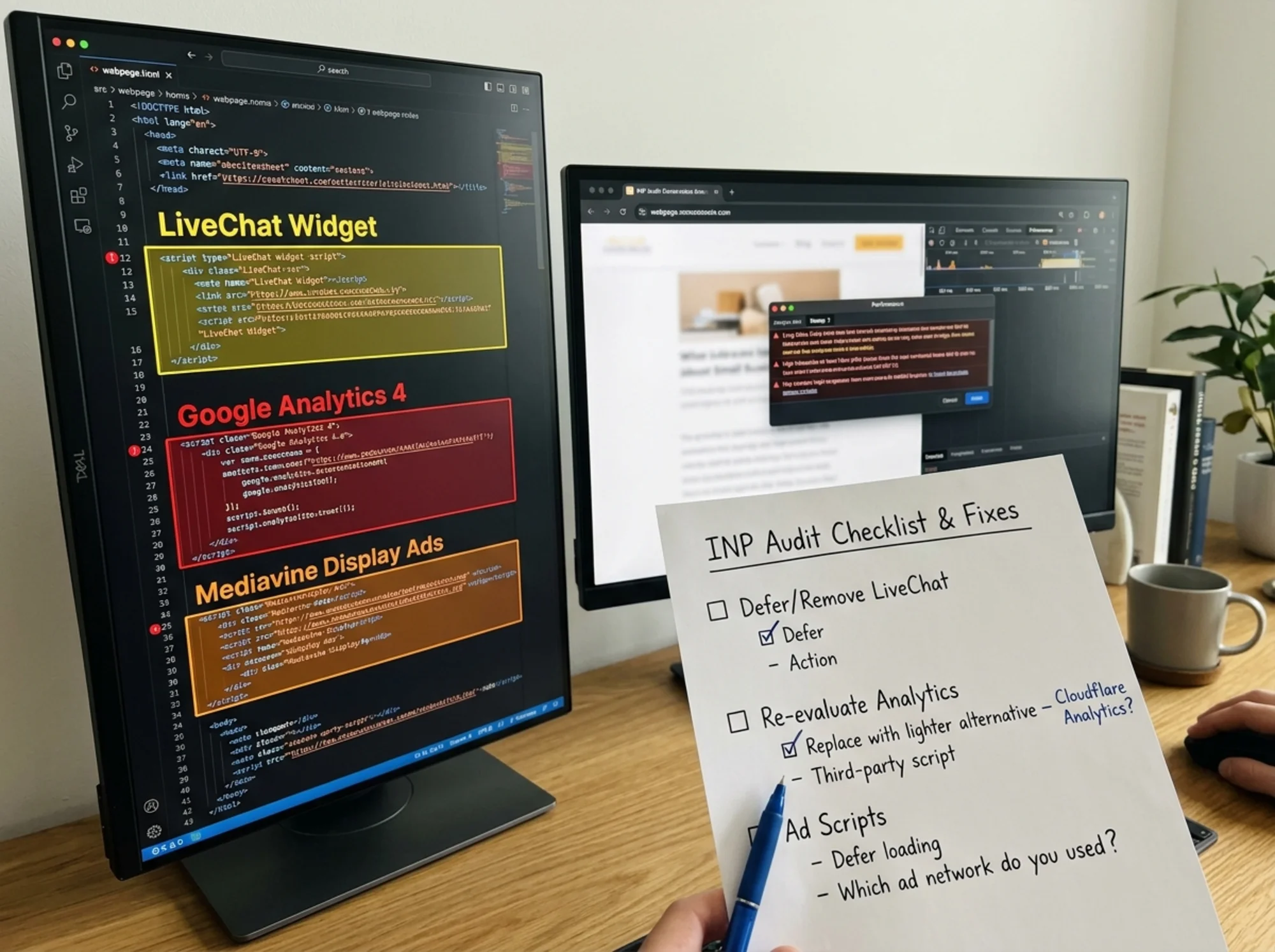
In our audits, the same culprits show up over and over. Rough ranking, worst to least bad, for small business sites:
1. Tag managers with too many tags inside them. GTM itself is light. But once you've added 15 tags through it, each firing on every page view and every click, you've built a main-thread traffic jam.
2. Live chat widgets. Designed to feel "alive," which means they poll, animate, and listen for interactions constantly. Many load 200KB+ of JavaScript on every page even if nobody opens the chat.
3. Session replay and heatmap tools. Recording every mouse movement and click is expensive. Hotjar and FullStory in particular show up in audits where INP suddenly tanked after install.
4. A/B testing scripts loaded synchronously. To prevent "flicker," these often block rendering and re-evaluate experiments on every interaction.
5. Old, forgotten tags. Pixels from past campaigns. Affiliate trackers from a partner you no longer work with. Scripts for popup tools you replaced two years ago.
6. Embedded video players and social feeds. A single embedded YouTube player can add 500KB+ of JavaScript to your page.
A Specific Scenario: The Local Bakery Site
Here's a real pattern. A small bakery has a Shopify site with a homepage, a menu page, and a contact page. Over the years the owner added:
- Google Tag Manager
- Google Analytics 4 (via GTM)
- Facebook Pixel (via GTM)
- A Pinterest tag (via GTM, from a 2022 campaign)
- Tidio live chat
- A Trustpilot review widget on the homepage
- An embedded Instagram feed at the bottom of the homepage
Field data from the Chrome User Experience Report shows an INP of 480ms — borderline poor.
A lab test reveals what's happening when a visitor taps the menu button on mobile:
- The browser fires a click event
- GTM triggers, re-evaluating all four tags
- The Pinterest tag (no longer used) still runs and pings its server
- Tidio's click listener fires and re-checks chat state
- The Instagram embed re-runs a layout calculation
Total main-thread work: 510 milliseconds. The menu opens almost instantly visually, but Google's INP measurement captures the full processing time. Result: poor INP.
The fix took 40 minutes:
- Remove the Pinterest tag entirely.
- Move the Instagram embed below the fold and lazy-load it.
- Switch Tidio to "load on user interaction" (loads when someone scrolls or after 5 seconds).
- Move Trustpilot to a dedicated /reviews page.
New INP: 180ms. Good. No revenue tracking was lost. The chat widget still works — it just appears slightly later.
How to Find Your INP Killers (Without Being a Developer)
You don't need to read code. Three approaches, in order of effort.
The 10-Minute Approach: Run a Free Audit
Tools like FreeSiteAudit scan your site, identify third-party scripts, flag long main-thread tasks, and rank them by INP impact. Run a free audit on your site and look at the INP and third-party script sections.
The 30-Minute Approach: PageSpeed Insights + Chrome DevTools
- Run your homepage through PageSpeed Insights.
- Open the "Diagnostics" section. Look for:
- "Reduce the impact of third-party code"
- "Reduce JavaScript execution time"
- "Minimize main-thread work"
- Expand each row. PageSpeed lists the actual domains and scripts.
The domains hogging the most time are your prime suspects.
The 60-Minute Approach: Audit Every Script
Open your site in Chrome. Right-click → View Page Source. Search for src=. Make a list of every external domain. For each one, ask:
- Do I know what this is?
- Am I still using it?
- Does it need to load on every page?
- Does it need to load immediately?
Owners usually find 3 to 6 scripts they had no idea were still running.
The Mini Checklist: Fixing INP Without Breaking Anything
Once you know your culprits, work through this in order. Stop when your INP is in the green.
Step 1: Remove what you don't use. Scripts from past campaigns, old plugins, abandoned tools. Free performance. No downside.
Step 2: Audit your tag manager. If you have GTM, review every tag inside. Pause anything not actively reporting to a real dashboard.
Step 3: Lazy-load chat widgets. Almost every chat tool — Intercom, Tidio, Tawk.to, Drift, Crisp — supports loading "on click" or "after delay" in its settings. Use it.
Step 4: Defer non-critical scripts. Add the defer attribute or load scripts after the page becomes interactive. Most modern themes expose this option without code.
Step 5: Move heavy widgets off the homepage. Review widgets, Instagram feeds, social embeds often belong on dedicated pages, not your highest-traffic landing page.
Step 6: Use lighter alternatives. Microsoft Clarity (free) is significantly lighter than full session replay tools. Plausible and Fathom are lighter than GA4. Native lazy-loaded iframe embeds beat heavyweight social widgets.
Step 7: Audit again. After each change, re-test. A 100ms reduction here, a 50ms reduction there, and you're suddenly in the green.
For platform-specific guidance, our INP fix guide covers WordPress, Shopify, Webflow, and Wix. For deeper script-by-script recommendations, see our third-party scripts playbook.
What About "Necessary" Scripts?
This is the question owners get stuck on. "I need GA4 for reporting. I need the Meta Pixel for ads. I need Klaviyo for email pop-ups."
You probably do need them. But needing them doesn't mean needing them to run synchronously on the main thread the moment the page loads.
Almost every analytics and pixel tool supports:
- Asynchronous loading — the script doesn't block the page
- Deferred execution — the script runs after the page is interactive
- Server-side tagging — the script runs on a server, not the user's browser
Server-side tagging is the gold standard for ad pixels and analytics. More work to set up, but the performance gain is significant. If your site relies heavily on tracking, it's worth investigating.
For ecommerce stores specifically, where every millisecond of INP affects conversion, see our notes on ecommerce performance.

How to Know You're Done
Run your site through PageSpeed Insights again after your changes. Look at the field data (real Chrome user data), not just the lab data. Field data takes about 28 days to update fully, so don't panic if it doesn't improve immediately.
You're aiming for:
- INP under 200ms across mobile and desktop
- "Reduce the impact of third-party code" no longer flagged in Diagnostics
- Total Blocking Time under 200ms in lab data
Once you hit those numbers, your INP problem is solved. From there, it's about not adding new scripts carelessly. Every new tool, widget, or pixel should pass a simple test: is this worth a measurable INP cost?
If you've never tested your site, start there. Run a free FreeSiteAudit — it takes about 60 seconds and tells you exactly which scripts are hurting your INP, ranked by impact, in plain English.
Third-party scripts aren't evil. They're just expensive. Treat them like any other line item in your business: useful when they earn their keep, dead weight when they don't.
Sources
Check your website for free
Get an instant score and your top 3 critical issues in under 60 seconds.
Get Your Free Audit →