How to Defer JavaScript Without Breaking Your Site
A plain-English guide to deferring JavaScript safely. Speed up your site without breaking menus, forms, or trackers, and protect your Core Web Vitals scores.
# How to Defer JavaScript Without Breaking Your Site
If you have ever run a speed test on your site, you have probably seen the dreaded line: "Eliminate render-blocking resources" or "Defer unused JavaScript." It is one of the most common recommendations for slow sites, and one of the most misunderstood.
The fix sounds simple. Add a defer attribute to your script tags. Your site loads faster. Google rewards you. Done.
In reality, plenty of small business owners try this fix and end up with a broken menu, a checkout button that does nothing, or a chat widget that never appears. The page loads faster, but customers cannot use it.
This guide walks you through how to defer JavaScript properly, without breaking the things that actually make you money. No jargon, no code dumps. Just what you need to know before you touch anything.

What "Deferring JavaScript" Actually Means
Every modern website uses JavaScript. It powers dropdown menus, contact forms, chat widgets, analytics, popups, image sliders, and pretty much anything that moves or reacts.
Here is the problem. By default, when a browser hits a
Test the page. Try the menu. Try the form. Try the cart.
Step 5: Delay Third-Party Scripts
For analytics, pixels, chat widgets, and embeds, deferring is not aggressive enough. These should be delayed until the user actually does something (scrolls, moves the mouse, taps the screen).
Plugins like WP Rocket and Perfmatters have a "Delay JavaScript Execution" option for exactly this. The user gets a fast page on arrival. The trackers and chat widgets only load once they prove they are sticking around.
This change alone often takes a site from a PageSpeed score of 45 to 85 without breaking anything.
Step 6: Test the User Journeys, Not Just the Score
Go through every important journey on a real phone:
- Tap the mobile menu. Does it open?
- Submit the contact form. Does the success message show?
- Click "Order Online." Does the cart load?
- Check Google Analytics Realtime. Are pageviews still firing?
- Check Facebook Events Manager. Are pixel events still arriving?
A faster site that does not convert is worse than a slow one.
A Mini-Checklist You Can Use Right Now
Run through this the next time you want to speed up your site.
- [ ] List every script loading on your homepage
- [ ] Remove plugins or tools you no longer use
- [ ] Identify which scripts touch above-the-fold content
- [ ] Apply
deferto functional scripts that do not touch the first visible content - [ ] Use
delay(not just defer) for analytics, pixels, chat, and embeds - [ ] Test the mobile menu after every change
- [ ] Test the contact form after every change
- [ ] Test the checkout or booking flow after every change
- [ ] Confirm analytics still fires in real time
- [ ] Re-run your speed test only after testing user journeys
If you cannot tick all of these, do not push the changes live.
When to Use `async` Instead of `defer`
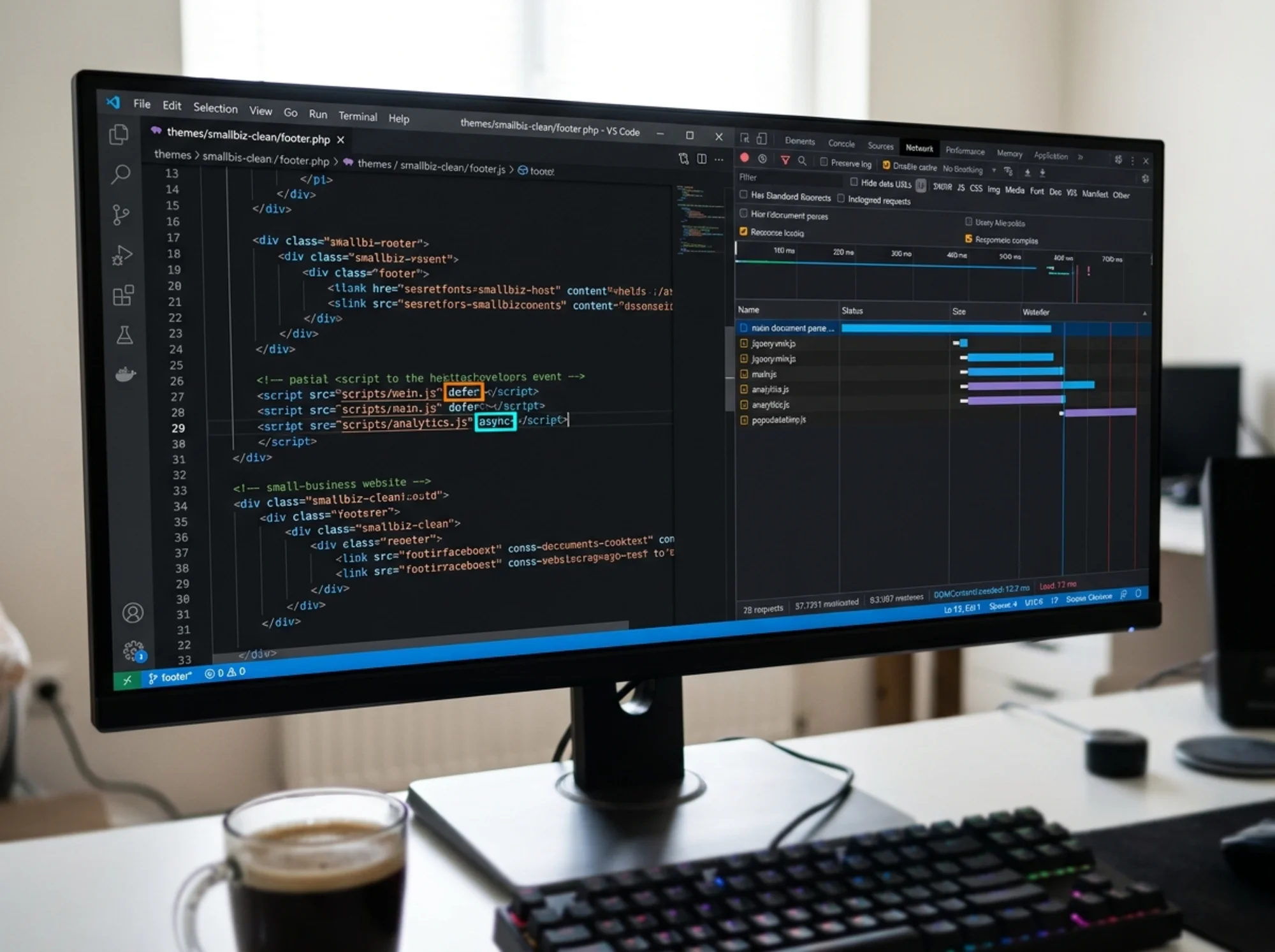
async is best for independent scripts that do not need another script to work and do not need to wait for the page to finish parsing. The classic example is Google Analytics in its standalone form.
When you load a script async, the browser runs it the moment it finishes downloading. That can interrupt page parsing briefly, which is the trade-off. For analytics you want firing as early as possible, async is fine.
A simple rule: if a script is stand-alone and order does not matter, async is OK. If a script depends on another or needs to run in sequence, use defer.
What About Wix, Squarespace, and Elementor?
On hosted platforms like Wix or Squarespace, you do not always get to control script tags directly. Both have made improvements to defer their own scripts automatically, but third-party scripts you add (Facebook Pixel, a chat widget) often still block rendering.
For these platforms, focus on:
- Removing third-party scripts you do not actively use
- Using the built-in tag manager or "custom code" features sparingly
- Loading marketing scripts in the footer rather than the header where possible
If you are on WordPress with Elementor, you have more control. Use a performance plugin to defer and delay scripts rather than editing theme files directly.
How to Know If It Worked
After your changes, run a fresh test. The free tools that matter most:
- PageSpeed Insights — Look at LCP and Total Blocking Time. Both should drop.
- WebPageTest — The waterfall chart shows you exactly when each script runs. Scripts that previously blocked the main thread should now sit lower in the timeline.
- Your own phone on cellular data — The most honest test. Open the site as a customer would. Tap things. Did anything feel slower or broken?
If your LCP improved but your visitors are converting at a lower rate, something is broken. Roll back, find the script you broke, and try again with that one excluded.

What to Do When Something Breaks
It happens. You defer one script too many, and suddenly your contact form will not submit. Here is the calm, fast way to fix it.
- Note exactly what is broken (the menu, the form, the cart).
- Open browser developer tools and check the Console tab. Errors there usually tell you which script failed and what it was waiting for.
- Go back to your performance plugin and exclude that specific script from deferral.
- Save, clear cache, and test again.
Do not panic-disable the whole performance plugin. The 90% that was working is still valuable. You just need to find the one script that needed to load earlier.
The Bigger Picture
Deferring JavaScript is one piece of a larger speed strategy. You can defer scripts perfectly and still have a slow site if your hosting is bad, your images are huge, or your fonts are loading from three different domains. Use a free audit to see the full picture before you start tweaking individual scripts.
JavaScript optimization rewards patience. One script at a time. One test at a time. The sites that crush their Core Web Vitals scores rarely got there in one Saturday. They got there by trimming one script every few weeks, watching what broke, and rolling forward carefully.
Try a Free Audit Before You Touch Anything
If you are not sure which scripts are slowing your site down, or which ones are safe to defer, run a free website audit with FreeSiteAudit. You will get a plain-English report that names the specific scripts blocking your page, flags the ones that are wasted, and tells you exactly which Core Web Vitals are at risk.
No login required, no credit card. Just enter your URL and get a clear list of fixes ranked by impact. It is the easiest way to know where to start, and to make sure your next attempt at deferring JavaScript actually moves the needle without breaking anything that matters.
Sources
- Web.dev — Core Web Vitals: https://web.dev/articles/vitals
- Google Search Central — Creating Helpful, Reliable Content: https://developers.google.com/search/docs/fundamentals/creating-helpful-content
Check your website for free
Get an instant score and your top 3 critical issues in under 60 seconds.
Get Your Free Audit →