How to Run a Website Audit Without Technical Knowledge
A plain-English website audit guide for small business owners. Check speed, SEO, mobile experience, and trust signals without writing a single line of code.
# How to Run a Website Audit Without Technical Knowledge
You don't need to know HTML, JavaScript, or what a "render-blocking resource" is to figure out whether your website is helping or hurting your business. You need a clear process, a few free tools, and about ninety minutes.
This guide walks you through a complete website audit in plain English. By the end, you'll have a ranked list of specific problems to fix, ordered by how much they're costing you in lost customers.
What a Website Audit Actually Is
A website audit is a structured check of four things:
- Speed — does your site load fast enough that people stick around?
- Search visibility — can Google find and understand your pages?
- Trust and clarity — does a first-time visitor know what you sell and how to contact you?
- Mobile experience — does it work on the phone in your customer's hand?
If you can answer those four questions honestly, you have audited your website. Everything else is detail.
Before You Start: Set the Goal
Pick one outcome you want from your website. Examples:
- More phone calls from local searches
- More discovery calls booked through the contact form
- More units sold of one specific product
- Fewer "where are you located?" emails
Write it down. Every problem you find either helps or hurts this goal. Without a goal, you'll waste time fixing things that don't matter.
Step 1: The Five-Minute First Impression Test
Open your website in a browser you don't normally use, on a connection that isn't your home Wi-Fi (use your phone's data). Pretend you've never seen it before, and start a timer.
- Within five seconds, do I know what this business does?
- Within ten seconds, can I find a phone number, address, or contact button?
- Within thirty seconds, do I trust this business enough to call?
If any answer is "no," write it down. That's your first audit finding, and it has nothing to do with code.
Repeat the test on your phone. Most small business websites get more than half their traffic from mobile devices. If pinching and zooming is required to read anything, that's another finding.
Step 2: Check Your Speed With One Free Tool
Go to PageSpeed Insights (pagespeed.web.dev), paste your homepage URL, and click Analyze. Wait about thirty seconds.
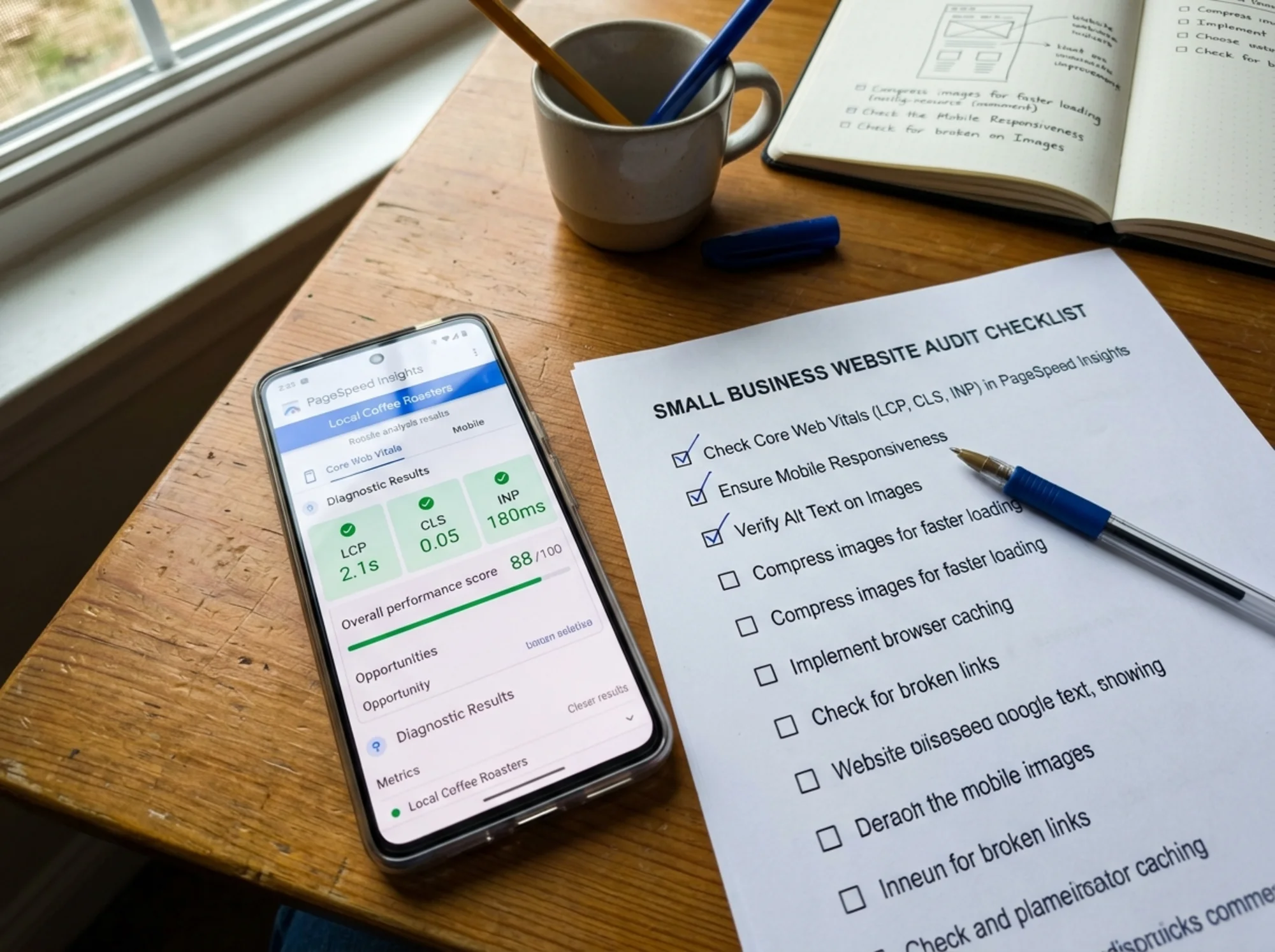
You'll see a score from 0 to 100 and a section called "Core Web Vitals." Google uses these as a ranking signal, so a slow site doesn't just frustrate visitors — it also gets buried in search results.
In plain English:
- LCP (Largest Contentful Paint) — how long until the biggest thing on the page (usually a hero image or headline) appears. Aim for under 2.5 seconds.
- CLS (Cumulative Layout Shift) — how much the page jumps around while loading. Aim for under 0.1. High CLS is why you sometimes tap the wrong button.
- INP (Interaction to Next Paint) — how quickly the page responds when you tap or click. Aim for under 200 milliseconds.
If any are in the red, write down the URL and the metric that failed. Repeat the test for your three most important pages: homepage, your top service or product page, and contact. If LCP is your main problem, our guide on fixing slow-loading pages covers the most common causes.
Step 3: Check What Google Sees
Type this into Google: site:yourdomain.com
Replace yourdomain.com with your actual domain. This shows every page Google has indexed.
- Is the homepage the first result? It should be.
- Do the page titles make sense, or do they read "Home | My Site" or "Untitled"?
- Are there pages listed that shouldn't be there — old drafts, staging URLs, admin pages?
- Are pages missing that should be there — your services, locations, pricing?
If you see fewer than five results and your site has more than five real pages, Google may be having trouble crawling. If you see hundreds of results and your site only has fifteen pages, you likely have duplicate or thin content.
Next, set up Google Search Console (free, about ten minutes). It tells you exactly which pages Google has indexed, which it has skipped, and why.
Step 4: The Content Sanity Check
Google has published clear guidance on what it calls "helpful content" — pages written for people, not for search engines. Look at your top three pages and ask:
- Does this answer a real question a real customer would ask?
- Is the answer specific to my business, or could it have been written by anyone in my industry?
- Is there evidence I know what I'm talking about — photos of real work, named team members, case studies, certifications?
Generic, padded content that exists only to "have SEO content" is exactly what Google has been actively demoting since 2022. If a page reads like it was written to hit a word count, it probably isn't earning you traffic.
A specific example: a roofing company in Tulsa had a page titled "About Roofs" with 800 words of general roofing information. They replaced it with "How We Handle Storm Damage Claims in Tulsa," including three named team members, two photos of actual repairs, and the insurance companies they work with. Within ninety days, the page started ranking for "tulsa storm damage roofer" and bringing in calls. Same effort. Completely different results.
Step 5: Check Your Trust Signals
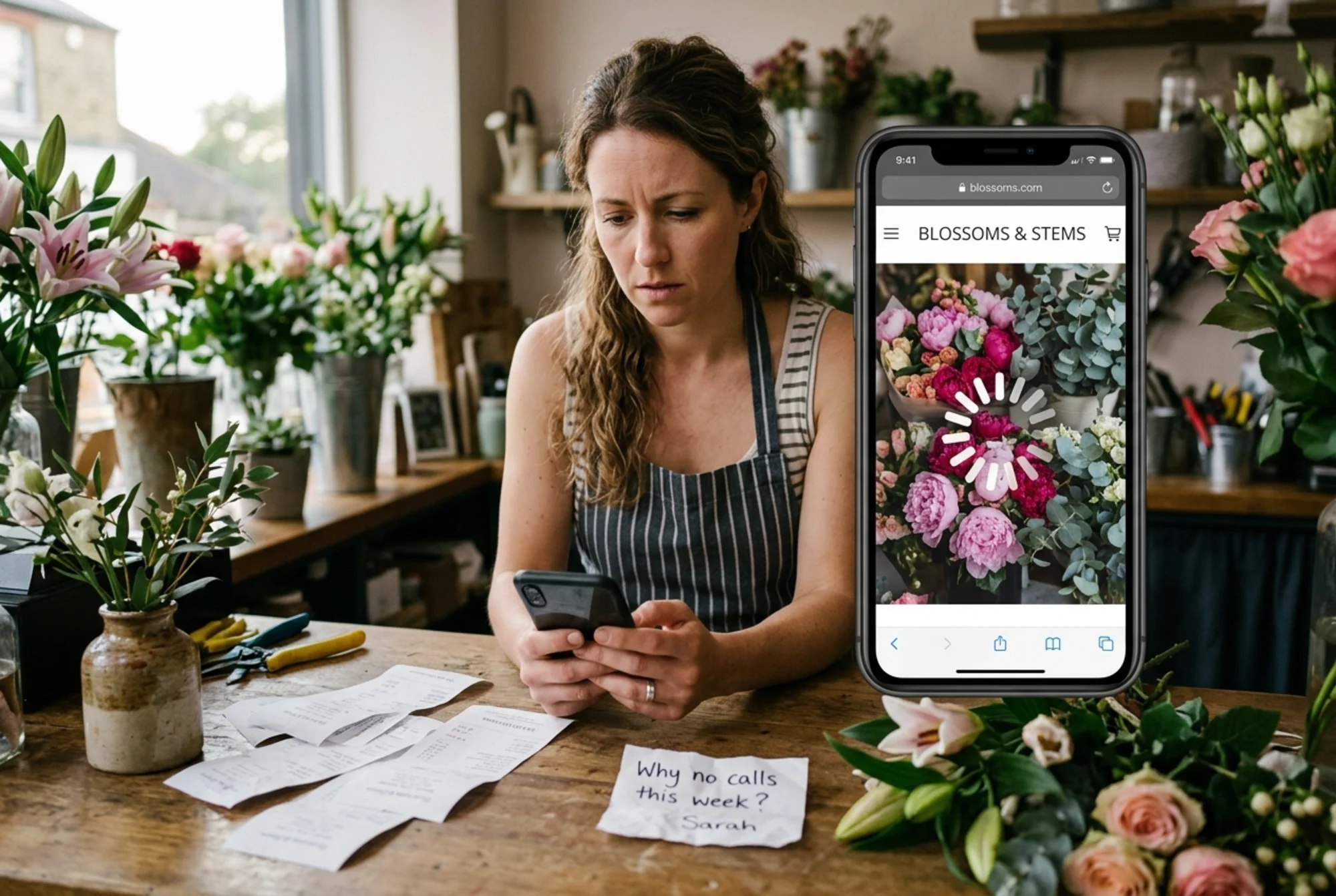
A visitor decides whether to trust you in seconds. Open your homepage and confirm each of these is present and easy to find:
- A phone number that dials when tapped on mobile (it should not just sit there as text)
- A physical address if you serve a local area
- Hours of operation
- Real photos of your team, your shop, or your work — not stock images
- Customer reviews or testimonials with names attached
- A clear price range or a "starting at" figure if appropriate
- An HTTPS lock icon in the browser bar — if you see "Not Secure," that's a finding
Each missing item represents a customer who got nervous and clicked away.
Step 6: The Structured Data Check (Easier Than It Sounds)
Structured data is extra information you add to your pages so Google can display rich results — star ratings, prices, opening hours, FAQ snippets — directly in search results. You don't write it by hand. Most modern website builders (Squarespace, Wix, Shopify, WordPress with Yoast or Rank Math) generate it automatically.
To check yours, paste your URL into Google's Rich Results Test (search.google.com/test/rich-results). It tells you which structured data is present and whether it has errors. If your business shows up with no structured data at all, your builder either needs to be configured or you're missing out on free visibility in search.
Step 7: Write Down Findings and Rank Them
By now you have a list. It probably looks like this:
- Homepage LCP is 4.8 seconds (too slow)
- Phone number on mobile doesn't tap-to-call
- Services page has generic content with no examples
- Three old blog drafts are indexed by Google
- No structured data on product pages
- Hero image is a stock photo of an office that isn't ours
Rank each finding by two questions: How much is this costing me? and How hard is it to fix?
Start with high-impact, low-effort items. Tap-to-call is usually a five-minute fix and has immediate revenue impact. A slow hero image can often be solved by compressing it. Replacing stock photos with real ones takes an afternoon.
Save deeper technical fixes (full speed optimization, JavaScript cleanup) for after you've exhausted the easy wins — or hand them to a developer with a clear, prioritized list.
A One-Hour Walkthrough
Imagine you run a three-person law firm. You sit down at 10 AM with coffee and your phone.
- 10:00–10:10 — First-impression test on desktop and mobile. The homepage headline says "Welcome to Our Firm" instead of "Estate Planning Attorneys in Asheville."
- 10:10–10:25 — PageSpeed Insights on three pages. Homepage LCP is 5.1s, mostly because of one very large team photo.
- 10:25–10:40 —
site:yourdomain.comcheck. You find two old blog posts from 2018 that contradict your current pricing. - 10:40–10:55 — Trust signals. Phone number doesn't tap. No team bios on the About page.
- 10:55–11:00 — Five findings written down, ranked by impact.
Result: a specific, ranked list of changes you can either do yourself on a Saturday afternoon or hand to a freelancer with a clear scope.
When to Use an Automated Audit Tool
Doing these steps manually forces you to see your own site through a customer's eyes — that's valuable. But it has limits. You won't catch missing alt text on every image, broken internal links, or schema markup errors by eye.
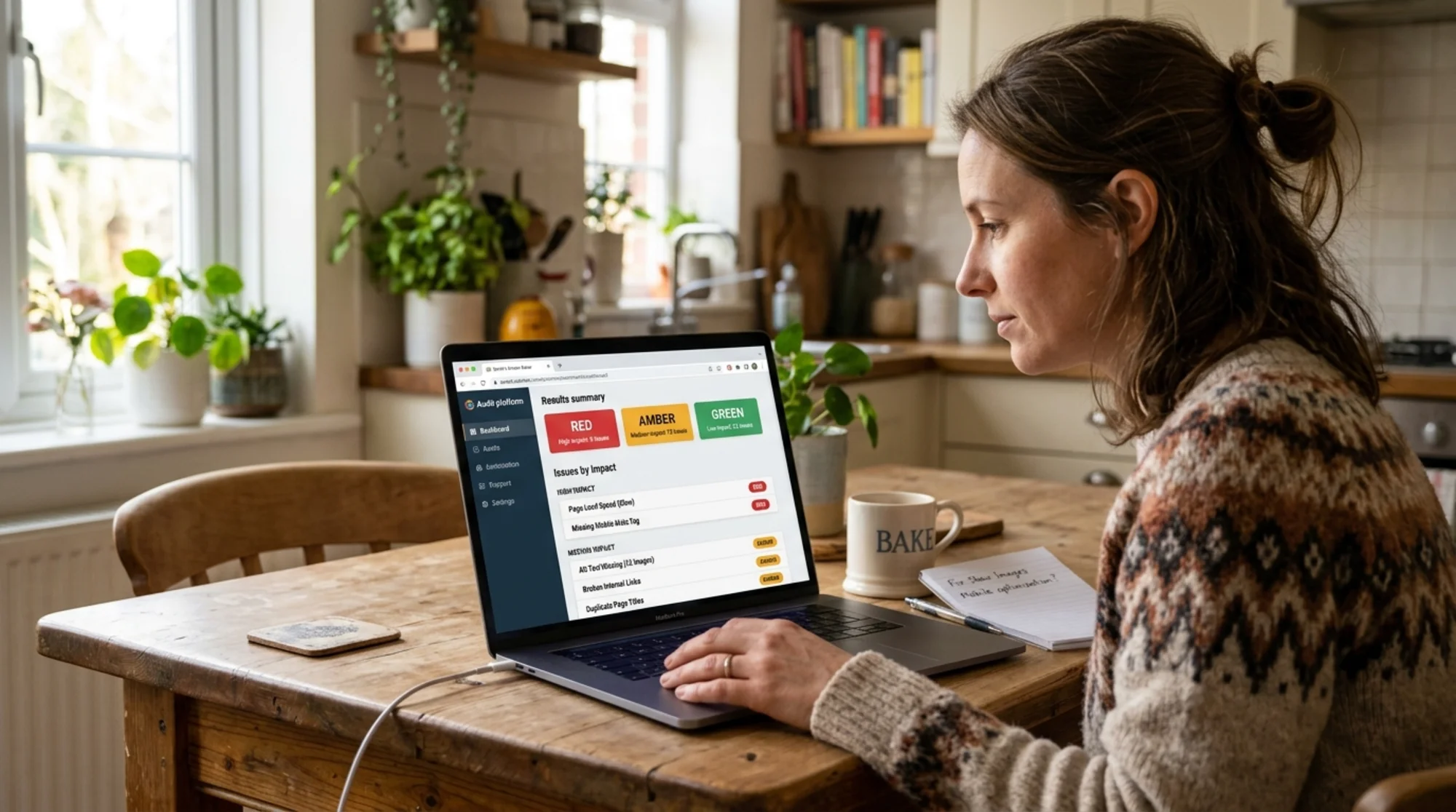
That's where an automated audit fills the gaps. A good tool checks hundreds of items in under a minute, flags issues by severity, and produces the same kind of prioritized list — only complete.
You can run a free website audit with FreeSiteAudit in about sixty seconds. You'll get a plain-English report covering speed, SEO, mobile experience, and trust signals, with each issue ranked by impact. If you're a small business owner doing your own marketing, it's the fastest way to find what's actually costing you customers — without learning to read code.
What to Do With Your Audit Results
An audit is only useful if you act on it. After finishing:
- Pick the top three findings.
- Fix what you can yourself this week.
- For the rest, get one quote from a freelancer and one from your current website host's support team.
- Re-run the audit in thirty days and compare.
The point is not to chase a perfect score. The point is to make your website do its job: turn visitors into customers. Everything in the audit either helps that or doesn't.
Sources
Check your website for free
Get an instant score and your top 3 critical issues in under 60 seconds.
Get Your Free Audit →