How to Speed Up a Squarespace Site in 2026
A plain-English guide to speeding up your Squarespace site in 2026, with checklists, a real bakery walkthrough, and Core Web Vitals fixes that actually work.
# How to Speed Up a Squarespace Site in 2026
Squarespace is a great pick when you want a professional site without hiring a developer. It is less great when your homepage takes six seconds to load on a phone and customers leave before they ever see your booking button.
The good news is that most Squarespace speed problems come from a short list of fixable things: oversized images, heavy fonts, too many third-party embeds, and a few template choices that quietly drag everything down. You do not need to touch code to fix the biggest offenders.
This guide walks through the practical steps a non-technical owner can take in an afternoon. We will cover what to measure, what to change, and how to confirm the changes actually helped.
Why speed matters for a small business site
Page speed is not a vanity metric. Google uses three Core Web Vitals to judge how a real visitor experiences your page:
- LCP (Largest Contentful Paint) — how quickly the main thing on the page appears. Target: under 2.5 seconds.
- INP (Interaction to Next Paint) — how fast the page responds when someone taps a button or link. Target: under 200 milliseconds.
- CLS (Cumulative Layout Shift) — how much things jump around as the page loads. Target: under 0.1.
If your page is slow, two things happen. First, people leave before the page finishes loading, which kills conversions. Second, Google ranks you below faster competitors, which kills traffic. Both compound over time.
For a small business, the cost is not theoretical. A boutique whose product pages take five seconds to load on mobile is competing with sites that load in under two. The faster site wins.
Start with a baseline measurement
Do not start fixing things until you know what is actually slow. Three minutes of measurement saves hours of guessing.
Run a baseline on these three tools:
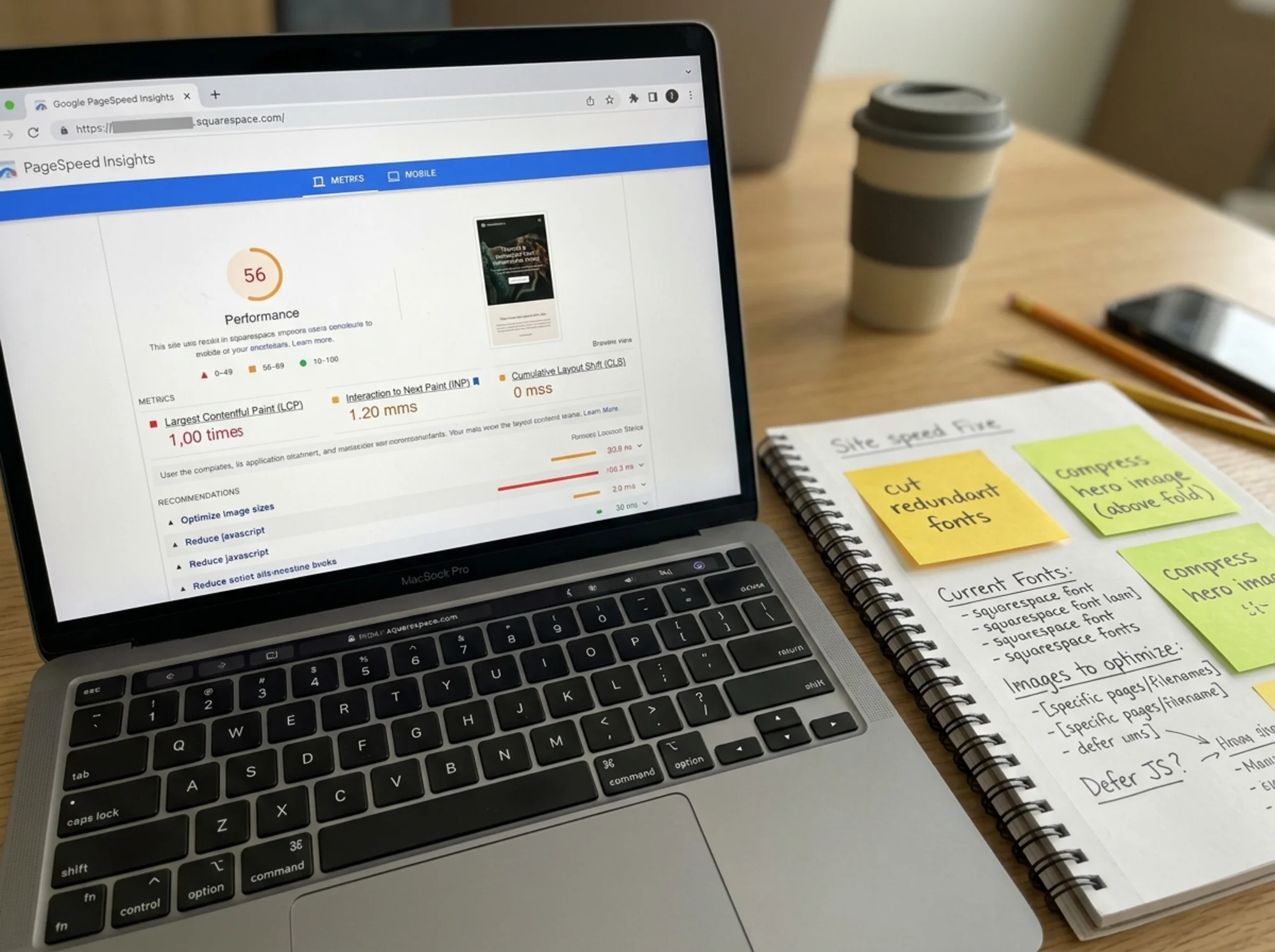
- PageSpeed Insights — paste your URL into pagespeed.web.dev. Look at the "Core Web Vitals Assessment" at the top. Green is fine, orange and red are not.
- Google Search Console — under "Core Web Vitals" in the left menu, you see real-user data for your site. This is more reliable than any single test.
- Your phone on cellular data — turn off Wi-Fi, open your site in a private browsing window, and load three pages. Time it. This is what your customers actually experience.
Write down LCP, INP, and CLS for your homepage and your top-traffic page. You will compare against these later.
If you want a faster start, run a free website audit and get a prioritized list of speed and SEO issues for your Squarespace site in about a minute.

The five things slowing down most Squarespace sites
The same five culprits show up on most Squarespace audits. Fix these in order.
1. Oversized hero and gallery images
This is the single biggest cause of slow Squarespace pages. Owners upload a 4000-pixel-wide photo from their camera, Squarespace serves a resized version, but the source file is still doing damage to LCP.
What to do:
- Before you upload, resize images to a maximum of 2400 pixels on the long side. Preview on Mac or Photos on Windows can do this for free.
- Compress with Squoosh or TinyPNG. A 4 MB photo should become 200–400 KB with no visible quality loss.
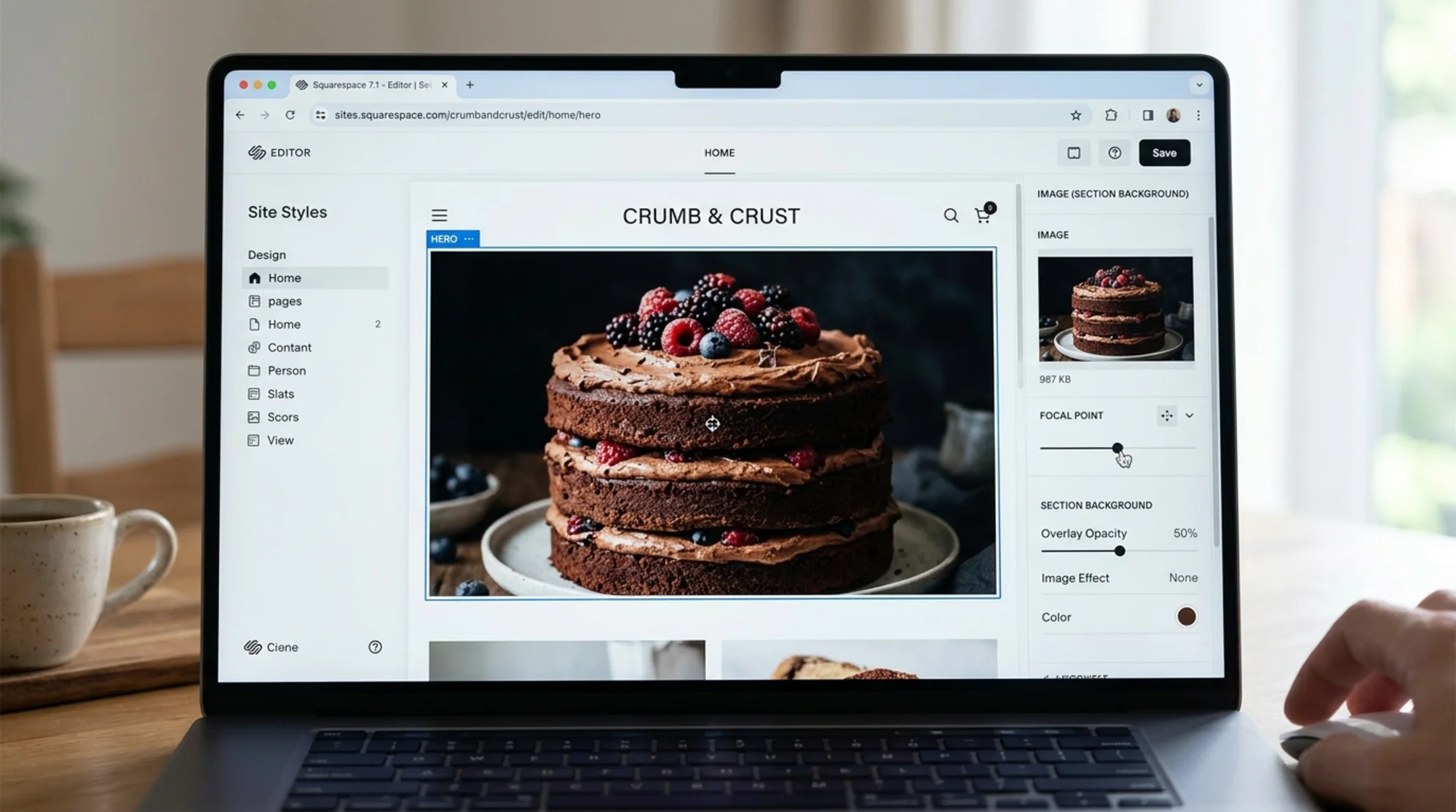
- In Squarespace, open each image block and check "Focal Point" to make sure the crop still works after resizing.
- Avoid background videos on the homepage. They are LCP killers and most visitors mute autoplay anyway.
Quick rule: if any single image on your homepage is over 500 KB, it is too big.
2. Too many custom fonts
Squarespace has a huge font library, and it is tempting to use a different font for headings, subheadings, navigation, and body text. Each font weight you load is a separate download.
What to do:
- Use at most two font families across the whole site.
- Use at most three weights per family (Regular, Medium, Bold). Skip weights you do not actually use.
- In Site Styles, find unused fonts and switch them to your two chosen families.
3. Third-party embeds
Every embedded widget — Instagram feed, YouTube background, Calendly, chat tool, MailerLite popup, Facebook pixel — adds JavaScript that has to load and execute before the page is interactive. INP suffers immediately.
What to do:
- List every embed and ask: does this earn its weight? A Calendly widget on the booking page is fine. The same widget on every page is not.
- Replace embedded YouTube videos on the homepage with a static thumbnail that links to the video page.
- Set chat widgets to load after a delay or only on key pages. Chat widgets often add 300+ KB of JavaScript.
- Remove any pixel or analytics tag you do not actively use. If you have not opened the Facebook Ads dashboard in six months, the pixel is just costing you speed.
4. Heavy templates and unused sections
Some Squarespace 7.1 templates ship with parallax sections, video backgrounds, and animated transitions enabled by default. If you copied a demo template and never trimmed it, you are paying for features you do not use.
What to do:
- Open each page in the editor. Delete sections that are not earning their place.
- Turn off section animations in Site Styles unless you specifically want them.
- For long pages, ask whether everything below the fold actually needs to be on the homepage at all.
5. CLS from late-loading elements
Layout shift happens when something appears late and pushes other content down. The worst offenders are cookie banners, web fonts swapping in, and images without dimensions.
What to do:
- Squarespace images include dimensions by default. If you added images via Code Blocks, make sure they have width and height attributes.
- Use the built-in cookie banner rather than a third-party one. The built-in version reserves space and shifts less.
- Avoid full-width announcement bars that appear after the page loads. If you need one, set it to appear from page load, not after a delay.
A real walkthrough: a bakery homepage going from slow to fast
Here is what this looks like in practice. A bakery in Portland came to us with a Squarespace 7.1 site. Homepage LCP on mobile was 5.8 seconds. Bounce rate from Instagram traffic was 71 percent.
Step 1 — Resize the hero image. Their hero was a 5.2 MB photo of a chocolate cake. We resized to 2000 pixels wide and compressed it to 280 KB. LCP dropped to 3.4 seconds. Five-minute job.
Step 2 — Cut the font count. They were loading four font families (heading, subheading, body, button). We consolidated to two families with three weights each. Removed roughly 180 KB of font files. LCP dropped to 2.9 seconds.
Step 3 — Defer the Instagram feed. They had an embedded Instagram gallery on the homepage. We moved it to a dedicated "Gallery" page and replaced the homepage section with three static images linking to the gallery. INP improved from 320 ms to 140 ms.
Step 4 — Remove unused third-party tools. They had a chat widget they never responded to and a MailerLite popup that triggered after 3 seconds. We removed the chat and switched the popup to exit intent only. Removed about 400 KB of JavaScript.
Step 5 — Trim the homepage. They had six full-height sections. We cut to four and moved "About Our Bakers" to a separate About page. Shorter page, faster render.
Final numbers: LCP 1.9 seconds. INP 110 ms. CLS 0.04. All three vitals in the green. Total time invested: about three hours, no developer involved.
Bounce rate from Instagram dropped from 71 percent to 48 percent over the next three weeks. Online cake orders went up too, though that is harder to attribute to speed alone.
The 30-minute speed checklist
If you have half an hour, do these in order.
Images (10 minutes)
- [ ] Open the homepage and your top three pages
- [ ] For each image, check the file size — anything over 500 KB gets resized and recompressed
- [ ] Replace any autoplaying background video with a static image
Fonts (5 minutes)
- [ ] Site Styles → check how many font families and weights you are loading
- [ ] Cut to two families, maximum three weights each
- [ ] Remove any decorative font used in only one place
Embeds (10 minutes)
- [ ] List every third-party embed on every page
- [ ] Remove anything you have not used in the past 60 days
- [ ] Move social feeds off the homepage
- [ ] Set chat widgets to load on delay or only on specific pages
Verify (5 minutes)
- [ ] Re-run PageSpeed Insights on the same pages
- [ ] Compare new LCP, INP, and CLS to your baseline
- [ ] If something got worse, undo your last change
For a deeper diagnosis after this, our Core Web Vitals fix guide covers the technical levers in more detail.
What Squarespace does well (so you do not have to fix it)
To be fair to the platform, Squarespace handles a lot of speed work out of the box:
- Images are automatically served in WebP format on browsers that support it
- Responsive image sizes are generated automatically
- Lazy loading is on by default for images below the fold
- The CDN is built in, so visitors load assets from a server near them
- HTTPS, HTTP/2, and Brotli compression are all on by default
You do not need plugins for these basics, unlike on WordPress. The trade-off is less control. You cannot defer specific JavaScript files or change image quality settings. The fixes above are the ones you actually have control over.
What about AMP and other "magic" speed tricks?
A few myths worth clearing up:
- AMP — Squarespace does not support AMP, and you do not need it. Google retired AMP as a ranking requirement years ago.
- "Speed plugins" — These do not exist for Squarespace, which is actually a good thing. Most WordPress speed plugins cause more problems than they solve.
- CDN add-ons — Squarespace already runs on a CDN. Adding Cloudflare in front sometimes helps, but usually it just adds complexity.
- Custom code injections — Most "speed up Squarespace" scripts found online are outdated and can break your site. When in doubt, do not add code.
The boring truth is that 90 percent of Squarespace speed problems are images, fonts, and embeds. Fix those and you are most of the way there.

After the cleanup: what to check weekly
Speed is not a one-time project. Every time you add a new product, section, or third-party tool, you risk slowing things down again. Build a small habit:
- Weekly: Glance at Google Search Console → Core Web Vitals. If anything turned orange or red, find the recent change that caused it.
- Monthly: Run PageSpeed Insights on your homepage and top three traffic pages. Compare to last month.
- Before any redesign: Save the current vitals numbers so you can prove the new design is at least as fast.
If you would rather have someone watch this for you, we offer scheduled audits that re-check your site monthly and email you when something regresses. It catches problems before customers do.
Get a free audit of your Squarespace site
If you want a fast, no-signup snapshot of where your site stands, run a free website audit. It checks Core Web Vitals, image weight, SEO basics, and accessibility, then gives you a prioritized list of fixes specific to Squarespace.
You do not have to be technical to act on the results. The audit explains each issue in plain English and tells you which Squarespace setting to change. Small business owners use it before redesigns, before launching new pages, and whenever traffic suddenly drops.
A faster site is one of the few changes that helps every metric at once — rankings, conversions, ad efficiency, and the simple feeling that your business looks professional. For a Squarespace site, the work is mostly an afternoon of cleanup. Worth doing.
Sources
- https://web.dev/articles/vitals
- https://support.squarespace.com/hc/en-us/articles/360002101888-Built-in-SEO-tools
- https://developers.google.com/search/docs/fundamentals/creating-helpful-content
- https://developers.google.com/search/docs/appearance/structured-data/article
Related Tools
Related Fixes
Check your website for free
Get an instant score and your top 3 critical issues in under 60 seconds.
Get Your Free Audit →