How to Test Your Site on Slow 3G Before Launching
Plain-English guide to simulating Slow 3G in Chrome DevTools before launch—how to throttle, what breaks first, and the quick fixes that save mobile sales.
# How to Test Your Site on Slow 3G Before Launching
You built a website. It looks great on your laptop. It loads instantly on your home Wi-Fi. You hit publish, share the link, and wait for orders.
Then a customer texts you: "Your site is broken."
It is not broken. It is slow. They are on a phone, on a weak cell signal, standing outside a coffee shop or driving through a patchy stretch of highway. What loaded in 0.8 seconds for you is taking them 14 seconds, and they gave up at four.
This is the gap that kills small business websites. Most owners never test on a slow connection because they never experience one. Their phone is on Wi-Fi at home and 5G in the city. Meanwhile, real customers are dealing with congested cell towers, basement signal, and older Android phones.
Slow 3G testing closes that gap. It takes about fifteen minutes, costs nothing, and shows you exactly what a customer with a bad connection actually sees.

Why slow 3G still matters
You might be thinking: nobody uses 3G anymore. That is partly true and completely beside the point.
The "Slow 3G" preset in browser tools is not really about 3G technology. It is a standardized test for what a poor connection feels like. Real customers hit poor connections constantly:
- Weak LTE in a rural area performs worse than the Slow 3G preset.
- A crowded stadium, conference, or airport can choke a 5G phone.
- Older phones throttle their own radios to save battery.
- Hotel Wi-Fi, in-store guest Wi-Fi, and metro systems often run slower than 3G.
- Anyone on a prepaid plan throttled past their data cap.
Google's Core Web Vitals are measured on real-world data from real users, not your fast laptop. A site that scores well on a fast connection can still score badly in Google's eyes if it falls apart for a meaningful chunk of mobile users.
Testing on a slow connection is not about catering to a tiny minority. It is about seeing your site the way a real portion of your audience sees it every day.
What "Slow 3G" actually means
The Slow 3G preset in Chrome and Edge applies roughly these limits:
- Download speed: about 500 Kbps
- Upload speed: about 500 Kbps
- Round-trip latency: about 2,000 ms (two seconds per network request)
That latency number is the killer. Every time your browser asks the server for something, it waits two full seconds before getting a response. If your homepage needs thirty separate files (images, scripts, fonts, tracking pixels), you are stacking those delays.
This is why "just compress your images" is not the whole answer. The number of requests matters as much as the size of each one.
The 15-minute Slow 3G test
You do not need any tools you do not already have.
Step 1: Open your site in Chrome or Edge
Use a regular desktop window. Right-click the page, choose "Inspect," and click the "Network" tab.
Step 2: Set the throttle
At the top of the Network panel, find the dropdown that says "No throttling." Click it and select "Slow 3G."
If you do not see a Slow 3G option, click "Add custom profile" and create one with 500 Kbps down, 500 Kbps up, and 2000 ms latency.
Step 3: Tick "Disable cache"
There is a checkbox at the top of the Network panel labeled "Disable cache." Tick it. This is critical. Without it, the browser may use cached files and give you a misleadingly fast result.
Step 4: Reload and watch
Reload the page (Ctrl+R or Cmd+R). Do nothing else. Just watch. Time it on your phone or count in your head.
Note:
- When the first useful content appears (headline, product image, anything readable)
- When the page looks visually complete
- When you could actually click a button or fill a form
- Whether anything is broken, missing, or jumping around
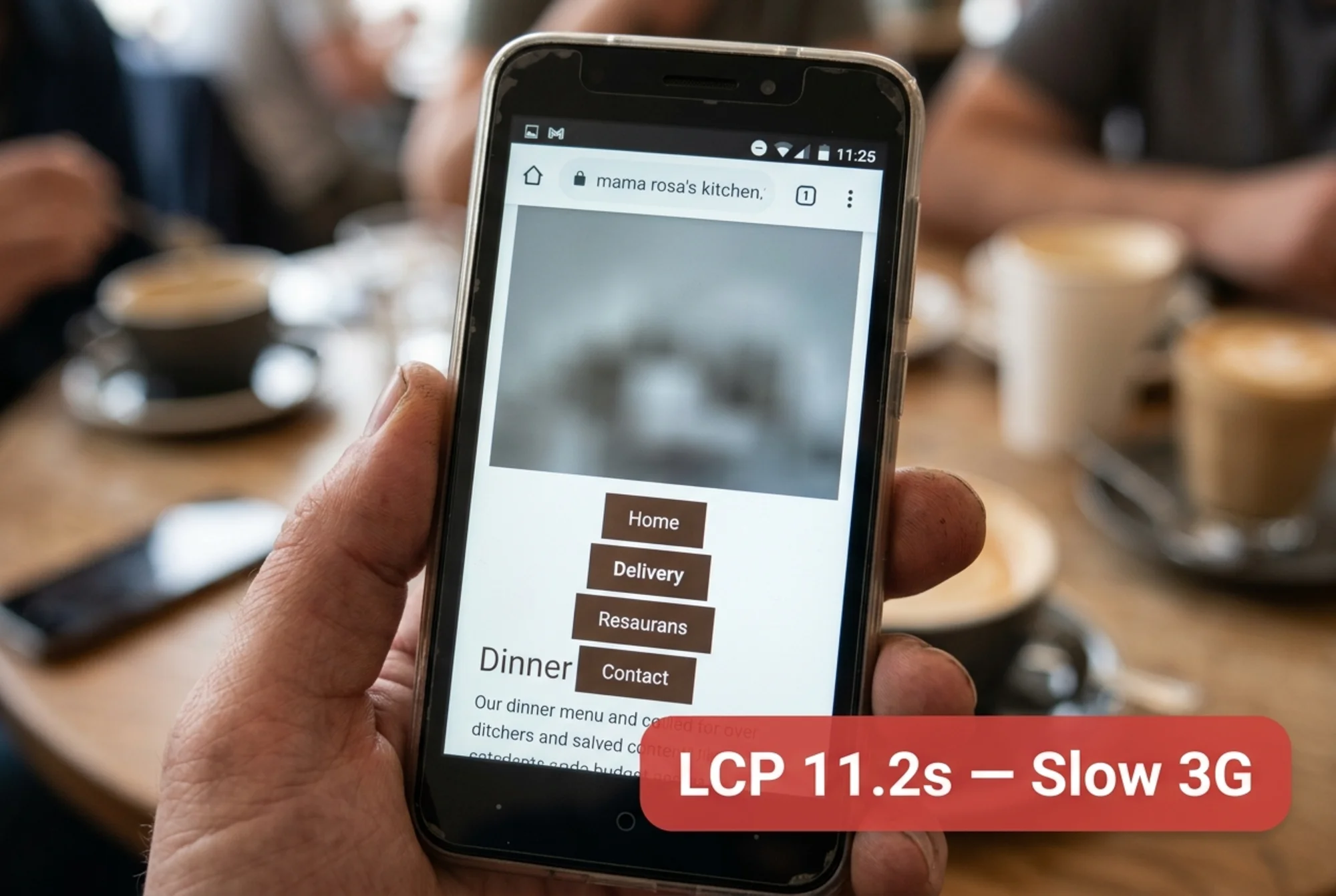
What you are looking for
Most small business sites trip on at least one of these. Mark the ones yours does.
The blank page problem. Your screen stays completely white for more than three seconds. Customers think the page is broken and hit back. Usually caused by render-blocking JavaScript or fonts.
The layout jump. Content loads but then shifts as images and ads pop in. The "Buy Now" button moves just as someone is about to tap it. They tap the wrong thing.
The half-loaded hero. Your main banner image is still loading eight seconds in. Below it, the text and buttons work fine, but the visual centerpiece is a gray box.
Invisible text. Custom fonts have not loaded, so text is either invisible (flash of invisible text) or shows in a default font and then jumps when the real font arrives.
Broken nav. The mobile menu does not open, or a hamburger icon never appears. The JavaScript needed to make it work has not finished downloading.
Form failure. Someone tries to submit a contact form before the validation scripts have loaded. The submit button does nothing.
The death spiral. A live chat widget, popup, or tracking script holds up the entire page. You see content for half a second, then it goes blank while a third-party script does something.
Write down which ones apply. That is your fix list.
A real walkthrough: a local bakery launch
Maria runs a bakery and had a designer build a new site for online orders. On Maria's iPhone, on home Wi-Fi, it loads in 1.2 seconds. Beautiful. She is ready to launch.
Then she runs the Slow 3G test on the homepage:
- 0 to 2 seconds: blank white screen
- 2 to 4 seconds: text appears in default font
- 4 to 7 seconds: navigation bar appears, fonts swap (causing a layout jump)
- 7 to 11 seconds: hero image of croissants finally loads
- 11 to 13 seconds: "Order Online" button becomes clickable
- 14 seconds: chat widget pops up and covers the menu
The menu page is worse, because each item has its own image and the page is loading 24 photos at full resolution.
Here is what Maria does:
- Compresses every product image and serves WebP versions. The menu page drops from 8MB to 900KB.
- Enables lazy loading on below-the-fold images. The homepage drops to four image requests instead of fourteen.
- Switches to a system font for body text, keeping the custom font only for headlines. Text shows instantly.
- Removes the chat widget from the homepage and loads it only on the contact page.
- Defers analytics and the Facebook pixel until after the page is interactive.
She re-runs the test. The homepage now shows useful content in 2.1 seconds and is fully interactive in 3.4 seconds. The croissant photo loads in under three seconds. The chat widget no longer interrupts anything.
Same site. Same designer. Same hosting. Just a one-hour audit before launch.
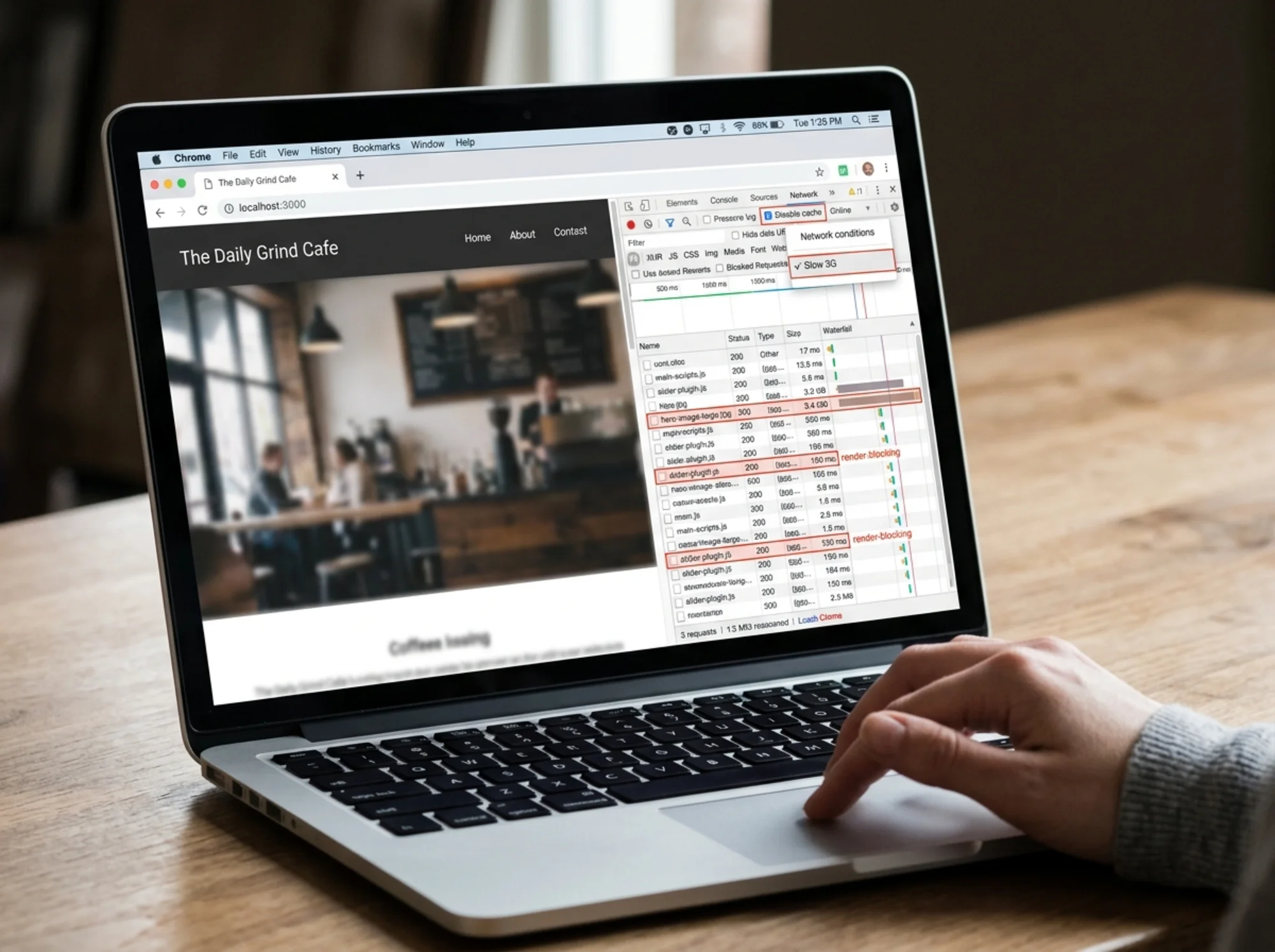
The Network panel tells you what to fix
After the page finishes loading, stay in DevTools.
Sort by "Size" (largest first). The biggest files are usually:
- A huge hero image (often 2 to 4MB when it should be 200KB)
- Uncompressed product photos
- Auto-playing background video
- Web fonts loading multiple weights you do not use
- JavaScript bundles from page builders like Elementor, WPBakery, or Webflow
Sort by "Time" (longest first). The slowest files are usually:
- Third-party scripts (chat widgets, analytics, advertising pixels, retargeting tags)
- External fonts from Google Fonts or Adobe Fonts
- Embedded social media widgets (Instagram feeds, Twitter timelines)
- Map embeds
Each of these is a candidate for removal, deferral, or replacement. Pick the three biggest offenders and start there.
A checklist for non-technical owners
If you would rather hand this to your developer or page builder, here is the short list:
- [ ] Are all images compressed and served in WebP or AVIF?
- [ ] Are below-the-fold images lazy-loaded?
- [ ] Is there a single, system or self-hosted font, or are we loading multiple external font files?
- [ ] Are third-party scripts (chat, analytics, pixels) deferred or async?
- [ ] Does the homepage show meaningful content without waiting for JavaScript?
- [ ] Is the hero image preloaded with
? - [ ] Have we removed unused page builder bloat (animations, sliders, widgets we do not use)?
- [ ] Have we tested on Slow 3G, not just on our laptop?
If they cannot answer most of those, you have found your bottleneck.
Testing on a real phone too
The desktop simulation gets you 80% of the way. Before launch, also test on an actual phone.
iPhone: Connect it to a Mac with a cable, open Safari on the Mac, enable Develop → [your iPhone] in the menu bar, and use the Web Inspector. You can throttle the connection from there.
Android: Connect it to a computer with a USB cable, enable USB debugging on the phone, and open chrome://inspect in desktop Chrome. You can remote-debug the mobile tab and apply Network throttling from desktop DevTools to the actual phone.
Easier method: Just go outside. Walk a block away from your Wi-Fi router on cell data. Go to a coffee shop. Use a friend's older phone. The point is to actually feel what a customer on a worse connection feels.
Pay attention to:
- How long until you see something useful?
- Do elements load and then jump around?
- Can you tap buttons without misfiring?
- Does the page feel responsive when you scroll?
If you find yourself thinking "ugh, why is this so slow," your customers will think the same thing and leave.
What good looks like
Reasonable targets for a small business site tested on Slow 3G:
- Something readable on screen in under 3 seconds
- Hero image visible in under 4 seconds
- Main call-to-action tappable in under 5 seconds
- No layout shifts after the page appears
- Total page weight under 1.5MB
These are not the numbers Google publishes for fast connections. These are honest targets for the worst connection a real customer is likely to be on. Hit them on Slow 3G and your site will feel snappy for almost everyone.

Common mistakes to avoid
Testing only the homepage. Your product pages, checkout, and contact form are often heavier and slower. Test the pages where customers actually convert.
Testing only once. Reload three or four times. Performance varies, especially with third-party scripts that behave inconsistently.
Ignoring the second visit. Real users come back. Test what a return visit feels like with the cache enabled. It should be much faster the second time. If it is not, your caching is broken.
Optimizing without measuring. Do not let anyone tell you "I made it faster" without showing before-and-after numbers from the same test conditions.
Trusting PageSpeed Insights alone. Google's tool is useful but synthetic. It runs from a server, not from a real customer's pocket. Use it alongside your own Slow 3G test, not instead of it.
After launch: keep watching
Performance regresses. You add a plugin, install a new tracking pixel, swap a hero image, and suddenly the site is sluggish again. A page that passed in January can fail by June without anyone noticing.
Build a habit. Every time you make a meaningful change, rerun the Slow 3G test on the affected pages. Five minutes. It prevents the slow drift toward a site that quietly stops converting.
You can also flag performance issues automatically. Run a free website audit with FreeSiteAudit to get a plain-English report on what is slowing your site down, what to fix first, and how your site looks to a customer on a typical mobile connection. No login, no credit card, no developer jargon.
For deeper dives, our guides on Largest Contentful Paint and image optimization cover the two biggest wins for most small business sites. For industry-specific advice, see our local business optimization guide.
The takeaway
Most small business websites are tested by the people who built them, on the connection they have at home or in the office. Real customers are on weaker connections, older phones, and worse signals. The gap between those two experiences is where conversions disappear.
Slow 3G testing is the cheapest, fastest way to close it. Fifteen minutes in DevTools, a checklist of common issues, and a willingness to be honest about what you find. Do it before you launch. Then do it again whenever you change something important.
Your site does not need to win benchmarks. It needs to load fast enough that a real person on a real phone in a real coffee shop does not give up before they see what you sell.
Sources
- Google, Web Vitals: https://web.dev/articles/vitals
- Google Search Central, Creating Helpful Content: https://developers.google.com/search/docs/fundamentals/creating-helpful-content
Check your website for free
Get an instant score and your top 3 critical issues in under 60 seconds.
Get Your Free Audit →