HTTPS, HSTS, and Security Headers Explained in Plain English
Learn what HTTPS, HSTS, and security headers actually do for your small business site, why they matter for SEO and trust, and how to check and fix them.
# HTTPS, HSTS, and Security Headers Explained in Plain English
You have probably seen the padlock icon in your browser's address bar. Maybe you have noticed some websites say "Not Secure" instead. If you run a small business website, these details matter more than you think — for your search rankings, your visitors' trust, and whether people actually fill out your contact form.
This guide breaks down what HTTPS, HSTS, and security headers are, why they matter for your business, and what to do if your site is missing them. No jargon dumps. Just practical steps you can take or hand to whoever manages your website.
What HTTPS Actually Does
HTTPS is the secure version of HTTP, the protocol browsers use to load web pages. When your site uses HTTPS, the connection between your visitor's browser and your server is encrypted. Nobody sitting between them — on coffee shop Wi-Fi, at an ISP, anywhere along the route — can read or tamper with the data.
In practice that means:
- Contact form submissions (names, emails, phone numbers) travel encrypted instead of as plain text
- Login credentials for your admin panel or customer accounts cannot be intercepted
- Page content cannot be modified in transit — no one can inject ads or malicious code into your pages
If your site still loads over plain HTTP, every piece of data between your server and your visitors is sent in the open. Anyone on the same network can read it with freely available tools.
HTTPS and Google Rankings
Google has used HTTPS as a ranking signal since 2014. It is not a massive factor on its own, but it is a baseline expectation. According to Google's documentation on site security, sites served over HTTPS are preferred over equivalent HTTP versions in search results.
More importantly, Chrome (which holds roughly 65% of the browser market) marks HTTP sites as "Not Secure" directly in the address bar. Firefox does the same. That label alone can drive visitors away before they ever read your content.

The "Not Secure" Problem Is Real
Say you run a local landscaping company. A homeowner searches "landscaping near me," finds your site, and taps through on their phone. If your site loads over HTTP, they see "Not Secure" right next to your URL — just as they are about to type their home address and phone number into your quote request form.
Would you enter your home address on a site your browser warns is not secure? Most people will not. For a small business that depends on form leads, that is lost revenue from people who were already interested enough to visit.

How to Check if Your Site Uses HTTPS
Open your website in Chrome or Firefox. Look at the address bar:
- Padlock icon — Your site uses HTTPS. Good.
- "Not Secure" label — Your site is loading over HTTP. This needs fixing.
- Padlock with a warning triangle — Your site has HTTPS but something is wrong, usually mixed content (more on that below).
You can also type your domain with https:// in front of it. If the page loads normally, your SSL certificate is working. If you get an error page, HTTPS is either not set up or not configured correctly.
What Is HSTS and Why Should You Care?
HTTPS is a good first step, but there is a gap. When someone types your domain into their browser — just yourbusiness.com without the https:// — their browser first connects over plain HTTP. Then your server redirects them to HTTPS. That initial HTTP request, before the redirect, is unencrypted and vulnerable to interception.
HSTS stands for HTTP Strict Transport Security. It is a response header your server sends that tells the browser: "Never connect to this site over plain HTTP. Always use HTTPS, no exceptions."
Once a browser receives an HSTS header from your site, it automatically upgrades every future request to HTTPS before it contacts your server. That brief window of insecurity? Gone.
HSTS in Practice
Here is what an HSTS header looks like:
Strict-Transport-Security: max-age=31536000; includeSubDomains; preload
Breaking that down:
- max-age=31536000 — The browser remembers this rule for one year (31,536,000 seconds)
- includeSubDomains — Applies the rule to all subdomains too (blog.yourbusiness.com, shop.yourbusiness.com, etc.)
- preload — Signals that you want to be included in the HSTS preload list
The HSTS Preload List
The Chromium project maintains a public list of HTTPS-only domains that is hardcoded directly into Chrome, Firefox, Safari, and Edge. If your domain is on this list, browsers will never even attempt an HTTP connection to your site — not even on the very first visit.
Getting on the preload list is free, but make sure HTTPS works correctly across your entire domain and all subdomains first. Once you are on the list, removal is slow — it can take months to propagate through browser updates.
Security Headers: The Rest of the Picture
HTTPS and HSTS handle the encrypted connection. A separate set of HTTP response headers protects your visitors in other ways. These are collectively called security headers, and most small business websites are missing several of them.
Content-Security-Policy (CSP)
CSP tells browsers which sources of content — scripts, images, styles, fonts — are allowed to load on your pages. Without it, if an attacker injects a script through a vulnerable plugin, compromised ad network, or third-party widget, the browser will run it without question.
A basic CSP:
Content-Security-Policy: default-src 'self'; script-src 'self' https://trusted-cdn.com
That tells the browser: only load resources from my own domain and this one trusted CDN. Anything else gets blocked. For most small business sites on WordPress or a similar CMS, a moderately strict CSP prevents entire categories of attacks without affecting how your site looks or works.
X-Content-Type-Options
X-Content-Type-Options: nosniff
Prevents browsers from guessing the type of a file. Without it, a browser might interpret a malicious file as JavaScript and execute it. A one-line fix with no downsides.
X-Frame-Options
X-Frame-Options: SAMEORIGIN
Prevents other websites from embedding your site inside an iframe. Without it, an attacker can overlay your site with invisible elements to trick visitors into clicking things they did not intend to — a technique called clickjacking.
Referrer-Policy
Referrer-Policy: strict-origin-when-cross-origin
Controls how much information about the referring page gets sent when a visitor clicks a link on your site. The default browser behavior sometimes sends the full URL, including query parameters. If your URLs contain customer IDs or search terms, that is a data leak.
Permissions-Policy
Permissions-Policy: camera=(), microphone=(), geolocation=()
Tells the browser your site does not need camera, microphone, or location access. If a malicious script runs on your page, it cannot request these permissions. For sites that do not use these features, this is free protection.
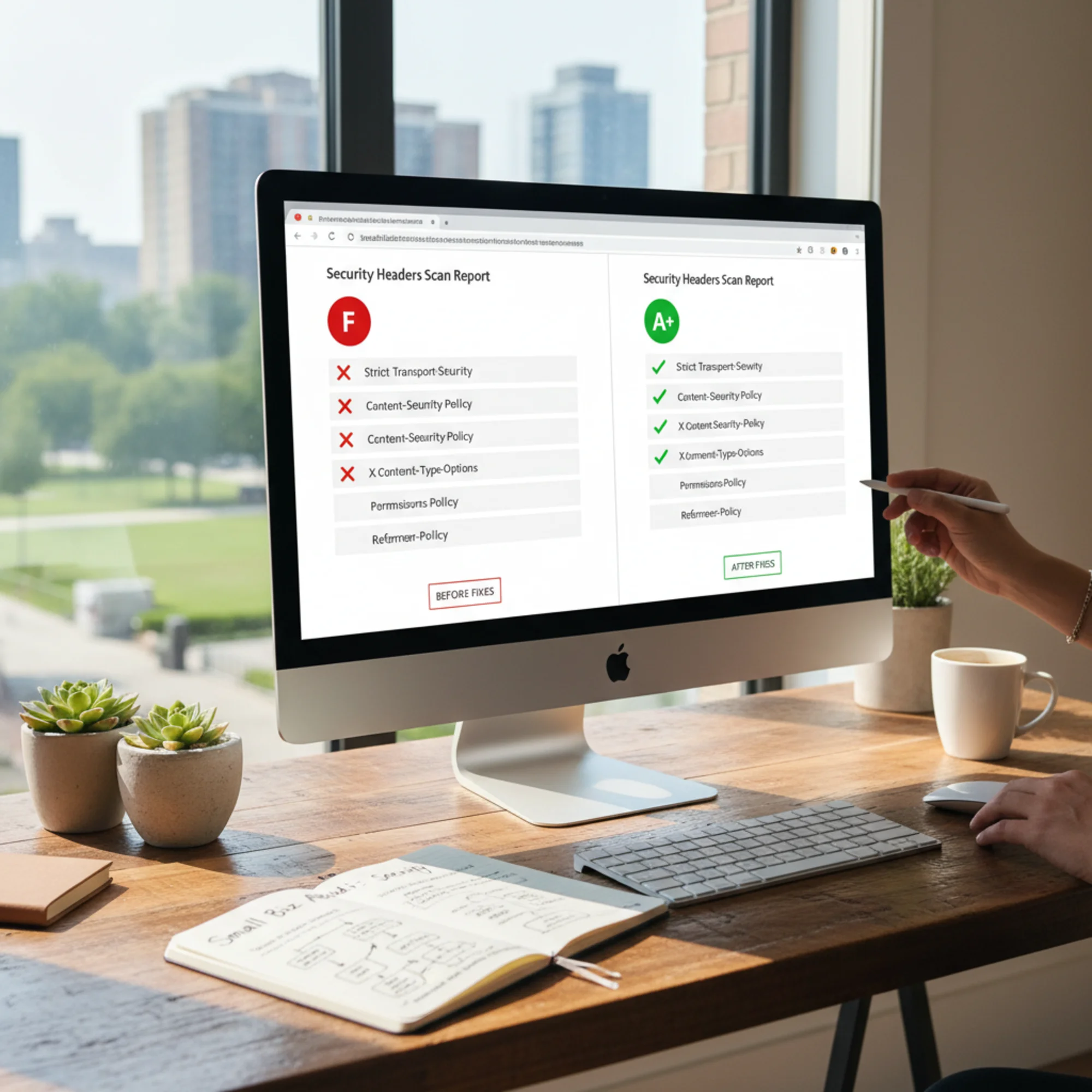
How to Check Your Security Headers
You do not need to read server config files to find out where you stand:
- Run a free audit — FreeSiteAudit's security headers check scans your site and reports which headers are present and which are missing
- Use browser developer tools — In Chrome, press F12, open the Network tab, click the first request, and look at Response Headers
- Look for each header listed above — If a header is missing from the response, it is not configured on your server
Security Headers Checklist
Use this to assess your current state:
- [ ] Site loads over HTTPS with a valid certificate
- [ ] HTTP requests redirect to HTTPS
- [ ] HSTS header present with max-age of at least one year
- [ ] No mixed content warnings (all resources load over HTTPS)
- [ ] Content-Security-Policy header set
- [ ] X-Content-Type-Options set to nosniff
- [ ] X-Frame-Options set to SAMEORIGIN or DENY
- [ ] Referrer-Policy configured
- [ ] Permissions-Policy restricts unused features
If fewer than five of these boxes are checked, your site has meaningful security gaps worth addressing.
How to Fix These Issues
None of these fixes require redesigning your site or changing your content. They are server configuration changes.
WordPress Sites
Many managed WordPress hosts (SiteGround, Cloudways, WP Engine) let you enable HSTS and security headers through their dashboard. If yours does not, a plugin like "Headers Security Advanced & HSTS WP" can add them without editing server files.
Important: If you use a CDN like Cloudflare, security headers may need to be set at the CDN level. Cloudflare lets you configure HSTS directly under SSL/TLS settings.
Squarespace, Wix, or Shopify
These platforms handle HTTPS automatically and typically enable HSTS by default. However, some headers like CSP may not be configurable. Run a scan to see what your platform provides out of the box.
Custom or VPS Hosting
Add the headers in your web server configuration.
Nginx — add to your server block:
add_header Strict-Transport-Security "max-age=31536000; includeSubDomains; preload" always;
add_header X-Content-Type-Options "nosniff" always;
add_header X-Frame-Options "SAMEORIGIN" always;
add_header Referrer-Policy "strict-origin-when-cross-origin" always;
add_header Permissions-Policy "camera=(), microphone=(), geolocation=()" always;
Apache — add to .htaccess or your virtual host config:
Header always set Strict-Transport-Security "max-age=31536000; includeSubDomains; preload"
Header always set X-Content-Type-Options "nosniff"
Header always set X-Frame-Options "SAMEORIGIN"
Header always set Referrer-Policy "strict-origin-when-cross-origin"
Header always set Permissions-Policy "camera=(), microphone=(), geolocation=()"
The Mixed Content Trap
A common issue after enabling HTTPS: mixed content. This happens when your page loads over HTTPS but some resources (images, scripts, stylesheets) still reference HTTP URLs. The browser may block these resources or show a warning.
To fix mixed content:
- Search your database and templates for
http://URLs pointing to your own domain and change them tohttps:// - Update hardcoded image URLs in your content
- Verify third-party embeds (maps, videos, widgets) use HTTPS
On WordPress, a plugin like Better Search Replace can update URLs across your database in bulk. For a deeper walkthrough, see our mixed content fix guide.

What to Do Right Now
- Check your site — Visit your website and look at the address bar. Padlock or "Not Secure"?
- Run a free security scan — FreeSiteAudit's free website audit checks your HTTPS setup, HSTS configuration, and security headers in about 30 seconds. You get a clear report showing exactly what is configured and what is missing.
- Hand the results to your developer or host — The report gives specific, actionable findings. Most of these changes take less than 30 minutes to implement.
- Re-scan after changes — Run the audit again to confirm everything is in place.
You do not need to understand every header's technical details. You need to know whether they are present on your site and, if not, get them added. That is a concrete, completable task — not an ongoing project.
Your website's security setup is part of your business's first impression. A padlock and properly configured headers will not guarantee conversions, but a "Not Secure" warning and missing protections can certainly prevent them.
Sources
- Google Search Central — Security on the web
- web.dev — Why HTTPS Matters
- MDN Web Docs — Strict-Transport-Security
- MDN Web Docs — Content Security Policy
- HSTS Preload List — hstspreload.org
Check your website for free
Get an instant score and your top 3 critical issues in under 60 seconds.
Get Your Free Audit →