Image Optimization Audit: WebP, Alt Text, and Lazy Loading for Small Business Sites
A plain-English walkthrough for auditing your site's images for speed, accessibility, and SEO. WebP, alt text, lazy loading, checklists, and a real example.
# Image Optimization Audit: WebP, Alt Text, and Lazy Loading
Images are the heaviest thing on most small business websites — and the easiest thing to fix. A single oversized hero image can add three seconds to your page load, push your Largest Contentful Paint into the red, and quietly cost you customers who give up before the page finishes drawing.
The good news: an image audit doesn't require a developer or a paid tool. You need a checklist, a browser, and an hour. This guide walks through exactly what to look for, what to change, and how to verify the fix worked.
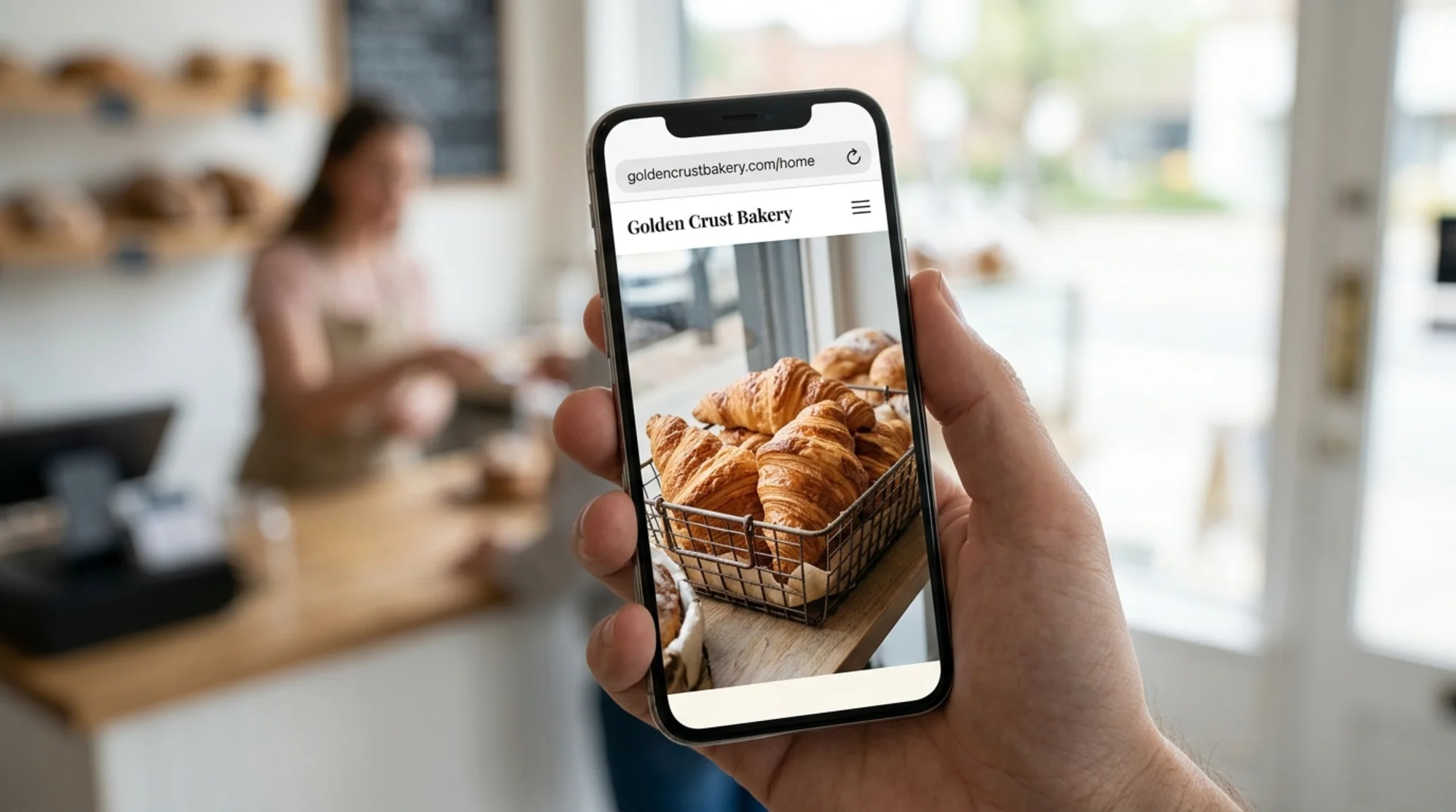
Why images deserve their own audit
When people talk about "site speed," they're usually talking about images. On a typical small business site, images account for 50–75% of total page weight. If your homepage is 4MB, odds are 3MB of that is photos.
Three things go wrong with images, and you need to check all three:
- Format and size — files are larger than they need to be, or saved in the wrong format
- Accessibility — alt text is missing or unhelpful, hurting screen reader users and search visibility
- Loading behavior — every image loads at once, even the ones below the fold
Each fix takes minutes. Together they often cut page weight in half and lift the user experience metrics Google actually measures.
The three pillars, briefly
WebP and modern formats
WebP is an image format Google introduced years ago that produces files roughly 25–35% smaller than JPEG at the same visual quality, and significantly smaller than PNG. Every modern browser supports it. There's no compatibility excuse anymore.
AVIF is the newer format with even better compression, but WebP is the safe default for most small business sites because tooling support is more mature.
If your product photos, blog headers, and team shots are still JPEG or PNG, you're shipping files 30% bigger than they need to be — on every page view, to every visitor.
Alt text
Alt text is the written description of an image. It serves three audiences:
- Screen reader users who can't see the image
- Search engines that use it to understand context
- Anyone whose connection failed to load the image (still common on mobile)
Alt text isn't a place to stuff keywords. It's a place to describe what the image actually shows in a way that would be useful if the picture vanished. "Red ceramic coffee mug with handle on wooden table" is good. "best coffee mug buy now" is bad. Google's helpful-content guidance specifically warns against this kind of manipulation.
Lazy loading
Lazy loading means an image doesn't download until the visitor scrolls near it. Browsers support this natively with a single attribute: loading="lazy". Add it to every image below the initial visible area and your page weight drops without changing anything users see.
The one image you should not lazy load is your hero — the big one at the top. That one should load immediately because it's typically what Google measures for Largest Contentful Paint.

What an image audit actually looks like
Here's the process, start to finish. You don't need anything beyond Chrome or Firefox.
Step 1: List every image on your most important page
Pick your top page first — usually the homepage or your highest-traffic product page. Right-click anywhere on the page, choose "Inspect," and open the Network tab. Filter by "Img." Reload the page.
You'll see every image the page requested, its size, and its format. Sort by size. The biggest ones are your first targets.
Step 2: Note what's wrong with each
For each image over 100KB, ask:
- Is it the right format? (PNG photo? Wrong. JPEG with transparency? Also wrong.)
- Is the displayed size wildly smaller than the actual file size? (A 2000×2000 image shown at 400×400 is wasted bandwidth.)
- Does it have meaningful alt text?
- Does it need to load immediately, or could it lazy load?
Write it down. A spreadsheet with five columns is enough: filename, current size, format, alt text status, loading priority.
Step 3: Pick your fixes
You don't have to do everything at once. The order that gets the biggest results fastest:
- Resize and convert the hero image
- Lazy-load everything below the fold
- Convert remaining large images to WebP
- Add or improve alt text where it's missing or weak
Step 4: Verify
After changes, repeat step 1. The total page weight in the Network tab should drop noticeably. Then run PageSpeed Insights — it's free and uses the same Core Web Vitals data Google ranks against. Watch your Largest Contentful Paint number. If it was over 2.5 seconds and is now under, you fixed something that matters.
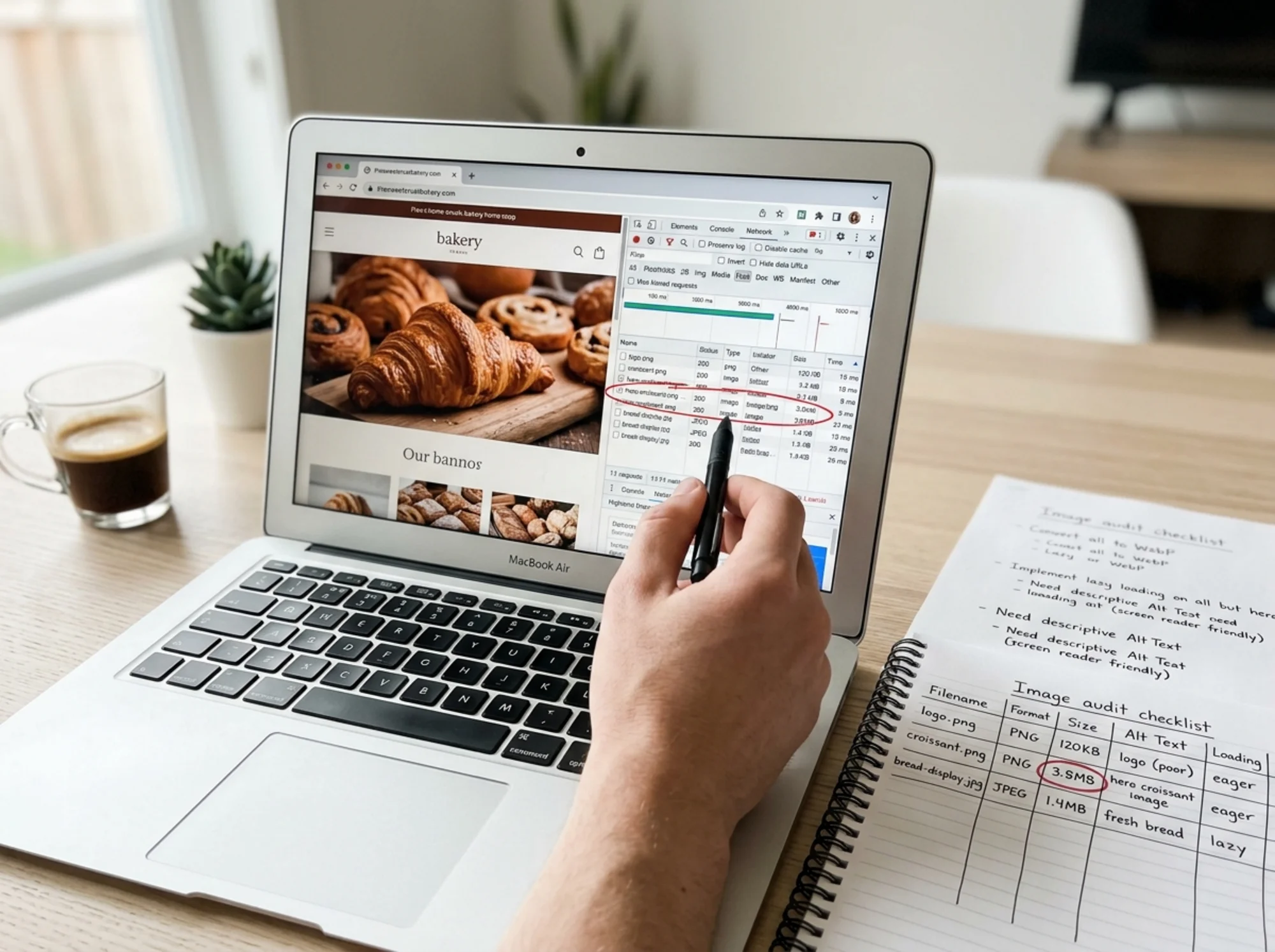
A walkthrough: the bakery example
Let's run through a realistic scenario. A small bakery, "Flour & Field," has a website built on a popular site builder. The homepage features a large photo of croissants in a basket, a grid of six product photos, and a team photo at the bottom.
The owner runs an image audit and finds:
- The croissant hero image is a 3.8MB PNG displayed at 1200px wide
- The six product photos are JPEGs, between 400KB and 900KB each
- The team photo is a 2.1MB PNG
- Alt text on the hero says "image" — useless
- Alt text on product photos is just the product name — minimal
- No images use
loading="lazy" - Total page weight: about 8MB
- Largest Contentful Paint: 4.1 seconds
A typical "before" picture. Here's what changes:
The hero image. First, the PNG becomes a WebP. PNG is for graphics with sharp edges or transparency — logos, icons, screenshots. A photo of croissants is a JPEG or WebP, never PNG. The file goes from 3.8MB to about 280KB at the same visual quality. The owner also resizes it so the source file matches the display size (no more 4000px image shown at 1200px). Final size: roughly 180KB.
The product photos. Each becomes a WebP. Average size drops from around 650KB to 180KB. Total savings across six photos: about 2.8MB.
The team photo. Converted to WebP and lazy-loaded. It's at the bottom of the page, so most visitors never scroll to it. With loading="lazy", it doesn't download until needed. For visitors who never scroll, that's a full 2MB+ savings.
Alt text. The hero gets "Tray of fresh-baked butter croissants on parchment paper." Each product photo gets a real description: "Three-pack of almond croissants tied with twine." The team photo gets "The Flour & Field team standing in front of the bakery's display case."
Lazy loading. Added to everything except the hero. The hero stays eager because it's the LCP element — the largest visible thing on screen, and the one Google times.
The result. Total page weight drops from 8MB to around 1.4MB. Largest Contentful Paint drops from 4.1 seconds to 1.6 seconds. The mobile experience goes from frustrating to instant. No design change. No new platform. Just better images.
If you run an ecommerce site, the math is even more dramatic — product galleries multiply image weight fast, and customers on mobile networks are quick to bounce.
The alt text question people get wrong
Alt text confuses people because there are conflicting opinions floating around. Here are the rules that actually hold up:
- If the image is decorative, use empty alt text:
alt="". Don't omit the attribute. An empty alt tells assistive tech to skip it. A missing alt may cause it to read out the filename instead, which is worse. - If the image conveys information, describe what it conveys. A chart should describe the takeaway, not just say "chart." A product photo should describe the product.
- If the image is also a link, the alt text should describe where the link goes, not what the image shows.
- Don't start with "Image of..." — screen readers already announce it as an image.
- Don't keyword stuff. It triggers Google's spam signals and reads terribly aloud.
Google's helpful-content guidance emphasizes that people-first content includes images that genuinely serve the reader. Alt text is part of that.
Lazy loading: the one-attribute fix
For most sites in 2026, lazy loading is one HTML attribute:

That's the whole thing. Browser-native lazy loading is supported in every major browser. You don't need a JavaScript library.
Two things to keep in mind:
- Don't lazy-load your hero or above-the-fold images. They need to load immediately for good LCP scores.
- If you're on WordPress, Shopify, Squarespace, or another platform, lazy loading is often on by default. Verify before you spend time on it — open DevTools, find an image at the bottom of your page, and check if it has
loading="lazy"in its tag.
For more on getting LCP and the rest of Core Web Vitals under control, see our image optimization fix guide.
A mini-checklist you can use today
Run through this on your homepage and top three landing pages:
- [ ] No image is over 200KB unless it absolutely must be
- [ ] No photos are saved as PNG (use WebP or JPEG)
- [ ] No logos or sharp-edged graphics are saved as JPEG (use PNG or SVG)
- [ ] Hero image is sized for its actual display dimensions
- [ ] Every meaningful image has descriptive alt text
- [ ] Decorative images have empty
alt=""(not missing) - [ ] Every below-the-fold image has
loading="lazy" - [ ] Hero image does NOT have
loading="lazy" - [ ] Total page weight is under 2MB on mobile (under 1MB is great)
- [ ] LCP is under 2.5 seconds on a mid-tier phone
Tick all ten and you've done more for your site speed than 90% of small business websites bother with.

Common mistakes to avoid
Optimizing the wrong images. Don't spend an hour on a 30KB icon. Sort by size, fix the giants first.
Forgetting retina displays. If your image displays at 600px wide, the source file generally wants to be 1200px (2× density) so it stays sharp on high-resolution screens. That doesn't mean uploading 4000px monsters — match the display size, doubled.
Setting overly aggressive compression. WebP at 95% quality is usually overkill. WebP at 75–85% looks identical to the human eye for most photos and is dramatically smaller. Don't go below 60% on hero images — banding and artifacts start to show.
Treating alt text as an SEO trick. It isn't. Google's content quality guidance makes clear that descriptive, helpful image context wins. Keyword stuffing loses.
Skipping mobile testing. Always test on a real phone over a slower network. Your office WiFi makes everything look fast. Your customers aren't on your office WiFi.
When to DIY vs. when to get help
Most of this is DIY-friendly. If you're on a platform with a media library — WordPress, Shopify, Wix, Squarespace, Webflow — you can upload optimized images directly. Many platforms have built-in tools or one-click apps that handle WebP conversion and lazy loading automatically.
If you're on a fully custom site, ask your developer to do a one-time pass: convert all images to WebP, add lazy loading to below-the-fold elements, and set up a build step so new images are automatically optimized. It's usually a few hours of work and the results are permanent.
Verify before you call it done
Speed work without measurement is guessing. After your changes:
- Run PageSpeed Insights on the page you changed
- Note Largest Contentful Paint, page weight, and image-related warnings
- Compare to your "before" numbers
The web.dev guidance on Core Web Vitals is the source of truth here — these are the same metrics Google uses as ranking signals, and improving them helps both users and search visibility.
Run your audit
You don't need to wait until you "have time for SEO." Image optimization is one of the rare website improvements where the work is small, the impact is large, and the results show up the same day.
Start with one page. Find your biggest image. Convert it. Add lazy loading to everything below it. Write alt text that actually describes the picture. Re-run a speed test. Then do the next page.
If you'd rather see a full report on what's slowing your site down — including every oversized image, every missing alt tag, and every image that should be lazy loaded — run a free website audit. You'll get a prioritized list of fixes, sorted by impact, in under a minute.
Sources
- https://web.dev/articles/vitals
- https://developers.google.com/search/docs/fundamentals/creating-helpful-content
- https://developers.google.com/search/docs/appearance/structured-data/article
Check your website for free
Get an instant score and your top 3 critical issues in under 60 seconds.
Get Your Free Audit →