INP Optimization for WordPress Sites: A Plain-English Guide
Practical steps to fix Interaction to Next Paint on WordPress sites so menus, buttons, and forms respond instantly when visitors actually tap or click.
# INP Optimization for WordPress Sites: A Plain-English Guide
Your WordPress site loads. The hero image shows up. The menu appears. Everything looks fine.
Then a visitor taps the mobile menu, and it takes a beat to open. They click "Add to Cart" and the page seems to hesitate. They start typing in your contact form and the letters stutter onto the screen.
That gap, between the tap and the response, is what Google now measures with a metric called Interaction to Next Paint, or INP. It replaced First Input Delay as a Core Web Vital in March 2024, and it directly affects how your site ranks and how visitors feel about using it.
If you run a WordPress site for a small business, INP is probably your single biggest performance problem right now, and you almost certainly don't know it. This guide explains why, and what to actually do about it.

What INP Actually Measures
INP measures the delay between a user interaction (a click, tap, or key press) and the moment the screen visually updates in response. It looks at the worst (or near-worst) interaction during a visit, not the average.
The thresholds are simple:
- Good: 200 milliseconds or less
- Needs improvement: 200–500 milliseconds
- Poor: Over 500 milliseconds
Half a second feels like nothing when you read it. When it happens after every button tap, it feels like the site is broken. Visitors don't usually leave with a clear thought of "this site is slow." They just close the tab.
INP is different from loading speed. A site can load in two seconds and still have terrible INP. The page is there; it just doesn't respond when you touch it. This is extremely common on WordPress because of how plugins, themes, and tracking scripts pile up over time.
Why WordPress Sites Struggle with INP
WordPress is not slow on its own. The problems come from what gets layered on top of it:
- Plugin sprawl. The average small business WordPress site runs 20 to 40 plugins. Each one often loads its own JavaScript on every page, whether that page needs it or not.
- Page builders. Elementor, Divi, WPBakery, and similar tools generate heavy front-end code with lots of event listeners and animations.
- Tracking and chat scripts. Google Tag Manager, Facebook Pixel, Hotjar, Intercom, and live chat widgets all run JavaScript that competes for the same browser thread your buttons need.
- Older themes. Themes built before 2022 rarely consider INP at all. Menus, sliders, and modals are often built with jQuery patterns that block interactions.
- Shared hosting. Cheap hosting affects loading speed more than INP, but slow server responses to clicks (like adding to cart) still get counted.
The root cause behind almost every WordPress INP problem is the same: too much JavaScript running on the main thread when the user tries to do something.

How to Check Your Current INP
Before you change anything, measure. Otherwise you're guessing.
You have three good options:
Google Search Console. Open the Core Web Vitals report. It uses real-world data from Chrome users on your site. This is the data Google actually uses for ranking. If it shows "Poor" or "Needs improvement" URLs for INP, that's your starting point.
PageSpeed Insights. Paste a URL into pagespeed.web.dev. Look at the "Discover what your real users are experiencing" panel at the top. That's the same field data, but for a specific page.
A free site audit tool. If you want a single report that covers INP along with the rest of your Core Web Vitals, plugin issues, image weight, and SEO, run a free website audit with FreeSiteAudit and get the results in under a minute.
One important note: the lab score in PageSpeed Insights (the round number at the bottom) does not measure INP well, because lab tests don't really click buttons. Always trust the field data over the lab score.
A Quick Mental Model Before You Start
Picture your visitor's browser as a single-lane road. JavaScript is the traffic on it. When a visitor taps a button, their tap needs to drive down that road to reach the code that responds. If the road is jammed with analytics scripts, chat widgets, and a slider plugin loading testimonials, the tap waits in traffic.
Fixing INP is mostly about clearing the road, not adding more lanes.
The WordPress INP Fix Checklist
Here is the order to work through, from highest impact to lowest.
1. Audit and remove unused plugins
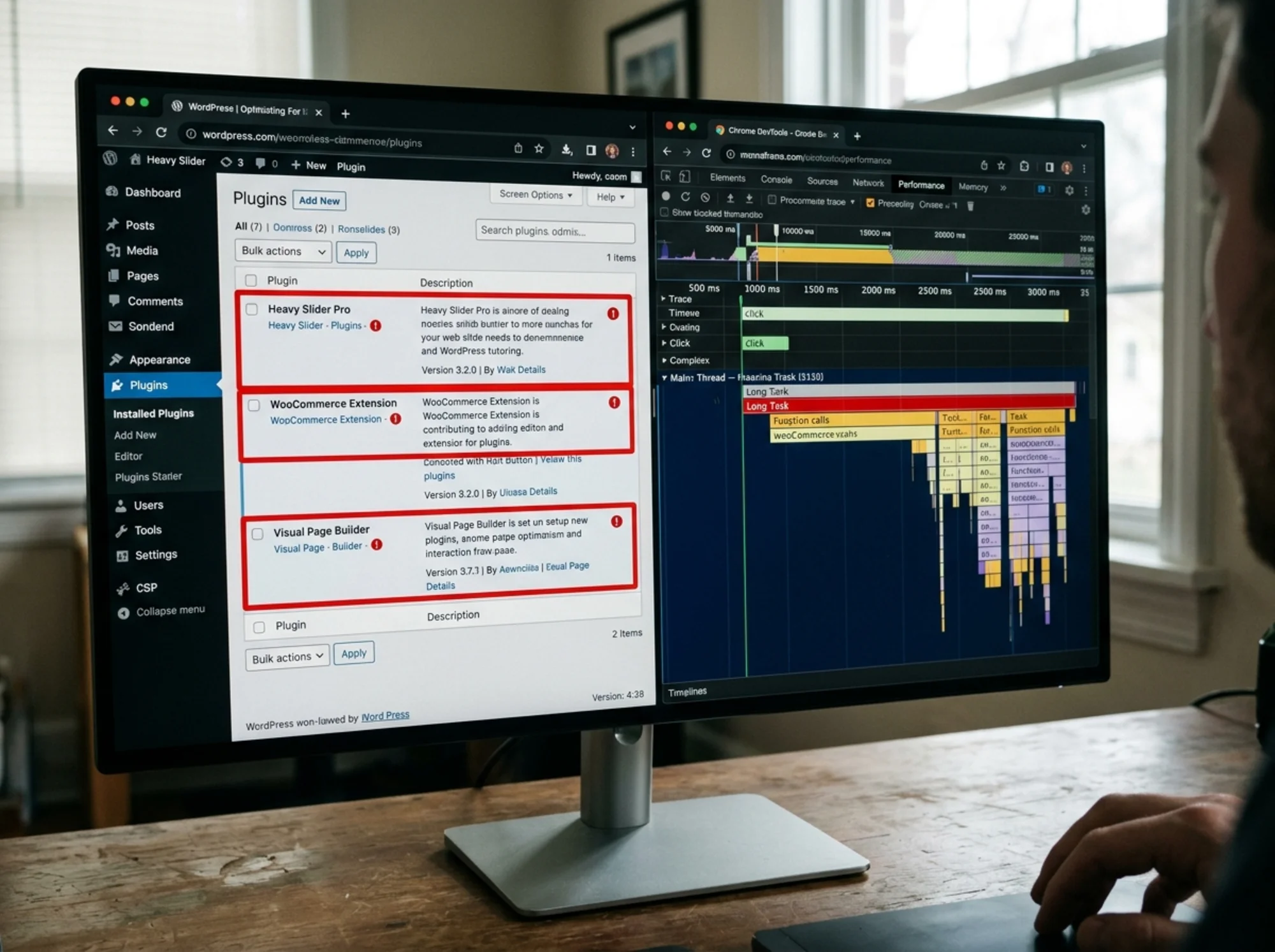
Go to Plugins → Installed Plugins. For each one, ask: "Is this actively doing something visitors or I rely on?" If the answer is no, deactivate it for a week. If nothing breaks, delete it.
Common offenders that often get installed and forgotten:
- Old contact form plugins replaced by a newer one
- Social sharing buttons no one uses
- Related posts plugins
- Backup plugins that duplicate what your host already does
- SEO plugins running alongside another SEO plugin
Each removed plugin is JavaScript that no longer competes for the main thread.
2. Defer or remove third-party scripts
The biggest INP wins on most WordPress sites come from third-party scripts, not from WordPress itself. Look at your Tag Manager and your theme's header/footer settings for:
- Live chat widgets (Intercom, Drift, Tawk)
- Heatmap tools (Hotjar, Microsoft Clarity)
- A/B testing tools
- Ad pixels you're not actively running campaigns on
- Old conversion tracking scripts
Two rules of thumb:
- If you're not actively using it this quarter, remove it.
- If you are using it, load it only where it matters. Chat widgets often only need to be on key landing pages, not every blog post.
For scripts you have to keep, set Tag Manager triggers to fire after page load (Window Loaded instead of Page View) so they don't block early interactions.
3. Replace heavy plugins with lighter alternatives
Some plugins are famously heavy. If you're using one and your INP is poor, consider swapping:
- Sliders: Replace Revolution Slider or Smart Slider with a lightweight Gutenberg slider block, or just static images.
- Page builders: Native Gutenberg blocks are dramatically lighter than Elementor or Divi. Migrating an existing site is a big project, so save this for a redesign.
- Mega menus: If you don't actually need one, use the native WordPress menu.
- Pop-ups: Many pop-up plugins load on every page even when no pop-up will show. Use one that lazy-loads or only fires on specific triggers.
4. Add one caching and optimization plugin (just one)
Pick one of these and configure it properly:
- WP Rocket (paid, easiest)
- LiteSpeed Cache (free, requires LiteSpeed hosting)
- W3 Total Cache (free)
- FlyingPress (paid)
Turn on these features specifically for INP:
- Delay JavaScript execution. This is the single most effective INP toggle in WordPress. It holds non-essential scripts until the user actually interacts, which clears the main thread for the first tap.
- Defer JavaScript. Loads scripts after HTML parsing.
- Remove unused CSS. Reduces the work the browser has to do on every interaction.
Test carefully after enabling these. "Delay JavaScript" can break fonts, animations, or analytics if a critical script is delayed by accident. Most plugins let you exclude specific scripts.
5. Update or replace an old theme
If your theme was last updated before 2023, it's probably costing you INP. Modern performance-minded themes include Kadence, GeneratePress, Blocksy, and Astra (with most add-ons turned off).
Switching themes is a real project, but if you're already planning a refresh, this is the time to pick one that won't fight you on Core Web Vitals.
6. Find the long tasks specific to your site
Open Chrome DevTools (right-click → Inspect → Performance tab), record a session where you interact with your site on mobile emulation, and look for "Long Tasks." These are the JavaScript chunks blocking your interactions. If you're not technical, a freelancer can do this in 30 minutes and tell you exactly which scripts to kill.
A Real Walkthrough: Fixing INP on a Small Bakery Site
Let's go through a realistic example. A small bakery runs a WordPress site with WooCommerce for local pickup orders. Their Search Console shows mobile INP of 720ms — firmly in the "poor" range. Conversions on mobile are noticeably lower than on desktop.
Here is what they actually do, in order:
Day 1 — Measure. They run a free audit and confirm INP is the worst-scoring metric. The audit flags 11 third-party scripts, four of which they don't recognize.
Day 2 — Remove obvious junk. They identify and remove:
- An old chat widget from a service they cancelled
- A social sharing plugin no customer has ever used
- A "popular posts" plugin from their blog (they only post twice a year)
- Two abandoned Facebook Pixel installations from old campaigns
Day 3 — Defer the rest. They install WP Rocket and turn on "Delay JavaScript Execution," excluding their cart and checkout scripts so those still work instantly. Google Tag Manager is moved to fire on Window Loaded.
Day 4 — Replace the slider. Their homepage had a five-image slider from a heavy plugin. They replace it with a single, static hero image of their best-selling cake. INP drops further; bounce rate actually improves.
Day 14 — Re-measure. Search Console field data takes a couple of weeks to update. Once it does, mobile INP has dropped from 720ms to 180ms. The site is now in the "good" range.
Total time spent: about four hours over two weeks. No developer needed. No theme rebuild. No hosting migration.
This is the realistic pattern. INP fixes on WordPress are usually about subtraction, not addition.
What Not to Do
A few things often get suggested that don't actually help INP much:
- Upgrading to a faster CPU host. Helps with server response time and loading, not INP.
- Lazy-loading images. Helps loading metrics like LCP, not interactions.
- Adding a CDN. Same — improves loading, not response time after clicks.
- Buying more RAM on your hosting plan. Has almost no effect on browser-side INP.
INP is a browser metric. It's almost entirely about how much JavaScript runs when the user touches your page. Hosting changes only help in narrow cases like very slow add-to-cart responses on WooCommerce.

A Quick INP Maintenance Checklist
Once you've fixed INP, keep it fixed:
- Before installing any new plugin, check its reviews for "slow" or "performance" complaints.
- Every quarter, open Search Console and check Core Web Vitals.
- Every quarter, review your installed plugins and Tag Manager tags. Remove anything you're not actively using.
- After any major theme or plugin update, re-test a few key pages.
- Before launching a new campaign tool (chat, pop-up, A/B test), confirm where it loads and whether it can be delayed.
Why This Is Worth Your Time
INP isn't an abstract technical metric. It maps directly to whether your menu opens when someone taps it, whether your "Book Now" button responds when someone is on the train trying to reach you, and whether your checkout feels trustworthy when someone is ready to spend money.
Google now uses INP as a ranking signal, so the SEO impact is real. But the bigger story is the conversion impact. A site that feels instant gets more inquiries, more bookings, and more orders, regardless of where it ranks.
You don't need a developer for most of this. You need 30 minutes to measure, an honest look at your plugin list, and a willingness to delete things.
If you want a clear starting point, run a free website audit with FreeSiteAudit. It will tell you exactly which scripts are weighing your site down, which Core Web Vitals are failing, and what to fix first. For more depth, our WordPress performance fixes guide walks through the most common culprits, and our small business resources cover the rest of the audit basics.
Sources
Related Fixes
Check your website for free
Get an instant score and your top 3 critical issues in under 60 seconds.
Get Your Free Audit →