LCP Explained: The 5 Fastest Ways to Improve Largest Contentful Paint
A plain-English guide to Largest Contentful Paint (LCP) for small business owners — what it measures, why it matters, and five proven fixes you can ship today.
# LCP Explained: The 5 Fastest Ways to Improve Largest Contentful Paint
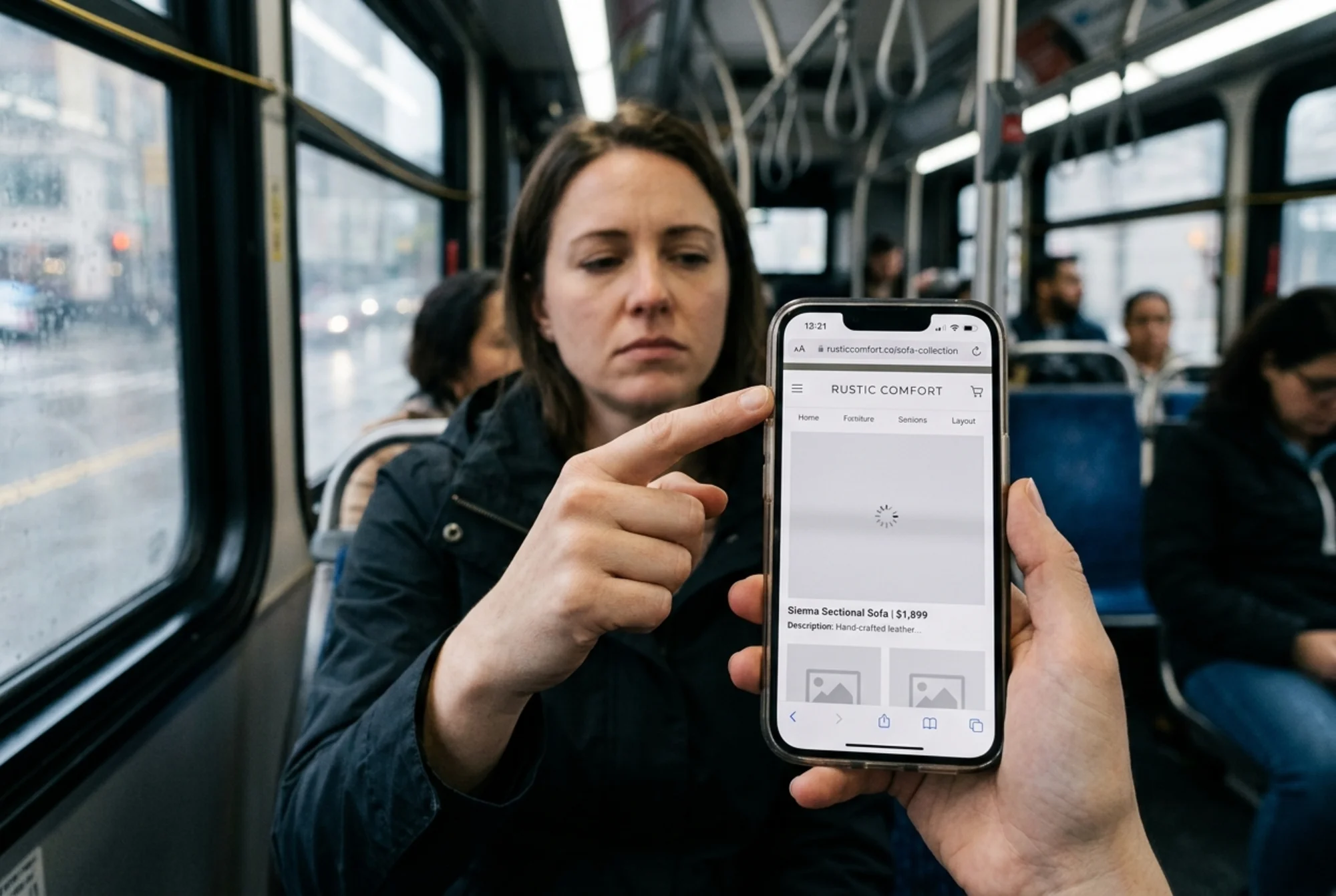
If you have ever tapped a link, watched a blank screen for three seconds, and bounced back to Google, you have experienced bad LCP. Largest Contentful Paint is the metric Google uses to measure how quickly the biggest thing on your page — usually a hero image, headline, or product photo — actually appears.
For small business owners, this matters in two real ways. First, it changes whether visitors stick around long enough to read your offer. Second, it is one of Google's Core Web Vitals, which means it feeds directly into how your pages rank in search results.
This guide explains LCP without jargon and gives you five concrete fixes you can hand to a developer (or tackle yourself) this week.

What LCP actually measures
LCP is the time, in seconds, from when a visitor clicks your link to when the largest visible element on the page finishes rendering.
That "largest element" is almost always one of these:
- A hero image at the top of your homepage
- A product photo on an ecommerce listing
- A banner image on a service page
- A large block of headline text
- A background image set on a hero section
LCP does not measure when the page starts loading. It measures when the visitor sees something meaningful. A page can begin painting in under a second, but if your hero image takes four more seconds to download, your LCP is still four seconds.
What counts as a good score
Google's thresholds, drawn from real Chrome user data, are simple:
- Good: 2.5 seconds or less
- Needs improvement: 2.5 to 4 seconds
- Poor: more than 4 seconds
These are measured at the 75th percentile of your visitors. In plain terms: three out of four visits to your page should hit "good" for Google to consider the page passing.
Why small businesses should care
For a global SaaS company, slow LCP costs paid-traffic conversions. For a local plumber, dentist, or boutique, the consequences are more immediate.
A visitor searching "emergency plumber near me" on a phone at 11 p.m. has zero patience. If your hero image takes four seconds to appear, they will hit back and call the competitor whose page loaded in one second. You just lost a $400 service call, and Google has noticed that visitors bounce from your page back to the results.
LCP affects three things directly:
- Search ranking. Google uses Core Web Vitals as a ranking signal. It is not the only signal, but on competitive local queries where two listings are otherwise equal, the faster one tends to win.
- Conversion rate. Every additional second of load time correlates with measurable drop-off, especially on mobile.
- Ad cost. If you run Google Ads, slow landing pages get lower Quality Scores, which means you pay more per click for the same position.
How to find your current LCP
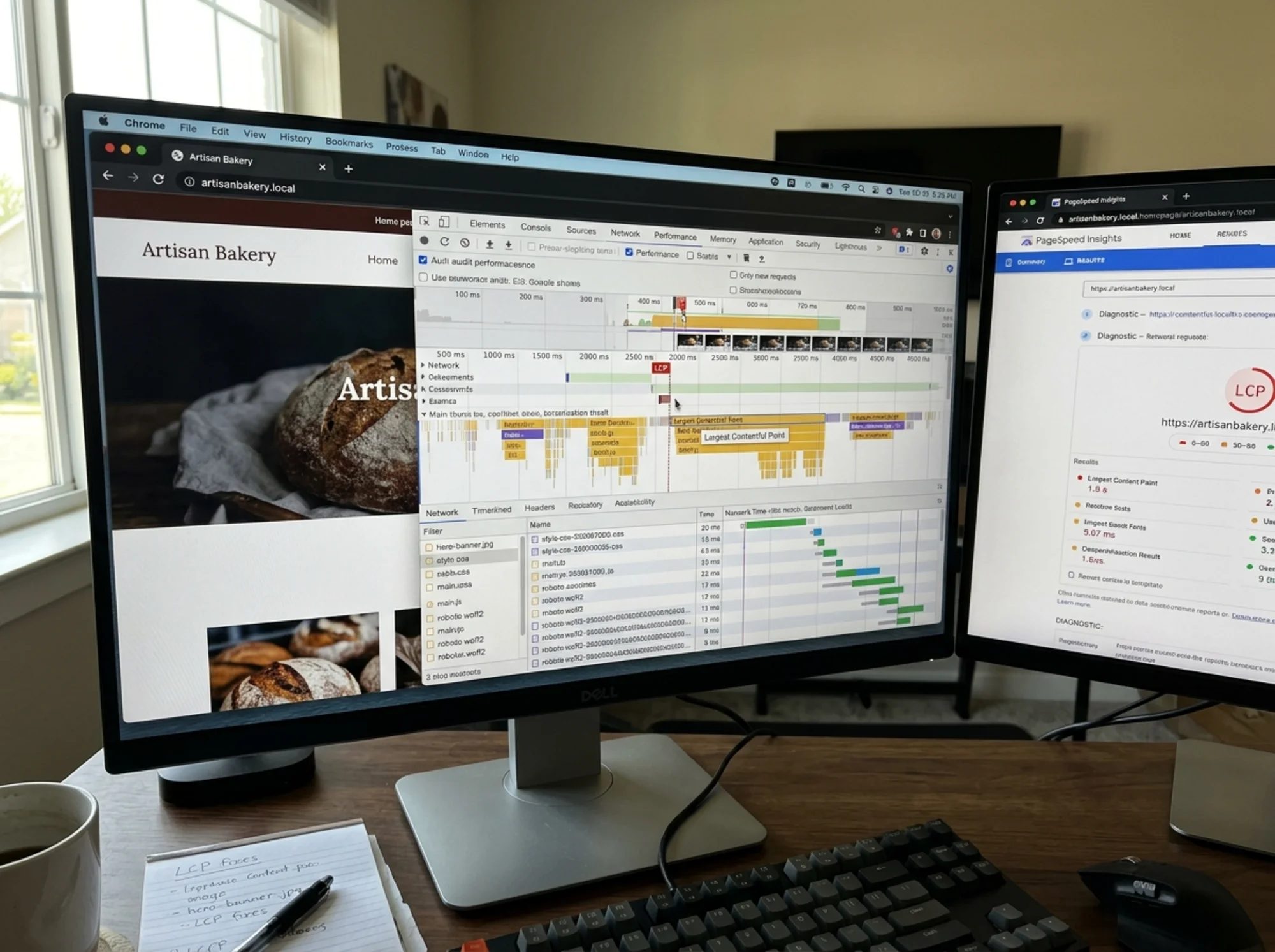
Before fixing anything, measure. Three tools worth knowing:
- PageSpeed Insights (pagespeed.web.dev). Paste your URL, get a Core Web Vitals report, and see which element is your LCP candidate.
- Chrome DevTools. Open your site, right-click → Inspect → Performance tab → record a page load. The "LCP" marker on the timeline tells you exactly which element triggered it.
- A site audit tool. Run a free website audit to get LCP measured alongside the other issues slowing your site down.
Pay attention to which specific element is flagged. The right fix depends entirely on what that element is.
The 5 fastest ways to improve LCP
These fixes are ordered roughly from highest-impact to lowest-effort. Most sites can knock a second or more off LCP just by doing the first two.
1. Properly size and compress your hero image
This is the single biggest LCP win for most small business sites. The hero image at the top of your homepage is usually the LCP element, and it is usually delivered in a format and size that is wildly larger than it needs to be.
What to check:
- Is the file under 200 KB? A 2 MB PNG of a smiling stock-photo team is your problem.
- Is it served in a modern format (WebP or AVIF) instead of JPEG or PNG?
- Is it sized to the actual display dimensions? A 4000px-wide photo displayed at 1200px is wasted bandwidth.
Mini-checklist:
- Export hero images at 2x the displayed width (for retina screens), no more
- Convert to WebP using a tool like Squoosh, ImageMagick, or your CMS's built-in optimizer
- Keep hero images under 200 KB and thumbnails under 100 KB
- Use
srcsetso mobile devices download smaller versions
If you are on WordPress, plugins like ShortPixel or Imagify will do most of this automatically. On Shopify, image optimization is largely handled if you upload reasonable source files. See our guide on image optimization for platform-specific steps. Ecommerce sites can find more product-page specific tips in our ecommerce playbook.
2. Preload the LCP image
Even after compressing, your browser still has to discover the image. The default load order is HTML → CSS → fonts → finally find the hero in the CSS background or HTML and request it. That sequence costs precious milliseconds.
A preload hint tells the browser, "Start downloading this specific image immediately, before you even finish parsing the page."
Add this to your :
html
The fetchpriority="high" attribute works in modern Chrome and Edge. For hero images set as CSS backgrounds, preloading is especially impactful because the browser would otherwise not discover the image until it parses the relevant CSS rule.
Common mistake: Don't preload images that aren't actually in the viewport on first paint. Preloading a below-the-fold image hurts more than it helps — it competes for bandwidth with the actual LCP element.
3. Eliminate render-blocking resources
Render-blocking resources are CSS and JavaScript files the browser must download and process before it can paint anything to the screen. Every render-blocking file delays your LCP.
The biggest offenders are usually:
- Large CSS frameworks loaded in the
- Webfonts that block text rendering
- Third-party analytics, chat widgets, and marketing tags loaded synchronously
What to do:
- Move non-critical JavaScript to
deferorasync. A typical analytics tag should never be in the critical path. - Inline the small amount of CSS needed for above-the-fold content; load the rest asynchronously.
- Use
font-display: swapso text appears in a fallback font while your custom font loads, instead of waiting. - Audit your third-party scripts. That live chat widget your previous developer added two years ago might be loading 400 KB of JavaScript on every page.
Our breakdown of render-blocking resources walks through how to identify and fix each type.
4. Use a CDN and check your server response time
If your website is hosted on a single server in Virginia and a visitor in Sydney requests your page, the data has to travel halfway around the world before anything happens. That round-trip alone can add 300-500ms to your LCP.
A Content Delivery Network (CDN) caches your static files — images, CSS, JavaScript — on servers around the world. The Sydney visitor gets the files from a Sydney server.
What to check:
- Time to First Byte (TTFB): how long it takes your server to send the first byte of response. If TTFB is over 600ms, your server is slow, not just your front-end. Common causes: cheap shared hosting, an overloaded database, an unoptimized WordPress install.
- CDN coverage: Cloudflare, Fastly, and Bunny CDN all have free or cheap tiers. If you are on Shopify, Squarespace, or Wix, a CDN is already included. If you are on WordPress with a small host, adding Cloudflare's free tier can shave hundreds of milliseconds off LCP for distant visitors.
A slow TTFB is often the hidden ceiling on LCP improvements. You can compress images perfectly and still be stuck at a 3-second LCP if your server takes 1.5 seconds just to respond.
5. Stop lazy-loading your LCP image
This one is counterintuitive. Lazy loading — the loading="lazy" attribute on images — is generally a performance win because it defers loading images that are off-screen. But if you lazy-load the image above the fold, you have actively delayed your own LCP.
Many CMSs and theme builders apply loading="lazy" to all images by default. That is fine for the gallery at the bottom of the page. It is terrible for the hero.
The rule:
- Hero image:
loading="eager"(or no attribute, since eager is the default) - Everything below the fold:
loading="lazy"
If your site has a hero carousel or slider, audit each slide. The first visible slide should never be lazy-loaded.
A walkthrough: fixing a local services site
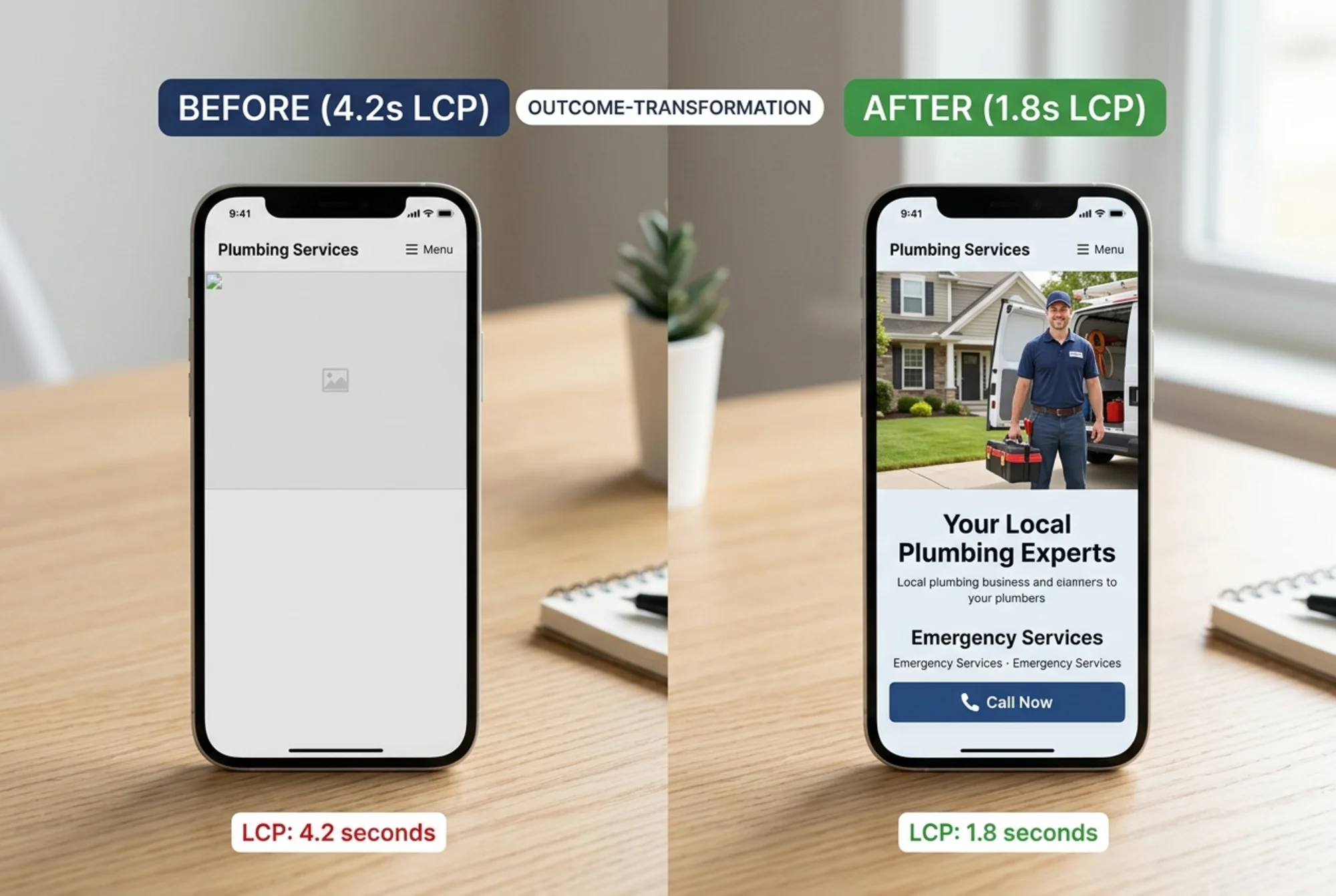
To make this concrete, here is how a real fix sequence looks for a typical small business site. Imagine a regional HVAC company whose homepage scores 3.8s LCP — squarely "poor" — on PageSpeed Insights.
Step 1: Identify the LCP element. PageSpeed Insights flags the hero image — a photo of a technician with a customer — as the LCP. The image is 1.4 MB, served as a JPEG, 3200px wide on a page that displays it at 1600px max.
Step 2: Compress and resize. Export at 1600px width, convert to WebP, end up at 145 KB. Add a srcset so mobile visitors download a 600px version weighing 38 KB. Expected savings: ~1.2 seconds.
Step 3: Add a preload hint. Add a tag to the head so the browser starts downloading the hero immediately. Expected savings: ~200ms.
Step 4: Defer the chat widget. The site's live chat widget is loading 380 KB of synchronous JavaScript. Move it to load after the window.load event. Expected savings: ~400ms.
Step 5: Enable Cloudflare's free tier. Caches static assets globally. For visitors outside the home region, expected savings: ~300ms.
Result: Roughly 2.1 seconds of improvement, bringing LCP from 3.8s down to around 1.7s — well inside the "good" threshold.
This is not a hypothetical best case. These are the kinds of compounding wins almost every small business site has available, because almost no small business site has had a developer specifically optimize the critical rendering path.
Common LCP traps to watch for
A few things that consistently trip up small business sites:
- Page builders. Elementor, Divi, and similar visual builders are convenient but tend to load heavy CSS and JavaScript. Audit what each page actually needs and disable unused modules.
- Carousel sliders. A homepage hero slider with five images often preloads all five, even though four are below the fold. Configure the slider to only load the first slide eagerly.
- Custom fonts. Loading three weights of two different Google Fonts can easily add 500ms. Limit yourself to one or two weights, and use
font-display: swap. - Embedded video backgrounds. A 10 MB autoplaying MP4 hero background can crater LCP. Use a static poster image and load the video only after the page is interactive.
- Cookie consent banners. Some consent management platforms block all other scripts (including legitimate ones) until consent is processed. Check whether your CMP can run asynchronously.
When LCP is not your real problem
LCP is one Core Web Vital out of three. The others are:
- INP (Interaction to Next Paint): how responsive your page feels when tapped
- CLS (Cumulative Layout Shift): how much things jump around as the page loads
If LCP is already under 2.5s but your bounce rate is high, the issue is probably elsewhere — likely a layout shift problem (CLS), a confusing hero, or weak copy. Don't keep optimizing LCP past the point of diminishing returns. Once you are firmly in the green, your time is better spent on the next bottleneck.
What to do next
Most small business websites can improve LCP by 1-2 seconds with a few hours of work. The five fixes above cover the vast majority of cases. The order to tackle them is almost always:
- Compress the hero image
- Preload it
- Defer non-critical JavaScript
- Add a CDN
- Make sure you are not lazy-loading above the fold
If you are not sure where to start, run a free website audit — it will tell you your current LCP, identify which element is the bottleneck, and surface the other technical issues likely costing you traffic and conversions. The audit is free and takes about 60 seconds.
A faster site keeps more of the visitors you already pay to attract. That is the entire game.
Sources
Check your website for free
Get an instant score and your top 3 critical issues in under 60 seconds.
Get Your Free Audit →