Next.js Marketing Sites: SEO and Speed Mistakes Teams Keep Making
Next.js marketing sites often launch with hidden SEO and speed problems. Here are 8 common mistakes—rendering, metadata, images, fonts—and how to fix each.
# Next.js Marketing Sites: SEO and Speed Mistakes Teams Keep Making
Next.js has become one of the most popular ways to build marketing websites. It's fast when configured correctly, it supports server-side rendering, and it plays well with modern design systems. Agencies recommend it. Developers love it. And so marketing teams end up with Next.js sites — sometimes without fully understanding what that means for search performance.
The problem is that Next.js gives you a lot of power, and power requires good decisions. Make the wrong choices — about rendering modes, metadata, image handling, or JavaScript loading — and your site can rank poorly, load slowly, and frustrate visitors, all while looking polished in a local preview.
This post covers the most common SEO and speed mistakes that keep showing up on Next.js marketing sites, with practical fixes for each one.
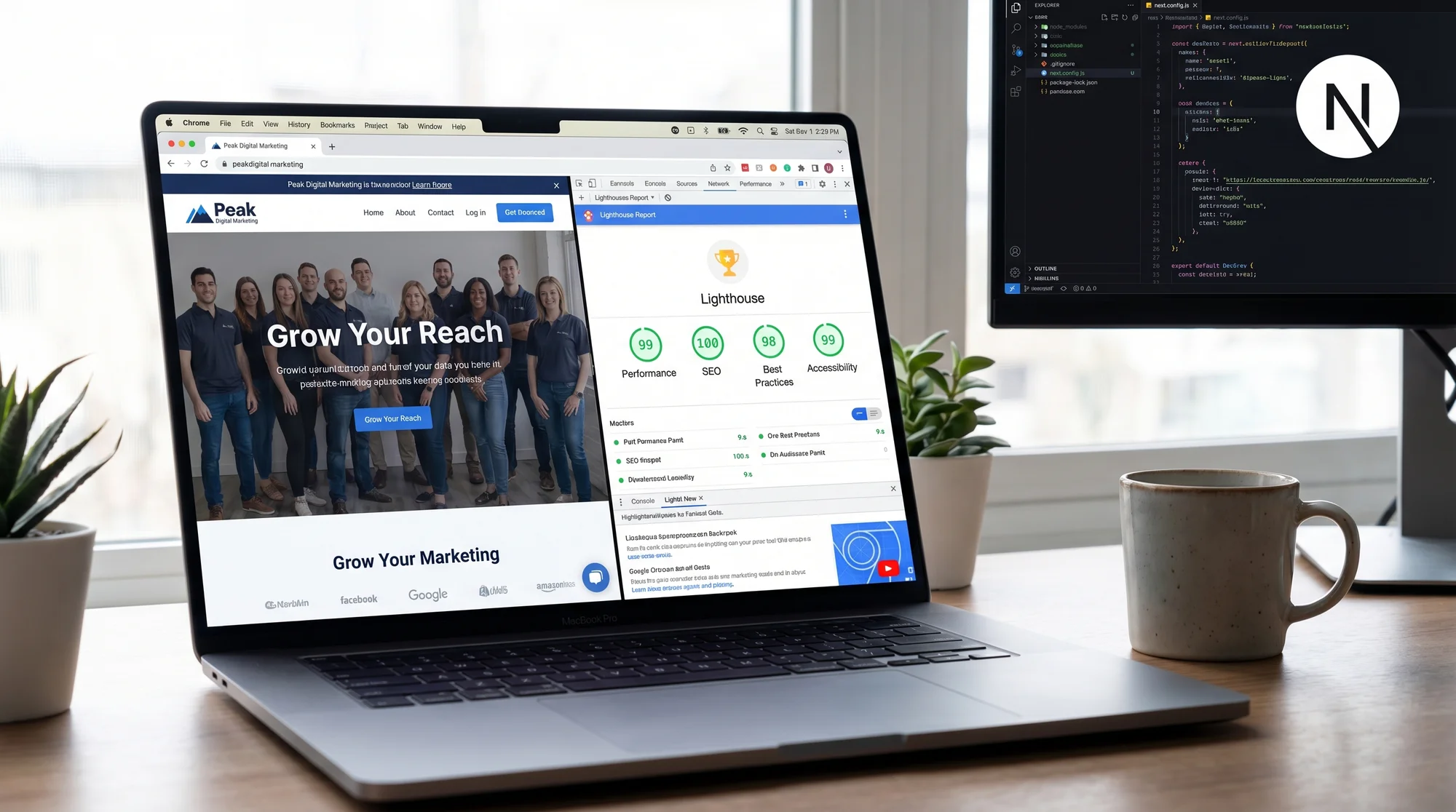
Why Next.js Marketing Sites Fail in Ways Other Sites Don't
A WordPress site that's slow is slow for obvious reasons: too many plugins, a bad host, unoptimized images. The problems are visible and well-documented.
Next.js problems are subtler. The framework is sophisticated enough that a site can look and feel fast — instant navigation, smooth transitions — while scoring poorly on the metrics Google actually measures. Worse, many Next.js mistakes are invisible in development. They only surface in production, or when you run a proper audit.
Mistake 1: Using Client-Side Rendering for Pages That Need to Be Indexed
This is the single biggest SEO mistake on Next.js marketing sites.
Next.js supports multiple rendering strategies. When you fetch data inside a useEffect hook — a common React pattern — that content renders only in the browser, after JavaScript loads. Googlebot can technically execute JavaScript, but it doesn't always do so reliably, and it doesn't prioritize client-rendered content the same way it prioritizes server-rendered HTML.
Marketing landing pages, service pages, and blog posts should never be client-rendered. Their content needs to be in the initial HTML response.
What to look for: View your page source (not the browser inspector — the actual source). If your content area is empty or contains only a loading spinner in the raw HTML, the page is client-rendered and probably not being indexed correctly.
The fix: Use getStaticProps (Pages Router) or mark the component as a Server Component (App Router) so content is baked into the HTML at build time or render time. If the content changes frequently, use getServerSideProps or revalidation.
Mistake 2: Missing or Incorrect Metadata
Next.js doesn't automatically generate useful metadata for you. You have to write it explicitly — and many teams don't, or do it wrong.
The most common failures:
- Every page shares the same
</code> (usually the site name)</li><li><code class="bg-surface-panel px-1.5 py-0.5 rounded text-sm text-accent-strong"><meta name="description"></code> is either missing or identical across pages</li><li>Open Graph tags (<code class="bg-surface-panel px-1.5 py-0.5 rounded text-sm text-accent-strong">og:title</code>, <code class="bg-surface-panel px-1.5 py-0.5 rounded text-sm text-accent-strong">og:description</code>, <code class="bg-surface-panel px-1.5 py-0.5 rounded text-sm text-accent-strong">og:image</code>) are absent, so social shares look broken</li><li>The canonical URL isn't set, causing duplicate-content issues when query parameters are involved</li></ul><p class="text-text-secondary leading-relaxed my-4">Google uses your title tag as the primary signal for what a page is about. If every page on your site says "Acme Co | Home," you're making the algorithm's job harder and your click-through rates worse.</p><p class="text-text-secondary leading-relaxed my-4"><strong class="text-text-primary">What to look for:</strong> In Next.js App Router, metadata is defined via the <code class="bg-surface-panel px-1.5 py-0.5 rounded text-sm text-accent-strong">metadata</code> export or <code class="bg-surface-panel px-1.5 py-0.5 rounded text-sm text-accent-strong">generateMetadata</code> function in each <code class="bg-surface-panel px-1.5 py-0.5 rounded text-sm text-accent-strong">page.tsx</code>. In Pages Router, it's done through <code class="bg-surface-panel px-1.5 py-0.5 rounded text-sm text-accent-strong">next/head</code>. If your team hasn't explicitly set these on every key page, they're probably missing.</p><p class="text-text-secondary leading-relaxed my-4"><strong class="text-text-primary">The fix:</strong> Create a metadata template and apply it consistently. Each page should have a unique title (50–60 characters), a unique description (120–160 characters), and complete Open Graph tags. For blog posts and articles, add structured data per <a href="https://developers.google.com/search/docs/appearance/structured-data/article" class="text-accent hover:text-accent-strong underline">Google's article schema guidelines</a>.</p><p class="text-text-secondary leading-relaxed my-4"><strong class="text-text-primary">Quick checklist:</strong></p><ul class="list-disc pl-5 space-y-1.5 my-4 text-text-secondary"><li>[ ] Unique <code class="bg-surface-panel px-1.5 py-0.5 rounded text-sm text-accent-strong"><title></code> on every page</li><li>[ ] Unique <code class="bg-surface-panel px-1.5 py-0.5 rounded text-sm text-accent-strong"><meta name="description"></code> on every page</li><li>[ ] <code class="bg-surface-panel px-1.5 py-0.5 rounded text-sm text-accent-strong">og:title</code>, <code class="bg-surface-panel px-1.5 py-0.5 rounded text-sm text-accent-strong">og:description</code>, <code class="bg-surface-panel px-1.5 py-0.5 rounded text-sm text-accent-strong">og:image</code> on every page</li><li>[ ] <code class="bg-surface-panel px-1.5 py-0.5 rounded text-sm text-accent-strong"><link rel="canonical"></code> set correctly</li><li>[ ] Structured data for blog posts and landing pages</li></ul><hr class="my-8 border-border"/><h2 class="text-2xl font-bold text-text-primary mt-10 mb-4">Mistake 3: Shipping Too Much JavaScript</h2><figure class="my-8"><img src="/blog-images/blog-next-js-marketing-sites-seo-and-speed-mistakes-teams-keep-making-2-a-developer-s-terminal-showing-a-next-js-build-output-with-a.webp" alt="A developer's terminal showing a Next.js build output with a bloated JavaScript bundle size warning, next to a browser tab stuck on a white screen with a spinning loader — the site has not rendered any visible content yet" class="w-full rounded-lg border border-border" loading="lazy"/><figcaption class="text-sm text-text-muted italic mt-2 text-center">A developer's terminal showing a Next.js build output with a bloated JavaScript bundle size warning, next to a browser tab stuck on a white screen with a spinning loader — the site has not rendered any visible content yet</figcaption></figure><p class="text-text-secondary leading-relaxed my-4">A marketing site doesn't need the same JavaScript payload as a complex web application. But Next.js makes it easy to import large component libraries, animation packages, and third-party tools that balloon the bundle size.</p><p class="text-text-secondary leading-relaxed my-4">The result: Total Blocking Time (TBT) and Time to Interactive (TTI) scores suffer, real users on average mobile connections wait longer than they should, and your Core Web Vitals scores — which Google uses as a ranking signal — fall below acceptable thresholds.</p><p class="text-text-secondary leading-relaxed my-4"><strong class="text-text-primary">What to look for:</strong> Run your site through Google's PageSpeed Insights or check the <a href="https://web.dev/articles/vitals" class="text-accent hover:text-accent-strong underline">Core Web Vitals documentation</a>. Look at the "Reduce unused JavaScript" and "Avoid enormous network payloads" opportunities. If your JS bundle is over 300KB compressed for a marketing page, something is wrong.</p><p class="text-text-secondary leading-relaxed my-4"><strong class="text-text-primary">Common culprits:</strong></p><ul class="list-disc pl-5 space-y-1.5 my-4 text-text-secondary"><li>Importing entire icon libraries when you use three icons</li><li>Loading animation libraries (Framer Motion, GSAP) on pages that barely animate</li><li>Including a full date-formatting library when a one-liner would do</li><li>Third-party scripts (chat widgets, analytics) loaded synchronously in <code class="bg-surface-panel px-1.5 py-0.5 rounded text-sm text-accent-strong"><head></code></li></ul><p class="text-text-secondary leading-relaxed my-4"><strong class="text-text-primary">The fix:</strong> Use Next.js's built-in <code class="bg-surface-panel px-1.5 py-0.5 rounded text-sm text-accent-strong">next/dynamic</code> for components that don't need to be in the initial render. Audit your <code class="bg-surface-panel px-1.5 py-0.5 rounded text-sm text-accent-strong">package.json</code> and remove dependencies that aren't earning their weight. Move third-party scripts to load with <code class="bg-surface-panel px-1.5 py-0.5 rounded text-sm text-accent-strong">strategy="afterInteractive"</code> or <code class="bg-surface-panel px-1.5 py-0.5 rounded text-sm text-accent-strong">strategy="lazyOnload"</code> using the <code class="bg-surface-panel px-1.5 py-0.5 rounded text-sm text-accent-strong">next/script</code> component.</p><hr class="my-8 border-border"/><h2 class="text-2xl font-bold text-text-primary mt-10 mb-4">Mistake 4: Unoptimized Images</h2><p class="text-text-secondary leading-relaxed my-4">Next.js ships with a built-in <code class="bg-surface-panel px-1.5 py-0.5 rounded text-sm text-accent-strong"><Image></code> component that automatically handles lazy loading, responsive sizes, and format conversion (WebP, AVIF). It's one of the framework's best features.</p><p class="text-text-secondary leading-relaxed my-4">A surprising number of teams don't use it. They use a standard <code class="bg-surface-panel px-1.5 py-0.5 rounded text-sm text-accent-strong"><img></code> tag instead — either out of habit or because they're copying HTML from a design file — and lose all those optimizations instantly.</p><p class="text-text-secondary leading-relaxed my-4">Others do use <code class="bg-surface-panel px-1.5 py-0.5 rounded text-sm text-accent-strong">next/image</code> but configure it incorrectly: missing <code class="bg-surface-panel px-1.5 py-0.5 rounded text-sm text-accent-strong">width</code> and <code class="bg-surface-panel px-1.5 py-0.5 rounded text-sm text-accent-strong">height</code> props, setting <code class="bg-surface-panel px-1.5 py-0.5 rounded text-sm text-accent-strong">priority={true}</code> on elements that aren't above the fold, or skipping the <code class="bg-surface-panel px-1.5 py-0.5 rounded text-sm text-accent-strong">sizes</code> attribute so the browser downloads a 2000px-wide image for a 300px-wide slot.</p><p class="text-text-secondary leading-relaxed my-4"><strong class="text-text-primary">What to look for:</strong> In PageSpeed Insights, watch for "Serve images in next-gen formats," "Properly size images," and "Image elements do not have explicit width and height." These are fixable in minutes with proper <code class="bg-surface-panel px-1.5 py-0.5 rounded text-sm text-accent-strong">next/image</code> usage.</p><p class="text-text-secondary leading-relaxed my-4"><strong class="text-text-primary">The fix:</strong> Replace raw <code class="bg-surface-panel px-1.5 py-0.5 rounded text-sm text-accent-strong"><img></code> tags with <code class="bg-surface-panel px-1.5 py-0.5 rounded text-sm text-accent-strong">next/image</code>. Always include <code class="bg-surface-panel px-1.5 py-0.5 rounded text-sm text-accent-strong">width</code>, <code class="bg-surface-panel px-1.5 py-0.5 rounded text-sm text-accent-strong">height</code>, and a meaningful <code class="bg-surface-panel px-1.5 py-0.5 rounded text-sm text-accent-strong">alt</code> attribute. Use <code class="bg-surface-panel px-1.5 py-0.5 rounded text-sm text-accent-strong">priority={true}</code> only for the largest image above the fold (your hero image). Use <code class="bg-surface-panel px-1.5 py-0.5 rounded text-sm text-accent-strong">sizes</code> to tell the browser the actual rendered size at each breakpoint.</p><hr class="my-8 border-border"/><h2 class="text-2xl font-bold text-text-primary mt-10 mb-4">Mistake 5: No `robots.txt` or `sitemap.xml`</h2><p class="text-text-secondary leading-relaxed my-4">This sounds basic, but Next.js doesn't generate either file by default.</p><p class="text-text-secondary leading-relaxed my-4">Teams often launch a site, add pages over several months, and never create a sitemap — so Google either discovers pages slowly via crawl or misses them entirely. In the Pages Router era, you had to build these manually. In App Router (Next.js 13.3+), you can export a <code class="bg-surface-panel px-1.5 py-0.5 rounded text-sm text-accent-strong">sitemap.ts</code> file, but you still have to write it.</p><p class="text-text-secondary leading-relaxed my-4"><strong class="text-text-primary">What to look for:</strong> Go to <code class="bg-surface-panel px-1.5 py-0.5 rounded text-sm text-accent-strong">yourdomain.com/sitemap.xml</code> and <code class="bg-surface-panel px-1.5 py-0.5 rounded text-sm text-accent-strong">yourdomain.com/robots.txt</code>. If either returns a 404, it's not set up.</p><p class="text-text-secondary leading-relaxed my-4"><strong class="text-text-primary">The fix:</strong> In App Router, create <code class="bg-surface-panel px-1.5 py-0.5 rounded text-sm text-accent-strong">src/app/sitemap.ts</code> that returns your routes and submit the URL to Google Search Console. For <code class="bg-surface-panel px-1.5 py-0.5 rounded text-sm text-accent-strong">robots.txt</code>, create <code class="bg-surface-panel px-1.5 py-0.5 rounded text-sm text-accent-strong">src/app/robots.ts</code> or a static file in the <code class="bg-surface-panel px-1.5 py-0.5 rounded text-sm text-accent-strong">/public</code> directory.</p><hr class="my-8 border-border"/><h2 class="text-2xl font-bold text-text-primary mt-10 mb-4">Mistake 6: Slow Font Loading</h2><p class="text-text-secondary leading-relaxed my-4">Custom fonts add visual personality but are a common source of layout shift (CLS) and render delays.</p><p class="text-text-secondary leading-relaxed my-4">The wrong approach: linking to Google Fonts via a <code class="bg-surface-panel px-1.5 py-0.5 rounded text-sm text-accent-strong"><link></code> tag in <code class="bg-surface-panel px-1.5 py-0.5 rounded text-sm text-accent-strong">_document.tsx</code>. This forces the browser to do a cross-origin DNS lookup, download the CSS, then download the font files — all before text can render.</p><p class="text-text-secondary leading-relaxed my-4">Next.js 13+ includes <code class="bg-surface-panel px-1.5 py-0.5 rounded text-sm text-accent-strong">next/font</code>, which downloads fonts at build time, self-hosts them, and eliminates the render-blocking request entirely. Teams that aren't using it are leaving performance on the table.</p><p class="text-text-secondary leading-relaxed my-4"><strong class="text-text-primary">The fix:</strong> Replace any <code class="bg-surface-panel px-1.5 py-0.5 rounded text-sm text-accent-strong"><link href="https://fonts.googleapis.com/..."></code> with <code class="bg-surface-panel px-1.5 py-0.5 rounded text-sm text-accent-strong">next/font/google</code>. The API is nearly identical but the performance characteristics are dramatically better. Set <code class="bg-surface-panel px-1.5 py-0.5 rounded text-sm text-accent-strong">display: 'swap'</code> to ensure text is visible immediately while the custom font loads.</p><hr class="my-8 border-border"/><h2 class="text-2xl font-bold text-text-primary mt-10 mb-4">Mistake 7: No Structured Data on Key Pages</h2><figure class="my-8"><img src="/blog-images/blog-next-js-marketing-sites-seo-and-speed-mistakes-teams-keep-making-3-a-side-by-side-diagram-on-a-whiteboard-showing-three-next-js.webp" alt="A side-by-side diagram on a whiteboard showing three Next.js rendering paths labeled SSG, SSR, and CSR, with sticky notes indicating which pages use which mode and a red X marking the marketing landing page incorrectly set to client-only rendering" class="w-full rounded-lg border border-border" loading="lazy"/><figcaption class="text-sm text-text-muted italic mt-2 text-center">A side-by-side diagram on a whiteboard showing three Next.js rendering paths labeled SSG, SSR, and CSR, with sticky notes indicating which pages use which mode and a red X marking the marketing landing page incorrectly set to client-only rendering</figcaption></figure><p class="text-text-secondary leading-relaxed my-4">Structured data (Schema.org JSON-LD) helps Google understand what your page is about and can unlock rich results in search — FAQ dropdowns, article bylines, star ratings. It doesn't directly boost rankings in the traditional sense, but it increases click-through rate, which does.</p><p class="text-text-secondary leading-relaxed my-4">Marketing sites almost never implement it, despite the relatively low effort involved.</p><p class="text-text-secondary leading-relaxed my-4"><strong class="text-text-primary">What to look for:</strong> Use Google's Rich Results Test on any page. If the tool finds no structured data, you're missing an opportunity.</p><p class="text-text-secondary leading-relaxed my-4"><strong class="text-text-primary">Pages that benefit most:</strong></p><ul class="list-disc pl-5 space-y-1.5 my-4 text-text-secondary"><li>Blog posts: <code class="bg-surface-panel px-1.5 py-0.5 rounded text-sm text-accent-strong">Article</code> or <code class="bg-surface-panel px-1.5 py-0.5 rounded text-sm text-accent-strong">BlogPosting</code> schema</li><li>FAQ sections: <code class="bg-surface-panel px-1.5 py-0.5 rounded text-sm text-accent-strong">FAQPage</code> schema</li><li>Local businesses: <code class="bg-surface-panel px-1.5 py-0.5 rounded text-sm text-accent-strong">LocalBusiness</code> schema</li><li>Service pages: <code class="bg-surface-panel px-1.5 py-0.5 rounded text-sm text-accent-strong">Service</code> schema</li></ul><p class="text-text-secondary leading-relaxed my-4"><strong class="text-text-primary">The fix:</strong> Add a <code class="bg-surface-panel px-1.5 py-0.5 rounded text-sm text-accent-strong"><script type="application/ld+json"></code> block to relevant pages. In Next.js App Router, this can go directly in your <code class="bg-surface-panel px-1.5 py-0.5 rounded text-sm text-accent-strong">page.tsx</code>. In the Pages Router, inject it via <code class="bg-surface-panel px-1.5 py-0.5 rounded text-sm text-accent-strong">next/head</code>.</p><hr class="my-8 border-border"/><h2 class="text-2xl font-bold text-text-primary mt-10 mb-4">Mistake 8: Ignoring Core Web Vitals on Mobile</h2><p class="text-text-secondary leading-relaxed my-4">Most teams test their Next.js site on a fast desktop connection and call it done. Mobile is where your users are and where Google primarily evaluates performance.</p><p class="text-text-secondary leading-relaxed my-4">The three Core Web Vitals — Largest Contentful Paint (LCP), Cumulative Layout Shift (CLS), and Interaction to Next Paint (INP) — are measured on real user devices with real network conditions. A site that scores 95 on Lighthouse desktop can score 55 on mobile if images aren't properly sized, fonts aren't preloaded, or layout shifts happen during rendering.</p><p class="text-text-secondary leading-relaxed my-4"><strong class="text-text-primary">What to look for:</strong> In Google Search Console, go to "Core Web Vitals" under the Experience section. This shows real-world data from actual users — not simulated scores. Check the mobile report specifically.</p><p class="text-text-secondary leading-relaxed my-4"><strong class="text-text-primary">Common mobile failures on Next.js sites:</strong></p><ul class="list-disc pl-5 space-y-1.5 my-4 text-text-secondary"><li>LCP above 2.5s (usually a large hero image without <code class="bg-surface-panel px-1.5 py-0.5 rounded text-sm text-accent-strong">priority</code> loading)</li><li>CLS above 0.1 (usually images without explicit dimensions, or fonts shifting text on load)</li><li>INP above 200ms (usually heavy JavaScript executing on the main thread)</li></ul><hr class="my-8 border-border"/><h2 class="text-2xl font-bold text-text-primary mt-10 mb-4">A Real-World Walkthrough</h2><p class="text-text-secondary leading-relaxed my-4">Here's a scenario that plays out regularly.</p><p class="text-text-secondary leading-relaxed my-4">A software company rebuilds its marketing site on Next.js with a design agency. The site looks excellent — smooth scroll animations, a custom typeface, interactive demos on the product pages. It launches to good internal reviews.</p><p class="text-text-secondary leading-relaxed my-4">Three months later, the marketing team notices organic traffic is flat. Competitor sites that look worse are outranking them.</p><p class="text-text-secondary leading-relaxed my-4">An audit reveals:</p><ol class="list-decimal pl-5 space-y-1.5 my-4 text-text-secondary"><li>The homepage hero section uses <code class="bg-surface-panel px-1.5 py-0.5 rounded text-sm text-accent-strong">useEffect</code> to fetch testimonials. The testimonials don't appear in the page source. Google is indexing an empty content area.</li><li>The animation library (Framer Motion) adds 180KB to every page, including pages with no animations.</li><li>Fonts are loaded from Google Fonts via a <code class="bg-surface-panel px-1.5 py-0.5 rounded text-sm text-accent-strong"><link></code> tag. CLS is 0.18 — above Google's "needs improvement" threshold.</li><li>Images on the features page use raw <code class="bg-surface-panel px-1.5 py-0.5 rounded text-sm text-accent-strong"><img></code> tags. None are in WebP format. Average image payload is 2.1MB.</li><li>There's no <code class="bg-surface-panel px-1.5 py-0.5 rounded text-sm text-accent-strong">sitemap.xml</code>. Three service pages launched two months ago have never been indexed.</li></ol><p class="text-text-secondary leading-relaxed my-4">None of these require a site rebuild. Each fix takes hours, not weeks. But because no one audited the site at launch, they compounded for three months.</p><figure class="my-8"><img src="/blog-images/blog-next-js-marketing-sites-seo-and-speed-mistakes-teams-keep-making-4-a-google-search-console-core-web-vitals-dashboard-on-a-lapto.webp" alt="A Google Search Console Core Web Vitals dashboard on a laptop screen showing a before/after comparison — red "Poor" URLs on the left decreasing and green "Good" URLs growing after a Next.js site audit, with the search impressions chart trending upward on the right" class="w-full rounded-lg border border-border" loading="lazy"/><figcaption class="text-sm text-text-muted italic mt-2 text-center">A Google Search Console Core Web Vitals dashboard on a laptop screen showing a before/after comparison — red "Poor" URLs on the left decreasing and green "Good" URLs growing after a Next.js site audit, with the search impressions chart trending upward on the right</figcaption></figure><hr class="my-8 border-border"/><h2 class="text-2xl font-bold text-text-primary mt-10 mb-4">Your Next.js Marketing Site Checklist</h2><p class="text-text-secondary leading-relaxed my-4">Use this before launch, and run it again every quarter.</p><p class="text-text-secondary leading-relaxed my-4"><strong class="text-text-primary">Rendering & Indexability</strong></p><ul class="list-disc pl-5 space-y-1.5 my-4 text-text-secondary"><li>[ ] All marketing pages render content in the initial HTML (not behind <code class="bg-surface-panel px-1.5 py-0.5 rounded text-sm text-accent-strong">useEffect</code>)</li><li>[ ] View page source on key pages and confirm content is present</li><li>[ ] Check Google Search Console for "crawled but not indexed" errors</li></ul><p class="text-text-secondary leading-relaxed my-4"><strong class="text-text-primary">Metadata</strong></p><ul class="list-disc pl-5 space-y-1.5 my-4 text-text-secondary"><li>[ ] Unique title tags on every page (50–60 characters)</li><li>[ ] Unique meta descriptions on every page (120–160 characters)</li><li>[ ] Open Graph tags set on all pages</li><li>[ ] Canonical URLs set correctly</li></ul><p class="text-text-secondary leading-relaxed my-4"><strong class="text-text-primary">Performance</strong></p><ul class="list-disc pl-5 space-y-1.5 my-4 text-text-secondary"><li>[ ] JavaScript bundle under 300KB compressed per page</li><li>[ ] All images use <code class="bg-surface-panel px-1.5 py-0.5 rounded text-sm text-accent-strong">next/image</code> with explicit width/height and alt text</li><li>[ ] Hero image uses <code class="bg-surface-panel px-1.5 py-0.5 rounded text-sm text-accent-strong">priority={true}</code></li><li>[ ] Fonts loaded via <code class="bg-surface-panel px-1.5 py-0.5 rounded text-sm text-accent-strong">next/font</code>, not a Google Fonts <code class="bg-surface-panel px-1.5 py-0.5 rounded text-sm text-accent-strong"><link></code> tag</li><li>[ ] Third-party scripts use <code class="bg-surface-panel px-1.5 py-0.5 rounded text-sm text-accent-strong">next/script</code> with a deferred loading strategy</li><li>[ ] Core Web Vitals pass in Google Search Console (mobile report)</li></ul><p class="text-text-secondary leading-relaxed my-4"><strong class="text-text-primary">Crawlability</strong></p><ul class="list-disc pl-5 space-y-1.5 my-4 text-text-secondary"><li>[ ] <code class="bg-surface-panel px-1.5 py-0.5 rounded text-sm text-accent-strong">sitemap.xml</code> exists and is submitted to Search Console</li><li>[ ] <code class="bg-surface-panel px-1.5 py-0.5 rounded text-sm text-accent-strong">robots.txt</code> is configured correctly</li><li>[ ] No important pages blocked by <code class="bg-surface-panel px-1.5 py-0.5 rounded text-sm text-accent-strong">noindex</code> accidentally</li></ul><p class="text-text-secondary leading-relaxed my-4"><strong class="text-text-primary">Structured Data</strong></p><ul class="list-disc pl-5 space-y-1.5 my-4 text-text-secondary"><li>[ ] Blog posts have <code class="bg-surface-panel px-1.5 py-0.5 rounded text-sm text-accent-strong">Article</code> schema</li><li>[ ] FAQ sections have <code class="bg-surface-panel px-1.5 py-0.5 rounded text-sm text-accent-strong">FAQPage</code> schema</li><li>[ ] Local business info has <code class="bg-surface-panel px-1.5 py-0.5 rounded text-sm text-accent-strong">LocalBusiness</code> schema (if applicable)</li></ul><hr class="my-8 border-border"/><h2 class="text-2xl font-bold text-text-primary mt-10 mb-4">Run a Free Audit on Your Next.js Site</h2><p class="text-text-secondary leading-relaxed my-4">If you're not sure which of these issues apply to your site, the fastest way to find out is a direct audit.</p><p class="text-text-secondary leading-relaxed my-4">FreeSiteAudit checks your pages for rendering problems, missing metadata, image issues, Core Web Vitals failures, and more — and gives you a prioritized list of what to fix first. No account required for the free check.</p><p class="text-text-secondary leading-relaxed my-4"><a href="/tools/site-audit" class="text-accent hover:text-accent-strong underline">Run a free audit at FreeSiteAudit →</a></p><hr class="my-8 border-border"/><h2 class="text-2xl font-bold text-text-primary mt-10 mb-4">Sources</h2><ul class="list-disc pl-5 space-y-1.5 my-4 text-text-secondary"><li>Google Search Console Help: Creating Helpful Content — https://developers.google.com/search/docs/fundamentals/creating-helpful-content</li><li>Google Structured Data: Article Schema — https://developers.google.com/search/docs/appearance/structured-data/article</li><li>web.dev: Core Web Vitals — https://web.dev/articles/vitals</li></ul></div><div class="mt-10 border-t border-border pt-8 space-y-6"><div><h3 class="text-sm font-semibold text-text-muted uppercase tracking-wider mb-3">Related Tools</h3><div class="flex flex-wrap gap-2"><a class="inline-flex items-center gap-1.5 bg-surface-panel/60 hover:bg-surface-panel text-sm text-text-secondary hover:text-accent px-3 py-1.5 rounded-lg transition-colors" href="/tools/speed-snapshot">Speed Snapshot<!-- --> →</a></div></div><div><h3 class="text-sm font-semibold text-text-muted uppercase tracking-wider mb-3">Related Fixes</h3><div class="flex flex-wrap gap-2"><a class="inline-flex items-center gap-1.5 bg-surface-panel/60 hover:bg-surface-panel text-sm text-text-secondary hover:text-accent px-3 py-1.5 rounded-lg transition-colors" href="/fixes/perf-load-001">PERF-LOAD-001<!-- --> →</a><a class="inline-flex items-center gap-1.5 bg-surface-panel/60 hover:bg-surface-panel text-sm text-text-secondary hover:text-accent px-3 py-1.5 rounded-lg transition-colors" href="/fixes/perf-images-001">PERF-IMAGES-001<!-- --> →</a></div></div></div><div class="mt-12"></div><div class="mt-6 bg-gradient-to-r from-accent-subtle to-accent-subtle/50 border border-accent-border rounded-xl p-8 text-center"><h2 class="text-2xl font-bold mb-2">Check your website for free</h2><p class="text-text-muted mb-6">Get an instant score and your top 3 critical issues in under 60 seconds.</p><a class="inline-block bg-accent hover:bg-accent-strong text-text-inverse font-semibold px-10 py-3.5 rounded-lg transition-colors" href="/#free-audit">Get Your Free Audit →</a></div></article><footer class="border-t border-border mt-auto"><nav aria-label="Footer navigation" class="max-w-6xl mx-auto px-4 py-8 sm:py-12"><div class="grid grid-cols-2 md:grid-cols-3 gap-8 lg:flex lg:flex-row lg:flex-wrap lg:justify-between lg:gap-x-6"><div class="col-span-2 md:col-span-1 lg:max-w-[14rem]"><a class="text-lg font-bold tracking-tight" href="/"><span class="text-accent">Free</span>SiteAudit</a><p class="text-text-muted text-sm mt-3 leading-relaxed">Website audits for business owners and agencies. Find issues, fix them, grow.</p></div><div><h4 class="text-sm font-semibold text-text-secondary mb-3 lg:whitespace-nowrap">Solutions</h4><ul class="space-y-2"><li><a class="text-sm text-text-muted hover:text-text-secondary transition-colors lg:whitespace-nowrap" href="/#free-audit">Free Website Audit</a></li><li><a class="text-sm text-text-muted hover:text-text-secondary transition-colors lg:whitespace-nowrap" href="/agencies">For Agencies</a></li><li><a class="text-sm text-text-muted hover:text-text-secondary transition-colors lg:whitespace-nowrap" href="/pricing">Pricing</a></li><li><a class="text-sm text-text-muted hover:text-text-secondary transition-colors lg:whitespace-nowrap" href="/demo">Demo Report</a></li><li><a class="text-sm text-text-muted hover:text-text-secondary transition-colors lg:whitespace-nowrap" href="/dashboard">Dashboard</a></li></ul></div><div><h4 class="text-sm font-semibold text-text-secondary mb-3 lg:whitespace-nowrap">Industries</h4><ul class="space-y-2"><li><a class="text-sm text-text-muted hover:text-text-secondary transition-colors lg:whitespace-nowrap" href="/industries/saas">SaaS Apps</a></li><li><a class="text-sm text-text-muted hover:text-text-secondary transition-colors lg:whitespace-nowrap" href="/industries/dev-portfolios">Dev Portfolios</a></li><li><a class="text-sm text-text-muted hover:text-text-secondary transition-colors lg:whitespace-nowrap" href="/industries/blogs">Blogs & Content</a></li><li><a class="text-sm text-text-muted hover:text-text-secondary transition-colors lg:whitespace-nowrap" href="/industries/courses">Course Sites</a></li><li><a class="text-sm text-text-muted hover:text-text-secondary transition-colors lg:whitespace-nowrap" href="/industries/agency-sites">Agency Sites</a></li><li><a class="text-sm text-text-muted hover:text-text-secondary transition-colors lg:whitespace-nowrap" href="/industries">All Industries</a></li></ul></div><div><h4 class="text-sm font-semibold text-text-secondary mb-3 lg:whitespace-nowrap">Compare & Results</h4><ul class="space-y-2"><li><a class="text-sm text-text-muted hover:text-text-secondary transition-colors lg:whitespace-nowrap" href="/blog/freesiteaudit-vs-semrush">vs Semrush</a></li><li><a class="text-sm text-text-muted hover:text-text-secondary transition-colors lg:whitespace-nowrap" href="/blog/freesiteaudit-vs-seoptimer-vs-seo-site-checkup">vs SEOptimer</a></li><li><a class="text-sm text-text-muted hover:text-text-secondary transition-colors lg:whitespace-nowrap" href="/case-studies">Success Stories</a></li><li><a class="text-sm text-text-muted hover:text-text-secondary transition-colors lg:whitespace-nowrap" href="https://findbackflowtesters.com">FindBackflowTesters.com</a></li><li><a class="text-sm text-text-muted hover:text-text-secondary transition-colors lg:whitespace-nowrap" href="https://freesiteaudit.com">FreeSiteAudit.com</a></li></ul></div><div><h4 class="text-sm font-semibold text-text-secondary mb-3 lg:whitespace-nowrap">Resources</h4><ul class="space-y-2"><li><a class="text-sm text-text-muted hover:text-text-secondary transition-colors lg:whitespace-nowrap" href="/blog">Blog</a></li><li><a class="text-sm text-text-muted hover:text-text-secondary transition-colors lg:whitespace-nowrap" href="/tools">Free Tools</a></li><li><a class="text-sm text-text-muted hover:text-text-secondary transition-colors lg:whitespace-nowrap" href="/fixes">Fix Library</a></li><li><a class="text-sm text-text-muted hover:text-text-secondary transition-colors lg:whitespace-nowrap" href="/about">About</a></li><li><a class="text-sm text-text-muted hover:text-text-secondary transition-colors lg:whitespace-nowrap" href="mailto:hello@freesiteaudit.com">Contact</a></li></ul></div><div><h4 class="text-sm font-semibold text-text-secondary mb-3 lg:whitespace-nowrap">Legal</h4><ul class="space-y-2"><li><a class="text-sm text-text-muted hover:text-text-secondary transition-colors lg:whitespace-nowrap" href="/privacy">Privacy Policy</a></li><li><a class="text-sm text-text-muted hover:text-text-secondary transition-colors lg:whitespace-nowrap" href="/terms">Terms of Service</a></li></ul></div><div><h4 class="text-sm font-semibold text-text-secondary mb-3 lg:whitespace-nowrap">Platforms</h4><ul class="space-y-2"><li><a class="text-sm text-text-muted hover:text-text-secondary transition-colors lg:whitespace-nowrap" href="/platforms/wordpress">WordPress</a></li><li><a class="text-sm text-text-muted hover:text-text-secondary transition-colors lg:whitespace-nowrap" href="/platforms/shopify">Shopify</a></li><li><a class="text-sm text-text-muted hover:text-text-secondary transition-colors lg:whitespace-nowrap" href="/platforms/webflow">Webflow</a></li><li><a class="text-sm text-text-muted hover:text-text-secondary transition-colors lg:whitespace-nowrap" href="/platforms/wix">Wix</a></li><li><a class="text-sm text-text-muted hover:text-text-secondary transition-colors lg:whitespace-nowrap" href="/platforms/squarespace">Squarespace</a></li></ul></div></div><div class="border-t border-border-subtle mt-10 pt-6 flex flex-col sm:flex-row items-center justify-between gap-3 text-xs text-text-muted"><span>© <!-- -->2026<!-- --> FreeSiteAudit. All rights reserved.</span><div class="flex items-center gap-4"><a class="hover:text-text-secondary transition-colors" href="/privacy">Privacy</a><a class="hover:text-text-secondary transition-colors" href="/terms">Terms</a></div></div></nav></footer></div><!--$--><!--/$--></main><button aria-label="Contact us" class="fixed right-4 z-40 flex items-center gap-2 rounded-full bg-accent text-accent-foreground font-semibold text-sm h-12 px-5 shadow-accent-glow hover:bg-accent-strong hover:shadow-accent-glow-lg transition-all duration-200 bottom-[calc(1rem+env(safe-area-inset-bottom))] sm:bottom-6"><svg class="w-5 h-5" fill="none" viewBox="0 0 24 24" stroke="currentColor" stroke-width="2"><path stroke-linecap="round" stroke-linejoin="round" d="M8.625 12a.375.375 0 11-.75 0 .375.375 0 01.75 0zm4.125 0a.375.375 0 11-.75 0 .375.375 0 01.75 0zm4.125 0a.375.375 0 11-.75 0 .375.375 0 01.75 0zM2.25 12.76c0 1.6 1.123 2.994 2.707 3.227 1.087.16 2.185.283 3.293.369V21l4.076-4.076a1.526 1.526 0 011.037-.443 48.282 48.282 0 005.68-.494c1.584-.233 2.707-1.626 2.707-3.228V6.741c0-1.602-1.123-2.995-2.707-3.228A48.394 48.394 0 0012 3c-2.392 0-4.744.175-7.043.513C3.373 3.746 2.25 5.14 2.25 6.741v6.018z"></path></svg><span class="hidden sm:inline">Contact Us</span></button></div><button aria-label="Switch to light mode" aria-pressed="false" class="fixed right-4 z-40 flex items-center justify-center rounded-full w-10 h-10 border border-border bg-surface-elevated text-text-secondary hover:text-text-primary hover:bg-surface-panel shadow-panel-sm transition-all duration-200 bottom-[calc(1rem+env(safe-area-inset-bottom)+3.75rem)] sm:bottom-[5.25rem]"><svg class="w-[18px] h-[18px]" fill="none" viewBox="0 0 24 24" stroke="currentColor" stroke-width="2"><path stroke-linecap="round" stroke-linejoin="round" d="M12 3v2.25m6.364.386l-1.591 1.591M21 12h-2.25m-.386 6.364l-1.591-1.591M12 18.75V21m-4.773-4.227l-1.591 1.591M5.25 12H3m4.227-4.773L5.636 5.636M15.75 12a3.75 3.75 0 11-7.5 0 3.75 3.75 0 017.5 0z"></path></svg></button><script src="/_next/static/chunks/webpack-092588108e816234.js" id="_R_" async=""></script><script>(self.__next_f=self.__next_f||[]).push([0])</script><script>self.__next_f.push([1,"1:\"$Sreact.fragment\"\n8:I[57150,[],\"\"]\n:HL[\"/_next/static/media/4473ecc91f70f139-s.p.woff\",\"font\",{\"crossOrigin\":\"\",\"type\":\"font/woff\"}]\n:HL[\"/_next/static/media/463dafcda517f24f-s.p.woff\",\"font\",{\"crossOrigin\":\"\",\"type\":\"font/woff\"}]\n:HL[\"/_next/static/css/ce06d03cd29772c1.css\",\"style\"]\n:HL[\"/_next/static/css/5adad2ac1ae9f57d.css\",\"style\"]\n2:Tbac,"])</script><script>self.__next_f.push([1,"{\"@context\":\"https://schema.org\",\"@type\":\"FAQPage\",\"mainEntity\":[{\"@type\":\"Question\",\"name\":\"Is the free audit really free?\",\"acceptedAnswer\":{\"@type\":\"Answer\",\"text\":\"Yes, completely free. Just enter your URL — no account, no email, no credit card. You get your overall score and top issues instantly. Want more? Create a free account to save your report and get 2 pro scan credits.\"}},{\"@type\":\"Question\",\"name\":\"How long until I get my report?\",\"acceptedAnswer\":{\"@type\":\"Answer\",\"text\":\"The Quick Scan is typically under 60 seconds. Paid reports are generated and emailed within 2–3 minutes of payment.\"}},{\"@type\":\"Question\",\"name\":\"What do you analyze?\",\"acceptedAnswer\":{\"@type\":\"Answer\",\"text\":\"9 categories: SEO \u0026 Search Visibility, Website Performance \u0026 Speed, Mobile Experience, Security \u0026 Privacy, Accessibility, Content \u0026 Messaging, Technical Health, Trust \u0026 Credibility, and Local SEO \u0026 Google Business. Each category is scored independently, and we provide specific evidence and fix instructions for every issue found.\"}},{\"@type\":\"Question\",\"name\":\"Do I need technical knowledge?\",\"acceptedAnswer\":{\"@type\":\"Answer\",\"text\":\"Not at all. Reports are written in plain language with prioritized, step-by-step recommendations. Each issue is labeled with who can fix it, and many are things you can do yourself without touching code.\"}},{\"@type\":\"Question\",\"name\":\"How accurate is the analysis?\",\"acceptedAnswer\":{\"@type\":\"Answer\",\"text\":\"We analyze your actual live website, checking real page speed, real HTML structure, and real content. Every finding comes with specific evidence from your site, so you can verify it yourself.\"}},{\"@type\":\"Question\",\"name\":\"Is my data safe?\",\"acceptedAnswer\":{\"@type\":\"Answer\",\"text\":\"Absolutely. We only use your email to deliver your report. No spam, no sharing with third parties. We analyze publicly accessible pages (the same thing Google sees). We never store passwords, we don't access admin panels, and we never sell your data. All connections are encrypted with 256-bit SSL. See our Privacy Policy for full details.\"}},{\"@type\":\"Question\",\"name\":\"Can I see a sample report before buying?\",\"acceptedAnswer\":{\"@type\":\"Answer\",\"text\":\"Yes! Check out our interactive demo report to see exactly what a full audit looks like, with real findings, evidence, and fix instructions you can explore.\"}},{\"@type\":\"Question\",\"name\":\"How do I cancel my subscription?\",\"acceptedAnswer\":{\"@type\":\"Answer\",\"text\":\"You can cancel anytime from your dashboard. Just click \\\"Manage Subscription\\\" to open the billing portal. Your audit access continues until the end of your current billing period.\"}},{\"@type\":\"Question\",\"name\":\"Who built FreeSiteAudit?\",\"acceptedAnswer\":{\"@type\":\"Answer\",\"text\":\"FreeSiteAudit was built by web professionals who wanted to make professional-grade website audits accessible to every business owner. We combined real-world SEO and web development experience with automation to deliver clear, actionable reports.\"}}]}"])</script><script>self.__next_f.push([1,"0:{\"P\":null,\"b\":\"23djxc4YWdrEwqJ0FoqV6\",\"p\":\"\",\"c\":[\"\",\"blog\",\"next-js-marketing-sites-seo-and-speed-mistakes-teams-keep-making\"],\"i\":false,\"f\":[[[\"\",{\"children\":[\"blog\",{\"children\":[[\"slug\",\"next-js-marketing-sites-seo-and-speed-mistakes-teams-keep-making\",\"d\"],{\"children\":[\"__PAGE__\",{}]}]}]},\"$undefined\",\"$undefined\",true],[\"\",[\"$\",\"$1\",\"c\",{\"children\":[[[\"$\",\"link\",\"0\",{\"rel\":\"stylesheet\",\"href\":\"/_next/static/css/ce06d03cd29772c1.css\",\"precedence\":\"next\",\"crossOrigin\":\"$undefined\",\"nonce\":\"$undefined\"}],[\"$\",\"link\",\"1\",{\"rel\":\"stylesheet\",\"href\":\"/_next/static/css/5adad2ac1ae9f57d.css\",\"precedence\":\"next\",\"crossOrigin\":\"$undefined\",\"nonce\":\"$undefined\"}]],[\"$\",\"html\",null,{\"lang\":\"en\",\"suppressHydrationWarning\":true,\"children\":[[\"$\",\"head\",null,{\"children\":[[\"$\",\"script\",null,{\"dangerouslySetInnerHTML\":{\"__html\":\"(function(){try{var t=localStorage.getItem('theme');if(!t)t='dark';document.documentElement.classList.add(t);document.documentElement.style.colorScheme=t;var m=document.querySelector('meta[name=\\\"theme-color\\\"]');if(m)m.content=t==='light'?'#faf9fe':'#09090b'}catch(e){document.documentElement.classList.add('dark');document.documentElement.style.colorScheme='dark'}})()\"}}],[\"$\",\"link\",null,{\"rel\":\"icon\",\"href\":\"/favicon.ico\",\"sizes\":\"any\"}],[\"$\",\"meta\",null,{\"name\":\"theme-color\",\"content\":\"#09090b\"}],[\"$\",\"link\",null,{\"rel\":\"preconnect\",\"href\":\"https://js.stripe.com\"}],[\"$\",\"link\",null,{\"rel\":\"dns-prefetch\",\"href\":\"https://js.stripe.com\"}],[\"$\",\"link\",null,{\"rel\":\"preconnect\",\"href\":\"https://api.stripe.com\"}],[\"$\",\"link\",null,{\"rel\":\"dns-prefetch\",\"href\":\"https://api.stripe.com\"}],[[\"$\",\"script\",\"0\",{\"type\":\"application/ld+json\",\"dangerouslySetInnerHTML\":{\"__html\":\"{\\\"@context\\\":\\\"https://schema.org\\\",\\\"@type\\\":\\\"Organization\\\",\\\"@id\\\":\\\"https://freesiteaudit.com/#organization\\\",\\\"name\\\":\\\"FreeSiteAudit\\\",\\\"url\\\":\\\"https://freesiteaudit.com\\\",\\\"logo\\\":{\\\"@type\\\":\\\"ImageObject\\\",\\\"url\\\":\\\"https://freesiteaudit.com/logo.png\\\",\\\"width\\\":\\\"200\\\",\\\"height\\\":\\\"60\\\"},\\\"description\\\":\\\"Free instant website audit tool for small businesses. Check your SEO, speed, mobile-friendliness \u0026 security in seconds.\\\",\\\"sameAs\\\":[],\\\"contactPoint\\\":{\\\"@type\\\":\\\"ContactPoint\\\",\\\"contactType\\\":\\\"Customer Service\\\",\\\"availableLanguage\\\":[\\\"English\\\"]}}\"}}],[\"$\",\"script\",\"1\",{\"type\":\"application/ld+json\",\"dangerouslySetInnerHTML\":{\"__html\":\"{\\\"@context\\\":\\\"https://schema.org\\\",\\\"@type\\\":\\\"ProfessionalService\\\",\\\"@id\\\":\\\"https://freesiteaudit.com/#business\\\",\\\"name\\\":\\\"FreeSiteAudit\\\",\\\"url\\\":\\\"https://freesiteaudit.com\\\",\\\"logo\\\":\\\"https://freesiteaudit.com/logo.png\\\",\\\"description\\\":\\\"Professional website audit and SEO analysis service for small businesses. Get instant insights and actionable recommendations.\\\",\\\"priceRange\\\":\\\"Free - $$\\\",\\\"areaServed\\\":{\\\"@type\\\":\\\"Place\\\",\\\"name\\\":\\\"Worldwide\\\"},\\\"hasOfferCatalog\\\":{\\\"@type\\\":\\\"OfferCatalog\\\",\\\"name\\\":\\\"Website Audit Services\\\",\\\"itemListElement\\\":[{\\\"@type\\\":\\\"Offer\\\",\\\"itemOffered\\\":{\\\"@type\\\":\\\"Service\\\",\\\"name\\\":\\\"Free Website Audit\\\",\\\"description\\\":\\\"2 free website audits per week with AI-powered analysis\\\"},\\\"price\\\":\\\"0\\\",\\\"priceCurrency\\\":\\\"USD\\\"},{\\\"@type\\\":\\\"Offer\\\",\\\"itemOffered\\\":{\\\"@type\\\":\\\"Service\\\",\\\"name\\\":\\\"Starter Plan\\\",\\\"description\\\":\\\"5 website audits per week with priority support\\\"},\\\"price\\\":\\\"19.00\\\",\\\"priceCurrency\\\":\\\"USD\\\"}]}}\"}}],[\"$\",\"script\",\"2\",{\"type\":\"application/ld+json\",\"dangerouslySetInnerHTML\":{\"__html\":\"{\\\"@context\\\":\\\"https://schema.org\\\",\\\"@type\\\":\\\"WebSite\\\",\\\"@id\\\":\\\"https://freesiteaudit.com/#website\\\",\\\"url\\\":\\\"https://freesiteaudit.com\\\",\\\"name\\\":\\\"FreeSiteAudit\\\",\\\"description\\\":\\\"Free website audit tool for small businesses\\\",\\\"publisher\\\":{\\\"@id\\\":\\\"https://freesiteaudit.com/#organization\\\"}}\"}}],[\"$\",\"script\",\"3\",{\"type\":\"application/ld+json\",\"dangerouslySetInnerHTML\":{\"__html\":\"$2\"}}]]]}],\"$L3\"]}]]}],{\"children\":[\"blog\",\"$L4\",{\"children\":[[\"slug\",\"next-js-marketing-sites-seo-and-speed-mistakes-teams-keep-making\",\"d\"],\"$L5\",{\"children\":[\"__PAGE__\",\"$L6\",{},null,false]},null,false]},null,false]},null,false],\"$L7\",false]],\"m\":\"$undefined\",\"G\":[\"$8\",[]],\"s\":false,\"S\":true}\n"])</script><script>self.__next_f.push([1,"9:I[7143,[\"7177\",\"static/chunks/app/layout-2ca08483bb34668c.js\"],\"GoogleAnalytics\"]\na:I[43347,[\"7177\",\"static/chunks/app/layout-2ca08483bb34668c.js\"],\"PostHogProvider\"]\nb:I[47212,[\"7177\",\"static/chunks/app/layout-2ca08483bb34668c.js\"],\"WebVitals\"]\nc:I[63479,[\"7177\",\"static/chunks/app/layout-2ca08483bb34668c.js\"],\"ThemeProvider\"]\nd:I[9766,[],\"\"]\ne:I[98924,[],\"\"]\nf:I[65534,[\"7177\",\"static/chunks/app/layout-2ca08483bb34668c.js\"],\"ConditionalFooter\"]\n10:I[28923,[\"7177\",\"static/chunks/app/layout-2ca08483bb34668c.js\"],\"default\"]\n11:I[49196,[\"7177\",\"static/chunks/app/layout-2ca08483bb34668c.js\"],\"ThemeToggle\"]\n13:I[24431,[],\"OutletBoundary\"]\n15:I[15278,[],\"AsyncMetadataOutlet\"]\n17:I[24431,[],\"ViewportBoundary\"]\n19:I[24431,[],\"MetadataBoundary\"]\n1a:\"$Sreact.suspense\"\n"])</script><script>self.__next_f.push([1,"3:[\"$\",\"body\",null,{\"className\":\"__variable_1e4310 __variable_c3aa02 antialiased bg-surface-body text-text-primary\",\"children\":[[\"$\",\"a\",null,{\"href\":\"#main-content\",\"className\":\"sr-only focus:not-sr-only focus:fixed focus:top-4 focus:left-4 focus:z-[100] focus:bg-accent focus:text-accent-foreground focus:px-4 focus:py-2 focus:rounded-lg focus:font-semibold focus:text-sm focus:outline-none focus:shadow-lg\",\"children\":\"Skip to main content\"}],[\"$\",\"$L9\",null,{}],[\"$\",\"$La\",null,{}],[\"$\",\"$Lb\",null,{}],[\"$\",\"$Lc\",null,{\"children\":[[\"$\",\"div\",null,{\"className\":\"flex flex-col min-h-screen\",\"children\":[[\"$\",\"main\",null,{\"id\":\"main-content\",\"children\":[\"$\",\"$Ld\",null,{\"parallelRouterKey\":\"children\",\"error\":\"$undefined\",\"errorStyles\":\"$undefined\",\"errorScripts\":\"$undefined\",\"template\":[\"$\",\"$Le\",null,{}],\"templateStyles\":\"$undefined\",\"templateScripts\":\"$undefined\",\"notFound\":[[[\"$\",\"title\",null,{\"children\":\"404: This page could not be found.\"}],[\"$\",\"div\",null,{\"style\":{\"fontFamily\":\"system-ui,\\\"Segoe UI\\\",Roboto,Helvetica,Arial,sans-serif,\\\"Apple Color Emoji\\\",\\\"Segoe UI Emoji\\\"\",\"height\":\"100vh\",\"textAlign\":\"center\",\"display\":\"flex\",\"flexDirection\":\"column\",\"alignItems\":\"center\",\"justifyContent\":\"center\"},\"children\":[\"$\",\"div\",null,{\"children\":[[\"$\",\"style\",null,{\"dangerouslySetInnerHTML\":{\"__html\":\"body{color:#000;background:#fff;margin:0}.next-error-h1{border-right:1px solid rgba(0,0,0,.3)}@media (prefers-color-scheme:dark){body{color:#fff;background:#000}.next-error-h1{border-right:1px solid rgba(255,255,255,.3)}}\"}}],[\"$\",\"h1\",null,{\"className\":\"next-error-h1\",\"style\":{\"display\":\"inline-block\",\"margin\":\"0 20px 0 0\",\"padding\":\"0 23px 0 0\",\"fontSize\":24,\"fontWeight\":500,\"verticalAlign\":\"top\",\"lineHeight\":\"49px\"},\"children\":404}],[\"$\",\"div\",null,{\"style\":{\"display\":\"inline-block\"},\"children\":[\"$\",\"h2\",null,{\"style\":{\"fontSize\":14,\"fontWeight\":400,\"lineHeight\":\"49px\",\"margin\":0},\"children\":\"This page could not be found.\"}]}]]}]}]],[]],\"forbidden\":\"$undefined\",\"unauthorized\":\"$undefined\"}]}],[\"$\",\"$Lf\",null,{}],[\"$\",\"$L10\",null,{}]]}],[\"$\",\"$L11\",null,{}]]}]]}]\n"])</script><script>self.__next_f.push([1,"4:[\"$\",\"$1\",\"c\",{\"children\":[null,[\"$\",\"$Ld\",null,{\"parallelRouterKey\":\"children\",\"error\":\"$undefined\",\"errorStyles\":\"$undefined\",\"errorScripts\":\"$undefined\",\"template\":[\"$\",\"$Le\",null,{}],\"templateStyles\":\"$undefined\",\"templateScripts\":\"$undefined\",\"notFound\":\"$undefined\",\"forbidden\":\"$undefined\",\"unauthorized\":\"$undefined\"}]]}]\n5:[\"$\",\"$1\",\"c\",{\"children\":[null,[\"$\",\"$Ld\",null,{\"parallelRouterKey\":\"children\",\"error\":\"$undefined\",\"errorStyles\":\"$undefined\",\"errorScripts\":\"$undefined\",\"template\":[\"$\",\"$Le\",null,{}],\"templateStyles\":\"$undefined\",\"templateScripts\":\"$undefined\",\"notFound\":\"$undefined\",\"forbidden\":\"$undefined\",\"unauthorized\":\"$undefined\"}]]}]\n6:[\"$\",\"$1\",\"c\",{\"children\":[\"$L12\",null,[\"$\",\"$L13\",null,{\"children\":[\"$L14\",[\"$\",\"$L15\",null,{\"promise\":\"$@16\"}]]}]]}]\n7:[\"$\",\"$1\",\"h\",{\"children\":[null,[[\"$\",\"$L17\",null,{\"children\":\"$L18\"}],[\"$\",\"meta\",null,{\"name\":\"next-size-adjust\",\"content\":\"\"}]],[\"$\",\"$L19\",null,{\"children\":[\"$\",\"div\",null,{\"hidden\":true,\"children\":[\"$\",\"$1a\",null,{\"fallback\":null,\"children\":\"$L1b\"}]}]}]]}]\n"])</script><script>self.__next_f.push([1,"1c:I[41654,[\"5953\",\"static/chunks/app/blog/%5Bslug%5D/page-594ce9f3ae4ecbe2.js\"],\"MarketingNav\"]\n1d:I[23732,[\"5953\",\"static/chunks/app/blog/%5Bslug%5D/page-594ce9f3ae4ecbe2.js\"],\"default\"]\n"])</script><script>self.__next_f.push([1,"12:[[[\"$\",\"script\",\"0\",{\"type\":\"application/ld+json\",\"dangerouslySetInnerHTML\":{\"__html\":\"{\\\"@context\\\":\\\"https://schema.org\\\",\\\"@type\\\":\\\"Article\\\",\\\"headline\\\":\\\"Next.js Marketing Sites: SEO and Speed Mistakes Teams Keep Making\\\",\\\"description\\\":\\\"Next.js marketing sites often launch with hidden SEO and speed problems. Here are 8 common mistakes—rendering, metadata, images, fonts—and how to fix each.\\\",\\\"author\\\":{\\\"@type\\\":\\\"Person\\\",\\\"name\\\":\\\"FreeSiteAudit\\\"},\\\"publisher\\\":{\\\"@id\\\":\\\"https://freesiteaudit.com/#organization\\\"},\\\"datePublished\\\":\\\"2026-03-24T00:00:00.000Z\\\",\\\"dateModified\\\":\\\"2026-03-24T00:00:00.000Z\\\",\\\"mainEntityOfPage\\\":{\\\"@type\\\":\\\"WebPage\\\",\\\"@id\\\":\\\"https://freesiteaudit.com/blog/next-js-marketing-sites-seo-and-speed-mistakes-teams-keep-making\\\"}}\"}}],[\"$\",\"script\",\"1\",{\"type\":\"application/ld+json\",\"dangerouslySetInnerHTML\":{\"__html\":\"{\\\"@context\\\":\\\"https://schema.org\\\",\\\"@type\\\":\\\"BreadcrumbList\\\",\\\"itemListElement\\\":[{\\\"@type\\\":\\\"ListItem\\\",\\\"position\\\":1,\\\"name\\\":\\\"Home\\\",\\\"item\\\":\\\"https://freesiteaudit.com\\\"},{\\\"@type\\\":\\\"ListItem\\\",\\\"position\\\":2,\\\"name\\\":\\\"Blog\\\",\\\"item\\\":\\\"https://freesiteaudit.com/blog\\\"},{\\\"@type\\\":\\\"ListItem\\\",\\\"position\\\":3,\\\"name\\\":\\\"Next.js Marketing Sites: SEO and Speed Mistakes Teams Keep Making\\\",\\\"item\\\":\\\"https://freesiteaudit.com/blog/next-js-marketing-sites-seo-and-speed-mistakes-teams-keep-making\\\"}]}\"}}]],[\"$\",\"div\",null,{\"className\":\"min-h-screen\",\"children\":[[\"$\",\"$L1c\",null,{}],[\"$\",\"article\",null,{\"className\":\"max-w-3xl mx-auto px-4 py-16\",\"children\":[[\"$\",\"$L1d\",null,{\"items\":[{\"label\":\"Blog\",\"href\":\"/blog\"},{\"label\":\"Next.js Marketing Sites: SEO and Speed Mistakes Teams Keep Making\"}]}],[\"$\",\"div\",null,{\"className\":\"mb-8\",\"children\":[[\"$\",\"div\",null,{\"className\":\"flex items-center gap-3 text-sm text-text-muted mb-4\",\"children\":[[\"$\",\"time\",null,{\"children\":\"March 24, 2026\"}],[\"$\",\"span\",null,{\"children\":\"·\"}],[\"$\",\"span\",null,{\"children\":\"13 min read\"}],[[\"$\",\"span\",null,{\"children\":\"·\"}],[\"$\",\"span\",null,{\"className\":\"text-accent/70\",\"children\":\"CMS \u0026 Platforms\"}]]]}],[\"$\",\"h1\",null,{\"className\":\"text-3xl sm:text-4xl font-bold tracking-tight mb-4\",\"children\":\"Next.js Marketing Sites: SEO and Speed Mistakes Teams Keep Making\"}],[\"$\",\"p\",null,{\"className\":\"text-lg text-text-muted\",\"children\":\"Next.js marketing sites often launch with hidden SEO and speed problems. Here are 8 common mistakes—rendering, metadata, images, fonts—and how to fix each.\"}]]}],[\"$\",\"div\",null,{\"className\":\"border-t border-border pt-8\",\"children\":[[\"$\",\"p\",\"0\",{\"className\":\"text-text-secondary leading-relaxed my-4\",\"dangerouslySetInnerHTML\":{\"__html\":\"# Next.js Marketing Sites: SEO and Speed Mistakes Teams Keep Making\"}}],[\"$\",\"p\",\"2\",{\"className\":\"text-text-secondary leading-relaxed my-4\",\"dangerouslySetInnerHTML\":{\"__html\":\"Next.js has become one of the most popular ways to build marketing websites. It's fast when configured correctly, it supports server-side rendering, and it plays well with modern design systems. Agencies recommend it. Developers love it. And so marketing teams end up with Next.js sites — sometimes without fully understanding what that means for search performance.\"}}],[\"$\",\"p\",\"4\",{\"className\":\"text-text-secondary leading-relaxed my-4\",\"dangerouslySetInnerHTML\":{\"__html\":\"The problem is that Next.js gives you a lot of power, and power requires good decisions. Make the wrong choices — about rendering modes, metadata, image handling, or JavaScript loading — and your site can rank poorly, load slowly, and frustrate visitors, all while looking polished in a local preview.\"}}],[\"$\",\"p\",\"6\",{\"className\":\"text-text-secondary leading-relaxed my-4\",\"dangerouslySetInnerHTML\":{\"__html\":\"This post covers the most common SEO and speed mistakes that keep showing up on Next.js marketing sites, with practical fixes for each one.\"}}],\"$L1e\",\"$L1f\",\"$L20\",\"$L21\",\"$L22\",\"$L23\",\"$L24\",\"$L25\",\"$L26\",\"$L27\",\"$L28\",\"$L29\",\"$L2a\",\"$L2b\",\"$L2c\",\"$L2d\",\"$L2e\",\"$L2f\",\"$L30\",\"$L31\",\"$L32\",\"$L33\",\"$L34\",\"$L35\",\"$L36\",\"$L37\",\"$L38\",\"$L39\",\"$L3a\",\"$L3b\",\"$L3c\",\"$L3d\",\"$L3e\",\"$L3f\",\"$L40\",\"$L41\",\"$L42\",\"$L43\",\"$L44\",\"$L45\",\"$L46\",\"$L47\",\"$L48\",\"$L49\",\"$L4a\",\"$L4b\",\"$L4c\",\"$L4d\",\"$L4e\",\"$L4f\",\"$L50\",\"$L51\",\"$L52\",\"$L53\",\"$L54\",\"$L55\",\"$L56\",\"$L57\",\"$L58\",\"$L59\",\"$L5a\",\"$L5b\",\"$L5c\",\"$L5d\",\"$L5e\",\"$L5f\",\"$L60\",\"$L61\",\"$L62\",\"$L63\",\"$L64\",\"$L65\",\"$L66\",\"$L67\",\"$L68\",\"$L69\",\"$L6a\",\"$L6b\",\"$L6c\",\"$L6d\",\"$L6e\",\"$L6f\",\"$L70\",\"$L71\",\"$L72\",\"$L73\",\"$L74\",\"$L75\",\"$L76\",\"$L77\",\"$L78\",\"$L79\",\"$L7a\",\"$L7b\",\"$L7c\",\"$L7d\"]}],\"$L7e\",\"$L7f\",\"$L80\"]}],\"$L81\"]}]]\n"])</script><script>self.__next_f.push([1,"82:I[52619,[\"5953\",\"static/chunks/app/blog/%5Bslug%5D/page-594ce9f3ae4ecbe2.js\"],\"\"]\n83:I[25266,[\"5953\",\"static/chunks/app/blog/%5Bslug%5D/page-594ce9f3ae4ecbe2.js\"],\"default\"]\n"])</script><script>self.__next_f.push([1,"1e:[\"$\",\"figure\",\"img-9\",{\"className\":\"my-8\",\"children\":[[\"$\",\"img\",null,{\"src\":\"/blog-images/blog-next-js-marketing-sites-seo-and-speed-mistakes-teams-keep-making-1-a-modern-marketing-homepage-displayed-in-a-browser-tab-along.webp\",\"alt\":\"A modern marketing homepage displayed in a browser tab alongside a Lighthouse performance panel showing scores in the 90s, with the Next.js logo visible in a code editor tab in the background — clean, professional, no clutter\",\"className\":\"w-full rounded-lg border border-border\",\"loading\":\"lazy\"}],[\"$\",\"figcaption\",null,{\"className\":\"text-sm text-text-muted italic mt-2 text-center\",\"children\":\"A modern marketing homepage displayed in a browser tab alongside a Lighthouse performance panel showing scores in the 90s, with the Next.js logo visible in a code editor tab in the background — clean, professional, no clutter\"}]]}]\n"])</script><script>self.__next_f.push([1,"1f:[\"$\",\"hr\",\"11\",{\"className\":\"my-8 border-border\"}]\n20:[\"$\",\"h2\",\"13\",{\"className\":\"text-2xl font-bold text-text-primary mt-10 mb-4\",\"children\":\"Why Next.js Marketing Sites Fail in Ways Other Sites Don't\"}]\n21:[\"$\",\"p\",\"15\",{\"className\":\"text-text-secondary leading-relaxed my-4\",\"dangerouslySetInnerHTML\":{\"__html\":\"A WordPress site that's slow is slow for obvious reasons: too many plugins, a bad host, unoptimized images. The problems are visible and well-documented.\"}}]\n22:[\"$\",\"p\",\"17\",{\"className\":\"text-text-secondary leading-relaxed my-4\",\"dangerouslySetInnerHTML\":{\"__html\":\"Next.js problems are subtler. The framework is sophisticated enough that a site can look and feel fast — instant navigation, smooth transitions — while scoring poorly on the metrics Google actually measures. Worse, many Next.js mistakes are invisible in development. They only surface in production, or when you run a proper audit.\"}}]\n23:[\"$\",\"hr\",\"19\",{\"className\":\"my-8 border-border\"}]\n24:[\"$\",\"h2\",\"21\",{\"className\":\"text-2xl font-bold text-text-primary mt-10 mb-4\",\"children\":\"Mistake 1: Using Client-Side Rendering for Pages That Need to Be Indexed\"}]\n25:[\"$\",\"p\",\"23\",{\"className\":\"text-text-secondary leading-relaxed my-4\",\"dangerouslySetInnerHTML\":{\"__html\":\"This is the single biggest SEO mistake on Next.js marketing sites.\"}}]\n26:[\"$\",\"p\",\"25\",{\"className\":\"text-text-secondary leading-relaxed my-4\",\"dangerouslySetInnerHTML\":{\"__html\":\"Next.js supports multiple rendering strategies. When you fetch data inside a \u003ccode class=\\\"bg-surface-panel px-1.5 py-0.5 rounded text-sm text-accent-strong\\\"\u003euseEffect\u003c/code\u003e hook — a common React pattern — that content renders only in the browser, after JavaScript loads. Googlebot can technically execute JavaScript, but it doesn't always do so reliably, and it doesn't prioritize client-rendered content the same way it prioritizes server-rendered HTML.\"}}]\n27:[\"$\",\"p\",\"27\",{\"className\":\"text-text-secondary leading-relaxed my-4\",\"dangerouslySetInnerHTML\":{\"__html\":\"Marketing landing pages, servic"])</script><script>self.__next_f.push([1,"e pages, and blog posts should never be client-rendered. Their content needs to be in the initial HTML response.\"}}]\n28:[\"$\",\"p\",\"29\",{\"className\":\"text-text-secondary leading-relaxed my-4\",\"dangerouslySetInnerHTML\":{\"__html\":\"\u003cstrong class=\\\"text-text-primary\\\"\u003eWhat to look for:\u003c/strong\u003e View your page source (not the browser inspector — the actual source). If your \u003ccode class=\\\"bg-surface-panel px-1.5 py-0.5 rounded text-sm text-accent-strong\\\"\u003e\u003cmain\u003e\u003c/code\u003e content area is empty or contains only a loading spinner in the raw HTML, the page is client-rendered and probably not being indexed correctly.\"}}]\n29:[\"$\",\"p\",\"31\",{\"className\":\"text-text-secondary leading-relaxed my-4\",\"dangerouslySetInnerHTML\":{\"__html\":\"\u003cstrong class=\\\"text-text-primary\\\"\u003eThe fix:\u003c/strong\u003e Use \u003ccode class=\\\"bg-surface-panel px-1.5 py-0.5 rounded text-sm text-accent-strong\\\"\u003egetStaticProps\u003c/code\u003e (Pages Router) or mark the component as a Server Component (App Router) so content is baked into the HTML at build time or render time. If the content changes frequently, use \u003ccode class=\\\"bg-surface-panel px-1.5 py-0.5 rounded text-sm text-accent-strong\\\"\u003egetServerSideProps\u003c/code\u003e or revalidation.\"}}]\n2a:[\"$\",\"hr\",\"33\",{\"className\":\"my-8 border-border\"}]\n2b:[\"$\",\"h2\",\"35\",{\"className\":\"text-2xl font-bold text-text-primary mt-10 mb-4\",\"children\":\"Mistake 2: Missing or Incorrect Metadata\"}]\n2c:[\"$\",\"p\",\"37\",{\"className\":\"text-text-secondary leading-relaxed my-4\",\"dangerouslySetInnerHTML\":{\"__html\":\"Next.js doesn't automatically generate useful metadata for you. You have to write it explicitly — and many teams don't, or do it wrong.\"}}]\n2d:[\"$\",\"p\",\"39\",{\"className\":\"text-text-secondary leading-relaxed my-4\",\"dangerouslySetInnerHTML\":{\"__html\":\"The most common failures:\"}}]\n"])</script><script>self.__next_f.push([1,"2e:[\"$\",\"ul\",\"ul-45\",{\"className\":\"list-disc pl-5 space-y-1.5 my-4 text-text-secondary\",\"children\":[[\"$\",\"li\",\"0\",{\"dangerouslySetInnerHTML\":{\"__html\":\"Every page shares the same \u003ccode class=\\\"bg-surface-panel px-1.5 py-0.5 rounded text-sm text-accent-strong\\\"\u003e\u003ctitle\u003e\u003c/code\u003e (usually the site name)\"}}],[\"$\",\"li\",\"1\",{\"dangerouslySetInnerHTML\":{\"__html\":\"\u003ccode class=\\\"bg-surface-panel px-1.5 py-0.5 rounded text-sm text-accent-strong\\\"\u003e\u003cmeta name=\\\"description\\\"\u003e\u003c/code\u003e is either missing or identical across pages\"}}],[\"$\",\"li\",\"2\",{\"dangerouslySetInnerHTML\":{\"__html\":\"Open Graph tags (\u003ccode class=\\\"bg-surface-panel px-1.5 py-0.5 rounded text-sm text-accent-strong\\\"\u003eog:title\u003c/code\u003e, \u003ccode class=\\\"bg-surface-panel px-1.5 py-0.5 rounded text-sm text-accent-strong\\\"\u003eog:description\u003c/code\u003e, \u003ccode class=\\\"bg-surface-panel px-1.5 py-0.5 rounded text-sm text-accent-strong\\\"\u003eog:image\u003c/code\u003e) are absent, so social shares look broken\"}}],[\"$\",\"li\",\"3\",{\"dangerouslySetInnerHTML\":{\"__html\":\"The canonical URL isn't set, causing duplicate-content issues when query parameters are involved\"}}]]}]\n"])</script><script>self.__next_f.push([1,"2f:[\"$\",\"p\",\"46\",{\"className\":\"text-text-secondary leading-relaxed my-4\",\"dangerouslySetInnerHTML\":{\"__html\":\"Google uses your title tag as the primary signal for what a page is about. If every page on your site says \\\"Acme Co | Home,\\\" you're making the algorithm's job harder and your click-through rates worse.\"}}]\n"])</script><script>self.__next_f.push([1,"30:[\"$\",\"p\",\"48\",{\"className\":\"text-text-secondary leading-relaxed my-4\",\"dangerouslySetInnerHTML\":{\"__html\":\"\u003cstrong class=\\\"text-text-primary\\\"\u003eWhat to look for:\u003c/strong\u003e In Next.js App Router, metadata is defined via the \u003ccode class=\\\"bg-surface-panel px-1.5 py-0.5 rounded text-sm text-accent-strong\\\"\u003emetadata\u003c/code\u003e export or \u003ccode class=\\\"bg-surface-panel px-1.5 py-0.5 rounded text-sm text-accent-strong\\\"\u003egenerateMetadata\u003c/code\u003e function in each \u003ccode class=\\\"bg-surface-panel px-1.5 py-0.5 rounded text-sm text-accent-strong\\\"\u003epage.tsx\u003c/code\u003e. In Pages Router, it's done through \u003ccode class=\\\"bg-surface-panel px-1.5 py-0.5 rounded text-sm text-accent-strong\\\"\u003enext/head\u003c/code\u003e. If your team hasn't explicitly set these on every key page, they're probably missing.\"}}]\n"])</script><script>self.__next_f.push([1,"31:[\"$\",\"p\",\"50\",{\"className\":\"text-text-secondary leading-relaxed my-4\",\"dangerouslySetInnerHTML\":{\"__html\":\"\u003cstrong class=\\\"text-text-primary\\\"\u003eThe fix:\u003c/strong\u003e Create a metadata template and apply it consistently. Each page should have a unique title (50–60 characters), a unique description (120–160 characters), and complete Open Graph tags. For blog posts and articles, add structured data per \u003ca href=\\\"https://developers.google.com/search/docs/appearance/structured-data/article\\\" class=\\\"text-accent hover:text-accent-strong underline\\\"\u003eGoogle's article schema guidelines\u003c/a\u003e.\"}}]\n32:[\"$\",\"p\",\"52\",{\"className\":\"text-text-secondary leading-relaxed my-4\",\"dangerouslySetInnerHTML\":{\"__html\":\"\u003cstrong class=\\\"text-text-primary\\\"\u003eQuick checklist:\u003c/strong\u003e\"}}]\n"])</script><script>self.__next_f.push([1,"33:[\"$\",\"ul\",\"ul-58\",{\"className\":\"list-disc pl-5 space-y-1.5 my-4 text-text-secondary\",\"children\":[[\"$\",\"li\",\"0\",{\"dangerouslySetInnerHTML\":{\"__html\":\"[ ] Unique \u003ccode class=\\\"bg-surface-panel px-1.5 py-0.5 rounded text-sm text-accent-strong\\\"\u003e\u003ctitle\u003e\u003c/code\u003e on every page\"}}],[\"$\",\"li\",\"1\",{\"dangerouslySetInnerHTML\":{\"__html\":\"[ ] Unique \u003ccode class=\\\"bg-surface-panel px-1.5 py-0.5 rounded text-sm text-accent-strong\\\"\u003e\u003cmeta name=\\\"description\\\"\u003e\u003c/code\u003e on every page\"}}],[\"$\",\"li\",\"2\",{\"dangerouslySetInnerHTML\":{\"__html\":\"[ ] \u003ccode class=\\\"bg-surface-panel px-1.5 py-0.5 rounded text-sm text-accent-strong\\\"\u003eog:title\u003c/code\u003e, \u003ccode class=\\\"bg-surface-panel px-1.5 py-0.5 rounded text-sm text-accent-strong\\\"\u003eog:description\u003c/code\u003e, \u003ccode class=\\\"bg-surface-panel px-1.5 py-0.5 rounded text-sm text-accent-strong\\\"\u003eog:image\u003c/code\u003e on every page\"}}],[\"$\",\"li\",\"3\",{\"dangerouslySetInnerHTML\":{\"__html\":\"[ ] \u003ccode class=\\\"bg-surface-panel px-1.5 py-0.5 rounded text-sm text-accent-strong\\\"\u003e\u003clink rel=\\\"canonical\\\"\u003e\u003c/code\u003e set correctly\"}}],[\"$\",\"li\",\"4\",{\"dangerouslySetInnerHTML\":{\"__html\":\"[ ] Structured data for blog posts and landing pages\"}}]]}]\n"])</script><script>self.__next_f.push([1,"34:[\"$\",\"hr\",\"59\",{\"className\":\"my-8 border-border\"}]\n35:[\"$\",\"h2\",\"61\",{\"className\":\"text-2xl font-bold text-text-primary mt-10 mb-4\",\"children\":\"Mistake 3: Shipping Too Much JavaScript\"}]\n"])</script><script>self.__next_f.push([1,"36:[\"$\",\"figure\",\"img-64\",{\"className\":\"my-8\",\"children\":[[\"$\",\"img\",null,{\"src\":\"/blog-images/blog-next-js-marketing-sites-seo-and-speed-mistakes-teams-keep-making-2-a-developer-s-terminal-showing-a-next-js-build-output-with-a.webp\",\"alt\":\"A developer's terminal showing a Next.js build output with a bloated JavaScript bundle size warning, next to a browser tab stuck on a white screen with a spinning loader — the site has not rendered any visible content yet\",\"className\":\"w-full rounded-lg border border-border\",\"loading\":\"lazy\"}],[\"$\",\"figcaption\",null,{\"className\":\"text-sm text-text-muted italic mt-2 text-center\",\"children\":\"A developer's terminal showing a Next.js build output with a bloated JavaScript bundle size warning, next to a browser tab stuck on a white screen with a spinning loader — the site has not rendered any visible content yet\"}]]}]\n"])</script><script>self.__next_f.push([1,"37:[\"$\",\"p\",\"66\",{\"className\":\"text-text-secondary leading-relaxed my-4\",\"dangerouslySetInnerHTML\":{\"__html\":\"A marketing site doesn't need the same JavaScript payload as a complex web application. But Next.js makes it easy to import large component libraries, animation packages, and third-party tools that balloon the bundle size.\"}}]\n38:[\"$\",\"p\",\"68\",{\"className\":\"text-text-secondary leading-relaxed my-4\",\"dangerouslySetInnerHTML\":{\"__html\":\"The result: Total Blocking Time (TBT) and Time to Interactive (TTI) scores suffer, real users on average mobile connections wait longer than they should, and your Core Web Vitals scores — which Google uses as a ranking signal — fall below acceptable thresholds.\"}}]\n39:[\"$\",\"p\",\"70\",{\"className\":\"text-text-secondary leading-relaxed my-4\",\"dangerouslySetInnerHTML\":{\"__html\":\"\u003cstrong class=\\\"text-text-primary\\\"\u003eWhat to look for:\u003c/strong\u003e Run your site through Google's PageSpeed Insights or check the \u003ca href=\\\"https://web.dev/articles/vitals\\\" class=\\\"text-accent hover:text-accent-strong underline\\\"\u003eCore Web Vitals documentation\u003c/a\u003e. Look at the \\\"Reduce unused JavaScript\\\" and \\\"Avoid enormous network payloads\\\" opportunities. If your JS bundle is over 300KB compressed for a marketing page, something is wrong.\"}}]\n3a:[\"$\",\"p\",\"72\",{\"className\":\"text-text-secondary leading-relaxed my-4\",\"dangerouslySetInnerHTML\":{\"__html\":\"\u003cstrong class=\\\"text-text-primary\\\"\u003eCommon culprits:\u003c/strong\u003e\"}}]\n"])</script><script>self.__next_f.push([1,"3b:[\"$\",\"ul\",\"ul-77\",{\"className\":\"list-disc pl-5 space-y-1.5 my-4 text-text-secondary\",\"children\":[[\"$\",\"li\",\"0\",{\"dangerouslySetInnerHTML\":{\"__html\":\"Importing entire icon libraries when you use three icons\"}}],[\"$\",\"li\",\"1\",{\"dangerouslySetInnerHTML\":{\"__html\":\"Loading animation libraries (Framer Motion, GSAP) on pages that barely animate\"}}],[\"$\",\"li\",\"2\",{\"dangerouslySetInnerHTML\":{\"__html\":\"Including a full date-formatting library when a one-liner would do\"}}],[\"$\",\"li\",\"3\",{\"dangerouslySetInnerHTML\":{\"__html\":\"Third-party scripts (chat widgets, analytics) loaded synchronously in \u003ccode class=\\\"bg-surface-panel px-1.5 py-0.5 rounded text-sm text-accent-strong\\\"\u003e\u003chead\u003e\u003c/code\u003e\"}}]]}]\n"])</script><script>self.__next_f.push([1,"3c:[\"$\",\"p\",\"78\",{\"className\":\"text-text-secondary leading-relaxed my-4\",\"dangerouslySetInnerHTML\":{\"__html\":\"\u003cstrong class=\\\"text-text-primary\\\"\u003eThe fix:\u003c/strong\u003e Use Next.js's built-in \u003ccode class=\\\"bg-surface-panel px-1.5 py-0.5 rounded text-sm text-accent-strong\\\"\u003enext/dynamic\u003c/code\u003e for components that don't need to be in the initial render. Audit your \u003ccode class=\\\"bg-surface-panel px-1.5 py-0.5 rounded text-sm text-accent-strong\\\"\u003epackage.json\u003c/code\u003e and remove dependencies that aren't earning their weight. Move third-party scripts to load with \u003ccode class=\\\"bg-surface-panel px-1.5 py-0.5 rounded text-sm text-accent-strong\\\"\u003estrategy=\\\"afterInteractive\\\"\u003c/code\u003e or \u003ccode class=\\\"bg-surface-panel px-1.5 py-0.5 rounded text-sm text-accent-strong\\\"\u003estrategy=\\\"lazyOnload\\\"\u003c/code\u003e using the \u003ccode class=\\\"bg-surface-panel px-1.5 py-0.5 rounded text-sm text-accent-strong\\\"\u003enext/script\u003c/code\u003e component.\"}}]\n"])</script><script>self.__next_f.push([1,"3d:[\"$\",\"hr\",\"80\",{\"className\":\"my-8 border-border\"}]\n3e:[\"$\",\"h2\",\"82\",{\"className\":\"text-2xl font-bold text-text-primary mt-10 mb-4\",\"children\":\"Mistake 4: Unoptimized Images\"}]\n3f:[\"$\",\"p\",\"84\",{\"className\":\"text-text-secondary leading-relaxed my-4\",\"dangerouslySetInnerHTML\":{\"__html\":\"Next.js ships with a built-in \u003ccode class=\\\"bg-surface-panel px-1.5 py-0.5 rounded text-sm text-accent-strong\\\"\u003e\u003cImage\u003e\u003c/code\u003e component that automatically handles lazy loading, responsive sizes, and format conversion (WebP, AVIF). It's one of the framework's best features.\"}}]\n40:[\"$\",\"p\",\"86\",{\"className\":\"text-text-secondary leading-relaxed my-4\",\"dangerouslySetInnerHTML\":{\"__html\":\"A surprising number of teams don't use it. They use a standard \u003ccode class=\\\"bg-surface-panel px-1.5 py-0.5 rounded text-sm text-accent-strong\\\"\u003e\u003cimg\u003e\u003c/code\u003e tag instead — either out of habit or because they're copying HTML from a design file — and lose all those optimizations instantly.\"}}]\n"])</script><script>self.__next_f.push([1,"41:[\"$\",\"p\",\"88\",{\"className\":\"text-text-secondary leading-relaxed my-4\",\"dangerouslySetInnerHTML\":{\"__html\":\"Others do use \u003ccode class=\\\"bg-surface-panel px-1.5 py-0.5 rounded text-sm text-accent-strong\\\"\u003enext/image\u003c/code\u003e but configure it incorrectly: missing \u003ccode class=\\\"bg-surface-panel px-1.5 py-0.5 rounded text-sm text-accent-strong\\\"\u003ewidth\u003c/code\u003e and \u003ccode class=\\\"bg-surface-panel px-1.5 py-0.5 rounded text-sm text-accent-strong\\\"\u003eheight\u003c/code\u003e props, setting \u003ccode class=\\\"bg-surface-panel px-1.5 py-0.5 rounded text-sm text-accent-strong\\\"\u003epriority={true}\u003c/code\u003e on elements that aren't above the fold, or skipping the \u003ccode class=\\\"bg-surface-panel px-1.5 py-0.5 rounded text-sm text-accent-strong\\\"\u003esizes\u003c/code\u003e attribute so the browser downloads a 2000px-wide image for a 300px-wide slot.\"}}]\n"])</script><script>self.__next_f.push([1,"42:[\"$\",\"p\",\"90\",{\"className\":\"text-text-secondary leading-relaxed my-4\",\"dangerouslySetInnerHTML\":{\"__html\":\"\u003cstrong class=\\\"text-text-primary\\\"\u003eWhat to look for:\u003c/strong\u003e In PageSpeed Insights, watch for \\\"Serve images in next-gen formats,\\\" \\\"Properly size images,\\\" and \\\"Image elements do not have explicit width and height.\\\" These are fixable in minutes with proper \u003ccode class=\\\"bg-surface-panel px-1.5 py-0.5 rounded text-sm text-accent-strong\\\"\u003enext/image\u003c/code\u003e usage.\"}}]\n"])</script><script>self.__next_f.push([1,"43:[\"$\",\"p\",\"92\",{\"className\":\"text-text-secondary leading-relaxed my-4\",\"dangerouslySetInnerHTML\":{\"__html\":\"\u003cstrong class=\\\"text-text-primary\\\"\u003eThe fix:\u003c/strong\u003e Replace raw \u003ccode class=\\\"bg-surface-panel px-1.5 py-0.5 rounded text-sm text-accent-strong\\\"\u003e\u003cimg\u003e\u003c/code\u003e tags with \u003ccode class=\\\"bg-surface-panel px-1.5 py-0.5 rounded text-sm text-accent-strong\\\"\u003enext/image\u003c/code\u003e. Always include \u003ccode class=\\\"bg-surface-panel px-1.5 py-0.5 rounded text-sm text-accent-strong\\\"\u003ewidth\u003c/code\u003e, \u003ccode class=\\\"bg-surface-panel px-1.5 py-0.5 rounded text-sm text-accent-strong\\\"\u003eheight\u003c/code\u003e, and a meaningful \u003ccode class=\\\"bg-surface-panel px-1.5 py-0.5 rounded text-sm text-accent-strong\\\"\u003ealt\u003c/code\u003e attribute. Use \u003ccode class=\\\"bg-surface-panel px-1.5 py-0.5 rounded text-sm text-accent-strong\\\"\u003epriority={true}\u003c/code\u003e only for the largest image above the fold (your hero image). Use \u003ccode class=\\\"bg-surface-panel px-1.5 py-0.5 rounded text-sm text-accent-strong\\\"\u003esizes\u003c/code\u003e to tell the browser the actual rendered size at each breakpoint.\"}}]\n"])</script><script>self.__next_f.push([1,"44:[\"$\",\"hr\",\"94\",{\"className\":\"my-8 border-border\"}]\n45:[\"$\",\"h2\",\"96\",{\"className\":\"text-2xl font-bold text-text-primary mt-10 mb-4\",\"children\":\"Mistake 5: No `robots.txt` or `sitemap.xml`\"}]\n46:[\"$\",\"p\",\"98\",{\"className\":\"text-text-secondary leading-relaxed my-4\",\"dangerouslySetInnerHTML\":{\"__html\":\"This sounds basic, but Next.js doesn't generate either file by default.\"}}]\n47:[\"$\",\"p\",\"100\",{\"className\":\"text-text-secondary leading-relaxed my-4\",\"dangerouslySetInnerHTML\":{\"__html\":\"Teams often launch a site, add pages over several months, and never create a sitemap — so Google either discovers pages slowly via crawl or misses them entirely. In the Pages Router era, you had to build these manually. In App Router (Next.js 13.3+), you can export a \u003ccode class=\\\"bg-surface-panel px-1.5 py-0.5 rounded text-sm text-accent-strong\\\"\u003esitemap.ts\u003c/code\u003e file, but you still have to write it.\"}}]\n48:[\"$\",\"p\",\"102\",{\"className\":\"text-text-secondary leading-relaxed my-4\",\"dangerouslySetInnerHTML\":{\"__html\":\"\u003cstrong class=\\\"text-text-primary\\\"\u003eWhat to look for:\u003c/strong\u003e Go to \u003ccode class=\\\"bg-surface-panel px-1.5 py-0.5 rounded text-sm text-accent-strong\\\"\u003eyourdomain.com/sitemap.xml\u003c/code\u003e and \u003ccode class=\\\"bg-surface-panel px-1.5 py-0.5 rounded text-sm text-accent-strong\\\"\u003eyourdomain.com/robots.txt\u003c/code\u003e. If either returns a 404, it's not set up.\"}}]\n"])</script><script>self.__next_f.push([1,"49:[\"$\",\"p\",\"104\",{\"className\":\"text-text-secondary leading-relaxed my-4\",\"dangerouslySetInnerHTML\":{\"__html\":\"\u003cstrong class=\\\"text-text-primary\\\"\u003eThe fix:\u003c/strong\u003e In App Router, create \u003ccode class=\\\"bg-surface-panel px-1.5 py-0.5 rounded text-sm text-accent-strong\\\"\u003esrc/app/sitemap.ts\u003c/code\u003e that returns your routes and submit the URL to Google Search Console. For \u003ccode class=\\\"bg-surface-panel px-1.5 py-0.5 rounded text-sm text-accent-strong\\\"\u003erobots.txt\u003c/code\u003e, create \u003ccode class=\\\"bg-surface-panel px-1.5 py-0.5 rounded text-sm text-accent-strong\\\"\u003esrc/app/robots.ts\u003c/code\u003e or a static file in the \u003ccode class=\\\"bg-surface-panel px-1.5 py-0.5 rounded text-sm text-accent-strong\\\"\u003e/public\u003c/code\u003e directory.\"}}]\n"])</script><script>self.__next_f.push([1,"4a:[\"$\",\"hr\",\"106\",{\"className\":\"my-8 border-border\"}]\n4b:[\"$\",\"h2\",\"108\",{\"className\":\"text-2xl font-bold text-text-primary mt-10 mb-4\",\"children\":\"Mistake 6: Slow Font Loading\"}]\n4c:[\"$\",\"p\",\"110\",{\"className\":\"text-text-secondary leading-relaxed my-4\",\"dangerouslySetInnerHTML\":{\"__html\":\"Custom fonts add visual personality but are a common source of layout shift (CLS) and render delays.\"}}]\n4d:[\"$\",\"p\",\"112\",{\"className\":\"text-text-secondary leading-relaxed my-4\",\"dangerouslySetInnerHTML\":{\"__html\":\"The wrong approach: linking to Google Fonts via a \u003ccode class=\\\"bg-surface-panel px-1.5 py-0.5 rounded text-sm text-accent-strong\\\"\u003e\u003clink\u003e\u003c/code\u003e tag in \u003ccode class=\\\"bg-surface-panel px-1.5 py-0.5 rounded text-sm text-accent-strong\\\"\u003e_document.tsx\u003c/code\u003e. This forces the browser to do a cross-origin DNS lookup, download the CSS, then download the font files — all before text can render.\"}}]\n4e:[\"$\",\"p\",\"114\",{\"className\":\"text-text-secondary leading-relaxed my-4\",\"dangerouslySetInnerHTML\":{\"__html\":\"Next.js 13+ includes \u003ccode class=\\\"bg-surface-panel px-1.5 py-0.5 rounded text-sm text-accent-strong\\\"\u003enext/font\u003c/code\u003e, which downloads fonts at build time, self-hosts them, and eliminates the render-blocking request entirely. Teams that aren't using it are leaving performance on the table.\"}}]\n"])</script><script>self.__next_f.push([1,"4f:[\"$\",\"p\",\"116\",{\"className\":\"text-text-secondary leading-relaxed my-4\",\"dangerouslySetInnerHTML\":{\"__html\":\"\u003cstrong class=\\\"text-text-primary\\\"\u003eThe fix:\u003c/strong\u003e Replace any \u003ccode class=\\\"bg-surface-panel px-1.5 py-0.5 rounded text-sm text-accent-strong\\\"\u003e\u003clink href=\\\"https://fonts.googleapis.com/...\\\"\u003e\u003c/code\u003e with \u003ccode class=\\\"bg-surface-panel px-1.5 py-0.5 rounded text-sm text-accent-strong\\\"\u003enext/font/google\u003c/code\u003e. The API is nearly identical but the performance characteristics are dramatically better. Set \u003ccode class=\\\"bg-surface-panel px-1.5 py-0.5 rounded text-sm text-accent-strong\\\"\u003edisplay: 'swap'\u003c/code\u003e to ensure text is visible immediately while the custom font loads.\"}}]\n"])</script><script>self.__next_f.push([1,"50:[\"$\",\"hr\",\"118\",{\"className\":\"my-8 border-border\"}]\n51:[\"$\",\"h2\",\"120\",{\"className\":\"text-2xl font-bold text-text-primary mt-10 mb-4\",\"children\":\"Mistake 7: No Structured Data on Key Pages\"}]\n"])</script><script>self.__next_f.push([1,"52:[\"$\",\"figure\",\"img-123\",{\"className\":\"my-8\",\"children\":[[\"$\",\"img\",null,{\"src\":\"/blog-images/blog-next-js-marketing-sites-seo-and-speed-mistakes-teams-keep-making-3-a-side-by-side-diagram-on-a-whiteboard-showing-three-next-js.webp\",\"alt\":\"A side-by-side diagram on a whiteboard showing three Next.js rendering paths labeled SSG, SSR, and CSR, with sticky notes indicating which pages use which mode and a red X marking the marketing landing page incorrectly set to client-only rendering\",\"className\":\"w-full rounded-lg border border-border\",\"loading\":\"lazy\"}],[\"$\",\"figcaption\",null,{\"className\":\"text-sm text-text-muted italic mt-2 text-center\",\"children\":\"A side-by-side diagram on a whiteboard showing three Next.js rendering paths labeled SSG, SSR, and CSR, with sticky notes indicating which pages use which mode and a red X marking the marketing landing page incorrectly set to client-only rendering\"}]]}]\n"])</script><script>self.__next_f.push([1,"53:[\"$\",\"p\",\"125\",{\"className\":\"text-text-secondary leading-relaxed my-4\",\"dangerouslySetInnerHTML\":{\"__html\":\"Structured data (Schema.org JSON-LD) helps Google understand what your page is about and can unlock rich results in search — FAQ dropdowns, article bylines, star ratings. It doesn't directly boost rankings in the traditional sense, but it increases click-through rate, which does.\"}}]\n54:[\"$\",\"p\",\"127\",{\"className\":\"text-text-secondary leading-relaxed my-4\",\"dangerouslySetInnerHTML\":{\"__html\":\"Marketing sites almost never implement it, despite the relatively low effort involved.\"}}]\n55:[\"$\",\"p\",\"129\",{\"className\":\"text-text-secondary leading-relaxed my-4\",\"dangerouslySetInnerHTML\":{\"__html\":\"\u003cstrong class=\\\"text-text-primary\\\"\u003eWhat to look for:\u003c/strong\u003e Use Google's Rich Results Test on any page. If the tool finds no structured data, you're missing an opportunity.\"}}]\n56:[\"$\",\"p\",\"131\",{\"className\":\"text-text-secondary leading-relaxed my-4\",\"dangerouslySetInnerHTML\":{\"__html\":\"\u003cstrong class=\\\"text-text-primary\\\"\u003ePages that benefit most:\u003c/strong\u003e\"}}]\n"])</script><script>self.__next_f.push([1,"57:[\"$\",\"ul\",\"ul-136\",{\"className\":\"list-disc pl-5 space-y-1.5 my-4 text-text-secondary\",\"children\":[[\"$\",\"li\",\"0\",{\"dangerouslySetInnerHTML\":{\"__html\":\"Blog posts: \u003ccode class=\\\"bg-surface-panel px-1.5 py-0.5 rounded text-sm text-accent-strong\\\"\u003eArticle\u003c/code\u003e or \u003ccode class=\\\"bg-surface-panel px-1.5 py-0.5 rounded text-sm text-accent-strong\\\"\u003eBlogPosting\u003c/code\u003e schema\"}}],[\"$\",\"li\",\"1\",{\"dangerouslySetInnerHTML\":{\"__html\":\"FAQ sections: \u003ccode class=\\\"bg-surface-panel px-1.5 py-0.5 rounded text-sm text-accent-strong\\\"\u003eFAQPage\u003c/code\u003e schema\"}}],[\"$\",\"li\",\"2\",{\"dangerouslySetInnerHTML\":{\"__html\":\"Local businesses: \u003ccode class=\\\"bg-surface-panel px-1.5 py-0.5 rounded text-sm text-accent-strong\\\"\u003eLocalBusiness\u003c/code\u003e schema\"}}],[\"$\",\"li\",\"3\",{\"dangerouslySetInnerHTML\":{\"__html\":\"Service pages: \u003ccode class=\\\"bg-surface-panel px-1.5 py-0.5 rounded text-sm text-accent-strong\\\"\u003eService\u003c/code\u003e schema\"}}]]}]\n"])</script><script>self.__next_f.push([1,"58:[\"$\",\"p\",\"137\",{\"className\":\"text-text-secondary leading-relaxed my-4\",\"dangerouslySetInnerHTML\":{\"__html\":\"\u003cstrong class=\\\"text-text-primary\\\"\u003eThe fix:\u003c/strong\u003e Add a \u003ccode class=\\\"bg-surface-panel px-1.5 py-0.5 rounded text-sm text-accent-strong\\\"\u003e\u003cscript type=\\\"application/ld+json\\\"\u003e\u003c/code\u003e block to relevant pages. In Next.js App Router, this can go directly in your \u003ccode class=\\\"bg-surface-panel px-1.5 py-0.5 rounded text-sm text-accent-strong\\\"\u003epage.tsx\u003c/code\u003e. In the Pages Router, inject it via \u003ccode class=\\\"bg-surface-panel px-1.5 py-0.5 rounded text-sm text-accent-strong\\\"\u003enext/head\u003c/code\u003e.\"}}]\n59:[\"$\",\"hr\",\"139\",{\"className\":\"my-8 border-border\"}]\n5a:[\"$\",\"h2\",\"141\",{\"className\":\"text-2xl font-bold text-text-primary mt-10 mb-4\",\"children\":\"Mistake 8: Ignoring Core Web Vitals on Mobile\"}]\n5b:[\"$\",\"p\",\"143\",{\"className\":\"text-text-secondary leading-relaxed my-4\",\"dangerouslySetInnerHTML\":{\"__html\":\"Most teams test their Next.js site on a fast desktop connection and call it done. Mobile is where your users are and where Google primarily evaluates performance.\"}}]\n5c:[\"$\",\"p\",\"145\",{\"className\":\"text-text-secondary leading-relaxed my-4\",\"dangerouslySetInnerHTML\":{\"__html\":\"The three Core Web Vitals — Largest Contentful Paint (LCP), Cumulative Layout Shift (CLS), and Interaction to Next Paint (INP) — are measured on real user devices with real network conditions. A site that scores 95 on Lighthouse desktop can score 55 on mobile if images aren't properly sized, fonts aren't preloaded, or layout shifts happen during rendering.\"}}]\n5d:[\"$\",\"p\",\"147\",{\"className\":\"text-text-secondary leading-relaxed my-4\",\"dangerouslySetInnerHTML\":{\"__html\":\"\u003cstrong class=\\\"text-text-primary\\\"\u003eWhat to look for:\u003c/strong\u003e In Google Search Console, go to \\\"Core Web Vitals\\\" under the Experience section. This shows real-world data from actual users — not simulated scores. Check the mobile report specifically.\"}}]\n5e:[\"$\",\"p\",\"149\",{\"className\":\"text-text-secondary leading-relaxed my-4\",\"dangerouslySetInnerHTML\":{\"__html\":\"\u003c"])</script><script>self.__next_f.push([1,"strong class=\\\"text-text-primary\\\"\u003eCommon mobile failures on Next.js sites:\u003c/strong\u003e\"}}]\n5f:[\"$\",\"ul\",\"ul-153\",{\"className\":\"list-disc pl-5 space-y-1.5 my-4 text-text-secondary\",\"children\":[[\"$\",\"li\",\"0\",{\"dangerouslySetInnerHTML\":{\"__html\":\"LCP above 2.5s (usually a large hero image without \u003ccode class=\\\"bg-surface-panel px-1.5 py-0.5 rounded text-sm text-accent-strong\\\"\u003epriority\u003c/code\u003e loading)\"}}],[\"$\",\"li\",\"1\",{\"dangerouslySetInnerHTML\":{\"__html\":\"CLS above 0.1 (usually images without explicit dimensions, or fonts shifting text on load)\"}}],[\"$\",\"li\",\"2\",{\"dangerouslySetInnerHTML\":{\"__html\":\"INP above 200ms (usually heavy JavaScript executing on the main thread)\"}}]]}]\n60:[\"$\",\"hr\",\"154\",{\"className\":\"my-8 border-border\"}]\n61:[\"$\",\"h2\",\"156\",{\"className\":\"text-2xl font-bold text-text-primary mt-10 mb-4\",\"children\":\"A Real-World Walkthrough\"}]\n62:[\"$\",\"p\",\"158\",{\"className\":\"text-text-secondary leading-relaxed my-4\",\"dangerouslySetInnerHTML\":{\"__html\":\"Here's a scenario that plays out regularly.\"}}]\n63:[\"$\",\"p\",\"160\",{\"className\":\"text-text-secondary leading-relaxed my-4\",\"dangerouslySetInnerHTML\":{\"__html\":\"A software company rebuilds its marketing site on Next.js with a design agency. The site looks excellent — smooth scroll animations, a custom typeface, interactive demos on the product pages. It launches to good internal reviews.\"}}]\n64:[\"$\",\"p\",\"162\",{\"className\":\"text-text-secondary leading-relaxed my-4\",\"dangerouslySetInnerHTML\":{\"__html\":\"Three months later, the marketing team notices organic traffic is flat. Competitor sites that look worse are outranking them.\"}}]\n65:[\"$\",\"p\",\"164\",{\"className\":\"text-text-secondary leading-relaxed my-4\",\"dangerouslySetInnerHTML\":{\"__html\":\"An audit reveals:\"}}]\n"])</script><script>self.__next_f.push([1,"66:[\"$\",\"ol\",\"ol-171\",{\"className\":\"list-decimal pl-5 space-y-1.5 my-4 text-text-secondary\",\"children\":[[\"$\",\"li\",\"0\",{\"dangerouslySetInnerHTML\":{\"__html\":\"The homepage hero section uses \u003ccode class=\\\"bg-surface-panel px-1.5 py-0.5 rounded text-sm text-accent-strong\\\"\u003euseEffect\u003c/code\u003e to fetch testimonials. The testimonials don't appear in the page source. Google is indexing an empty content area.\"}}],[\"$\",\"li\",\"1\",{\"dangerouslySetInnerHTML\":{\"__html\":\"The animation library (Framer Motion) adds 180KB to every page, including pages with no animations.\"}}],[\"$\",\"li\",\"2\",{\"dangerouslySetInnerHTML\":{\"__html\":\"Fonts are loaded from Google Fonts via a \u003ccode class=\\\"bg-surface-panel px-1.5 py-0.5 rounded text-sm text-accent-strong\\\"\u003e\u003clink\u003e\u003c/code\u003e tag. CLS is 0.18 — above Google's \\\"needs improvement\\\" threshold.\"}}],[\"$\",\"li\",\"3\",{\"dangerouslySetInnerHTML\":{\"__html\":\"Images on the features page use raw \u003ccode class=\\\"bg-surface-panel px-1.5 py-0.5 rounded text-sm text-accent-strong\\\"\u003e\u003cimg\u003e\u003c/code\u003e tags. None are in WebP format. Average image payload is 2.1MB.\"}}],[\"$\",\"li\",\"4\",{\"dangerouslySetInnerHTML\":{\"__html\":\"There's no \u003ccode class=\\\"bg-surface-panel px-1.5 py-0.5 rounded text-sm text-accent-strong\\\"\u003esitemap.xml\u003c/code\u003e. Three service pages launched two months ago have never been indexed.\"}}]]}]\n"])</script><script>self.__next_f.push([1,"67:[\"$\",\"p\",\"172\",{\"className\":\"text-text-secondary leading-relaxed my-4\",\"dangerouslySetInnerHTML\":{\"__html\":\"None of these require a site rebuild. Each fix takes hours, not weeks. But because no one audited the site at launch, they compounded for three months.\"}}]\n"])</script><script>self.__next_f.push([1,"68:[\"$\",\"figure\",\"img-175\",{\"className\":\"my-8\",\"children\":[[\"$\",\"img\",null,{\"src\":\"/blog-images/blog-next-js-marketing-sites-seo-and-speed-mistakes-teams-keep-making-4-a-google-search-console-core-web-vitals-dashboard-on-a-lapto.webp\",\"alt\":\"A Google Search Console Core Web Vitals dashboard on a laptop screen showing a before/after comparison — red \\\"Poor\\\" URLs on the left decreasing and green \\\"Good\\\" URLs growing after a Next.js site audit, with the search impressions chart trending upward on the right\",\"className\":\"w-full rounded-lg border border-border\",\"loading\":\"lazy\"}],[\"$\",\"figcaption\",null,{\"className\":\"text-sm text-text-muted italic mt-2 text-center\",\"children\":\"A Google Search Console Core Web Vitals dashboard on a laptop screen showing a before/after comparison — red \\\"Poor\\\" URLs on the left decreasing and green \\\"Good\\\" URLs growing after a Next.js site audit, with the search impressions chart trending upward on the right\"}]]}]\n"])</script><script>self.__next_f.push([1,"69:[\"$\",\"hr\",\"177\",{\"className\":\"my-8 border-border\"}]\n6a:[\"$\",\"h2\",\"179\",{\"className\":\"text-2xl font-bold text-text-primary mt-10 mb-4\",\"children\":\"Your Next.js Marketing Site Checklist\"}]\n6b:[\"$\",\"p\",\"181\",{\"className\":\"text-text-secondary leading-relaxed my-4\",\"dangerouslySetInnerHTML\":{\"__html\":\"Use this before launch, and run it again every quarter.\"}}]\n6c:[\"$\",\"p\",\"183\",{\"className\":\"text-text-secondary leading-relaxed my-4\",\"dangerouslySetInnerHTML\":{\"__html\":\"\u003cstrong class=\\\"text-text-primary\\\"\u003eRendering \u0026 Indexability\u003c/strong\u003e\"}}]\n6d:[\"$\",\"ul\",\"ul-187\",{\"className\":\"list-disc pl-5 space-y-1.5 my-4 text-text-secondary\",\"children\":[[\"$\",\"li\",\"0\",{\"dangerouslySetInnerHTML\":{\"__html\":\"[ ] All marketing pages render content in the initial HTML (not behind \u003ccode class=\\\"bg-surface-panel px-1.5 py-0.5 rounded text-sm text-accent-strong\\\"\u003euseEffect\u003c/code\u003e)\"}}],[\"$\",\"li\",\"1\",{\"dangerouslySetInnerHTML\":{\"__html\":\"[ ] View page source on key pages and confirm content is present\"}}],[\"$\",\"li\",\"2\",{\"dangerouslySetInnerHTML\":{\"__html\":\"[ ] Check Google Search Console for \\\"crawled but not indexed\\\" errors\"}}]]}]\n6e:[\"$\",\"p\",\"188\",{\"className\":\"text-text-secondary leading-relaxed my-4\",\"dangerouslySetInnerHTML\":{\"__html\":\"\u003cstrong class=\\\"text-text-primary\\\"\u003eMetadata\u003c/strong\u003e\"}}]\n6f:[\"$\",\"ul\",\"ul-193\",{\"className\":\"list-disc pl-5 space-y-1.5 my-4 text-text-secondary\",\"children\":[[\"$\",\"li\",\"0\",{\"dangerouslySetInnerHTML\":{\"__html\":\"[ ] Unique title tags on every page (50–60 characters)\"}}],[\"$\",\"li\",\"1\",{\"dangerouslySetInnerHTML\":{\"__html\":\"[ ] Unique meta descriptions on every page (120–160 characters)\"}}],[\"$\",\"li\",\"2\",{\"dangerouslySetInnerHTML\":{\"__html\":\"[ ] Open Graph tags set on all pages\"}}],[\"$\",\"li\",\"3\",{\"dangerouslySetInnerHTML\":{\"__html\":\"[ ] Canonical URLs set correctly\"}}]]}]\n70:[\"$\",\"p\",\"194\",{\"className\":\"text-text-secondary leading-relaxed my-4\",\"dangerouslySetInnerHTML\":{\"__html\":\"\u003cstrong class=\\\"text-text-primary\\\"\u003ePerformance\u003c/strong\u003e\"}}]\n"])</script><script>self.__next_f.push([1,"71:[\"$\",\"ul\",\"ul-201\",{\"className\":\"list-disc pl-5 space-y-1.5 my-4 text-text-secondary\",\"children\":[[\"$\",\"li\",\"0\",{\"dangerouslySetInnerHTML\":{\"__html\":\"[ ] JavaScript bundle under 300KB compressed per page\"}}],[\"$\",\"li\",\"1\",{\"dangerouslySetInnerHTML\":{\"__html\":\"[ ] All images use \u003ccode class=\\\"bg-surface-panel px-1.5 py-0.5 rounded text-sm text-accent-strong\\\"\u003enext/image\u003c/code\u003e with explicit width/height and alt text\"}}],[\"$\",\"li\",\"2\",{\"dangerouslySetInnerHTML\":{\"__html\":\"[ ] Hero image uses \u003ccode class=\\\"bg-surface-panel px-1.5 py-0.5 rounded text-sm text-accent-strong\\\"\u003epriority={true}\u003c/code\u003e\"}}],[\"$\",\"li\",\"3\",{\"dangerouslySetInnerHTML\":{\"__html\":\"[ ] Fonts loaded via \u003ccode class=\\\"bg-surface-panel px-1.5 py-0.5 rounded text-sm text-accent-strong\\\"\u003enext/font\u003c/code\u003e, not a Google Fonts \u003ccode class=\\\"bg-surface-panel px-1.5 py-0.5 rounded text-sm text-accent-strong\\\"\u003e\u003clink\u003e\u003c/code\u003e tag\"}}],[\"$\",\"li\",\"4\",{\"dangerouslySetInnerHTML\":{\"__html\":\"[ ] Third-party scripts use \u003ccode class=\\\"bg-surface-panel px-1.5 py-0.5 rounded text-sm text-accent-strong\\\"\u003enext/script\u003c/code\u003e with a deferred loading strategy\"}}],[\"$\",\"li\",\"5\",{\"dangerouslySetInnerHTML\":{\"__html\":\"[ ] Core Web Vitals pass in Google Search Console (mobile report)\"}}]]}]\n"])</script><script>self.__next_f.push([1,"72:[\"$\",\"p\",\"202\",{\"className\":\"text-text-secondary leading-relaxed my-4\",\"dangerouslySetInnerHTML\":{\"__html\":\"\u003cstrong class=\\\"text-text-primary\\\"\u003eCrawlability\u003c/strong\u003e\"}}]\n"])</script><script>self.__next_f.push([1,"73:[\"$\",\"ul\",\"ul-206\",{\"className\":\"list-disc pl-5 space-y-1.5 my-4 text-text-secondary\",\"children\":[[\"$\",\"li\",\"0\",{\"dangerouslySetInnerHTML\":{\"__html\":\"[ ] \u003ccode class=\\\"bg-surface-panel px-1.5 py-0.5 rounded text-sm text-accent-strong\\\"\u003esitemap.xml\u003c/code\u003e exists and is submitted to Search Console\"}}],[\"$\",\"li\",\"1\",{\"dangerouslySetInnerHTML\":{\"__html\":\"[ ] \u003ccode class=\\\"bg-surface-panel px-1.5 py-0.5 rounded text-sm text-accent-strong\\\"\u003erobots.txt\u003c/code\u003e is configured correctly\"}}],[\"$\",\"li\",\"2\",{\"dangerouslySetInnerHTML\":{\"__html\":\"[ ] No important pages blocked by \u003ccode class=\\\"bg-surface-panel px-1.5 py-0.5 rounded text-sm text-accent-strong\\\"\u003enoindex\u003c/code\u003e accidentally\"}}]]}]\n"])</script><script>self.__next_f.push([1,"74:[\"$\",\"p\",\"207\",{\"className\":\"text-text-secondary leading-relaxed my-4\",\"dangerouslySetInnerHTML\":{\"__html\":\"\u003cstrong class=\\\"text-text-primary\\\"\u003eStructured Data\u003c/strong\u003e\"}}]\n75:[\"$\",\"ul\",\"ul-211\",{\"className\":\"list-disc pl-5 space-y-1.5 my-4 text-text-secondary\",\"children\":[[\"$\",\"li\",\"0\",{\"dangerouslySetInnerHTML\":{\"__html\":\"[ ] Blog posts have \u003ccode class=\\\"bg-surface-panel px-1.5 py-0.5 rounded text-sm text-accent-strong\\\"\u003eArticle\u003c/code\u003e schema\"}}],[\"$\",\"li\",\"1\",{\"dangerouslySetInnerHTML\":{\"__html\":\"[ ] FAQ sections have \u003ccode class=\\\"bg-surface-panel px-1.5 py-0.5 rounded text-sm text-accent-strong\\\"\u003eFAQPage\u003c/code\u003e schema\"}}],[\"$\",\"li\",\"2\",{\"dangerouslySetInnerHTML\":{\"__html\":\"[ ] Local business info has \u003ccode class=\\\"bg-surface-panel px-1.5 py-0.5 rounded text-sm text-accent-strong\\\"\u003eLocalBusiness\u003c/code\u003e schema (if applicable)\"}}]]}]\n76:[\"$\",\"hr\",\"212\",{\"className\":\"my-8 border-border\"}]\n77:[\"$\",\"h2\",\"214\",{\"className\":\"text-2xl font-bold text-text-primary mt-10 mb-4\",\"children\":\"Run a Free Audit on Your Next.js Site\"}]\n78:[\"$\",\"p\",\"216\",{\"className\":\"text-text-secondary leading-relaxed my-4\",\"dangerouslySetInnerHTML\":{\"__html\":\"If you're not sure which of these issues apply to your site, the fastest way to find out is a direct audit.\"}}]\n79:[\"$\",\"p\",\"218\",{\"className\":\"text-text-secondary leading-relaxed my-4\",\"dangerouslySetInnerHTML\":{\"__html\":\"FreeSiteAudit checks your pages for rendering problems, missing metadata, image issues, Core Web Vitals failures, and more — and gives you a prioritized list of what to fix first. No account required for the free check.\"}}]\n7a:[\"$\",\"p\",\"220\",{\"className\":\"text-text-secondary leading-relaxed my-4\",\"dangerouslySetInnerHTML\":{\"__html\":\"\u003ca href=\\\"/tools/site-audit\\\" class=\\\"text-accent hover:text-accent-strong underline\\\"\u003eRun a free audit at FreeSiteAudit →\u003c/a\u003e\"}}]\n7b:[\"$\",\"hr\",\"222\",{\"className\":\"my-8 border-border\"}]\n7c:[\"$\",\"h2\",\"224\",{\"className\":\"text-2xl font-bold text-text-primary mt-10 mb-4\",\"children\":\"Sources\"}]\n7d:[\"$\",\"ul\",\"ul-229\",{\"className\":\"list-d"])</script><script>self.__next_f.push([1,"isc pl-5 space-y-1.5 my-4 text-text-secondary\",\"children\":[[\"$\",\"li\",\"0\",{\"dangerouslySetInnerHTML\":{\"__html\":\"Google Search Console Help: Creating Helpful Content — https://developers.google.com/search/docs/fundamentals/creating-helpful-content\"}}],[\"$\",\"li\",\"1\",{\"dangerouslySetInnerHTML\":{\"__html\":\"Google Structured Data: Article Schema — https://developers.google.com/search/docs/appearance/structured-data/article\"}}],[\"$\",\"li\",\"2\",{\"dangerouslySetInnerHTML\":{\"__html\":\"web.dev: Core Web Vitals — https://web.dev/articles/vitals\"}}]]}]\n"])</script><script>self.__next_f.push([1,"7e:[\"$\",\"div\",null,{\"className\":\"mt-10 border-t border-border pt-8 space-y-6\",\"children\":[[\"$\",\"div\",null,{\"children\":[[\"$\",\"h3\",null,{\"className\":\"text-sm font-semibold text-text-muted uppercase tracking-wider mb-3\",\"children\":\"Related Tools\"}],[\"$\",\"div\",null,{\"className\":\"flex flex-wrap gap-2\",\"children\":[[\"$\",\"$L82\",\"speed-snapshot\",{\"href\":\"/tools/speed-snapshot\",\"className\":\"inline-flex items-center gap-1.5 bg-surface-panel/60 hover:bg-surface-panel text-sm text-text-secondary hover:text-accent px-3 py-1.5 rounded-lg transition-colors\",\"children\":[\"Speed Snapshot\",\" →\"]}]]}]]}],[\"$\",\"div\",null,{\"children\":[[\"$\",\"h3\",null,{\"className\":\"text-sm font-semibold text-text-muted uppercase tracking-wider mb-3\",\"children\":\"Related Fixes\"}],[\"$\",\"div\",null,{\"className\":\"flex flex-wrap gap-2\",\"children\":[[\"$\",\"$L82\",\"perf-load-001\",{\"href\":\"/fixes/perf-load-001\",\"className\":\"inline-flex items-center gap-1.5 bg-surface-panel/60 hover:bg-surface-panel text-sm text-text-secondary hover:text-accent px-3 py-1.5 rounded-lg transition-colors\",\"children\":[\"PERF-LOAD-001\",\" →\"]}],[\"$\",\"$L82\",\"perf-images-001\",{\"href\":\"/fixes/perf-images-001\",\"className\":\"inline-flex items-center gap-1.5 bg-surface-panel/60 hover:bg-surface-panel text-sm text-text-secondary hover:text-accent px-3 py-1.5 rounded-lg transition-colors\",\"children\":[\"PERF-IMAGES-001\",\" →\"]}]]}]]}],false]}]\n"])</script><script>self.__next_f.push([1,"7f:[\"$\",\"div\",null,{\"className\":\"mt-12\",\"children\":[\"$\",\"$L83\",null,{\"sourcePage\":\"/blog\"}]}]\n80:[\"$\",\"div\",null,{\"className\":\"mt-6 bg-gradient-to-r from-accent-subtle to-accent-subtle/50 border border-accent-border rounded-xl p-8 text-center\",\"children\":[[\"$\",\"h2\",null,{\"className\":\"text-2xl font-bold mb-2\",\"children\":\"Check your website for free\"}],[\"$\",\"p\",null,{\"className\":\"text-text-muted mb-6\",\"children\":\"Get an instant score and your top 3 critical issues in under 60 seconds.\"}],[\"$\",\"$L82\",null,{\"href\":\"/#free-audit\",\"className\":\"inline-block bg-accent hover:bg-accent-strong text-text-inverse font-semibold px-10 py-3.5 rounded-lg transition-colors\",\"children\":\"Get Your Free Audit →\"}]]}]\n"])</script><script>self.__next_f.push([1,"81:[\"$\",\"footer\",null,{\"className\":\"border-t border-border mt-auto\",\"children\":[\"$\",\"nav\",null,{\"aria-label\":\"Footer navigation\",\"className\":\"max-w-6xl mx-auto px-4 py-8 sm:py-12\",\"children\":[[\"$\",\"div\",null,{\"className\":\"grid grid-cols-2 md:grid-cols-3 gap-8 lg:flex lg:flex-row lg:flex-wrap lg:justify-between lg:gap-x-6\",\"children\":[[\"$\",\"div\",null,{\"className\":\"col-span-2 md:col-span-1 lg:max-w-[14rem]\",\"children\":[[\"$\",\"$L82\",null,{\"href\":\"/\",\"className\":\"text-lg font-bold tracking-tight\",\"children\":[[\"$\",\"span\",null,{\"className\":\"text-accent\",\"children\":\"Free\"}],\"SiteAudit\"]}],[\"$\",\"p\",null,{\"className\":\"text-text-muted text-sm mt-3 leading-relaxed\",\"children\":\"Website audits for business owners and agencies. Find issues, fix them, grow.\"}]]}],[[\"$\",\"div\",\"Solutions\",{\"children\":[[\"$\",\"h4\",null,{\"className\":\"text-sm font-semibold text-text-secondary mb-3 lg:whitespace-nowrap\",\"children\":\"Solutions\"}],[\"$\",\"ul\",null,{\"className\":\"space-y-2\",\"children\":[[\"$\",\"li\",\"Free Website Audit\",{\"children\":[\"$\",\"$L82\",null,{\"href\":\"/#free-audit\",\"className\":\"text-sm text-text-muted hover:text-text-secondary transition-colors lg:whitespace-nowrap\",\"children\":\"Free Website Audit\"}]}],[\"$\",\"li\",\"For Agencies\",{\"children\":[\"$\",\"$L82\",null,{\"href\":\"/agencies\",\"className\":\"text-sm text-text-muted hover:text-text-secondary transition-colors lg:whitespace-nowrap\",\"children\":\"For Agencies\"}]}],[\"$\",\"li\",\"Pricing\",{\"children\":[\"$\",\"$L82\",null,{\"href\":\"/pricing\",\"className\":\"text-sm text-text-muted hover:text-text-secondary transition-colors lg:whitespace-nowrap\",\"children\":\"Pricing\"}]}],[\"$\",\"li\",\"Demo Report\",{\"children\":[\"$\",\"$L82\",null,{\"href\":\"/demo\",\"className\":\"text-sm text-text-muted hover:text-text-secondary transition-colors lg:whitespace-nowrap\",\"children\":\"Demo Report\"}]}],[\"$\",\"li\",\"Dashboard\",{\"children\":[\"$\",\"$L82\",null,{\"href\":\"/dashboard\",\"className\":\"text-sm text-text-muted hover:text-text-secondary transition-colors lg:whitespace-nowrap\",\"children\":\"Dashboard\"}]}]]}]]}],[\"$\",\"div\",\"Industries\",{\"children\":[[\"$\",\"h4\",null,{\"className\":\"text-sm font-semibold text-text-secondary mb-3 lg:whitespace-nowrap\",\"children\":\"Industries\"}],[\"$\",\"ul\",null,{\"className\":\"space-y-2\",\"children\":[[\"$\",\"li\",\"SaaS Apps\",{\"children\":[\"$\",\"$L82\",null,{\"href\":\"/industries/saas\",\"className\":\"text-sm text-text-muted hover:text-text-secondary transition-colors lg:whitespace-nowrap\",\"children\":\"SaaS Apps\"}]}],[\"$\",\"li\",\"Dev Portfolios\",{\"children\":[\"$\",\"$L82\",null,{\"href\":\"/industries/dev-portfolios\",\"className\":\"text-sm text-text-muted hover:text-text-secondary transition-colors lg:whitespace-nowrap\",\"children\":\"Dev Portfolios\"}]}],[\"$\",\"li\",\"Blogs \u0026 Content\",{\"children\":[\"$\",\"$L82\",null,{\"href\":\"/industries/blogs\",\"className\":\"text-sm text-text-muted hover:text-text-secondary transition-colors lg:whitespace-nowrap\",\"children\":\"Blogs \u0026 Content\"}]}],[\"$\",\"li\",\"Course Sites\",{\"children\":[\"$\",\"$L82\",null,{\"href\":\"/industries/courses\",\"className\":\"text-sm text-text-muted hover:text-text-secondary transition-colors lg:whitespace-nowrap\",\"children\":\"Course Sites\"}]}],[\"$\",\"li\",\"Agency Sites\",{\"children\":[\"$\",\"$L82\",null,{\"href\":\"/industries/agency-sites\",\"className\":\"text-sm text-text-muted hover:text-text-secondary transition-colors lg:whitespace-nowrap\",\"children\":\"Agency Sites\"}]}],[\"$\",\"li\",\"All Industries\",{\"children\":[\"$\",\"$L82\",null,{\"href\":\"/industries\",\"className\":\"text-sm text-text-muted hover:text-text-secondary transition-colors lg:whitespace-nowrap\",\"children\":\"All Industries\"}]}]]}]]}],[\"$\",\"div\",\"Compare \u0026 Results\",{\"children\":[[\"$\",\"h4\",null,{\"className\":\"text-sm font-semibold text-text-secondary mb-3 lg:whitespace-nowrap\",\"children\":\"Compare \u0026 Results\"}],[\"$\",\"ul\",null,{\"className\":\"space-y-2\",\"children\":[[\"$\",\"li\",\"vs Semrush\",{\"children\":[\"$\",\"$L82\",null,{\"href\":\"/blog/freesiteaudit-vs-semrush\",\"className\":\"text-sm text-text-muted hover:text-text-secondary transition-colors lg:whitespace-nowrap\",\"children\":\"vs Semrush\"}]}],[\"$\",\"li\",\"vs SEOptimer\",{\"children\":[\"$\",\"$L82\",null,{\"href\":\"/blog/freesiteaudit-vs-seoptimer-vs-seo-site-checkup\",\"className\":\"text-sm text-text-muted hover:text-text-secondary transition-colors lg:whitespace-nowrap\",\"children\":\"vs SEOptimer\"}]}],\"$L84\",\"$L85\",\"$L86\"]}]]}],\"$L87\",\"$L88\",\"$L89\"]]}],\"$L8a\"]}]}]\n"])</script><script>self.__next_f.push([1,"84:[\"$\",\"li\",\"Success Stories\",{\"children\":[\"$\",\"$L82\",null,{\"href\":\"/case-studies\",\"className\":\"text-sm text-text-muted hover:text-text-secondary transition-colors lg:whitespace-nowrap\",\"children\":\"Success Stories\"}]}]\n85:[\"$\",\"li\",\"FindBackflowTesters.com\",{\"children\":[\"$\",\"$L82\",null,{\"href\":\"https://findbackflowtesters.com\",\"className\":\"text-sm text-text-muted hover:text-text-secondary transition-colors lg:whitespace-nowrap\",\"children\":\"FindBackflowTesters.com\"}]}]\n86:[\"$\",\"li\",\"FreeSiteAudit.com\",{\"children\":[\"$\",\"$L82\",null,{\"href\":\"https://freesiteaudit.com\",\"className\":\"text-sm text-text-muted hover:text-text-secondary transition-colors lg:whitespace-nowrap\",\"children\":\"FreeSiteAudit.com\"}]}]\n"])</script><script>self.__next_f.push([1,"87:[\"$\",\"div\",\"Resources\",{\"children\":[[\"$\",\"h4\",null,{\"className\":\"text-sm font-semibold text-text-secondary mb-3 lg:whitespace-nowrap\",\"children\":\"Resources\"}],[\"$\",\"ul\",null,{\"className\":\"space-y-2\",\"children\":[[\"$\",\"li\",\"Blog\",{\"children\":[\"$\",\"$L82\",null,{\"href\":\"/blog\",\"className\":\"text-sm text-text-muted hover:text-text-secondary transition-colors lg:whitespace-nowrap\",\"children\":\"Blog\"}]}],[\"$\",\"li\",\"Free Tools\",{\"children\":[\"$\",\"$L82\",null,{\"href\":\"/tools\",\"className\":\"text-sm text-text-muted hover:text-text-secondary transition-colors lg:whitespace-nowrap\",\"children\":\"Free Tools\"}]}],[\"$\",\"li\",\"Fix Library\",{\"children\":[\"$\",\"$L82\",null,{\"href\":\"/fixes\",\"className\":\"text-sm text-text-muted hover:text-text-secondary transition-colors lg:whitespace-nowrap\",\"children\":\"Fix Library\"}]}],[\"$\",\"li\",\"About\",{\"children\":[\"$\",\"$L82\",null,{\"href\":\"/about\",\"className\":\"text-sm text-text-muted hover:text-text-secondary transition-colors lg:whitespace-nowrap\",\"children\":\"About\"}]}],[\"$\",\"li\",\"Contact\",{\"children\":[\"$\",\"$L82\",null,{\"href\":\"mailto:hello@freesiteaudit.com\",\"className\":\"text-sm text-text-muted hover:text-text-secondary transition-colors lg:whitespace-nowrap\",\"children\":\"Contact\"}]}]]}]]}]\n"])</script><script>self.__next_f.push([1,"88:[\"$\",\"div\",\"Legal\",{\"children\":[[\"$\",\"h4\",null,{\"className\":\"text-sm font-semibold text-text-secondary mb-3 lg:whitespace-nowrap\",\"children\":\"Legal\"}],[\"$\",\"ul\",null,{\"className\":\"space-y-2\",\"children\":[[\"$\",\"li\",\"Privacy Policy\",{\"children\":[\"$\",\"$L82\",null,{\"href\":\"/privacy\",\"className\":\"text-sm text-text-muted hover:text-text-secondary transition-colors lg:whitespace-nowrap\",\"children\":\"Privacy Policy\"}]}],[\"$\",\"li\",\"Terms of Service\",{\"children\":[\"$\",\"$L82\",null,{\"href\":\"/terms\",\"className\":\"text-sm text-text-muted hover:text-text-secondary transition-colors lg:whitespace-nowrap\",\"children\":\"Terms of Service\"}]}]]}]]}]\n"])</script><script>self.__next_f.push([1,"89:[\"$\",\"div\",\"Platforms\",{\"children\":[[\"$\",\"h4\",null,{\"className\":\"text-sm font-semibold text-text-secondary mb-3 lg:whitespace-nowrap\",\"children\":\"Platforms\"}],[\"$\",\"ul\",null,{\"className\":\"space-y-2\",\"children\":[[\"$\",\"li\",\"WordPress\",{\"children\":[\"$\",\"$L82\",null,{\"href\":\"/platforms/wordpress\",\"className\":\"text-sm text-text-muted hover:text-text-secondary transition-colors lg:whitespace-nowrap\",\"children\":\"WordPress\"}]}],[\"$\",\"li\",\"Shopify\",{\"children\":[\"$\",\"$L82\",null,{\"href\":\"/platforms/shopify\",\"className\":\"text-sm text-text-muted hover:text-text-secondary transition-colors lg:whitespace-nowrap\",\"children\":\"Shopify\"}]}],[\"$\",\"li\",\"Webflow\",{\"children\":[\"$\",\"$L82\",null,{\"href\":\"/platforms/webflow\",\"className\":\"text-sm text-text-muted hover:text-text-secondary transition-colors lg:whitespace-nowrap\",\"children\":\"Webflow\"}]}],[\"$\",\"li\",\"Wix\",{\"children\":[\"$\",\"$L82\",null,{\"href\":\"/platforms/wix\",\"className\":\"text-sm text-text-muted hover:text-text-secondary transition-colors lg:whitespace-nowrap\",\"children\":\"Wix\"}]}],[\"$\",\"li\",\"Squarespace\",{\"children\":[\"$\",\"$L82\",null,{\"href\":\"/platforms/squarespace\",\"className\":\"text-sm text-text-muted hover:text-text-secondary transition-colors lg:whitespace-nowrap\",\"children\":\"Squarespace\"}]}]]}]]}]\n"])</script><script>self.__next_f.push([1,"8a:[\"$\",\"div\",null,{\"className\":\"border-t border-border-subtle mt-10 pt-6 flex flex-col sm:flex-row items-center justify-between gap-3 text-xs text-text-muted\",\"children\":[[\"$\",\"span\",null,{\"children\":[\"© \",2026,\" FreeSiteAudit. All rights reserved.\"]}],[\"$\",\"div\",null,{\"className\":\"flex items-center gap-4\",\"children\":[[\"$\",\"$L82\",null,{\"href\":\"/privacy\",\"className\":\"hover:text-text-secondary transition-colors\",\"children\":\"Privacy\"}],[\"$\",\"$L82\",null,{\"href\":\"/terms\",\"className\":\"hover:text-text-secondary transition-colors\",\"children\":\"Terms\"}]]}]]}]\n"])</script><script>self.__next_f.push([1,"18:[[\"$\",\"meta\",\"0\",{\"charSet\":\"utf-8\"}],[\"$\",\"meta\",\"1\",{\"name\":\"viewport\",\"content\":\"width=device-width, initial-scale=1\"}]]\n14:null\n"])</script><script>self.__next_f.push([1,"8b:I[80622,[],\"IconMark\"]\n"])</script><script>self.__next_f.push([1,"16:{\"metadata\":[[\"$\",\"title\",\"0\",{\"children\":\"Next.js Marketing Sites: SEO and Speed Mistakes Teams Keep Making - FreeSiteAudit\"}],[\"$\",\"meta\",\"1\",{\"name\":\"description\",\"content\":\"Next.js marketing sites often launch with hidden SEO and speed problems. Here are 8 common mistakes—rendering, metadata, images, fonts—and how to fix each.\"}],[\"$\",\"meta\",\"2\",{\"name\":\"author\",\"content\":\"FreeSiteAudit\"}],[\"$\",\"link\",\"3\",{\"rel\":\"manifest\",\"href\":\"/site.webmanifest\",\"crossOrigin\":\"$undefined\"}],[\"$\",\"meta\",\"4\",{\"name\":\"keywords\",\"content\":\"free website audit,free site audit,website audit tool,SEO audit free,website checker,site audit,small business website audit,check my website SEO,website score,local business SEO,website performance test,free SEO check\"}],[\"$\",\"meta\",\"5\",{\"name\":\"creator\",\"content\":\"FreeSiteAudit\"}],[\"$\",\"meta\",\"6\",{\"name\":\"robots\",\"content\":\"index, follow\"}],[\"$\",\"meta\",\"7\",{\"name\":\"googlebot\",\"content\":\"index, follow, max-video-preview:-1, max-image-preview:large, max-snippet:-1\"}],[\"$\",\"link\",\"8\",{\"rel\":\"canonical\",\"href\":\"https://freesiteaudit.com/blog/next-js-marketing-sites-seo-and-speed-mistakes-teams-keep-making\"}],[\"$\",\"meta\",\"9\",{\"property\":\"og:title\",\"content\":\"Next.js Marketing Sites: SEO and Speed Mistakes Teams Keep Making\"}],[\"$\",\"meta\",\"10\",{\"property\":\"og:description\",\"content\":\"Next.js marketing sites often launch with hidden SEO and speed problems. Here are 8 common mistakes—rendering, metadata, images, fonts—and how to fix each.\"}],[\"$\",\"meta\",\"11\",{\"property\":\"og:type\",\"content\":\"article\"}],[\"$\",\"meta\",\"12\",{\"property\":\"article:published_time\",\"content\":\"March 24, 2026\"}],[\"$\",\"meta\",\"13\",{\"name\":\"twitter:card\",\"content\":\"summary_large_image\"}],[\"$\",\"meta\",\"14\",{\"name\":\"twitter:title\",\"content\":\"Free Site Audit | Website SEO Checker\"}],[\"$\",\"meta\",\"15\",{\"name\":\"twitter:description\",\"content\":\"Free website audit for small businesses. Get your score and top issues instantly.\"}],[\"$\",\"meta\",\"16\",{\"name\":\"twitter:image\",\"content\":\"https://freesiteaudit.com/og-image.png\"}],[\"$\",\"link\",\"17\",{\"rel\":\"icon\",\"href\":\"/favicon.ico\",\"sizes\":\"any\"}],[\"$\",\"link\",\"18\",{\"rel\":\"icon\",\"href\":\"/favicon.svg\",\"type\":\"image/svg+xml\"}],[\"$\",\"link\",\"19\",{\"rel\":\"icon\",\"href\":\"/favicon-16x16.png\",\"sizes\":\"16x16\",\"type\":\"image/png\"}],[\"$\",\"link\",\"20\",{\"rel\":\"icon\",\"href\":\"/favicon-32x32.png\",\"sizes\":\"32x32\",\"type\":\"image/png\"}],[\"$\",\"link\",\"21\",{\"rel\":\"apple-touch-icon\",\"href\":\"/apple-touch-icon.png\",\"sizes\":\"180x180\",\"type\":\"image/png\"}],[\"$\",\"$L8b\",\"22\",{}]],\"error\":null,\"digest\":\"$undefined\"}\n"])</script><script>self.__next_f.push([1,"1b:\"$16:metadata\"\n"])</script></body></html>