Popup and Chat Widget Audit: What's Slowing Your Site Down
A practical guide to auditing popups, chat widgets, and overlays that quietly damage your page speed, Core Web Vitals, and small business conversions.
# Popup and Chat Widget Audit: What's Slowing Your Site Down
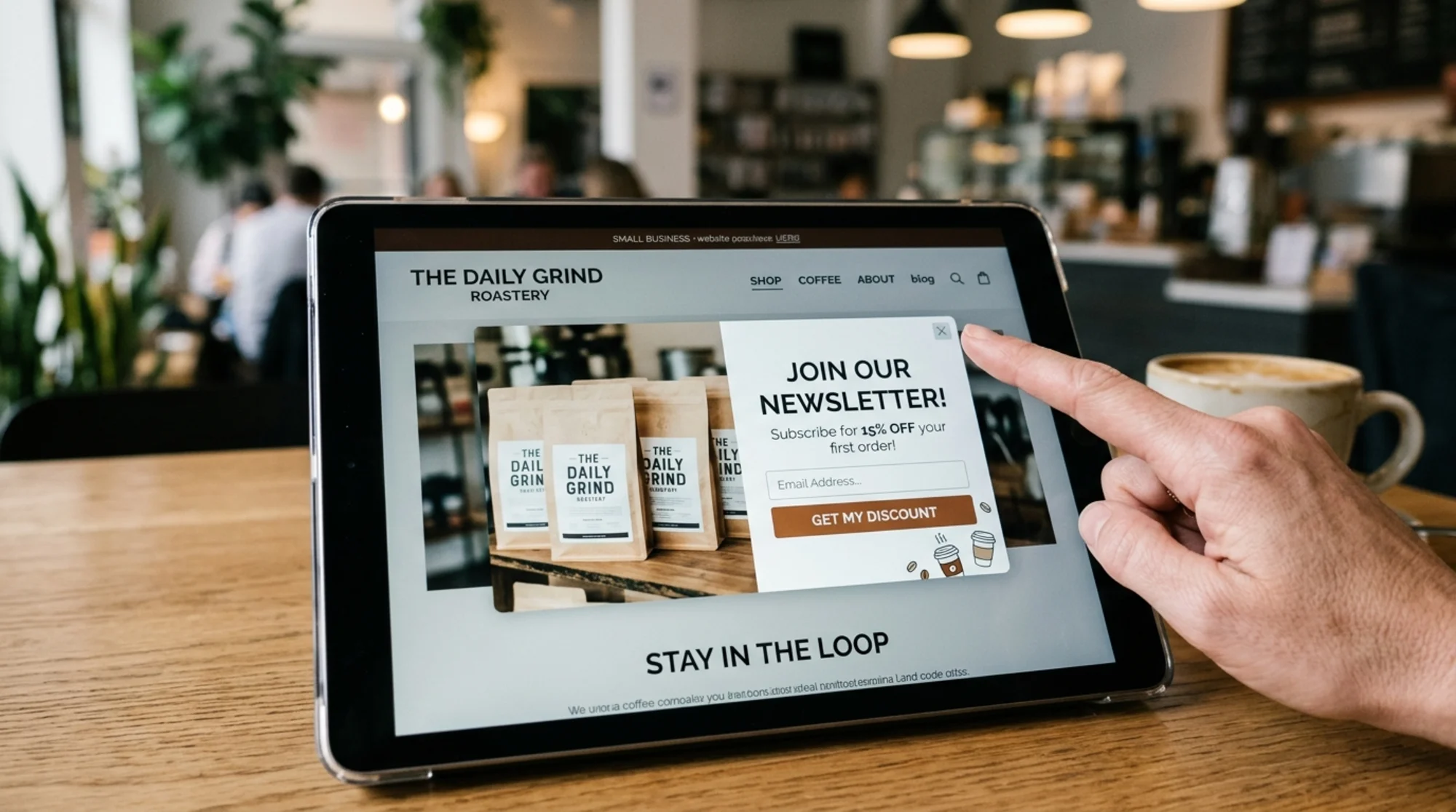
Popups and chat widgets are some of the most innocent-looking features on a small business website. You install them once, forget about them, and assume they're capturing leads or answering customer questions. Meanwhile, they're often the single biggest reason your site feels sluggish on mobile, your bounce rate keeps creeping up, and Google's Core Web Vitals report stays stuck in the orange zone.
This guide walks through how to audit every popup, chat bubble, banner, and overlay on your site. No technical jargon. Just the things you can actually check, fix, or remove this week.
Why these widgets matter more than you think
A typical small business site loads with a handful of third-party scripts running in the background. The biggest culprits are usually:
- An email capture popup (Mailchimp, Klaviyo, OptinMonster, Privy, Sumo)
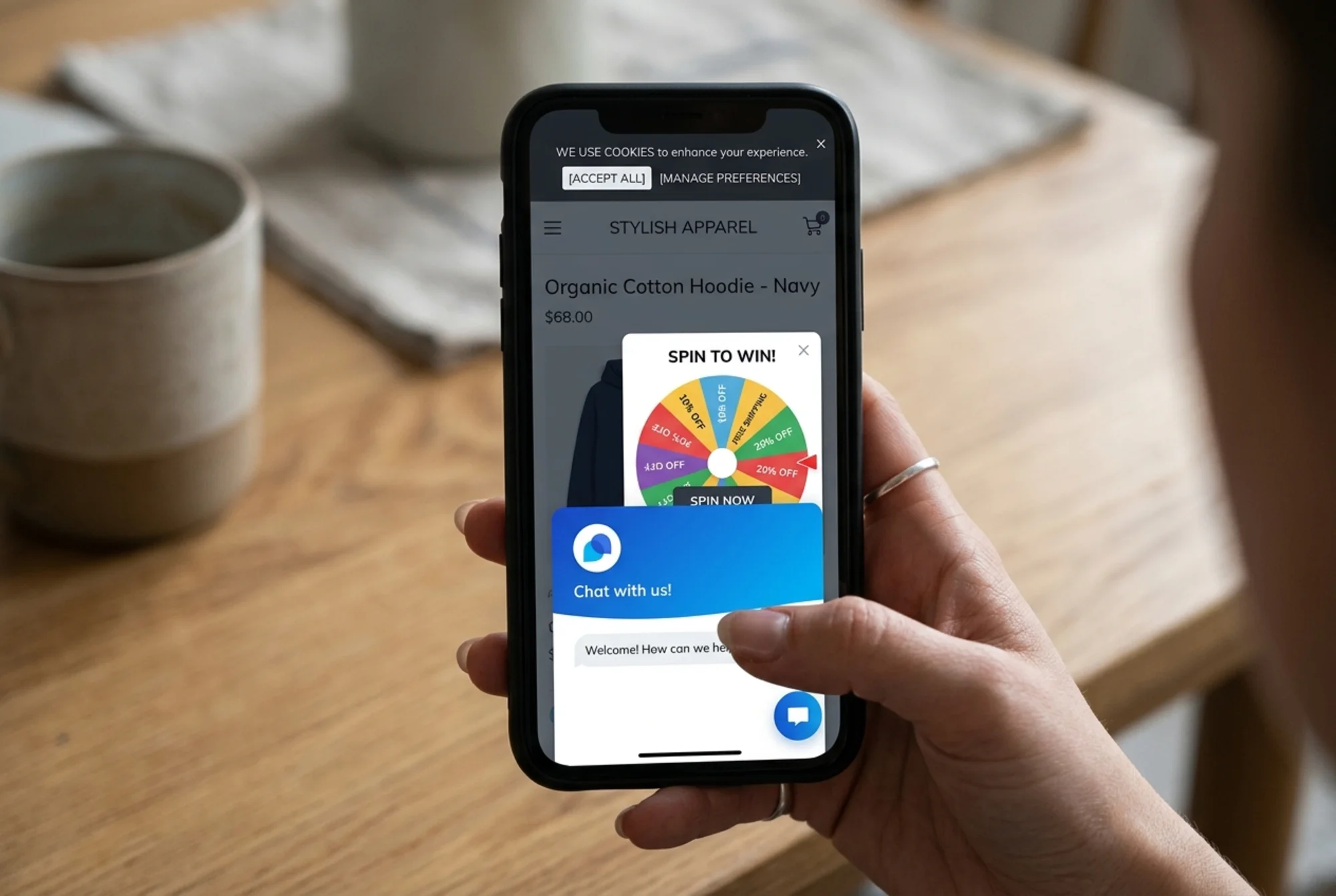
- A live chat or chatbot widget (Intercom, Drift, Tidio, Tawk.to, Crisp, HubSpot)
- A cookie consent banner
- A review or testimonial slider
- A "spin to win" or discount wheel
- A sticky exit-intent overlay
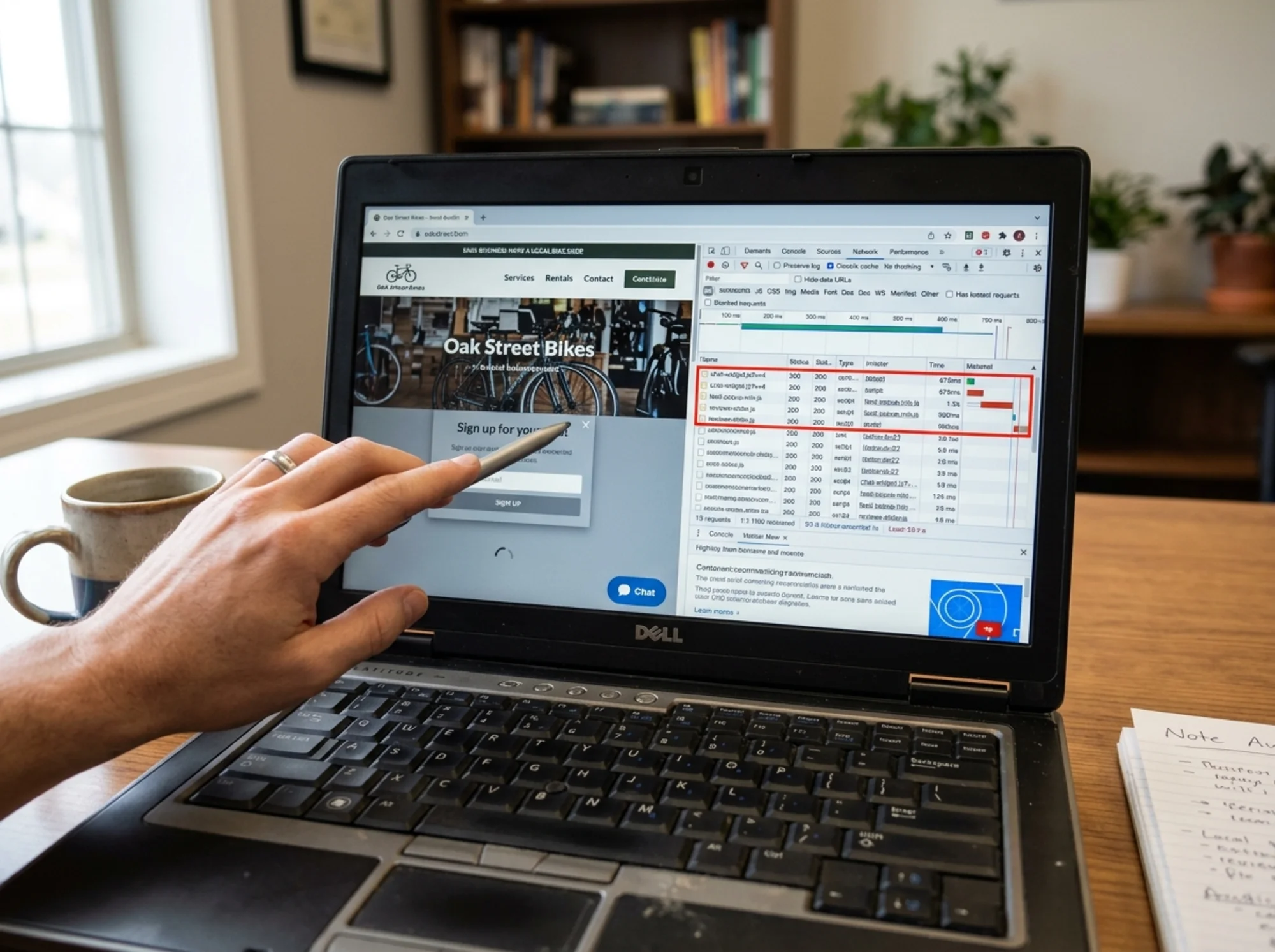
Each tool, individually, looks lightweight in its marketing copy. Stacked together on a single page, they routinely add 500KB to 2MB of JavaScript that runs on every visit. On a mid-range Android phone over a 4G connection, that's the difference between a page that feels instant and one that visibly stutters before becoming usable.
Google measures this experience with three numbers in particular: Largest Contentful Paint (how fast your main content shows up), Interaction to Next Paint (how quickly the page responds when someone taps), and Cumulative Layout Shift (how much things jump around as the page loads). Widgets influence all three, and not in a good way.
The four ways widgets quietly damage your site
Before you start auditing, it helps to know what you're looking for. Almost every problem caused by a popup or chat widget falls into one of these four buckets.
1. They block the page from loading
Many widgets load synchronously, meaning the browser waits for them before showing your content. Even a 200ms delay on a chat script can push your LCP from a green 2.4 seconds into a yellow 3.1 seconds.
2. They shift your layout
A popup that appears two seconds after page load, or a chat bubble that pushes itself into view after a delay, causes a layout shift. Google penalizes this. Users hate it because they end up tapping the wrong thing.
3. They steal interaction responsiveness
When a chat widget is initializing in the background, the browser is too busy to respond to taps and scrolls. This shows up as a sluggish, "why isn't this working" feeling on mobile.
4. They get in the way
A popup that covers the product, the price, the buy button, or the phone number on mobile is a conversion killer regardless of what page speed numbers say. The same applies to a chat bubble that overlaps your "Add to Cart" button on a small screen.
Your popup and widget audit checklist
Open your site on a phone, not a desktop. This is the most common mistake small business owners make. Your desktop view looks fine because you have a 27-inch monitor. Your customers don't.
Go through this list page by page, starting with the homepage, then your top product or service pages, then your contact page.
Visual and behavioral
- Does any widget cover the main headline, hero image, or primary CTA when the page first loads?
- Does a popup appear before the page is fully loaded?
- Does a chat bubble overlap any button, price, or form field on mobile?
- Does a cookie banner take up more than 25% of the mobile screen?
- Can you close every popup with one tap? Is the close button at least 24x24 pixels?
- Does anything trigger again after you've already dismissed it in the same session?
- Do you see any visible "jump" as elements load in?
Technical
- How many third-party scripts are loaded on your homepage? Anything over 8 is worth a closer look.
- Are widgets loaded "eagerly" instead of after the page is interactive?
- Do you have two tools doing the same job, like two analytics scripts or two chat tools left over from a switch?
- Are widgets loading on pages where they aren't needed, like your checkout or thank-you page?
You don't need to be a developer to answer most of these. A free site audit will give you the technical answers in plain English, and your eyes will give you the rest.
A real-world scenario: the bakery with a 4-second homepage
Imagine a small bakery in Portland with a Shopify site selling custom cakes. They installed five tools over two years:
- A Klaviyo email popup that fires after 5 seconds
- A Tidio chat widget so customers can ask about gluten-free options
- A Privy "spin to win 10% off" wheel
- A cookie consent banner from a free WordPress-era plugin still hanging around
- A reviews slider on the homepage powered by a third-party app
Each tool, individually, was a fine choice. Together, they pushed the homepage to a 4.1-second LCP on mobile and a CLS of 0.28, which Google considers "poor."
The audit found:
- The reviews slider was loading 380KB of JavaScript before the bakery's own product images.
- Privy and Klaviyo were both trying to capture emails, doubling up.
- Tidio was set to "load immediately" instead of "load on first interaction."
- The cookie banner script was still in the theme even though Shopify's native one had been turned on.
The fixes took about two hours total:
- Removed Privy entirely. Kept Klaviyo, but switched it to exit-intent only and delayed the trigger to 15 seconds.
- Switched Tidio to "lazy load on scroll or after 3 seconds."
- Replaced the third-party reviews slider with Shopify's native product reviews block, which loads inline with the rest of the page.
- Removed the leftover cookie banner script.
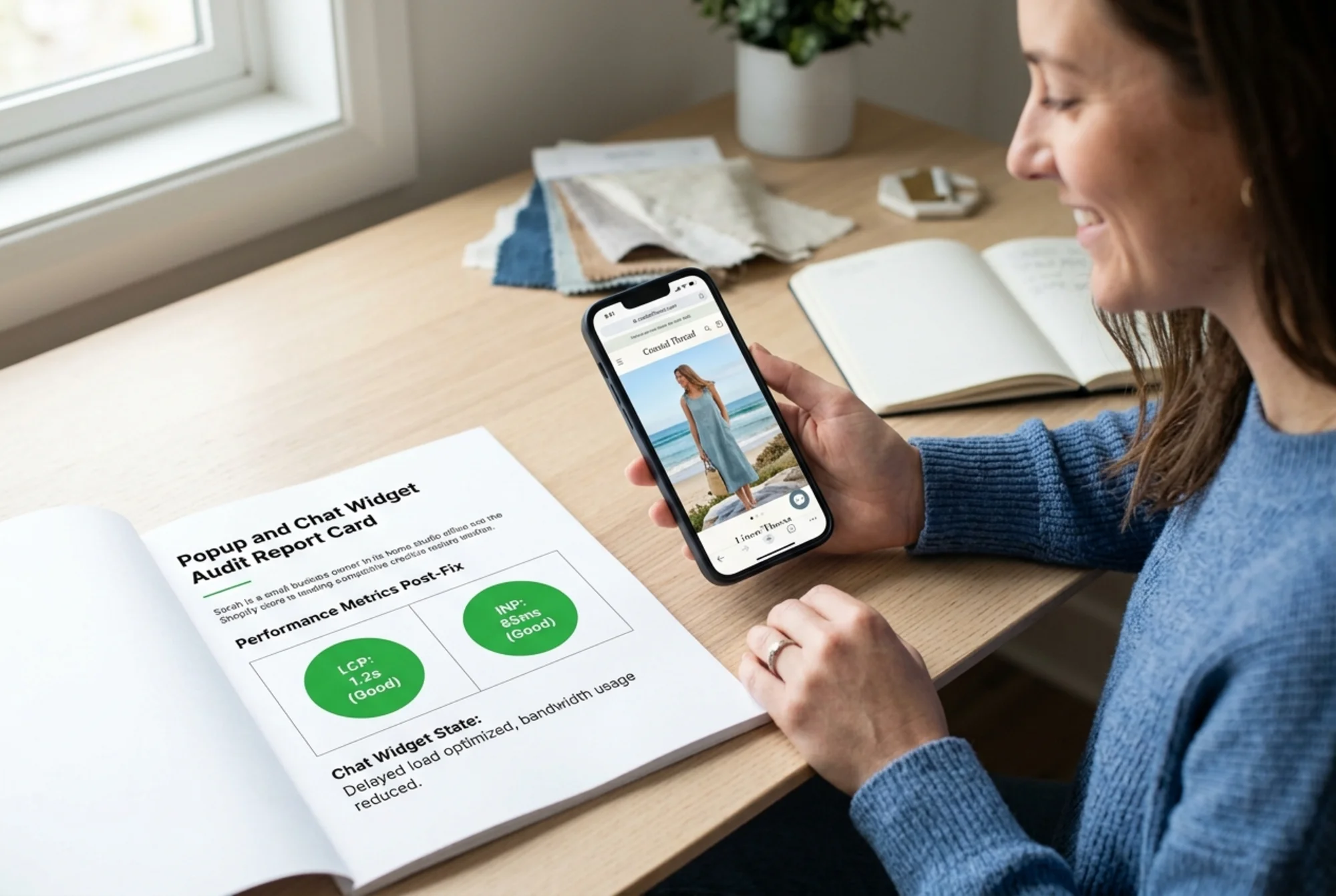
The result: LCP dropped to 1.9 seconds, CLS fell to 0.04, and email signups actually went up because the popup no longer competed with the wheel and didn't fire before people had a chance to see anything.
This kind of cleanup is the rule, not the exception. Most small business sites are running at least one widget they don't actually need.
How to decide what stays and what goes
For each widget on your site, ask three questions in order. If the answer to any of them is "no" or "I'm not sure," that widget is a candidate for removal or replacement.
- Does it pay for itself? Look at the actual numbers. How many emails has your popup captured this month? How many chats has your widget started in the last 30 days? If the answer is "very few," and the tool is slowing every visitor down, it isn't worth it.
- Does it duplicate something else? If you have HubSpot chat and an Intercom trial still installed, one of them has to go. The same applies to analytics, popups, and review widgets.
- Can the native platform do it instead? Shopify, WooCommerce, Squarespace, and Webflow all have built-in popup, review, and consent features now. Native tools almost always perform better than bolted-on third-party ones because they load with the rest of the page rather than as a separate script.
Smart settings for the widgets you keep
If a widget passes your three questions, the next step is configuring it so it costs you the least amount of performance.
Popups
- Delay the trigger by at least 10 seconds, or use exit intent, or use scroll depth at 50% or more.
- Never fire a popup before LCP completes. If your site loads in 2.5 seconds, set the delay to at least 4 seconds.
- Cap frequency to once per visitor per week. Nothing kills trust like the same popup four times in a row.
- Reserve the space the popup will use so it doesn't cause a layout shift.
- Make the close button large, obvious, and reachable with one thumb.
Chat widgets
- Use the "load on interaction" or "facade" mode if your provider offers it. Intercom, HubSpot, and Crisp all have this option.
- Place the icon where it doesn't overlap product images, prices, or "Buy Now" buttons on mobile. Bottom-left is often safer than bottom-right for e-commerce.
- Turn off proactive chat invitations on mobile. The pop-out message that says "Hi! Need help?" is the single most common cause of accidental taps and angry visitors.
- Disable the widget entirely on pages where it has no purpose: checkout, order confirmation, legal pages, blog archives.
Cookie banners
- Use your platform's native banner if it has one (Shopify, Webflow, WordPress with a modern plugin).
- Keep it to a thin bar at the bottom on mobile. A full-screen overlay is overkill for most small business sites.
- Make sure "Accept" and "Reject" are equally easy to tap.
What to measure after you fix things
Don't just guess. After every change, check three things over a week:
- Core Web Vitals for your top three pages, on mobile. LCP under 2.5s, INP under 200ms, CLS under 0.1. Our guide to improving Core Web Vitals covers what to do if any number is still in the red.
- Conversion events that your widgets were supposed to drive. Email signups, chat conversations started, demo bookings. If they went down by a meaningful amount, you removed the wrong thing.
- Bounce rate and scroll depth on your homepage and top landing pages. Often the most reliable signal that the page feels lighter and easier to use.
If your numbers move in the right direction across the board, you've done it right.
A quick word on "helpful content"
Google's guidance on helpful content keeps coming back to one idea: your site should be built for the person visiting it, not for tools or trackers. A page covered in popups, chat bubbles, and consent banners is not built for the visitor. It's built for everything except the visitor.
When you audit your widgets through that lens, the right decisions get easier. If a tool is genuinely helping the person reading your page right now, keep it and make it fast. If it isn't, remove it without guilt.
Run a free audit and see what's actually loading
You don't need to guess which widgets are hurting your site. Run a free website audit with FreeSiteAudit and you'll get a plain-English report showing which third-party scripts are slowing you down, where layout shifts are happening, and which fixes will have the biggest impact on your Core Web Vitals and conversions.
It takes about a minute. No credit card, no install, no developer required. If you run an online store, our e-commerce audit recommendations go deeper into product page and checkout-specific widget issues. If you already know third-party scripts are a problem, our guide to reducing third-party scripts walks through the next steps in detail.
The short version
- Audit your site on a mobile phone, not your desktop.
- Check every popup and widget against the four damage categories: blocking, shifting, slowing interaction, and getting in the way.
- For each tool, ask if it pays for itself, duplicates something else, or could be replaced by a native feature.
- For the tools you keep, delay triggers, lazy-load scripts, and turn them off on pages where they don't belong.
- Measure Core Web Vitals and actual conversions over a week before declaring the job done.
Small business sites don't need fewer tools because tools are bad. They need fewer tools because every extra script is a tax on every visitor. Cut the ones that don't earn their keep, configure the rest carefully, and your site will feel faster, rank better, and convert more, all from a single afternoon of cleanup.
Sources
- https://web.dev/articles/vitals
- https://developers.google.com/search/docs/fundamentals/creating-helpful-content
Check your website for free
Get an instant score and your top 3 critical issues in under 60 seconds.
Get Your Free Audit →