Robots.txt Mistakes That Accidentally Hide Your Site
Common robots.txt errors that silently block search engines from indexing your site, with plain-English fixes any small business owner can apply in minutes.
# Robots.txt Mistakes That Accidentally Hide Your Site
There is a small text file on your web server that can make your entire website invisible to Google. It is called robots.txt, and when it goes wrong, the damage is completely silent.
No error message. No warning email. Just a slow disappearance from search results while you wonder why your phone stopped ringing.
Most small business owners have no idea this file exists. It was probably set up by a developer or hosting provider years ago, and nobody has looked at it since. A single misplaced line can tell Google to ignore everything you have built — every service page, every blog post, every carefully written description of what you do.
Here are the most common robots.txt mistakes, how to spot them, and how to fix them before they cost you another day of lost traffic.
What Robots.txt Actually Does
Every time Google visits your website, the very first thing it does is check for a file at yoursite.com/robots.txt. This file contains instructions that tell search engine crawlers which parts of your site they can visit and which parts to skip. Think of it as a set of house rules posted on the front door — crawlers read it before they walk in.
A healthy robots.txt looks like this:
User-agent: *
Allow: /
Sitemap: https://www.example.com/sitemap.xml
That says: "All search engines can crawl everything, and here is the sitemap."
Simple, but small changes produce big consequences. According to Google's documentation on robots.txt, search engines treat these directives as binding crawling instructions. If you tell Google not to crawl a page, it will not crawl it — and that page may never appear in search results.
It is worth noting that robots.txt applies to all major search engines, not just Google. Bing, Yahoo, DuckDuckGo, and others all respect the same file. A mistake here does not just hide you from one search engine — it hides you from all of them.
The file itself is plain text with no special formatting. There is no dashboard, no toggle, no user interface. It is just lines of text that follow a specific syntax. That simplicity is what makes it both powerful and dangerous: anyone can edit it, and there is no built-in safeguard against errors.
Mistake 1: The "Disallow Everything" Leftover
This is the most common and most damaging robots.txt mistake:
User-agent: *
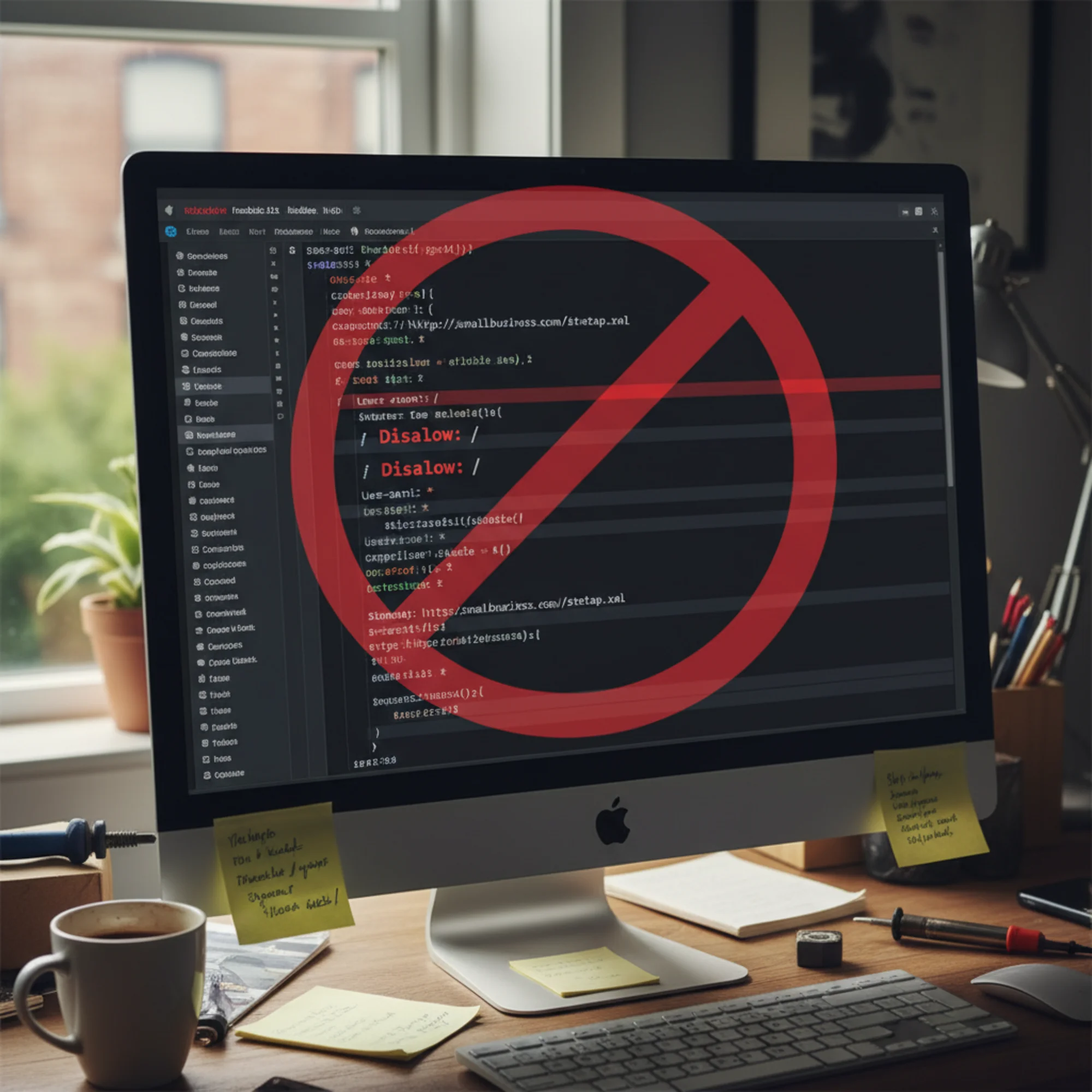
Disallow: /
Those two lines tell every search engine: "Do not crawl any page on this site." Your homepage, service pages, blog posts, contact page — all invisible. It is the digital equivalent of boarding up your storefront windows and removing your street address from every directory.
How does this happen? Almost always, it is a leftover from development. Developers add this line to staging servers so Google does not index an unfinished site. When the site goes live, nobody remembers to remove it. It is an easy step to miss because there is nothing visibly wrong with the website — it loads fine, it looks great, and customers who type the URL directly can still find it. The only thing missing is Google.
Other common causes include:
- Hosting migrations — some hosting providers apply a restrictive default robots.txt to new accounts, assuming you will customize it later
- CMS security plugins — overly aggressive security or privacy plugins sometimes add blanket Disallow rules without making it obvious
- Copied configurations — someone copies a robots.txt from a tutorial or another site without understanding what each line does
- Staging-to-production pushes — automated deployment pipelines that push the staging robots.txt along with everything else
How to check right now: Type your domain followed by /robots.txt into your browser. If you see Disallow: / under User-agent: *, your entire site is hidden from search engines. This takes ten seconds and could be the most valuable ten seconds you spend on your website this year.
The fix: Change Disallow: / to Allow: / or remove the Disallow line entirely:
User-agent: *
Allow: /
Sitemap: https://www.yoursite.com/sitemap.xml
After making this change, it can take anywhere from a few days to a few weeks for Google to recrawl and reindex your pages. You can speed things up by submitting your sitemap in Google Search Console and using the URL Inspection tool to request indexing for your most important pages.
Mistake 2: Blocking Important Directories
Sometimes the robots.txt does not block everything — just the wrong things:
User-agent: *
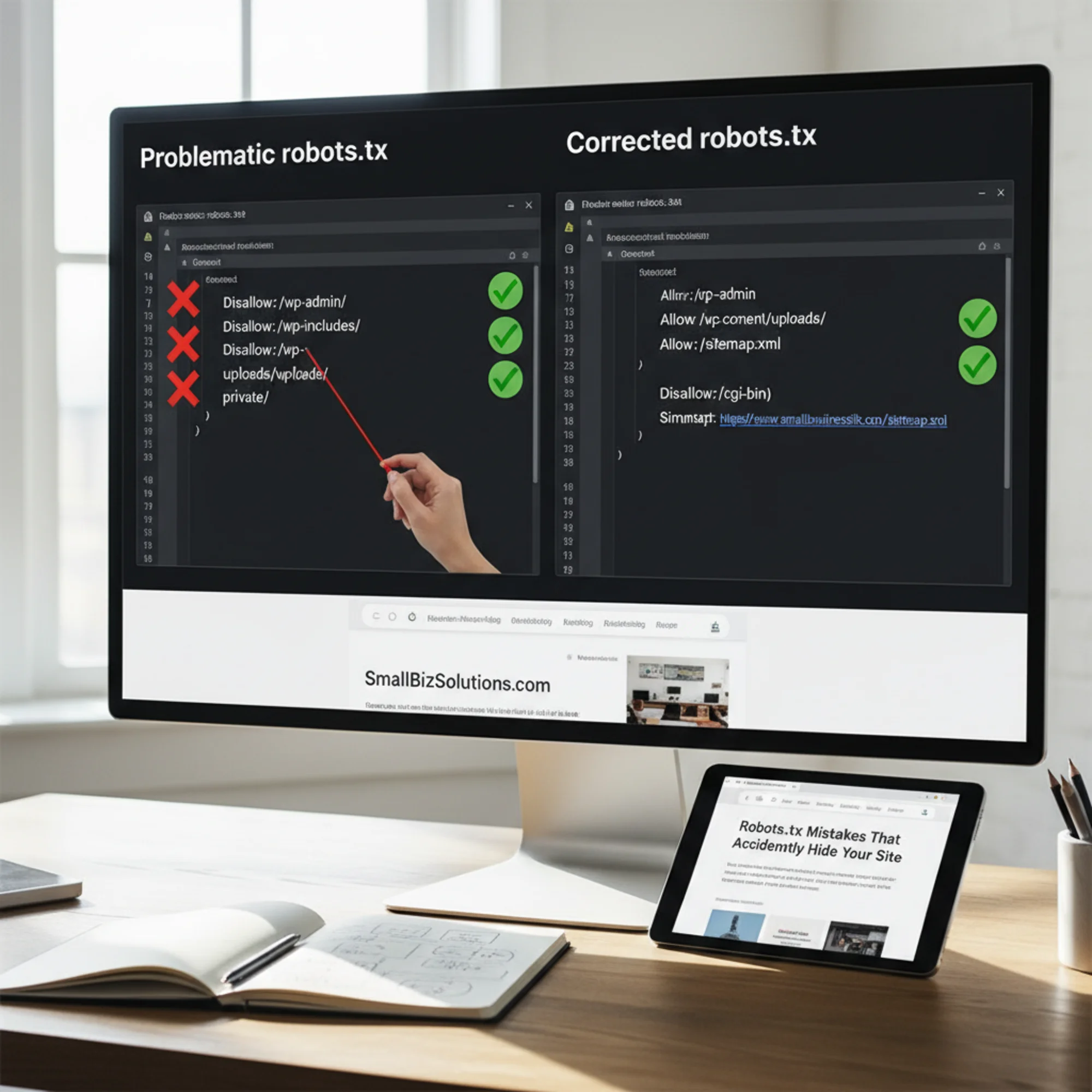
Disallow: /wp-admin/
Disallow: /wp-includes/
Disallow: /wp-content/
That third line is the problem. In WordPress, /wp-content/ contains your images, CSS, and JavaScript. If Google cannot access these resources, it cannot render your pages properly. Google sees a broken, unstyled version of your site — just raw text without layout, images, or design — and may rank it lower or skip it entirely.
This matters more than it used to. Google now renders pages using a headless browser, meaning it tries to load your page the same way a real visitor would. If the CSS and JavaScript files are blocked, the rendered version looks nothing like what your customers see. Google may interpret this as a poor user experience and adjust rankings accordingly.
Other directory-blocking mistakes to watch for:
- Blocking
/images/or/assets/— Google needs these to understand page content, show image results, and properly render your pages - Blocking
/blog/— your entire blog disappears from search, taking with it every keyword-rich article you have written - Blocking
/products/or/services/— your most important commercial pages become invisible, which directly impacts revenue - Blocking CSS and JS directories — Google cannot render pages, which directly hurts Core Web Vitals scores and rankings
- Blocking
/uploads/— in many CMS platforms, this is where all your media files live, including images that could appear in Google Image search - Blocking
/api/— while API endpoints usually should not be indexed, some single-page applications rely on API routes to load content that Google needs to see
The rule of thumb: only block paths that are strictly administrative, like /wp-admin/ or /account/. If customers should be able to find it through search, do not block it. When in doubt, leave it unblocked — the worst that happens is Google crawls a page that is not useful, which is far better than hiding a page that is.
Mistake 3: Syntax Errors That Silently Break the File
Robots.txt follows strict syntax rules defined in RFC 9309 (the Robots Exclusion Protocol standard). A typo does not produce an error message — it just causes unexpected behavior. There is no red warning banner, no console error, no failed build. The file simply does not work the way you intended.
Common syntax mistakes:
Missing colon:
User-agent *
Disallow /private/
Without the colon after the directive name, search engines may ignore the line entirely. The directive is not recognized, so the crawler treats it as if it does not exist.
Wrong path separator:
User-agent: *
Disallow: \private\
Robots.txt uses forward slashes /, not backslashes \. Backslashes are a Windows file system convention and mean nothing in a URL. Search engines will not interpret this as a valid path.
Extra space before the colon:
User-agent: *
Disallow : /private/
That space before the colon can cause the directive to be ignored by some crawlers. While Googlebot may be forgiving about this, other search engines may not be.
Incorrect wildcard usage:
User-agent: *
Disallow: /*.pdf
Wildcards () are supported in Disallow and Allow lines, but not all search engines handle them the same way. If you use wildcards, test them carefully. The $ end-of-URL anchor is another feature that varies in support — Disallow: /.pdf$ means "block URLs ending in .pdf" but only if the crawler supports the $ anchor.
Case sensitivity issues:
User-agent: *
Disallow: /Private/
URLs are case-sensitive. If your directory is actually /private/ (lowercase), the Disallow line for /Private/ will not match. Double-check that the paths in your robots.txt exactly match the paths on your server.
The fix: Keep your robots.txt clean, simple, and well-formatted. Validate it using Google Search Console's robots.txt testing tool. Paste your file contents in, and the tool flags syntax problems immediately. You can also test specific URLs against your rules to see whether they would be allowed or blocked.
Mistake 4: Wrong File Placement or Duplicate Files
Your robots.txt must live at the root of your domain: https://www.yoursite.com/robots.txt. Not in a subdirectory. Not duplicated across locations. Not tucked away in a folder that your deployment tool created.
Common placement problems:
- File at
/public/robots.txtinstead of the root — many deployment tools and frameworks (Next.js, React, Vue) put static files in a/public/folder during development, but the file must be served at the domain root URL when the site is live - Different files for www and non-www — if
www.yoursite.com/robots.txtandyoursite.com/robots.txthave different contents, you have conflicting instructions depending on which version Google crawls - Subdomain confusion —
blog.yoursite.comneeds its own robots.txt, separate fromwww.yoursite.com, because each subdomain is treated as a distinct host - Protocol mismatch — if your site serves both HTTP and HTTPS (it should not, but some do), each protocol version has its own robots.txt
- Trailing slash issues — the file must be at
/robots.txt, not/robots.txt/
How to check: Visit your robots.txt URL directly in a browser. Then check the non-www version. If your site has subdomains, check each one separately. All versions should either be identical or one should redirect to the other. If you get a 404 on any of them, that version of your domain has no crawling instructions — which usually means everything is crawlable, but it also means there is no sitemap reference for that host.
Mistake 5: Blocking Your Own Sitemap
Your sitemap tells Google every page you want indexed. But if your robots.txt blocks the directory where the sitemap lives, Google may never find it:
User-agent: *
Disallow: /sitemaps/
Sitemap: https://www.yoursite.com/sitemaps/sitemap.xml
You are pointing Google to your sitemap, then telling it not to go there. Google handles this contradiction reasonably well in most cases, but other search engines may not. It is also confusing for anyone auditing your site — contradictory rules make it harder to diagnose crawling problems.
The safer approach: keep your sitemap at the domain root (/sitemap.xml) and make sure nothing in your robots.txt blocks it. If your CMS generates the sitemap in a subdirectory, either change the output location or add an explicit Allow rule for it:
User-agent: *
Allow: /sitemaps/sitemap.xml
Disallow: /sitemaps/
Sitemap: https://www.yoursite.com/sitemaps/sitemap.xml
This uses a specificity rule: the more specific Allow path takes priority over the broader Disallow directory, letting Google access the sitemap while still blocking other files in that directory.
Mistake 6: Forgetting About CMS-Generated Rules
Many content management systems automatically generate or modify your robots.txt file. WordPress, Shopify, Squarespace, and Wix each handle this differently, and not knowing how your CMS manages the file can lead to surprises.
WordPress generates a virtual robots.txt by default. If you also have a physical robots.txt file in your root directory, the physical file takes precedence. Some SEO plugins (like Yoast or Rank Math) add their own interface for editing robots.txt, which can conflict with a physical file.
Shopify does not let you edit robots.txt directly through the file system. You need to use a robots.txt.liquid template in your theme. If you are not aware of this, you might assume the default rules are fine when they actually block paths you want indexed.
Squarespace manages robots.txt automatically with limited customization options. If you need specific rules, you may need to work within the platform's constraints or add rules through their SEO settings panel.
The lesson: know how your platform handles robots.txt before you try to edit it. Editing the wrong file, or editing it in the wrong place, means your changes may not take effect — or may be overwritten the next time you update your CMS.
A Real Scenario: The Invisible Bakery
Sarah runs a bakery in Portland. She had a website built two years ago. Business was steady from word-of-mouth, but searching "Portland custom cakes" never showed her site, even though she had a dedicated page for custom cakes with photos, pricing, and dozens of customer reviews.
She assumed it was a competition problem — Portland has a lot of bakeries, and she figured the bigger shops with bigger budgets were simply outranking her. She even paid for SEO work that produced no results. Her SEO consultant optimized her title tags, wrote new meta descriptions, added schema markup, and built a handful of backlinks. None of it moved the needle.
The actual problem: when her developer launched the site, the staging robots.txt came along for the ride:
User-agent: *
Disallow: /
For two years, every page was invisible to Google. Not poorly ranked — completely absent. Her SEO consultant had been optimizing titles and meta descriptions on a site Google was not even allowed to look at. It was like hiring an interior designer to make your shop beautiful while the front door was bricked shut.
The fix took 30 seconds:
User-agent: *
Allow: /
Sitemap: https://www.portlandbakery.com/sitemap.xml
Within two weeks, Google had indexed her pages. Within six weeks, she was on the first page for several local search terms including "Portland custom cakes" and "Portland wedding cakes." Two years of invisibility and thousands of dollars in wasted SEO spend, fixed by editing two lines in a text file.
Sarah's story is not unusual. This exact scenario plays out for small businesses every day — restaurants, plumbers, dentists, law firms, and countless others whose sites are technically live but completely invisible to the search engines that would bring them customers.
How to Audit Your Robots.txt in Five Minutes
Here is a step-by-step checklist you can follow right now:
Step 1: View your current file. Open www.yoursite.com/robots.txt in your browser. If you get a 404 error, you do not have one — which is actually fine. No robots.txt means search engines crawl everything by default. Having no file is better than having a broken one.
Step 2: Look for broad Disallow rules. Any line that says Disallow: / without a specific subdirectory is blocking your entire site. This is almost never what you want for a business website.
Step 3: Check each Disallow line individually. For every Disallow entry, ask yourself: "Should customers be able to find this through search?" If the answer is yes, remove that line. Be especially careful with lines blocking /blog/, /products/, /services/, or any content directory.
Step 4: Verify your sitemap reference. Your file should include a Sitemap: line pointing to your XML sitemap. This helps search engines discover all your pages without relying on links alone. If you do not have a sitemap, creating one is a separate but equally important task.
Step 5: Check for syntax issues. Make sure every directive has a colon, paths use forward slashes, and there are no stray characters. If something looks off, it probably is.
Step 6: Test with Google Search Console. Use the robots.txt testing tool in Google Search Console to see exactly how Google interprets your file. Enter specific URLs from your site and confirm they come back as "Allowed."
Step 7: Run a full crawlability check. Your robots.txt is one part of the crawlability picture. Pages can also be hidden by noindex meta tags, canonical tag errors, missing internal links, or server errors that only appear to bots. Run a free audit with FreeSiteAudit to check your robots.txt along with dozens of other crawlability factors in under a minute.
A Safe Template for Most Small Business Sites
If you want something reliable that works out of the box, use this:
# Allow all search engines to crawl the entire site
User-agent: *
Allow: /
# Block admin areas (adjust for your CMS)
Disallow: /wp-admin/
Disallow: /admin/
Disallow: /cart/
Disallow: /checkout/
Disallow: /account/
Disallow: /my-account/
# Block search results and filter pages that create duplicate content
Disallow: /search
Disallow: /*?s=
Disallow: /*?filter=
# Point to sitemap
Sitemap: https://www.yoursite.com/sitemap.xml
This template allows full access to public content, blocks only administrative and private areas, prevents internal search results from being indexed as duplicate content, and includes your sitemap reference. It works for WordPress, Shopify, Squarespace, and most other platforms.
To customize it for your site:
- Replace
https://www.yoursite.com/sitemap.xmlwith your actual sitemap URL - Adjust the admin paths for your CMS (Shopify uses
/admin, WordPress uses/wp-admin/) - Add any other strictly private directories, like
/staging/or/dev/ - Remove any Disallow lines for directories that do not exist on your site — unnecessary rules just add clutter
What Robots.txt Cannot Do
A few important clarifications that prevent common misunderstandings:
It is not a security tool. Robots.txt does not prevent access to pages — it only asks search engines not to crawl them. Anyone with a browser can still visit a Disallowed URL. Never use it to hide sensitive information like admin panels, private documents, or customer data. For actual access control, use authentication, password protection, or server-level restrictions.
It does not remove pages from Google. If a page is already indexed, adding a Disallow rule will not remove it from search results. The page will stay in Google's index until it naturally falls off. For immediate removal, you need a noindex meta tag or a removal request through Google Search Console's URL Removal tool.
It controls crawling, not indexing. This distinction matters. A page can still appear in search results with a limited snippet if other sites link to it, even if robots.txt blocks crawling. Google may display the URL with a note like "No information is available for this page" — which looks worse than not appearing at all.
It does not affect crawl frequency or priority. Robots.txt cannot tell Google to crawl certain pages more often or to treat some pages as more important. For that, you need your sitemap's

Quick-Reference Checklist
Use this checklist any time you launch a new site, migrate hosting, or update your CMS:
- [ ] Visit
yoursite.com/robots.txt— does it load? - [ ] No
Disallow: /underUser-agent: * - [ ] No Disallow rules blocking public content directories
- [ ] Sitemap URL is included and accessible
- [ ] File is at the domain root, not in a subdirectory
- [ ] www and non-www versions match or redirect
- [ ] No syntax errors (colons present, forward slashes used)
- [ ] Validated in Google Search Console's robots.txt tester
- [ ] Tested key URLs to confirm they show as "Allowed"
Print this out or bookmark it. Run through it every time something changes with your hosting or site platform. Five minutes of checking can save months of invisible damage.
Check Your Site for Free
A misconfigured robots.txt might be the most dramatic way to hide from Google, but dozens of other technical issues can quietly reduce your visibility — broken links, missing meta tags, slow page speeds, mobile rendering problems, and redirect chains among them. Many of these issues compound: a robots.txt mistake plus a missing sitemap plus slow page speed can push an otherwise good site far down in results.
Run a free site audit with FreeSiteAudit to get a complete picture of what is helping and hurting your search visibility. The scan takes under a minute, covers your robots.txt along with other crawlability issues, and gives you a prioritized list of what to fix first — in plain English, not developer jargon. You do not need to install anything, create an account, or hand over a credit card. Just enter your URL and see what Google sees.
Sources
Check your website for free
Get an instant score and your top 3 critical issues in under 60 seconds.
Get Your Free Audit →