Shopify SEO Audit: 15 Things Every Store Owner Should Check
A plain-English Shopify SEO audit checklist covering 15 practical checks store owners can run today themselves, with concrete examples and fixes to apply.
# Shopify SEO Audit: 15 Things Every Store Owner Should Check
Shopify gives you a working storefront in an afternoon. It does not give you SEO. The platform handles some basics out of the box — clean URLs, mobile-friendly themes, automatic sitemaps — but it also creates problems other platforms don't: duplicate collection URLs, bloated theme code, product variants that fight each other for the same keyword, and apps that quietly slow your site to a crawl.
This is a checklist you can run on your own store today. No agency, no specialist tools beyond what's already in your Shopify admin and one free audit run. If you find three or four things to fix from this list, you should see ranking changes within a month.

Before you start
Open three tabs: your Shopify admin, Google Search Console (if you have it connected), and your live storefront in an incognito window. The incognito window matters because logged-in Shopify admins see a slightly different version of the site than a customer or Googlebot does.
Each check takes between two and ten minutes. Work top to bottom.
1. Check your homepage title and meta description
Go to Online Store → Preferences. Look at the "Homepage title" and "Homepage meta description" fields.
A weak homepage title looks like this: "Welcome to Our Store" or just your store name on its own.
A strong one tells someone scanning Google results exactly what you sell and who you sell it to. For example: "Handmade Leather Wallets for Men | Detroit-Made | Acme Goods".
Keep the title under 60 characters and the description under 155. Both should mention the main thing you sell. If you have to choose between sounding clever and being clear, choose clear.
2. Audit your collection page titles
Collections are where most Shopify stores win or lose organic traffic. A "Men's Wallets" collection page can rank for searches your individual product pages never will.
Go to Products → Collections. Click into each one and scroll to the "Search engine listing" section. Check:
- Does the title use the actual phrase someone would type into Google? "Bifold Wallets" is searchable. "The Collection" is not.
- Is the meta description specific to that collection, or did Shopify auto-fill it with the first 155 characters of the body copy?
- Is the URL handle clean?
/collections/mens-leather-bifold-walletsis good./collections/collection-001is not.
3. Find and fix duplicate meta descriptions
Shopify often duplicates meta descriptions across product variants and collection filters. Two pages with the same description signal to Google that one of them is unnecessary.
Run a quick check: in Google, search site:yourstore.com and scan the results. If you see the same description repeating across products or collections, you have a duplication problem. The fix is to write a unique meta description for each top-selling product and collection, even if you leave the long tail auto-generated.
For a deeper sweep, see /fixes/duplicate-meta-descriptions.
4. Check for duplicate URLs from collection filters
This is a Shopify-specific trap. When customers filter a collection by size, color, or price, Shopify generates new URLs like /collections/wallets?filter.v.option.color=brown. Sometimes these get indexed. When they do, you end up with dozens of near-duplicate pages competing with your main collection.
To check, search site:yourstore.com inurl:filter in Google. If you see results, you need to either:
- Add
noindexdirectives via your theme'stheme.liquidfile for filtered URLs, or - Use canonical tags pointing back to the unfiltered collection. Shopify usually does this automatically, but custom themes sometimes break it.
If you're not comfortable editing theme code, flag this one for a developer.
5. Audit your product page titles
Most Shopify themes use your product's "Title" field as both the page title and the H1. If your product is called "The Marcus", Google has no idea what it is.
Fix this in two places:
- In the product editor, expand "Search engine listing" and write a descriptive page title: "The Marcus — Slim Bifold Leather Wallet (Brown)".
- In your theme, make sure the visible product name on the page (the H1) is descriptive, or add a subtitle that includes the category.
6. Check alt text on product images
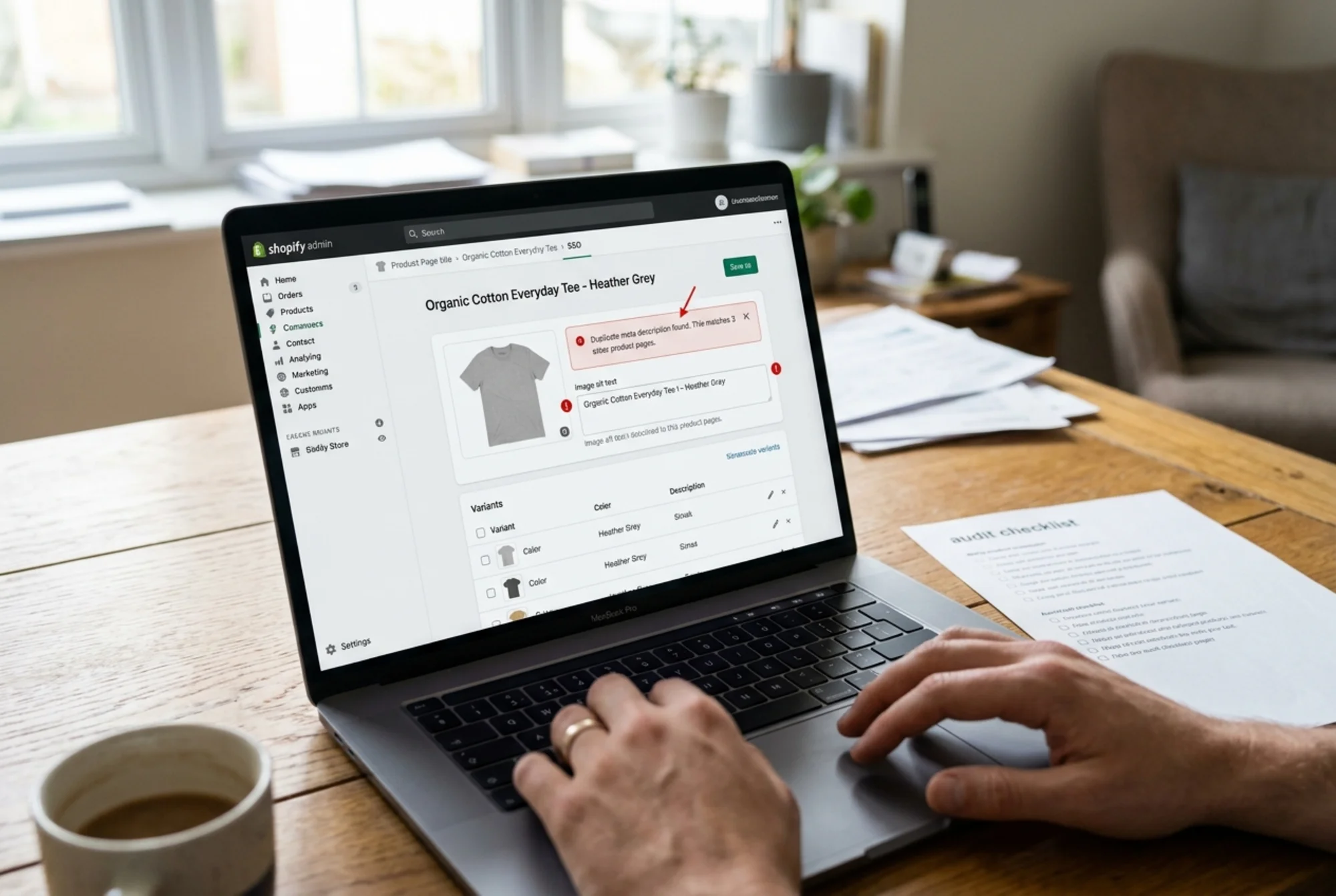
Shopify will happily let you upload 500 product photos with no alt text. Screen readers can't describe them, and Google Image Search can't rank them.
Open a few product pages and right-click an image → "Inspect". Look for alt="" or missing alt attributes entirely.
The fix: in the product editor, click an image and add alt text describing what's actually in the photo. "Brown leather bifold wallet, open, showing six card slots" beats "wallet" by a wide margin. For bulk fixes across hundreds of products, a CSV export and reimport works well. More on this at /fixes/missing-alt-text.
7. Review your URL structure
Shopify's URL structure is mostly fixed: /products/, /collections/, /pages/, /blogs/. You cannot change these prefixes, and trying to is usually a waste of time.
What you can control is the handle (the part after the prefix). Check that your handles are:
- Lowercase
- Hyphenated, not underscored
- Descriptive but short
- Free of stop words like "and", "the", "of" unless they matter
Bad: /products/product-name-final-v2-copy
Good: /products/marcus-bifold-wallet-brown
If you change a handle, always set up a URL redirect from the old one (Online Store → Navigation → URL Redirects). Broken old links cost you traffic and link equity.
8. Check your robots.txt and sitemap
Shopify auto-generates both. Visit yourstore.com/robots.txt and yourstore.com/sitemap.xml to confirm.
In robots.txt:
- It should block
/cart,/checkout,/orders, and search result pages. Shopify does this by default. - It should not block
/products,/collections,/pages, or/blogs.
In Search Console, submit your sitemap if you haven't already (Sitemaps → Add a new sitemap → enter sitemap.xml). Then check the Pages report to see how many submitted URLs are actually indexed. If only 40% of your products are indexed, you have a quality or duplication problem worth investigating.
9. Test your page speed
Core Web Vitals are a ranking signal, and slow pages also kill conversion rates directly. Run your homepage and your top-selling product page through PageSpeed Insights. Focus on three metrics:
- Largest Contentful Paint (LCP): under 2.5 seconds
- Interaction to Next Paint (INP): under 200 milliseconds
- Cumulative Layout Shift (CLS): under 0.1
Shopify stores commonly fail LCP because of huge unoptimized hero images. The fix is usually to compress images before uploading (under 200KB for hero images, under 100KB for product thumbnails) and to use Shopify's built-in image transformation by appending size parameters like _800x.jpg to image URLs in your theme.
10. Audit your installed apps
Every Shopify app that injects JavaScript into your storefront slows it down. Go to Apps in your admin and look at each one. Ask:
- Am I actually using this?
- Is the value worth the speed cost?
It's common for stores to accumulate apps over time — an old review app replaced by a newer one, a popup tool no longer running any popups, abandoned cart utilities long forgotten. Trimming an installed app list from a dozen down to four or five can cut LCP by a full second or more.
Removing an app is not enough — uninstalling sometimes leaves orphaned code in your theme. After uninstalling, search your theme.liquid and any custom snippets for references to the app's name or domain, and remove leftover script tags.
11. Check your structured data
Shopify themes usually include basic product schema, which powers the price, availability, and review stars that show up in Google results.
Test a product page using Google's Rich Results Test. Paste in a product URL and check that the Product schema validates without errors. Common issues:
- Missing
aggregateRatingbecause you don't have a reviews app installed - Missing
availabilitybecause the theme doesn't expose stock status - Missing
brandbecause you didn't fill in the vendor field
Google's official documentation on structured data covers what each schema type needs at the field level — useful if your theme validates with warnings rather than errors.
12. Audit your internal linking
Internal links tell Google which of your pages matter most. On most Shopify stores, the homepage and main navigation get all the link equity, and individual product pages get almost none.
A few quick wins:
- Link from your blog posts to relevant product and collection pages with descriptive anchor text. "Our brown leather bifold" beats "click here".
- Add a "Related products" section on product pages (most themes support this).
- Create a few cornerstone collection pages and link to them from your footer or homepage.
- Build out category pages that link down to subcategories.

13. Review your blog content for usefulness
If you have a Shopify blog, look at it with fresh eyes. Google's helpful content guidance is clear: content should be created for people first, and should demonstrate real expertise rather than chase keywords.
For each post, ask:
- Would someone who wasn't searching for this topic still find it useful?
- Does it answer the question fully, or does it stop short to push them to a product?
- Does it have a real author with a real bio, or is it bylined "Admin"?
Thin, keyword-stuffed product-adjacent posts often drag the entire site's rankings down. If you have ten posts and three are good, deleting (or noindexing) the other seven sometimes lifts rankings on the good ones.
14. Check thin and duplicate product descriptions
If you sell items from a manufacturer, you may have copy-pasted the manufacturer's description onto your product page. Google can spot this. So can every other store doing the same thing, which is why none of you rank.
Pick your top ten products by revenue. Rewrite each description in your own voice, focused on:
- Who the product is for
- What problem it solves
- Specific details that matter (dimensions, materials, fit, care)
- An honest note about who it's not for
You don't need 800 words. You need 150 words that nobody else has written.
15. Set up Search Console and monitor regularly
If you haven't connected Google Search Console to your Shopify store, do it now. Settings → Domains will give you the verification method.
Once connected, check it every two weeks for:
- Coverage errors: pages Google tried to index but couldn't
- Mobile usability issues: Shopify themes usually pass, but apps can break this
- Performance trends: look for queries where you rank between positions 5 and 15 — those are the ones small changes can move to the first page
A specific walkthrough: auditing a single product page
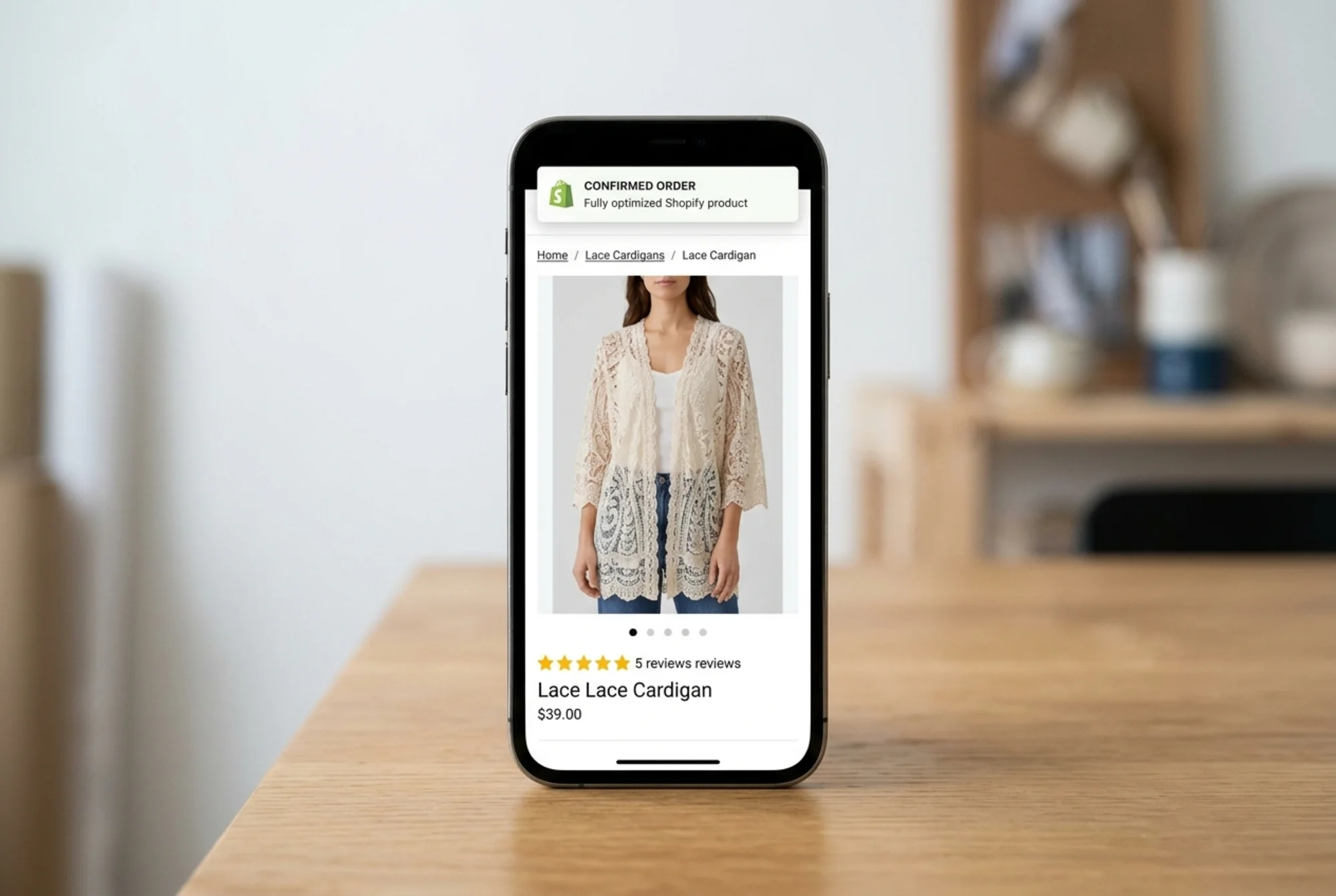
To make this concrete, here's how to audit a single product page from top to bottom in about 15 minutes:
- Open the page in incognito. Right-click → View Page Source.
- Search for
</code> — does it describe the product clearly? (Check 1, 5)</li><li>Search for <code class="bg-surface-panel px-1.5 py-0.5 rounded text-sm text-accent-strong">meta name="description"</code> — is it unique and compelling? (Check 3)</li><li>Search for <code class="bg-surface-panel px-1.5 py-0.5 rounded text-sm text-accent-strong"><h1></code> — is it descriptive? (Check 5)</li><li>Search for <code class="bg-surface-panel px-1.5 py-0.5 rounded text-sm text-accent-strong">alt=</code> — are images described? (Check 6)</li><li>Search for <code class="bg-surface-panel px-1.5 py-0.5 rounded text-sm text-accent-strong">application/ld+json</code> — is product schema present? (Check 11)</li><li>Run the URL through PageSpeed Insights. Check LCP, INP, CLS. (Check 9)</li><li>Run the URL through the Rich Results Test. (Check 11)</li><li>Search Google for the exact product name. Are competitors outranking you for your own brand? That's a structured data or content problem.</li><li>Read the product description out loud. If it sounds like a robot wrote it, rewrite it. (Check 14)</li></ol><p class="text-text-secondary leading-relaxed my-4">Apply this single workflow to your ten top-revenue products and it will move the needle more than any other SEO project you do this quarter.</p><h2 class="text-2xl font-bold text-text-primary mt-10 mb-4">Run a free audit to find what you missed</h2><p class="text-text-secondary leading-relaxed my-4">Manual checks catch the issues you know to look for. An automated audit catches the ones you don't. <a href="/tools/free-website-audit" class="text-accent hover:text-accent-strong underline">Run a free website audit with FreeSiteAudit</a> to scan your Shopify store for technical SEO issues, performance problems, missing alt text, broken structured data, and the dozens of small things that quietly hold sites back. You'll get a prioritized list of fixes in under two minutes, no signup needed for the first scan.</p><p class="text-text-secondary leading-relaxed my-4">For more ecommerce-specific guidance, see <a href="/industries/ecommerce" class="text-accent hover:text-accent-strong underline">/industries/ecommerce</a>.</p><h2 class="text-2xl font-bold text-text-primary mt-10 mb-4">Sources</h2><ul class="list-disc pl-5 space-y-1.5 my-4 text-text-secondary"><li><a href="https://developers.google.com/search/docs/fundamentals/creating-helpful-content" class="text-accent hover:text-accent-strong underline">Google Search Central — Creating helpful, reliable, people-first content</a></li><li><a href="https://developers.google.com/search/docs/appearance/structured-data/article" class="text-accent hover:text-accent-strong underline">Google Search Central — Article structured data</a></li><li><a href="https://web.dev/articles/vitals" class="text-accent hover:text-accent-strong underline">web.dev — Core Web Vitals</a></li></ul></div><div class="mt-12"></div><div class="mt-6 bg-gradient-to-r from-accent-subtle to-accent-subtle/50 border border-accent-border rounded-xl p-8 text-center"><h2 class="text-2xl font-bold mb-2">Check your website for free</h2><p class="text-text-muted mb-6">Get an instant score and your top 3 critical issues in under 60 seconds.</p><a class="inline-block bg-accent hover:bg-accent-strong text-text-inverse font-semibold px-10 py-3.5 rounded-lg transition-colors" href="/#free-audit">Get Your Free Audit →</a></div></article><footer class="border-t border-border mt-auto"><nav aria-label="Footer navigation" class="max-w-6xl mx-auto px-4 py-8 sm:py-12"><div class="grid grid-cols-2 md:grid-cols-3 gap-8 lg:flex lg:flex-row lg:flex-wrap lg:justify-between lg:gap-x-6"><div class="col-span-2 md:col-span-1 lg:max-w-[14rem]"><a class="text-lg font-bold tracking-tight" href="/"><span class="text-accent">Free</span>SiteAudit</a><p class="text-text-muted text-sm mt-3 leading-relaxed">Website audits for business owners and agencies. Find issues, fix them, grow.</p></div><div><h4 class="text-sm font-semibold text-text-secondary mb-3 lg:whitespace-nowrap">Solutions</h4><ul class="space-y-2"><li><a class="text-sm text-text-muted hover:text-text-secondary transition-colors lg:whitespace-nowrap" href="/#free-audit">Free Website Audit</a></li><li><a class="text-sm text-text-muted hover:text-text-secondary transition-colors lg:whitespace-nowrap" href="/agencies">For Agencies</a></li><li><a class="text-sm text-text-muted hover:text-text-secondary transition-colors lg:whitespace-nowrap" href="/pricing">Pricing</a></li><li><a class="text-sm text-text-muted hover:text-text-secondary transition-colors lg:whitespace-nowrap" href="/demo">Demo Report</a></li><li><a class="text-sm text-text-muted hover:text-text-secondary transition-colors lg:whitespace-nowrap" href="/dashboard">Dashboard</a></li></ul></div><div><h4 class="text-sm font-semibold text-text-secondary mb-3 lg:whitespace-nowrap">Industries</h4><ul class="space-y-2"><li><a class="text-sm text-text-muted hover:text-text-secondary transition-colors lg:whitespace-nowrap" href="/industries/saas">SaaS Apps</a></li><li><a class="text-sm text-text-muted hover:text-text-secondary transition-colors lg:whitespace-nowrap" href="/industries/dev-portfolios">Dev Portfolios</a></li><li><a class="text-sm text-text-muted hover:text-text-secondary transition-colors lg:whitespace-nowrap" href="/industries/blogs">Blogs & Content</a></li><li><a class="text-sm text-text-muted hover:text-text-secondary transition-colors lg:whitespace-nowrap" href="/industries/courses">Course Sites</a></li><li><a class="text-sm text-text-muted hover:text-text-secondary transition-colors lg:whitespace-nowrap" href="/industries/agency-sites">Agency Sites</a></li><li><a class="text-sm text-text-muted hover:text-text-secondary transition-colors lg:whitespace-nowrap" href="/industries">All Industries</a></li></ul></div><div><h4 class="text-sm font-semibold text-text-secondary mb-3 lg:whitespace-nowrap">Compare & Results</h4><ul class="space-y-2"><li><a class="text-sm text-text-muted hover:text-text-secondary transition-colors lg:whitespace-nowrap" href="/blog/freesiteaudit-vs-semrush">vs Semrush</a></li><li><a class="text-sm text-text-muted hover:text-text-secondary transition-colors lg:whitespace-nowrap" href="/blog/freesiteaudit-vs-seoptimer-vs-seo-site-checkup">vs SEOptimer</a></li><li><a class="text-sm text-text-muted hover:text-text-secondary transition-colors lg:whitespace-nowrap" href="/case-studies">Success Stories</a></li><li><a class="text-sm text-text-muted hover:text-text-secondary transition-colors lg:whitespace-nowrap" href="https://findbackflowtesters.com">FindBackflowTesters.com</a></li><li><a class="text-sm text-text-muted hover:text-text-secondary transition-colors lg:whitespace-nowrap" href="https://freesiteaudit.com">FreeSiteAudit.com</a></li></ul></div><div><h4 class="text-sm font-semibold text-text-secondary mb-3 lg:whitespace-nowrap">Resources</h4><ul class="space-y-2"><li><a class="text-sm text-text-muted hover:text-text-secondary transition-colors lg:whitespace-nowrap" href="/blog">Blog</a></li><li><a class="text-sm text-text-muted hover:text-text-secondary transition-colors lg:whitespace-nowrap" href="/tools">Free Tools</a></li><li><a class="text-sm text-text-muted hover:text-text-secondary transition-colors lg:whitespace-nowrap" href="/fixes">Fix Library</a></li><li><a class="text-sm text-text-muted hover:text-text-secondary transition-colors lg:whitespace-nowrap" href="/about">About</a></li><li><a class="text-sm text-text-muted hover:text-text-secondary transition-colors lg:whitespace-nowrap" href="mailto:hello@freesiteaudit.com">Contact</a></li></ul></div><div><h4 class="text-sm font-semibold text-text-secondary mb-3 lg:whitespace-nowrap">Legal</h4><ul class="space-y-2"><li><a class="text-sm text-text-muted hover:text-text-secondary transition-colors lg:whitespace-nowrap" href="/privacy">Privacy Policy</a></li><li><a class="text-sm text-text-muted hover:text-text-secondary transition-colors lg:whitespace-nowrap" href="/terms">Terms of Service</a></li></ul></div><div><h4 class="text-sm font-semibold text-text-secondary mb-3 lg:whitespace-nowrap">Platforms</h4><ul class="space-y-2"><li><a class="text-sm text-text-muted hover:text-text-secondary transition-colors lg:whitespace-nowrap" href="/platforms/wordpress">WordPress</a></li><li><a class="text-sm text-text-muted hover:text-text-secondary transition-colors lg:whitespace-nowrap" href="/platforms/shopify">Shopify</a></li><li><a class="text-sm text-text-muted hover:text-text-secondary transition-colors lg:whitespace-nowrap" href="/platforms/webflow">Webflow</a></li><li><a class="text-sm text-text-muted hover:text-text-secondary transition-colors lg:whitespace-nowrap" href="/platforms/wix">Wix</a></li><li><a class="text-sm text-text-muted hover:text-text-secondary transition-colors lg:whitespace-nowrap" href="/platforms/squarespace">Squarespace</a></li></ul></div></div><div class="border-t border-border-subtle mt-10 pt-6 flex flex-col sm:flex-row items-center justify-between gap-3 text-xs text-text-muted"><span>© <!-- -->2026<!-- --> FreeSiteAudit. All rights reserved.</span><div class="flex items-center gap-4"><a class="hover:text-text-secondary transition-colors" href="/privacy">Privacy</a><a class="hover:text-text-secondary transition-colors" href="/terms">Terms</a></div></div></nav></footer></div><!--$--><!--/$--></main><button aria-label="Contact us" class="fixed right-4 z-40 flex items-center gap-2 rounded-full bg-accent text-accent-foreground font-semibold text-sm h-12 px-5 shadow-accent-glow hover:bg-accent-strong hover:shadow-accent-glow-lg transition-all duration-200 bottom-[calc(1rem+env(safe-area-inset-bottom))] sm:bottom-6"><svg class="w-5 h-5" fill="none" viewBox="0 0 24 24" stroke="currentColor" stroke-width="2"><path stroke-linecap="round" stroke-linejoin="round" d="M8.625 12a.375.375 0 11-.75 0 .375.375 0 01.75 0zm4.125 0a.375.375 0 11-.75 0 .375.375 0 01.75 0zm4.125 0a.375.375 0 11-.75 0 .375.375 0 01.75 0zM2.25 12.76c0 1.6 1.123 2.994 2.707 3.227 1.087.16 2.185.283 3.293.369V21l4.076-4.076a1.526 1.526 0 011.037-.443 48.282 48.282 0 005.68-.494c1.584-.233 2.707-1.626 2.707-3.228V6.741c0-1.602-1.123-2.995-2.707-3.228A48.394 48.394 0 0012 3c-2.392 0-4.744.175-7.043.513C3.373 3.746 2.25 5.14 2.25 6.741v6.018z"></path></svg><span class="hidden sm:inline">Contact Us</span></button></div><button aria-label="Switch to light mode" aria-pressed="false" class="fixed right-4 z-40 flex items-center justify-center rounded-full w-10 h-10 border border-border bg-surface-elevated text-text-secondary hover:text-text-primary hover:bg-surface-panel shadow-panel-sm transition-all duration-200 bottom-[calc(1rem+env(safe-area-inset-bottom)+3.75rem)] sm:bottom-[5.25rem]"><svg class="w-[18px] h-[18px]" fill="none" viewBox="0 0 24 24" stroke="currentColor" stroke-width="2"><path stroke-linecap="round" stroke-linejoin="round" d="M12 3v2.25m6.364.386l-1.591 1.591M21 12h-2.25m-.386 6.364l-1.591-1.591M12 18.75V21m-4.773-4.227l-1.591 1.591M5.25 12H3m4.227-4.773L5.636 5.636M15.75 12a3.75 3.75 0 11-7.5 0 3.75 3.75 0 017.5 0z"></path></svg></button><script src="/_next/static/chunks/webpack-092588108e816234.js" id="_R_" async=""></script><script>(self.__next_f=self.__next_f||[]).push([0])</script><script>self.__next_f.push([1,"1:\"$Sreact.fragment\"\n8:I[57150,[],\"\"]\n:HL[\"/_next/static/media/4473ecc91f70f139-s.p.woff\",\"font\",{\"crossOrigin\":\"\",\"type\":\"font/woff\"}]\n:HL[\"/_next/static/media/463dafcda517f24f-s.p.woff\",\"font\",{\"crossOrigin\":\"\",\"type\":\"font/woff\"}]\n:HL[\"/_next/static/css/ce06d03cd29772c1.css\",\"style\"]\n:HL[\"/_next/static/css/5adad2ac1ae9f57d.css\",\"style\"]\n2:Tbac,"])</script><script>self.__next_f.push([1,"{\"@context\":\"https://schema.org\",\"@type\":\"FAQPage\",\"mainEntity\":[{\"@type\":\"Question\",\"name\":\"Is the free audit really free?\",\"acceptedAnswer\":{\"@type\":\"Answer\",\"text\":\"Yes, completely free. Just enter your URL — no account, no email, no credit card. You get your overall score and top issues instantly. Want more? Create a free account to save your report and get 2 pro scan credits.\"}},{\"@type\":\"Question\",\"name\":\"How long until I get my report?\",\"acceptedAnswer\":{\"@type\":\"Answer\",\"text\":\"The Quick Scan is typically under 60 seconds. Paid reports are generated and emailed within 2–3 minutes of payment.\"}},{\"@type\":\"Question\",\"name\":\"What do you analyze?\",\"acceptedAnswer\":{\"@type\":\"Answer\",\"text\":\"9 categories: SEO \u0026 Search Visibility, Website Performance \u0026 Speed, Mobile Experience, Security \u0026 Privacy, Accessibility, Content \u0026 Messaging, Technical Health, Trust \u0026 Credibility, and Local SEO \u0026 Google Business. Each category is scored independently, and we provide specific evidence and fix instructions for every issue found.\"}},{\"@type\":\"Question\",\"name\":\"Do I need technical knowledge?\",\"acceptedAnswer\":{\"@type\":\"Answer\",\"text\":\"Not at all. Reports are written in plain language with prioritized, step-by-step recommendations. Each issue is labeled with who can fix it, and many are things you can do yourself without touching code.\"}},{\"@type\":\"Question\",\"name\":\"How accurate is the analysis?\",\"acceptedAnswer\":{\"@type\":\"Answer\",\"text\":\"We analyze your actual live website, checking real page speed, real HTML structure, and real content. Every finding comes with specific evidence from your site, so you can verify it yourself.\"}},{\"@type\":\"Question\",\"name\":\"Is my data safe?\",\"acceptedAnswer\":{\"@type\":\"Answer\",\"text\":\"Absolutely. We only use your email to deliver your report. No spam, no sharing with third parties. We analyze publicly accessible pages (the same thing Google sees). We never store passwords, we don't access admin panels, and we never sell your data. All connections are encrypted with 256-bit SSL. See our Privacy Policy for full details.\"}},{\"@type\":\"Question\",\"name\":\"Can I see a sample report before buying?\",\"acceptedAnswer\":{\"@type\":\"Answer\",\"text\":\"Yes! Check out our interactive demo report to see exactly what a full audit looks like, with real findings, evidence, and fix instructions you can explore.\"}},{\"@type\":\"Question\",\"name\":\"How do I cancel my subscription?\",\"acceptedAnswer\":{\"@type\":\"Answer\",\"text\":\"You can cancel anytime from your dashboard. Just click \\\"Manage Subscription\\\" to open the billing portal. Your audit access continues until the end of your current billing period.\"}},{\"@type\":\"Question\",\"name\":\"Who built FreeSiteAudit?\",\"acceptedAnswer\":{\"@type\":\"Answer\",\"text\":\"FreeSiteAudit was built by web professionals who wanted to make professional-grade website audits accessible to every business owner. We combined real-world SEO and web development experience with automation to deliver clear, actionable reports.\"}}]}"])</script><script>self.__next_f.push([1,"0:{\"P\":null,\"b\":\"23djxc4YWdrEwqJ0FoqV6\",\"p\":\"\",\"c\":[\"\",\"blog\",\"shopify-seo-audit-checklist\"],\"i\":false,\"f\":[[[\"\",{\"children\":[\"blog\",{\"children\":[[\"slug\",\"shopify-seo-audit-checklist\",\"d\"],{\"children\":[\"__PAGE__\",{}]}]}]},\"$undefined\",\"$undefined\",true],[\"\",[\"$\",\"$1\",\"c\",{\"children\":[[[\"$\",\"link\",\"0\",{\"rel\":\"stylesheet\",\"href\":\"/_next/static/css/ce06d03cd29772c1.css\",\"precedence\":\"next\",\"crossOrigin\":\"$undefined\",\"nonce\":\"$undefined\"}],[\"$\",\"link\",\"1\",{\"rel\":\"stylesheet\",\"href\":\"/_next/static/css/5adad2ac1ae9f57d.css\",\"precedence\":\"next\",\"crossOrigin\":\"$undefined\",\"nonce\":\"$undefined\"}]],[\"$\",\"html\",null,{\"lang\":\"en\",\"suppressHydrationWarning\":true,\"children\":[[\"$\",\"head\",null,{\"children\":[[\"$\",\"script\",null,{\"dangerouslySetInnerHTML\":{\"__html\":\"(function(){try{var t=localStorage.getItem('theme');if(!t)t='dark';document.documentElement.classList.add(t);document.documentElement.style.colorScheme=t;var m=document.querySelector('meta[name=\\\"theme-color\\\"]');if(m)m.content=t==='light'?'#faf9fe':'#09090b'}catch(e){document.documentElement.classList.add('dark');document.documentElement.style.colorScheme='dark'}})()\"}}],[\"$\",\"link\",null,{\"rel\":\"icon\",\"href\":\"/favicon.ico\",\"sizes\":\"any\"}],[\"$\",\"meta\",null,{\"name\":\"theme-color\",\"content\":\"#09090b\"}],[\"$\",\"link\",null,{\"rel\":\"preconnect\",\"href\":\"https://js.stripe.com\"}],[\"$\",\"link\",null,{\"rel\":\"dns-prefetch\",\"href\":\"https://js.stripe.com\"}],[\"$\",\"link\",null,{\"rel\":\"preconnect\",\"href\":\"https://api.stripe.com\"}],[\"$\",\"link\",null,{\"rel\":\"dns-prefetch\",\"href\":\"https://api.stripe.com\"}],[[\"$\",\"script\",\"0\",{\"type\":\"application/ld+json\",\"dangerouslySetInnerHTML\":{\"__html\":\"{\\\"@context\\\":\\\"https://schema.org\\\",\\\"@type\\\":\\\"Organization\\\",\\\"@id\\\":\\\"https://freesiteaudit.com/#organization\\\",\\\"name\\\":\\\"FreeSiteAudit\\\",\\\"url\\\":\\\"https://freesiteaudit.com\\\",\\\"logo\\\":{\\\"@type\\\":\\\"ImageObject\\\",\\\"url\\\":\\\"https://freesiteaudit.com/logo.png\\\",\\\"width\\\":\\\"200\\\",\\\"height\\\":\\\"60\\\"},\\\"description\\\":\\\"Free instant website audit tool for small businesses. Check your SEO, speed, mobile-friendliness \u0026 security in seconds.\\\",\\\"sameAs\\\":[],\\\"contactPoint\\\":{\\\"@type\\\":\\\"ContactPoint\\\",\\\"contactType\\\":\\\"Customer Service\\\",\\\"availableLanguage\\\":[\\\"English\\\"]}}\"}}],[\"$\",\"script\",\"1\",{\"type\":\"application/ld+json\",\"dangerouslySetInnerHTML\":{\"__html\":\"{\\\"@context\\\":\\\"https://schema.org\\\",\\\"@type\\\":\\\"ProfessionalService\\\",\\\"@id\\\":\\\"https://freesiteaudit.com/#business\\\",\\\"name\\\":\\\"FreeSiteAudit\\\",\\\"url\\\":\\\"https://freesiteaudit.com\\\",\\\"logo\\\":\\\"https://freesiteaudit.com/logo.png\\\",\\\"description\\\":\\\"Professional website audit and SEO analysis service for small businesses. Get instant insights and actionable recommendations.\\\",\\\"priceRange\\\":\\\"Free - $$\\\",\\\"areaServed\\\":{\\\"@type\\\":\\\"Place\\\",\\\"name\\\":\\\"Worldwide\\\"},\\\"hasOfferCatalog\\\":{\\\"@type\\\":\\\"OfferCatalog\\\",\\\"name\\\":\\\"Website Audit Services\\\",\\\"itemListElement\\\":[{\\\"@type\\\":\\\"Offer\\\",\\\"itemOffered\\\":{\\\"@type\\\":\\\"Service\\\",\\\"name\\\":\\\"Free Website Audit\\\",\\\"description\\\":\\\"2 free website audits per week with AI-powered analysis\\\"},\\\"price\\\":\\\"0\\\",\\\"priceCurrency\\\":\\\"USD\\\"},{\\\"@type\\\":\\\"Offer\\\",\\\"itemOffered\\\":{\\\"@type\\\":\\\"Service\\\",\\\"name\\\":\\\"Starter Plan\\\",\\\"description\\\":\\\"5 website audits per week with priority support\\\"},\\\"price\\\":\\\"19.00\\\",\\\"priceCurrency\\\":\\\"USD\\\"}]}}\"}}],[\"$\",\"script\",\"2\",{\"type\":\"application/ld+json\",\"dangerouslySetInnerHTML\":{\"__html\":\"{\\\"@context\\\":\\\"https://schema.org\\\",\\\"@type\\\":\\\"WebSite\\\",\\\"@id\\\":\\\"https://freesiteaudit.com/#website\\\",\\\"url\\\":\\\"https://freesiteaudit.com\\\",\\\"name\\\":\\\"FreeSiteAudit\\\",\\\"description\\\":\\\"Free website audit tool for small businesses\\\",\\\"publisher\\\":{\\\"@id\\\":\\\"https://freesiteaudit.com/#organization\\\"}}\"}}],[\"$\",\"script\",\"3\",{\"type\":\"application/ld+json\",\"dangerouslySetInnerHTML\":{\"__html\":\"$2\"}}]]]}],\"$L3\"]}]]}],{\"children\":[\"blog\",\"$L4\",{\"children\":[[\"slug\",\"shopify-seo-audit-checklist\",\"d\"],\"$L5\",{\"children\":[\"__PAGE__\",\"$L6\",{},null,false]},null,false]},null,false]},null,false],\"$L7\",false]],\"m\":\"$undefined\",\"G\":[\"$8\",[]],\"s\":false,\"S\":true}\n"])</script><script>self.__next_f.push([1,"9:I[7143,[\"7177\",\"static/chunks/app/layout-2ca08483bb34668c.js\"],\"GoogleAnalytics\"]\na:I[43347,[\"7177\",\"static/chunks/app/layout-2ca08483bb34668c.js\"],\"PostHogProvider\"]\nb:I[47212,[\"7177\",\"static/chunks/app/layout-2ca08483bb34668c.js\"],\"WebVitals\"]\nc:I[63479,[\"7177\",\"static/chunks/app/layout-2ca08483bb34668c.js\"],\"ThemeProvider\"]\nd:I[9766,[],\"\"]\ne:I[98924,[],\"\"]\nf:I[65534,[\"7177\",\"static/chunks/app/layout-2ca08483bb34668c.js\"],\"ConditionalFooter\"]\n10:I[28923,[\"7177\",\"static/chunks/app/layout-2ca08483bb34668c.js\"],\"default\"]\n11:I[49196,[\"7177\",\"static/chunks/app/layout-2ca08483bb34668c.js\"],\"ThemeToggle\"]\n13:I[24431,[],\"OutletBoundary\"]\n15:I[15278,[],\"AsyncMetadataOutlet\"]\n17:I[24431,[],\"ViewportBoundary\"]\n19:I[24431,[],\"MetadataBoundary\"]\n1a:\"$Sreact.suspense\"\n"])</script><script>self.__next_f.push([1,"3:[\"$\",\"body\",null,{\"className\":\"__variable_1e4310 __variable_c3aa02 antialiased bg-surface-body text-text-primary\",\"children\":[[\"$\",\"a\",null,{\"href\":\"#main-content\",\"className\":\"sr-only focus:not-sr-only focus:fixed focus:top-4 focus:left-4 focus:z-[100] focus:bg-accent focus:text-accent-foreground focus:px-4 focus:py-2 focus:rounded-lg focus:font-semibold focus:text-sm focus:outline-none focus:shadow-lg\",\"children\":\"Skip to main content\"}],[\"$\",\"$L9\",null,{}],[\"$\",\"$La\",null,{}],[\"$\",\"$Lb\",null,{}],[\"$\",\"$Lc\",null,{\"children\":[[\"$\",\"div\",null,{\"className\":\"flex flex-col min-h-screen\",\"children\":[[\"$\",\"main\",null,{\"id\":\"main-content\",\"children\":[\"$\",\"$Ld\",null,{\"parallelRouterKey\":\"children\",\"error\":\"$undefined\",\"errorStyles\":\"$undefined\",\"errorScripts\":\"$undefined\",\"template\":[\"$\",\"$Le\",null,{}],\"templateStyles\":\"$undefined\",\"templateScripts\":\"$undefined\",\"notFound\":[[[\"$\",\"title\",null,{\"children\":\"404: This page could not be found.\"}],[\"$\",\"div\",null,{\"style\":{\"fontFamily\":\"system-ui,\\\"Segoe UI\\\",Roboto,Helvetica,Arial,sans-serif,\\\"Apple Color Emoji\\\",\\\"Segoe UI Emoji\\\"\",\"height\":\"100vh\",\"textAlign\":\"center\",\"display\":\"flex\",\"flexDirection\":\"column\",\"alignItems\":\"center\",\"justifyContent\":\"center\"},\"children\":[\"$\",\"div\",null,{\"children\":[[\"$\",\"style\",null,{\"dangerouslySetInnerHTML\":{\"__html\":\"body{color:#000;background:#fff;margin:0}.next-error-h1{border-right:1px solid rgba(0,0,0,.3)}@media (prefers-color-scheme:dark){body{color:#fff;background:#000}.next-error-h1{border-right:1px solid rgba(255,255,255,.3)}}\"}}],[\"$\",\"h1\",null,{\"className\":\"next-error-h1\",\"style\":{\"display\":\"inline-block\",\"margin\":\"0 20px 0 0\",\"padding\":\"0 23px 0 0\",\"fontSize\":24,\"fontWeight\":500,\"verticalAlign\":\"top\",\"lineHeight\":\"49px\"},\"children\":404}],[\"$\",\"div\",null,{\"style\":{\"display\":\"inline-block\"},\"children\":[\"$\",\"h2\",null,{\"style\":{\"fontSize\":14,\"fontWeight\":400,\"lineHeight\":\"49px\",\"margin\":0},\"children\":\"This page could not be found.\"}]}]]}]}]],[]],\"forbidden\":\"$undefined\",\"unauthorized\":\"$undefined\"}]}],[\"$\",\"$Lf\",null,{}],[\"$\",\"$L10\",null,{}]]}],[\"$\",\"$L11\",null,{}]]}]]}]\n"])</script><script>self.__next_f.push([1,"4:[\"$\",\"$1\",\"c\",{\"children\":[null,[\"$\",\"$Ld\",null,{\"parallelRouterKey\":\"children\",\"error\":\"$undefined\",\"errorStyles\":\"$undefined\",\"errorScripts\":\"$undefined\",\"template\":[\"$\",\"$Le\",null,{}],\"templateStyles\":\"$undefined\",\"templateScripts\":\"$undefined\",\"notFound\":\"$undefined\",\"forbidden\":\"$undefined\",\"unauthorized\":\"$undefined\"}]]}]\n5:[\"$\",\"$1\",\"c\",{\"children\":[null,[\"$\",\"$Ld\",null,{\"parallelRouterKey\":\"children\",\"error\":\"$undefined\",\"errorStyles\":\"$undefined\",\"errorScripts\":\"$undefined\",\"template\":[\"$\",\"$Le\",null,{}],\"templateStyles\":\"$undefined\",\"templateScripts\":\"$undefined\",\"notFound\":\"$undefined\",\"forbidden\":\"$undefined\",\"unauthorized\":\"$undefined\"}]]}]\n6:[\"$\",\"$1\",\"c\",{\"children\":[\"$L12\",null,[\"$\",\"$L13\",null,{\"children\":[\"$L14\",[\"$\",\"$L15\",null,{\"promise\":\"$@16\"}]]}]]}]\n7:[\"$\",\"$1\",\"h\",{\"children\":[null,[[\"$\",\"$L17\",null,{\"children\":\"$L18\"}],[\"$\",\"meta\",null,{\"name\":\"next-size-adjust\",\"content\":\"\"}]],[\"$\",\"$L19\",null,{\"children\":[\"$\",\"div\",null,{\"hidden\":true,\"children\":[\"$\",\"$1a\",null,{\"fallback\":null,\"children\":\"$L1b\"}]}]}]]}]\n"])</script><script>self.__next_f.push([1,"1c:I[41654,[\"5953\",\"static/chunks/app/blog/%5Bslug%5D/page-594ce9f3ae4ecbe2.js\"],\"MarketingNav\"]\n1d:I[23732,[\"5953\",\"static/chunks/app/blog/%5Bslug%5D/page-594ce9f3ae4ecbe2.js\"],\"default\"]\n"])</script><script>self.__next_f.push([1,"12:[[[\"$\",\"script\",\"0\",{\"type\":\"application/ld+json\",\"dangerouslySetInnerHTML\":{\"__html\":\"{\\\"@context\\\":\\\"https://schema.org\\\",\\\"@type\\\":\\\"Article\\\",\\\"headline\\\":\\\"Shopify SEO Audit: 15 Things Every Store Owner Should Check\\\",\\\"description\\\":\\\"A plain-English Shopify SEO audit checklist covering 15 practical checks store owners can run today themselves, with concrete examples and fixes to apply.\\\",\\\"author\\\":{\\\"@type\\\":\\\"Person\\\",\\\"name\\\":\\\"FreeSiteAudit\\\"},\\\"publisher\\\":{\\\"@id\\\":\\\"https://freesiteaudit.com/#organization\\\"},\\\"datePublished\\\":\\\"2026-03-05T00:00:00.000Z\\\",\\\"dateModified\\\":\\\"2026-03-05T00:00:00.000Z\\\",\\\"mainEntityOfPage\\\":{\\\"@type\\\":\\\"WebPage\\\",\\\"@id\\\":\\\"https://freesiteaudit.com/blog/shopify-seo-audit-checklist\\\"}}\"}}],[\"$\",\"script\",\"1\",{\"type\":\"application/ld+json\",\"dangerouslySetInnerHTML\":{\"__html\":\"{\\\"@context\\\":\\\"https://schema.org\\\",\\\"@type\\\":\\\"BreadcrumbList\\\",\\\"itemListElement\\\":[{\\\"@type\\\":\\\"ListItem\\\",\\\"position\\\":1,\\\"name\\\":\\\"Home\\\",\\\"item\\\":\\\"https://freesiteaudit.com\\\"},{\\\"@type\\\":\\\"ListItem\\\",\\\"position\\\":2,\\\"name\\\":\\\"Blog\\\",\\\"item\\\":\\\"https://freesiteaudit.com/blog\\\"},{\\\"@type\\\":\\\"ListItem\\\",\\\"position\\\":3,\\\"name\\\":\\\"Shopify SEO Audit: 15 Things Every Store Owner Should Check\\\",\\\"item\\\":\\\"https://freesiteaudit.com/blog/shopify-seo-audit-checklist\\\"}]}\"}}]],[\"$\",\"div\",null,{\"className\":\"min-h-screen\",\"children\":[[\"$\",\"$L1c\",null,{}],[\"$\",\"article\",null,{\"className\":\"max-w-3xl mx-auto px-4 py-16\",\"children\":[[\"$\",\"$L1d\",null,{\"items\":[{\"label\":\"Blog\",\"href\":\"/blog\"},{\"label\":\"Shopify SEO Audit: 15 Things Every Store Owner Should Check\"}]}],[\"$\",\"div\",null,{\"className\":\"mb-8\",\"children\":[[\"$\",\"div\",null,{\"className\":\"flex items-center gap-3 text-sm text-text-muted mb-4\",\"children\":[[\"$\",\"time\",null,{\"children\":\"March 5, 2026\"}],[\"$\",\"span\",null,{\"children\":\"·\"}],[\"$\",\"span\",null,{\"children\":\"12 min read\"}],[[\"$\",\"span\",null,{\"children\":\"·\"}],[\"$\",\"span\",null,{\"className\":\"text-accent/70\",\"children\":\"CMS \u0026 Platforms\"}]]]}],[\"$\",\"h1\",null,{\"className\":\"text-3xl sm:text-4xl font-bold tracking-tight mb-4\",\"children\":\"Shopify SEO Audit: 15 Things Every Store Owner Should Check\"}],[\"$\",\"p\",null,{\"className\":\"text-lg text-text-muted\",\"children\":\"A plain-English Shopify SEO audit checklist covering 15 practical checks store owners can run today themselves, with concrete examples and fixes to apply.\"}]]}],[\"$\",\"div\",null,{\"className\":\"border-t border-border pt-8\",\"children\":[[\"$\",\"p\",\"0\",{\"className\":\"text-text-secondary leading-relaxed my-4\",\"dangerouslySetInnerHTML\":{\"__html\":\"# Shopify SEO Audit: 15 Things Every Store Owner Should Check\"}}],[\"$\",\"p\",\"2\",{\"className\":\"text-text-secondary leading-relaxed my-4\",\"dangerouslySetInnerHTML\":{\"__html\":\"Shopify gives you a working storefront in an afternoon. It does not give you SEO. The platform handles some basics out of the box — clean URLs, mobile-friendly themes, automatic sitemaps — but it also creates problems other platforms don't: duplicate collection URLs, bloated theme code, product variants that fight each other for the same keyword, and apps that quietly slow your site to a crawl.\"}}],[\"$\",\"p\",\"4\",{\"className\":\"text-text-secondary leading-relaxed my-4\",\"dangerouslySetInnerHTML\":{\"__html\":\"This is a checklist you can run on your own store today. No agency, no specialist tools beyond what's already in your Shopify admin and one free audit run. If you find three or four things to fix from this list, you should see ranking changes within a month.\"}}],[\"$\",\"figure\",\"img-7\",{\"className\":\"my-8\",\"children\":[[\"$\",\"img\",null,{\"src\":\"/blog-images/blog-shopify-seo-audit-checklist-1-close-up-of-a-shopify-storefront-homepage-on-a-tablet-held-b.webp\",\"alt\":\"Close-up of a Shopify storefront homepage on a tablet held by a small business owner in a packaging workshop, product collection grid visible with neat thumbnails and price tags, soft natural window light\",\"className\":\"w-full rounded-lg border border-border\",\"loading\":\"lazy\"}],\"$L1e\"]}],\"$L1f\",\"$L20\",\"$L21\",\"$L22\",\"$L23\",\"$L24\",\"$L25\",\"$L26\",\"$L27\",\"$L28\",\"$L29\",\"$L2a\",\"$L2b\",\"$L2c\",\"$L2d\",\"$L2e\",\"$L2f\",\"$L30\",\"$L31\",\"$L32\",\"$L33\",\"$L34\",\"$L35\",\"$L36\",\"$L37\",\"$L38\",\"$L39\",\"$L3a\",\"$L3b\",\"$L3c\",\"$L3d\",\"$L3e\",\"$L3f\",\"$L40\",\"$L41\",\"$L42\",\"$L43\",\"$L44\",\"$L45\",\"$L46\",\"$L47\",\"$L48\",\"$L49\",\"$L4a\",\"$L4b\",\"$L4c\",\"$L4d\",\"$L4e\",\"$L4f\",\"$L50\",\"$L51\",\"$L52\",\"$L53\",\"$L54\",\"$L55\",\"$L56\",\"$L57\",\"$L58\",\"$L59\",\"$L5a\",\"$L5b\",\"$L5c\",\"$L5d\",\"$L5e\",\"$L5f\",\"$L60\",\"$L61\",\"$L62\",\"$L63\",\"$L64\",\"$L65\",\"$L66\",\"$L67\",\"$L68\",\"$L69\",\"$L6a\",\"$L6b\",\"$L6c\",\"$L6d\",\"$L6e\",\"$L6f\",\"$L70\",\"$L71\",\"$L72\",\"$L73\"]}],\"$L74\",\"$L75\",\"$L76\"]}],\"$L77\"]}]]\n"])</script><script>self.__next_f.push([1,"78:I[25266,[\"5953\",\"static/chunks/app/blog/%5Bslug%5D/page-594ce9f3ae4ecbe2.js\"],\"default\"]\n79:I[52619,[\"5953\",\"static/chunks/app/blog/%5Bslug%5D/page-594ce9f3ae4ecbe2.js\"],\"\"]\n1e:[\"$\",\"figcaption\",null,{\"className\":\"text-sm text-text-muted italic mt-2 text-center\",\"children\":\"Close-up of a Shopify storefront homepage on a tablet held by a small business owner in a packaging workshop, product collection grid visible with neat thumbnails and price tags, soft natural window light\"}]\n1f:[\"$\",\"h2\",\"9\",{\"className\":\"text-2xl font-bold text-text-primary mt-10 mb-4\",\"children\":\"Before you start\"}]\n20:[\"$\",\"p\",\"11\",{\"className\":\"text-text-secondary leading-relaxed my-4\",\"dangerouslySetInnerHTML\":{\"__html\":\"Open three tabs: your Shopify admin, Google Search Console (if you have it connected), and your live storefront in an incognito window. The incognito window matters because logged-in Shopify admins see a slightly different version of the site than a customer or Googlebot does.\"}}]\n21:[\"$\",\"p\",\"13\",{\"className\":\"text-text-secondary leading-relaxed my-4\",\"dangerouslySetInnerHTML\":{\"__html\":\"Each check takes between two and ten minutes. Work top to bottom.\"}}]\n22:[\"$\",\"h2\",\"15\",{\"className\":\"text-2xl font-bold text-text-primary mt-10 mb-4\",\"children\":\"1. Check your homepage title and meta description\"}]\n23:[\"$\",\"p\",\"17\",{\"className\":\"text-text-secondary leading-relaxed my-4\",\"dangerouslySetInnerHTML\":{\"__html\":\"Go to Online Store → Preferences. Look at the \\\"Homepage title\\\" and \\\"Homepage meta description\\\" fields.\"}}]\n24:[\"$\",\"p\",\"19\",{\"className\":\"text-text-secondary leading-relaxed my-4\",\"dangerouslySetInnerHTML\":{\"__html\":\"A weak homepage title looks like this: \u003cstrong class=\\\"text-text-primary\\\"\u003e\\\"Welcome to Our Store\\\"\u003c/strong\u003e or just your store name on its own.\"}}]\n25:[\"$\",\"p\",\"21\",{\"className\":\"text-text-secondary leading-relaxed my-4\",\"dangerouslySetInnerHTML\":{\"__html\":\"A strong one tells someone scanning Google results exactly what you sell and who you sell it to. For example: \u003cstrong class=\\\"text-text-prim"])</script><script>self.__next_f.push([1,"ary\\\"\u003e\\\"Handmade Leather Wallets for Men | Detroit-Made | Acme Goods\\\"\u003c/strong\u003e.\"}}]\n26:[\"$\",\"p\",\"23\",{\"className\":\"text-text-secondary leading-relaxed my-4\",\"dangerouslySetInnerHTML\":{\"__html\":\"Keep the title under 60 characters and the description under 155. Both should mention the main thing you sell. If you have to choose between sounding clever and being clear, choose clear.\"}}]\n27:[\"$\",\"h2\",\"25\",{\"className\":\"text-2xl font-bold text-text-primary mt-10 mb-4\",\"children\":\"2. Audit your collection page titles\"}]\n28:[\"$\",\"p\",\"27\",{\"className\":\"text-text-secondary leading-relaxed my-4\",\"dangerouslySetInnerHTML\":{\"__html\":\"Collections are where most Shopify stores win or lose organic traffic. A \\\"Men's Wallets\\\" collection page can rank for searches your individual product pages never will.\"}}]\n29:[\"$\",\"p\",\"29\",{\"className\":\"text-text-secondary leading-relaxed my-4\",\"dangerouslySetInnerHTML\":{\"__html\":\"Go to Products → Collections. Click into each one and scroll to the \\\"Search engine listing\\\" section. Check:\"}}]\n"])</script><script>self.__next_f.push([1,"2a:[\"$\",\"ul\",\"ul-34\",{\"className\":\"list-disc pl-5 space-y-1.5 my-4 text-text-secondary\",\"children\":[[\"$\",\"li\",\"0\",{\"dangerouslySetInnerHTML\":{\"__html\":\"Does the title use the actual phrase someone would type into Google? \\\"Bifold Wallets\\\" is searchable. \\\"The Collection\\\" is not.\"}}],[\"$\",\"li\",\"1\",{\"dangerouslySetInnerHTML\":{\"__html\":\"Is the meta description specific to that collection, or did Shopify auto-fill it with the first 155 characters of the body copy?\"}}],[\"$\",\"li\",\"2\",{\"dangerouslySetInnerHTML\":{\"__html\":\"Is the URL handle clean? \u003ccode class=\\\"bg-surface-panel px-1.5 py-0.5 rounded text-sm text-accent-strong\\\"\u003e/collections/mens-leather-bifold-wallets\u003c/code\u003e is good. \u003ccode class=\\\"bg-surface-panel px-1.5 py-0.5 rounded text-sm text-accent-strong\\\"\u003e/collections/collection-001\u003c/code\u003e is not.\"}}]]}]\n"])</script><script>self.__next_f.push([1,"2b:[\"$\",\"h2\",\"35\",{\"className\":\"text-2xl font-bold text-text-primary mt-10 mb-4\",\"children\":\"3. Find and fix duplicate meta descriptions\"}]\n2c:[\"$\",\"p\",\"37\",{\"className\":\"text-text-secondary leading-relaxed my-4\",\"dangerouslySetInnerHTML\":{\"__html\":\"Shopify often duplicates meta descriptions across product variants and collection filters. Two pages with the same description signal to Google that one of them is unnecessary.\"}}]\n2d:[\"$\",\"p\",\"39\",{\"className\":\"text-text-secondary leading-relaxed my-4\",\"dangerouslySetInnerHTML\":{\"__html\":\"Run a quick check: in Google, search \u003ccode class=\\\"bg-surface-panel px-1.5 py-0.5 rounded text-sm text-accent-strong\\\"\u003esite:yourstore.com\u003c/code\u003e and scan the results. If you see the same description repeating across products or collections, you have a duplication problem. The fix is to write a unique meta description for each top-selling product and collection, even if you leave the long tail auto-generated.\"}}]\n2e:[\"$\",\"p\",\"41\",{\"className\":\"text-text-secondary leading-relaxed my-4\",\"dangerouslySetInnerHTML\":{\"__html\":\"For a deeper sweep, see \u003ca href=\\\"/fixes/duplicate-meta-descriptions\\\" class=\\\"text-accent hover:text-accent-strong underline\\\"\u003e/fixes/duplicate-meta-descriptions\u003c/a\u003e.\"}}]\n2f:[\"$\",\"h2\",\"43\",{\"className\":\"text-2xl font-bold text-text-primary mt-10 mb-4\",\"children\":\"4. Check for duplicate URLs from collection filters\"}]\n30:[\"$\",\"p\",\"45\",{\"className\":\"text-text-secondary leading-relaxed my-4\",\"dangerouslySetInnerHTML\":{\"__html\":\"This is a Shopify-specific trap. When customers filter a collection by size, color, or price, Shopify generates new URLs like \u003ccode class=\\\"bg-surface-panel px-1.5 py-0.5 rounded text-sm text-accent-strong\\\"\u003e/collections/wallets?filter.v.option.color=brown\u003c/code\u003e. Sometimes these get indexed. When they do, you end up with dozens of near-duplicate pages competing with your main collection.\"}}]\n31:[\"$\",\"p\",\"47\",{\"className\":\"text-text-secondary leading-relaxed my-4\",\"dangerouslySetInnerHTML\":{\"__html\":\"To check, search \u003ccode class=\\\"bg-surface-pan"])</script><script>self.__next_f.push([1,"el px-1.5 py-0.5 rounded text-sm text-accent-strong\\\"\u003esite:yourstore.com inurl:filter\u003c/code\u003e in Google. If you see results, you need to either:\"}}]\n32:[\"$\",\"ol\",\"ol-51\",{\"className\":\"list-decimal pl-5 space-y-1.5 my-4 text-text-secondary\",\"children\":[[\"$\",\"li\",\"0\",{\"dangerouslySetInnerHTML\":{\"__html\":\"Add \u003ccode class=\\\"bg-surface-panel px-1.5 py-0.5 rounded text-sm text-accent-strong\\\"\u003enoindex\u003c/code\u003e directives via your theme's \u003ccode class=\\\"bg-surface-panel px-1.5 py-0.5 rounded text-sm text-accent-strong\\\"\u003etheme.liquid\u003c/code\u003e file for filtered URLs, or\"}}],[\"$\",\"li\",\"1\",{\"dangerouslySetInnerHTML\":{\"__html\":\"Use canonical tags pointing back to the unfiltered collection. Shopify usually does this automatically, but custom themes sometimes break it.\"}}]]}]\n33:[\"$\",\"p\",\"52\",{\"className\":\"text-text-secondary leading-relaxed my-4\",\"dangerouslySetInnerHTML\":{\"__html\":\"If you're not comfortable editing theme code, flag this one for a developer.\"}}]\n34:[\"$\",\"h2\",\"54\",{\"className\":\"text-2xl font-bold text-text-primary mt-10 mb-4\",\"children\":\"5. Audit your product page titles\"}]\n35:[\"$\",\"p\",\"56\",{\"className\":\"text-text-secondary leading-relaxed my-4\",\"dangerouslySetInnerHTML\":{\"__html\":\"Most Shopify themes use your product's \\\"Title\\\" field as both the page title and the H1. If your product is called \\\"The Marcus\\\", Google has no idea what it is.\"}}]\n36:[\"$\",\"p\",\"58\",{\"className\":\"text-text-secondary leading-relaxed my-4\",\"dangerouslySetInnerHTML\":{\"__html\":\"Fix this in two places:\"}}]\n37:[\"$\",\"ul\",\"ul-62\",{\"className\":\"list-disc pl-5 space-y-1.5 my-4 text-text-secondary\",\"children\":[[\"$\",\"li\",\"0\",{\"dangerouslySetInnerHTML\":{\"__html\":\"In the product editor, expand \\\"Search engine listing\\\" and write a descriptive page title: \u003cstrong class=\\\"text-text-primary\\\"\u003e\\\"The Marcus — Slim Bifold Leather Wallet (Brown)\\\"\u003c/strong\u003e.\"}}],[\"$\",\"li\",\"1\",{\"dangerouslySetInnerHTML\":{\"__html\":\"In your theme, make sure the visible product name on the page (the H1) is descriptive, or add a subtitle that includes the category.\"}}]]}]\n"])</script><script>self.__next_f.push([1,"38:[\"$\",\"figure\",\"img-64\",{\"className\":\"my-8\",\"children\":[[\"$\",\"img\",null,{\"src\":\"/blog-images/blog-shopify-seo-audit-checklist-2-a-shopify-product-page-open-in-the-admin-editor-showing-a-du.webp\",\"alt\":\"A Shopify product page open in the admin editor showing a duplicate meta description warning and a missing alt text indicator, with several near-identical color variants listed below in the variants panel\",\"className\":\"w-full rounded-lg border border-border\",\"loading\":\"lazy\"}],[\"$\",\"figcaption\",null,{\"className\":\"text-sm text-text-muted italic mt-2 text-center\",\"children\":\"A Shopify product page open in the admin editor showing a duplicate meta description warning and a missing alt text indicator, with several near-identical color variants listed below in the variants panel\"}]]}]\n"])</script><script>self.__next_f.push([1,"39:[\"$\",\"h2\",\"66\",{\"className\":\"text-2xl font-bold text-text-primary mt-10 mb-4\",\"children\":\"6. Check alt text on product images\"}]\n3a:[\"$\",\"p\",\"68\",{\"className\":\"text-text-secondary leading-relaxed my-4\",\"dangerouslySetInnerHTML\":{\"__html\":\"Shopify will happily let you upload 500 product photos with no alt text. Screen readers can't describe them, and Google Image Search can't rank them.\"}}]\n3b:[\"$\",\"p\",\"70\",{\"className\":\"text-text-secondary leading-relaxed my-4\",\"dangerouslySetInnerHTML\":{\"__html\":\"Open a few product pages and right-click an image → \\\"Inspect\\\". Look for \u003ccode class=\\\"bg-surface-panel px-1.5 py-0.5 rounded text-sm text-accent-strong\\\"\u003ealt=\\\"\\\"\u003c/code\u003e or missing alt attributes entirely.\"}}]\n3c:[\"$\",\"p\",\"72\",{\"className\":\"text-text-secondary leading-relaxed my-4\",\"dangerouslySetInnerHTML\":{\"__html\":\"The fix: in the product editor, click an image and add alt text describing what's actually in the photo. \\\"Brown leather bifold wallet, open, showing six card slots\\\" beats \\\"wallet\\\" by a wide margin. For bulk fixes across hundreds of products, a CSV export and reimport works well. More on this at \u003ca href=\\\"/fixes/missing-alt-text\\\" class=\\\"text-accent hover:text-accent-strong underline\\\"\u003e/fixes/missing-alt-text\u003c/a\u003e.\"}}]\n3d:[\"$\",\"h2\",\"74\",{\"className\":\"text-2xl font-bold text-text-primary mt-10 mb-4\",\"children\":\"7. Review your URL structure\"}]\n3e:[\"$\",\"p\",\"76\",{\"className\":\"text-text-secondary leading-relaxed my-4\",\"dangerouslySetInnerHTML\":{\"__html\":\"Shopify's URL structure is mostly fixed: \u003ccode class=\\\"bg-surface-panel px-1.5 py-0.5 rounded text-sm text-accent-strong\\\"\u003e/products/\u003c/code\u003e, \u003ccode class=\\\"bg-surface-panel px-1.5 py-0.5 rounded text-sm text-accent-strong\\\"\u003e/collections/\u003c/code\u003e, \u003ccode class=\\\"bg-surface-panel px-1.5 py-0.5 rounded text-sm text-accent-strong\\\"\u003e/pages/\u003c/code\u003e, \u003ccode class=\\\"bg-surface-panel px-1.5 py-0.5 rounded text-sm text-accent-strong\\\"\u003e/blogs/\u003c/code\u003e. You cannot change these prefixes, and trying to is usually a waste of time.\"}}]\n3f:[\"$\",\"p\",\"78\",{\"className\":\"text"])</script><script>self.__next_f.push([1,"-text-secondary leading-relaxed my-4\",\"dangerouslySetInnerHTML\":{\"__html\":\"What you can control is the handle (the part after the prefix). Check that your handles are:\"}}]\n40:[\"$\",\"ul\",\"ul-84\",{\"className\":\"list-disc pl-5 space-y-1.5 my-4 text-text-secondary\",\"children\":[[\"$\",\"li\",\"0\",{\"dangerouslySetInnerHTML\":{\"__html\":\"Lowercase\"}}],[\"$\",\"li\",\"1\",{\"dangerouslySetInnerHTML\":{\"__html\":\"Hyphenated, not underscored\"}}],[\"$\",\"li\",\"2\",{\"dangerouslySetInnerHTML\":{\"__html\":\"Descriptive but short\"}}],[\"$\",\"li\",\"3\",{\"dangerouslySetInnerHTML\":{\"__html\":\"Free of stop words like \\\"and\\\", \\\"the\\\", \\\"of\\\" unless they matter\"}}]]}]\n41:[\"$\",\"p\",\"85\",{\"className\":\"text-text-secondary leading-relaxed my-4\",\"dangerouslySetInnerHTML\":{\"__html\":\"Bad: \u003ccode class=\\\"bg-surface-panel px-1.5 py-0.5 rounded text-sm text-accent-strong\\\"\u003e/products/product-name-final-v2-copy\u003c/code\u003e\"}}]\n42:[\"$\",\"p\",\"86\",{\"className\":\"text-text-secondary leading-relaxed my-4\",\"dangerouslySetInnerHTML\":{\"__html\":\"Good: \u003ccode class=\\\"bg-surface-panel px-1.5 py-0.5 rounded text-sm text-accent-strong\\\"\u003e/products/marcus-bifold-wallet-brown\u003c/code\u003e\"}}]\n43:[\"$\",\"p\",\"88\",{\"className\":\"text-text-secondary leading-relaxed my-4\",\"dangerouslySetInnerHTML\":{\"__html\":\"If you change a handle, \u003cstrong class=\\\"text-text-primary\\\"\u003ealways\u003c/strong\u003e set up a URL redirect from the old one (Online Store → Navigation → URL Redirects). Broken old links cost you traffic and link equity.\"}}]\n44:[\"$\",\"h2\",\"90\",{\"className\":\"text-2xl font-bold text-text-primary mt-10 mb-4\",\"children\":\"8. Check your robots.txt and sitemap\"}]\n45:[\"$\",\"p\",\"92\",{\"className\":\"text-text-secondary leading-relaxed my-4\",\"dangerouslySetInnerHTML\":{\"__html\":\"Shopify auto-generates both. Visit \u003ccode class=\\\"bg-surface-panel px-1.5 py-0.5 rounded text-sm text-accent-strong\\\"\u003eyourstore.com/robots.txt\u003c/code\u003e and \u003ccode class=\\\"bg-surface-panel px-1.5 py-0.5 rounded text-sm text-accent-strong\\\"\u003eyourstore.com/sitemap.xml\u003c/code\u003e to confirm.\"}}]\n46:[\"$\",\"p\",\"94\",{\"className\":\"text-text-secondary leading-relaxed my-4\",\""])</script><script>self.__next_f.push([1,"dangerouslySetInnerHTML\":{\"__html\":\"In robots.txt:\"}}]\n"])</script><script>self.__next_f.push([1,"47:[\"$\",\"ul\",\"ul-98\",{\"className\":\"list-disc pl-5 space-y-1.5 my-4 text-text-secondary\",\"children\":[[\"$\",\"li\",\"0\",{\"dangerouslySetInnerHTML\":{\"__html\":\"It should block \u003ccode class=\\\"bg-surface-panel px-1.5 py-0.5 rounded text-sm text-accent-strong\\\"\u003e/cart\u003c/code\u003e, \u003ccode class=\\\"bg-surface-panel px-1.5 py-0.5 rounded text-sm text-accent-strong\\\"\u003e/checkout\u003c/code\u003e, \u003ccode class=\\\"bg-surface-panel px-1.5 py-0.5 rounded text-sm text-accent-strong\\\"\u003e/orders\u003c/code\u003e, and search result pages. Shopify does this by default.\"}}],[\"$\",\"li\",\"1\",{\"dangerouslySetInnerHTML\":{\"__html\":\"It should \u003cstrong class=\\\"text-text-primary\\\"\u003enot\u003c/strong\u003e block \u003ccode class=\\\"bg-surface-panel px-1.5 py-0.5 rounded text-sm text-accent-strong\\\"\u003e/products\u003c/code\u003e, \u003ccode class=\\\"bg-surface-panel px-1.5 py-0.5 rounded text-sm text-accent-strong\\\"\u003e/collections\u003c/code\u003e, \u003ccode class=\\\"bg-surface-panel px-1.5 py-0.5 rounded text-sm text-accent-strong\\\"\u003e/pages\u003c/code\u003e, or \u003ccode class=\\\"bg-surface-panel px-1.5 py-0.5 rounded text-sm text-accent-strong\\\"\u003e/blogs\u003c/code\u003e.\"}}]]}]\n"])</script><script>self.__next_f.push([1,"48:[\"$\",\"p\",\"99\",{\"className\":\"text-text-secondary leading-relaxed my-4\",\"dangerouslySetInnerHTML\":{\"__html\":\"In Search Console, submit your sitemap if you haven't already (Sitemaps → Add a new sitemap → enter \u003ccode class=\\\"bg-surface-panel px-1.5 py-0.5 rounded text-sm text-accent-strong\\\"\u003esitemap.xml\u003c/code\u003e). Then check the Pages report to see how many submitted URLs are actually indexed. If only 40% of your products are indexed, you have a quality or duplication problem worth investigating.\"}}]\n49:[\"$\",\"h2\",\"101\",{\"className\":\"text-2xl font-bold text-text-primary mt-10 mb-4\",\"children\":\"9. Test your page speed\"}]\n4a:[\"$\",\"p\",\"103\",{\"className\":\"text-text-secondary leading-relaxed my-4\",\"dangerouslySetInnerHTML\":{\"__html\":\"Core Web Vitals are a ranking signal, and slow pages also kill conversion rates directly. Run your homepage and your top-selling product page through PageSpeed Insights. Focus on three metrics:\"}}]\n4b:[\"$\",\"ul\",\"ul-108\",{\"className\":\"list-disc pl-5 space-y-1.5 my-4 text-text-secondary\",\"children\":[[\"$\",\"li\",\"0\",{\"dangerouslySetInnerHTML\":{\"__html\":\"\u003cstrong class=\\\"text-text-primary\\\"\u003eLargest Contentful Paint (LCP):\u003c/strong\u003e under 2.5 seconds\"}}],[\"$\",\"li\",\"1\",{\"dangerouslySetInnerHTML\":{\"__html\":\"\u003cstrong class=\\\"text-text-primary\\\"\u003eInteraction to Next Paint (INP):\u003c/strong\u003e under 200 milliseconds\"}}],[\"$\",\"li\",\"2\",{\"dangerouslySetInnerHTML\":{\"__html\":\"\u003cstrong class=\\\"text-text-primary\\\"\u003eCumulative Layout Shift (CLS):\u003c/strong\u003e under 0.1\"}}]]}]\n4c:[\"$\",\"p\",\"109\",{\"className\":\"text-text-secondary leading-relaxed my-4\",\"dangerouslySetInnerHTML\":{\"__html\":\"Shopify stores commonly fail LCP because of huge unoptimized hero images. The fix is usually to compress images before uploading (under 200KB for hero images, under 100KB for product thumbnails) and to use Shopify's built-in image transformation by appending size parameters like \u003ccode class=\\\"bg-surface-panel px-1.5 py-0.5 rounded text-sm text-accent-strong\\\"\u003e_800x.jpg\u003c/code\u003e to image URLs in your theme.\"}}]\n4d:[\"$\",\"h2\",\"111\",{\"className\":\"t"])</script><script>self.__next_f.push([1,"ext-2xl font-bold text-text-primary mt-10 mb-4\",\"children\":\"10. Audit your installed apps\"}]\n4e:[\"$\",\"p\",\"113\",{\"className\":\"text-text-secondary leading-relaxed my-4\",\"dangerouslySetInnerHTML\":{\"__html\":\"Every Shopify app that injects JavaScript into your storefront slows it down. Go to Apps in your admin and look at each one. Ask:\"}}]\n4f:[\"$\",\"ul\",\"ul-117\",{\"className\":\"list-disc pl-5 space-y-1.5 my-4 text-text-secondary\",\"children\":[[\"$\",\"li\",\"0\",{\"dangerouslySetInnerHTML\":{\"__html\":\"Am I actually using this?\"}}],[\"$\",\"li\",\"1\",{\"dangerouslySetInnerHTML\":{\"__html\":\"Is the value worth the speed cost?\"}}]]}]\n50:[\"$\",\"p\",\"118\",{\"className\":\"text-text-secondary leading-relaxed my-4\",\"dangerouslySetInnerHTML\":{\"__html\":\"It's common for stores to accumulate apps over time — an old review app replaced by a newer one, a popup tool no longer running any popups, abandoned cart utilities long forgotten. Trimming an installed app list from a dozen down to four or five can cut LCP by a full second or more.\"}}]\n51:[\"$\",\"p\",\"120\",{\"className\":\"text-text-secondary leading-relaxed my-4\",\"dangerouslySetInnerHTML\":{\"__html\":\"Removing an app is not enough — uninstalling sometimes leaves orphaned code in your theme. After uninstalling, search your \u003ccode class=\\\"bg-surface-panel px-1.5 py-0.5 rounded text-sm text-accent-strong\\\"\u003etheme.liquid\u003c/code\u003e and any custom snippets for references to the app's name or domain, and remove leftover script tags.\"}}]\n52:[\"$\",\"h2\",\"122\",{\"className\":\"text-2xl font-bold text-text-primary mt-10 mb-4\",\"children\":\"11. Check your structured data\"}]\n53:[\"$\",\"p\",\"124\",{\"className\":\"text-text-secondary leading-relaxed my-4\",\"dangerouslySetInnerHTML\":{\"__html\":\"Shopify themes usually include basic product schema, which powers the price, availability, and review stars that show up in Google results.\"}}]\n54:[\"$\",\"p\",\"126\",{\"className\":\"text-text-secondary leading-relaxed my-4\",\"dangerouslySetInnerHTML\":{\"__html\":\"Test a product page using Google's Rich Results Test. Paste in a product URL and check that the"])</script><script>self.__next_f.push([1," Product schema validates without errors. Common issues:\"}}]\n"])</script><script>self.__next_f.push([1,"55:[\"$\",\"ul\",\"ul-131\",{\"className\":\"list-disc pl-5 space-y-1.5 my-4 text-text-secondary\",\"children\":[[\"$\",\"li\",\"0\",{\"dangerouslySetInnerHTML\":{\"__html\":\"Missing \u003ccode class=\\\"bg-surface-panel px-1.5 py-0.5 rounded text-sm text-accent-strong\\\"\u003eaggregateRating\u003c/code\u003e because you don't have a reviews app installed\"}}],[\"$\",\"li\",\"1\",{\"dangerouslySetInnerHTML\":{\"__html\":\"Missing \u003ccode class=\\\"bg-surface-panel px-1.5 py-0.5 rounded text-sm text-accent-strong\\\"\u003eavailability\u003c/code\u003e because the theme doesn't expose stock status\"}}],[\"$\",\"li\",\"2\",{\"dangerouslySetInnerHTML\":{\"__html\":\"Missing \u003ccode class=\\\"bg-surface-panel px-1.5 py-0.5 rounded text-sm text-accent-strong\\\"\u003ebrand\u003c/code\u003e because you didn't fill in the vendor field\"}}]]}]\n"])</script><script>self.__next_f.push([1,"56:[\"$\",\"p\",\"132\",{\"className\":\"text-text-secondary leading-relaxed my-4\",\"dangerouslySetInnerHTML\":{\"__html\":\"Google's official documentation on structured data covers what each schema type needs at the field level — useful if your theme validates with warnings rather than errors.\"}}]\n57:[\"$\",\"h2\",\"134\",{\"className\":\"text-2xl font-bold text-text-primary mt-10 mb-4\",\"children\":\"12. Audit your internal linking\"}]\n58:[\"$\",\"p\",\"136\",{\"className\":\"text-text-secondary leading-relaxed my-4\",\"dangerouslySetInnerHTML\":{\"__html\":\"Internal links tell Google which of your pages matter most. On most Shopify stores, the homepage and main navigation get all the link equity, and individual product pages get almost none.\"}}]\n59:[\"$\",\"p\",\"138\",{\"className\":\"text-text-secondary leading-relaxed my-4\",\"dangerouslySetInnerHTML\":{\"__html\":\"A few quick wins:\"}}]\n"])</script><script>self.__next_f.push([1,"5a:[\"$\",\"ul\",\"ul-144\",{\"className\":\"list-disc pl-5 space-y-1.5 my-4 text-text-secondary\",\"children\":[[\"$\",\"li\",\"0\",{\"dangerouslySetInnerHTML\":{\"__html\":\"Link from your blog posts to relevant product and collection pages with descriptive anchor text. \\\"Our brown leather bifold\\\" beats \\\"click here\\\".\"}}],[\"$\",\"li\",\"1\",{\"dangerouslySetInnerHTML\":{\"__html\":\"Add a \\\"Related products\\\" section on product pages (most themes support this).\"}}],[\"$\",\"li\",\"2\",{\"dangerouslySetInnerHTML\":{\"__html\":\"Create a few cornerstone collection pages and link to them from your footer or homepage.\"}}],[\"$\",\"li\",\"3\",{\"dangerouslySetInnerHTML\":{\"__html\":\"Build out category pages that link down to subcategories.\"}}]]}]\n"])</script><script>self.__next_f.push([1,"5b:[\"$\",\"figure\",\"img-146\",{\"className\":\"my-8\",\"children\":[[\"$\",\"img\",null,{\"src\":\"/blog-images/blog-shopify-seo-audit-checklist-3-a-store-owner-comparing-a-printed-shopify-seo-checklist-agai.webp\",\"alt\":\"A store owner comparing a printed Shopify SEO checklist against the Shopify admin search-and-discovery panel on a laptop, sticky notes marking collection handles and URL redirect entries\",\"className\":\"w-full rounded-lg border border-border\",\"loading\":\"lazy\"}],[\"$\",\"figcaption\",null,{\"className\":\"text-sm text-text-muted italic mt-2 text-center\",\"children\":\"A store owner comparing a printed Shopify SEO checklist against the Shopify admin search-and-discovery panel on a laptop, sticky notes marking collection handles and URL redirect entries\"}]]}]\n"])</script><script>self.__next_f.push([1,"5c:[\"$\",\"h2\",\"148\",{\"className\":\"text-2xl font-bold text-text-primary mt-10 mb-4\",\"children\":\"13. Review your blog content for usefulness\"}]\n5d:[\"$\",\"p\",\"150\",{\"className\":\"text-text-secondary leading-relaxed my-4\",\"dangerouslySetInnerHTML\":{\"__html\":\"If you have a Shopify blog, look at it with fresh eyes. Google's helpful content guidance is clear: content should be created for people first, and should demonstrate real expertise rather than chase keywords.\"}}]\n5e:[\"$\",\"p\",\"152\",{\"className\":\"text-text-secondary leading-relaxed my-4\",\"dangerouslySetInnerHTML\":{\"__html\":\"For each post, ask:\"}}]\n5f:[\"$\",\"ul\",\"ul-157\",{\"className\":\"list-disc pl-5 space-y-1.5 my-4 text-text-secondary\",\"children\":[[\"$\",\"li\",\"0\",{\"dangerouslySetInnerHTML\":{\"__html\":\"Would someone who wasn't searching for this topic still find it useful?\"}}],[\"$\",\"li\",\"1\",{\"dangerouslySetInnerHTML\":{\"__html\":\"Does it answer the question fully, or does it stop short to push them to a product?\"}}],[\"$\",\"li\",\"2\",{\"dangerouslySetInnerHTML\":{\"__html\":\"Does it have a real author with a real bio, or is it bylined \\\"Admin\\\"?\"}}]]}]\n60:[\"$\",\"p\",\"158\",{\"className\":\"text-text-secondary leading-relaxed my-4\",\"dangerouslySetInnerHTML\":{\"__html\":\"Thin, keyword-stuffed product-adjacent posts often drag the entire site's rankings down. If you have ten posts and three are good, deleting (or noindexing) the other seven sometimes lifts rankings on the good ones.\"}}]\n61:[\"$\",\"h2\",\"160\",{\"className\":\"text-2xl font-bold text-text-primary mt-10 mb-4\",\"children\":\"14. Check thin and duplicate product descriptions\"}]\n62:[\"$\",\"p\",\"162\",{\"className\":\"text-text-secondary leading-relaxed my-4\",\"dangerouslySetInnerHTML\":{\"__html\":\"If you sell items from a manufacturer, you may have copy-pasted the manufacturer's description onto your product page. Google can spot this. So can every other store doing the same thing, which is why none of you rank.\"}}]\n63:[\"$\",\"p\",\"164\",{\"className\":\"text-text-secondary leading-relaxed my-4\",\"dangerouslySetInnerHTML\":{\"__html\":\"Pick your top ten product"])</script><script>self.__next_f.push([1,"s by revenue. Rewrite each description in your own voice, focused on:\"}}]\n64:[\"$\",\"ul\",\"ul-170\",{\"className\":\"list-disc pl-5 space-y-1.5 my-4 text-text-secondary\",\"children\":[[\"$\",\"li\",\"0\",{\"dangerouslySetInnerHTML\":{\"__html\":\"Who the product is for\"}}],[\"$\",\"li\",\"1\",{\"dangerouslySetInnerHTML\":{\"__html\":\"What problem it solves\"}}],[\"$\",\"li\",\"2\",{\"dangerouslySetInnerHTML\":{\"__html\":\"Specific details that matter (dimensions, materials, fit, care)\"}}],[\"$\",\"li\",\"3\",{\"dangerouslySetInnerHTML\":{\"__html\":\"An honest note about who it's not for\"}}]]}]\n65:[\"$\",\"p\",\"171\",{\"className\":\"text-text-secondary leading-relaxed my-4\",\"dangerouslySetInnerHTML\":{\"__html\":\"You don't need 800 words. You need 150 words that nobody else has written.\"}}]\n66:[\"$\",\"h2\",\"173\",{\"className\":\"text-2xl font-bold text-text-primary mt-10 mb-4\",\"children\":\"15. Set up Search Console and monitor regularly\"}]\n67:[\"$\",\"p\",\"175\",{\"className\":\"text-text-secondary leading-relaxed my-4\",\"dangerouslySetInnerHTML\":{\"__html\":\"If you haven't connected Google Search Console to your Shopify store, do it now. Settings → Domains will give you the verification method.\"}}]\n68:[\"$\",\"p\",\"177\",{\"className\":\"text-text-secondary leading-relaxed my-4\",\"dangerouslySetInnerHTML\":{\"__html\":\"Once connected, check it every two weeks for:\"}}]\n"])</script><script>self.__next_f.push([1,"69:[\"$\",\"ul\",\"ul-182\",{\"className\":\"list-disc pl-5 space-y-1.5 my-4 text-text-secondary\",\"children\":[[\"$\",\"li\",\"0\",{\"dangerouslySetInnerHTML\":{\"__html\":\"\u003cstrong class=\\\"text-text-primary\\\"\u003eCoverage errors:\u003c/strong\u003e pages Google tried to index but couldn't\"}}],[\"$\",\"li\",\"1\",{\"dangerouslySetInnerHTML\":{\"__html\":\"\u003cstrong class=\\\"text-text-primary\\\"\u003eMobile usability issues:\u003c/strong\u003e Shopify themes usually pass, but apps can break this\"}}],[\"$\",\"li\",\"2\",{\"dangerouslySetInnerHTML\":{\"__html\":\"\u003cstrong class=\\\"text-text-primary\\\"\u003ePerformance trends:\u003c/strong\u003e look for queries where you rank between positions 5 and 15 — those are the ones small changes can move to the first page\"}}]]}]\n"])</script><script>self.__next_f.push([1,"6a:[\"$\",\"figure\",\"img-184\",{\"className\":\"my-8\",\"children\":[[\"$\",\"img\",null,{\"src\":\"/blog-images/blog-shopify-seo-audit-checklist-4-a-finished-shopify-product-page-on-mobile-displaying-rich-sn.webp\",\"alt\":\"A finished Shopify product page on mobile displaying rich snippet review stars, a breadcrumb trail, a sharp fast-loading hero image, and a confirmed order notification sliding in at the top of the screen\",\"className\":\"w-full rounded-lg border border-border\",\"loading\":\"lazy\"}],[\"$\",\"figcaption\",null,{\"className\":\"text-sm text-text-muted italic mt-2 text-center\",\"children\":\"A finished Shopify product page on mobile displaying rich snippet review stars, a breadcrumb trail, a sharp fast-loading hero image, and a confirmed order notification sliding in at the top of the screen\"}]]}]\n"])</script><script>self.__next_f.push([1,"6b:[\"$\",\"h2\",\"186\",{\"className\":\"text-2xl font-bold text-text-primary mt-10 mb-4\",\"children\":\"A specific walkthrough: auditing a single product page\"}]\n6c:[\"$\",\"p\",\"188\",{\"className\":\"text-text-secondary leading-relaxed my-4\",\"dangerouslySetInnerHTML\":{\"__html\":\"To make this concrete, here's how to audit a single product page from top to bottom in about 15 minutes:\"}}]\n"])</script><script>self.__next_f.push([1,"6d:[\"$\",\"ol\",\"ol-200\",{\"className\":\"list-decimal pl-5 space-y-1.5 my-4 text-text-secondary\",\"children\":[[\"$\",\"li\",\"0\",{\"dangerouslySetInnerHTML\":{\"__html\":\"Open the page in incognito. Right-click → View Page Source.\"}}],[\"$\",\"li\",\"1\",{\"dangerouslySetInnerHTML\":{\"__html\":\"Search for \u003ccode class=\\\"bg-surface-panel px-1.5 py-0.5 rounded text-sm text-accent-strong\\\"\u003e\u003ctitle\u003e\u003c/code\u003e — does it describe the product clearly? (Check 1, 5)\"}}],[\"$\",\"li\",\"2\",{\"dangerouslySetInnerHTML\":{\"__html\":\"Search for \u003ccode class=\\\"bg-surface-panel px-1.5 py-0.5 rounded text-sm text-accent-strong\\\"\u003emeta name=\\\"description\\\"\u003c/code\u003e — is it unique and compelling? (Check 3)\"}}],[\"$\",\"li\",\"3\",{\"dangerouslySetInnerHTML\":{\"__html\":\"Search for \u003ccode class=\\\"bg-surface-panel px-1.5 py-0.5 rounded text-sm text-accent-strong\\\"\u003e\u003ch1\u003e\u003c/code\u003e — is it descriptive? (Check 5)\"}}],[\"$\",\"li\",\"4\",{\"dangerouslySetInnerHTML\":{\"__html\":\"Search for \u003ccode class=\\\"bg-surface-panel px-1.5 py-0.5 rounded text-sm text-accent-strong\\\"\u003ealt=\u003c/code\u003e — are images described? (Check 6)\"}}],[\"$\",\"li\",\"5\",{\"dangerouslySetInnerHTML\":{\"__html\":\"Search for \u003ccode class=\\\"bg-surface-panel px-1.5 py-0.5 rounded text-sm text-accent-strong\\\"\u003eapplication/ld+json\u003c/code\u003e — is product schema present? (Check 11)\"}}],[\"$\",\"li\",\"6\",{\"dangerouslySetInnerHTML\":{\"__html\":\"Run the URL through PageSpeed Insights. Check LCP, INP, CLS. (Check 9)\"}}],[\"$\",\"li\",\"7\",{\"dangerouslySetInnerHTML\":{\"__html\":\"Run the URL through the Rich Results Test. (Check 11)\"}}],[\"$\",\"li\",\"8\",{\"dangerouslySetInnerHTML\":{\"__html\":\"Search Google for the exact product name. Are competitors outranking you for your own brand? That's a structured data or content problem.\"}}],[\"$\",\"li\",\"9\",{\"dangerouslySetInnerHTML\":{\"__html\":\"Read the product description out loud. If it sounds like a robot wrote it, rewrite it. (Check 14)\"}}]]}]\n"])</script><script>self.__next_f.push([1,"6e:[\"$\",\"p\",\"201\",{\"className\":\"text-text-secondary leading-relaxed my-4\",\"dangerouslySetInnerHTML\":{\"__html\":\"Apply this single workflow to your ten top-revenue products and it will move the needle more than any other SEO project you do this quarter.\"}}]\n6f:[\"$\",\"h2\",\"203\",{\"className\":\"text-2xl font-bold text-text-primary mt-10 mb-4\",\"children\":\"Run a free audit to find what you missed\"}]\n70:[\"$\",\"p\",\"205\",{\"className\":\"text-text-secondary leading-relaxed my-4\",\"dangerouslySetInnerHTML\":{\"__html\":\"Manual checks catch the issues you know to look for. An automated audit catches the ones you don't. \u003ca href=\\\"/tools/free-website-audit\\\" class=\\\"text-accent hover:text-accent-strong underline\\\"\u003eRun a free website audit with FreeSiteAudit\u003c/a\u003e to scan your Shopify store for technical SEO issues, performance problems, missing alt text, broken structured data, and the dozens of small things that quietly hold sites back. You'll get a prioritized list of fixes in under two minutes, no signup needed for the first scan.\"}}]\n71:[\"$\",\"p\",\"207\",{\"className\":\"text-text-secondary leading-relaxed my-4\",\"dangerouslySetInnerHTML\":{\"__html\":\"For more ecommerce-specific guidance, see \u003ca href=\\\"/industries/ecommerce\\\" class=\\\"text-accent hover:text-accent-strong underline\\\"\u003e/industries/ecommerce\u003c/a\u003e.\"}}]\n72:[\"$\",\"h2\",\"209\",{\"className\":\"text-2xl font-bold text-text-primary mt-10 mb-4\",\"children\":\"Sources\"}]\n"])</script><script>self.__next_f.push([1,"73:[\"$\",\"ul\",\"ul-214\",{\"className\":\"list-disc pl-5 space-y-1.5 my-4 text-text-secondary\",\"children\":[[\"$\",\"li\",\"0\",{\"dangerouslySetInnerHTML\":{\"__html\":\"\u003ca href=\\\"https://developers.google.com/search/docs/fundamentals/creating-helpful-content\\\" class=\\\"text-accent hover:text-accent-strong underline\\\"\u003eGoogle Search Central — Creating helpful, reliable, people-first content\u003c/a\u003e\"}}],[\"$\",\"li\",\"1\",{\"dangerouslySetInnerHTML\":{\"__html\":\"\u003ca href=\\\"https://developers.google.com/search/docs/appearance/structured-data/article\\\" class=\\\"text-accent hover:text-accent-strong underline\\\"\u003eGoogle Search Central — Article structured data\u003c/a\u003e\"}}],[\"$\",\"li\",\"2\",{\"dangerouslySetInnerHTML\":{\"__html\":\"\u003ca href=\\\"https://web.dev/articles/vitals\\\" class=\\\"text-accent hover:text-accent-strong underline\\\"\u003eweb.dev — Core Web Vitals\u003c/a\u003e\"}}]]}]\n"])</script><script>self.__next_f.push([1,"74:null\n75:[\"$\",\"div\",null,{\"className\":\"mt-12\",\"children\":[\"$\",\"$L78\",null,{\"sourcePage\":\"/blog\"}]}]\n76:[\"$\",\"div\",null,{\"className\":\"mt-6 bg-gradient-to-r from-accent-subtle to-accent-subtle/50 border border-accent-border rounded-xl p-8 text-center\",\"children\":[[\"$\",\"h2\",null,{\"className\":\"text-2xl font-bold mb-2\",\"children\":\"Check your website for free\"}],[\"$\",\"p\",null,{\"className\":\"text-text-muted mb-6\",\"children\":\"Get an instant score and your top 3 critical issues in under 60 seconds.\"}],[\"$\",\"$L79\",null,{\"href\":\"/#free-audit\",\"className\":\"inline-block bg-accent hover:bg-accent-strong text-text-inverse font-semibold px-10 py-3.5 rounded-lg transition-colors\",\"children\":\"Get Your Free Audit →\"}]]}]\n"])</script><script>self.__next_f.push([1,"77:[\"$\",\"footer\",null,{\"className\":\"border-t border-border mt-auto\",\"children\":[\"$\",\"nav\",null,{\"aria-label\":\"Footer navigation\",\"className\":\"max-w-6xl mx-auto px-4 py-8 sm:py-12\",\"children\":[[\"$\",\"div\",null,{\"className\":\"grid grid-cols-2 md:grid-cols-3 gap-8 lg:flex lg:flex-row lg:flex-wrap lg:justify-between lg:gap-x-6\",\"children\":[[\"$\",\"div\",null,{\"className\":\"col-span-2 md:col-span-1 lg:max-w-[14rem]\",\"children\":[[\"$\",\"$L79\",null,{\"href\":\"/\",\"className\":\"text-lg font-bold tracking-tight\",\"children\":[[\"$\",\"span\",null,{\"className\":\"text-accent\",\"children\":\"Free\"}],\"SiteAudit\"]}],[\"$\",\"p\",null,{\"className\":\"text-text-muted text-sm mt-3 leading-relaxed\",\"children\":\"Website audits for business owners and agencies. Find issues, fix them, grow.\"}]]}],[[\"$\",\"div\",\"Solutions\",{\"children\":[[\"$\",\"h4\",null,{\"className\":\"text-sm font-semibold text-text-secondary mb-3 lg:whitespace-nowrap\",\"children\":\"Solutions\"}],[\"$\",\"ul\",null,{\"className\":\"space-y-2\",\"children\":[[\"$\",\"li\",\"Free Website Audit\",{\"children\":[\"$\",\"$L79\",null,{\"href\":\"/#free-audit\",\"className\":\"text-sm text-text-muted hover:text-text-secondary transition-colors lg:whitespace-nowrap\",\"children\":\"Free Website Audit\"}]}],[\"$\",\"li\",\"For Agencies\",{\"children\":[\"$\",\"$L79\",null,{\"href\":\"/agencies\",\"className\":\"text-sm text-text-muted hover:text-text-secondary transition-colors lg:whitespace-nowrap\",\"children\":\"For Agencies\"}]}],[\"$\",\"li\",\"Pricing\",{\"children\":[\"$\",\"$L79\",null,{\"href\":\"/pricing\",\"className\":\"text-sm text-text-muted hover:text-text-secondary transition-colors lg:whitespace-nowrap\",\"children\":\"Pricing\"}]}],[\"$\",\"li\",\"Demo Report\",{\"children\":[\"$\",\"$L79\",null,{\"href\":\"/demo\",\"className\":\"text-sm text-text-muted hover:text-text-secondary transition-colors lg:whitespace-nowrap\",\"children\":\"Demo Report\"}]}],[\"$\",\"li\",\"Dashboard\",{\"children\":[\"$\",\"$L79\",null,{\"href\":\"/dashboard\",\"className\":\"text-sm text-text-muted hover:text-text-secondary transition-colors lg:whitespace-nowrap\",\"children\":\"Dashboard\"}]}]]}]]}],[\"$\",\"div\",\"Industries\",{\"children\":[[\"$\",\"h4\",null,{\"className\":\"text-sm font-semibold text-text-secondary mb-3 lg:whitespace-nowrap\",\"children\":\"Industries\"}],[\"$\",\"ul\",null,{\"className\":\"space-y-2\",\"children\":[[\"$\",\"li\",\"SaaS Apps\",{\"children\":[\"$\",\"$L79\",null,{\"href\":\"/industries/saas\",\"className\":\"text-sm text-text-muted hover:text-text-secondary transition-colors lg:whitespace-nowrap\",\"children\":\"SaaS Apps\"}]}],[\"$\",\"li\",\"Dev Portfolios\",{\"children\":[\"$\",\"$L79\",null,{\"href\":\"/industries/dev-portfolios\",\"className\":\"text-sm text-text-muted hover:text-text-secondary transition-colors lg:whitespace-nowrap\",\"children\":\"Dev Portfolios\"}]}],[\"$\",\"li\",\"Blogs \u0026 Content\",{\"children\":[\"$\",\"$L79\",null,{\"href\":\"/industries/blogs\",\"className\":\"text-sm text-text-muted hover:text-text-secondary transition-colors lg:whitespace-nowrap\",\"children\":\"Blogs \u0026 Content\"}]}],[\"$\",\"li\",\"Course Sites\",{\"children\":[\"$\",\"$L79\",null,{\"href\":\"/industries/courses\",\"className\":\"text-sm text-text-muted hover:text-text-secondary transition-colors lg:whitespace-nowrap\",\"children\":\"Course Sites\"}]}],[\"$\",\"li\",\"Agency Sites\",{\"children\":[\"$\",\"$L79\",null,{\"href\":\"/industries/agency-sites\",\"className\":\"text-sm text-text-muted hover:text-text-secondary transition-colors lg:whitespace-nowrap\",\"children\":\"Agency Sites\"}]}],[\"$\",\"li\",\"All Industries\",{\"children\":[\"$\",\"$L79\",null,{\"href\":\"/industries\",\"className\":\"text-sm text-text-muted hover:text-text-secondary transition-colors lg:whitespace-nowrap\",\"children\":\"All Industries\"}]}]]}]]}],[\"$\",\"div\",\"Compare \u0026 Results\",{\"children\":[[\"$\",\"h4\",null,{\"className\":\"text-sm font-semibold text-text-secondary mb-3 lg:whitespace-nowrap\",\"children\":\"Compare \u0026 Results\"}],[\"$\",\"ul\",null,{\"className\":\"space-y-2\",\"children\":[[\"$\",\"li\",\"vs Semrush\",{\"children\":[\"$\",\"$L79\",null,{\"href\":\"/blog/freesiteaudit-vs-semrush\",\"className\":\"text-sm text-text-muted hover:text-text-secondary transition-colors lg:whitespace-nowrap\",\"children\":\"vs Semrush\"}]}],[\"$\",\"li\",\"vs SEOptimer\",{\"children\":[\"$\",\"$L79\",null,{\"href\":\"/blog/freesiteaudit-vs-seoptimer-vs-seo-site-checkup\",\"className\":\"text-sm text-text-muted hover:text-text-secondary transition-colors lg:whitespace-nowrap\",\"children\":\"vs SEOptimer\"}]}],\"$L7a\",\"$L7b\",\"$L7c\"]}]]}],\"$L7d\",\"$L7e\",\"$L7f\"]]}],\"$L80\"]}]}]\n"])</script><script>self.__next_f.push([1,"7a:[\"$\",\"li\",\"Success Stories\",{\"children\":[\"$\",\"$L79\",null,{\"href\":\"/case-studies\",\"className\":\"text-sm text-text-muted hover:text-text-secondary transition-colors lg:whitespace-nowrap\",\"children\":\"Success Stories\"}]}]\n7b:[\"$\",\"li\",\"FindBackflowTesters.com\",{\"children\":[\"$\",\"$L79\",null,{\"href\":\"https://findbackflowtesters.com\",\"className\":\"text-sm text-text-muted hover:text-text-secondary transition-colors lg:whitespace-nowrap\",\"children\":\"FindBackflowTesters.com\"}]}]\n7c:[\"$\",\"li\",\"FreeSiteAudit.com\",{\"children\":[\"$\",\"$L79\",null,{\"href\":\"https://freesiteaudit.com\",\"className\":\"text-sm text-text-muted hover:text-text-secondary transition-colors lg:whitespace-nowrap\",\"children\":\"FreeSiteAudit.com\"}]}]\n"])</script><script>self.__next_f.push([1,"7d:[\"$\",\"div\",\"Resources\",{\"children\":[[\"$\",\"h4\",null,{\"className\":\"text-sm font-semibold text-text-secondary mb-3 lg:whitespace-nowrap\",\"children\":\"Resources\"}],[\"$\",\"ul\",null,{\"className\":\"space-y-2\",\"children\":[[\"$\",\"li\",\"Blog\",{\"children\":[\"$\",\"$L79\",null,{\"href\":\"/blog\",\"className\":\"text-sm text-text-muted hover:text-text-secondary transition-colors lg:whitespace-nowrap\",\"children\":\"Blog\"}]}],[\"$\",\"li\",\"Free Tools\",{\"children\":[\"$\",\"$L79\",null,{\"href\":\"/tools\",\"className\":\"text-sm text-text-muted hover:text-text-secondary transition-colors lg:whitespace-nowrap\",\"children\":\"Free Tools\"}]}],[\"$\",\"li\",\"Fix Library\",{\"children\":[\"$\",\"$L79\",null,{\"href\":\"/fixes\",\"className\":\"text-sm text-text-muted hover:text-text-secondary transition-colors lg:whitespace-nowrap\",\"children\":\"Fix Library\"}]}],[\"$\",\"li\",\"About\",{\"children\":[\"$\",\"$L79\",null,{\"href\":\"/about\",\"className\":\"text-sm text-text-muted hover:text-text-secondary transition-colors lg:whitespace-nowrap\",\"children\":\"About\"}]}],[\"$\",\"li\",\"Contact\",{\"children\":[\"$\",\"$L79\",null,{\"href\":\"mailto:hello@freesiteaudit.com\",\"className\":\"text-sm text-text-muted hover:text-text-secondary transition-colors lg:whitespace-nowrap\",\"children\":\"Contact\"}]}]]}]]}]\n"])</script><script>self.__next_f.push([1,"7e:[\"$\",\"div\",\"Legal\",{\"children\":[[\"$\",\"h4\",null,{\"className\":\"text-sm font-semibold text-text-secondary mb-3 lg:whitespace-nowrap\",\"children\":\"Legal\"}],[\"$\",\"ul\",null,{\"className\":\"space-y-2\",\"children\":[[\"$\",\"li\",\"Privacy Policy\",{\"children\":[\"$\",\"$L79\",null,{\"href\":\"/privacy\",\"className\":\"text-sm text-text-muted hover:text-text-secondary transition-colors lg:whitespace-nowrap\",\"children\":\"Privacy Policy\"}]}],[\"$\",\"li\",\"Terms of Service\",{\"children\":[\"$\",\"$L79\",null,{\"href\":\"/terms\",\"className\":\"text-sm text-text-muted hover:text-text-secondary transition-colors lg:whitespace-nowrap\",\"children\":\"Terms of Service\"}]}]]}]]}]\n"])</script><script>self.__next_f.push([1,"7f:[\"$\",\"div\",\"Platforms\",{\"children\":[[\"$\",\"h4\",null,{\"className\":\"text-sm font-semibold text-text-secondary mb-3 lg:whitespace-nowrap\",\"children\":\"Platforms\"}],[\"$\",\"ul\",null,{\"className\":\"space-y-2\",\"children\":[[\"$\",\"li\",\"WordPress\",{\"children\":[\"$\",\"$L79\",null,{\"href\":\"/platforms/wordpress\",\"className\":\"text-sm text-text-muted hover:text-text-secondary transition-colors lg:whitespace-nowrap\",\"children\":\"WordPress\"}]}],[\"$\",\"li\",\"Shopify\",{\"children\":[\"$\",\"$L79\",null,{\"href\":\"/platforms/shopify\",\"className\":\"text-sm text-text-muted hover:text-text-secondary transition-colors lg:whitespace-nowrap\",\"children\":\"Shopify\"}]}],[\"$\",\"li\",\"Webflow\",{\"children\":[\"$\",\"$L79\",null,{\"href\":\"/platforms/webflow\",\"className\":\"text-sm text-text-muted hover:text-text-secondary transition-colors lg:whitespace-nowrap\",\"children\":\"Webflow\"}]}],[\"$\",\"li\",\"Wix\",{\"children\":[\"$\",\"$L79\",null,{\"href\":\"/platforms/wix\",\"className\":\"text-sm text-text-muted hover:text-text-secondary transition-colors lg:whitespace-nowrap\",\"children\":\"Wix\"}]}],[\"$\",\"li\",\"Squarespace\",{\"children\":[\"$\",\"$L79\",null,{\"href\":\"/platforms/squarespace\",\"className\":\"text-sm text-text-muted hover:text-text-secondary transition-colors lg:whitespace-nowrap\",\"children\":\"Squarespace\"}]}]]}]]}]\n"])</script><script>self.__next_f.push([1,"80:[\"$\",\"div\",null,{\"className\":\"border-t border-border-subtle mt-10 pt-6 flex flex-col sm:flex-row items-center justify-between gap-3 text-xs text-text-muted\",\"children\":[[\"$\",\"span\",null,{\"children\":[\"© \",2026,\" FreeSiteAudit. All rights reserved.\"]}],[\"$\",\"div\",null,{\"className\":\"flex items-center gap-4\",\"children\":[[\"$\",\"$L79\",null,{\"href\":\"/privacy\",\"className\":\"hover:text-text-secondary transition-colors\",\"children\":\"Privacy\"}],[\"$\",\"$L79\",null,{\"href\":\"/terms\",\"className\":\"hover:text-text-secondary transition-colors\",\"children\":\"Terms\"}]]}]]}]\n"])</script><script>self.__next_f.push([1,"18:[[\"$\",\"meta\",\"0\",{\"charSet\":\"utf-8\"}],[\"$\",\"meta\",\"1\",{\"name\":\"viewport\",\"content\":\"width=device-width, initial-scale=1\"}]]\n14:null\n"])</script><script>self.__next_f.push([1,"81:I[80622,[],\"IconMark\"]\n"])</script><script>self.__next_f.push([1,"16:{\"metadata\":[[\"$\",\"title\",\"0\",{\"children\":\"Shopify SEO Audit: 15 Things Every Store Owner Should Check - FreeSiteAudit\"}],[\"$\",\"meta\",\"1\",{\"name\":\"description\",\"content\":\"A plain-English Shopify SEO audit checklist covering 15 practical checks store owners can run today themselves, with concrete examples and fixes to apply.\"}],[\"$\",\"meta\",\"2\",{\"name\":\"author\",\"content\":\"FreeSiteAudit\"}],[\"$\",\"link\",\"3\",{\"rel\":\"manifest\",\"href\":\"/site.webmanifest\",\"crossOrigin\":\"$undefined\"}],[\"$\",\"meta\",\"4\",{\"name\":\"keywords\",\"content\":\"free website audit,free site audit,website audit tool,SEO audit free,website checker,site audit,small business website audit,check my website SEO,website score,local business SEO,website performance test,free SEO check\"}],[\"$\",\"meta\",\"5\",{\"name\":\"creator\",\"content\":\"FreeSiteAudit\"}],[\"$\",\"meta\",\"6\",{\"name\":\"robots\",\"content\":\"index, follow\"}],[\"$\",\"meta\",\"7\",{\"name\":\"googlebot\",\"content\":\"index, follow, max-video-preview:-1, max-image-preview:large, max-snippet:-1\"}],[\"$\",\"link\",\"8\",{\"rel\":\"canonical\",\"href\":\"https://freesiteaudit.com/blog/shopify-seo-audit-checklist\"}],[\"$\",\"meta\",\"9\",{\"property\":\"og:title\",\"content\":\"Shopify SEO Audit: 15 Things Every Store Owner Should Check\"}],[\"$\",\"meta\",\"10\",{\"property\":\"og:description\",\"content\":\"A plain-English Shopify SEO audit checklist covering 15 practical checks store owners can run today themselves, with concrete examples and fixes to apply.\"}],[\"$\",\"meta\",\"11\",{\"property\":\"og:type\",\"content\":\"article\"}],[\"$\",\"meta\",\"12\",{\"property\":\"article:published_time\",\"content\":\"March 5, 2026\"}],[\"$\",\"meta\",\"13\",{\"name\":\"twitter:card\",\"content\":\"summary_large_image\"}],[\"$\",\"meta\",\"14\",{\"name\":\"twitter:title\",\"content\":\"Free Site Audit | Website SEO Checker\"}],[\"$\",\"meta\",\"15\",{\"name\":\"twitter:description\",\"content\":\"Free website audit for small businesses. Get your score and top issues instantly.\"}],[\"$\",\"meta\",\"16\",{\"name\":\"twitter:image\",\"content\":\"https://freesiteaudit.com/og-image.png\"}],[\"$\",\"link\",\"17\",{\"rel\":\"icon\",\"href\":\"/favicon.ico\",\"sizes\":\"any\"}],[\"$\",\"link\",\"18\",{\"rel\":\"icon\",\"href\":\"/favicon.svg\",\"type\":\"image/svg+xml\"}],[\"$\",\"link\",\"19\",{\"rel\":\"icon\",\"href\":\"/favicon-16x16.png\",\"sizes\":\"16x16\",\"type\":\"image/png\"}],[\"$\",\"link\",\"20\",{\"rel\":\"icon\",\"href\":\"/favicon-32x32.png\",\"sizes\":\"32x32\",\"type\":\"image/png\"}],[\"$\",\"link\",\"21\",{\"rel\":\"apple-touch-icon\",\"href\":\"/apple-touch-icon.png\",\"sizes\":\"180x180\",\"type\":\"image/png\"}],[\"$\",\"$L81\",\"22\",{}]],\"error\":null,\"digest\":\"$undefined\"}\n"])</script><script>self.__next_f.push([1,"1b:\"$16:metadata\"\n"])</script></body></html>