Shopify SEO Audit: The Fastest Fixes for Store Owners
The highest-impact Shopify SEO fixes you can make today — duplicate content, missing meta tags, slow images, and broken structured data solved step by step.
# Shopify SEO Audit: The Fastest Fixes for Store Owners
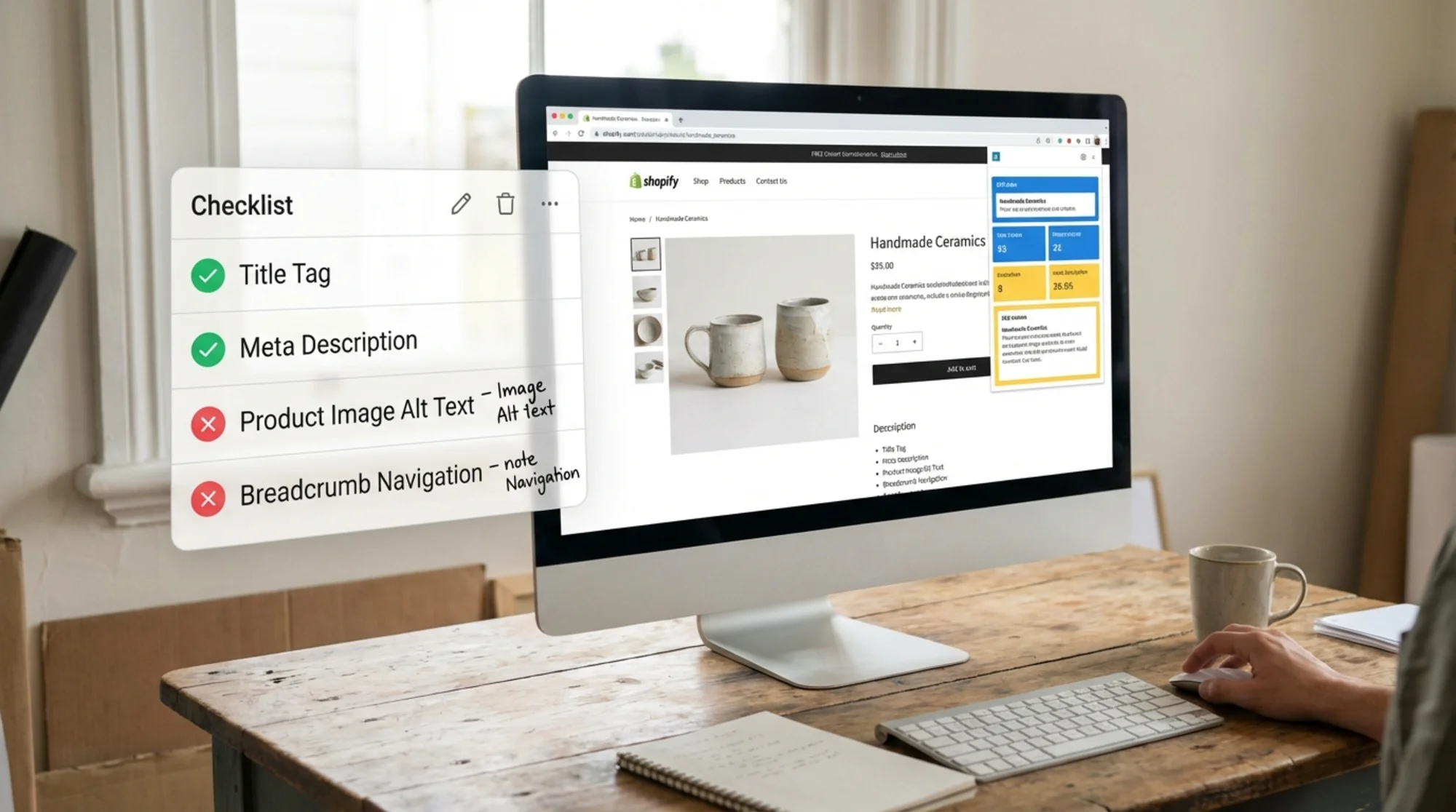
Shopify powers over four million online stores. It handles hosting, security certificates, and basic site structure out of the box. But "out of the box" does not mean "optimized for search." Most Shopify stores ship with duplicate content problems, missing meta descriptions, uncompressed images, and broken structured data — issues that quietly cost you traffic every day.
The highest-impact fixes are also the fastest. You do not need a developer or an expensive agency. This guide walks through exactly what to audit, what to fix first, and how to verify the results.
Why Shopify Stores Need a Specific SEO Audit
Generic SEO advice misses the problems unique to Shopify's architecture. Shopify generates URLs, handles redirects, and renders pages in ways that create specific, predictable issues. Running a general site crawler gives you a wall of warnings without telling you which ones actually matter for your store.
These Shopify-specific patterns cause the most damage:
- Duplicate content from collection URLs. Shopify creates two URLs for every product — one at
/products/your-itemand another at/collections/some-collection/products/your-item. Both serve the same page. Google has to guess which one matters. - Auto-generated title tags and meta descriptions. If you do not set these manually, Shopify pulls from your product title and the first few lines of your description. The result is often truncated, awkward, or identical across dozens of products.
- Theme-generated bloat. Many Shopify themes load JavaScript and CSS files that go unused on most pages, dragging down Core Web Vitals scores.
- Missing or broken structured data. Shopify themes include basic product schema, but it frequently has errors — missing fields, wrong price formats, or outdated markup that Google no longer supports.
Step 1: Fix Your Duplicate Content Problem
This is the single most common Shopify SEO issue, and it affects nearly every store that has not addressed it manually.
The Problem
When you add a product to a collection, Shopify creates a URL like /collections/summer-sale/products/blue-widget. The canonical product URL is /products/blue-widget. Both pages are identical. If your theme handles canonical tags correctly, Google should index only the canonical version. But many themes get this wrong, or the canonical tag points to the collection version instead.
The Fix
- Open your Shopify admin and go to Online Store → Themes → Edit Code.
- Find your
product.liquidorproduct.jsontemplate (the exact file depends on your theme). - Look in your
theme.liquidlayout file for thetag. - Make sure it outputs the product's canonical URL, not the current page URL:
html
Shopify's canonical_url object should return the /products/ version. Verify this by viewing the page source on a collection-filtered product page. If the canonical tag points to the /collections/... path, your theme has a bug.
Verification Checklist
- [ ] Open a product page through a collection link
- [ ] View page source (Ctrl+U or Cmd+U)
- [ ] Search for
rel="canonical" - [ ] Confirm the href points to
/products/your-product, not/collections/.../products/your-product - [ ] Repeat for at least three products in different collections
If your canonical tags are wrong, fix them in the theme code or switch to a theme that handles them correctly. This single fix can resolve hundreds of duplicate content warnings overnight.
Step 2: Write Real Meta Descriptions
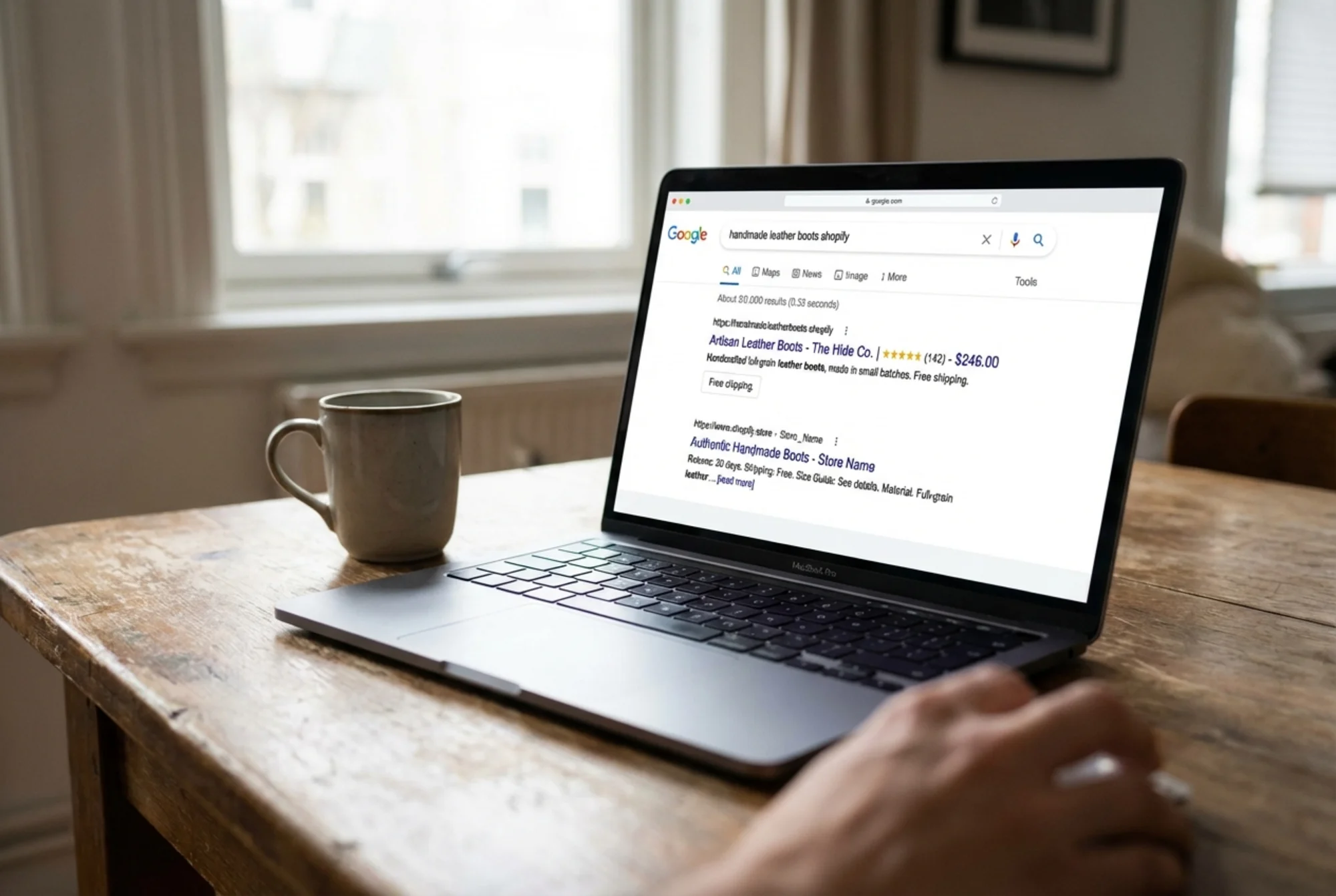
Shopify auto-generates meta descriptions by pulling the first ~160 characters from your product or page description. The result almost always cuts off mid-sentence, includes formatting characters, or reads identically across twenty products with similar opening paragraphs.
Where to Set Them
- Products: Open the product in Shopify admin, scroll to the bottom, click "Edit website SEO."
- Collections: Same process — open the collection, scroll down, edit the SEO fields.
- Pages: Open the page under Online Store → Pages, scroll to the SEO section.
What to Write
A good meta description answers one question: why should someone click this result instead of the ten others on the page?
Bad: Blue Widget - Made with premium materials. Our blue widget is designed for...
Good: Handmade blue widget with a lifetime guarantee. Ships free in 2 days. 4.8★ from 200+ reviews.
Include specifics: price points, shipping details, review counts, guarantees. Keep it under 155 characters so Google does not truncate it.
Priority Order
Start with the pages closest to generating revenue:
- Your homepage
- Your top 10 products by traffic (check Shopify Analytics → Sessions by landing page)
- Your top 3 collection pages
- Any page currently ranking on page 2 of Google — these are closest to breaking through
Google's guidelines on creating helpful content emphasize that pages should clearly demonstrate their value to users. A well-written meta description is your first opportunity to do that in search results.
Step 3: Compress and Label Your Images
Product images are usually the heaviest assets on a Shopify store page and the easiest to optimize.
Image Compression
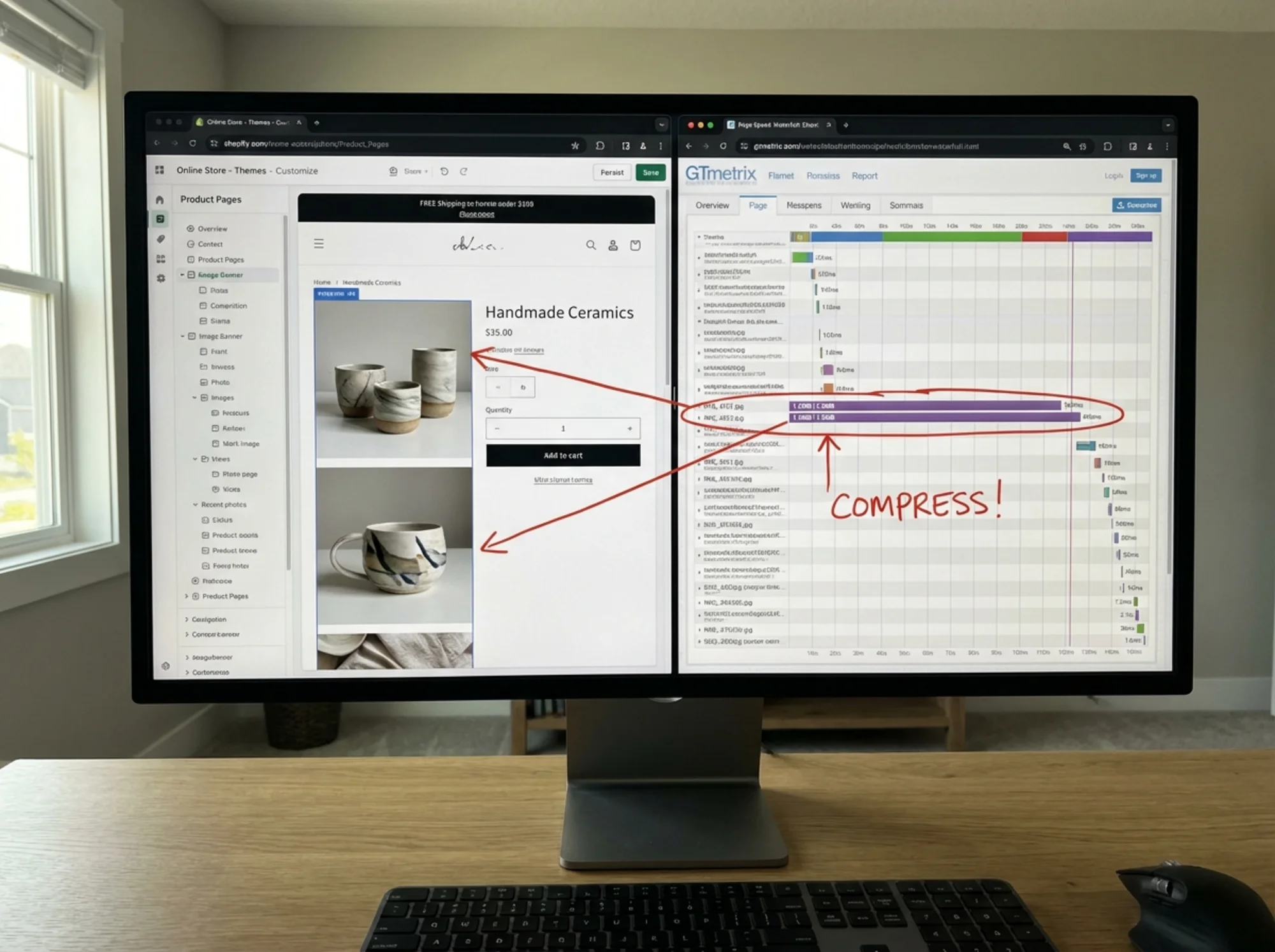
Shopify automatically serves images through its CDN and converts them to WebP in most cases. But it cannot fix an image uploaded at 4000×4000 pixels when it only displays at 800×800. The original file still affects page weight and load time.
- Resize product images to the maximum display size before uploading. For most themes, 2048px on the longest side is sufficient.
- Compress images with a tool like Squoosh or TinyPNG before upload. Aim for under 200KB per product image and under 300KB for lifestyle images and banners.
Alt Text
Every product image needs descriptive alt text. Shopify provides an alt text field when you click on any product image in the admin.
Bad: IMG_4392.jpg or product photo or blank
Good: Blue ceramic coffee mug with speckled glaze, 12oz, shown on wooden table
Describe what is actually in the image. This helps Google Image Search, accessibility, and gives search engines more context about your products.
Image Checklist
- [ ] Check your five largest product images by file size
- [ ] Verify all product images have alt text set (not just the filename)
- [ ] Confirm your theme uses responsive image sizes (look for
srcsetin the image HTML) - ] Test your homepage and top product page with a [page speed tool to check for image-related warnings
Step 4: Fix Your Structured Data
Structured data (Schema.org markup) tells Google exactly what your page contains — product name, price, availability, reviews. When it works, you get rich snippets in search results: star ratings, price ranges, and stock status. When it is broken, you get nothing.
Common Shopify Structured Data Errors
- Missing
offersfield. Your product schema needs a price and availability status. Some themes omit this or format the price incorrectly. - Wrong currency format. The
priceCurrencyfield should be a three-letter code likeUSD, not a symbol like$. - Missing
revieworaggregateRating. If your theme includes review markup but you have no reviews app installed, Google sees empty or invalid review data. - Outdated schema format. Some older themes use Microdata instead of JSON-LD. Google supports both, but JSON-LD is easier to maintain and debug.
How to Check
- Go to Google's Rich Results Test
- Enter a product page URL from your store
- Review the results — fix errors (red) first, then warnings (yellow)
You can also run your store through a structured data checker to catch issues across all pages at once.
The Duplicate Schema Trap
A store owner installs a reviews app — Judge.me, Loox, or similar — and expects star ratings in Google results. Months pass, no stars appear.
The problem: the reviews app adds its own schema markup, but the Shopify theme also outputs product schema. Google sees two conflicting blocks of structured data. One has reviews, one does not. Google gets confused and often shows neither.
The fix: Disable the product schema in your theme (usually in product.liquid or a snippet called product-schema.liquid) and let the reviews app handle all product structured data. Or configure the reviews app to inject its review data into the theme's existing schema instead of creating a duplicate block. Most review apps have a setting for this.
Step 5: Clean Up Your Page Speed
Google's Core Web Vitals are a confirmed ranking factor. For Shopify stores, the most common speed problems are unused app scripts, render-blocking theme assets, and missing lazy loading on below-the-fold images.
The Fastest Speed Wins
- Uninstall unused apps. Go to Settings → Apps and remove anything you no longer need. Every Shopify app can inject scripts into your storefront. Apps you installed months ago and forgot about are still loading code on every page. This is the single fastest speed fix.
- Audit leftover app scripts. After removing unused apps, check if any orphaned script tags remain in your theme code. Search your theme files for script references to apps you removed.
- Enable lazy loading. If your theme does not lazy-load images automatically, add
loading="lazy"to image tags below the fold. Most Online Store 2.0 themes handle this, but older themes may not. - Defer non-critical JavaScript. Add
deferto script tags that do not need to run immediately, letting the browser render the page first.
According to Google's Web Vitals documentation, Largest Contentful Paint (LCP) should occur within 2.5 seconds, and Interaction to Next Paint (INP) should be under 200 milliseconds. Test your store against these thresholds with a speed audit tool to see where you stand.
Step 6: Fix Your Internal Linking
Shopify's navigation creates top-level links to collections and pages, but it does not build the internal linking structure that helps Google understand how your products relate to each other and to your content.
What to Do
- Product descriptions link to related products. If you sell a coffee mug, link to your coffee beans page from the mug description.
- Blog posts link to relevant products and collections. A post about coffee brewing methods should link directly to your brewing equipment collection.
- Collection descriptions include context. Write 2-3 sentences describing each collection and link to related collections or key products. Do not leave them blank.
A Quick Internal Link Audit
- Pick your top 5 products by revenue
- Check if any page on your site links to each product beyond the collection it sits in
- Add links from related blog posts, your homepage, or other product descriptions where natural
- Check your blog — if posts mention products without linking to them, add the links
This takes thirty minutes and can meaningfully improve how Google discovers and prioritizes your most important pages.
Run a Full Audit on Your Store
Working through these fixes manually is effective, but it is easy to miss things — especially duplicate content and structured data issues spanning hundreds of pages.
Run a free audit of your Shopify store with FreeSiteAudit to get a complete picture of your SEO issues ranked by impact. The audit checks for the exact Shopify-specific problems covered in this guide — duplicate content, missing meta tags, image optimization, structured data errors, and page speed — and gives you a prioritized fix list.
No app install or Shopify admin access required. Enter your store URL and the audit runs against your live site in under a minute, covering technical SEO, content quality, and performance metrics.
For deeper analysis, the meta tag analyzer can audit specific elements across your entire site.
What to Expect After These Fixes
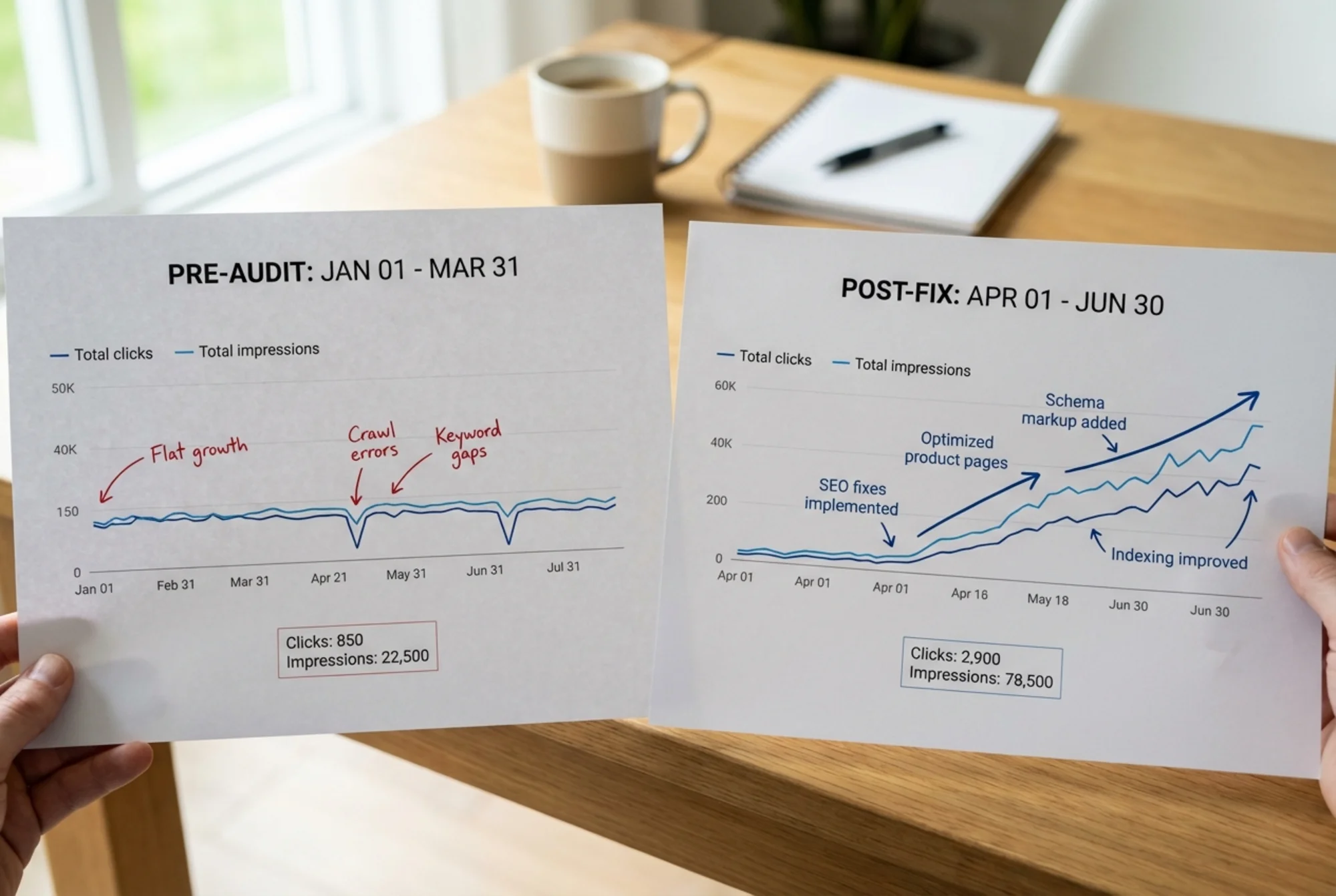
SEO changes do not produce overnight results. Here is a realistic timeline:
- Week 1-2: Google recrawls pages with updated canonical tags and meta descriptions. You may see changes in how your pages appear in search results.
- Week 3-4: Speed improvements and structured data fixes show up in Google Search Console reports (Core Web Vitals and Rich Results).
- Month 2-3: Ranking changes become visible. Pages with fixed duplicate content start consolidating ranking signals. Products with proper structured data begin showing rich snippets.
The stores that see the biggest improvements are the ones with the most basic issues — missing meta descriptions on high-traffic pages, duplicate content across hundreds of product URLs, and broken structured data preventing rich snippets. If that sounds like your store, these fixes will make a measurable difference.
Sources
- Google Search Central — Creating Helpful Content: https://developers.google.com/search/docs/fundamentals/creating-helpful-content
- Google Search Central — Structured Data: https://developers.google.com/search/docs/appearance/structured-data/article
- Web.dev — Core Web Vitals: https://web.dev/articles/vitals
Check your website for free
Get an instant score and your top 3 critical issues in under 60 seconds.
Get Your Free Audit →