Soft 404s: How to Spot and Fix Them
Soft 404 pages look fine to visitors but confuse search engines. Learn how to identify them on your site and fix them before they quietly drain your SEO.
# Soft 404s: How to Spot and Fix Them
You delete a product from your online store. Or you rename a blog post and forget to set up a redirect. A customer clicks a link and lands on a page that says "Sorry, nothing here" — but your server tells Google everything is fine.
That is a soft 404. The page is effectively dead, but your website returns a 200 OK status code instead of the proper 404 Not Found. To a visitor, the page looks broken. To Google, it looks like a real page with terrible content.
This mismatch causes real problems. Google wastes crawl budget on pages with nothing useful. Those empty pages can dilute your site's quality signals. And if enough pile up, your good pages may get crawled and indexed less often.
The good news: soft 404s are straightforward to find and fix once you know what to look for.
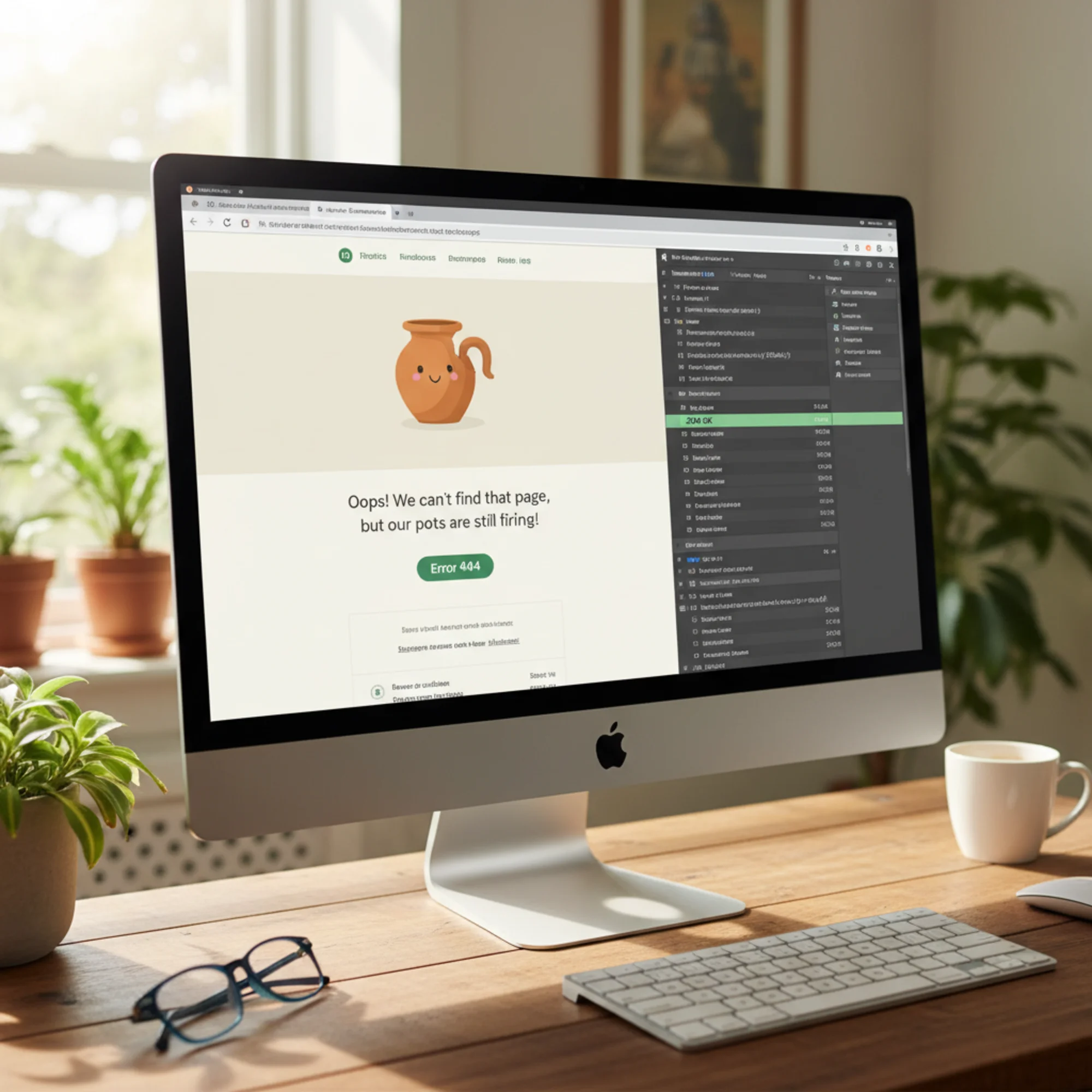
What Makes a Soft 404 Different from a Regular 404
A regular 404 is clean and honest. Someone requests a page that does not exist, your server responds with a 404 status code, and Google removes the URL from its index or never adds it. No harm done.
A soft 404 is when the page content says "not found" or is essentially empty, but the server responds with 200 OK — the code that means "here is your page." Google's crawler sees the 200, attempts to index the page, realizes there is nothing useful, and flags it as a soft 404 in Search Console.
There is a third scenario: a page that redirects everything to the homepage. If someone requests /old-product-page and your site silently redirects them to the homepage, Google may treat that as a soft 404 too. The homepage is not the page they asked for, so the redirect is not helpful.
Why small business sites are hit hardest
Large sites generate soft 404s constantly and have teams to manage them. Small business sites get hurt disproportionately:
- Fewer total pages. If 15 out of your 80 pages are soft 404s, nearly 20% of your site is sending bad signals.
- Limited crawl budget. Google allocates crawling resources based on site size and authority. Wasting visits on dead pages means your real pages get crawled less frequently.
- Visible trust damage. A customer who clicks a link from an old email and lands on a page that says "nothing here" — but looks like it loaded successfully — loses confidence in your business.
Common Causes of Soft 404s
Soft 404s rarely appear on purpose. They are almost always a side effect of how your site handles missing or changed content.
1. Deleted products or services
You stop selling a product and remove it from your catalog. The URL still exists in Google's index, in your sitemap, and in links from other pages. When someone visits, your site shows a mostly empty product template — header, footer, but no product information — and returns 200.
2. Zero-result search pages
Your site has internal search. A bot hits a URL like /search?q=xyznotreal that returns zero results. The page loads with your navigation and "No results found." Your server returns 200 because the search page itself loaded fine.
3. Expired content
You posted about a webinar in 2023. The event is long over, the page has no useful information anymore, but it still returns 200.
4. CMS or platform defaults
Many platforms — WordPress, Shopify, Squarespace, Wix — handle missing pages differently depending on the theme and configuration. Some themes display a custom "not found" message but fail to set the proper 404 status code at the server level.
5. URL parameter variations
Your site generates URLs with tracking parameters, filters, or pagination that lead to pages with no content. For example, /products?category=discontinued might return an empty product grid with a 200 status.
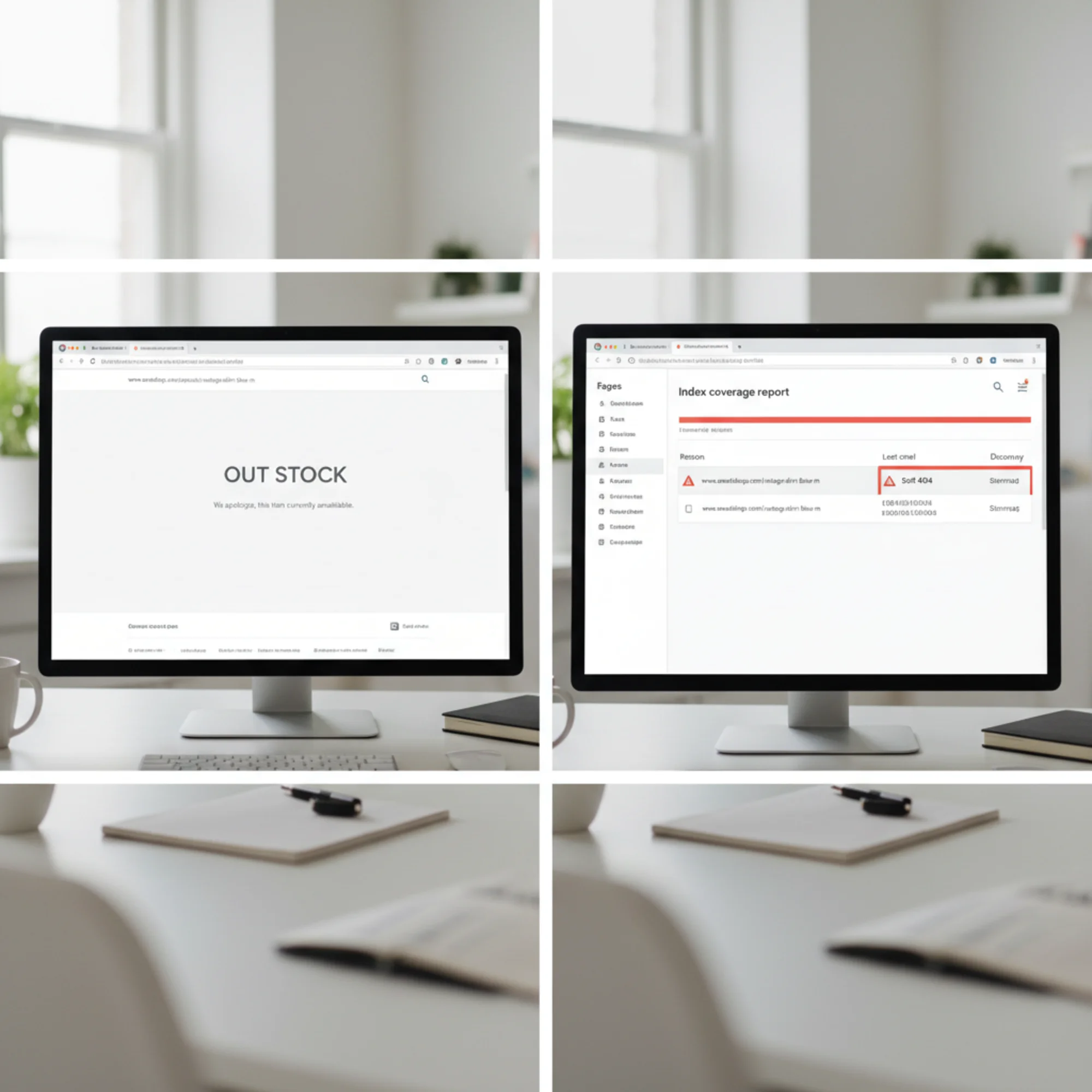
How to Find Soft 404s on Your Site
Method 1: Google Search Console
If your site is registered in Google Search Console — and it should be — this is the fastest way to find soft 404s that Google has already detected.
- Open Google Search Console
- Go to Indexing → Pages
- Look for "Soft 404" under "Why pages aren't indexed"
- Click to see the list of affected URLs
Google does not catch every soft 404 immediately, but over time this report becomes comprehensive. Check it monthly at minimum.
Method 2: Crawl your own site
Use a crawler to visit every page and record the HTTP status code alongside the page content. Look for:
- Pages returning 200 with very little body text (under 100 words)
- Pages returning 200 containing phrases like "not found," "no results," "page doesn't exist," or "item unavailable"
- Pages returning 200 that are near-duplicates of your actual 404 page
You can run a free site crawl to get a quick picture of which pages might have status code issues.
Method 3: Manual spot checks
If you have recently deleted products, changed URLs, or reorganized your site, manually visit the old URLs and check two things:
- What do you see? Is the page useful to a visitor, or is it empty?
- What status code does it return? In Chrome, open DevTools (F12), go to the Network tab, refresh the page, and click the first request. The status code appears in the Headers panel.
If the page looks dead but the status code says 200, you have a soft 404.
Finding checklist
- [ ] Check Google Search Console → Indexing → Pages → "Soft 404"
- [ ] Crawl your site and flag pages with 200 status but thin or empty content
- [ ] Manually test URLs of recently deleted or changed pages
- [ ] Check internal search pages for zero-result queries
- [ ] Verify that your custom 404 page actually returns a 404 status code

How to Fix Soft 404s
The fix depends on what the page should be. For each soft 404 URL, ask one question: Should this page exist?
If the page should NOT exist: return a proper 404 or 410
This is the most common fix. The page has no reason to exist — the product is gone, the event is over, the content was removed.
Option A: Return a 404. Configure your server or CMS to return a 404 for this URL:
- WordPress: Delete the page or post. WordPress returns a 404 automatically. Make sure your theme has a proper 404.php template.
- Shopify: Removing a product without redirecting it returns a 404 by default.
- Custom sites: Return a 404 response in your server configuration or application code when the requested resource does not exist.
Option B: Return a 410 Gone. A 410 tells Google "this page existed before, but it has been permanently removed." Google processes 410s faster than 404s and will drop the URL from its index more quickly. Use this when you want to be explicit that the content is intentionally gone.
If the page SHOULD exist: fix the content
Sometimes a page returns thin content not because it was deleted, but because something is broken:
- A database query fails silently, so a product page loads without product data
- A CMS plugin interferes with content rendering
- The page content loads entirely via JavaScript that the crawler cannot execute
Fix the underlying issue so the page displays its content. Then verify that the content loads without requiring client-side JavaScript, or use server-side rendering if your framework supports it.
If the content moved: set up a redirect
If you renamed a page, restructured your URLs, or migrated platforms, use a 301 redirect from the old URL to the new one:
- Visitors who click old links land on the right page
- SEO value from inbound links transfers to the new URL
- Google updates its index to use the new URL
Important: Redirect to a genuinely equivalent page, not your homepage. Redirecting everything to the homepage is itself a soft 404 pattern that Google detects and ignores.
Walkthrough: fixing soft 404s on a small business site
Say you run a local bakery. Google Search Console shows 12 soft 404s. Here is how to handle them:
| URL | What it shows | Fix |
|---|---|---|
/cakes/wedding-summer-2024 | Empty product template | 410 Gone — seasonal product removed |
/blog/holiday-hours-2023 | Outdated hours post | 301 redirect → /about/hours |
/catering/corporate-menu | Blank page, broken CMS widget | Fix the widget, restore content |
/search?q=glutenfree | "No results" page | Block /search paths via robots.txt |
/cakes/custom-order | Working page, JS-only rendering | Add server-side rendering |
The decision tree for each URL:
- Content is gone forever? → 404 or 410
- Content moved? → 301 redirect to the new location
- Content should exist but is not loading? → Fix the page
- Page should never be indexed? → Block from crawling and return proper status code
Preventing Soft 404s Going Forward
Fixing existing soft 404s is only half the job. Put these practices in place to prevent new ones.
Keep your sitemap clean. Your XML sitemap should only contain URLs that return 200 and have real content. After deleting pages, remove their URLs from your sitemap. Most CMS platforms update sitemaps automatically, but verify this after major changes.
Set up redirects when you delete or move content. Do not delete a page and plan to "add the redirect later." Do both at once.
Test your 404 page. Visit a URL that does not exist on your site (like /this-page-does-not-exist-12345). Check the HTTP status code in DevTools. If it returns anything other than 404, your server or theme configuration needs adjustment.
Block search and filter pages from crawling. Add Disallow rules in your robots.txt for URL paths that generate dynamic pages with potentially empty results, like /search or filter parameters.
Monitor monthly. Check Google Search Console's indexing report at least once a month. Soft 404s accumulate slowly — catching them early keeps the list manageable.
Prevention checklist
- [ ] Remove deleted or expired URLs from your XML sitemap
- [ ] Create 301 redirects whenever you move or rename a page
- [ ] Verify your custom 404 page returns an actual 404 status code
- [ ] Block search result and empty filter pages via robots.txt
- ] Run a [monthly site audit to catch new issues early
- [ ] Review Google Search Console indexing report monthly
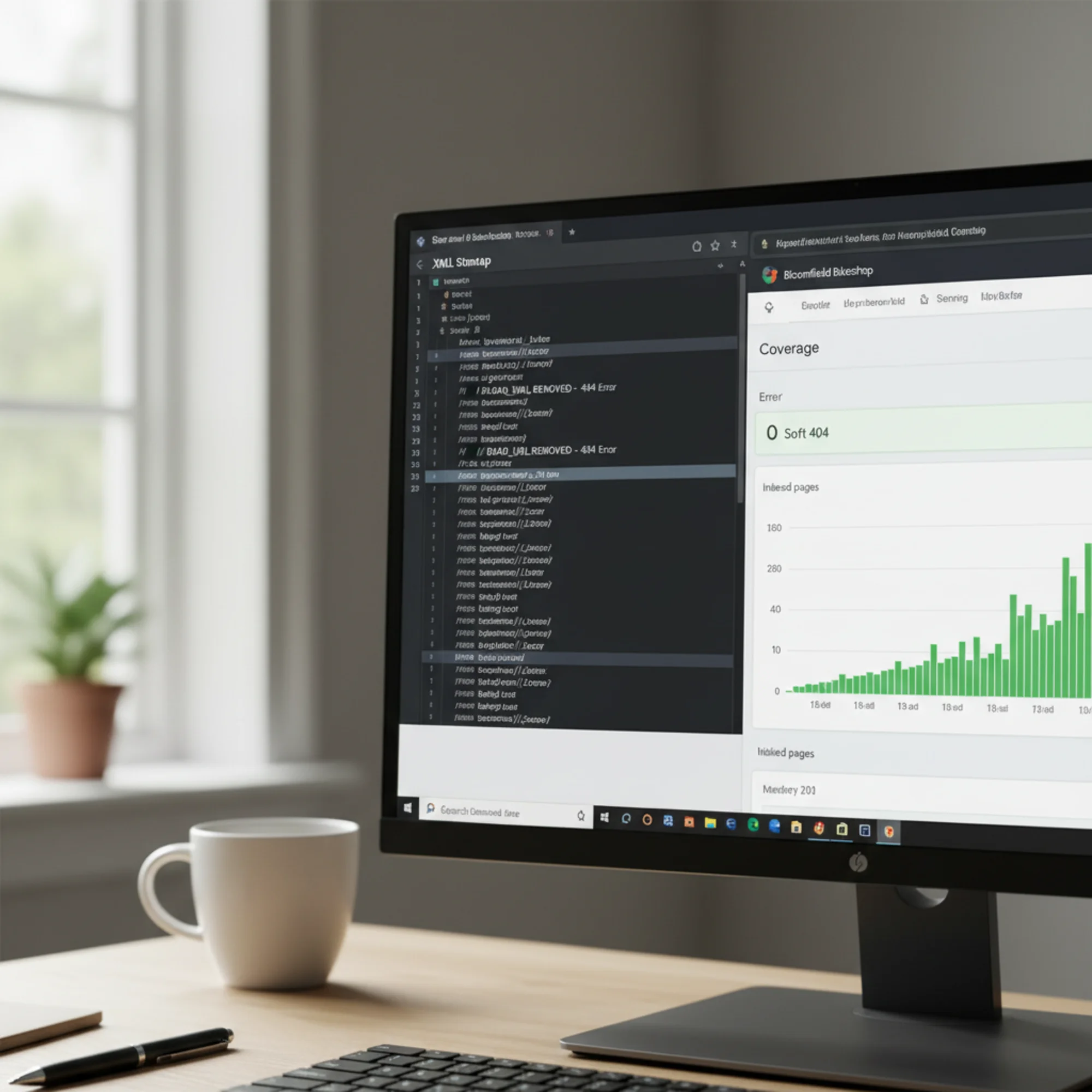
How Soft 404s Affect Your SEO
Google's documentation on crawling and indexing is clear: when Googlebot encounters a page that returns 200 but has no useful content, it treats it as a soft 404 and excludes it from the index. That alone is not catastrophic — the page would not rank anyway.
The real damage is indirect:
- Wasted crawl budget. Every visit to a soft 404 is a visit that could have gone to a page with actual content. For small sites with limited crawl frequency, this directly slows down how quickly Google discovers your new and updated pages.
- Diluted quality signals. Google evaluates your site partly based on the overall quality of its pages. A collection of thin, empty pages mixed with your real content weakens the overall picture.
- Broken internal linking. If your own pages link to soft 404 URLs, you are sending visitors and link equity into dead ends. Fix the broken internal links at the same time you address soft 404s.
- Poor user experience. A visitor who lands on a soft 404 sees a broken page that acts like it loaded correctly. There is no clear "this page doesn't exist" signal, no helpful navigation. They leave.
None of these are penalties. Google does not penalize sites for having soft 404s. But the cumulative drag on crawling efficiency, content quality perception, and user experience is real — especially when the fixes are straightforward.
Check Your Site for Soft 404s Now
Soft 404s quietly accumulate until someone looks. Most small business site owners have a few without knowing it — especially after removing products, updating content, or changing platforms.
Run a free audit with FreeSiteAudit to see if your site has soft 404 issues, along with other technical problems that might be holding back your search visibility. The scan takes about a minute, requires no login, and gives you a clear list of what to fix first.
Sources
Check your website for free
Get an instant score and your top 3 critical issues in under 60 seconds.
Get Your Free Audit →