Squarespace SEO Audit: What It Does Well and Where It Falls Short
A plain-English audit of Squarespace's built-in SEO tools — what the platform handles automatically, where it falls short, and what to fix manually to rank.
# Squarespace SEO Audit: What It Does Well and Where It Falls Short
If you built your business website on Squarespace, you've probably heard that it's "SEO-friendly." That's partially true — but partially true is doing a lot of work in that sentence.
Squarespace handles a handful of technical SEO fundamentals automatically. But it leaves several important signals entirely up to you, and some things it simply cannot do without workarounds. The gap between "SEO-friendly platform" and "site that actually ranks" is where most small business owners get stuck.
This guide is a practical audit of what Squarespace does well, where it falls short, and what to check on your own site today. Whether you've been live for a week or three years, the same gaps tend to show up — and most of them are fixable in an afternoon.
What Squarespace Gets Right
1. Clean, Indexable HTML Structure
Squarespace generates clean semantic HTML by default. Navigation, headings, and content render server-side, which means Googlebot can read them without executing JavaScript first. This is a real advantage over JavaScript-heavy site builders where the page is effectively blank until a bundle loads.
For small business owners who aren't developers, this matters more than it sounds. You don't need to worry about whether Google can even see your content — it can. That's a legitimate baseline many builders fail to meet.
2. Automatic Sitemap Generation
Every Squarespace site gets an XML sitemap at yourdomain.com/sitemap.xml that updates automatically when you publish or edit pages. You still need to submit it in Google Search Console manually — Squarespace doesn't do that for you — but the sitemap exists and stays current without any effort on your part.
If you've never submitted your sitemap, do it now: go to Google Search Console → Sitemaps → paste your sitemap URL → Submit. It's a one-time step that helps Google discover and revisit your pages faster.
3. SSL/HTTPS by Default
All Squarespace sites include SSL. Sites without it display "Not Secure" warnings in Chrome, which hurts click-through rates and signals to users that the site may not be trustworthy. Squarespace handles this without any configuration, and the certificate renews automatically. One less thing to manage.
4. Mobile Responsiveness
All Squarespace templates are responsive. Google uses mobile-first indexing, meaning it primarily crawls and indexes the mobile version of your site, not the desktop version. A responsive template is a baseline requirement, and Squarespace meets it for every template in its library. If you're on an older Squarespace 7.0 template, it's worth confirming responsiveness looks correct on actual devices — but for anything built on 7.1 or later, you're covered.
5. Built-In Page SEO Settings
Each page, product, and blog post has an SEO tab where you can set:
- The SEO title (the blue link in Google search results)
- The meta description (the short snippet beneath the title)
- Whether the page is indexed or excluded from search

This panel exists, which is more than some platforms offered five years ago. The problem is that most users never open it — and Squarespace doesn't prompt them to fill it out, flag when it's empty, or warn when two pages share the same title. The tool is there; the guardrails are not.
6. Canonical Tags
Squarespace automatically adds canonical tags to pages, which tells Google which URL is the "primary" version of a page when duplicates might otherwise exist. This matters most for e-commerce stores where products appear in multiple collections, but it's a useful signal for any site.
Where Squarespace Falls Short
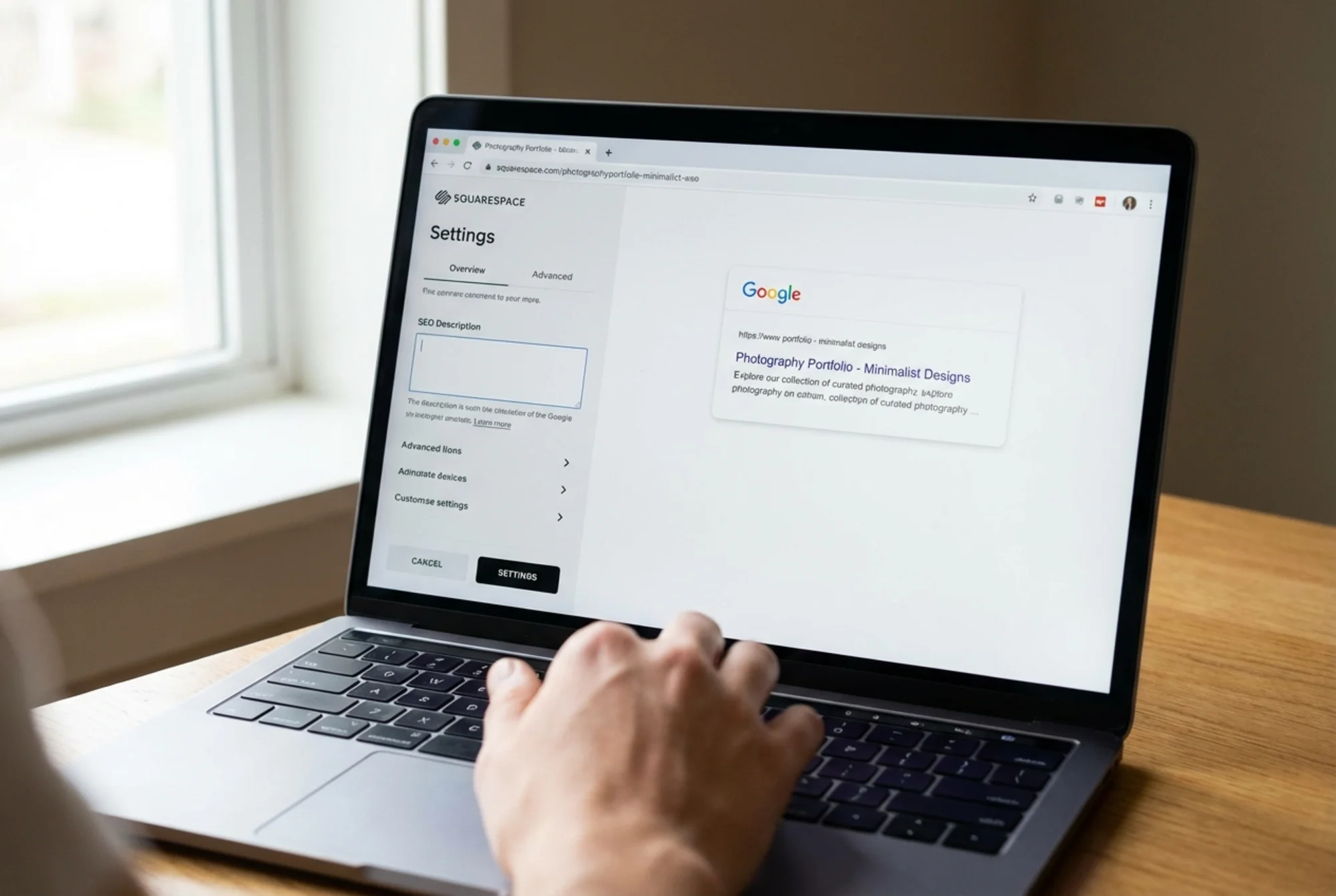
1. Blank Meta Descriptions by Default
Squarespace will not generate a meta description for your pages. If you don't fill in the field manually, Google picks one for you — usually an awkward chunk of body text or a fragment pulled from your navigation. These auto-generated snippets tend to be generic, incomplete, or contextually strange.
A blank description doesn't prevent indexing, but it routinely produces low-quality snippets that earn fewer clicks. Given that search result click-through rate is influenced heavily by how compelling your snippet looks, a missing meta description is a quiet but consistent drag on performance.
Quick check: Open each of your top 5 pages → Pages panel → gear icon → SEO tab. If the description field is empty, that's the first thing to fix. Aim for 140–160 characters that include your primary keyword and a clear reason to click. See our guide at /fixes/meta-descriptions for a fill-in-the-blank template for common business types.
2. Heading Structure Is Left Entirely to You
Squarespace doesn't enforce or warn about heading hierarchy. It's easy to end up with no H1 on a page, multiple H1s on the same page, or H3s chosen for visual styling rather than document structure. This happens because Squarespace's editor lets you pick heading sizes visually — and it's tempting to choose a heading level because it looks right, not because it signals the correct hierarchy.
Google uses headings to understand the outline of your content. A page that skips from H1 to H4, or has three H1s because you liked how the text looked, sends a disorganized structure signal. Think of headings as the table of contents for your page — they should tell a coherent story about what the page covers.
How to check: Use browser DevTools (right-click → Inspect) and search for tags. You should find exactly one per page, and it should contain your primary keyword. Or run a free audit at /tools/free-site-audit which flags this automatically.
3. Image Alt Text Requires Manual Entry on Every Image
Every image you upload can have an alt text field, but it's not required and there's no warning if you skip it. Alt text matters for accessibility — it's what screen readers announce to visually impaired users — and for search, since Google uses it to understand what an image depicts, reinforcing the relevance of the surrounding content.
On a site with a gallery, portfolio, or active blog, untagged images accumulate fast. A site that's been live for two years with regular blog posts might have dozens or hundreds of images with empty alt text. Each one is a missed signal.
What to audit: Click any image block in the editor and look for the "Alt text" field. If it's blank, add a description that accurately describes the image in context — not keyword-stuffed, but specific. "Austin residential cleaning team arrives for a scheduled home visit" is more useful than "cleaning" or the original filename "IMG_4821.jpg." See /fixes/image-alt-text for a quick workflow to tackle these in batches.
4. Structured Data Is Extremely Limited
Structured data (schema markup) tells Google exactly what type of content it's reading — a local business, a product, an article, an event, a frequently asked question. When implemented correctly, it can trigger rich results in search, including star ratings beneath your listing, FAQ dropdowns that expand inline, or event details with dates and locations. These rich results take up more visual real estate and typically earn higher click-through rates.
Squarespace adds basic Product schema automatically for store items. Beyond that, it does not natively support:
LocalBusinessschema (critical for service-area businesses trying to rank in local search)FAQPageschema (useful for pages with question-and-answer content)ArticleorBlogPostingschema with full fields like author, publish date, and headlineRevieworAggregateRatingschema for non-commerce content
The only workaround is injecting JSON-LD manually via Settings → Advanced → Code Injection. It's not difficult once you have the right template, but it requires knowing the schema exists, understanding what fields to populate, and keeping it updated as your business information changes. Google's structured data documentation covers the correct format and required fields.
For local businesses especially — plumbers, dentists, consultants, cleaners — the absence of LocalBusiness schema is a meaningful gap. It's not a guaranteed ranking factor, but it's a clear signal you're leaving on the table.
5. Core Web Vitals Performance Is Inconsistent
Google's Core Web Vitals — Largest Contentful Paint (LCP), Cumulative Layout Shift (CLS), and Interaction to Next Paint (INP) — are established ranking signals and also direct measures of how fast and stable your site feels to real users. Squarespace sites generally score well on CLS. LCP is more variable and depends on factors largely under your control:
- Hero image file size (a 4MB JPEG uploaded directly from your camera is a common culprit)
- Whether images were compressed before upload
- How many third-party scripts you've added — chat widgets, Instagram feed embeds, Google Tag Manager stacks, and social sharing buttons all add load time
- Template complexity and how many web fonts are loaded
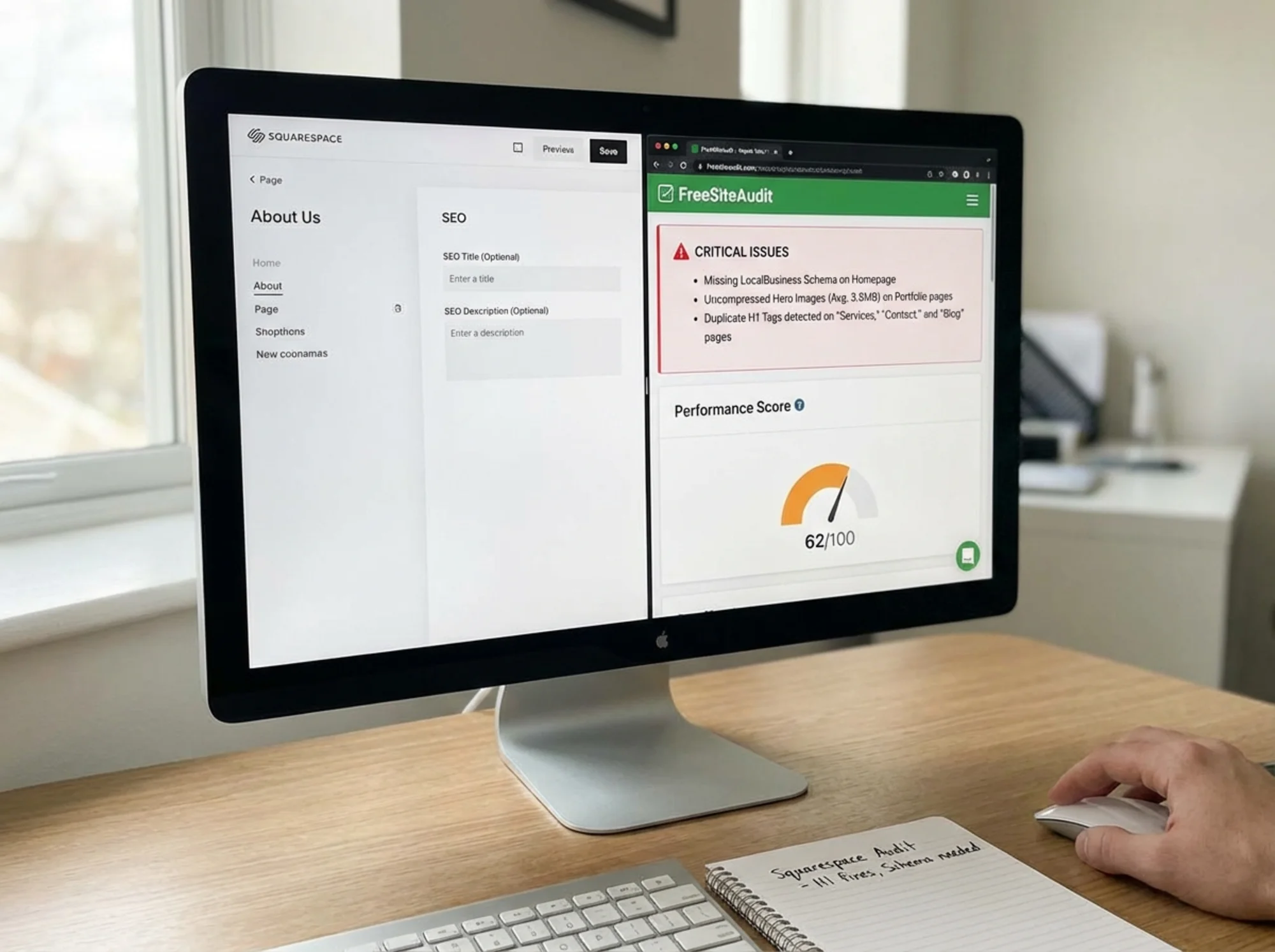
Squarespace hosts images on its CDN, which helps. But it doesn't warn you when you upload a 4MB JPEG as a hero image, and it doesn't always serve next-gen formats like WebP automatically. The platform does its part; whether the images you feed it are optimized is up to you.
Quick check: Run your URL through PageSpeed Insights (search "PageSpeed Insights" and paste your URL). If your mobile LCP score is above 2.5 seconds, find and compress your largest above-the-fold image first. Free tools like Squoosh or TinyPNG can reduce file size by 60–80% with no visible quality loss.
6. Renamed Pages Don't Get Automatic Redirects
When you change a page URL slug in Squarespace, the old URL becomes a 404. Squarespace does not create a redirect automatically. This is an easy mistake to make during a redesign or when you decide a cleaner URL structure would look better.
Broken URLs do two things: they waste crawl budget (Google visits the dead URL instead of a live one), and they lose any link equity pointing to the old address — from other websites, from social shares, or from your own internal links. If your old "services" page was at /our-services and you changed it to /services, anyone who linked to the old URL hits a dead end.
Habit to build: Whenever you change a page slug on an established page, add a 301 redirect immediately. In Squarespace: Settings → Advanced → URL Mappings. The format is simple: /old-url → /new-url 301. Keep a running list in a spreadsheet so you don't lose track of what you've redirected over time.
Practical Walkthrough: A Local Service Business on Squarespace
Suppose you run a residential cleaning company in Austin. Your Squarespace site has a home page, a Services page, an About page, and eight blog posts. You're getting some traffic but not showing up in the map pack or the top organic results for "house cleaning Austin."
Here's how to approach the audit systematically:
Step 1 — Check indexation. Type site:yourdomain.com into Google. Count how many pages appear. If far fewer show up than you have published, something may be blocking crawl — either a page-level "hide from search" setting or a sitewide setting under Settings → SEO. Confirm no pages have "hide from search engines" checked accidentally under their SEO tab. It happens more often than you'd think, especially on pages that were once drafts.
Step 2 — Fix your H1 tags. Visit your home page and use DevTools or a free audit to check your H1. Is it "Welcome" or "Home"? Those are wasted signals. Change it to something like "Residential House Cleaning in Austin, TX." Then do the same check on your Services and About pages — every page should have exactly one H1 that reflects what the page is actually about.
Step 3 — Fill in every meta description. Each of your five main pages should have a unique, hand-written 140–160 character description that includes your primary keyword and a reason to click. "Professional house cleaning in Austin starting at $89. Insured, background-checked cleaners. Book online in minutes." That's 126 characters, includes location, price anchoring, and a trust signal.
Step 4 — Add LocalBusiness schema. Go to Settings → Advanced → Code Injection and paste a JSON-LD block into the header. At minimum, include your business name, address, phone number, business type (e.g., HouseCleaning), and service area. Google's structured data documentation has a full field reference. Once it's live, use Google's Rich Results Test to verify it's reading correctly.
Step 5 — Audit image alt text. Walk through your Services page and every blog post image. Every image should have a descriptive alt text. "Professional house cleaner vacuuming living room in Austin home" is useful. "IMG_4821.jpg" or an empty field is not. For blog images, the alt text should relate to the article topic.
Step 6 — Compress your hero image. Download your current hero or banner image, run it through Squoosh or TinyPNG, and re-upload the compressed version. Aim for under 400KB. If it was previously 3MB, this one step may meaningfully improve your mobile LCP score.
Step 7 — Check your Google Business Profile. For local businesses, your Google Business Profile often drives more local visibility than your website alone. Confirm it's claimed, verified, and that the name, address, and phone number match your site exactly — character for character, abbreviation for abbreviation. A mismatch between "St." on your site and "Street" on your GBP is a minor inconsistency, but consistent NAP (name, address, phone) signals build trust with Google's local ranking system. See /industries/local-business for more on local SEO fundamentals.
The Squarespace SEO Checklist
Use this as a reference when auditing your own site. The items in the first section require no action — Squarespace handles them. Everything else is on you.
Technical basics (Squarespace handles these automatically)
- [ ] HTTPS enabled
- [ ] Mobile-responsive template
- [ ] Sitemap exists at
/sitemap.xml - [ ] Canonical tags present on all pages
Things you must set up once
- [ ] Sitemap submitted to Google Search Console
- [ ] Google Search Console property verified
- [ ] Google Analytics or equivalent connected
On-page (you must do these manually, per page)
- [ ] Every page has a unique SEO title (50–60 characters, includes primary keyword)
- [ ] Every page has a unique meta description (140–160 characters)
- [ ] Each page has exactly one H1 that includes the primary keyword
- [ ] Heading hierarchy is logical (H1 → H2 → H3, no skipped levels)
- [ ] All images have descriptive, specific alt text
- [ ] No important pages are accidentally excluded from indexing
Structured data (requires manual workaround via Code Injection)
- [ ] LocalBusiness schema added for service-area or brick-and-mortar businesses
- [ ] Product schema verified on all product pages (check Squarespace's auto-output with Rich Results Test)
- [ ] BlogPosting or Article schema added for posts if you want rich results
- [ ] FAQPage schema added on pages with question-and-answer content
Performance
- [ ] Hero images are under 400KB (compress before uploading)
- [ ] PageSpeed Insights mobile LCP is under 2.5 seconds
- [ ] Third-party scripts are minimized — remove unused chat widgets, social embeds, or old analytics tags
Links and redirects
- [ ] No changed URLs left without a 301 redirect in URL Mappings
- [ ] Internal links point to current URLs, not redirected or dead ones
Should You Switch Platforms?
Probably not — unless you have a specific technical requirement Squarespace genuinely cannot meet.
The issues above are fixable on Squarespace. They require more manual effort than WordPress with a dedicated SEO plugin like Yoast or Rank Math, but they're not insurmountable. WordPress gives you more granular control over structured data, more plugin options for technical SEO, and more flexibility for advanced configurations. But it also requires ongoing maintenance, plugin updates, security patching, and a steeper learning curve.
The bigger risk is spending weeks and significant money on a platform migration when the real problem is unfilled meta descriptions and uncompressed images — issues that take an afternoon to fix on your current site. Migrating to WordPress won't automatically fix the on-page work you still need to do; it just changes where you do it.
That said, there are scenarios where switching makes sense. If you're a local service business that needs tight schema markup management across dozens of location pages, if you require granular redirect control during frequent site restructuring, or if you need plugin integrations Squarespace can't accommodate — WordPress or another CMS will serve you better in the long run. But those are specific requirements, not general ones.
If Squarespace is otherwise working for you, close the gaps in the checklist above before you consider moving. Fix the meta descriptions, compress the hero images, add LocalBusiness schema via Code Injection, and run an audit. Most Squarespace sites have a significant improvement available before a platform change becomes the right answer.
Run a Free Audit on Your Squarespace Site
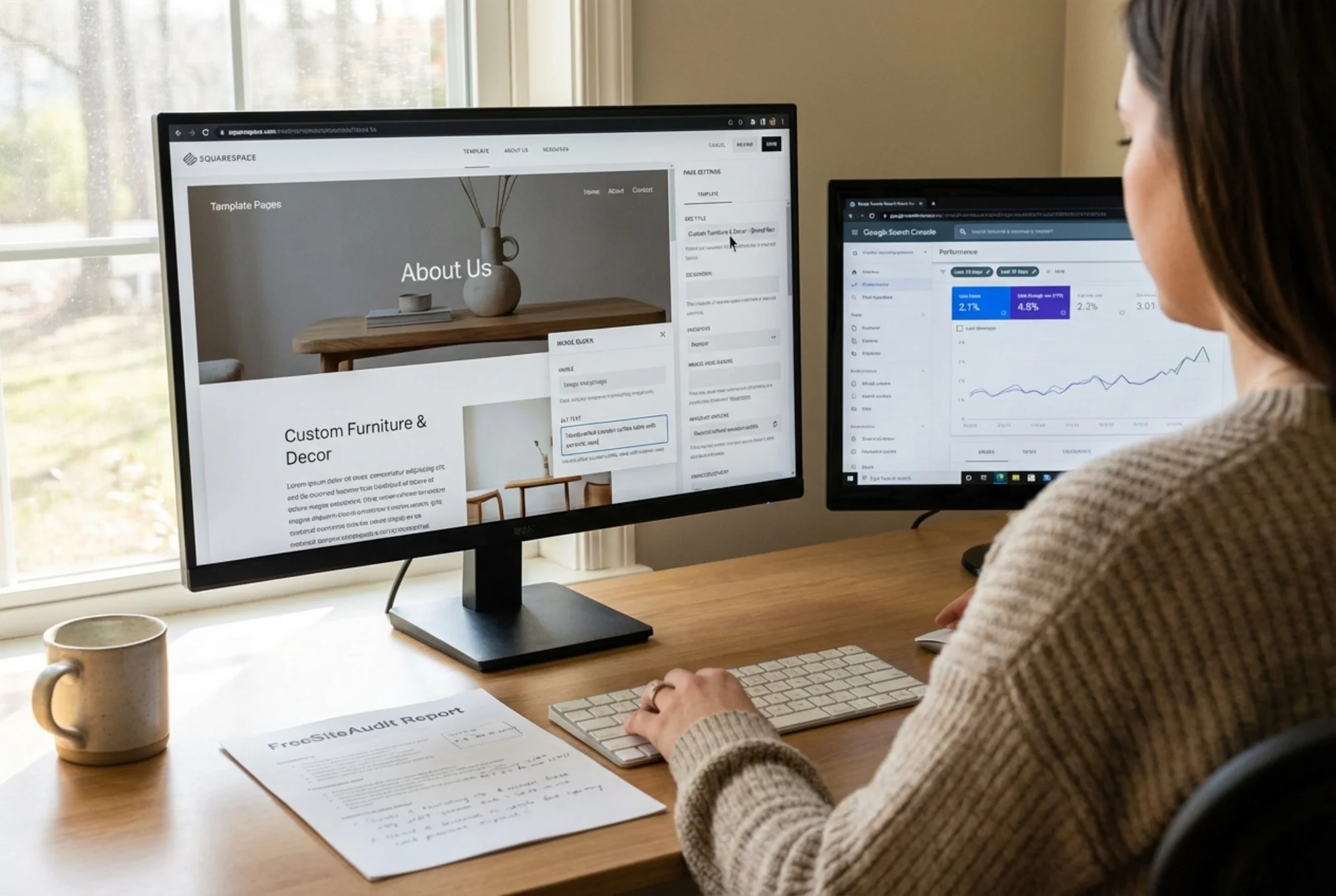
You don't need to check each of these items by hand. FreeSiteAudit scans your Squarespace site for missing meta descriptions, heading issues, image alt text gaps, performance signals, and more — in about 60 seconds.
Run a free audit at FreeSiteAudit →
You'll get a scored report with specific issues flagged and prioritized by impact. The report shows you exactly which pages are missing descriptions, which images have no alt text, and where your heading structure breaks down — so you know what to fix first and why. No account required to start.
Sources
Related Fixes
Check your website for free
Get an instant score and your top 3 critical issues in under 60 seconds.
Get Your Free Audit →