SSL Certificate Audit: Beyond Just HTTPS (What Small Sites Miss)
A plain-English SSL audit guide for small sites: check certificate expiry, chains, mixed content, redirects, and silent issues that break trust and SEO.
# SSL Certificate Audit: Beyond Just HTTPS
You see the little padlock in the browser bar. You assume your site is "secure." You move on.
That assumption is expensive. HTTPS being "on" is the bare minimum. It tells you nothing about whether your certificate is about to expire, whether it covers every subdomain, whether mixed content is silently breaking pages, or whether search engines are crawling a clean version of your site.
This is a guide for site owners who don't have a dedicated security team. No jargon dump — just what to check, why it matters, and how to fix the common problems.

What "HTTPS" actually proves (and what it doesn't)
HTTPS means the connection between a visitor's browser and your server is encrypted. Someone snooping on the coffee shop Wi-Fi can't read what your customer is typing. That's it.
It does not prove:
- Your certificate is configured correctly
- Every page loads without warnings
- Your certificate won't expire next Tuesday
- All your subdomains (shop., blog., checkout.) are covered
- Old
http://URLs redirect properly - Search engines see one canonical, secure version of your site
A site can have HTTPS on and still be quietly leaking trust, conversions, and rankings. That's what an SSL audit catches.
The 7 things to check in an SSL audit
You can run through this list with any decent SSL inspection tool in under 15 minutes.
1. Certificate expiry date
Certificates expire. Most are valid for 90 days (Let's Encrypt) up to 13 months (paid certificates). If your hosting auto-renews, great. If it doesn't — or if auto-renewal silently fails — your site goes from "secure" to "scary red warning page" overnight.
Mini-checklist:
- Expiry date is more than 14 days out
- Auto-renewal is confirmed working (not just enabled)
- Renewal alerts go to an email someone actually reads
2. The certificate chain
A certificate doesn't stand alone. It's signed by an intermediate certificate, which is signed by a root certificate trusted by browsers. If your server doesn't serve the intermediate properly, some browsers — especially on older Android devices and corporate networks — will reject the site as untrusted.
The frustrating part: it often works in Chrome on your laptop but fails on a customer's phone. You won't see the bug. You'll just see fewer conversions.
3. Domain coverage (the subdomain trap)
Your certificate covers yourdomain.com and www.yourdomain.com. Fine. But what about:
shop.yourdomain.comblog.yourdomain.comapp.yourdomain.comcheckout.yourdomain.com
If you added a subdomain for a Shopify store, a Help Scout knowledge base, or a custom app and didn't update your certificate, that subdomain may be throwing a warning right now. List every subdomain you use and confirm each one has a valid certificate.
4. Mixed content
This is the silent killer. Your page loads over HTTPS, but it pulls in an image, script, or stylesheet over plain http://. Browsers handle this in two ways:
- Active mixed content (scripts, iframes): blocked outright. Features break.
- Passive mixed content (images, audio): loaded, but the padlock disappears or shows a warning.
Either way, you lose the visual trust signal customers rely on.
Common causes for small business sites:
- A blog post written years ago with
http://image URLs - An embedded video using an old embed code
- A third-party widget (chat, reviews, analytics) on
http - A hardcoded
http://link in your theme or template
5. HTTP-to-HTTPS redirects
When someone types yourdomain.com or clicks an old http:// link, your server should redirect them to the HTTPS version with a 301 permanent redirect. If it doesn't:
- Visitors land on an insecure version of the page
- Search engines may index both versions, splitting authority
- Forms posted to
httpleak data
In an incognito window, type http://yourdomain.com. Does it cleanly redirect to https://yourdomain.com? Does http://www.yourdomain.com do the same?
6. HSTS (HTTP Strict Transport Security)
HSTS is a header that tells browsers: "For the next X days, never even try to load this site over http. Always use https." It prevents downgrade attacks and protects users on sketchy networks.
For small business sites, enabling HSTS is a one-line server config change with a big payoff. Just be careful: once a browser sees HSTS, it remembers. Don't turn it on unless you're committed to HTTPS-only.
7. TLS version and cipher strength
TLS is the underlying protocol HTTPS uses. TLS 1.0 and 1.1 are obsolete and insecure. TLS 1.2 is the minimum acceptable. TLS 1.3 is current best practice.
If your hosting still allows TLS 1.0, two things happen: modern security scanners flag you, and some browsers refuse to connect at all. Most reputable hosts have already disabled the old versions. Cheap or unmaintained hosts often haven't.
A real walkthrough: the bakery that lost its checkout
Here's a scenario that plays out constantly.
A small bakery — call it Rye & Co. — runs a WordPress site with a WooCommerce shop. They added a custom subdomain order.ryeandco.com two years ago for a third-party ordering tool. The main site uses a free Let's Encrypt certificate that auto-renews.
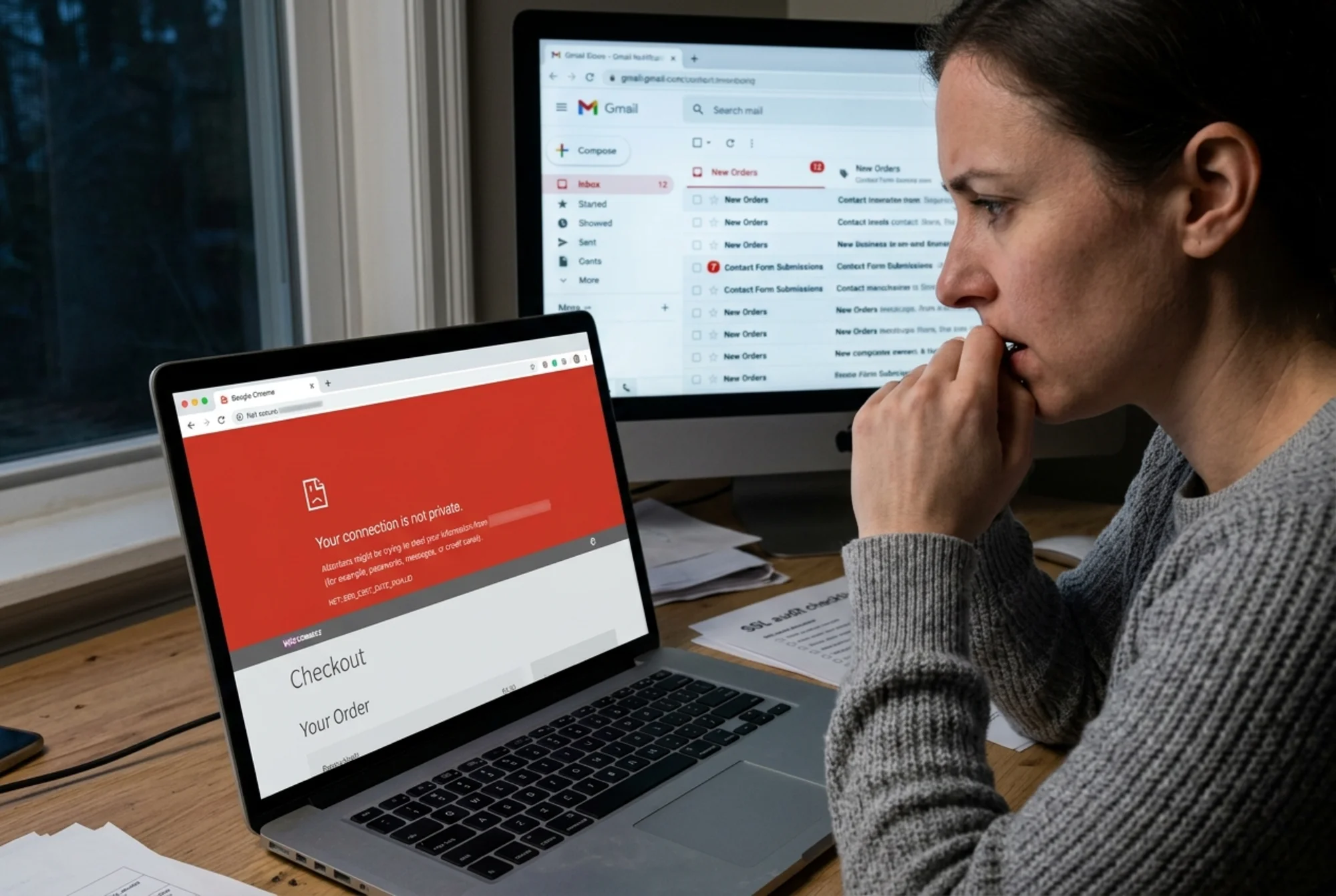
One Monday, the owner notices online orders have dropped to almost zero over the weekend. She tests checkout on her laptop. Works fine. Her brother tries from his Android phone. He gets a full-screen red warning: "Your connection is not private."
The diagnosis after an SSL audit:
- The main domain certificate was fine.
- The
order.ryeandco.comsubdomain had a separate certificate that had expired three days earlier. - Auto-renewal had been silently failing because the verification file couldn't be reached.
- On top of that, the order page was loading a tracking pixel over
http://— passive mixed content — which had been dropping the padlock for months.
She lost roughly a weekend of orders, plus an unknown number of customers who saw the warning and never came back.
None of this would have shown up on a "is my site on HTTPS?" check. All of it would have shown up in a 10-minute SSL audit with monitoring set up.

Why this matters for SEO and trust
Two angles, both practical.
Search engines. Google has used HTTPS as a ranking signal for years. But the bar isn't just "do you have it" — it's whether your site presents a clean, single, secure version. If both http and https are crawlable, or if mixed content is breaking pages, the signal gets muddy. Google's guidance on helpful, reliable, people-first content treats security and reliability as part of the experience, not a separate checkbox. Same for Article structured data — Google wants a stable, canonical URL.
User trust. Browser warnings are aggressive on purpose. Customers don't read them — they bounce. A single missing padlock on a checkout page can cut conversion rates dramatically, and you usually won't know, because users don't complain. They just leave.
There's also the Core Web Vitals angle. Mixed content and certificate issues can cause render-blocking, aborted resource loads, and layout shifts — all of which feed into the experience metrics Google measures.
A 10-minute audit you can do today
You don't need to be a sysadmin. Here's the order I'd run things:
- Open an incognito window. Visit your site over
http://, thenhttps://, thenhttps://www., thenhttp://www.. All four should end on the same final URL with a valid padlock. - Run an SSL inspector. Plug your domain into any SSL test tool. Note the expiry date, chain status, and TLS versions supported.
- Check every subdomain. Repeat step 2 for
shop.,blog.,app.,checkout., or whatever you use. - Open your homepage in Chrome. Right-click → Inspect → Console. Look for "Mixed Content" warnings. Repeat for your top three pages by traffic.
- Check the checkout flow specifically. If you take payments, this page needs zero warnings. None.
- Confirm renewal. Log into your hosting or certificate provider. Verify auto-renewal is active and that the notification email goes to a real inbox.
- Set a calendar reminder for a month before expiry, regardless. Belt and braces.
If you'd rather not do this manually, an automated audit is faster. You can run a free website audit with FreeSiteAudit — it checks SSL configuration, mixed content, redirect chains, and the broader technical health of your site in a couple of minutes. The same audit can be scheduled so you get an alert the moment something breaks.
Fixing the most common SSL problems
Rough triage guide:
"My certificate expired." Most hosts have a one-click renewal button. On a managed platform (Shopify, Squarespace, Wix, Webflow), it's handled automatically — your issue is usually a misconfigured custom domain. Check your DNS records.
"I have mixed content warnings." For WordPress, install a "Really Simple SSL"-style plugin, or do a database search-and-replace from http://yourdomain.com to https://yourdomain.com. For other platforms, audit the page source, find the offending http:// URLs, and update them. A search-and-replace in your CMS database catches most of it. See our mixed-content fix guide for a deeper walkthrough.
"A subdomain isn't covered." Issue a separate certificate for it, or upgrade to a wildcard certificate (*.yourdomain.com) that covers all subdomains.
"My redirects don't work." On Apache, this is a .htaccess rule. On Nginx, a server block. On managed platforms, it's usually a toggle in the dashboard labeled "Force HTTPS." Enable it.
"My TLS version is old." This is a hosting-level fix. Contact support — or, frankly, consider whether a host that hasn't updated TLS in five years is the right host.

What to monitor going forward
A one-time audit is a snapshot. Things drift. New blog posts get written with old http links. Certificates get added for new tools and forgotten. Hosting providers change defaults.
The minimum monitoring setup:
- Expiry alerts for every certificate, sent to a monitored inbox
- Uptime monitoring that specifically checks SSL validity, not just whether the page loads
- Periodic re-audits (monthly is reasonable for most small sites) to catch new mixed content or redirect drift
- Browser console checks any time you add a new third-party tool — analytics, chat, reviews, embeds
For ecommerce, the bar is higher. Card payments, customer accounts, and PCI compliance all depend on a clean SSL setup. If you run a store, see our ecommerce audit checklist for the full picture, and use a dedicated SSL checker before each major release.
The honest summary
The padlock icon is reassuring. It's also misleading. A green padlock on your homepage tells you almost nothing about whether your checkout page is broken on Android, whether your blog subdomain expired last week, or whether Google is crawling two versions of your site.
An SSL audit takes 10 minutes if you do it manually, 2 minutes if you automate it, and answers a question that "is HTTPS on?" cannot: is my site actually secure, end to end, on every page, for every visitor?
If you haven't audited your SSL setup in the last six months — or if you've never done it beyond glancing at the padlock — run a free FreeSiteAudit and check. The worst case is a clean report and peace of mind. The likely case is you'll find something worth fixing before a customer does.
Sources
Check your website for free
Get an instant score and your top 3 critical issues in under 60 seconds.
Get Your Free Audit →