The Best Plugins and Apps for Fixing Common Audit Issues
A practical guide to the plugins and tools that actually fix the most common website audit problems—organized by platform and issue type, with no fluff.
# The Best Plugins and Apps for Fixing Common Audit Issues
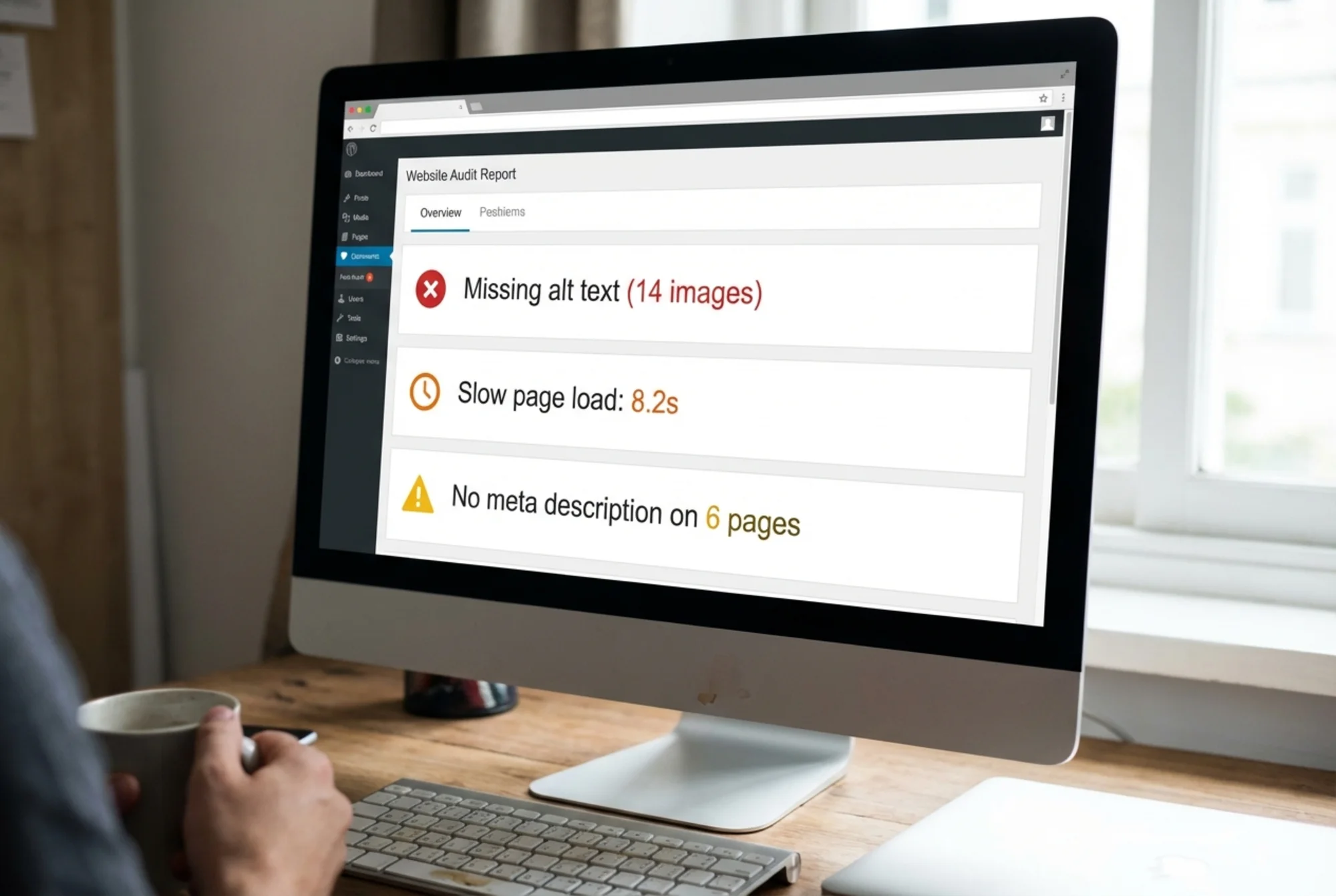
Running a website audit is the easy part. You get a list of problems—slow load times, missing meta descriptions, broken links, no alt text—and then you're staring at that list wondering where to start.
The good news: most of these issues have a direct tool that fixes them, often in under an hour, without touching a line of code.
This guide covers the specific plugins and apps that address the most common audit findings, organized by problem type. Each section ends with a short checklist so you can work through this methodically.

The Six Categories Almost Every Audit Flags
The vast majority of small business website issues cluster around six areas:
- Missing or weak metadata (page titles, meta descriptions)
- Slow page load times (especially on mobile)
- Missing image alt text
- Broken or redirecting links
- No structured data (schema markup)
- Security gaps (mixed content, missing HTTPS)
These aren't exotic problems. They show up on almost every site audit because they're easy to accidentally create and easy to ignore. The tools below address all six and work on the platforms most small businesses use: WordPress, Shopify, Wix, and Squarespace.
Problem 1: Missing or Weak Metadata
Pages without a meta description—or with auto-generated titles like "Home | Home"—give Google and visitors nothing useful to work with. This is the single most common audit finding.
WordPress: Yoast SEO or Rank Math
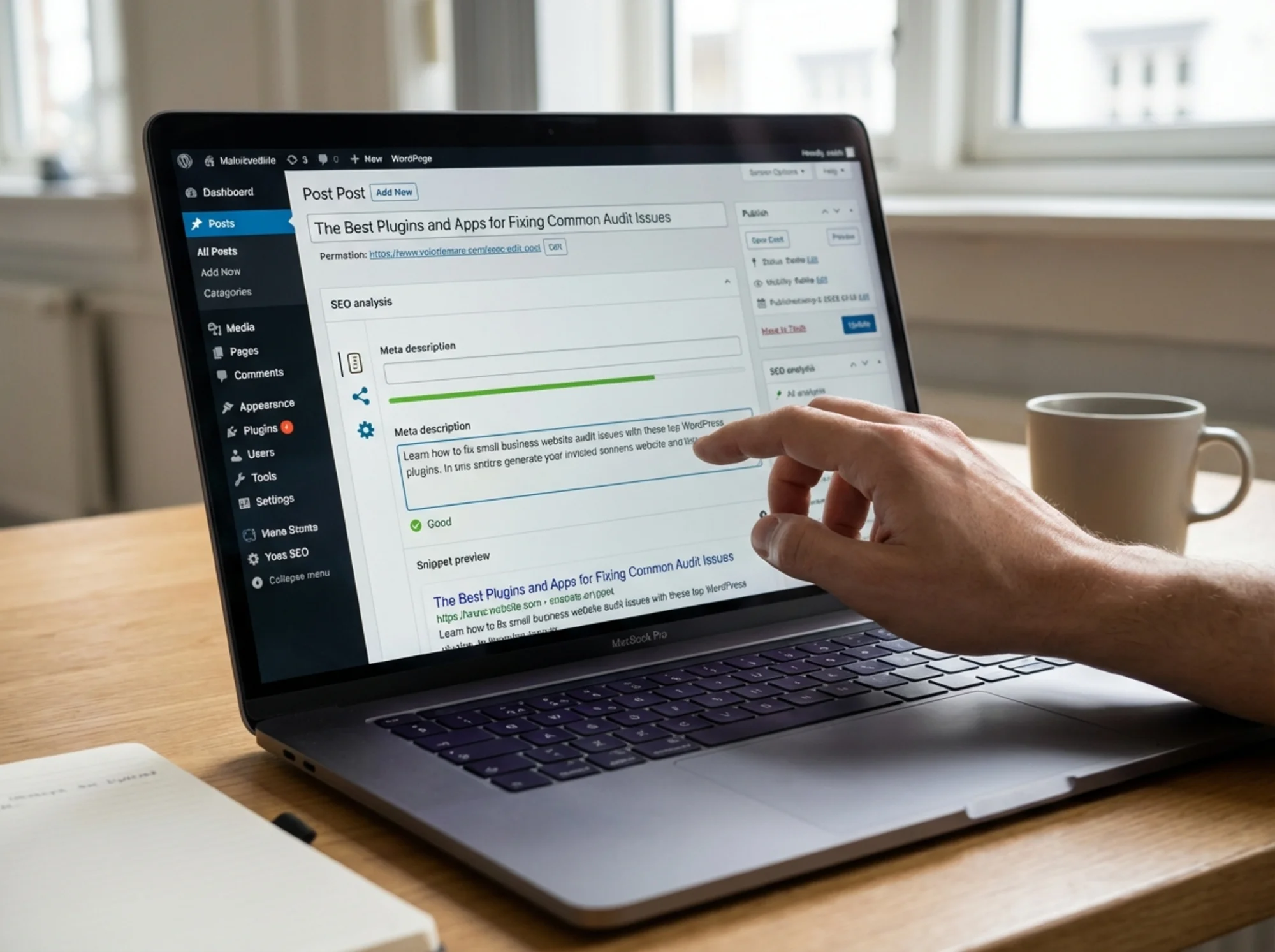
Both plugins add a metadata panel beneath every post and page in the WordPress editor, letting you write a custom title and meta description, preview the search result snippet, and see a simple readability check.
Yoast SEO is the established option with a large support community. The free version handles everything a small business needs: custom titles and descriptions, XML sitemaps, basic schema, and an analysis panel that flags common problems.
Rank Math is newer and gives you more features in the free tier, including structured data templates. If you're starting fresh, it's worth considering. If you're already on Yoast, there's no reason to switch.
Fixing metadata on a WordPress site:
- Install Yoast SEO (or confirm it's already installed).
- Go to Posts → All Posts and sort by "SEO Score"—Yoast adds this column.
- Open each page or post with a red or orange dot.
- Scroll to the Yoast panel. Click the "Google preview" tab.
- Write a title (50–60 characters) and description (120–155 characters) that accurately describe the page.
- Save. The dot turns green when both fields are filled in and within length limits.
Start with your 10 most important pages: homepage, service pages, contact, about. That clears most metadata findings in one session.
Mini-checklist:
- [ ] Yoast SEO or Rank Math installed and active
- [ ] Custom title on every key page (not auto-generated)
- [ ] Meta description on every key page (no duplicates)
- [ ] Pages sorted by SEO score to prioritize red/orange items
Shopify
Shopify has built-in metadata fields on every product, collection, and page. Go to Online Store → Pages (or Products/Collections), scroll down, and look for "Search engine listing preview." Click "Edit website SEO." No plugin needed—just time to fill them in.
Wix and Squarespace
Both platforms have per-page SEO fields built in. In Wix: Pages & Menu → right-click a page → SEO. In Squarespace: open any page's settings and look for the SEO tab. The fields exist; most people haven't used them.
Problem 2: Slow Page Load Times
Page speed affects both rankings and bounce rates. Google's Core Web Vitals—Largest Contentful Paint (LCP), Interaction to Next Paint (INP), and Cumulative Layout Shift (CLS)—are ranking signals. Most small business sites struggle with LCP above 4 seconds on mobile, usually because images are unoptimized or CSS and JavaScript are blocking the initial render.
WordPress: WP Rocket + Smush
WP Rocket ($59/year for one site) handles caching, lazy loading, CSS/JS minification, and database cleanup from a single settings panel. It has a "recommended settings" mode that's safe to enable and correct for most sites—no need to understand what "defer render-blocking resources" means.
If budget is a constraint, LiteSpeed Cache (free) covers the caching essentials, though it requires more configuration.
Smush (free, with a pro tier) compresses images automatically. Install it, run "Bulk Smush" on your media library, and enable lazy loading. That single step fixes a significant portion of slow-load issues on image-heavy sites.
Mini-checklist:
- [ ] WP Rocket or LiteSpeed Cache installed with caching enabled
- [ ] Smush or ShortPixel run on your media library
- [ ] Lazy loading enabled for images
- [ ] PageSpeed Insights score checked before and after (aim for 70+ on mobile)
Shopify
Shopify manages server-side performance, but your theme and installed apps add overhead. Two practical steps:
- TinyIMG ($9/month) compresses product images automatically and suggests alt text.
- Audit your installed apps—every app you've installed but aren't using still loads JavaScript on your storefront. Go to Apps and remove anything unused in the past 30 days.
Wix and Squarespace
Speed on these platforms is largely platform-controlled. The main lever you have is image file size before upload. Export JPEGs at 80% quality and size them to actual display dimensions—rarely more than 1200px wide. Uploading a 4MB photo for a 400px slot is one of the most common self-inflicted speed problems.
Problem 3: Missing Image Alt Text
Alt text describes images to screen readers and search engines. Audit tools flag missing alt text as both an accessibility issue and an SEO issue. On image-heavy sites—restaurants, photographers, retail—this is often the longest list in any report.
WordPress
The fastest fix is the Media Library directly: go to Media → Library, click any image, and add alt text in the right panel. For large libraries, WP Accessibility Helper can scan and highlight missing alt text across your site. Smush Pro also includes an alt text audit feature.
Shopify
Go to each product image, click the three-dot menu, and select "Edit alt text." For bulk updates, the Shopify bulk editor (Admin → Products → select multiple → Edit products) lets you update alt text across rows without opening each product individually.
What to write: Be literal and brief. "Red leather sofa, angled view" is better than "img_4521.jpg" or nothing. Describe what's in the image in plain language—don't keyword-stuff.
Mini-checklist:
- [ ] Audit report filtered to show all images with missing alt text
- [ ] Priority given to images on homepage, product pages, service pages
- [ ] Alt text describes the image content accurately and concisely
- [ ] File names not used as a substitute for alt text
Problem 4: Broken Links
A broken link is a dead end for users and signals to search engines that the site isn't maintained. Internal broken links are fully within your control. External broken links—pointing to other sites that have moved—are common on older sites and blog posts.
WordPress: Broken Link Checker
The Broken Link Checker plugin (free) monitors your site and emails you when a broken link is detected. It also lets you fix or remove broken URLs directly from the plugin dashboard without finding the original post.
One caveat: this plugin can increase server load on large sites. If you have more than a few hundred pages, run it for a week, export the list, then deactivate it.
All Platforms: Google Search Console
Google Search Console (free) is the most authoritative source for broken link data because it shows which pages Google actually encountered 404 errors on, and which pages were linking to them. Go to Coverage → Excluded → Not found (404).
Fix broken internal links by updating the URL in the original content. For external links, update to the current URL or remove the link. For pages you've moved, set up a redirect—in WordPress, the Redirection plugin handles this without touching server config.
Mini-checklist:
- [ ] Broken Link Checker run (WordPress) or GSC 404 report reviewed
- [ ] Internal broken links updated or removed
- [ ] External broken links updated to current URLs or removed
- [ ] Redirects set up for any pages you've moved or deleted
Problem 5: Missing Structured Data (Schema Markup)
Structured data tells search engines specific facts about your business—hours, location, ratings, service types—in a machine-readable format. When it's correct, Google can show rich results like star ratings, FAQ dropdowns, or event details in search listings. When it's missing, you're leaving those features unused.
For most small businesses, the highest-value schema types are: LocalBusiness, Product, FAQ, and Article.
WordPress: Schema Pro or Rank Math
Schema Pro ($79/year) is purpose-built for structured data. Set up your business type once, and it automatically applies the right schema to posts, pages, and products—LocalBusiness, FAQ, HowTo, Article, and more.
Rank Math (free) includes schema support for the most common types and is a practical choice if you're already using it for metadata.
Shopify: JSON-LD for SEO
JSON-LD for SEO adds Product, BreadcrumbList, Organization, and other schema types automatically. It's one of the more complete schema solutions available for Shopify, covering gaps in the platform's native output.
Testing Your Schema
After installing, use Google's Rich Results Test (search for it) to paste your URL and confirm the schema is valid. Fix any errors flagged—usually a missing required field like phone number or address.
Mini-checklist:
- [ ] Schema plugin installed and business type configured
- [ ] LocalBusiness schema includes name, address, phone, and hours
- [ ] FAQ schema added to any page with a FAQ section
- [ ] Rich Results Test run on homepage and key pages with no errors
Problem 6: Security and HTTPS Issues
Mixed content warnings—where a page is served over HTTPS but some images or scripts load over HTTP—are common on older sites or after platform migrations. Browsers block mixed content or show "Not Secure," which undermines trust immediately.
WordPress: Really Simple SSL
Really Simple SSL (free) detects mixed content automatically and fixes most cases with a single toggle. After activating, it forces HTTPS across your entire site and patches common mixed-content sources. The free tier resolves the majority of findings.
If you're still on HTTP entirely—no SSL certificate—this is handled at the hosting level, not through a plugin. Most hosts (Bluehost, SiteGround, WP Engine) offer free Let's Encrypt SSL in their control panel. Enable it there first, then install Really Simple SSL.
Mini-checklist:
- [ ] SSL certificate active (check for padlock in browser)
- [ ] Really Simple SSL installed and HTTPS forced (WordPress)
- [ ] Mixed content errors cleared (check browser console on key pages)
- [ ] HTTP URLs in content or settings updated to HTTPS
A Realistic One-Week Fix Plan
Days 1–2: Metadata and broken links
Install Yoast or Rank Math, fill in titles and descriptions for your 10 most important pages, and run the broken link checker. These are the fastest wins and require no technical knowledge.
Days 3–4: Images
Install Smush and bulk-compress your media library. Work through missing alt text for images on your homepage, service pages, and top blog posts.
Day 5: Speed
Enable caching, turn on lazy loading, and run PageSpeed Insights to confirm improvement. For Shopify, audit and remove unused apps.
Days 6–7: Schema and security
Configure your LocalBusiness schema. Enable Really Simple SSL if mixed content warnings appear. Run the Rich Results Test to confirm no errors.
That's a week of part-time work to resolve most of what a standard audit surfaces.

What Tools Won't Fix
Plugins handle the technical layer. They won't fix thin content, confusing navigation, or a homepage that doesn't explain what you do. If your audit flags "low word count on key pages" or "pages with no internal links," that's a content and structure problem that requires editing, not installing something.
Similarly, tools apply schema but can't invent information your site doesn't have. If your LocalBusiness schema is missing hours because you haven't published your hours anywhere on the site, fix the underlying gap first.
Start With a Clear Picture of What's Wrong
Before installing anything, you need an audit that tells you which of these categories are affecting your site and how severely. Different sites have different mixes of problems—a new Shopify store might have perfect HTTPS and terrible metadata; an older WordPress blog might have solid content but years of broken links and no schema.
Run a free audit on your site at FreeSiteAudit to get a prioritized list of exactly what's affecting your site right now. The report identifies issues by category and severity so you can work through this guide in order of impact, not guesswork.
Sources
- Google Search Central — Creating helpful, reliable, people-first content: https://developers.google.com/search/docs/fundamentals/creating-helpful-content
- Google Search Central — Structured data for articles: https://developers.google.com/search/docs/appearance/structured-data/article
- web.dev — Core Web Vitals: https://web.dev/articles/vitals
Check your website for free
Get an instant score and your top 3 critical issues in under 60 seconds.
Get Your Free Audit →