Too Many Third-Party Scripts? Here's What to Cut
Learn how to audit and remove third-party scripts slowing your site. Includes a keep-or-cut framework, real cleanup walkthrough, and Core Web Vitals fixes.
# Too Many Third-Party Scripts? Here's What to Cut
Every time you add a chat widget, analytics tracker, social media pixel, or marketing tool to your website, you're loading someone else's code. That code runs on your visitors' browsers, competes for bandwidth, and can slow your site to a crawl.
Most small business websites have between 5 and 30 third-party scripts running on every page load. Many site owners don't even know they're there. Each one adds weight, delays rendering, and can hurt your search rankings.
This guide will help you figure out which scripts are earning their keep — and which ones need to go.
What Counts as a Third-Party Script?
A third-party script is any JavaScript file loaded from a domain you don't control. If your site is mybusiness.com and you're loading code from analytics.google.com, cdn.jsdelivr.net, or widget.intercom.io, those are all third-party scripts.
Common examples include:
- Analytics: Google Analytics, Hotjar, Mixpanel, Plausible
- Chat widgets: Intercom, Drift, Tawk.to, LiveChat
- Marketing pixels: Facebook Pixel, Google Ads tag, LinkedIn Insight Tag, TikTok Pixel
- Social embeds: Twitter/X feeds, Instagram galleries, YouTube players
- A/B testing: Optimizely, VWO
- Tag managers: Google Tag Manager, Segment
- Fonts: Google Fonts, Adobe Fonts
- Reviews and trust badges: Trustpilot, Yotpo, McAfee Secure
- Customer support: Zendesk, Help Scout widgets
- Consent management: CookieBot, OneTrust, Termly
Each one loads its own JavaScript, CSS, and sometimes images and fonts. Some load additional scripts of their own — a single marketing pixel can trigger a chain of five or six more requests.
Why Too Many Scripts Hurt Your Site
They slow down page loads
Google measures website performance using Core Web Vitals — three metrics that directly influence your search rankings:
- Largest Contentful Paint (LCP): How fast your main content appears. Target: under 2.5 seconds.
- Interaction to Next Paint (INP): How quickly your site responds to clicks or taps. Target: under 200 milliseconds.
- Cumulative Layout Shift (CLS): How much your page jumps around during loading. Target: below 0.1.
Third-party scripts can damage all three. A heavy chat widget can block your main content from rendering (bad LCP). A tracking script running expensive JavaScript can freeze the page when someone taps a button (bad INP). A late-loading ad or social embed can push content down after it's already appeared (bad CLS).
They compete for bandwidth
Your visitor's browser can only download so many files at once. Every third-party script in the queue pushes your actual content — images, text, product information — further back in line. On mobile connections, this effect is amplified.
They create security and privacy risks
Every third-party script has full access to your page. It can read form inputs, track mouse movements, and inject content. If a third-party provider gets compromised, your visitors are exposed. And loading tracking scripts without proper consent can create GDPR or CCPA compliance issues.
They hurt your search rankings
Google's ranking systems reward sites that offer a good page experience. Slow, janky pages don't just frustrate visitors — they get pushed down in search results.

How to Find What's Running on Your Site
Before you can cut scripts, you need to see what's actually loading.
Method 1: Browser DevTools
- Open your website in Chrome
- Press
F12or right-click and select "Inspect" - Click the Network tab
- Reload the page
- Click the JS filter to show only JavaScript files
- Check the Domain column — anything that isn't your domain is third-party
Sort by Size or Time to find the heaviest and slowest scripts.
Method 2: Google PageSpeed Insights
Enter your URL at PageSpeed Insights and scroll to the Diagnostics section. Look for:
- "Reduce the impact of third-party code"
- "Eliminate render-blocking resources"
- "Reduce JavaScript execution time"
These diagnostics list specific scripts and how much time they add to your page load.
Method 3: Run a FreeSiteAudit scan
Run a free website audit to get a breakdown of your site's performance, including which third-party scripts are slowing things down and what to fix first.
Quick audit checklist
Document what you find:
- [ ] List every third-party domain loading on your site
- [ ] Note the file size of each script
- [ ] Record how long each takes to load
- [ ] Identify which scripts load other scripts (chain loading)
- [ ] Flag any scripts you don't recognize
- [ ] Check if each script loads on every page or just specific ones
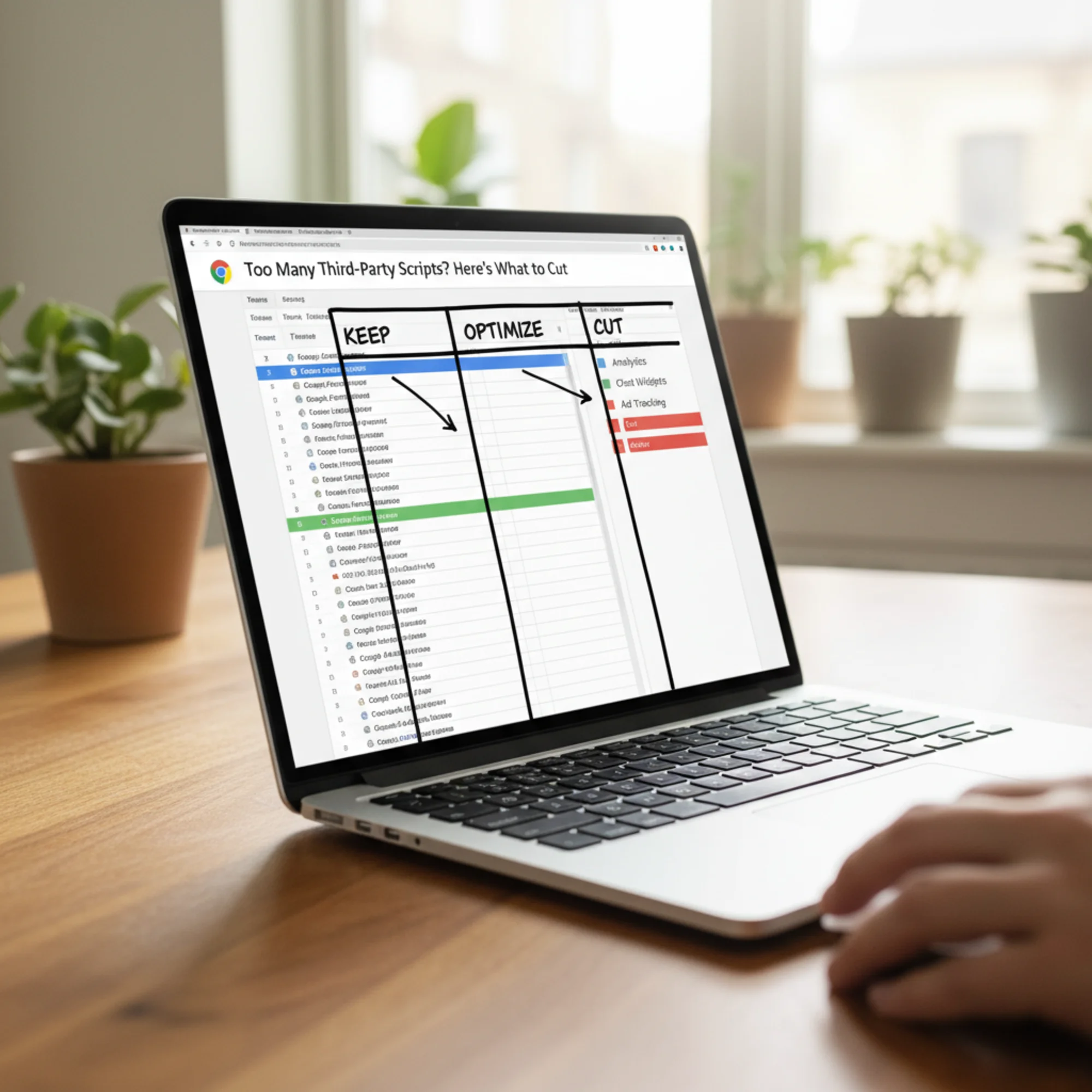
The Decision Framework: Keep, Optimize, or Cut
Not every script needs to go. The goal is to keep scripts that provide clear value and remove or optimize the rest. For each script, ask three questions:
1. Does this script directly support revenue or a core business function?
Payment processing, essential analytics, and your booking system? Keep those. A social share counter showing 3 shares last month? Cut it.
2. When did someone last use data from this tool?
If you installed Hotjar two years ago and haven't watched a session recording since, remove it. If nobody checks your live chat outside business hours but the widget loads 24/7, that's a problem.
3. Is there a lighter alternative or a better way to load it?
Some tools offer lighter embed options. Some can be replaced with simpler alternatives. Many can be loaded more efficiently without changing their functionality.
Here's how to categorize common scripts:
| Script Type | Usually Keep | Usually Optimize | Usually Cut |
|---|---|---|---|
| Core analytics (GA4) | ✓ | ||
| Chat widget | Load on demand | If rarely used | |
| Facebook Pixel | If running ads | If not running ads | |
| Google Fonts | Self-host instead | ||
| A/B testing tool | If not actively testing | ||
| Hotjar / session replay | If not actively reviewing | ||
| Social media embeds | Lazy-load or screenshot | ||
| Trust badges | Replace with static image | ||
| Multiple analytics tools | Keep one | Cut duplicates | |
| Old marketing pixels | If campaign ended |
Walkthrough: Cleaning Up a Typical Small Business Site
Sarah runs a local bakery with an online ordering site. Her homepage loads 22 third-party scripts:
- Google Analytics (GA4) — 45 KB
- Google Tag Manager — 80 KB (loading 4 additional tags)
- Facebook Pixel — 60 KB (hasn't run Facebook ads in 8 months)
- Hotjar — 95 KB (set it up once, never checked it)
- Intercom chat — 210 KB (answers maybe one chat per week)
- Google Fonts (3 font families) — 120 KB
- Instagram embed widget — 150 KB (showing her bakery's feed)
- Trustpilot widget — 85 KB
- Old Mailchimp popup script — 70 KB (popup was disabled months ago)
- jQuery from a CDN — 90 KB (her theme already bundles it)
Total third-party weight: over 1 MB of JavaScript alone. Her site took 6.8 seconds to load on mobile.
Step 1: Remove dead scripts (saved ~255 KB)
- Removed Facebook Pixel — not running ads, no plan to resume. Can re-add in five minutes if she starts a campaign.
- Removed Hotjar — never used the data. Can reinstall for a focused two-week study if needed later.
- Removed old Mailchimp popup script — the popup itself was disabled, but the JavaScript still loaded on every page.
Step 2: Eliminate duplicates (saved ~90 KB)
- Removed CDN jQuery — her WordPress theme already includes jQuery. Two copies were loading and potentially conflicting.
Step 3: Optimize what she kept (saved ~300 KB)
- Self-hosted Google Fonts — downloaded the two font families she actually uses (dropped the third, which appeared on zero pages) and served them from her own domain. Eliminated the DNS lookup to
fonts.googleapis.com. - Replaced Instagram embed with static images — displays curated bakery photos as regular images with a link to her Instagram profile. Same visual effect, fraction of the weight.
- Replaced Trustpilot widget with a static quote — pulled her best review and displayed it as styled HTML with a link to her Trustpilot page. No external script needed.
Step 4: Defer what remained (saved ~200 KB effective)
- Loaded Intercom only on Contact and Order Status pages — customers don't need live chat on the homepage. Configured it to load on two pages instead of every page.
- Streamlined Google Tag Manager — removed unused triggers and tags inside GTM that were loading scripts she'd already eliminated. Cut GTM's downstream requests from 4 to 1.
The result
| Metric | Before | After |
|---|---|---|
| Third-party scripts | 22 | 8 |
| JavaScript payload | ~1 MB | ~350 KB |
| Mobile load time | 6.8s | 2.9s |
| LCP | 4.1s | 1.8s |
| CLS | 0.18 | 0.03 |
Her site now loads in under 3 seconds on mobile. Her ranking for "custom cakes [her city]" moved from page 2 to the top 5 within six weeks. Online orders increased because customers stopped abandoning a slow checkout page.
Optimization Techniques for Scripts You Keep
For scripts that earned their place, load them smarter.
Use `async` or `defer` attributes
html
Use defer for scripts that don't need to run immediately. Use async for independent scripts like analytics. For a deeper look at how render-blocking resources affect load times, see our CSS optimization guide.
Lazy-load non-critical widgets
Don't load a chat widget until someone scrolls down the page or clicks a "Chat with us" button. Most chat providers document how to do delayed initialization.
Self-host when possible
Fonts, icon libraries, and some analytics scripts can be self-hosted. This eliminates the DNS lookup and connection to a third-party server, which alone can save 100–300ms. Pair this with proper image optimization for even bigger gains.
Audit your tag manager regularly
Google Tag Manager is powerful but dangerous. Every tag you add inside GTM is another script loading on your page — just hidden from view in the source code. Audit your GTM container regularly, remove unused tags, and set triggers so tags only fire on pages where they're needed.
Implement resource hints
html
This gives the browser a head start on establishing connections, reducing delay when scripts actually load.
Your Cleanup Checklist
Work through this after running your audit:
- [ ] Remove scripts tied to tools you no longer use
- [ ] Remove scripts tied to campaigns that have ended
- [ ] Remove duplicate libraries (multiple jQuery copies, multiple analytics tools)
- [ ] Replace heavy social embeds with static content plus links
- [ ] Replace badge/widget scripts with static images where possible
- [ ] Self-host Google Fonts and any other self-hostable resources
- [ ] Add
asyncordeferto remaining script tags - [ ] Limit chat widgets to pages where they're needed
- [ ] Audit your tag manager and remove unused tags
- [ ] Re-test your site speed after changes
- [ ] Schedule a quarterly review to catch script creep
Prevent Script Creep Going Forward
Cleaning up once isn't enough. Scripts accumulate because adding them is easy and removing them requires someone to remember they exist.
Before adding any new script, answer these questions:
- What specific business outcome does this support?
- How will we measure whether it's working?
- When will we review whether to keep it? (Set a calendar reminder.)
- Can we load it only on specific pages instead of site-wide?
Every quarter, spend 15 minutes reviewing your third-party scripts. Check which tools you're actually using. Remove anything dormant. This single habit will keep your site fast.

Start With a Free Audit
Not sure how many third-party scripts are running on your site right now? Most site owners are surprised by the number.
Run a free audit with FreeSiteAudit to get a full breakdown of your site's performance, including which scripts are slowing you down, how they affect your Core Web Vitals, and what to fix first. No signup required, results in under a minute.
Sources
Check your website for free
Get an instant score and your top 3 critical issues in under 60 seconds.
Get Your Free Audit →