# Webflow SEO Audit: Common Issues and Easy Wins
Webflow produces clean HTML, handles hosting, and gives non-developers real design control. But clean code does not automatically mean good SEO. Webflow sites have a predictable set of SEO problems — most of them invisible in the designer, most of them fixable in under an hour if you know where to look.
This guide covers the most common issues, how to spot them, and what to do.
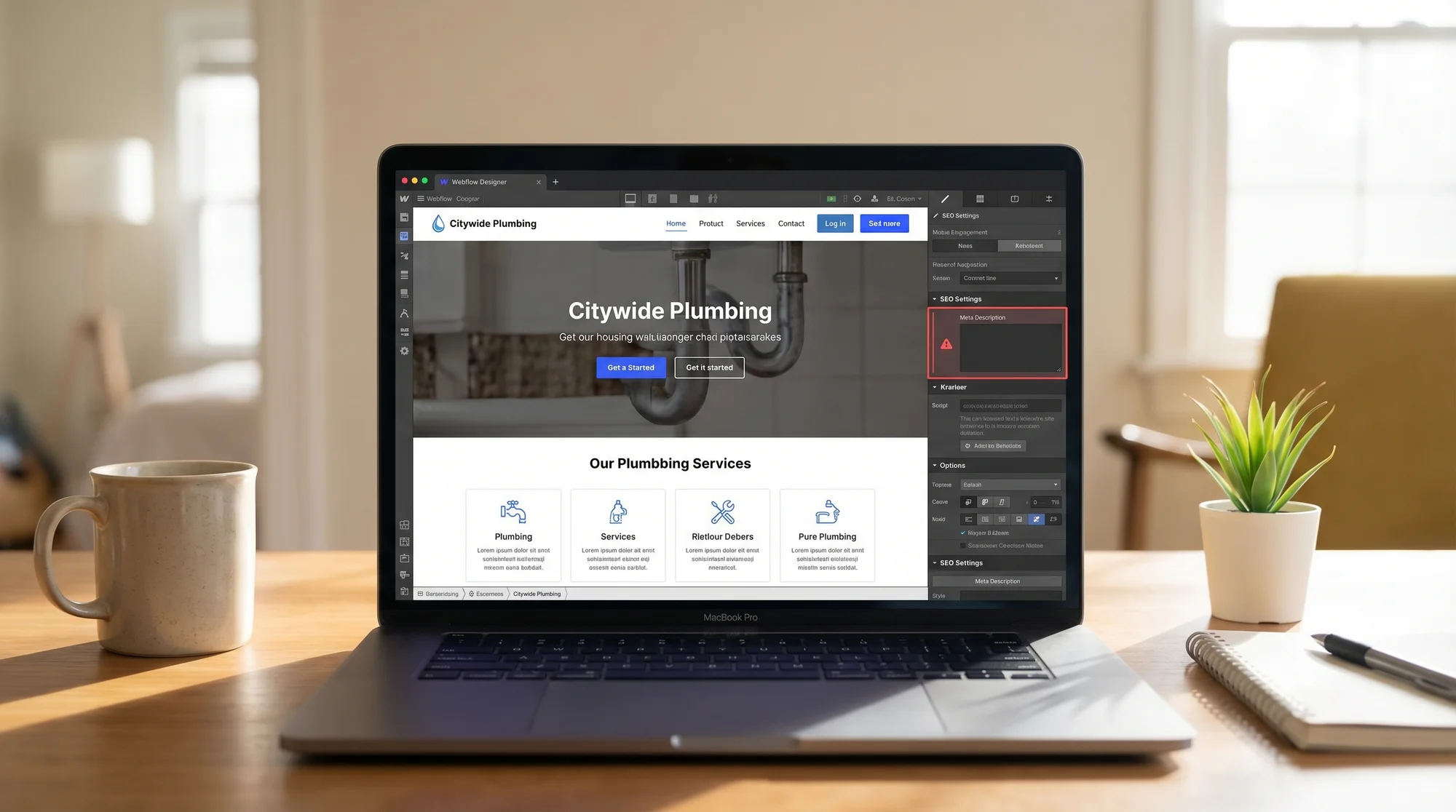
A Webflow Designer canvas open on a laptop showing a local plumbing business homepage, with the SEO settings panel visible on the right side and a red warning badge on the meta description field Why Webflow Sites Often Have SEO Gaps Webflow abstracts away the technical side of building a site. Some of that abstraction means SEO settings are buried in menus that new users never open. The problems are not Webflow-specific — they are default behaviors that require intentional configuration.
The good news: most Webflow SEO issues do not require a developer. They require opening the right panel and making deliberate choices.
The 7 Most Common Webflow SEO Problems 1. Missing or Weak Meta Titles and Descriptions Every page in Webflow has a separate SEO settings panel (page icon in the left sidebar → SEO Settings). The platform does not force you to fill these in. If you skip them, Webflow pulls the page name as the title and leaves the description blank.
Blank meta descriptions give Google license to auto-generate one — often pulling awkward text from wherever it finds it on the page.
What to check:
Open each page's SEO settings. Is the title under 60 characters and descriptive? Does the meta description summarize the page in 140–155 characters? Are you using the page name verbatim as the title? (e.g., "Home" instead of "Denver Plumbing Services | FastFlow Plumbing") Quick win: Update your five most-trafficked pages with specific, keyword-informed titles and written meta descriptions. Write it the way you would explain the page to a customer on the phone — no keyword stuffing.
2. Duplicate CMS Collection Pages This is the most common serious issue on Webflow sites that use the CMS for services, locations, blog posts, or team members.
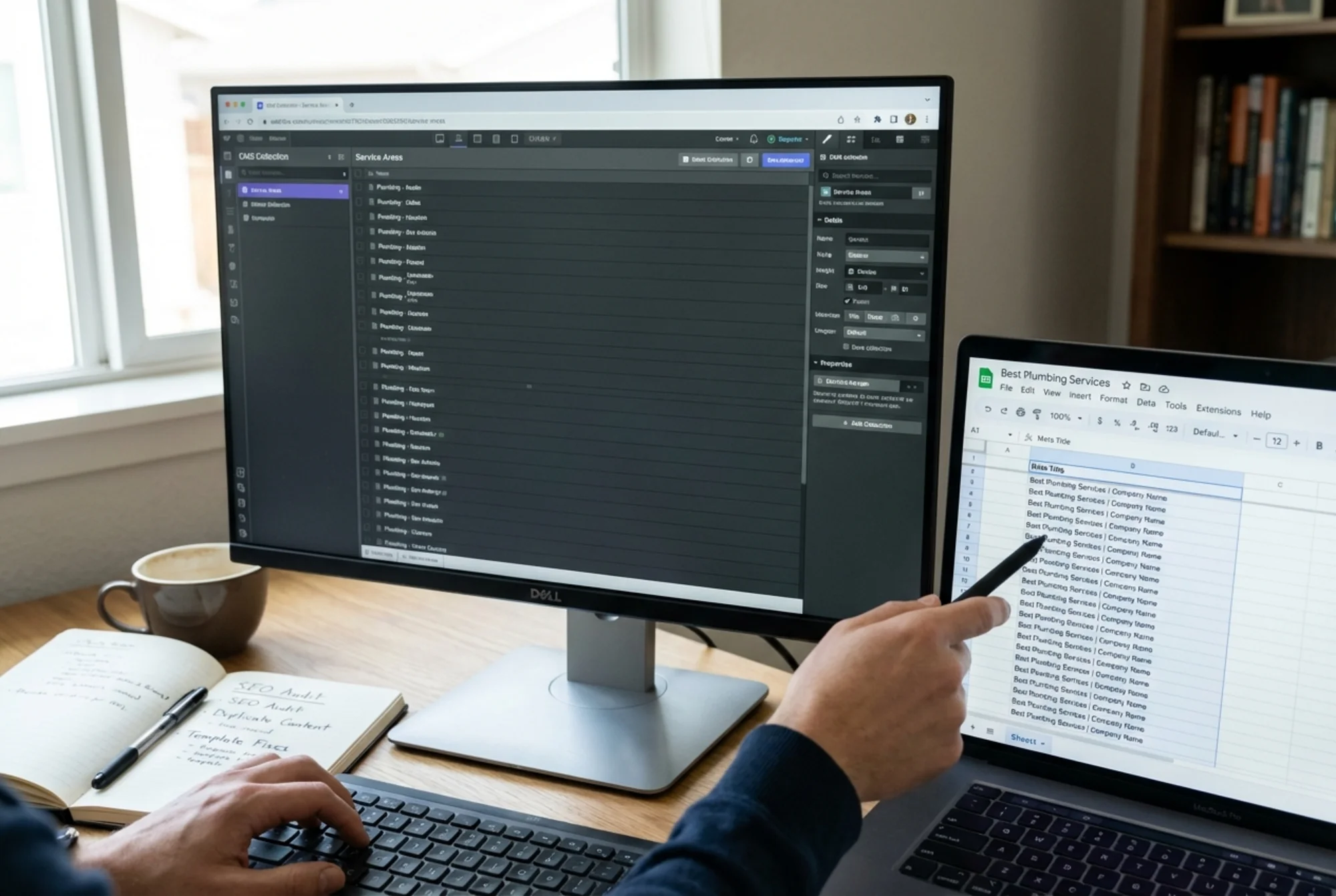
When you build a CMS collection, every item uses the same template. If that template generates the same meta title pattern — say, [City Name] - Services — and you have 30 city pages, you have 30 pages competing with each other for the same search intent. Google can only rank one. Usually it picks wrong.
A Webflow CMS collection showing 40+ service-area pages with identical meta titles listed in a spreadsheet beside it, illustrating the duplicate content problem created by template-driven publishing The scenario: A residential cleaning company built a Webflow CMS "Service Areas" collection with 45 city pages. Every page used the template title [City] House Cleaning and had an empty meta description. Google indexed 12 of them, flagged all as low-quality in Search Console, and ranked none above page 3.
After the fix — unique titles using CMS fields, custom descriptions per page, canonical tags added — organic traffic from city-specific searches increased measurably within three months.
What to check:
Are CMS collection templates using dynamic fields for titles and descriptions, or are they all identical? Run site:yourdomain.com [collection slug] on Google. Do multiple pages appear with nearly identical titles? Quick win: In your CMS collection template, use dynamic fields to construct unique titles. For example: [City] + " " + [Service Type] + " | " + [Business Name]. Add a required CMS field for meta description and fill it out per item.
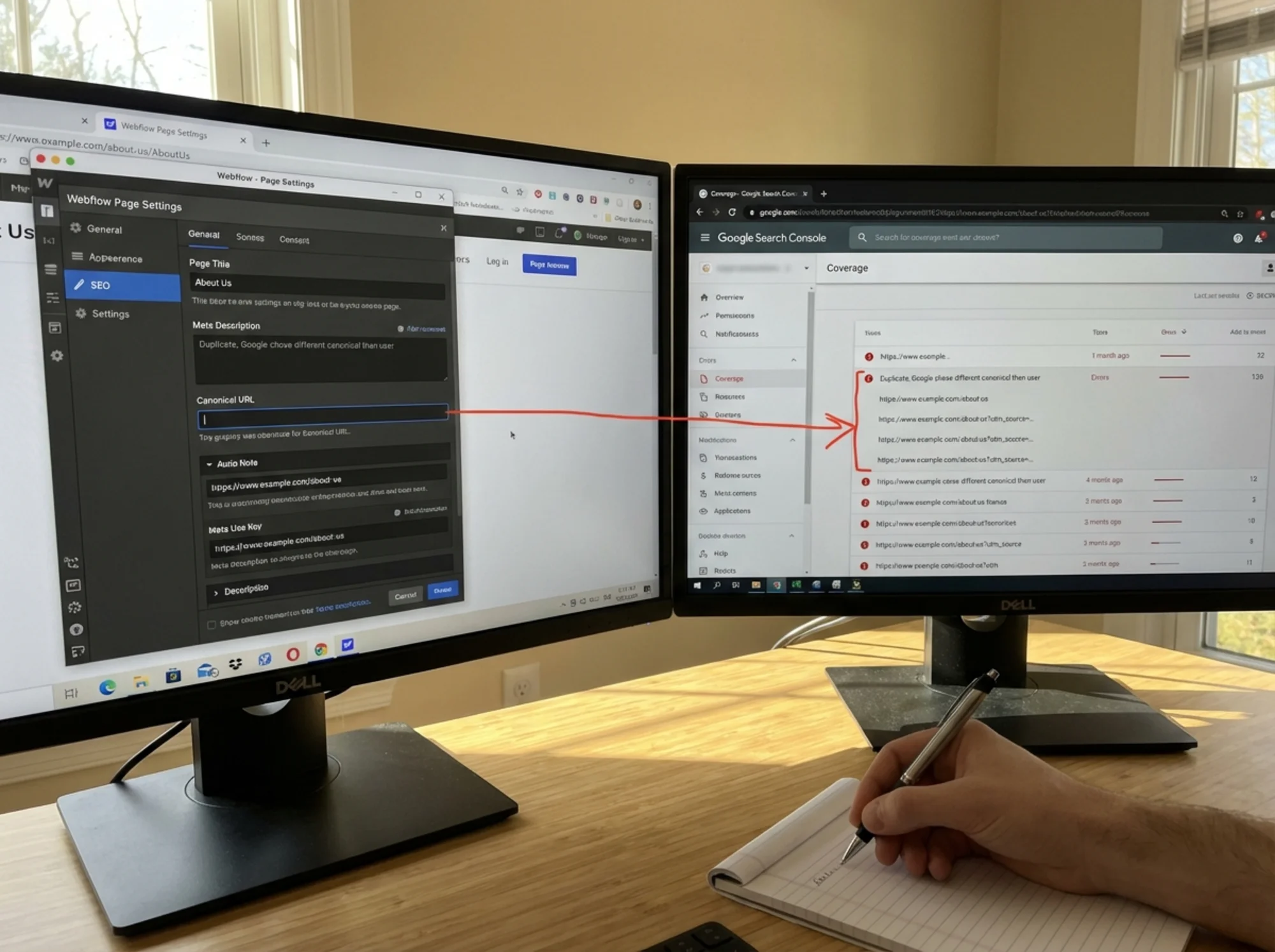
3. Missing Canonical Tags (or Wrong Ones) Canonical tags tell search engines which version of a page is the authoritative one. Webflow adds self-referencing canonicals on static pages by default — that is correct. But CMS collection pages, paginated lists, and pages with URL parameters can produce canonical problems.
Common situations:
A blog post appears under both /blog/post-name and /category/post-name with no canonical pointing to the preferred URL Webflow's search or filter features generate ?query= parameter URLs that get indexed A staging subdomain was left indexable and now duplicates production What to check:
View source on a few CMS pages and search for Check Google Search Console → Coverage → Duplicate URLs for canonical confusion Quick win: In Webflow's Page Settings for CMS templates, confirm the canonical points to the correct slug. If you have a staging site, set noindex in Webflow's robots.txt settings before launch — not after.
4. Images Without Alt Text Webflow makes it easy to add images and does not require alt text. Alt text describes images to screen readers and gives search engines textual context around visual content — useful for image search and reinforcing page relevance.
What to check:
Click each image in the Webflow Designer → the settings panel shows an "Alt Text" field For CMS images, check whether the alt text field is bound to a CMS field or left blank Quick win: Start with hero images, product images, and any image containing text. Write alt text that describes what is shown: "Three-person team reviewing audit results on a whiteboard" is useful. "SEO audit website small business best tool" is not.
5. Slow Page Speed (Especially Images) Google's Core Web Vitals — Largest Contentful Paint (LCP), Cumulative Layout Shift (CLS), and Interaction to Next Paint (INP) — directly affect how Google assesses page experience. Webflow does not optimize these automatically.
The most common culprit: images. Webflow will serve a 4MB PNG hero at full resolution if you upload one. Third-party scripts (chat widgets, GA4, HubSpot) also inflate Time to First Byte and block rendering.
What to check:
Run homepage and top landing pages through PageSpeed Insights LCP above 2.5 seconds typically points to an unoptimized hero image Layout shift is usually caused by images without explicit width/height attributes or font swaps Quick win: Compress every image before uploading. Use WebP format. Set explicit dimensions on images in Webflow. Load non-essential third-party scripts with defer or async attributes via Webflow's custom code settings.
6. No Structured Data Structured data (schema markup) is JSON-LD code that helps Google understand what your content represents — a local business, an article, a product, a FAQ. Webflow does not add structured data automatically.
Google uses structured data to enable rich results: star ratings, FAQ dropdowns, article bylines. These do not boost rankings directly but improve click-through rates.
What to check:
Paste your URL into Google's Rich Results Test For most Webflow sites, nothing comes back Quick win: Add LocalBusiness schema to your homepage and Article schema to blog posts via Webflow's custom code embed in the
Example LocalBusiness schema for a homepage:
7. Indexing Problems (robots.txt, noindex, sitemap) Webflow generates a sitemap at /sitemap.xml and a robots.txt automatically. Both are configurable in Webflow's SEO settings.
Common problems:
Thank-you pages, login redirects, and utility pages are indexed The sitemap was never submitted to Google Search Console Password-protected Webflow pages are indexed — Webflow's password protection does not automatically add noindex A noindex from development was never removed from production What to check:
Visit yourdomain.com/robots.txt — is there a Disallow on any crawlable folder? Visit yourdomain.com/sitemap.xml — are all important pages present? Any pages you do not want indexed? In Webflow's Page Settings, check the "Exclude from Search Results" toggle per page Quick win: Submit your sitemap to Google Search Console (Property → Sitemaps → Add sitemap URL). Review indexed pages in the Coverage report and add noindex to any utility pages via Webflow's per-page SEO settings.
A side-by-side view of Webflow's Page Settings SEO tab on the left and Google Search Console's Coverage report on the right, with arrows connecting missing canonical tags to indexed duplicate URLs A Practical Walkthrough: Auditing a Webflow Site in 45 Minutes Step 1 — Start with Search Console (10 min)
If the site is not connected to Google Search Console, set that up first. Check: Coverage errors, duplicate pages, manual actions, and average position for your top 10 queries.
Step 2 — Audit your five most important pages (15 min)
For each: open Webflow Designer → Page Settings → SEO tab. Confirm title, description, and canonical are filled in accurately. View page source and search for </code> and <code class="bg-surface-panel px-1.5 py-0.5 rounded text-sm text-accent-strong"><meta name="description"</code> to verify values are publishing correctly.</p><p class="text-text-secondary leading-relaxed my-4"><strong class="text-text-primary">Step 3 — Check CMS templates (10 min)</strong></p><p class="text-text-secondary leading-relaxed my-4">Open each collection template. Confirm title and description fields use CMS-bound dynamic content, not static text. Check that the slug structure is keyword-relevant (e.g., <code class="bg-surface-panel px-1.5 py-0.5 rounded text-sm text-accent-strong">/blog/[slug]</code> not <code class="bg-surface-panel px-1.5 py-0.5 rounded text-sm text-accent-strong">/cms-collection-items/[auto-id]</code>).</p><p class="text-text-secondary leading-relaxed my-4"><strong class="text-text-primary">Step 4 — Run PageSpeed on homepage and top landing page (5 min)</strong></p><p class="text-text-secondary leading-relaxed my-4">Note any LCP issues. Flag images over 200KB for recompression.</p><p class="text-text-secondary leading-relaxed my-4"><strong class="text-text-primary">Step 5 — Check indexation (5 min)</strong></p><p class="text-text-secondary leading-relaxed my-4">Search <code class="bg-surface-panel px-1.5 py-0.5 rounded text-sm text-accent-strong">site:yourdomain.com</code> on Google. Are pages showing up that should not — thank-you pages, old redirects, test pages? Compare the count to your sitemap.</p><hr class="my-8 border-border"/><h2 class="text-2xl font-bold text-text-primary mt-10 mb-4">Webflow SEO Audit Checklist</h2><p class="text-text-secondary leading-relaxed my-4"><strong class="text-text-primary">Meta and Content</strong></p><ul class="list-disc pl-5 space-y-1.5 my-4 text-text-secondary"><li>[ ] Every page has a unique, descriptive title under 60 characters</li><li>[ ] Every page has a written meta description (140–155 characters)</li><li>[ ] CMS collection templates use dynamic fields for titles and descriptions</li><li>[ ] H1 tags exist on every page and match the primary topic</li></ul><p class="text-text-secondary leading-relaxed my-4"><strong class="text-text-primary">Technical</strong></p><ul class="list-disc pl-5 space-y-1.5 my-4 text-text-secondary"><li>[ ] robots.txt is not blocking important pages</li><li>[ ] Sitemap is submitted to Google Search Console</li><li>[ ] Canonical tags are present and point to the correct URL</li><li>[ ] Utility and thank-you pages have noindex set</li><li>[ ] No development noindex carried over to production</li></ul><p class="text-text-secondary leading-relaxed my-4"><strong class="text-text-primary">Performance</strong></p><ul class="list-disc pl-5 space-y-1.5 my-4 text-text-secondary"><li>[ ] Hero and above-fold images are under 200KB</li><li>[ ] PageSpeed Insights LCP is under 2.5 seconds</li><li>[ ] Third-party scripts use defer/async where possible</li></ul><p class="text-text-secondary leading-relaxed my-4"><strong class="text-text-primary">Structured Data</strong></p><ul class="list-disc pl-5 space-y-1.5 my-4 text-text-secondary"><li>[ ] LocalBusiness schema on homepage (if applicable)</li><li>[ ] Article schema on blog posts</li><li>[ ] Tested with Google's Rich Results Test</li></ul><p class="text-text-secondary leading-relaxed my-4"><strong class="text-text-primary">Images</strong></p><ul class="list-disc pl-5 space-y-1.5 my-4 text-text-secondary"><li>[ ] All images have descriptive alt text</li><li>[ ] CMS image fields are wired to alt text fields</li></ul><hr class="my-8 border-border"/><h2 class="text-2xl font-bold text-text-primary mt-10 mb-4">What Comes After the Audit</h2><p class="text-text-secondary leading-relaxed my-4">Fixing these issues is not a one-time event. Webflow sites grow — new CMS items get published, new pages get built, scripts get dropped in. The same problems resurface.</p><p class="text-text-secondary leading-relaxed my-4">A quick audit every quarter catches issues before they compound. After the structural work (meta tags, canonicals, schema), focus shifts to content quality — which is where most sustainable organic growth comes from.</p><p class="text-text-secondary leading-relaxed my-4">Google's helpful content guidance is direct: content written for people, covering a topic thoroughly, and demonstrating real expertise outperforms content written to match keyword patterns. A Webflow site with clean SEO structure and genuinely useful content is in a strong position.</p><figure class="my-8"><img src="/blog-images/blog-webflow-seo-audit-common-issues-and-easy-wins-4-a-google-search-console-performance-report-showing-a-clear-u.webp" alt="A Google Search Console Performance report showing a clear upward trend in organic clicks over 90 days, displayed on a monitor next to an open Webflow CMS dashboard showing recently published and updated collection pages" class="w-full rounded-lg border border-border" loading="lazy"/><figcaption class="text-sm text-text-muted italic mt-2 text-center">A Google Search Console Performance report showing a clear upward trend in organic clicks over 90 days, displayed on a monitor next to an open Webflow CMS dashboard showing recently published and updated collection pages</figcaption></figure><hr class="my-8 border-border"/><h2 class="text-2xl font-bold text-text-primary mt-10 mb-4">Run a Free Audit on Your Webflow Site</h2><p class="text-text-secondary leading-relaxed my-4">Not sure where your site stands? FreeSiteAudit scans your site and surfaces the specific issues covered in this guide — missing meta tags, image problems, speed issues, and more — in a plain-English report you can act on the same day.</p><p class="text-text-secondary leading-relaxed my-4">No account required. No credit card. Takes about 60 seconds.</p><p class="text-text-secondary leading-relaxed my-4"><strong class="text-text-primary"><a href="/tools/free-site-audit" class="text-accent hover:text-accent-strong underline">Run your free site audit →</a></strong></p><hr class="my-8 border-border"/><h2 class="text-2xl font-bold text-text-primary mt-10 mb-4">Sources</h2><ul class="list-disc pl-5 space-y-1.5 my-4 text-text-secondary"><li>Google Search Central: Creating helpful, reliable, people-first content — https://developers.google.com/search/docs/fundamentals/creating-helpful-content</li><li>Google Search Central: Article structured data — https://developers.google.com/search/docs/appearance/structured-data/article</li><li>web.dev: Core Web Vitals — https://web.dev/articles/vitals</li></ul></div><div class="mt-12"></div><div class="mt-6 bg-gradient-to-r from-accent-subtle to-accent-subtle/50 border border-accent-border rounded-xl p-8 text-center"><h2 class="text-2xl font-bold mb-2">Check your website for free</h2><p class="text-text-muted mb-6">Get an instant score and your top 3 critical issues in under 60 seconds.</p><a class="inline-block bg-accent hover:bg-accent-strong text-text-inverse font-semibold px-10 py-3.5 rounded-lg transition-colors" href="/#free-audit">Get Your Free Audit →</a></div></article><footer class="border-t border-border mt-auto"><nav aria-label="Footer navigation" class="max-w-6xl mx-auto px-4 py-8 sm:py-12"><div class="grid grid-cols-2 md:grid-cols-3 gap-8 lg:flex lg:flex-row lg:flex-wrap lg:justify-between lg:gap-x-6"><div class="col-span-2 md:col-span-1 lg:max-w-[14rem]"><a class="text-lg font-bold tracking-tight" href="/"><span class="text-accent">Free</span>SiteAudit</a><p class="text-text-muted text-sm mt-3 leading-relaxed">Website audits for business owners and agencies. Find issues, fix them, grow.</p></div><div><h4 class="text-sm font-semibold text-text-secondary mb-3 lg:whitespace-nowrap">Solutions</h4><ul class="space-y-2"><li><a class="text-sm text-text-muted hover:text-text-secondary transition-colors lg:whitespace-nowrap" href="/#free-audit">Free Website Audit</a></li><li><a class="text-sm text-text-muted hover:text-text-secondary transition-colors lg:whitespace-nowrap" href="/agencies">For Agencies</a></li><li><a class="text-sm text-text-muted hover:text-text-secondary transition-colors lg:whitespace-nowrap" href="/pricing">Pricing</a></li><li><a class="text-sm text-text-muted hover:text-text-secondary transition-colors lg:whitespace-nowrap" href="/demo">Demo Report</a></li><li><a class="text-sm text-text-muted hover:text-text-secondary transition-colors lg:whitespace-nowrap" href="/dashboard">Dashboard</a></li></ul></div><div><h4 class="text-sm font-semibold text-text-secondary mb-3 lg:whitespace-nowrap">Industries</h4><ul class="space-y-2"><li><a class="text-sm text-text-muted hover:text-text-secondary transition-colors lg:whitespace-nowrap" href="/industries/saas">SaaS Apps</a></li><li><a class="text-sm text-text-muted hover:text-text-secondary transition-colors lg:whitespace-nowrap" href="/industries/dev-portfolios">Dev Portfolios</a></li><li><a class="text-sm text-text-muted hover:text-text-secondary transition-colors lg:whitespace-nowrap" href="/industries/blogs">Blogs & Content</a></li><li><a class="text-sm text-text-muted hover:text-text-secondary transition-colors lg:whitespace-nowrap" href="/industries/courses">Course Sites</a></li><li><a class="text-sm text-text-muted hover:text-text-secondary transition-colors lg:whitespace-nowrap" href="/industries/agency-sites">Agency Sites</a></li><li><a class="text-sm text-text-muted hover:text-text-secondary transition-colors lg:whitespace-nowrap" href="/industries">All Industries</a></li></ul></div><div><h4 class="text-sm font-semibold text-text-secondary mb-3 lg:whitespace-nowrap">Compare & Results</h4><ul class="space-y-2"><li><a class="text-sm text-text-muted hover:text-text-secondary transition-colors lg:whitespace-nowrap" href="/blog/freesiteaudit-vs-semrush">vs Semrush</a></li><li><a class="text-sm text-text-muted hover:text-text-secondary transition-colors lg:whitespace-nowrap" href="/blog/freesiteaudit-vs-seoptimer-vs-seo-site-checkup">vs SEOptimer</a></li><li><a class="text-sm text-text-muted hover:text-text-secondary transition-colors lg:whitespace-nowrap" href="/case-studies">Success Stories</a></li><li><a class="text-sm text-text-muted hover:text-text-secondary transition-colors lg:whitespace-nowrap" href="https://findbackflowtesters.com">FindBackflowTesters.com</a></li><li><a class="text-sm text-text-muted hover:text-text-secondary transition-colors lg:whitespace-nowrap" href="https://freesiteaudit.com">FreeSiteAudit.com</a></li></ul></div><div><h4 class="text-sm font-semibold text-text-secondary mb-3 lg:whitespace-nowrap">Resources</h4><ul class="space-y-2"><li><a class="text-sm text-text-muted hover:text-text-secondary transition-colors lg:whitespace-nowrap" href="/blog">Blog</a></li><li><a class="text-sm text-text-muted hover:text-text-secondary transition-colors lg:whitespace-nowrap" href="/tools">Free Tools</a></li><li><a class="text-sm text-text-muted hover:text-text-secondary transition-colors lg:whitespace-nowrap" href="/fixes">Fix Library</a></li><li><a class="text-sm text-text-muted hover:text-text-secondary transition-colors lg:whitespace-nowrap" href="/about">About</a></li><li><a class="text-sm text-text-muted hover:text-text-secondary transition-colors lg:whitespace-nowrap" href="mailto:hello@freesiteaudit.com">Contact</a></li></ul></div><div><h4 class="text-sm font-semibold text-text-secondary mb-3 lg:whitespace-nowrap">Legal</h4><ul class="space-y-2"><li><a class="text-sm text-text-muted hover:text-text-secondary transition-colors lg:whitespace-nowrap" href="/privacy">Privacy Policy</a></li><li><a class="text-sm text-text-muted hover:text-text-secondary transition-colors lg:whitespace-nowrap" href="/terms">Terms of Service</a></li></ul></div><div><h4 class="text-sm font-semibold text-text-secondary mb-3 lg:whitespace-nowrap">Platforms</h4><ul class="space-y-2"><li><a class="text-sm text-text-muted hover:text-text-secondary transition-colors lg:whitespace-nowrap" href="/platforms/wordpress">WordPress</a></li><li><a class="text-sm text-text-muted hover:text-text-secondary transition-colors lg:whitespace-nowrap" href="/platforms/shopify">Shopify</a></li><li><a class="text-sm text-text-muted hover:text-text-secondary transition-colors lg:whitespace-nowrap" href="/platforms/webflow">Webflow</a></li><li><a class="text-sm text-text-muted hover:text-text-secondary transition-colors lg:whitespace-nowrap" href="/platforms/wix">Wix</a></li><li><a class="text-sm text-text-muted hover:text-text-secondary transition-colors lg:whitespace-nowrap" href="/platforms/squarespace">Squarespace</a></li></ul></div></div><div class="border-t border-border-subtle mt-10 pt-6 flex flex-col sm:flex-row items-center justify-between gap-3 text-xs text-text-muted"><span>© <!-- -->2026<!-- --> FreeSiteAudit. All rights reserved.</span><div class="flex items-center gap-4"><a class="hover:text-text-secondary transition-colors" href="/privacy">Privacy</a><a class="hover:text-text-secondary transition-colors" href="/terms">Terms</a></div></div></nav></footer></div><!--$--><!--/$--></main><button aria-label="Contact us" class="fixed right-4 z-40 flex items-center gap-2 rounded-full bg-accent text-accent-foreground font-semibold text-sm h-12 px-5 shadow-accent-glow hover:bg-accent-strong hover:shadow-accent-glow-lg transition-all duration-200 bottom-[calc(1rem+env(safe-area-inset-bottom))] sm:bottom-6"><svg class="w-5 h-5" fill="none" viewBox="0 0 24 24" stroke="currentColor" stroke-width="2"><path stroke-linecap="round" stroke-linejoin="round" d="M8.625 12a.375.375 0 11-.75 0 .375.375 0 01.75 0zm4.125 0a.375.375 0 11-.75 0 .375.375 0 01.75 0zm4.125 0a.375.375 0 11-.75 0 .375.375 0 01.75 0zM2.25 12.76c0 1.6 1.123 2.994 2.707 3.227 1.087.16 2.185.283 3.293.369V21l4.076-4.076a1.526 1.526 0 011.037-.443 48.282 48.282 0 005.68-.494c1.584-.233 2.707-1.626 2.707-3.228V6.741c0-1.602-1.123-2.995-2.707-3.228A48.394 48.394 0 0012 3c-2.392 0-4.744.175-7.043.513C3.373 3.746 2.25 5.14 2.25 6.741v6.018z"></path></svg><span class="hidden sm:inline">Contact Us</span></button></div><button aria-label="Switch to light mode" aria-pressed="false" class="fixed right-4 z-40 flex items-center justify-center rounded-full w-10 h-10 border border-border bg-surface-elevated text-text-secondary hover:text-text-primary hover:bg-surface-panel shadow-panel-sm transition-all duration-200 bottom-[calc(1rem+env(safe-area-inset-bottom)+3.75rem)] sm:bottom-[5.25rem]"><svg class="w-[18px] h-[18px]" fill="none" viewBox="0 0 24 24" stroke="currentColor" stroke-width="2"><path stroke-linecap="round" stroke-linejoin="round" d="M12 3v2.25m6.364.386l-1.591 1.591M21 12h-2.25m-.386 6.364l-1.591-1.591M12 18.75V21m-4.773-4.227l-1.591 1.591M5.25 12H3m4.227-4.773L5.636 5.636M15.75 12a3.75 3.75 0 11-7.5 0 3.75 3.75 0 017.5 0z"></path></svg></button><script src="/_next/static/chunks/webpack-092588108e816234.js" id="_R_" async=""></script><script>(self.__next_f=self.__next_f||[]).push([0])</script><script>self.__next_f.push([1,"1:\"$Sreact.fragment\"\n8:I[57150,[],\"\"]\n:HL[\"/_next/static/media/4473ecc91f70f139-s.p.woff\",\"font\",{\"crossOrigin\":\"\",\"type\":\"font/woff\"}]\n:HL[\"/_next/static/media/463dafcda517f24f-s.p.woff\",\"font\",{\"crossOrigin\":\"\",\"type\":\"font/woff\"}]\n:HL[\"/_next/static/css/ce06d03cd29772c1.css\",\"style\"]\n:HL[\"/_next/static/css/5adad2ac1ae9f57d.css\",\"style\"]\n2:Tbac,"])</script><script>self.__next_f.push([1,"{\"@context\":\"https://schema.org\",\"@type\":\"FAQPage\",\"mainEntity\":[{\"@type\":\"Question\",\"name\":\"Is the free audit really free?\",\"acceptedAnswer\":{\"@type\":\"Answer\",\"text\":\"Yes, completely free. Just enter your URL — no account, no email, no credit card. You get your overall score and top issues instantly. Want more? Create a free account to save your report and get 2 pro scan credits.\"}},{\"@type\":\"Question\",\"name\":\"How long until I get my report?\",\"acceptedAnswer\":{\"@type\":\"Answer\",\"text\":\"The Quick Scan is typically under 60 seconds. Paid reports are generated and emailed within 2–3 minutes of payment.\"}},{\"@type\":\"Question\",\"name\":\"What do you analyze?\",\"acceptedAnswer\":{\"@type\":\"Answer\",\"text\":\"9 categories: SEO \u0026 Search Visibility, Website Performance \u0026 Speed, Mobile Experience, Security \u0026 Privacy, Accessibility, Content \u0026 Messaging, Technical Health, Trust \u0026 Credibility, and Local SEO \u0026 Google Business. Each category is scored independently, and we provide specific evidence and fix instructions for every issue found.\"}},{\"@type\":\"Question\",\"name\":\"Do I need technical knowledge?\",\"acceptedAnswer\":{\"@type\":\"Answer\",\"text\":\"Not at all. Reports are written in plain language with prioritized, step-by-step recommendations. Each issue is labeled with who can fix it, and many are things you can do yourself without touching code.\"}},{\"@type\":\"Question\",\"name\":\"How accurate is the analysis?\",\"acceptedAnswer\":{\"@type\":\"Answer\",\"text\":\"We analyze your actual live website, checking real page speed, real HTML structure, and real content. Every finding comes with specific evidence from your site, so you can verify it yourself.\"}},{\"@type\":\"Question\",\"name\":\"Is my data safe?\",\"acceptedAnswer\":{\"@type\":\"Answer\",\"text\":\"Absolutely. We only use your email to deliver your report. No spam, no sharing with third parties. We analyze publicly accessible pages (the same thing Google sees). We never store passwords, we don't access admin panels, and we never sell your data. All connections are encrypted with 256-bit SSL. See our Privacy Policy for full details.\"}},{\"@type\":\"Question\",\"name\":\"Can I see a sample report before buying?\",\"acceptedAnswer\":{\"@type\":\"Answer\",\"text\":\"Yes! Check out our interactive demo report to see exactly what a full audit looks like, with real findings, evidence, and fix instructions you can explore.\"}},{\"@type\":\"Question\",\"name\":\"How do I cancel my subscription?\",\"acceptedAnswer\":{\"@type\":\"Answer\",\"text\":\"You can cancel anytime from your dashboard. Just click \\\"Manage Subscription\\\" to open the billing portal. Your audit access continues until the end of your current billing period.\"}},{\"@type\":\"Question\",\"name\":\"Who built FreeSiteAudit?\",\"acceptedAnswer\":{\"@type\":\"Answer\",\"text\":\"FreeSiteAudit was built by web professionals who wanted to make professional-grade website audits accessible to every business owner. We combined real-world SEO and web development experience with automation to deliver clear, actionable reports.\"}}]}"])</script><script>self.__next_f.push([1,"0:{\"P\":null,\"b\":\"23djxc4YWdrEwqJ0FoqV6\",\"p\":\"\",\"c\":[\"\",\"blog\",\"webflow-seo-audit-common-issues-and-easy-wins\"],\"i\":false,\"f\":[[[\"\",{\"children\":[\"blog\",{\"children\":[[\"slug\",\"webflow-seo-audit-common-issues-and-easy-wins\",\"d\"],{\"children\":[\"__PAGE__\",{}]}]}]},\"$undefined\",\"$undefined\",true],[\"\",[\"$\",\"$1\",\"c\",{\"children\":[[[\"$\",\"link\",\"0\",{\"rel\":\"stylesheet\",\"href\":\"/_next/static/css/ce06d03cd29772c1.css\",\"precedence\":\"next\",\"crossOrigin\":\"$undefined\",\"nonce\":\"$undefined\"}],[\"$\",\"link\",\"1\",{\"rel\":\"stylesheet\",\"href\":\"/_next/static/css/5adad2ac1ae9f57d.css\",\"precedence\":\"next\",\"crossOrigin\":\"$undefined\",\"nonce\":\"$undefined\"}]],[\"$\",\"html\",null,{\"lang\":\"en\",\"suppressHydrationWarning\":true,\"children\":[[\"$\",\"head\",null,{\"children\":[[\"$\",\"script\",null,{\"dangerouslySetInnerHTML\":{\"__html\":\"(function(){try{var t=localStorage.getItem('theme');if(!t)t='dark';document.documentElement.classList.add(t);document.documentElement.style.colorScheme=t;var m=document.querySelector('meta[name=\\\"theme-color\\\"]');if(m)m.content=t==='light'?'#faf9fe':'#09090b'}catch(e){document.documentElement.classList.add('dark');document.documentElement.style.colorScheme='dark'}})()\"}}],[\"$\",\"link\",null,{\"rel\":\"icon\",\"href\":\"/favicon.ico\",\"sizes\":\"any\"}],[\"$\",\"meta\",null,{\"name\":\"theme-color\",\"content\":\"#09090b\"}],[\"$\",\"link\",null,{\"rel\":\"preconnect\",\"href\":\"https://js.stripe.com\"}],[\"$\",\"link\",null,{\"rel\":\"dns-prefetch\",\"href\":\"https://js.stripe.com\"}],[\"$\",\"link\",null,{\"rel\":\"preconnect\",\"href\":\"https://api.stripe.com\"}],[\"$\",\"link\",null,{\"rel\":\"dns-prefetch\",\"href\":\"https://api.stripe.com\"}],[[\"$\",\"script\",\"0\",{\"type\":\"application/ld+json\",\"dangerouslySetInnerHTML\":{\"__html\":\"{\\\"@context\\\":\\\"https://schema.org\\\",\\\"@type\\\":\\\"Organization\\\",\\\"@id\\\":\\\"https://freesiteaudit.com/#organization\\\",\\\"name\\\":\\\"FreeSiteAudit\\\",\\\"url\\\":\\\"https://freesiteaudit.com\\\",\\\"logo\\\":{\\\"@type\\\":\\\"ImageObject\\\",\\\"url\\\":\\\"https://freesiteaudit.com/logo.png\\\",\\\"width\\\":\\\"200\\\",\\\"height\\\":\\\"60\\\"},\\\"description\\\":\\\"Free instant website audit tool for small businesses. Check your SEO, speed, mobile-friendliness \u0026 security in seconds.\\\",\\\"sameAs\\\":[],\\\"contactPoint\\\":{\\\"@type\\\":\\\"ContactPoint\\\",\\\"contactType\\\":\\\"Customer Service\\\",\\\"availableLanguage\\\":[\\\"English\\\"]}}\"}}],[\"$\",\"script\",\"1\",{\"type\":\"application/ld+json\",\"dangerouslySetInnerHTML\":{\"__html\":\"{\\\"@context\\\":\\\"https://schema.org\\\",\\\"@type\\\":\\\"ProfessionalService\\\",\\\"@id\\\":\\\"https://freesiteaudit.com/#business\\\",\\\"name\\\":\\\"FreeSiteAudit\\\",\\\"url\\\":\\\"https://freesiteaudit.com\\\",\\\"logo\\\":\\\"https://freesiteaudit.com/logo.png\\\",\\\"description\\\":\\\"Professional website audit and SEO analysis service for small businesses. Get instant insights and actionable recommendations.\\\",\\\"priceRange\\\":\\\"Free - $$\\\",\\\"areaServed\\\":{\\\"@type\\\":\\\"Place\\\",\\\"name\\\":\\\"Worldwide\\\"},\\\"hasOfferCatalog\\\":{\\\"@type\\\":\\\"OfferCatalog\\\",\\\"name\\\":\\\"Website Audit Services\\\",\\\"itemListElement\\\":[{\\\"@type\\\":\\\"Offer\\\",\\\"itemOffered\\\":{\\\"@type\\\":\\\"Service\\\",\\\"name\\\":\\\"Free Website Audit\\\",\\\"description\\\":\\\"2 free website audits per week with AI-powered analysis\\\"},\\\"price\\\":\\\"0\\\",\\\"priceCurrency\\\":\\\"USD\\\"},{\\\"@type\\\":\\\"Offer\\\",\\\"itemOffered\\\":{\\\"@type\\\":\\\"Service\\\",\\\"name\\\":\\\"Starter Plan\\\",\\\"description\\\":\\\"5 website audits per week with priority support\\\"},\\\"price\\\":\\\"19.00\\\",\\\"priceCurrency\\\":\\\"USD\\\"}]}}\"}}],[\"$\",\"script\",\"2\",{\"type\":\"application/ld+json\",\"dangerouslySetInnerHTML\":{\"__html\":\"{\\\"@context\\\":\\\"https://schema.org\\\",\\\"@type\\\":\\\"WebSite\\\",\\\"@id\\\":\\\"https://freesiteaudit.com/#website\\\",\\\"url\\\":\\\"https://freesiteaudit.com\\\",\\\"name\\\":\\\"FreeSiteAudit\\\",\\\"description\\\":\\\"Free website audit tool for small businesses\\\",\\\"publisher\\\":{\\\"@id\\\":\\\"https://freesiteaudit.com/#organization\\\"}}\"}}],[\"$\",\"script\",\"3\",{\"type\":\"application/ld+json\",\"dangerouslySetInnerHTML\":{\"__html\":\"$2\"}}]]]}],\"$L3\"]}]]}],{\"children\":[\"blog\",\"$L4\",{\"children\":[[\"slug\",\"webflow-seo-audit-common-issues-and-easy-wins\",\"d\"],\"$L5\",{\"children\":[\"__PAGE__\",\"$L6\",{},null,false]},null,false]},null,false]},null,false],\"$L7\",false]],\"m\":\"$undefined\",\"G\":[\"$8\",[]],\"s\":false,\"S\":true}\n"])</script><script>self.__next_f.push([1,"9:I[7143,[\"7177\",\"static/chunks/app/layout-2ca08483bb34668c.js\"],\"GoogleAnalytics\"]\na:I[43347,[\"7177\",\"static/chunks/app/layout-2ca08483bb34668c.js\"],\"PostHogProvider\"]\nb:I[47212,[\"7177\",\"static/chunks/app/layout-2ca08483bb34668c.js\"],\"WebVitals\"]\nc:I[63479,[\"7177\",\"static/chunks/app/layout-2ca08483bb34668c.js\"],\"ThemeProvider\"]\nd:I[9766,[],\"\"]\ne:I[98924,[],\"\"]\nf:I[65534,[\"7177\",\"static/chunks/app/layout-2ca08483bb34668c.js\"],\"ConditionalFooter\"]\n10:I[28923,[\"7177\",\"static/chunks/app/layout-2ca08483bb34668c.js\"],\"default\"]\n11:I[49196,[\"7177\",\"static/chunks/app/layout-2ca08483bb34668c.js\"],\"ThemeToggle\"]\n13:I[24431,[],\"OutletBoundary\"]\n15:I[15278,[],\"AsyncMetadataOutlet\"]\n17:I[24431,[],\"ViewportBoundary\"]\n19:I[24431,[],\"MetadataBoundary\"]\n1a:\"$Sreact.suspense\"\n"])</script><script>self.__next_f.push([1,"3:[\"$\",\"body\",null,{\"className\":\"__variable_1e4310 __variable_c3aa02 antialiased bg-surface-body text-text-primary\",\"children\":[[\"$\",\"a\",null,{\"href\":\"#main-content\",\"className\":\"sr-only focus:not-sr-only focus:fixed focus:top-4 focus:left-4 focus:z-[100] focus:bg-accent focus:text-accent-foreground focus:px-4 focus:py-2 focus:rounded-lg focus:font-semibold focus:text-sm focus:outline-none focus:shadow-lg\",\"children\":\"Skip to main content\"}],[\"$\",\"$L9\",null,{}],[\"$\",\"$La\",null,{}],[\"$\",\"$Lb\",null,{}],[\"$\",\"$Lc\",null,{\"children\":[[\"$\",\"div\",null,{\"className\":\"flex flex-col min-h-screen\",\"children\":[[\"$\",\"main\",null,{\"id\":\"main-content\",\"children\":[\"$\",\"$Ld\",null,{\"parallelRouterKey\":\"children\",\"error\":\"$undefined\",\"errorStyles\":\"$undefined\",\"errorScripts\":\"$undefined\",\"template\":[\"$\",\"$Le\",null,{}],\"templateStyles\":\"$undefined\",\"templateScripts\":\"$undefined\",\"notFound\":[[[\"$\",\"title\",null,{\"children\":\"404: This page could not be found.\"}],[\"$\",\"div\",null,{\"style\":{\"fontFamily\":\"system-ui,\\\"Segoe UI\\\",Roboto,Helvetica,Arial,sans-serif,\\\"Apple Color Emoji\\\",\\\"Segoe UI Emoji\\\"\",\"height\":\"100vh\",\"textAlign\":\"center\",\"display\":\"flex\",\"flexDirection\":\"column\",\"alignItems\":\"center\",\"justifyContent\":\"center\"},\"children\":[\"$\",\"div\",null,{\"children\":[[\"$\",\"style\",null,{\"dangerouslySetInnerHTML\":{\"__html\":\"body{color:#000;background:#fff;margin:0}.next-error-h1{border-right:1px solid rgba(0,0,0,.3)}@media (prefers-color-scheme:dark){body{color:#fff;background:#000}.next-error-h1{border-right:1px solid rgba(255,255,255,.3)}}\"}}],[\"$\",\"h1\",null,{\"className\":\"next-error-h1\",\"style\":{\"display\":\"inline-block\",\"margin\":\"0 20px 0 0\",\"padding\":\"0 23px 0 0\",\"fontSize\":24,\"fontWeight\":500,\"verticalAlign\":\"top\",\"lineHeight\":\"49px\"},\"children\":404}],[\"$\",\"div\",null,{\"style\":{\"display\":\"inline-block\"},\"children\":[\"$\",\"h2\",null,{\"style\":{\"fontSize\":14,\"fontWeight\":400,\"lineHeight\":\"49px\",\"margin\":0},\"children\":\"This page could not be found.\"}]}]]}]}]],[]],\"forbidden\":\"$undefined\",\"unauthorized\":\"$undefined\"}]}],[\"$\",\"$Lf\",null,{}],[\"$\",\"$L10\",null,{}]]}],[\"$\",\"$L11\",null,{}]]}]]}]\n"])</script><script>self.__next_f.push([1,"4:[\"$\",\"$1\",\"c\",{\"children\":[null,[\"$\",\"$Ld\",null,{\"parallelRouterKey\":\"children\",\"error\":\"$undefined\",\"errorStyles\":\"$undefined\",\"errorScripts\":\"$undefined\",\"template\":[\"$\",\"$Le\",null,{}],\"templateStyles\":\"$undefined\",\"templateScripts\":\"$undefined\",\"notFound\":\"$undefined\",\"forbidden\":\"$undefined\",\"unauthorized\":\"$undefined\"}]]}]\n5:[\"$\",\"$1\",\"c\",{\"children\":[null,[\"$\",\"$Ld\",null,{\"parallelRouterKey\":\"children\",\"error\":\"$undefined\",\"errorStyles\":\"$undefined\",\"errorScripts\":\"$undefined\",\"template\":[\"$\",\"$Le\",null,{}],\"templateStyles\":\"$undefined\",\"templateScripts\":\"$undefined\",\"notFound\":\"$undefined\",\"forbidden\":\"$undefined\",\"unauthorized\":\"$undefined\"}]]}]\n6:[\"$\",\"$1\",\"c\",{\"children\":[\"$L12\",null,[\"$\",\"$L13\",null,{\"children\":[\"$L14\",[\"$\",\"$L15\",null,{\"promise\":\"$@16\"}]]}]]}]\n7:[\"$\",\"$1\",\"h\",{\"children\":[null,[[\"$\",\"$L17\",null,{\"children\":\"$L18\"}],[\"$\",\"meta\",null,{\"name\":\"next-size-adjust\",\"content\":\"\"}]],[\"$\",\"$L19\",null,{\"children\":[\"$\",\"div\",null,{\"hidden\":true,\"children\":[\"$\",\"$1a\",null,{\"fallback\":null,\"children\":\"$L1b\"}]}]}]]}]\n"])</script><script>self.__next_f.push([1,"1c:I[41654,[\"5953\",\"static/chunks/app/blog/%5Bslug%5D/page-594ce9f3ae4ecbe2.js\"],\"MarketingNav\"]\n1d:I[23732,[\"5953\",\"static/chunks/app/blog/%5Bslug%5D/page-594ce9f3ae4ecbe2.js\"],\"default\"]\n"])</script><script>self.__next_f.push([1,"12:[[[\"$\",\"script\",\"0\",{\"type\":\"application/ld+json\",\"dangerouslySetInnerHTML\":{\"__html\":\"{\\\"@context\\\":\\\"https://schema.org\\\",\\\"@type\\\":\\\"Article\\\",\\\"headline\\\":\\\"Webflow SEO Audit: Common Issues and Easy Wins\\\",\\\"description\\\":\\\"A practical guide to finding and fixing the most common Webflow SEO problems — from duplicate CMS pages to missing meta tags — without touching a line of code.\\\",\\\"author\\\":{\\\"@type\\\":\\\"Person\\\",\\\"name\\\":\\\"FreeSiteAudit\\\"},\\\"publisher\\\":{\\\"@id\\\":\\\"https://freesiteaudit.com/#organization\\\"},\\\"datePublished\\\":\\\"2026-03-26T00:00:00.000Z\\\",\\\"dateModified\\\":\\\"2026-03-26T00:00:00.000Z\\\",\\\"mainEntityOfPage\\\":{\\\"@type\\\":\\\"WebPage\\\",\\\"@id\\\":\\\"https://freesiteaudit.com/blog/webflow-seo-audit-common-issues-and-easy-wins\\\"}}\"}}],[\"$\",\"script\",\"1\",{\"type\":\"application/ld+json\",\"dangerouslySetInnerHTML\":{\"__html\":\"{\\\"@context\\\":\\\"https://schema.org\\\",\\\"@type\\\":\\\"BreadcrumbList\\\",\\\"itemListElement\\\":[{\\\"@type\\\":\\\"ListItem\\\",\\\"position\\\":1,\\\"name\\\":\\\"Home\\\",\\\"item\\\":\\\"https://freesiteaudit.com\\\"},{\\\"@type\\\":\\\"ListItem\\\",\\\"position\\\":2,\\\"name\\\":\\\"Blog\\\",\\\"item\\\":\\\"https://freesiteaudit.com/blog\\\"},{\\\"@type\\\":\\\"ListItem\\\",\\\"position\\\":3,\\\"name\\\":\\\"Webflow SEO Audit: Common Issues and Easy Wins\\\",\\\"item\\\":\\\"https://freesiteaudit.com/blog/webflow-seo-audit-common-issues-and-easy-wins\\\"}]}\"}}]],[\"$\",\"div\",null,{\"className\":\"min-h-screen\",\"children\":[[\"$\",\"$L1c\",null,{}],[\"$\",\"article\",null,{\"className\":\"max-w-3xl mx-auto px-4 py-16\",\"children\":[[\"$\",\"$L1d\",null,{\"items\":[{\"label\":\"Blog\",\"href\":\"/blog\"},{\"label\":\"Webflow SEO Audit: Common Issues and Easy Wins\"}]}],[\"$\",\"div\",null,{\"className\":\"mb-8\",\"children\":[[\"$\",\"div\",null,{\"className\":\"flex items-center gap-3 text-sm text-text-muted mb-4\",\"children\":[[\"$\",\"time\",null,{\"children\":\"March 26, 2026\"}],[\"$\",\"span\",null,{\"children\":\"·\"}],[\"$\",\"span\",null,{\"children\":\"11 min read\"}],[[\"$\",\"span\",null,{\"children\":\"·\"}],[\"$\",\"span\",null,{\"className\":\"text-accent/70\",\"children\":\"CMS \u0026 Platforms\"}]]]}],[\"$\",\"h1\",null,{\"className\":\"text-3xl sm:text-4xl font-bold tracking-tight mb-4\",\"children\":\"Webflow SEO Audit: Common Issues and Easy Wins\"}],[\"$\",\"p\",null,{\"className\":\"text-lg text-text-muted\",\"children\":\"A practical guide to finding and fixing the most common Webflow SEO problems — from duplicate CMS pages to missing meta tags — without touching a line of code.\"}]]}],[\"$\",\"div\",null,{\"className\":\"border-t border-border pt-8\",\"children\":[[\"$\",\"p\",\"0\",{\"className\":\"text-text-secondary leading-relaxed my-4\",\"dangerouslySetInnerHTML\":{\"__html\":\"# Webflow SEO Audit: Common Issues and Easy Wins\"}}],[\"$\",\"p\",\"2\",{\"className\":\"text-text-secondary leading-relaxed my-4\",\"dangerouslySetInnerHTML\":{\"__html\":\"Webflow produces clean HTML, handles hosting, and gives non-developers real design control. But clean code does not automatically mean good SEO. Webflow sites have a predictable set of SEO problems — most of them invisible in the designer, most of them fixable in under an hour if you know where to look.\"}}],[\"$\",\"p\",\"4\",{\"className\":\"text-text-secondary leading-relaxed my-4\",\"dangerouslySetInnerHTML\":{\"__html\":\"This guide covers the most common issues, how to spot them, and what to do.\"}}],[\"$\",\"figure\",\"img-7\",{\"className\":\"my-8\",\"children\":[[\"$\",\"img\",null,{\"src\":\"/blog-images/blog-webflow-seo-audit-common-issues-and-easy-wins-1-a-webflow-designer-canvas-open-on-a-laptop-showing-a-local-p.webp\",\"alt\":\"A Webflow Designer canvas open on a laptop showing a local plumbing business homepage, with the SEO settings panel visible on the right side and a red warning badge on the meta description field\",\"className\":\"w-full rounded-lg border border-border\",\"loading\":\"lazy\"}],[\"$\",\"figcaption\",null,{\"className\":\"text-sm text-text-muted italic mt-2 text-center\",\"children\":\"A Webflow Designer canvas open on a laptop showing a local plumbing business homepage, with the SEO settings panel visible on the right side and a red warning badge on the meta description field\"}]]}],\"$L1e\",\"$L1f\",\"$L20\",\"$L21\",\"$L22\",\"$L23\",\"$L24\",\"$L25\",\"$L26\",\"$L27\",\"$L28\",\"$L29\",\"$L2a\",\"$L2b\",\"$L2c\",\"$L2d\",\"$L2e\",\"$L2f\",\"$L30\",\"$L31\",\"$L32\",\"$L33\",\"$L34\",\"$L35\",\"$L36\",\"$L37\",\"$L38\",\"$L39\",\"$L3a\",\"$L3b\",\"$L3c\",\"$L3d\",\"$L3e\",\"$L3f\",\"$L40\",\"$L41\",\"$L42\",\"$L43\",\"$L44\",\"$L45\",\"$L46\",\"$L47\",\"$L48\",\"$L49\",\"$L4a\",\"$L4b\",\"$L4c\",\"$L4d\",\"$L4e\",\"$L4f\",\"$L50\",\"$L51\",\"$L52\",\"$L53\",\"$L54\",\"$L55\",\"$L56\",\"$L57\",\"$L58\",\"$L59\",\"$L5a\",\"$L5b\",\"$L5c\",\"$L5d\",\"$L5e\",\"$L5f\",\"$L60\",\"$L61\",\"$L62\",\"$L63\",\"$L64\",\"$L65\",\"$L66\",\"$L67\",\"$L68\",\"$L69\",\"$L6a\",\"$L6b\",\"$L6c\",\"$L6d\",\"$L6e\",\"$L6f\",\"$L70\",\"$L71\",\"$L72\",\"$L73\",\"$L74\",\"$L75\",\"$L76\",\"$L77\",\"$L78\",\"$L79\",\"$L7a\",\"$L7b\",\"$L7c\",\"$L7d\",\"$L7e\",\"$L7f\",\"$L80\",\"$L81\",\"$L82\",\"$L83\",\"$L84\",\"$L85\",\"$L86\",\"$L87\",\"$L88\",\"$L89\",\"$L8a\",\"$L8b\",\"$L8c\",\"$L8d\",\"$L8e\",\"$L8f\"]}],\"$L90\",\"$L91\",\"$L92\"]}],\"$L93\"]}]]\n"])</script><script>self.__next_f.push([1,"94:I[25266,[\"5953\",\"static/chunks/app/blog/%5Bslug%5D/page-594ce9f3ae4ecbe2.js\"],\"default\"]\n95:I[52619,[\"5953\",\"static/chunks/app/blog/%5Bslug%5D/page-594ce9f3ae4ecbe2.js\"],\"\"]\n1e:[\"$\",\"hr\",\"9\",{\"className\":\"my-8 border-border\"}]\n1f:[\"$\",\"h2\",\"11\",{\"className\":\"text-2xl font-bold text-text-primary mt-10 mb-4\",\"children\":\"Why Webflow Sites Often Have SEO Gaps\"}]\n20:[\"$\",\"p\",\"13\",{\"className\":\"text-text-secondary leading-relaxed my-4\",\"dangerouslySetInnerHTML\":{\"__html\":\"Webflow abstracts away the technical side of building a site. Some of that abstraction means SEO settings are buried in menus that new users never open. The problems are not Webflow-specific — they are default behaviors that require intentional configuration.\"}}]\n21:[\"$\",\"p\",\"15\",{\"className\":\"text-text-secondary leading-relaxed my-4\",\"dangerouslySetInnerHTML\":{\"__html\":\"The good news: most Webflow SEO issues do not require a developer. They require opening the right panel and making deliberate choices.\"}}]\n22:[\"$\",\"hr\",\"17\",{\"className\":\"my-8 border-border\"}]\n23:[\"$\",\"h2\",\"19\",{\"className\":\"text-2xl font-bold text-text-primary mt-10 mb-4\",\"children\":\"The 7 Most Common Webflow SEO Problems\"}]\n24:[\"$\",\"h3\",\"21\",{\"className\":\"text-xl font-semibold text-text-primary mt-8 mb-3\",\"children\":\"1. Missing or Weak Meta Titles and Descriptions\"}]\n25:[\"$\",\"p\",\"23\",{\"className\":\"text-text-secondary leading-relaxed my-4\",\"dangerouslySetInnerHTML\":{\"__html\":\"Every page in Webflow has a separate SEO settings panel (page icon in the left sidebar → SEO Settings). The platform does not force you to fill these in. If you skip them, Webflow pulls the page name as the title and leaves the description blank.\"}}]\n26:[\"$\",\"p\",\"25\",{\"className\":\"text-text-secondary leading-relaxed my-4\",\"dangerouslySetInnerHTML\":{\"__html\":\"Blank meta descriptions give Google license to auto-generate one — often pulling awkward text from wherever it finds it on the page.\"}}]\n27:[\"$\",\"p\",\"27\",{\"className\":\"text-text-secondary leading-relaxed my-4\",\"dangerouslySetInnerHTML\":{\"__html\":\"\u003cs"])</script><script>self.__next_f.push([1,"trong class=\\\"text-text-primary\\\"\u003eWhat to check:\u003c/strong\u003e\"}}]\n28:[\"$\",\"ul\",\"ul-31\",{\"className\":\"list-disc pl-5 space-y-1.5 my-4 text-text-secondary\",\"children\":[[\"$\",\"li\",\"0\",{\"dangerouslySetInnerHTML\":{\"__html\":\"Open each page's SEO settings. Is the title under 60 characters and descriptive?\"}}],[\"$\",\"li\",\"1\",{\"dangerouslySetInnerHTML\":{\"__html\":\"Does the meta description summarize the page in 140–155 characters?\"}}],[\"$\",\"li\",\"2\",{\"dangerouslySetInnerHTML\":{\"__html\":\"Are you using the page name verbatim as the title? (e.g., \\\"Home\\\" instead of \\\"Denver Plumbing Services | FastFlow Plumbing\\\")\"}}]]}]\n29:[\"$\",\"p\",\"32\",{\"className\":\"text-text-secondary leading-relaxed my-4\",\"dangerouslySetInnerHTML\":{\"__html\":\"\u003cstrong class=\\\"text-text-primary\\\"\u003eQuick win:\u003c/strong\u003e Update your five most-trafficked pages with specific, keyword-informed titles and written meta descriptions. Write it the way you would explain the page to a customer on the phone — no keyword stuffing.\"}}]\n2a:[\"$\",\"hr\",\"34\",{\"className\":\"my-8 border-border\"}]\n2b:[\"$\",\"h3\",\"36\",{\"className\":\"text-xl font-semibold text-text-primary mt-8 mb-3\",\"children\":\"2. Duplicate CMS Collection Pages\"}]\n2c:[\"$\",\"p\",\"38\",{\"className\":\"text-text-secondary leading-relaxed my-4\",\"dangerouslySetInnerHTML\":{\"__html\":\"This is the most common serious issue on Webflow sites that use the CMS for services, locations, blog posts, or team members.\"}}]\n2d:[\"$\",\"p\",\"40\",{\"className\":\"text-text-secondary leading-relaxed my-4\",\"dangerouslySetInnerHTML\":{\"__html\":\"When you build a CMS collection, every item uses the same template. If that template generates the same meta title pattern — say, \u003ccode class=\\\"bg-surface-panel px-1.5 py-0.5 rounded text-sm text-accent-strong\\\"\u003e[City Name] - Services\u003c/code\u003e — and you have 30 city pages, you have 30 pages competing with each other for the same search intent. Google can only rank one. Usually it picks wrong.\"}}]\n"])</script><script>self.__next_f.push([1,"2e:[\"$\",\"figure\",\"img-43\",{\"className\":\"my-8\",\"children\":[[\"$\",\"img\",null,{\"src\":\"/blog-images/blog-webflow-seo-audit-common-issues-and-easy-wins-2-a-webflow-cms-collection-showing-40-service-area-pages-with-.webp\",\"alt\":\"A Webflow CMS collection showing 40+ service-area pages with identical meta titles listed in a spreadsheet beside it, illustrating the duplicate content problem created by template-driven publishing\",\"className\":\"w-full rounded-lg border border-border\",\"loading\":\"lazy\"}],[\"$\",\"figcaption\",null,{\"className\":\"text-sm text-text-muted italic mt-2 text-center\",\"children\":\"A Webflow CMS collection showing 40+ service-area pages with identical meta titles listed in a spreadsheet beside it, illustrating the duplicate content problem created by template-driven publishing\"}]]}]\n"])</script><script>self.__next_f.push([1,"2f:[\"$\",\"p\",\"45\",{\"className\":\"text-text-secondary leading-relaxed my-4\",\"dangerouslySetInnerHTML\":{\"__html\":\"\u003cstrong class=\\\"text-text-primary\\\"\u003eThe scenario:\u003c/strong\u003e A residential cleaning company built a Webflow CMS \\\"Service Areas\\\" collection with 45 city pages. Every page used the template title \u003ccode class=\\\"bg-surface-panel px-1.5 py-0.5 rounded text-sm text-accent-strong\\\"\u003e[City] House Cleaning\u003c/code\u003e and had an empty meta description. Google indexed 12 of them, flagged all as low-quality in Search Console, and ranked none above page 3.\"}}]\n30:[\"$\",\"p\",\"47\",{\"className\":\"text-text-secondary leading-relaxed my-4\",\"dangerouslySetInnerHTML\":{\"__html\":\"After the fix — unique titles using CMS fields, custom descriptions per page, canonical tags added — organic traffic from city-specific searches increased measurably within three months.\"}}]\n31:[\"$\",\"p\",\"49\",{\"className\":\"text-text-secondary leading-relaxed my-4\",\"dangerouslySetInnerHTML\":{\"__html\":\"\u003cstrong class=\\\"text-text-primary\\\"\u003eWhat to check:\u003c/strong\u003e\"}}]\n32:[\"$\",\"ul\",\"ul-52\",{\"className\":\"list-disc pl-5 space-y-1.5 my-4 text-text-secondary\",\"children\":[[\"$\",\"li\",\"0\",{\"dangerouslySetInnerHTML\":{\"__html\":\"Are CMS collection templates using dynamic fields for titles and descriptions, or are they all identical?\"}}],[\"$\",\"li\",\"1\",{\"dangerouslySetInnerHTML\":{\"__html\":\"Run \u003ccode class=\\\"bg-surface-panel px-1.5 py-0.5 rounded text-sm text-accent-strong\\\"\u003esite:yourdomain.com [collection slug]\u003c/code\u003e on Google. Do multiple pages appear with nearly identical titles?\"}}]]}]\n33:[\"$\",\"p\",\"53\",{\"className\":\"text-text-secondary leading-relaxed my-4\",\"dangerouslySetInnerHTML\":{\"__html\":\"\u003cstrong class=\\\"text-text-primary\\\"\u003eQuick win:\u003c/strong\u003e In your CMS collection template, use dynamic fields to construct unique titles. For example: \u003ccode class=\\\"bg-surface-panel px-1.5 py-0.5 rounded text-sm text-accent-strong\\\"\u003e[City] + \\\" \\\" + [Service Type] + \\\" | \\\" + [Business Name]\u003c/code\u003e. Add a required CMS field for meta description and fill it out per item.\"}}]\n34:[\"$\",\""])</script><script>self.__next_f.push([1,"hr\",\"55\",{\"className\":\"my-8 border-border\"}]\n35:[\"$\",\"h3\",\"57\",{\"className\":\"text-xl font-semibold text-text-primary mt-8 mb-3\",\"children\":\"3. Missing Canonical Tags (or Wrong Ones)\"}]\n36:[\"$\",\"p\",\"59\",{\"className\":\"text-text-secondary leading-relaxed my-4\",\"dangerouslySetInnerHTML\":{\"__html\":\"Canonical tags tell search engines which version of a page is the authoritative one. Webflow adds self-referencing canonicals on static pages by default — that is correct. But CMS collection pages, paginated lists, and pages with URL parameters can produce canonical problems.\"}}]\n37:[\"$\",\"p\",\"61\",{\"className\":\"text-text-secondary leading-relaxed my-4\",\"dangerouslySetInnerHTML\":{\"__html\":\"Common situations:\"}}]\n"])</script><script>self.__next_f.push([1,"38:[\"$\",\"ul\",\"ul-65\",{\"className\":\"list-disc pl-5 space-y-1.5 my-4 text-text-secondary\",\"children\":[[\"$\",\"li\",\"0\",{\"dangerouslySetInnerHTML\":{\"__html\":\"A blog post appears under both \u003ccode class=\\\"bg-surface-panel px-1.5 py-0.5 rounded text-sm text-accent-strong\\\"\u003e/blog/post-name\u003c/code\u003e and \u003ccode class=\\\"bg-surface-panel px-1.5 py-0.5 rounded text-sm text-accent-strong\\\"\u003e/category/post-name\u003c/code\u003e with no canonical pointing to the preferred URL\"}}],[\"$\",\"li\",\"1\",{\"dangerouslySetInnerHTML\":{\"__html\":\"Webflow's search or filter features generate \u003ccode class=\\\"bg-surface-panel px-1.5 py-0.5 rounded text-sm text-accent-strong\\\"\u003e?query=\u003c/code\u003e parameter URLs that get indexed\"}}],[\"$\",\"li\",\"2\",{\"dangerouslySetInnerHTML\":{\"__html\":\"A staging subdomain was left indexable and now duplicates production\"}}]]}]\n"])</script><script>self.__next_f.push([1,"39:[\"$\",\"p\",\"66\",{\"className\":\"text-text-secondary leading-relaxed my-4\",\"dangerouslySetInnerHTML\":{\"__html\":\"\u003cstrong class=\\\"text-text-primary\\\"\u003eWhat to check:\u003c/strong\u003e\"}}]\n3a:[\"$\",\"ul\",\"ul-69\",{\"className\":\"list-disc pl-5 space-y-1.5 my-4 text-text-secondary\",\"children\":[[\"$\",\"li\",\"0\",{\"dangerouslySetInnerHTML\":{\"__html\":\"View source on a few CMS pages and search for \u003ccode class=\\\"bg-surface-panel px-1.5 py-0.5 rounded text-sm text-accent-strong\\\"\u003e\u003clink rel=\\\"canonical\\\"\u003c/code\u003e. Does it point to the correct URL?\"}}],[\"$\",\"li\",\"1\",{\"dangerouslySetInnerHTML\":{\"__html\":\"Check Google Search Console → Coverage → Duplicate URLs for canonical confusion\"}}]]}]\n3b:[\"$\",\"p\",\"70\",{\"className\":\"text-text-secondary leading-relaxed my-4\",\"dangerouslySetInnerHTML\":{\"__html\":\"\u003cstrong class=\\\"text-text-primary\\\"\u003eQuick win:\u003c/strong\u003e In Webflow's Page Settings for CMS templates, confirm the canonical points to the correct slug. If you have a staging site, set \u003ccode class=\\\"bg-surface-panel px-1.5 py-0.5 rounded text-sm text-accent-strong\\\"\u003enoindex\u003c/code\u003e in Webflow's robots.txt settings before launch — not after.\"}}]\n3c:[\"$\",\"hr\",\"72\",{\"className\":\"my-8 border-border\"}]\n3d:[\"$\",\"h3\",\"74\",{\"className\":\"text-xl font-semibold text-text-primary mt-8 mb-3\",\"children\":\"4. Images Without Alt Text\"}]\n3e:[\"$\",\"p\",\"76\",{\"className\":\"text-text-secondary leading-relaxed my-4\",\"dangerouslySetInnerHTML\":{\"__html\":\"Webflow makes it easy to add images and does not require alt text. Alt text describes images to screen readers and gives search engines textual context around visual content — useful for image search and reinforcing page relevance.\"}}]\n3f:[\"$\",\"p\",\"78\",{\"className\":\"text-text-secondary leading-relaxed my-4\",\"dangerouslySetInnerHTML\":{\"__html\":\"\u003cstrong class=\\\"text-text-primary\\\"\u003eWhat to check:\u003c/strong\u003e\"}}]\n40:[\"$\",\"ul\",\"ul-81\",{\"className\":\"list-disc pl-5 space-y-1.5 my-4 text-text-secondary\",\"children\":[[\"$\",\"li\",\"0\",{\"dangerouslySetInnerHTML\":{\"__html\":\"Click each image in the Webflow Designer → the settings panel shows a"])</script><script>self.__next_f.push([1,"n \\\"Alt Text\\\" field\"}}],[\"$\",\"li\",\"1\",{\"dangerouslySetInnerHTML\":{\"__html\":\"For CMS images, check whether the alt text field is bound to a CMS field or left blank\"}}]]}]\n41:[\"$\",\"p\",\"82\",{\"className\":\"text-text-secondary leading-relaxed my-4\",\"dangerouslySetInnerHTML\":{\"__html\":\"\u003cstrong class=\\\"text-text-primary\\\"\u003eQuick win:\u003c/strong\u003e Start with hero images, product images, and any image containing text. Write alt text that describes what is shown: \\\"Three-person team reviewing audit results on a whiteboard\\\" is useful. \\\"SEO audit website small business best tool\\\" is not.\"}}]\n42:[\"$\",\"hr\",\"84\",{\"className\":\"my-8 border-border\"}]\n43:[\"$\",\"h3\",\"86\",{\"className\":\"text-xl font-semibold text-text-primary mt-8 mb-3\",\"children\":\"5. Slow Page Speed (Especially Images)\"}]\n44:[\"$\",\"p\",\"88\",{\"className\":\"text-text-secondary leading-relaxed my-4\",\"dangerouslySetInnerHTML\":{\"__html\":\"Google's Core Web Vitals — Largest Contentful Paint (LCP), Cumulative Layout Shift (CLS), and Interaction to Next Paint (INP) — directly affect how Google assesses page experience. Webflow does not optimize these automatically.\"}}]\n45:[\"$\",\"p\",\"90\",{\"className\":\"text-text-secondary leading-relaxed my-4\",\"dangerouslySetInnerHTML\":{\"__html\":\"The most common culprit: images. Webflow will serve a 4MB PNG hero at full resolution if you upload one. Third-party scripts (chat widgets, GA4, HubSpot) also inflate Time to First Byte and block rendering.\"}}]\n46:[\"$\",\"p\",\"92\",{\"className\":\"text-text-secondary leading-relaxed my-4\",\"dangerouslySetInnerHTML\":{\"__html\":\"\u003cstrong class=\\\"text-text-primary\\\"\u003eWhat to check:\u003c/strong\u003e\"}}]\n47:[\"$\",\"ul\",\"ul-96\",{\"className\":\"list-disc pl-5 space-y-1.5 my-4 text-text-secondary\",\"children\":[[\"$\",\"li\",\"0\",{\"dangerouslySetInnerHTML\":{\"__html\":\"Run homepage and top landing pages through PageSpeed Insights\"}}],[\"$\",\"li\",\"1\",{\"dangerouslySetInnerHTML\":{\"__html\":\"LCP above 2.5 seconds typically points to an unoptimized hero image\"}}],[\"$\",\"li\",\"2\",{\"dangerouslySetInnerHTML\":{\"__html\":\"Layout shift is usually caused by ima"])</script><script>self.__next_f.push([1,"ges without explicit width/height attributes or font swaps\"}}]]}]\n48:[\"$\",\"p\",\"97\",{\"className\":\"text-text-secondary leading-relaxed my-4\",\"dangerouslySetInnerHTML\":{\"__html\":\"\u003cstrong class=\\\"text-text-primary\\\"\u003eQuick win:\u003c/strong\u003e Compress every image before uploading. Use WebP format. Set explicit dimensions on images in Webflow. Load non-essential third-party scripts with \u003ccode class=\\\"bg-surface-panel px-1.5 py-0.5 rounded text-sm text-accent-strong\\\"\u003edefer\u003c/code\u003e or \u003ccode class=\\\"bg-surface-panel px-1.5 py-0.5 rounded text-sm text-accent-strong\\\"\u003easync\u003c/code\u003e attributes via Webflow's custom code settings.\"}}]\n49:[\"$\",\"hr\",\"99\",{\"className\":\"my-8 border-border\"}]\n4a:[\"$\",\"h3\",\"101\",{\"className\":\"text-xl font-semibold text-text-primary mt-8 mb-3\",\"children\":\"6. No Structured Data\"}]\n4b:[\"$\",\"p\",\"103\",{\"className\":\"text-text-secondary leading-relaxed my-4\",\"dangerouslySetInnerHTML\":{\"__html\":\"Structured data (schema markup) is JSON-LD code that helps Google understand what your content represents — a local business, an article, a product, a FAQ. Webflow does not add structured data automatically.\"}}]\n4c:[\"$\",\"p\",\"105\",{\"className\":\"text-text-secondary leading-relaxed my-4\",\"dangerouslySetInnerHTML\":{\"__html\":\"Google uses structured data to enable rich results: star ratings, FAQ dropdowns, article bylines. These do not boost rankings directly but improve click-through rates.\"}}]\n4d:[\"$\",\"p\",\"107\",{\"className\":\"text-text-secondary leading-relaxed my-4\",\"dangerouslySetInnerHTML\":{\"__html\":\"\u003cstrong class=\\\"text-text-primary\\\"\u003eWhat to check:\u003c/strong\u003e\"}}]\n4e:[\"$\",\"ul\",\"ul-110\",{\"className\":\"list-disc pl-5 space-y-1.5 my-4 text-text-secondary\",\"children\":[[\"$\",\"li\",\"0\",{\"dangerouslySetInnerHTML\":{\"__html\":\"Paste your URL into Google's Rich Results Test\"}}],[\"$\",\"li\",\"1\",{\"dangerouslySetInnerHTML\":{\"__html\":\"For most Webflow sites, nothing comes back\"}}]]}]\n"])</script><script>self.__next_f.push([1,"4f:[\"$\",\"p\",\"111\",{\"className\":\"text-text-secondary leading-relaxed my-4\",\"dangerouslySetInnerHTML\":{\"__html\":\"\u003cstrong class=\\\"text-text-primary\\\"\u003eQuick win:\u003c/strong\u003e Add \u003ccode class=\\\"bg-surface-panel px-1.5 py-0.5 rounded text-sm text-accent-strong\\\"\u003eLocalBusiness\u003c/code\u003e schema to your homepage and \u003ccode class=\\\"bg-surface-panel px-1.5 py-0.5 rounded text-sm text-accent-strong\\\"\u003eArticle\u003c/code\u003e schema to blog posts via Webflow's custom code embed in the \u003ccode class=\\\"bg-surface-panel px-1.5 py-0.5 rounded text-sm text-accent-strong\\\"\u003e\u003chead\u003e\u003c/code\u003e tag. For CMS blog posts, add a static JSON-LD block to the collection template with core fields wired to CMS dynamic content.\"}}]\n"])</script><script>self.__next_f.push([1,"50:[\"$\",\"p\",\"113\",{\"className\":\"text-text-secondary leading-relaxed my-4\",\"dangerouslySetInnerHTML\":{\"__html\":\"Example LocalBusiness schema for a homepage:\"}}]\n51:[\"$\",\"p\",\"115\",{\"className\":\"text-text-secondary leading-relaxed my-4\",\"dangerouslySetInnerHTML\":{\"__html\":\"\u003cscript type=\\\"application/ld+json\\\"\u003e\"}}]\n52:[\"$\",\"p\",\"116\",{\"className\":\"text-text-secondary leading-relaxed my-4\",\"dangerouslySetInnerHTML\":{\"__html\":\"{\"}}]\n53:[\"$\",\"p\",\"117\",{\"className\":\"text-text-secondary leading-relaxed my-4\",\"dangerouslySetInnerHTML\":{\"__html\":\" \\\"@context\\\": \\\"https://schema.org\\\",\"}}]\n54:[\"$\",\"p\",\"118\",{\"className\":\"text-text-secondary leading-relaxed my-4\",\"dangerouslySetInnerHTML\":{\"__html\":\" \\\"@type\\\": \\\"LocalBusiness\\\",\"}}]\n55:[\"$\",\"p\",\"119\",{\"className\":\"text-text-secondary leading-relaxed my-4\",\"dangerouslySetInnerHTML\":{\"__html\":\" \\\"name\\\": \\\"FastFlow Plumbing\\\",\"}}]\n56:[\"$\",\"p\",\"120\",{\"className\":\"text-text-secondary leading-relaxed my-4\",\"dangerouslySetInnerHTML\":{\"__html\":\" \\\"url\\\": \\\"https://fastflowplumbing.com\\\",\"}}]\n57:[\"$\",\"p\",\"121\",{\"className\":\"text-text-secondary leading-relaxed my-4\",\"dangerouslySetInnerHTML\":{\"__html\":\" \\\"telephone\\\": \\\"+1-303-555-0100\\\",\"}}]\n58:[\"$\",\"p\",\"122\",{\"className\":\"text-text-secondary leading-relaxed my-4\",\"dangerouslySetInnerHTML\":{\"__html\":\" \\\"address\\\": {\"}}]\n59:[\"$\",\"p\",\"123\",{\"className\":\"text-text-secondary leading-relaxed my-4\",\"dangerouslySetInnerHTML\":{\"__html\":\" \\\"@type\\\": \\\"PostalAddress\\\",\"}}]\n5a:[\"$\",\"p\",\"124\",{\"className\":\"text-text-secondary leading-relaxed my-4\",\"dangerouslySetInnerHTML\":{\"__html\":\" \\\"streetAddress\\\": \\\"1420 Market St\\\",\"}}]\n5b:[\"$\",\"p\",\"125\",{\"className\":\"text-text-secondary leading-relaxed my-4\",\"dangerouslySetInnerHTML\":{\"__html\":\" \\\"addressLocality\\\": \\\"Denver\\\",\"}}]\n5c:[\"$\",\"p\",\"126\",{\"className\":\"text-text-secondary leading-relaxed my-4\",\"dangerouslySetInnerHTML\":{\"__html\":\" \\\"addressRegion\\\": \\\"CO\\\",\"}}]\n5d:[\"$\",\"p\",\"127\",{\"className\":\"text-text-secondary leading-relaxed my-4\",\"dangerouslySetInnerHTML\":{\"__html\":\" \\"])</script><script>self.__next_f.push([1,"\"postalCode\\\": \\\"80202\\\"\"}}]\n5e:[\"$\",\"p\",\"128\",{\"className\":\"text-text-secondary leading-relaxed my-4\",\"dangerouslySetInnerHTML\":{\"__html\":\" }\"}}]\n5f:[\"$\",\"p\",\"129\",{\"className\":\"text-text-secondary leading-relaxed my-4\",\"dangerouslySetInnerHTML\":{\"__html\":\"}\"}}]\n60:[\"$\",\"p\",\"130\",{\"className\":\"text-text-secondary leading-relaxed my-4\",\"dangerouslySetInnerHTML\":{\"__html\":\"\u003c/script\u003e\"}}]\n61:[\"$\",\"hr\",\"132\",{\"className\":\"my-8 border-border\"}]\n62:[\"$\",\"h3\",\"134\",{\"className\":\"text-xl font-semibold text-text-primary mt-8 mb-3\",\"children\":\"7. Indexing Problems (robots.txt, noindex, sitemap)\"}]\n63:[\"$\",\"p\",\"136\",{\"className\":\"text-text-secondary leading-relaxed my-4\",\"dangerouslySetInnerHTML\":{\"__html\":\"Webflow generates a sitemap at \u003ccode class=\\\"bg-surface-panel px-1.5 py-0.5 rounded text-sm text-accent-strong\\\"\u003e/sitemap.xml\u003c/code\u003e and a \u003ccode class=\\\"bg-surface-panel px-1.5 py-0.5 rounded text-sm text-accent-strong\\\"\u003erobots.txt\u003c/code\u003e automatically. Both are configurable in Webflow's SEO settings.\"}}]\n64:[\"$\",\"p\",\"138\",{\"className\":\"text-text-secondary leading-relaxed my-4\",\"dangerouslySetInnerHTML\":{\"__html\":\"Common problems:\"}}]\n"])</script><script>self.__next_f.push([1,"65:[\"$\",\"ul\",\"ul-143\",{\"className\":\"list-disc pl-5 space-y-1.5 my-4 text-text-secondary\",\"children\":[[\"$\",\"li\",\"0\",{\"dangerouslySetInnerHTML\":{\"__html\":\"Thank-you pages, login redirects, and utility pages are indexed\"}}],[\"$\",\"li\",\"1\",{\"dangerouslySetInnerHTML\":{\"__html\":\"The sitemap was never submitted to Google Search Console\"}}],[\"$\",\"li\",\"2\",{\"dangerouslySetInnerHTML\":{\"__html\":\"Password-protected Webflow pages are indexed — Webflow's password protection does not automatically add \u003ccode class=\\\"bg-surface-panel px-1.5 py-0.5 rounded text-sm text-accent-strong\\\"\u003enoindex\u003c/code\u003e\"}}],[\"$\",\"li\",\"3\",{\"dangerouslySetInnerHTML\":{\"__html\":\"A \u003ccode class=\\\"bg-surface-panel px-1.5 py-0.5 rounded text-sm text-accent-strong\\\"\u003enoindex\u003c/code\u003e from development was never removed from production\"}}]]}]\n"])</script><script>self.__next_f.push([1,"66:[\"$\",\"p\",\"144\",{\"className\":\"text-text-secondary leading-relaxed my-4\",\"dangerouslySetInnerHTML\":{\"__html\":\"\u003cstrong class=\\\"text-text-primary\\\"\u003eWhat to check:\u003c/strong\u003e\"}}]\n"])</script><script>self.__next_f.push([1,"67:[\"$\",\"ul\",\"ul-148\",{\"className\":\"list-disc pl-5 space-y-1.5 my-4 text-text-secondary\",\"children\":[[\"$\",\"li\",\"0\",{\"dangerouslySetInnerHTML\":{\"__html\":\"Visit \u003ccode class=\\\"bg-surface-panel px-1.5 py-0.5 rounded text-sm text-accent-strong\\\"\u003eyourdomain.com/robots.txt\u003c/code\u003e — is there a \u003ccode class=\\\"bg-surface-panel px-1.5 py-0.5 rounded text-sm text-accent-strong\\\"\u003eDisallow\u003c/code\u003e on any crawlable folder?\"}}],[\"$\",\"li\",\"1\",{\"dangerouslySetInnerHTML\":{\"__html\":\"Visit \u003ccode class=\\\"bg-surface-panel px-1.5 py-0.5 rounded text-sm text-accent-strong\\\"\u003eyourdomain.com/sitemap.xml\u003c/code\u003e — are all important pages present? Any pages you do not want indexed?\"}}],[\"$\",\"li\",\"2\",{\"dangerouslySetInnerHTML\":{\"__html\":\"In Webflow's Page Settings, check the \\\"Exclude from Search Results\\\" toggle per page\"}}]]}]\n"])</script><script>self.__next_f.push([1,"68:[\"$\",\"p\",\"149\",{\"className\":\"text-text-secondary leading-relaxed my-4\",\"dangerouslySetInnerHTML\":{\"__html\":\"\u003cstrong class=\\\"text-text-primary\\\"\u003eQuick win:\u003c/strong\u003e Submit your sitemap to Google Search Console (Property → Sitemaps → Add sitemap URL). Review indexed pages in the Coverage report and add \u003ccode class=\\\"bg-surface-panel px-1.5 py-0.5 rounded text-sm text-accent-strong\\\"\u003enoindex\u003c/code\u003e to any utility pages via Webflow's per-page SEO settings.\"}}]\n"])</script><script>self.__next_f.push([1,"69:[\"$\",\"figure\",\"img-152\",{\"className\":\"my-8\",\"children\":[[\"$\",\"img\",null,{\"src\":\"/blog-images/blog-webflow-seo-audit-common-issues-and-easy-wins-3-a-side-by-side-view-of-webflow-s-page-settings-seo-tab-on-th.webp\",\"alt\":\"A side-by-side view of Webflow's Page Settings SEO tab on the left and Google Search Console's Coverage report on the right, with arrows connecting missing canonical tags to indexed duplicate URLs\",\"className\":\"w-full rounded-lg border border-border\",\"loading\":\"lazy\"}],[\"$\",\"figcaption\",null,{\"className\":\"text-sm text-text-muted italic mt-2 text-center\",\"children\":\"A side-by-side view of Webflow's Page Settings SEO tab on the left and Google Search Console's Coverage report on the right, with arrows connecting missing canonical tags to indexed duplicate URLs\"}]]}]\n"])</script><script>self.__next_f.push([1,"6a:[\"$\",\"hr\",\"154\",{\"className\":\"my-8 border-border\"}]\n6b:[\"$\",\"h2\",\"156\",{\"className\":\"text-2xl font-bold text-text-primary mt-10 mb-4\",\"children\":\"A Practical Walkthrough: Auditing a Webflow Site in 45 Minutes\"}]\n6c:[\"$\",\"p\",\"158\",{\"className\":\"text-text-secondary leading-relaxed my-4\",\"dangerouslySetInnerHTML\":{\"__html\":\"\u003cstrong class=\\\"text-text-primary\\\"\u003eStep 1 — Start with Search Console (10 min)\u003c/strong\u003e\"}}]\n6d:[\"$\",\"p\",\"159\",{\"className\":\"text-text-secondary leading-relaxed my-4\",\"dangerouslySetInnerHTML\":{\"__html\":\"If the site is not connected to Google Search Console, set that up first. Check: Coverage errors, duplicate pages, manual actions, and average position for your top 10 queries.\"}}]\n6e:[\"$\",\"p\",\"161\",{\"className\":\"text-text-secondary leading-relaxed my-4\",\"dangerouslySetInnerHTML\":{\"__html\":\"\u003cstrong class=\\\"text-text-primary\\\"\u003eStep 2 — Audit your five most important pages (15 min)\u003c/strong\u003e\"}}]\n6f:[\"$\",\"p\",\"162\",{\"className\":\"text-text-secondary leading-relaxed my-4\",\"dangerouslySetInnerHTML\":{\"__html\":\"For each: open Webflow Designer → Page Settings → SEO tab. Confirm title, description, and canonical are filled in accurately. View page source and search for \u003ccode class=\\\"bg-surface-panel px-1.5 py-0.5 rounded text-sm text-accent-strong\\\"\u003e\u003ctitle\u003e\u003c/code\u003e and \u003ccode class=\\\"bg-surface-panel px-1.5 py-0.5 rounded text-sm text-accent-strong\\\"\u003e\u003cmeta name=\\\"description\\\"\u003c/code\u003e to verify values are publishing correctly.\"}}]\n70:[\"$\",\"p\",\"164\",{\"className\":\"text-text-secondary leading-relaxed my-4\",\"dangerouslySetInnerHTML\":{\"__html\":\"\u003cstrong class=\\\"text-text-primary\\\"\u003eStep 3 — Check CMS templates (10 min)\u003c/strong\u003e\"}}]\n71:[\"$\",\"p\",\"165\",{\"className\":\"text-text-secondary leading-relaxed my-4\",\"dangerouslySetInnerHTML\":{\"__html\":\"Open each collection template. Confirm title and description fields use CMS-bound dynamic content, not static text. Check that the slug structure is keyword-relevant (e.g., \u003ccode class=\\\"bg-surface-panel px-1.5 py-0.5 rounded text-sm text-accent-strong\\\"\u003e/blog/[slug]\u003c/"])</script><script>self.__next_f.push([1,"code\u003e not \u003ccode class=\\\"bg-surface-panel px-1.5 py-0.5 rounded text-sm text-accent-strong\\\"\u003e/cms-collection-items/[auto-id]\u003c/code\u003e).\"}}]\n72:[\"$\",\"p\",\"167\",{\"className\":\"text-text-secondary leading-relaxed my-4\",\"dangerouslySetInnerHTML\":{\"__html\":\"\u003cstrong class=\\\"text-text-primary\\\"\u003eStep 4 — Run PageSpeed on homepage and top landing page (5 min)\u003c/strong\u003e\"}}]\n73:[\"$\",\"p\",\"168\",{\"className\":\"text-text-secondary leading-relaxed my-4\",\"dangerouslySetInnerHTML\":{\"__html\":\"Note any LCP issues. Flag images over 200KB for recompression.\"}}]\n74:[\"$\",\"p\",\"170\",{\"className\":\"text-text-secondary leading-relaxed my-4\",\"dangerouslySetInnerHTML\":{\"__html\":\"\u003cstrong class=\\\"text-text-primary\\\"\u003eStep 5 — Check indexation (5 min)\u003c/strong\u003e\"}}]\n75:[\"$\",\"p\",\"171\",{\"className\":\"text-text-secondary leading-relaxed my-4\",\"dangerouslySetInnerHTML\":{\"__html\":\"Search \u003ccode class=\\\"bg-surface-panel px-1.5 py-0.5 rounded text-sm text-accent-strong\\\"\u003esite:yourdomain.com\u003c/code\u003e on Google. Are pages showing up that should not — thank-you pages, old redirects, test pages? Compare the count to your sitemap.\"}}]\n76:[\"$\",\"hr\",\"173\",{\"className\":\"my-8 border-border\"}]\n77:[\"$\",\"h2\",\"175\",{\"className\":\"text-2xl font-bold text-text-primary mt-10 mb-4\",\"children\":\"Webflow SEO Audit Checklist\"}]\n78:[\"$\",\"p\",\"177\",{\"className\":\"text-text-secondary leading-relaxed my-4\",\"dangerouslySetInnerHTML\":{\"__html\":\"\u003cstrong class=\\\"text-text-primary\\\"\u003eMeta and Content\u003c/strong\u003e\"}}]\n79:[\"$\",\"ul\",\"ul-182\",{\"className\":\"list-disc pl-5 space-y-1.5 my-4 text-text-secondary\",\"children\":[[\"$\",\"li\",\"0\",{\"dangerouslySetInnerHTML\":{\"__html\":\"[ ] Every page has a unique, descriptive title under 60 characters\"}}],[\"$\",\"li\",\"1\",{\"dangerouslySetInnerHTML\":{\"__html\":\"[ ] Every page has a written meta description (140–155 characters)\"}}],[\"$\",\"li\",\"2\",{\"dangerouslySetInnerHTML\":{\"__html\":\"[ ] CMS collection templates use dynamic fields for titles and descriptions\"}}],[\"$\",\"li\",\"3\",{\"dangerouslySetInnerHTML\":{\"__html\":\"[ ] H1 tags exist on every page and match the primary topic"])</script><script>self.__next_f.push([1,"\"}}]]}]\n7a:[\"$\",\"p\",\"183\",{\"className\":\"text-text-secondary leading-relaxed my-4\",\"dangerouslySetInnerHTML\":{\"__html\":\"\u003cstrong class=\\\"text-text-primary\\\"\u003eTechnical\u003c/strong\u003e\"}}]\n7b:[\"$\",\"ul\",\"ul-189\",{\"className\":\"list-disc pl-5 space-y-1.5 my-4 text-text-secondary\",\"children\":[[\"$\",\"li\",\"0\",{\"dangerouslySetInnerHTML\":{\"__html\":\"[ ] robots.txt is not blocking important pages\"}}],[\"$\",\"li\",\"1\",{\"dangerouslySetInnerHTML\":{\"__html\":\"[ ] Sitemap is submitted to Google Search Console\"}}],[\"$\",\"li\",\"2\",{\"dangerouslySetInnerHTML\":{\"__html\":\"[ ] Canonical tags are present and point to the correct URL\"}}],[\"$\",\"li\",\"3\",{\"dangerouslySetInnerHTML\":{\"__html\":\"[ ] Utility and thank-you pages have noindex set\"}}],[\"$\",\"li\",\"4\",{\"dangerouslySetInnerHTML\":{\"__html\":\"[ ] No development noindex carried over to production\"}}]]}]\n7c:[\"$\",\"p\",\"190\",{\"className\":\"text-text-secondary leading-relaxed my-4\",\"dangerouslySetInnerHTML\":{\"__html\":\"\u003cstrong class=\\\"text-text-primary\\\"\u003ePerformance\u003c/strong\u003e\"}}]\n7d:[\"$\",\"ul\",\"ul-194\",{\"className\":\"list-disc pl-5 space-y-1.5 my-4 text-text-secondary\",\"children\":[[\"$\",\"li\",\"0\",{\"dangerouslySetInnerHTML\":{\"__html\":\"[ ] Hero and above-fold images are under 200KB\"}}],[\"$\",\"li\",\"1\",{\"dangerouslySetInnerHTML\":{\"__html\":\"[ ] PageSpeed Insights LCP is under 2.5 seconds\"}}],[\"$\",\"li\",\"2\",{\"dangerouslySetInnerHTML\":{\"__html\":\"[ ] Third-party scripts use defer/async where possible\"}}]]}]\n7e:[\"$\",\"p\",\"195\",{\"className\":\"text-text-secondary leading-relaxed my-4\",\"dangerouslySetInnerHTML\":{\"__html\":\"\u003cstrong class=\\\"text-text-primary\\\"\u003eStructured Data\u003c/strong\u003e\"}}]\n7f:[\"$\",\"ul\",\"ul-199\",{\"className\":\"list-disc pl-5 space-y-1.5 my-4 text-text-secondary\",\"children\":[[\"$\",\"li\",\"0\",{\"dangerouslySetInnerHTML\":{\"__html\":\"[ ] LocalBusiness schema on homepage (if applicable)\"}}],[\"$\",\"li\",\"1\",{\"dangerouslySetInnerHTML\":{\"__html\":\"[ ] Article schema on blog posts\"}}],[\"$\",\"li\",\"2\",{\"dangerouslySetInnerHTML\":{\"__html\":\"[ ] Tested with Google's Rich Results Test\"}}]]}]\n80:[\"$\",\"p\",\"200\",{\"className\":\"text-text-secondary lea"])</script><script>self.__next_f.push([1,"ding-relaxed my-4\",\"dangerouslySetInnerHTML\":{\"__html\":\"\u003cstrong class=\\\"text-text-primary\\\"\u003eImages\u003c/strong\u003e\"}}]\n81:[\"$\",\"ul\",\"ul-203\",{\"className\":\"list-disc pl-5 space-y-1.5 my-4 text-text-secondary\",\"children\":[[\"$\",\"li\",\"0\",{\"dangerouslySetInnerHTML\":{\"__html\":\"[ ] All images have descriptive alt text\"}}],[\"$\",\"li\",\"1\",{\"dangerouslySetInnerHTML\":{\"__html\":\"[ ] CMS image fields are wired to alt text fields\"}}]]}]\n82:[\"$\",\"hr\",\"204\",{\"className\":\"my-8 border-border\"}]\n83:[\"$\",\"h2\",\"206\",{\"className\":\"text-2xl font-bold text-text-primary mt-10 mb-4\",\"children\":\"What Comes After the Audit\"}]\n84:[\"$\",\"p\",\"208\",{\"className\":\"text-text-secondary leading-relaxed my-4\",\"dangerouslySetInnerHTML\":{\"__html\":\"Fixing these issues is not a one-time event. Webflow sites grow — new CMS items get published, new pages get built, scripts get dropped in. The same problems resurface.\"}}]\n85:[\"$\",\"p\",\"210\",{\"className\":\"text-text-secondary leading-relaxed my-4\",\"dangerouslySetInnerHTML\":{\"__html\":\"A quick audit every quarter catches issues before they compound. After the structural work (meta tags, canonicals, schema), focus shifts to content quality — which is where most sustainable organic growth comes from.\"}}]\n86:[\"$\",\"p\",\"212\",{\"className\":\"text-text-secondary leading-relaxed my-4\",\"dangerouslySetInnerHTML\":{\"__html\":\"Google's helpful content guidance is direct: content written for people, covering a topic thoroughly, and demonstrating real expertise outperforms content written to match keyword patterns. A Webflow site with clean SEO structure and genuinely useful content is in a strong position.\"}}]\n"])</script><script>self.__next_f.push([1,"87:[\"$\",\"figure\",\"img-215\",{\"className\":\"my-8\",\"children\":[[\"$\",\"img\",null,{\"src\":\"/blog-images/blog-webflow-seo-audit-common-issues-and-easy-wins-4-a-google-search-console-performance-report-showing-a-clear-u.webp\",\"alt\":\"A Google Search Console Performance report showing a clear upward trend in organic clicks over 90 days, displayed on a monitor next to an open Webflow CMS dashboard showing recently published and updated collection pages\",\"className\":\"w-full rounded-lg border border-border\",\"loading\":\"lazy\"}],[\"$\",\"figcaption\",null,{\"className\":\"text-sm text-text-muted italic mt-2 text-center\",\"children\":\"A Google Search Console Performance report showing a clear upward trend in organic clicks over 90 days, displayed on a monitor next to an open Webflow CMS dashboard showing recently published and updated collection pages\"}]]}]\n"])</script><script>self.__next_f.push([1,"88:[\"$\",\"hr\",\"217\",{\"className\":\"my-8 border-border\"}]\n89:[\"$\",\"h2\",\"219\",{\"className\":\"text-2xl font-bold text-text-primary mt-10 mb-4\",\"children\":\"Run a Free Audit on Your Webflow Site\"}]\n8a:[\"$\",\"p\",\"221\",{\"className\":\"text-text-secondary leading-relaxed my-4\",\"dangerouslySetInnerHTML\":{\"__html\":\"Not sure where your site stands? FreeSiteAudit scans your site and surfaces the specific issues covered in this guide — missing meta tags, image problems, speed issues, and more — in a plain-English report you can act on the same day.\"}}]\n8b:[\"$\",\"p\",\"223\",{\"className\":\"text-text-secondary leading-relaxed my-4\",\"dangerouslySetInnerHTML\":{\"__html\":\"No account required. No credit card. Takes about 60 seconds.\"}}]\n8c:[\"$\",\"p\",\"225\",{\"className\":\"text-text-secondary leading-relaxed my-4\",\"dangerouslySetInnerHTML\":{\"__html\":\"\u003cstrong class=\\\"text-text-primary\\\"\u003e\u003ca href=\\\"/tools/free-site-audit\\\" class=\\\"text-accent hover:text-accent-strong underline\\\"\u003eRun your free site audit →\u003c/a\u003e\u003c/strong\u003e\"}}]\n8d:[\"$\",\"hr\",\"227\",{\"className\":\"my-8 border-border\"}]\n8e:[\"$\",\"h2\",\"229\",{\"className\":\"text-2xl font-bold text-text-primary mt-10 mb-4\",\"children\":\"Sources\"}]\n8f:[\"$\",\"ul\",\"ul-234\",{\"className\":\"list-disc pl-5 space-y-1.5 my-4 text-text-secondary\",\"children\":[[\"$\",\"li\",\"0\",{\"dangerouslySetInnerHTML\":{\"__html\":\"Google Search Central: Creating helpful, reliable, people-first content — https://developers.google.com/search/docs/fundamentals/creating-helpful-content\"}}],[\"$\",\"li\",\"1\",{\"dangerouslySetInnerHTML\":{\"__html\":\"Google Search Central: Article structured data — https://developers.google.com/search/docs/appearance/structured-data/article\"}}],[\"$\",\"li\",\"2\",{\"dangerouslySetInnerHTML\":{\"__html\":\"web.dev: Core Web Vitals — https://web.dev/articles/vitals\"}}]]}]\n90:null\n91:[\"$\",\"div\",null,{\"className\":\"mt-12\",\"children\":[\"$\",\"$L94\",null,{\"sourcePage\":\"/blog\"}]}]\n92:[\"$\",\"div\",null,{\"className\":\"mt-6 bg-gradient-to-r from-accent-subtle to-accent-subtle/50 border border-accent-border rounded-xl p-8 text-center\",\"children\":[[\""])</script><script>self.__next_f.push([1,"$\",\"h2\",null,{\"className\":\"text-2xl font-bold mb-2\",\"children\":\"Check your website for free\"}],[\"$\",\"p\",null,{\"className\":\"text-text-muted mb-6\",\"children\":\"Get an instant score and your top 3 critical issues in under 60 seconds.\"}],[\"$\",\"$L95\",null,{\"href\":\"/#free-audit\",\"className\":\"inline-block bg-accent hover:bg-accent-strong text-text-inverse font-semibold px-10 py-3.5 rounded-lg transition-colors\",\"children\":\"Get Your Free Audit →\"}]]}]\n"])</script><script>self.__next_f.push([1,"93:[\"$\",\"footer\",null,{\"className\":\"border-t border-border mt-auto\",\"children\":[\"$\",\"nav\",null,{\"aria-label\":\"Footer navigation\",\"className\":\"max-w-6xl mx-auto px-4 py-8 sm:py-12\",\"children\":[[\"$\",\"div\",null,{\"className\":\"grid grid-cols-2 md:grid-cols-3 gap-8 lg:flex lg:flex-row lg:flex-wrap lg:justify-between lg:gap-x-6\",\"children\":[[\"$\",\"div\",null,{\"className\":\"col-span-2 md:col-span-1 lg:max-w-[14rem]\",\"children\":[[\"$\",\"$L95\",null,{\"href\":\"/\",\"className\":\"text-lg font-bold tracking-tight\",\"children\":[[\"$\",\"span\",null,{\"className\":\"text-accent\",\"children\":\"Free\"}],\"SiteAudit\"]}],[\"$\",\"p\",null,{\"className\":\"text-text-muted text-sm mt-3 leading-relaxed\",\"children\":\"Website audits for business owners and agencies. Find issues, fix them, grow.\"}]]}],[[\"$\",\"div\",\"Solutions\",{\"children\":[[\"$\",\"h4\",null,{\"className\":\"text-sm font-semibold text-text-secondary mb-3 lg:whitespace-nowrap\",\"children\":\"Solutions\"}],[\"$\",\"ul\",null,{\"className\":\"space-y-2\",\"children\":[[\"$\",\"li\",\"Free Website Audit\",{\"children\":[\"$\",\"$L95\",null,{\"href\":\"/#free-audit\",\"className\":\"text-sm text-text-muted hover:text-text-secondary transition-colors lg:whitespace-nowrap\",\"children\":\"Free Website Audit\"}]}],[\"$\",\"li\",\"For Agencies\",{\"children\":[\"$\",\"$L95\",null,{\"href\":\"/agencies\",\"className\":\"text-sm text-text-muted hover:text-text-secondary transition-colors lg:whitespace-nowrap\",\"children\":\"For Agencies\"}]}],[\"$\",\"li\",\"Pricing\",{\"children\":[\"$\",\"$L95\",null,{\"href\":\"/pricing\",\"className\":\"text-sm text-text-muted hover:text-text-secondary transition-colors lg:whitespace-nowrap\",\"children\":\"Pricing\"}]}],[\"$\",\"li\",\"Demo Report\",{\"children\":[\"$\",\"$L95\",null,{\"href\":\"/demo\",\"className\":\"text-sm text-text-muted hover:text-text-secondary transition-colors lg:whitespace-nowrap\",\"children\":\"Demo Report\"}]}],[\"$\",\"li\",\"Dashboard\",{\"children\":[\"$\",\"$L95\",null,{\"href\":\"/dashboard\",\"className\":\"text-sm text-text-muted hover:text-text-secondary transition-colors lg:whitespace-nowrap\",\"children\":\"Dashboard\"}]}]]}]]}],[\"$\",\"div\",\"Industries\",{\"children\":[[\"$\",\"h4\",null,{\"className\":\"text-sm font-semibold text-text-secondary mb-3 lg:whitespace-nowrap\",\"children\":\"Industries\"}],[\"$\",\"ul\",null,{\"className\":\"space-y-2\",\"children\":[[\"$\",\"li\",\"SaaS Apps\",{\"children\":[\"$\",\"$L95\",null,{\"href\":\"/industries/saas\",\"className\":\"text-sm text-text-muted hover:text-text-secondary transition-colors lg:whitespace-nowrap\",\"children\":\"SaaS Apps\"}]}],[\"$\",\"li\",\"Dev Portfolios\",{\"children\":[\"$\",\"$L95\",null,{\"href\":\"/industries/dev-portfolios\",\"className\":\"text-sm text-text-muted hover:text-text-secondary transition-colors lg:whitespace-nowrap\",\"children\":\"Dev Portfolios\"}]}],[\"$\",\"li\",\"Blogs \u0026 Content\",{\"children\":[\"$\",\"$L95\",null,{\"href\":\"/industries/blogs\",\"className\":\"text-sm text-text-muted hover:text-text-secondary transition-colors lg:whitespace-nowrap\",\"children\":\"Blogs \u0026 Content\"}]}],[\"$\",\"li\",\"Course Sites\",{\"children\":[\"$\",\"$L95\",null,{\"href\":\"/industries/courses\",\"className\":\"text-sm text-text-muted hover:text-text-secondary transition-colors lg:whitespace-nowrap\",\"children\":\"Course Sites\"}]}],[\"$\",\"li\",\"Agency Sites\",{\"children\":[\"$\",\"$L95\",null,{\"href\":\"/industries/agency-sites\",\"className\":\"text-sm text-text-muted hover:text-text-secondary transition-colors lg:whitespace-nowrap\",\"children\":\"Agency Sites\"}]}],[\"$\",\"li\",\"All Industries\",{\"children\":[\"$\",\"$L95\",null,{\"href\":\"/industries\",\"className\":\"text-sm text-text-muted hover:text-text-secondary transition-colors lg:whitespace-nowrap\",\"children\":\"All Industries\"}]}]]}]]}],[\"$\",\"div\",\"Compare \u0026 Results\",{\"children\":[[\"$\",\"h4\",null,{\"className\":\"text-sm font-semibold text-text-secondary mb-3 lg:whitespace-nowrap\",\"children\":\"Compare \u0026 Results\"}],[\"$\",\"ul\",null,{\"className\":\"space-y-2\",\"children\":[[\"$\",\"li\",\"vs Semrush\",{\"children\":[\"$\",\"$L95\",null,{\"href\":\"/blog/freesiteaudit-vs-semrush\",\"className\":\"text-sm text-text-muted hover:text-text-secondary transition-colors lg:whitespace-nowrap\",\"children\":\"vs Semrush\"}]}],[\"$\",\"li\",\"vs SEOptimer\",{\"children\":[\"$\",\"$L95\",null,{\"href\":\"/blog/freesiteaudit-vs-seoptimer-vs-seo-site-checkup\",\"className\":\"text-sm text-text-muted hover:text-text-secondary transition-colors lg:whitespace-nowrap\",\"children\":\"vs SEOptimer\"}]}],\"$L96\",\"$L97\",\"$L98\"]}]]}],\"$L99\",\"$L9a\",\"$L9b\"]]}],\"$L9c\"]}]}]\n"])</script><script>self.__next_f.push([1,"96:[\"$\",\"li\",\"Success Stories\",{\"children\":[\"$\",\"$L95\",null,{\"href\":\"/case-studies\",\"className\":\"text-sm text-text-muted hover:text-text-secondary transition-colors lg:whitespace-nowrap\",\"children\":\"Success Stories\"}]}]\n97:[\"$\",\"li\",\"FindBackflowTesters.com\",{\"children\":[\"$\",\"$L95\",null,{\"href\":\"https://findbackflowtesters.com\",\"className\":\"text-sm text-text-muted hover:text-text-secondary transition-colors lg:whitespace-nowrap\",\"children\":\"FindBackflowTesters.com\"}]}]\n98:[\"$\",\"li\",\"FreeSiteAudit.com\",{\"children\":[\"$\",\"$L95\",null,{\"href\":\"https://freesiteaudit.com\",\"className\":\"text-sm text-text-muted hover:text-text-secondary transition-colors lg:whitespace-nowrap\",\"children\":\"FreeSiteAudit.com\"}]}]\n"])</script><script>self.__next_f.push([1,"99:[\"$\",\"div\",\"Resources\",{\"children\":[[\"$\",\"h4\",null,{\"className\":\"text-sm font-semibold text-text-secondary mb-3 lg:whitespace-nowrap\",\"children\":\"Resources\"}],[\"$\",\"ul\",null,{\"className\":\"space-y-2\",\"children\":[[\"$\",\"li\",\"Blog\",{\"children\":[\"$\",\"$L95\",null,{\"href\":\"/blog\",\"className\":\"text-sm text-text-muted hover:text-text-secondary transition-colors lg:whitespace-nowrap\",\"children\":\"Blog\"}]}],[\"$\",\"li\",\"Free Tools\",{\"children\":[\"$\",\"$L95\",null,{\"href\":\"/tools\",\"className\":\"text-sm text-text-muted hover:text-text-secondary transition-colors lg:whitespace-nowrap\",\"children\":\"Free Tools\"}]}],[\"$\",\"li\",\"Fix Library\",{\"children\":[\"$\",\"$L95\",null,{\"href\":\"/fixes\",\"className\":\"text-sm text-text-muted hover:text-text-secondary transition-colors lg:whitespace-nowrap\",\"children\":\"Fix Library\"}]}],[\"$\",\"li\",\"About\",{\"children\":[\"$\",\"$L95\",null,{\"href\":\"/about\",\"className\":\"text-sm text-text-muted hover:text-text-secondary transition-colors lg:whitespace-nowrap\",\"children\":\"About\"}]}],[\"$\",\"li\",\"Contact\",{\"children\":[\"$\",\"$L95\",null,{\"href\":\"mailto:hello@freesiteaudit.com\",\"className\":\"text-sm text-text-muted hover:text-text-secondary transition-colors lg:whitespace-nowrap\",\"children\":\"Contact\"}]}]]}]]}]\n"])</script><script>self.__next_f.push([1,"9a:[\"$\",\"div\",\"Legal\",{\"children\":[[\"$\",\"h4\",null,{\"className\":\"text-sm font-semibold text-text-secondary mb-3 lg:whitespace-nowrap\",\"children\":\"Legal\"}],[\"$\",\"ul\",null,{\"className\":\"space-y-2\",\"children\":[[\"$\",\"li\",\"Privacy Policy\",{\"children\":[\"$\",\"$L95\",null,{\"href\":\"/privacy\",\"className\":\"text-sm text-text-muted hover:text-text-secondary transition-colors lg:whitespace-nowrap\",\"children\":\"Privacy Policy\"}]}],[\"$\",\"li\",\"Terms of Service\",{\"children\":[\"$\",\"$L95\",null,{\"href\":\"/terms\",\"className\":\"text-sm text-text-muted hover:text-text-secondary transition-colors lg:whitespace-nowrap\",\"children\":\"Terms of Service\"}]}]]}]]}]\n"])</script><script>self.__next_f.push([1,"9b:[\"$\",\"div\",\"Platforms\",{\"children\":[[\"$\",\"h4\",null,{\"className\":\"text-sm font-semibold text-text-secondary mb-3 lg:whitespace-nowrap\",\"children\":\"Platforms\"}],[\"$\",\"ul\",null,{\"className\":\"space-y-2\",\"children\":[[\"$\",\"li\",\"WordPress\",{\"children\":[\"$\",\"$L95\",null,{\"href\":\"/platforms/wordpress\",\"className\":\"text-sm text-text-muted hover:text-text-secondary transition-colors lg:whitespace-nowrap\",\"children\":\"WordPress\"}]}],[\"$\",\"li\",\"Shopify\",{\"children\":[\"$\",\"$L95\",null,{\"href\":\"/platforms/shopify\",\"className\":\"text-sm text-text-muted hover:text-text-secondary transition-colors lg:whitespace-nowrap\",\"children\":\"Shopify\"}]}],[\"$\",\"li\",\"Webflow\",{\"children\":[\"$\",\"$L95\",null,{\"href\":\"/platforms/webflow\",\"className\":\"text-sm text-text-muted hover:text-text-secondary transition-colors lg:whitespace-nowrap\",\"children\":\"Webflow\"}]}],[\"$\",\"li\",\"Wix\",{\"children\":[\"$\",\"$L95\",null,{\"href\":\"/platforms/wix\",\"className\":\"text-sm text-text-muted hover:text-text-secondary transition-colors lg:whitespace-nowrap\",\"children\":\"Wix\"}]}],[\"$\",\"li\",\"Squarespace\",{\"children\":[\"$\",\"$L95\",null,{\"href\":\"/platforms/squarespace\",\"className\":\"text-sm text-text-muted hover:text-text-secondary transition-colors lg:whitespace-nowrap\",\"children\":\"Squarespace\"}]}]]}]]}]\n"])</script><script>self.__next_f.push([1,"9c:[\"$\",\"div\",null,{\"className\":\"border-t border-border-subtle mt-10 pt-6 flex flex-col sm:flex-row items-center justify-between gap-3 text-xs text-text-muted\",\"children\":[[\"$\",\"span\",null,{\"children\":[\"© \",2026,\" FreeSiteAudit. All rights reserved.\"]}],[\"$\",\"div\",null,{\"className\":\"flex items-center gap-4\",\"children\":[[\"$\",\"$L95\",null,{\"href\":\"/privacy\",\"className\":\"hover:text-text-secondary transition-colors\",\"children\":\"Privacy\"}],[\"$\",\"$L95\",null,{\"href\":\"/terms\",\"className\":\"hover:text-text-secondary transition-colors\",\"children\":\"Terms\"}]]}]]}]\n"])</script><script>self.__next_f.push([1,"18:[[\"$\",\"meta\",\"0\",{\"charSet\":\"utf-8\"}],[\"$\",\"meta\",\"1\",{\"name\":\"viewport\",\"content\":\"width=device-width, initial-scale=1\"}]]\n14:null\n"])</script><script>self.__next_f.push([1,"9d:I[80622,[],\"IconMark\"]\n"])</script><script>self.__next_f.push([1,"16:{\"metadata\":[[\"$\",\"title\",\"0\",{\"children\":\"Webflow SEO Audit: Common Issues and Easy Wins - FreeSiteAudit\"}],[\"$\",\"meta\",\"1\",{\"name\":\"description\",\"content\":\"A practical guide to finding and fixing the most common Webflow SEO problems — from duplicate CMS pages to missing meta tags — without touching a line of code.\"}],[\"$\",\"meta\",\"2\",{\"name\":\"author\",\"content\":\"FreeSiteAudit\"}],[\"$\",\"link\",\"3\",{\"rel\":\"manifest\",\"href\":\"/site.webmanifest\",\"crossOrigin\":\"$undefined\"}],[\"$\",\"meta\",\"4\",{\"name\":\"keywords\",\"content\":\"free website audit,free site audit,website audit tool,SEO audit free,website checker,site audit,small business website audit,check my website SEO,website score,local business SEO,website performance test,free SEO check\"}],[\"$\",\"meta\",\"5\",{\"name\":\"creator\",\"content\":\"FreeSiteAudit\"}],[\"$\",\"meta\",\"6\",{\"name\":\"robots\",\"content\":\"index, follow\"}],[\"$\",\"meta\",\"7\",{\"name\":\"googlebot\",\"content\":\"index, follow, max-video-preview:-1, max-image-preview:large, max-snippet:-1\"}],[\"$\",\"link\",\"8\",{\"rel\":\"canonical\",\"href\":\"https://freesiteaudit.com/blog/webflow-seo-audit-common-issues-and-easy-wins\"}],[\"$\",\"meta\",\"9\",{\"property\":\"og:title\",\"content\":\"Webflow SEO Audit: Common Issues and Easy Wins\"}],[\"$\",\"meta\",\"10\",{\"property\":\"og:description\",\"content\":\"A practical guide to finding and fixing the most common Webflow SEO problems — from duplicate CMS pages to missing meta tags — without touching a line of code.\"}],[\"$\",\"meta\",\"11\",{\"property\":\"og:type\",\"content\":\"article\"}],[\"$\",\"meta\",\"12\",{\"property\":\"article:published_time\",\"content\":\"March 26, 2026\"}],[\"$\",\"meta\",\"13\",{\"name\":\"twitter:card\",\"content\":\"summary_large_image\"}],[\"$\",\"meta\",\"14\",{\"name\":\"twitter:title\",\"content\":\"Free Site Audit | Website SEO Checker\"}],[\"$\",\"meta\",\"15\",{\"name\":\"twitter:description\",\"content\":\"Free website audit for small businesses. Get your score and top issues instantly.\"}],[\"$\",\"meta\",\"16\",{\"name\":\"twitter:image\",\"content\":\"https://freesiteaudit.com/og-image.png\"}],[\"$\",\"link\",\"17\",{\"rel\":\"icon\",\"href\":\"/favicon.ico\",\"sizes\":\"any\"}],[\"$\",\"link\",\"18\",{\"rel\":\"icon\",\"href\":\"/favicon.svg\",\"type\":\"image/svg+xml\"}],[\"$\",\"link\",\"19\",{\"rel\":\"icon\",\"href\":\"/favicon-16x16.png\",\"sizes\":\"16x16\",\"type\":\"image/png\"}],[\"$\",\"link\",\"20\",{\"rel\":\"icon\",\"href\":\"/favicon-32x32.png\",\"sizes\":\"32x32\",\"type\":\"image/png\"}],[\"$\",\"link\",\"21\",{\"rel\":\"apple-touch-icon\",\"href\":\"/apple-touch-icon.png\",\"sizes\":\"180x180\",\"type\":\"image/png\"}],[\"$\",\"$L9d\",\"22\",{}]],\"error\":null,\"digest\":\"$undefined\"}\n"])</script><script>self.__next_f.push([1,"1b:\"$16:metadata\"\n"])</script></body></html>