Website Security Basics Every Owner Should Check Monthly
A monthly security checklist for small business websites covering SSL certificates, software updates, backups, user accounts, malware scanning, and headers.
# Website Security Basics Every Owner Should Check Monthly
Most small business owners treat website security like a smoke detector — set it up once and forget it. But websites run on software that changes, face new threats weekly, and develop vulnerabilities the moment you stop paying attention.
You do not need to be a security expert. A short monthly check — under 30 minutes — catches the majority of problems before they become expensive. This guide covers exactly what to check, why it matters, and how to do each step without touching a terminal.
Why Monthly Checks Matter
Here is what happens when website security slips:
- Google flags your site. If malware or phishing content is detected, Google adds a "This site may be harmful" warning in search results. Traffic drops immediately.
- Browsers block visitors. Chrome, Safari, and Firefox show full-page warnings for expired SSL certificates or known malware. Most visitors hit the back button and never return.
- Customer data leaks. Contact forms, login pages, and checkout flows transmit data. Without encryption or with known software vulnerabilities, that data is exposed.
- Recovery is expensive. Cleaning a hacked site typically costs $500 to $3,000 for a small business, not counting lost sales and reputation damage.

The Monthly Security Checklist
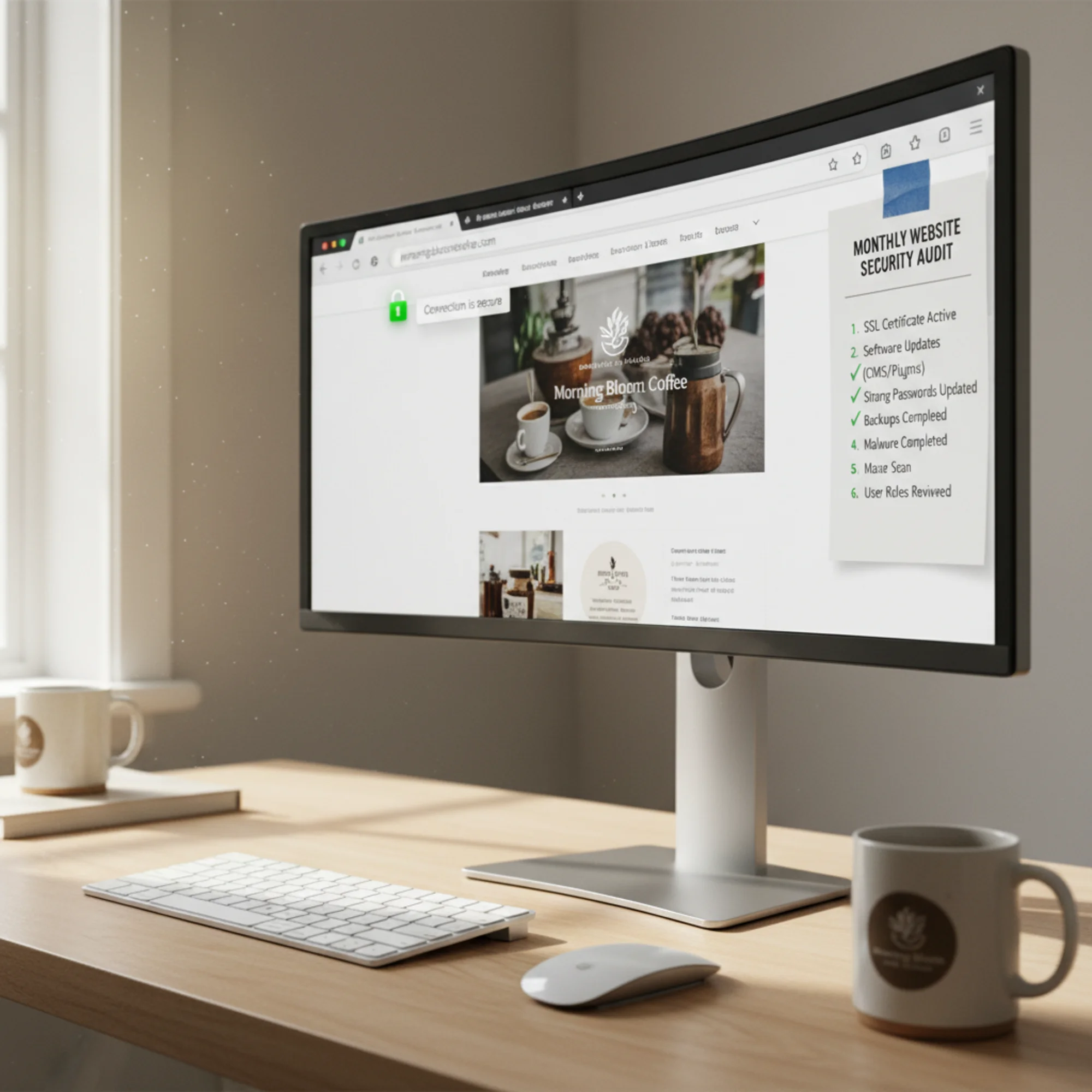
Here is the full checklist. Each item is explained below.
- [ ] Verify your SSL certificate is valid and not expiring soon
- [ ] Check for mixed content warnings
- [ ] Update your CMS, plugins, and themes
- [ ] Review user accounts and remove unused ones
- [ ] Scan your site for malware
- [ ] Verify backups are running and restorable
- [ ] Review security headers
- [ ] Test your contact forms and login pages
Copy this list into a recurring calendar reminder. Thirty minutes, once a month.
1. Verify Your SSL Certificate
What it is: SSL (technically TLS) encrypts the connection between your visitor's browser and your server. It is working when your URL starts with https:// and shows a padlock icon.
What to check:
- Visit your website in Chrome or Firefox.
- Click the padlock icon in the address bar.
- Look for "Connection is secure" and check the certificate expiration date.
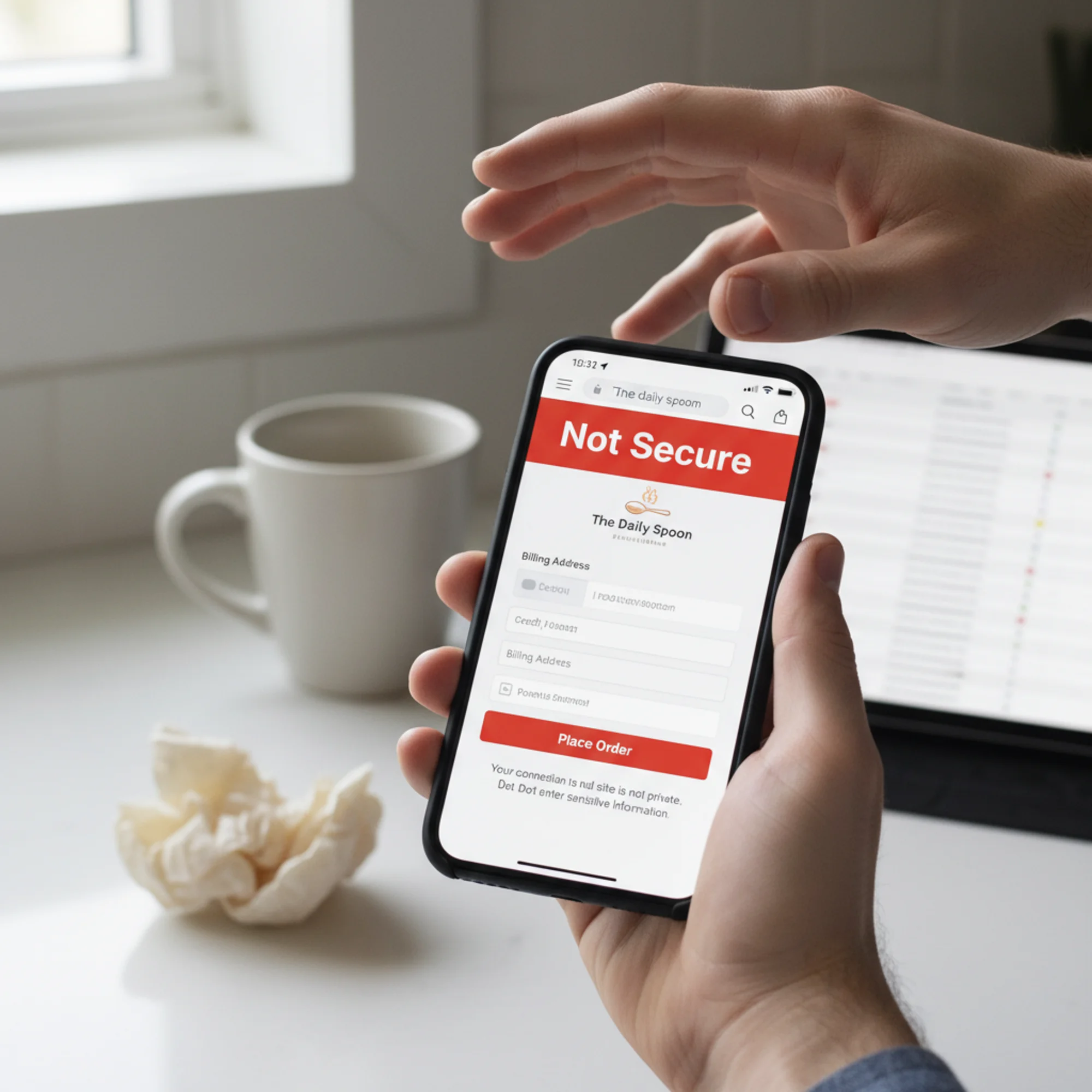
If your certificate expires within 30 days and auto-renewal is not set up, renew it now. An expired certificate triggers a full-page browser warning — a red screen that says "Your connection is not private."
Common problems:
- Auto-renewal failed silently. This happens frequently with hosting providers that require DNS or email verification. Check your hosting dashboard for renewal status.
- Certificate covers the wrong domain. If your site is
www.example.combut the certificate only coversexample.com, visitors to the www version see a warning.
Run a quick check with our SSL checker tool to see when your certificate expires and whether it covers all your domains.
2. Check for Mixed Content
Mixed content means your page loads over HTTPS, but some resources — images, scripts, stylesheets — still load over plain HTTP. This partially breaks your encryption and triggers browser warnings.
What to check:
- Open your site in Chrome.
- Press
F12to open Developer Tools. - Click the Console tab.
- Look for yellow or red warnings mentioning "mixed content."
The warnings tell you exactly which files are loading over HTTP. Common culprits:
- Images hard-coded with
http://in old blog posts or page content. - External scripts from services that moved to HTTPS, but your embed code still uses the old URL.
- Custom CSS referencing background images with
http://URLs.
How to fix it: Update the URLs from http:// to https://. If the resource does not support HTTPS, find an alternative or host it yourself. For a deeper walkthrough, see our mixed content fix guide.
3. Update Your CMS, Plugins, and Themes
This is the single most important item on this list. Outdated software is the number one way small business websites get hacked.
When a security vulnerability is found in WordPress, Joomla, or any other platform, the developers release a patch. That patch also publicly documents the vulnerability. Attackers then scan the internet for unpatched sites. This is automated and happens within hours of a patch being released.
What to check:
- Log into your CMS dashboard (WordPress, Squarespace, Wix, Shopify, etc.).
- Look for update notifications.
- Update core CMS software first, then plugins, then your theme.
A real-world example: A bakery running WordPress had a contact form plugin with a code injection vulnerability. The developer released a fix in January. The bakery did not update until April — by which point their site had been redirecting visitors to a spam pharmacy page for six weeks. They found out when a customer called. Cleanup cost $1,200 and they lost three months of SEO progress.
Key details:
- Back up before updating (see item 6). Updates occasionally break things, and you want a rollback option.
- Delete plugins you are not using. Deactivated plugins can still be exploited if the files remain on the server.
- Managed platforms (Squarespace, Wix) handle core updates for you, but third-party apps still need checking.
4. Review User Accounts
Old, unused accounts are an open door — especially those with admin privileges.
What to check:
- Go to your CMS user management page.
- Look for accounts belonging to former employees, old contractors, or agencies you no longer work with.
- Delete or deactivate any account that does not need current access.
- Verify remaining accounts have the minimum role necessary. A content writer does not need administrator access.
Quick rule: If someone has not logged in within 90 days and is not an active team member, remove their account.
Also check:
- Password strength. Make sure no admin account uses a weak password like the business name or
password123. - Two-factor authentication. If your platform supports it (WordPress does via plugins, most hosted platforms have it built in), enable it for all admin accounts. This single step blocks the vast majority of brute-force login attacks.
5. Scan for Malware
Malware on a small business website is usually subtle: a hidden redirect, an invisible iframe loading spam content, or a modified file that skims form data.
What to check:
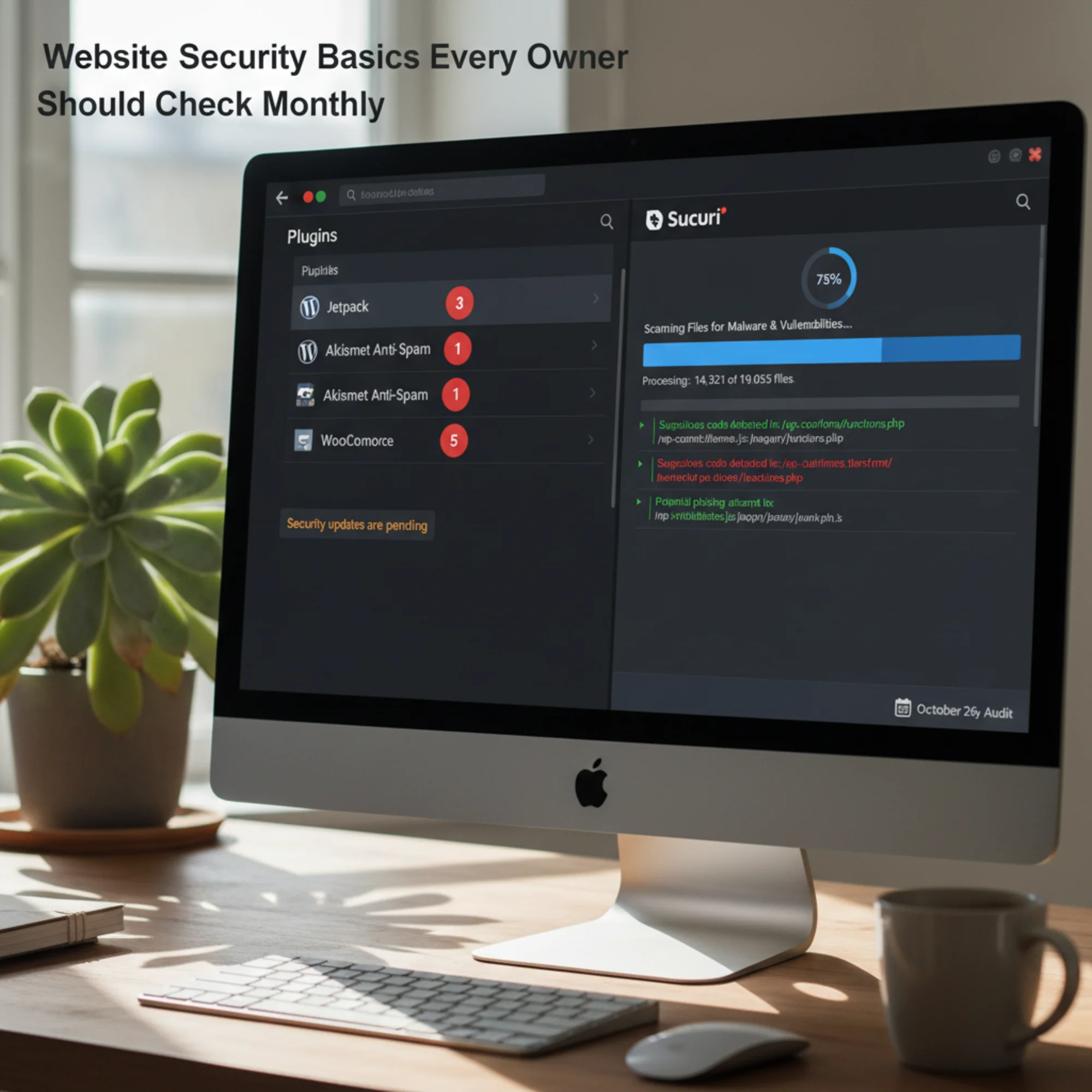
- Use a free scanner. Google's Safe Browsing status page shows whether Google has flagged your site. Sucuri SiteCheck scans for known malware, blacklisting status, and errors.
- Check Google Search Console. If you have verified your site, Google emails you when it detects security issues. Log in monthly to check the Security & Manual Actions section.
- Browse your own site. Visit from a phone or incognito browser. Click through several pages. Look for unexpected pop-ups, redirects, or content you did not add.
If you find malware: Act quickly but do not panic. Most hosting providers offer malware removal assistance. If you have a clean backup from before the infection, restoring it is often the fastest fix.
6. Verify Backups
Backups only matter if they are actually running and restorable.
What to check:
- Log into your hosting control panel or backup service.
- Confirm the most recent backup is within the last 7 days.
- If possible, download a copy. Can you open it? Does it contain your files and database?
Key details:
- Host backups are a safety net, not a strategy. Many hosts retain backups for 14 to 30 days. If malware was injected 45 days ago, those backups may all be infected. Keep separate backups stored outside your hosting account.
- Test a restore at least once. You do not need to do this monthly, but if you have never tested a restore, you do not know if your backups work. Try it on a staging environment.
- Automate it. Manual backups that depend on you remembering to click a button will eventually get skipped.
7. Review Security Headers
Security headers are instructions your server sends to browsers that control how your site can be loaded and interacted with. They are invisible to visitors but provide real protection.
Headers that matter most:
| Header | What It Does |
|---|---|
Strict-Transport-Security | Forces browsers to always use HTTPS |
X-Content-Type-Options | Prevents browsers from guessing file types, blocking certain attacks |
X-Frame-Options | Prevents your site from being embedded in a frame on another site |
Content-Security-Policy | Controls which scripts and resources can load on your pages |
How to check: Use our security headers guide or browser Developer Tools. In Chrome, open DevTools (F12), go to the Network tab, click on your page request, and look at the Response Headers section.
If headers are missing, your hosting provider or CMS documentation will have setup instructions. On WordPress, plugins like Wordfence or Sucuri can add them. On most hosting platforms, you can configure them through .htaccess or the server configuration panel.
8. Test Forms and Login Pages
Contact forms, login pages, and any page collecting information are the highest-value targets on your site.
What to check:
- Do forms submit over HTTPS? Inspect the form element — the action URL should start with
https://. If not, form data is sent in plain text. - Is spam protection enabled? Without CAPTCHA or equivalent, your contact form attracts bot spam and becomes a vector for injection attacks.
- Is brute-force protection active? Try entering a wrong password five times on your login page. If the site does not lock the account or rate-limit attempts, attackers can try thousands of passwords with automated tools.
Your 30-Minute Monthly Routine
| Step | Time | Tool |
|---|---|---|
| Check SSL certificate | 2 min | Browser padlock or SSL checker |
| Scan for mixed content | 3 min | Browser DevTools console |
| Update CMS + plugins | 10 min | CMS dashboard |
| Review user accounts | 3 min | CMS user management |
| Run malware scan | 3 min | Sucuri SiteCheck or Search Console |
| Verify backups | 3 min | Hosting dashboard or backup service |
| Check security headers | 3 min | Browser DevTools or header checker |
| Test forms and login | 3 min | Manual check |
Set a recurring calendar event for the first Monday of every month.
When to Get Professional Help
This checklist covers the fundamentals. Some situations need expert attention:
- You process payments on your site. PCI compliance has requirements beyond this checklist.
- You store sensitive customer data (health records, financial information) with regulatory obligations.
- You have been hacked before. A professional audit can identify how attackers got in.
- Your site handles authentication at scale. Login security is its own discipline.
For a standard small business site — a few pages, a contact form, maybe a blog — this monthly routine keeps you ahead of the vast majority of threats.
Start With a Baseline
Before your first monthly check, know where you stand. Run a free audit with FreeSiteAudit to get a snapshot of your site's security posture, including SSL status, security headers, mixed content, and more. It takes about 60 seconds and gives you a clear starting point so your first monthly check is not a guessing game.
Sources
- Google Search Central — Creating Helpful, Reliable, People-First Content: https://developers.google.com/search/docs/fundamentals/creating-helpful-content
- web.dev — Web Vitals: https://web.dev/articles/vitals
- HTTP Archive — State of the Web: https://httparchive.org/reports/state-of-the-web
- Sucuri — Website Threat Research: https://sucuri.net/reports/website-threat-report
Check your website for free
Get an instant score and your top 3 critical issues in under 60 seconds.
Get Your Free Audit →