When Noindex Is Correct—and When It Costs You Traffic
Learn when the noindex meta tag protects your SEO and when it silently kills your organic traffic, with practical audit steps for small business sites.
# When Noindex Is Correct—and When It Costs You Traffic
A single line of code can make an entire page invisible to Google:
html
Used intentionally, noindex is one of the most useful directives in technical SEO. Left over from a site redesign or applied by accident, it can silently erase pages from search results and cost you traffic for weeks before anyone notices.
This guide covers exactly when noindex is the right call, when it is a mistake, and how to audit your site so you never lose traffic to a forgotten tag.
What Noindex Actually Does
The noindex directive tells search engines: "You can crawl this page, but do not add it to your search index." The page will not appear in any search results—not for your brand name, not for any keyword—until the tag is removed.
This is different from robots.txt, which prevents crawling entirely. Noindex allows crawling but blocks indexing. Google can still follow links on a noindexed page, so the page can still pass link equity to other pages on your site.
There are two ways to apply noindex:
- Meta tag in the HTML head:
- X-Robots-Tag HTTP header:
X-Robots-Tag: noindex
Both accomplish the same thing. The meta tag is more common on small business sites because it is easy to add through a CMS. The HTTP header is typically used for PDFs, images, or pages where you cannot edit the HTML directly.
When Noindex Is the Right Decision
Not every page belongs in search results. Some pages exist for internal use, user experience, or legal compliance. Indexing them clutters search results with low-value content or exposes pages that serve no purpose for searchers.
Thank-You and Confirmation Pages
After someone submits a contact form, they land on a thank-you page. This page has no value to a stranger searching Google. If it somehow ranks, visitors arrive at a dead-end with no context.
Apply noindex to: Order confirmations, form submission pages, email signup confirmations, and booking confirmations.
Internal Search Results Pages
If your site has a search function, each query generates a unique URL. Google may try to index thousands of these thin or duplicate pages, wasting your crawl budget and diluting quality signals.
Apply noindex to: All internal search result pages. Most CMS platforms handle this automatically, but verify yours does.
Staging and Development Environments
If your staging site is accessible to crawlers, Google can index it—creating duplicate content problems or even ranking the staging version above your live site.
Apply noindex to: Every page on staging, dev, and preview environments. Password-protecting these environments is even better.
Login, Account, and Admin Pages
Login portals, user dashboards, and admin panels serve logged-in users only. They have no business appearing in search results.
Apply noindex to: Login pages, registration pages, password reset pages, account settings, and admin interfaces.
Thin Tag and Filter Pages
If your blog generates a page for every tag, and those pages show only a short list of post titles with no unique content, they add little search value. The same goes for e-commerce filter combinations that produce near-identical product listings.
Apply noindex to: Low-value tag archives, redundant filter combinations, and category pages that duplicate other content. Keep noindex off your main category pages—those often carry real SEO value.
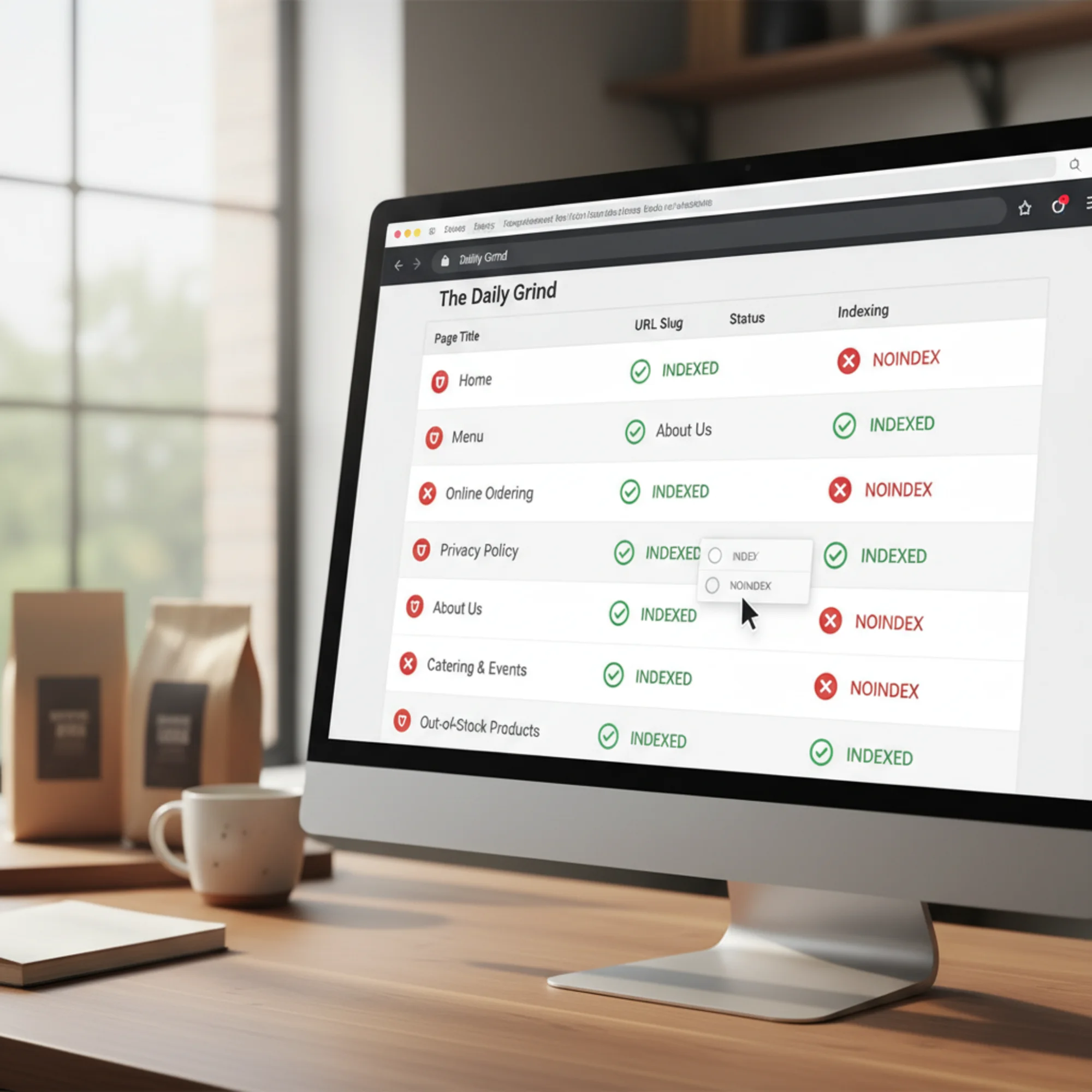
When Noindex Costs You Traffic
The following mistakes are surprisingly common, and each one can silently remove valuable pages from search results.
The Post-Launch Leftover
A developer adds a site-wide noindex tag during a rebuild so Google will not index the unfinished site. The site launches. The tag stays. Three weeks later, organic traffic has dropped to near zero.
This is the most common noindex mistake for small business sites. It happens because the tag lives in a global template, launch checklists skip it, and traffic does not drop instantly—Google takes days or weeks to de-index pages. By the time you notice, you have lost weeks of search visibility.
How to check: View your homepage source code and search for "noindex." If you find it, remove it immediately. Google will re-index pages within days to a few weeks.
The WordPress Checkbox
WordPress has a setting under Settings → Reading that says "Discourage search engines from indexing this site." When checked, it adds noindex to every page. This checkbox is often enabled during initial setup and never unchecked, or toggled accidentally by someone who does not know what it does.
How to check: Go to Settings → Reading. Make sure the box is unchecked. If you use Yoast SEO or Rank Math, also check individual page settings for noindex overrides.

The Plugin That Adds Noindex Silently
Some SEO plugins automatically noindex certain page types—archives, author pages, date-based archives, or media attachment pages. This is often helpful, but plugin updates or settings changes can noindex pages you need indexed.
A bakery owner installed an SEO plugin that noindexed all "format" archives by default. Their theme classified recipe category pages as format archives. Every recipe page disappeared from Google within two weeks, and monthly traffic dropped 40%.
How to check: Review your SEO plugin settings page by page. Look for any toggle labeled "Show in search results: No" or "Noindex" on page types that should be visible.
Accidentally Noindexing Your Best Content
Someone edits a blog post, accidentally checks the "noindex" box in the SEO plugin sidebar, and publishes. The post disappears from search. Nobody notices because the post still exists on the site—it just stops getting organic traffic.
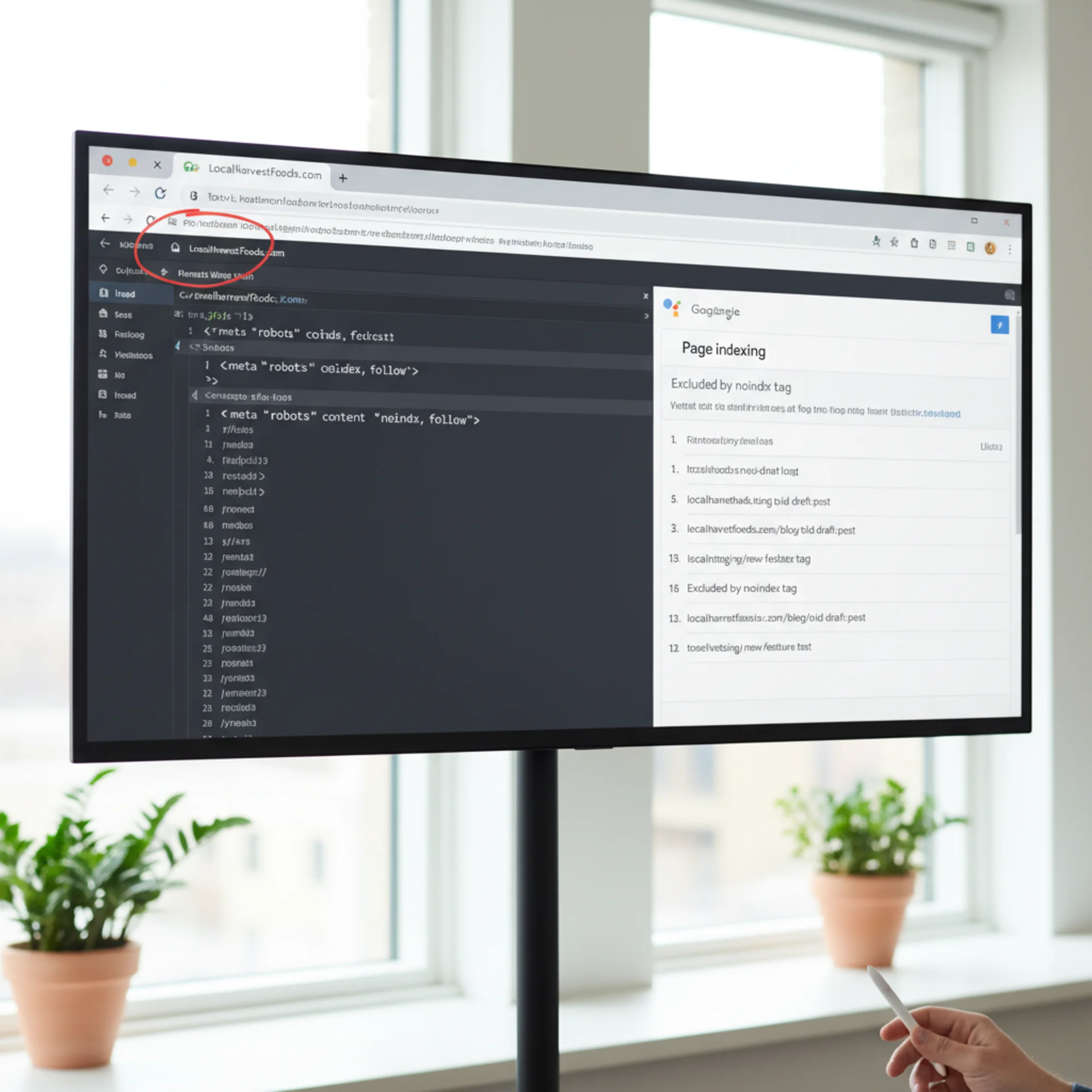
How to check: In Google Search Console, go to Pages → Not indexed → Excluded by 'noindex' tag. Review every URL on that list. If you see service pages, blog posts, or product pages, fix them immediately.
Noindexing Pages That Have Backlinks
If another website links to a noindexed page, you lose the SEO benefit of that backlink. The link is not broken, but because Google is not indexing the page, the link equity is largely wasted.
How to check: Cross-reference your noindexed pages with your backlink profile. If any noindexed page has quality backlinks, either remove the noindex or redirect to a relevant indexed page.
How to Audit Your Noindex Tags
You do not need expensive tools for a basic noindex audit. Here is a step-by-step process.
Step 1: Check Google Search Console
This is the fastest way to find noindex problems:
- Go to Indexing → Pages
- Look at the "Why pages aren't indexed" section
- Click "Excluded by 'noindex' tag"
- Review every URL on this list
Any URL that should appear in search results needs the noindex tag removed.
Step 2: Spot-Check Key Pages
Manually check your most important pages. Open each page, view the source (Ctrl+U or Cmd+U), and search for "noindex." Check these at minimum:
- Homepage
- Main service or product pages
- Contact page
- Top blog posts
- Location pages (if applicable)
Step 3: Check HTTP Headers
Some noindex directives live in HTTP headers, invisible in page source. Open your browser's developer tools (F12), go to the Network tab, reload the page, click the main document request, and look in Response Headers for any X-Robots-Tag containing "noindex."
Step 4: Run a Site-Wide Crawl
For a thorough audit, you need a tool that checks every page. Run a free audit with FreeSiteAudit to scan your entire site for noindex tags, including forgotten pages. The audit flags any page that has a noindex tag so you can fix problems before they affect your traffic.
Fixing Noindex Problems
Once you have identified incorrectly noindexed pages, the fix is straightforward.
Removing a Meta Tag Noindex
Remove the tag from the page's HTML head. In common CMS platforms:
- WordPress + Yoast: Edit the page → Yoast panel → Advanced tab → set "Allow search engines to show this page" to Yes
- WordPress + Rank Math: Edit the page → Rank Math panel → set to "Index"
- Squarespace: Page settings → SEO → uncheck "Hide this page from search results"
- Wix: Page settings → SEO → toggle "Let search engines index this page" on
Removing an HTTP Header Noindex
Check your .htaccess file (Apache), nginx.conf (Nginx), or hosting platform's header settings. Remove any X-Robots-Tag: noindex rules that apply to pages you want indexed.
Fixing a Site-Wide Noindex
If a global noindex was applied during development:
- Remove the site-wide setting (CMS global SEO settings or template-level meta tag)
- Verify by checking three or four pages across different sections
- Submit your sitemap in Google Search Console to speed up re-indexing
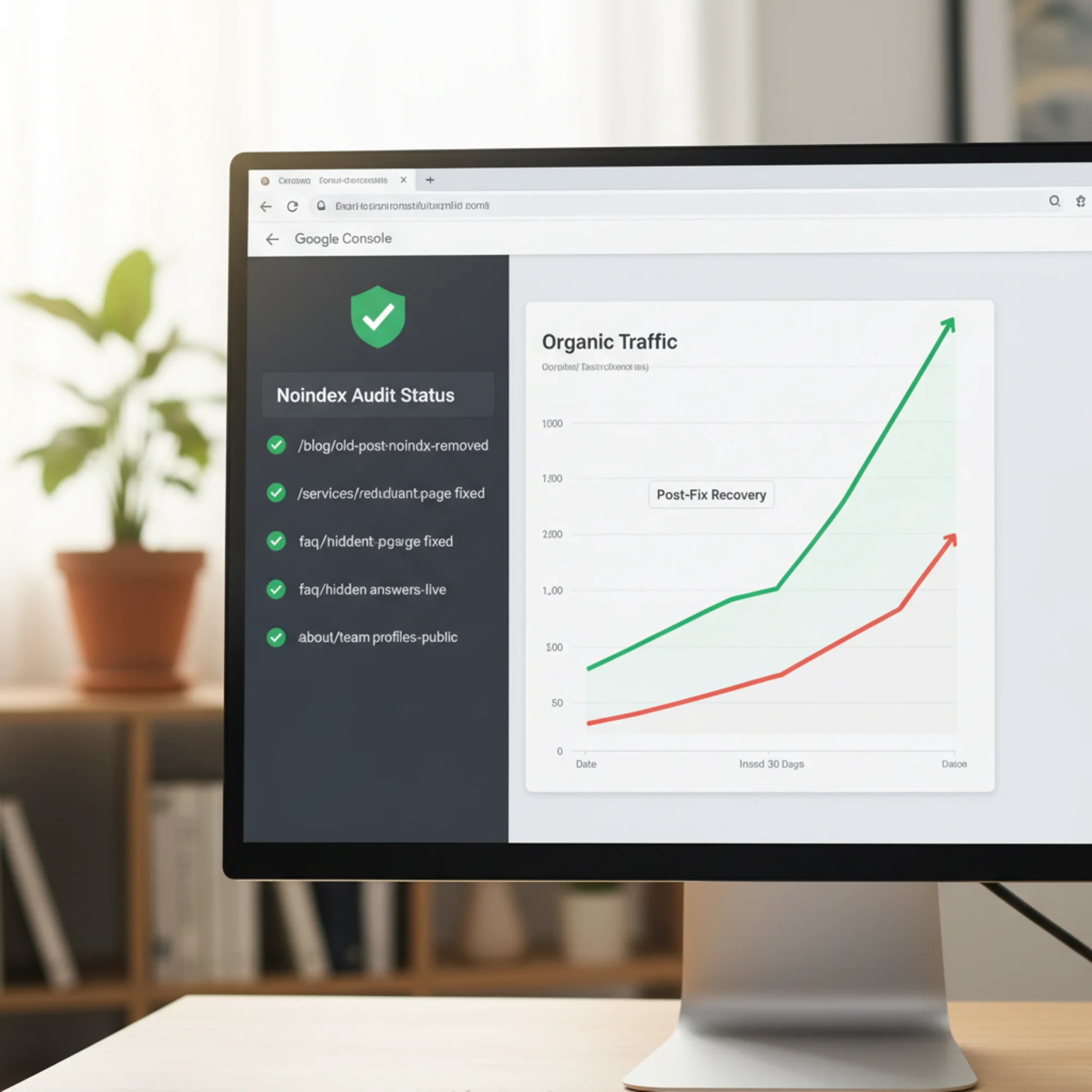
- Monitor the Pages report over the following two weeks
Recovery Timeline
After removing a noindex tag, Google needs to recrawl the page and re-add it to the index:
- High-traffic sites: 2–7 days
- Small business sites: 1–3 weeks
- Low-authority sites: Up to 4–6 weeks
You can speed this up by requesting indexing for specific URLs in Google Search Console's URL Inspection tool, but there is no instant fix.
A Noindex Decision Checklist
Before applying or removing noindex on any page, run through this:
Apply noindex if the page:
- [ ] Exists only for logged-in users (login, account, admin)
- [ ] Is a duplicate of another page that should rank instead
- [ ] Is a thank-you or confirmation page with no standalone value
- [ ] Is an internal search results page
- [ ] Lives on a staging or development environment
- [ ] Is a thin tag or filter page duplicating existing category content
Remove noindex if the page:
- [ ] Targets keywords that could bring relevant traffic
- [ ] Is a service, product, or location page
- [ ] Has backlinks from other websites
- [ ] Is a blog post or resource that answers a real question
- [ ] Is your homepage (it happens more than you think)
- [ ] Was noindexed during development and the site is now live
Investigate further if the page:
- [ ] Is a category or archive page (depends on content depth)
- [ ] Is a paginated page (page 2, 3 of listings)
- [ ] Is a legal page (depends on content uniqueness)
- [ ] Was noindexed by a plugin you did not configure
Preventing Future Noindex Mistakes
- Monitor Google Search Console monthly. Any unexpected increase in "Excluded by noindex tag" pages is a red flag.
- Add noindex checks to your launch checklist. Every site launch, redesign, or migration should include explicit verification that noindex is not applied to pages that should be indexed.
- Audit after plugin updates. When you update your SEO plugin or CMS, spot-check key pages to confirm settings did not reset.
- Document your noindex decisions. Keep a simple list of which pages are intentionally noindexed and why. When someone asks "should this page be in Google?" you have the answer ready.
- Run periodic site audits. A free site audit from FreeSiteAudit catches noindex issues along with dozens of other technical SEO problems. Make it part of your quarterly review.
The Bottom Line
Noindex is a precise tool, not a blunt instrument. Used correctly, it keeps low-value pages out of search results and focuses Google's attention on your best content. Left over from a site build or applied by accident, it can make your most important pages invisible to every potential customer searching for what you offer.
The fix is almost always simple: find the tag, remove it, wait for Google to recrawl. The hard part is noticing the problem in the first place.
If you have not checked your site for noindex issues recently, run a free audit with FreeSiteAudit to find out whether any of your pages are hidden from search.
Sources
Check your website for free
Get an instant score and your top 3 critical issues in under 60 seconds.
Get Your Free Audit →