Why Your WordPress Site Scores Low on Core Web Vitals (And How to Fix It)
A plain-English guide for WordPress site owners on what drags down Core Web Vitals scores — themes, plugins, images, hosting — and what to actually change.
# Why Your WordPress Site Scores Low on Core Web Vitals
If you run a small business on WordPress, you've probably pasted your URL into PageSpeed Insights, watched the dial spin, and stared at a screen full of red. LCP: 6.2 seconds. INP: 380 milliseconds. CLS: 0.31. The numbers feel like an accusation. You didn't do anything wrong — you installed a theme, added the plugins everyone recommended, and started selling.
WordPress sites score low on Core Web Vitals for a handful of predictable reasons, and most have nothing to do with you being "bad at tech." This guide walks through the real culprits in plain English and shows you what a fix actually looks like on a real site.

What Core Web Vitals actually measure
Three numbers, each tied to how a real visitor experiences your page:
- LCP (Largest Contentful Paint) — how long until the biggest visible thing (usually your hero image or headline) appears. Good: under 2.5 seconds.
- INP (Interaction to Next Paint) — how quickly your site responds when someone taps, clicks, or types. Good: under 200 milliseconds.
- CLS (Cumulative Layout Shift) — how much the page jumps around while loading. Good: under 0.1.
Google measures these from real Chrome users on your site and folds them into ranking. Bad scores cost you twice: visitors bounce faster, and search rankings quietly slip.
The five reasons WordPress sites underperform
WordPress is not slow by design — WordPress.com powers some of the fastest news sites on the web. What makes a self-hosted WordPress site slow is almost always these five things stacked on top of each other.
1. Your theme is doing too much
Most themes sold on marketplaces are built to demo well, not load fast. They ship with sliders, animations, custom fonts, icon libraries, parallax effects, and a page builder baked in. Every feature adds JavaScript and CSS that loads on every page — including the contact page that needs none of it.
A typical "multipurpose" theme can load 800KB of JavaScript before your content even appears. That alone pushes LCP past 4 seconds on a mid-range phone.
Quick checks:
- Total page weight under 1MB is healthy; 2MB+ is a problem.
- More than 10 CSS/JS files on a blank page means the theme is bloated.
- A theme that requires a heavy page builder (Elementor, WPBakery, Divi) is a tax you pay on every visit.
2. Plugin stacking
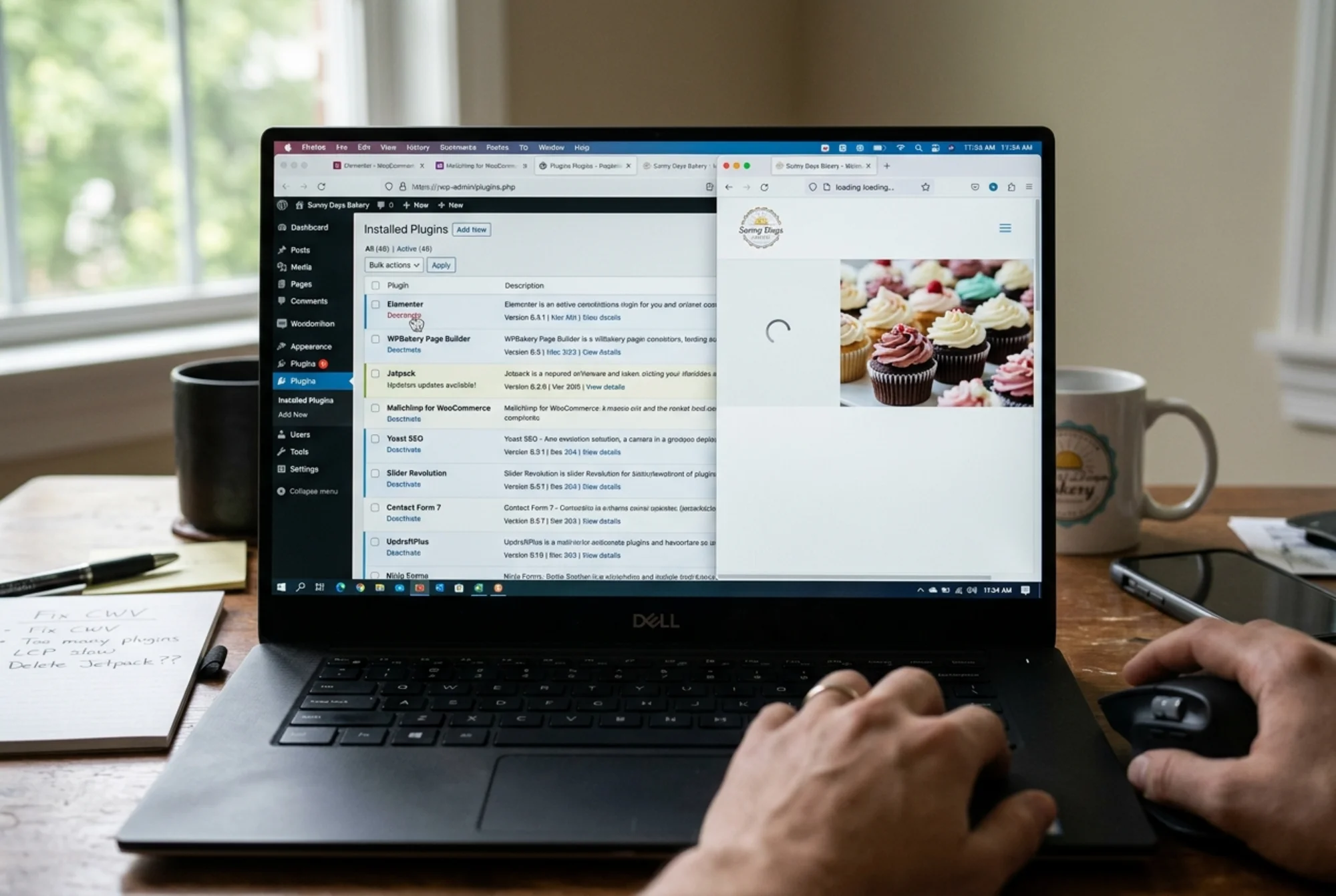
Plugins are the most common cause of slow WordPress sites, and the one owners resist fixing the most. Each plugin can add database queries, JavaScript files, CSS, and HTTP calls to external services. Most load their assets on every page, whether they're needed there or not.
A contact form plugin loads its scripts on your homepage. A wishlist plugin loads on your blog. A popup plugin loads on your checkout. None of them know about each other. The damage compounds: twenty plugins, each adding 30KB of overhead, is 600KB on every page load — plus a few hundred extra database queries.
3. Unoptimized images
WordPress will happily accept a 4MB photo straight from your phone, scale it down with CSS so it looks fine on screen, and force every visitor to download the full 4MB anyway. A homepage with eight images can ship 30MB to a visitor on 4G.
Image issues drive most LCP problems on WordPress, especially hero sections and product galleries.
Quick checks:
- Hero images under 200KB, ideally under 100KB.
- Use WebP or AVIF instead of JPG or PNG.
- Always set explicit
widthandheight(this also fixes CLS). - Lazy-load below the fold, but never lazy-load the hero.
- Resize to display dimensions, not what your camera produced.
4. Cheap shared hosting
If you're paying $3 a month, your site shares a server with hundreds of others — some running poorly written installs that hog CPU. Time to First Byte can balloon past 2 seconds before your code even runs.
You don't need expensive hosting. You need hosting tuned for WordPress: PHP 8.1 or newer, OPcache enabled, decent CPU allocation, and a real caching layer.
5. No caching or CDN
Without caching, WordPress regenerates every page from scratch for every visitor: PHP runs, the database is queried, the theme assembles HTML. That takes time even on good hosting.
A page cache stores the finished HTML and serves it as a static file. A CDN delivers your images and scripts from a server geographically close to the visitor. Together, they can cut LCP in half without changing a single line of code.
A real walkthrough: the bakery on a slow Tuesday
A small bakery in Austin runs WordPress on a popular multipurpose theme. The homepage shows a slider with three hero images, a menu grid, an Instagram feed widget, and a contact form. Initial mobile scores:
- LCP: 6.2 seconds
- INP: 340 milliseconds
- CLS: 0.28
- Total page weight: 4.8MB
- 38 active plugins
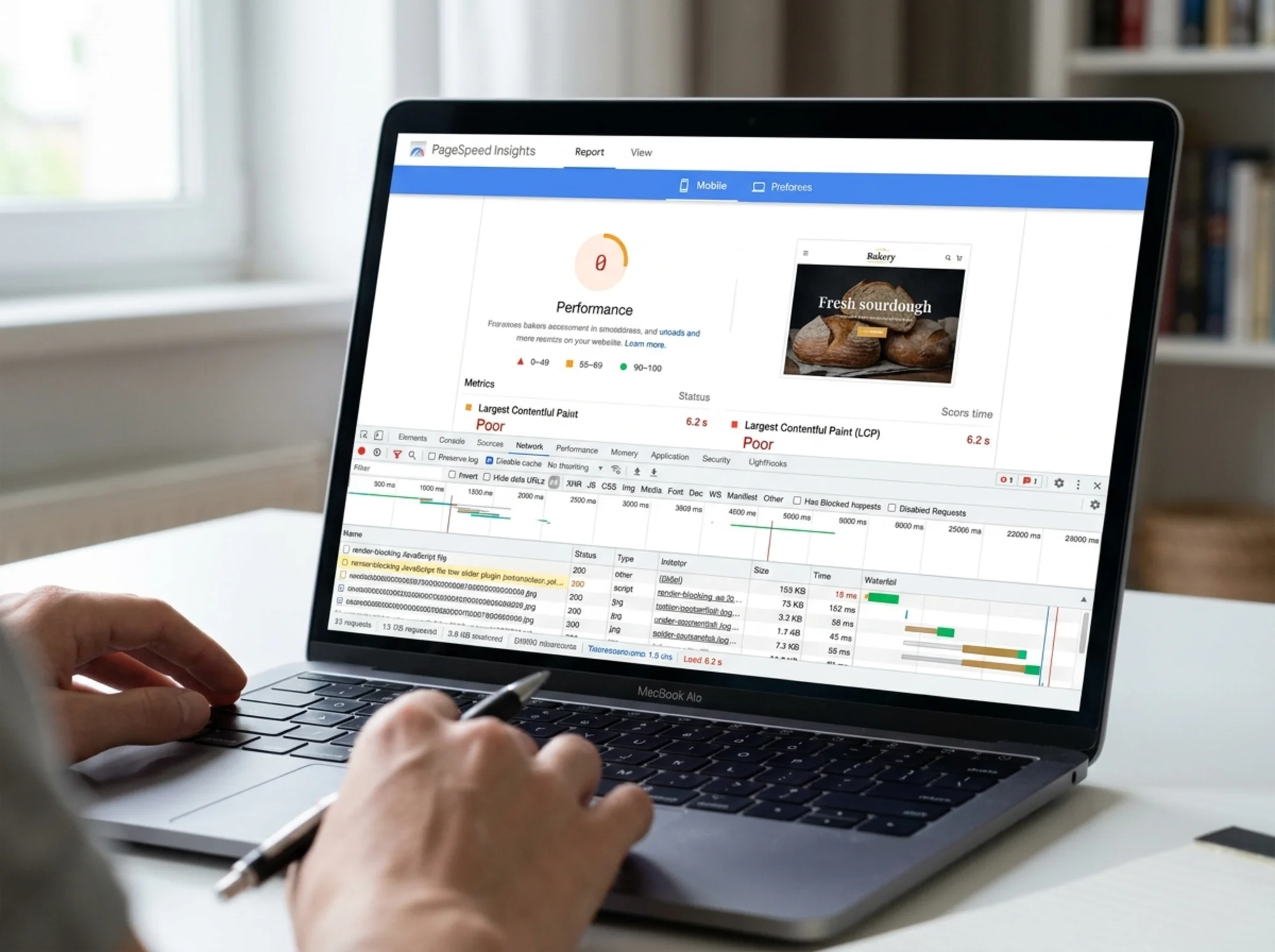
What we changed — none of it required a developer.
Images (LCP: 6.2s → 3.4s). The hero slider was loading three 1.8MB JPGs as a "rotating banner," but only the first was visible above the fold. We replaced the slider with a single static hero exported as WebP at 1600px, weighing 145KB. The other two images moved into a gallery further down the page and got lazy-loaded.
Plugins (LCP: 3.4s → 2.6s, INP: 340ms → 180ms). Of 38 plugins, 14 hadn't been touched in over a year. Three were duplicate SEO plugins from different eras. One "social sharing" plugin loaded scripts from four external networks. We deactivated 22. The site looked identical and shipped a megabyte less JavaScript.
Layout (CLS: 0.28 → 0.04). The Instagram feed widget inserted itself after a delay, shoving everything below it down. We replaced it with a static linked image. The hero now has explicit dimensions, so nothing jumps when it loads.
Hosting and caching (final LCP: 1.9s). The bakery upgraded from $4/month shared hosting to a $15/month managed WordPress plan with built-in caching and a CDN. Time to First Byte dropped from 1.4s to 280ms.
Total: about three hours of work, $11/month in extra hosting, zero technical debt.
Your prioritized checklist
If you only have an afternoon, work through this in order. The top items have the biggest impact for the least effort.
- Audit your hero image. Right-click it on your homepage and check the file size in browser dev tools. Over 300KB? Re-export at the right dimensions in WebP.
- Open the Plugins page. Deactivate anything you haven't consciously used in six months. If nothing breaks after a week, delete it.
- Kill the slider. If your homepage uses one, replace it with a static hero. Sliders are the single most common cause of bad LCP on WordPress.
- Install one caching plugin. Not three. WP Rocket, W3 Total Cache, or LiteSpeed Cache — pick one, enable page caching and GZIP, leave advanced settings alone.
- Set image dimensions everywhere. Make sure WordPress is outputting
widthandheighton every - Check your hosting. Run a TTFB test. Over 800ms consistently means hosting is your bottleneck. Migrate.
- Verify lazy-loading below the fold. WordPress has done this automatically since 5.5, but page builders often override it. Confirm in dev tools.
What about "speed optimization plugins" that claim to fix everything?
A plugin that promises to fix all your performance problems usually adds more JavaScript to fix the JavaScript problems you already have. Some are genuinely useful — WP Rocket and Perfmatters are well-regarded — but installing five optimizers in a row makes things worse, not better.
A reasonable performance stack is small:
- One caching plugin
- One image optimization plugin (or a CDN that handles WebP conversion)
- That's it
If you find yourself with seven plugins all promising speed, you've identified a problem.
When to call someone
Some Core Web Vitals problems are genuinely hard to fix without development work. If your INP is bad and your plugins are already lean, you may have a theme problem that needs custom JavaScript work. If your CLS comes from third-party embeds (ads, chat widgets, review feeds), you may need to redesign sections to reserve space.
But for most small business sites, the gap between a failing score and a passing one is five or six concrete changes — most of them inside the WordPress admin.

Where to start
The hardest part of fixing Core Web Vitals isn't the work — it's knowing which of a dozen possible culprits is hurting your site. PageSpeed Insights gives you a long list of recommendations without telling you which matter most.
For a clear, prioritized list of what's slowing your WordPress site down, run a free website audit with FreeSiteAudit. It crawls your site the way Google does, identifies the specific images, scripts, and plugins dragging down your scores, and returns a step-by-step fix list ordered by impact. No signup required for the basic report.
You don't need to become a developer to have a fast WordPress site. You just need to know what to deactivate, what to compress, and what to leave alone.
Sources
Related Tools
Related Fixes
Check your website for free
Get an instant score and your top 3 critical issues in under 60 seconds.
Get Your Free Audit →