Wix SEO Audit: Common Myths and Real Fixes
Think Wix can't rank? Think again. This audit guide busts the biggest Wix SEO myths and shows you exactly what to fix — with checklists and real examples.
# Wix SEO Audit: Common Myths and Real Fixes
Wix has a reputation problem when it comes to SEO. Ask around in any small business forum and you'll hear the same tired take: "Wix is bad for SEO, just move to WordPress."
That advice is mostly wrong — and following it could waste you weeks of migration work while your competitors quietly fix their Wix sites and climb the rankings.
This is a practical Wix SEO audit. We'll cover what the real problems are, what the myths are, and what you can actually do this week to improve your site's visibility — no developer required.
The "Wix is Bad for SEO" Myth
Wix was genuinely bad for SEO around 2012–2016. It generated Flash-based sites and JavaScript-rendered content that Googlebot struggled to crawl. That reputation stuck, but the platform has changed significantly.
Today, Wix generates server-side rendered HTML, has an automatic sitemap generator, supports canonical tags, meta descriptions, Open Graph tags, structured data, and robots.txt customization, and has built-in Core Web Vitals optimizations including lazy loading, image compression, and a CDN.
Ranking on Wix is entirely possible. The issue isn't the platform — it's that many Wix users don't configure their SEO settings correctly, and the default state of a new Wix site is not SEO-ready.
That's what this audit is for.

Myth #1: Wix Handles SEO Automatically
The myth: Wix's built-in SEO tools take care of everything once you turn them on.
The reality: Wix gives you the tools. You have to use them.
Out of the box, every page on a new Wix site gets a generic title tag and no meta description. URL slugs are often long and auto-generated from your page names. Images don't have alt text unless you add it.
Wix has an "SEO Setup Checklist" inside the dashboard that's actually useful — but it's opt-in and many site owners never open it.
What to check:
- Open Settings → SEO in your Wix dashboard
- Run the SEO Setup Checklist if you haven't already
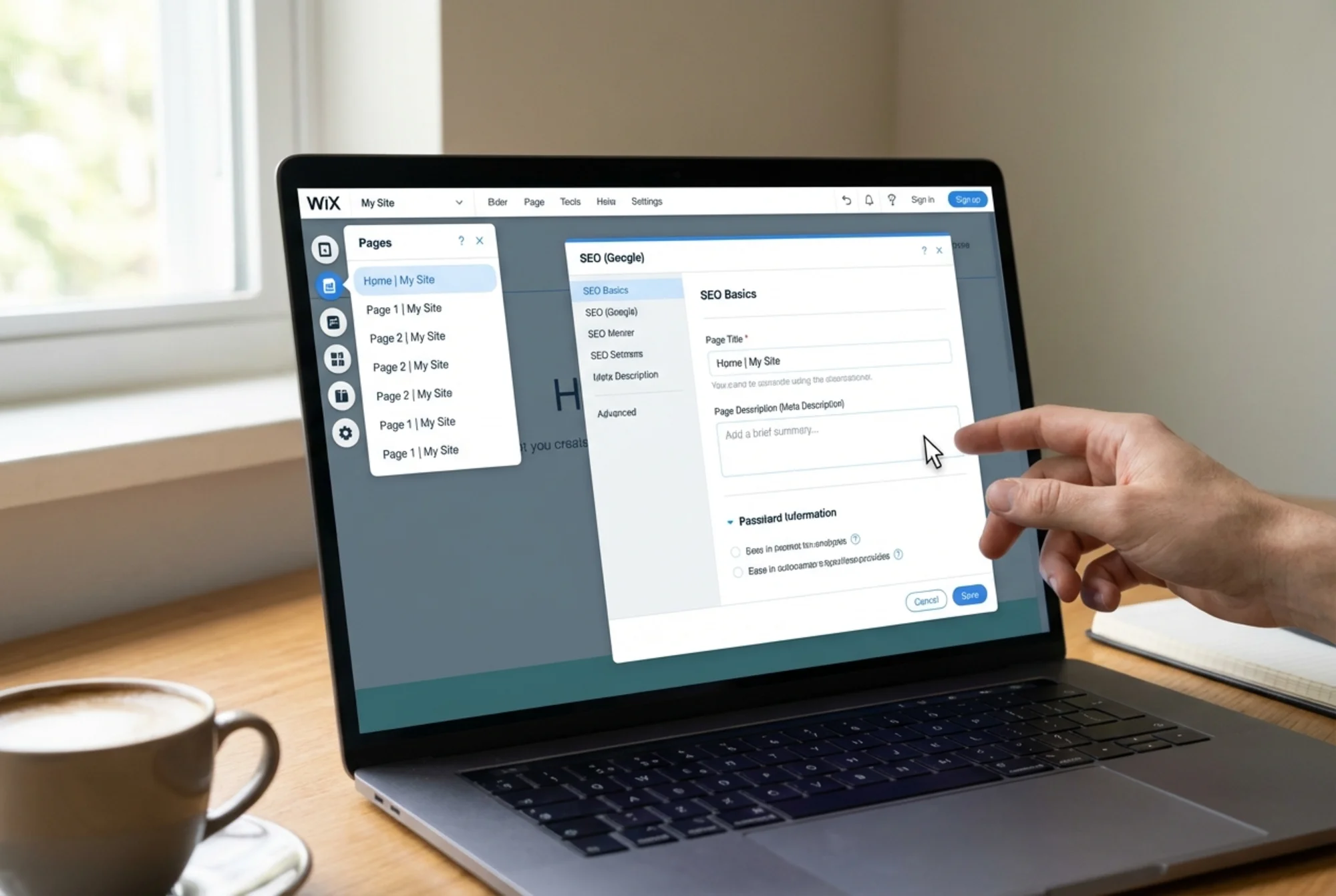
- Go to every page and click Settings → SEO (Google) to review the title and description
Real Fix #1: Rewrite Every Page Title and Meta Description
This is the highest-leverage thing you can do on a Wix site.
Default Wix page titles look like Home | My Site or Services | My Business. These don't contain your target keywords, your location, or anything a user would search for.
A plumber in Austin had a homepage title of Home | Austin Plumbing. After changing it to Emergency Plumber in Austin, TX — 24/7 Service | Austin Plumbing, homepage traffic increased within 6 weeks. Nothing else changed.
Mini-checklist for title tags:
- [ ] Keep titles under 60 characters
- [ ] Include your primary keyword near the front
- [ ] Add your city/region for local businesses
- [ ] Include your brand name at the end (e.g.,
| Your Business Name) - [ ] Every page gets a unique title — no duplicates
Mini-checklist for meta descriptions:
- [ ] Write a 140–155 character description for every page
- [ ] Include a clear benefit or call to action
- [ ] Don't keyword-stuff — write for the human reading the search result
- [ ] Don't leave it blank — Google will pull random page text instead, which is usually worse
Myth #2: Wix URL Structure Kills Rankings
The myth: Wix adds /#! or weird query strings to URLs that confuse Google.
The reality: Old Wix sites did this. Modern Wix sites use clean URLs, and you can customize them.
By default, a services page might get yourdomain.com/services — that's fine. But duplicated or auto-named pages can produce URLs like yourdomain.com/copy-of-services-1 or yourdomain.com/blank-2. Those are worth cleaning up.
Real Fix #2: Audit and Simplify Your URL Slugs
For each page, go to Settings → SEO (Google) → Advanced SEO → URL Slug.
Good URL slugs:
/services/contact/plumbing-austin
Bad URL slugs (fix these):
/copy-of-home/new-page-4/about-us-2
If you change a slug on a live page, set up a redirect from the old URL. In Wix, go to Settings → Redirects. Skipping this is one of the most common ways to accidentally break existing rankings.
Myth #3: Wix Images Automatically Optimize for Speed
The myth: Wix's CDN handles all of this, so image size doesn't matter.
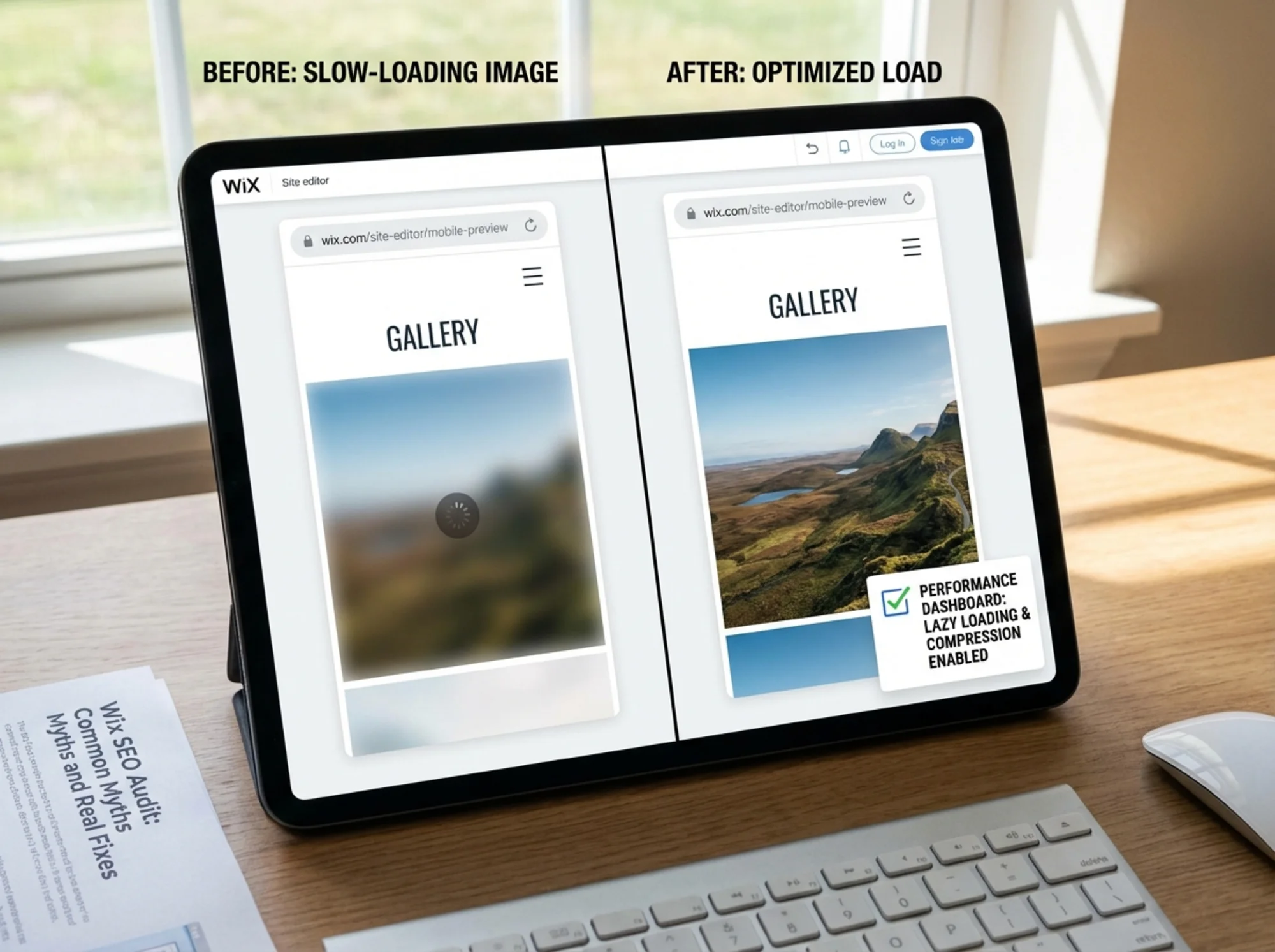
The reality: Wix does use a CDN and applies some automatic compression, but uploading a 6MB hero image will still hurt performance. And many Wix templates use decorative images without lazy loading enabled.
Page speed matters. Google uses Core Web Vitals — Largest Contentful Paint (LCP), Cumulative Layout Shift (CLS), and Interaction to Next Paint (INP) — as ranking signals. A slow Wix site is a real SEO problem.
Real Fix #3: Image and Performance Audit
Step 1: Check your current speed.
Run your site through Google PageSpeed Insights. Look at your mobile score. If your LCP is over 4 seconds, you have work to do.
Step 2: Compress images before uploading.
Keep full-width backgrounds under 2500px wide and inline content images under 800px wide. Use a tool like Squoosh or TinyPNG before uploading to Wix's media library.
Step 3: Enable lazy loading.
In the Wix Editor, click any image → right-click → Image Settings. Enable "Load image when it appears on screen" for any image below the fold.
Step 4: Use Wix's built-in performance settings.
Go to Settings → Performance. Enable minification of CSS and JavaScript, deferral of non-critical scripts, and browser caching. These should all be on.
Mini-checklist for Wix image SEO:
- [ ] All images have descriptive alt text (not "image1.jpg")
- [ ] Hero images are under 300KB after compression
- [ ] You're not using full-screen video backgrounds on mobile
- [ ] Images use descriptive filenames before upload (e.g.,
austin-plumber-van.jpg, notIMG_3847.jpg)
Myth #4: Wix Blogs Don't Rank
The myth: The Wix blog is a toy and Google won't rank posts from it.
The reality: Wix blog posts rank. They're real HTML pages with proper URLs. What doesn't rank is thin, auto-generated, or duplicated content — and that's a content problem, not a Wix problem.
Google's helpful content guidance is clear: content should be written for humans first, demonstrate first-hand expertise, and answer the searcher's actual question. A 2,000-word, genuinely useful post on Wix will outrank a 400-word fluff post on WordPress every time.
One thing Wix does well here: it automatically generates Article structured data for blog posts, making them eligible for rich results in Google Search without extra setup. Verify this is working by pasting a blog post URL into Google's Rich Results Test.
Real Fix #4: Wix Blog SEO Audit
For each blog post, check:
- [ ] Unique title tag (not just the post headline repeated verbatim)
- [ ] Custom meta description written for the search result
- [ ] Short, keyword-relevant URL slug (e.g.,
/blog/fix-leaky-faucet, not/blog/here-are-some-great-tips-about-fixing-a-leaky-faucet-in-your-home) - [ ] Featured image with alt text set
- [ ] Post assigned to a relevant category
- [ ] Internal links connecting the post to related services or posts
Myth #5: You Need to Use Wix's Built-In Google Integration
The myth: You have to connect Google Search Console through Wix's dashboard integration or it won't work properly.
The reality: You can verify ownership using the HTML meta tag method and it works identically. The Wix integration is just a shortcut.
That said, connecting Search Console is non-negotiable. It shows you which queries trigger your pages, your click-through rates, crawl errors, and whether Google has indexed your pages correctly.
Real Fix #5: Search Console Setup
- Go to Google Search Console and add your property using the Domain option (covers www and non-www)
- Choose the HTML tag verification method and copy the meta tag
- In Wix, go to Settings → Custom Code → Head Code and paste it there
- Click Verify in Search Console
Once connected:
- Submit your sitemap:
yourdomain.com/sitemap.xml(Wix generates this automatically) - Check the Coverage report for any "Excluded" or "Error" pages
- Check the Performance report after 2–3 weeks to see your top search queries
A Quick Scenario: The Site That Was Never Being Indexed
A yoga studio in Portland had a Wix site live for 8 months — good photos, clear service pages, a blog. Virtually no organic traffic.
The problem: a checkbox in Settings → SEO → Crawlers & Indexing labeled "Hide site from search engines" was checked. It's meant for sites under construction. Someone checked it at launch and never unchecked it. Google had never indexed the site. Eight months of zero visibility for a completely fixable reason.
Always verify this first. Go to Settings → SEO → Crawlers & Indexing and confirm "Hide site from search engines" is unchecked. Then use the URL Inspection tool in Search Console on your homepage to confirm Google has indexed it.
The Wix SEO Audit Checklist
Technical Foundation
- [ ] Site is not hidden from search engines (Settings → SEO → Crawlers & Indexing)
- [ ] Site is connected to Google Search Console
- [ ] Sitemap has been submitted (
yourdomain.com/sitemap.xml) - [ ] All important pages return a 200 status (check via URL Inspection in Search Console)
- [ ] Redirects are in place for any changed URLs
On-Page SEO
- [ ] Every page has a unique, keyword-relevant title tag
- [ ] Every page has a custom meta description
- [ ] URL slugs are clean and descriptive
- [ ] Every image has descriptive alt text
- [ ] H1 heading is present and relevant on every page
- [ ] Internal links connect related pages
Performance
- [ ] Mobile PageSpeed score is above 70
- [ ] Hero images are compressed before upload
- [ ] Lazy loading is enabled for below-fold images
- [ ] Wix performance settings (minification, caching) are enabled
Local SEO (for service businesses)
- [ ] Google Business Profile is claimed and verified
- [ ] NAP (Name, Address, Phone) is consistent across your site and GBP listing
- [ ] City and service-area terms appear naturally in page titles and headers
- [ ] Embedded Google Map is present on the contact page
What Wix Still Can't Do Well
To be fair, there are legitimate limitations worth knowing:
Custom structured data beyond basics: Wix auto-generates Article and basic local business schema, but adding custom JSON-LD (for FAQs, product markup, or detailed review schemas) requires the Custom Code section. It's doable but less intuitive than a dedicated plugin.
Granular robots.txt control: You can edit robots.txt in Wix, but the interface is limited. If you need precise crawl budget management across a large site, it's more friction than managing a raw file.
Performance ceilings: A heavily customized Wix site with many third-party apps can slow down. The platform adds some baseline overhead that a hand-coded site wouldn't have. For most small businesses this doesn't matter, but it's real if you're running a large catalog or many embedded integrations.
None of these are reasons to migrate. They're just things to know going in.

Run a Free Audit on Your Wix Site
The checklist above covers the most common issues, but every site is different. Problems like duplicate title tags, missing alt text across dozens of images, or accidentally noindexed pages are easy to miss when auditing manually.
Run a free site audit at FreeSiteAudit — it takes about 60 seconds, requires no login, and gives you a prioritized list of what to fix. It works on any platform, including Wix.
You'll get a full report covering technical SEO, on-page issues, and performance scores — the same things covered in this guide, checked automatically against your live site.
Summary
Wix is a capable platform for small business SEO when configured correctly. Its reputation for being "bad for SEO" comes from how it was used years ago and from default settings that are not search-ready out of the box.
Fix the title tags, clean up the URL slugs, compress your images, make sure the search engine visibility setting is off, and connect Google Search Console. None of it requires a developer, and none of it requires leaving Wix.
Sources
- Google Search Central — Creating helpful, reliable, people-first content: https://developers.google.com/search/docs/fundamentals/creating-helpful-content
- web.dev — Core Web Vitals: https://web.dev/articles/vitals
- Google Search Central — Article structured data: https://developers.google.com/search/docs/appearance/structured-data/article
- Wix Support — Optimizing your Wix site's speed: https://support.wix.com/en/article/site-performance-optimizing-your-wix-sites-speed
Related Fixes
Check your website for free
Get an instant score and your top 3 critical issues in under 60 seconds.
Get Your Free Audit →