WordPress Performance Audit: Plugins, Themes, and Hosting
A plain-English WordPress performance audit for small business owners — find slow plugins, bloated themes, and weak hosting, then fix them with no developer.
# WordPress Performance Audit: Plugins, Themes, and Hosting
WordPress runs roughly 4 in 10 websites on the internet. It is flexible, friendly to non-developers, and well supported. It is also the platform most likely to get quietly slow over time — a plugin here, a theme update there, a hosting plan that fit two years ago but no longer does.
This guide walks you through a practical WordPress performance audit you can run yourself, even if you do not write code. We will focus on the three things that almost always cause slow WordPress sites: plugins, themes, and hosting.

Why WordPress Sites Get Slow
A fresh WordPress install is fast. A two-year-old install often is not. The cause is rarely one big mistake. It is usually small additions that stack up:
- A contact form plugin loads its scripts on every page, not just the contact page.
- A page builder ships 300KB of CSS to render a button.
- A theme loads six Google Fonts because the demo did.
- A backup plugin runs during peak traffic hours.
- The hosting plan still says "starter" even though traffic has tripled.
Google measures real-world performance through Core Web Vitals — Largest Contentful Paint, Interaction to Next Paint, and Cumulative Layout Shift. Slow WordPress sites tend to fail all three, which hurts both visitor experience and search rankings.
Step 1: Get a Real Baseline
Before you change anything, measure where you stand. Guessing wastes time and breaks things that were not broken.
Use two or three of the following:
- PageSpeed Insights — gives you Core Web Vitals from real Chrome users (field data) plus a lab test.
- WebPageTest — shows a waterfall of every file your site loads, in the order it loads.
- WordPress Site Health — built into your admin under Tools → Site Health. It flags outdated PHP, missing modules, and obvious configuration issues.
- A holistic site audit like our free website audit tool, which combines performance, SEO, and accessibility checks in one report.
Write down two numbers: your mobile performance score and your Largest Contentful Paint in seconds. These are your "before" numbers. Everything below is judged against them.
Step 2: Audit Your Plugins
Plugins are the most common cause of WordPress slowdowns. They are also usually the easiest thing to fix once you know what to look for.
Inventory what you have
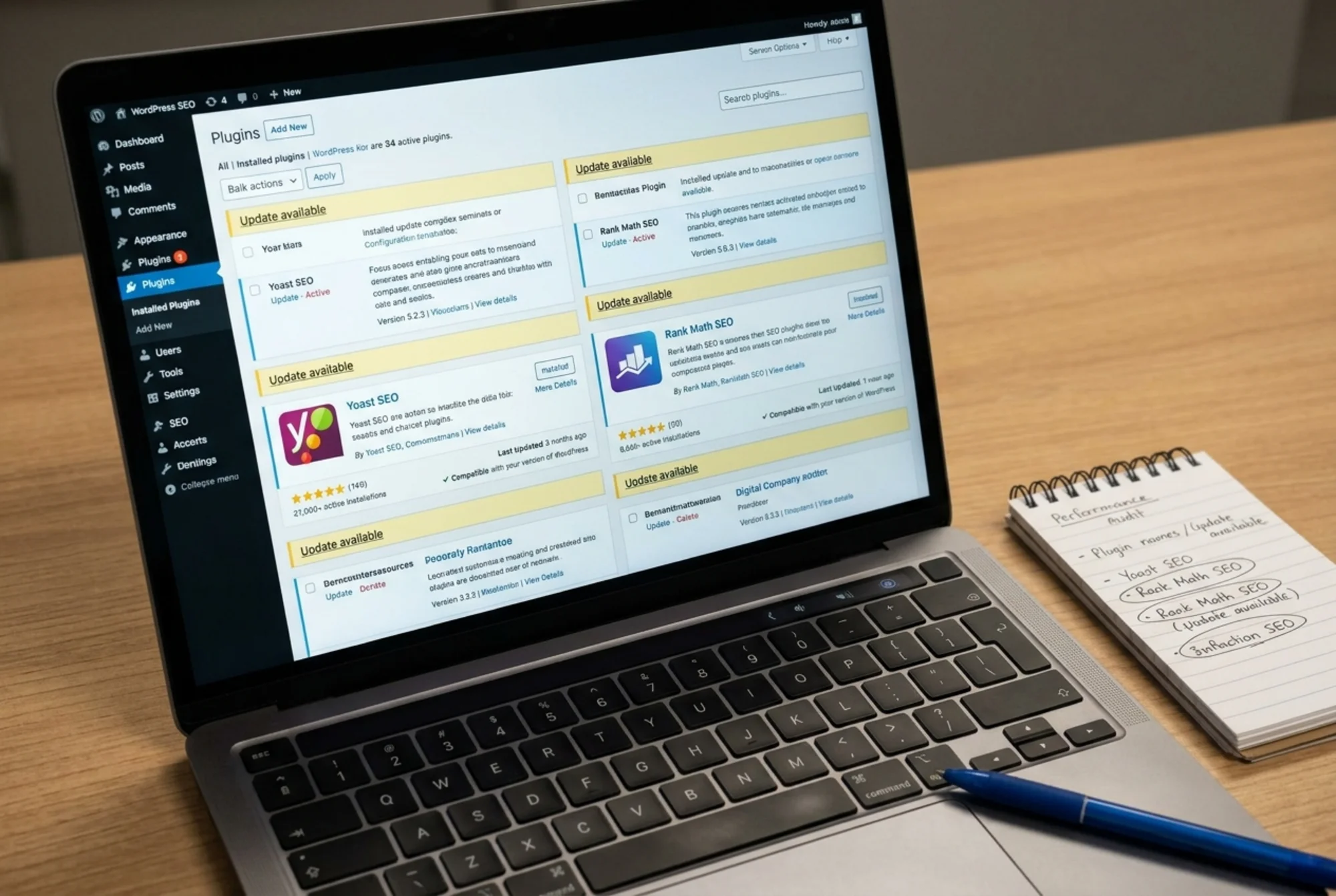
Go to Plugins → Installed Plugins and count the active ones. There is no magic number, but if you are over 25 active plugins on a small business site, you almost certainly have overlap or unused features.
For each plugin, ask three questions:
- Do I still use the feature it provides? If a plugin was installed for a one-time import or a campaign that ended, deactivate and delete it.
- Does another plugin already do this? Two SEO plugins, two caching plugins, or two security plugins will fight each other and slow the site down.
- Is it actively maintained? Plugins not updated in over a year are a security and compatibility risk.
Find the heavy ones
The free Query Monitor plugin shows you which plugins run the most database queries and consume the most PHP time on each page. Install it, load your homepage, then open the Query Monitor toolbar and sort by "Component." A plugin running 80 queries on every page load is suspect.
If you do not want to install another tool, run a manual deactivation test:
- Note your homepage load time in PageSpeed Insights.
- Deactivate plugins one at a time, starting with the ones you suspect.
- Retest after each deactivation.
- When one materially improves load time, decide whether you actually need it.
Common offenders
- Page builders (Elementor, Divi, WPBakery) — flexible but heavy. Fine if you use them; problematic if you only used one for a landing page and now ship their assets sitewide.
- Social sharing plugins — these often load third-party scripts from every network whether visitors click or not.
- Related posts plugins — many run expensive queries on every page view.
- Statistics plugins that record hits in your database — they scale badly and duplicate what Google Analytics already does for free.
- Old form plugins — Contact Form 7 loads its scripts on every page by default unless you configure it not to.
Mini-checklist: plugins
- [ ] Active plugin count is documented
- [ ] Every plugin maps to a feature you actively use
- [ ] No two plugins overlap (one SEO, one cache, one security)
- [ ] Page builder scripts are limited to pages that need them
- [ ] All plugins have been updated in the last 6 months
Step 3: Audit Your Theme
Your theme controls how every page is rendered. A heavy theme is harder to fix than a heavy plugin because it touches everything.
Open your homepage in Chrome, right-click, and choose "View Page Source." Look for:
- More than three Google Font families being loaded
- Multiple CSS files from the same theme (often a sign of a builder)
- Large background videos or hero images that are not compressed
- Inline scripts longer than a page or two
Signs your theme is the bottleneck
- The site was fast on a default theme like Twenty Twenty-Four but slow on your current theme.
- Your theme demo loads ten different sliders, animations, and effects.
- The theme has not been updated in over a year.
- Disabling all plugins barely changes your performance score.
What to do about it
You generally have three options:
- Stay on the theme but reduce its load. Turn off unused features in the customizer — sliders, animations, mega menus, sticky headers you do not need. Limit fonts to one family with two weights.
- Switch to a lightweight theme. Themes like GeneratePress, Kadence, Astra, or the default block themes are dramatically lighter than older premium themes. Bigger project, often the right one.
- Rebuild the front page with native blocks. If a page builder is responsible for your slow homepage, rebuilding just that page with the WordPress block editor recovers most of the lost speed without changing the theme.
A rule of thumb: a healthy small business WordPress homepage should weigh under 1.5MB total and load fewer than 50 individual files. If yours is far above either number, the theme is usually why.
Step 4: Audit Your Hosting
Hosting is the foundation. A clean WordPress install on bad hosting is still slow.
Quick hosting health check
In WordPress, go to Tools → Site Health → Info → Server. Check:
- PHP version — 8.1 or higher. PHP 7.x is end-of-life and noticeably slower.
- Memory limit — at least 256MB for most business sites. 128MB is tight.
- Max execution time — at least 60 seconds, more if you run backups or exports.
Then test Time to First Byte (TTFB) in WebPageTest. A healthy TTFB is under 600ms. Over a second consistently means your hosting is straining or you are on a slow shared server.
Hosting tiers, in plain English
- Cheap shared hosting ($3–$8/month): fine for a brand-new site with low traffic. Becomes a bottleneck quickly.
- Better shared / business hosting ($15–$30/month): handles a few thousand visits a day if the site is well built.
- Managed WordPress hosting ($25–$100/month): tuned specifically for WordPress, with built-in caching, staging, and automatic updates. Often the right call once your site is generating real revenue.
- VPS or cloud hosting: more power, more responsibility. Skip unless someone on your team can manage a server.
If your site has been on the same $5/month plan for three years and traffic has grown, that is almost always the first thing to fix. No amount of plugin tuning will overcome an overloaded shared server.
Caching and CDNs
A page cache stores the rendered HTML of your pages so WordPress does not rebuild them on every request. Many managed hosts include this. If yours does not, a plugin like WP Super Cache, W3 Total Cache, or LiteSpeed Cache handles it.
A CDN (Cloudflare has a generous free tier) serves your images, CSS, and JavaScript from servers close to each visitor, which speeds up the site globally and reduces load on your origin server. For most small business WordPress sites, turning on Cloudflare is one of the highest-impact 30-minute jobs you can do.
A Real Walkthrough: A Local Bakery's Audit
Here is what an audit looks like in practice for a fictional but typical small business: a neighborhood bakery's WordPress site.
Before:
- Mobile PageSpeed score: 28
- LCP: 6.4 seconds
- Active plugins: 34
- Theme: a premium magazine theme bought in 2019
- Hosting: $4.99/month shared plan
What the audit found:
- 11 plugins covered features the owner had forgotten about (an event countdown, an abandoned newsletter integration, two analytics plugins).
- Two SEO plugins were both active and conflicting.
- The theme loaded six Google Font families and three slider libraries even though the homepage used none of them.
- TTFB was 1.4 seconds — the shared host was the foundation problem.
Changes made, in order:
- Deactivated and deleted 13 plugins.
- Removed one of the two SEO plugins.
- Disabled the theme's sliders and reduced fonts to one family.
- Moved to a $25/month managed WordPress host.
- Turned on Cloudflare's free CDN.
- Enabled the host's built-in page cache.
After:
- Mobile PageSpeed score: 84
- LCP: 1.9 seconds
- Active plugins: 21
- Hosting: managed WordPress, TTFB 280ms
Total time invested: about half a day, spread over a week, with no developer involved.

Maintenance: Don't Let It Get Slow Again
A one-time audit is great. Performance erosion is gradual, though, so build a small monthly habit:
- Review your active plugin list. Anything you have not used in 90 days, remove.
- Update WordPress core, theme, and plugins monthly (back up first).
- Re-run PageSpeed Insights on your homepage and two top landing pages.
- Check your hosting dashboard for resource warnings.
- Re-test after any theme or page builder update — these are the most common silent regressions.
If you want this monitored for you, our free website audit can be re-run any time to spot regressions early. We also publish guides on common issues like a slow WordPress site and tailored checklists for small business sites.
The Short Version
Most slow WordPress sites are slow for the same reasons: too many plugins, a heavy theme used the wrong way, and hosting that has not grown with the site. You do not need to be a developer to find these problems — you need a baseline, a checklist, and the willingness to remove things. Measure first, then work through plugins, then theme, then hosting, and re-test after each change.
When you are ready for an outside look, run a free audit at FreeSiteAudit and see exactly where your site stands today.
Sources
Related Tools
Related Fixes
Check your website for free
Get an instant score and your top 3 critical issues in under 60 seconds.
Get Your Free Audit →