XML Sitemap Errors and How to Fix Them Fast
XML Sitemap Errors and How to Fix Them Fast: practical guidance for small-business owners who want to audit SEO, speed, accessibility, and conversion issues wit
# XML Sitemap Errors and How to Fix Them Fast
Your XML sitemap is the address book you hand Google. When it's clean, search engines find your pages quickly. When it's broken, that new product page, service area page, or blog post you spent three hours writing can sit unindexed for weeks.
The good news: most sitemap errors are simple. You don't need to be a developer to fix them. You just need to know what to look for and where to click.
This guide walks through the most common XML sitemap problems small business sites hit, why they happen, and exactly how to fix each one.
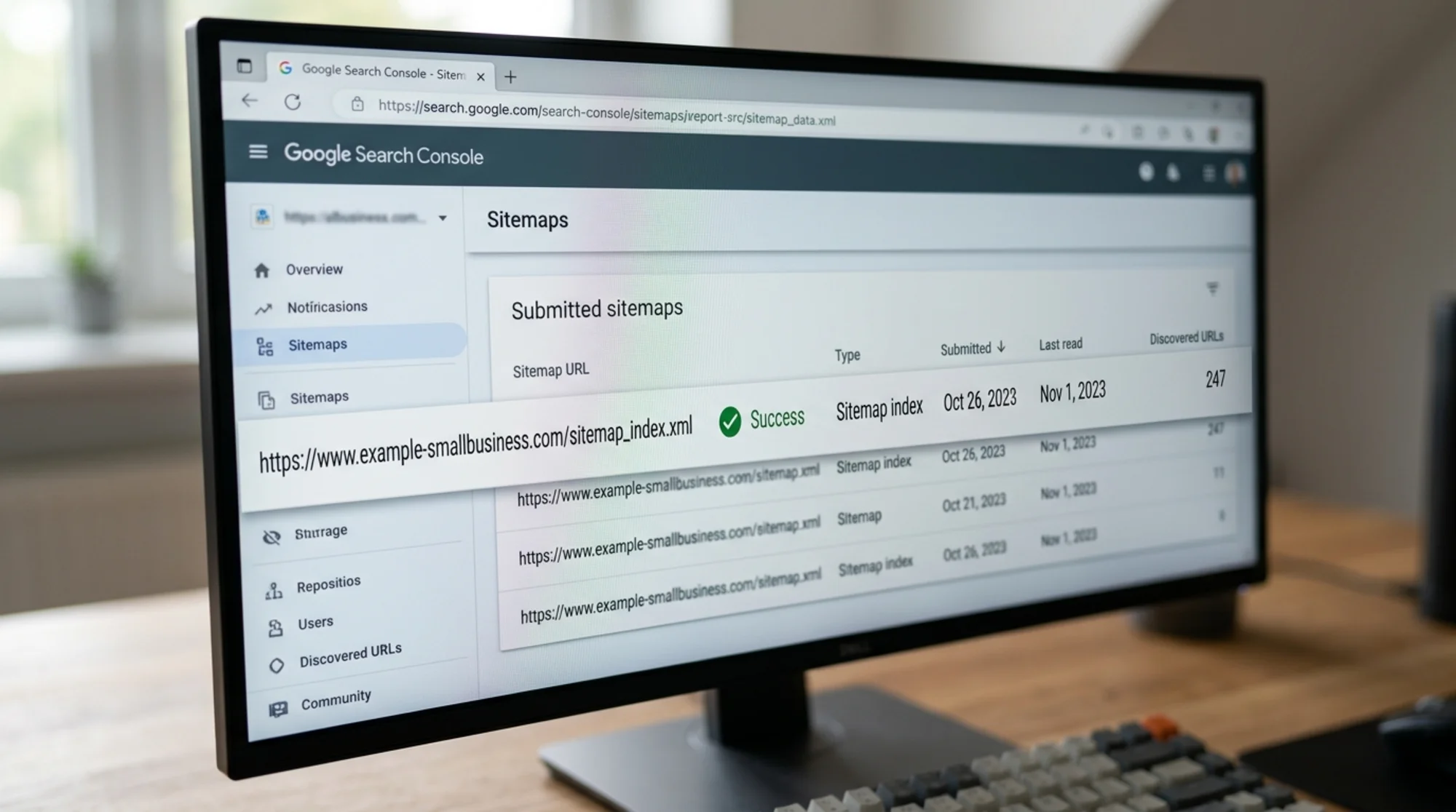
What an XML Sitemap Actually Does
An XML sitemap is a file (usually at yoursite.com/sitemap.xml) that lists the URLs you want search engines to know about. Each entry can include a few pieces of metadata: when the page was last updated, how often it changes, and its priority relative to other pages.
Google treats your sitemap as a hint, not a command. It still decides what to crawl and index based on its own signals. But a clean sitemap helps Google discover pages faster, especially:
- New pages that aren't linked from many other places yet
- Pages on large sites where crawl budget is tight
- Sites with thin internal linking
- Sites that change frequently (online stores, blogs, news sites)
If you're a small business with under 500 pages and solid internal linking, your sitemap matters less than it does for a 50,000-page e-commerce site. But "less" still isn't "zero." Broken sitemaps create real problems.
The Most Common XML Sitemap Errors
These show up over and over in Google Search Console for small business sites.
1. "Couldn't Fetch" Sitemap
The most common error, and it usually means one of three things:
- The sitemap URL you submitted is wrong (typo, wrong subdomain, wrong file name)
- The sitemap returns a 404, 500, or other non-200 status code
- Your server blocks Googlebot from accessing the file
Check it fast: Open your sitemap URL in an incognito browser tab. If it doesn't load for you, it can't load for Google.
Fix it:
- Confirm the exact URL with your CMS or hosting dashboard
- Re-upload or regenerate the file if it's missing
- Check that
robots.txtdoesn't accidentally block/sitemap.xml - On WordPress with Yoast or Rank Math, regenerate the sitemap from the plugin settings
2. URLs Blocked by Robots.txt
You list a URL in your sitemap. Your robots.txt then tells Google not to crawl it. Google flags the contradiction.
This happens a lot when staging rules get pushed live, or when someone adds a Disallow: rule without thinking about which live pages it affects.
Fix it:
- Open
yoursite.com/robots.txtin a browser - Look for any
Disallow:lines - Cross-check those against URLs in your sitemap
- Remove whichever side is wrong
If you need to dig deeper, our robots.txt fixes guide walks through common patterns.
3. URLs with Noindex Tags
Same idea, just at the page level. The page has but it's still in your sitemap. Google sees a mixed signal.
Fix it: Decide whether you want the page indexed. If yes, remove the noindex tag. If no, remove the URL from your sitemap. Don't leave both in place.
4. Redirected URLs in the Sitemap
Your sitemap lists /old-page but it now redirects to /new-page. This wastes Google's time and dilutes signals that should flow to the new URL.
Fix it: List the final destination URLs only. Most CMS sitemap generators handle this automatically, but hand-rolled sitemaps or outdated plugins often don't.
5. 404 URLs in the Sitemap
You deleted a page but forgot to remove it from the sitemap. Google fetches the sitemap, tries the URL, hits a 404, and logs the error.
Fix it: Regenerate the sitemap so it only lists live URLs. Verify in Search Console that the error count drops.
6. Mixed HTTP and HTTPS URLs
Your site moved to HTTPS but the sitemap still lists some URLs with http://. Or the sitemap is served at http:// but lists https:// URLs.
Fix it: Pick HTTPS, always. Make sure both the sitemap location and every URL inside it use the same protocol. Force 301 redirects from HTTP to HTTPS at the server level.
7. Wrong Domain or Subdomain
This trips up sites that recently migrated. The sitemap lives at yoursite.com/sitemap.xml but lists URLs from www.yoursite.com (or vice versa). Per Google's spec, sitemaps must list URLs from the same host they're served from.
Fix it: Pick www or non-www as your canonical version, configure your CMS to match, then regenerate.
8. Sitemap Too Large
A single sitemap file can list up to 50,000 URLs and be no larger than 50 MB uncompressed. Cross either limit and Google rejects the whole file.
Fix it: Split into multiple sitemaps (one per content type works well) and submit a sitemap index file that references each one. Most major CMS platforms handle this automatically.
9. Invalid XML Syntax
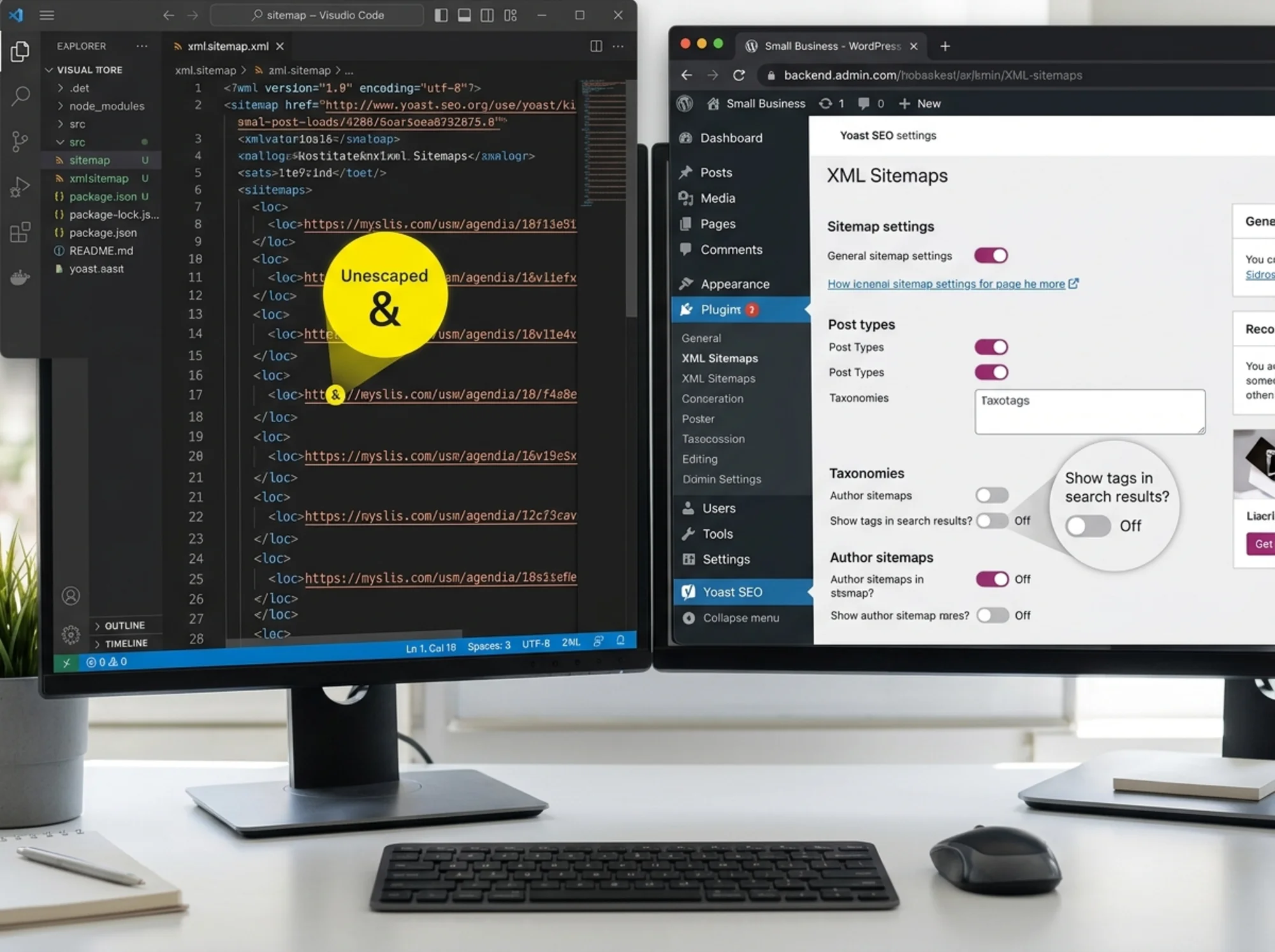
A missing closing tag, an unescaped ampersand in a URL, or a stray space at the top of the file. XML is strict, and any syntax break makes the whole file unreadable.
Fix it: Open the file in a browser. Most browsers highlight the offending line on a parsing error. For non-developers, regenerating the sitemap via your CMS plugin almost always fixes this.

A Real Walkthrough: A Local Bakery's Sitemap Mess
A small bakery in Austin runs a WordPress site with about 60 pages: menu, locations, catering, blog posts, and a few product pages. The owner moved hosts six months ago and just added a second location page.
She logs into Search Console and sees:
- Sitemap status: "Couldn't fetch"
- Indexed pages: 22 (down from 41 last quarter)
- Coverage report: 18 URLs "Excluded by 'noindex' tag"
Here's how she works through it.
Step 1: Open the sitemap URL. She types bakeryname.com/sitemap.xml. Blank page. She tries bakeryname.com/sitemap_index.xml. That loads, listing several child sitemaps. The submitted URL was wrong from the migration. She resubmits the index URL.
Step 2: Open robots.txt. She finds Disallow: /wp-admin/ (fine) and Disallow: /staging/ (left over from the developer). Some old blog URLs in the sitemap still point at /staging/. She updates the WordPress permalinks and regenerates the sitemap.
Step 3: Check the noindex group. In Search Console she clicks "Excluded by 'noindex' tag." The list is mostly old tag archive pages she doesn't care about. That's correct behavior, but Yoast is still including them in the sitemap. She opens Yoast and toggles "Show tags in search results" to No. Yoast drops them from the sitemap automatically.
Step 4: Resubmit and wait. Status changes to "Success" within an hour. Over the next two weeks, the indexed page count climbs back up.
Total time: about 20 minutes. No developer needed.
A Quick Sitemap Health Checklist
Run through this once a quarter, or any time you make big site changes:
- [ ] Sitemap URL loads in an incognito browser without errors
- [ ] Status in Google Search Console is "Success"
- [ ] URL count roughly matches your live page count
- [ ] No URLs in the sitemap return 404
- [ ] No URLs in the sitemap redirect elsewhere
- [ ] No URLs in the sitemap have noindex tags
- [ ]
robots.txtdoesn't block the sitemap or its URLs - [ ] All URLs use HTTPS and the correct domain version
- [ ] Sitemap is under 50,000 URLs and 50 MB
- [ ] Last modified dates look reasonable (not all identical, not all years old)
If you'd rather not do this manually, a free tool can check most of it for you. Run a free website audit and we'll flag sitemap issues alongside indexing, speed, and content problems.
How to Find Your Sitemap
A surprising number of small business owners don't know if they have a sitemap at all. Three ways to check:
- Try common URLs. Most CMS platforms generate one automatically. Try
yoursite.com/sitemap.xml,yoursite.com/sitemap_index.xml, oryoursite.com/sitemap1.xml.
- Check your
robots.txt. Visityoursite.com/robots.txt. A well-configured file usually contains aSitemap:line pointing to the right location.
- Check Google Search Console. Open the Sitemaps section in the left menu. Anything previously submitted shows up there.
WordPress, Shopify, Wix, Squarespace, and Webflow all generate sitemaps by default, so check your platform's docs if none of the above turn up a file.
When You Should and Shouldn't Worry
Not every sitemap warning matters. Here's how to triage:
Worry about:
- "Couldn't fetch" status
- Big drops in submitted vs. indexed URL counts
- Sitemap URLs returning 404 or 5xx errors
- Sitemap entries that conflict with
robots.txt
Don't lose sleep over:
- Excluded URLs that should be excluded (admin pages, internal search results, tag archives)
- Minor warnings while your core pages are indexed and ranking
- Slightly stale
lastmoddates on pages that genuinely haven't changed
The point of a sitemap is to help Google find your important pages. If your important pages are indexed and getting traffic, your sitemap is doing its job.
Sitemaps Don't Save Thin Content
Google's guidance on creating helpful content makes a related point: a sitemap helps Google find your pages, but it won't help low-quality pages rank. If you have 300 thin pages in your sitemap, fixing the XML won't move the needle. Cut the weak pages, then make sure the survivors are the ones in your sitemap.
The cleanest sitemap in the world won't save a site full of duplicate content. But a broken sitemap can absolutely hurt a site full of good content. Fix the sitemap first, then keep investing in the writing.

What to Do Right Now
A 10-minute action plan:
- Open Google Search Console
- Click Sitemaps in the left menu
- Note any errors or warnings
- Open your sitemap URL in an incognito tab
- If it doesn't load, fix the URL or regenerate via your CMS
- If it loads but Search Console flags errors, work through the checklist above
- Resubmit the sitemap and check back in 48 hours
If you want a faster way to spot sitemap, robots, indexing, and on-page issues in one report, run a free audit at FreeSiteAudit. You'll get a plain-English breakdown of what's broken and what to fix first, no developer required.
XML sitemap errors are one of the easiest technical SEO problems to fix yourself. You don't need to know XML syntax. You don't need to read crawler logs. You just need 20 minutes and a checklist. Start with the sitemap status in Search Console, work down the list, and you'll usually clear the major errors in one sitting.
Sources
Check your website for free
Get an instant score and your top 3 critical issues in under 60 seconds.
Get Your Free Audit →