CMS-Specific Schema Markup Mistakes That Hurt Your Search Visibility
WordPress, Shopify, Wix, and Squarespace each break schema in different ways. Here are the platform-specific structured data mistakes that strip your rich resul
# CMS-Specific Schema Markup Mistakes That Hurt Your Search Visibility
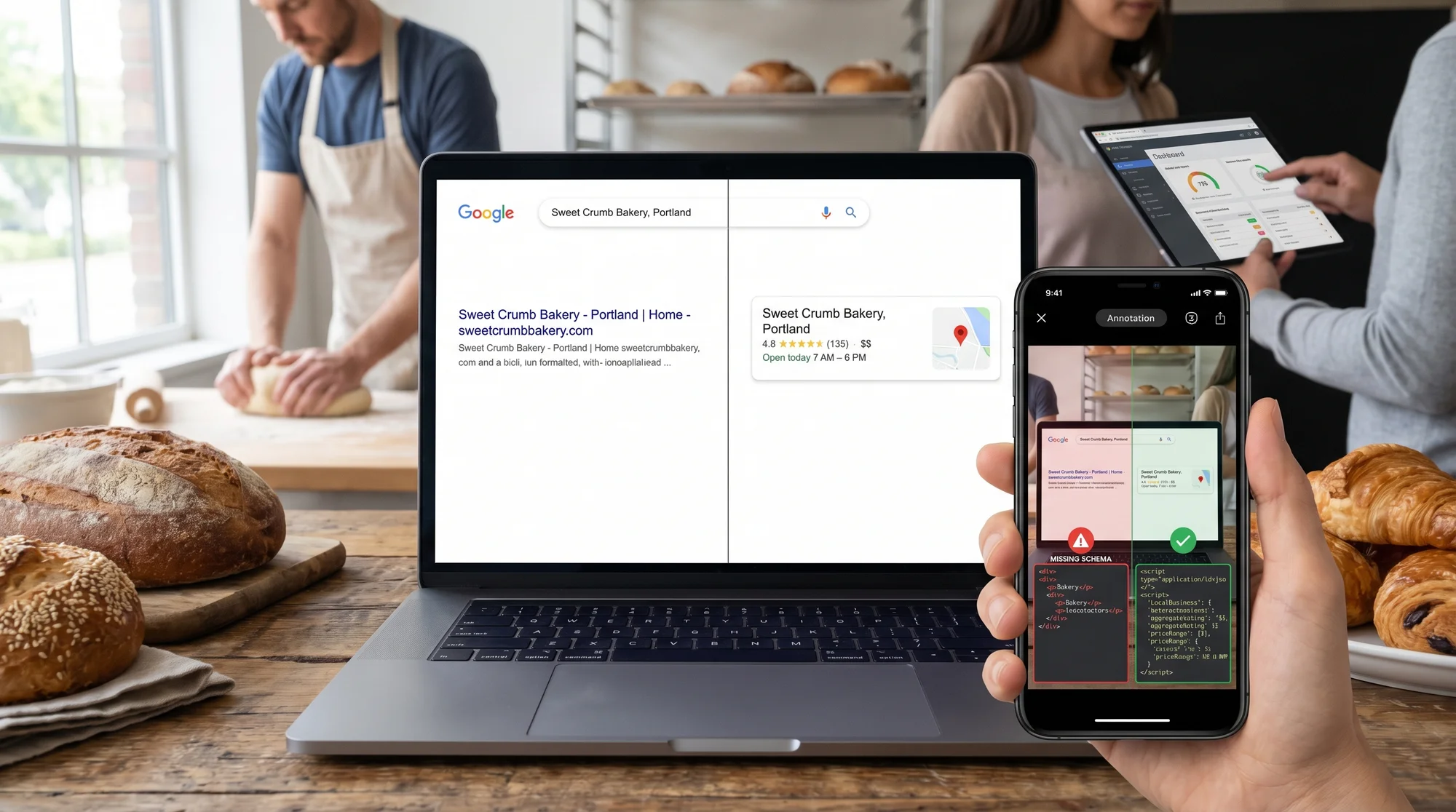
Schema markup is structured data — a block of code (usually JSON-LD format) that tells search engines what your content is, not just what it says. Done right, it unlocks star ratings, FAQ dropdowns, price displays, and event listings in search results without running ads. Done wrong, it either does nothing or sends Google conflicting signals that suppress your visibility entirely.
The mistakes you make depend heavily on which platform you're building on. WordPress, Shopify, Wix, Squarespace, and Webflow each handle schema differently, and each has its own failure modes that aren't obvious until you check.
Most website owners don't write schema by hand — they rely on their CMS, their theme, or a plugin to generate it automatically. That's fine until those automated systems conflict with each other, generate incomplete output, or produce schema that doesn't match the actual page content.
This guide covers the most common CMS-specific schema mistakes, why they happen, and how to fix them.
What Schema Markup Actually Does
When Google can validate your structured data, it may display your page as a "rich result" — the enhanced listings with star ratings, price ranges, event dates, or FAQ dropdowns. The word "may" matters: Google decides whether to show rich results based on whether your schema is valid, complete, and consistent with your page content.
If your schema has errors, missing required fields, or contradicts what's on the page, Google ignores it. You get a plain blue link instead.
WordPress
WordPress is the most flexible CMS, which makes it also the most common source of schema conflicts.
The Dual-Plugin Conflict
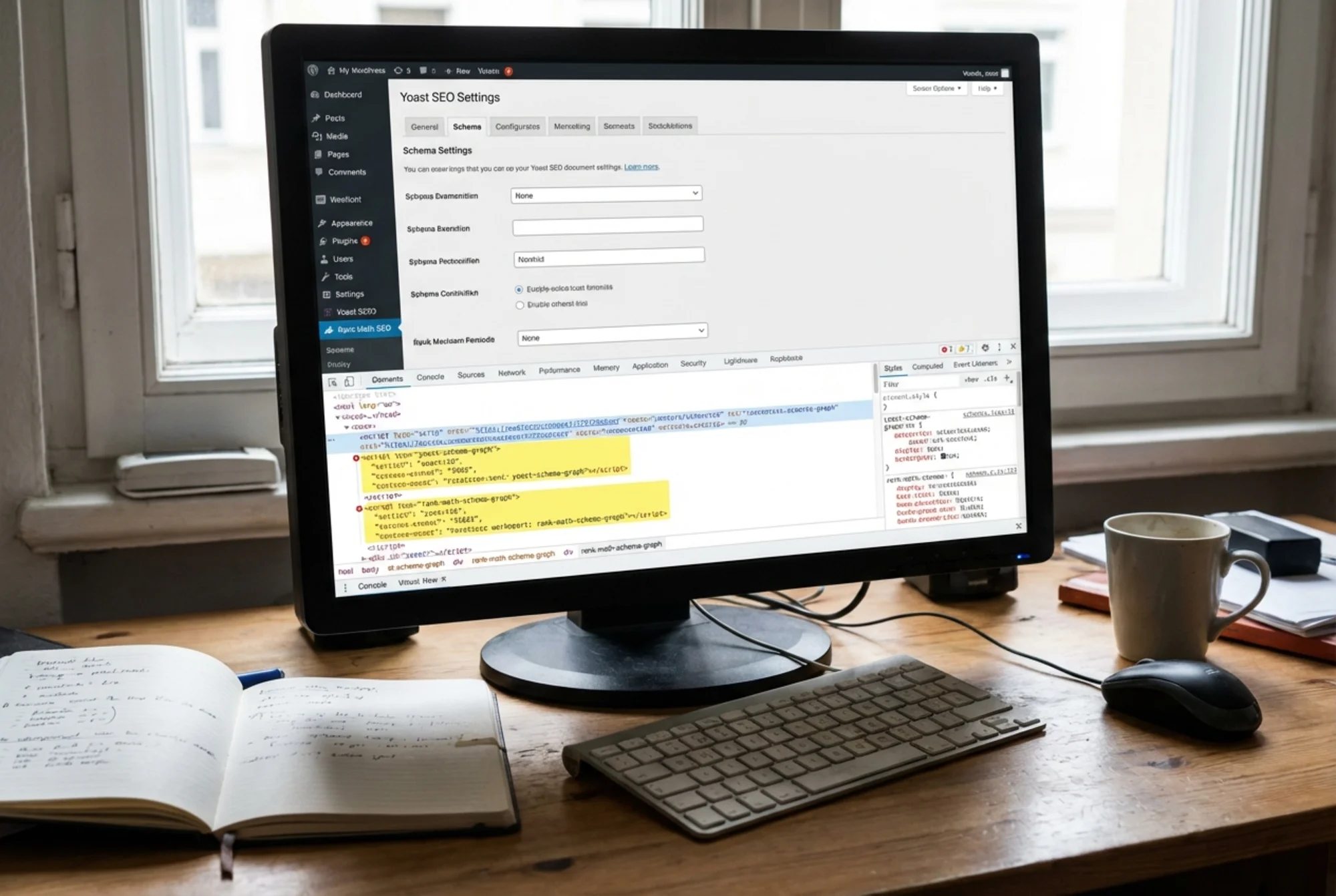
The single most common WordPress schema problem: running two SEO plugins simultaneously. Yoast SEO and RankMath both generate schema automatically. If both are active, your pages end up with two separate JSON-LD blocks that may contradict each other — two different article authors, two different organization names, or two publisher logos.
Google won't crash on this, but it may ignore both blocks rather than choose between them. The result is no rich results and no error message explaining why.
How to check: Open your page source (View Source in browser) and search for "@context": "https://schema.org". If that string appears more than once, you have duplicate schema.
Fix: Choose one SEO plugin and disable schema output in the other. In RankMath, go to General Settings → Schema. In Yoast, go to SEO → Search Appearance → Content Types.
Theme-Injected Schema
Some WordPress themes — especially older premium themes — inject their own schema via PHP, entirely separate from any plugin. If you then add an SEO plugin, you end up with the same duplicate problem, but it's harder to find because one block lives in your theme files rather than a plugin.
Check for this: If you've removed all SEO plugins and still see JSON-LD in your source, your theme is injecting it. Look in your theme's functions.php or header.php for application/ld+json.
LocalBusiness Schema for Service Businesses
Many small business WordPress sites have no LocalBusiness schema at all. A restaurant or plumber site often inherits Article schema from blog-focused plugin defaults on pages that should have LocalBusiness or Service schema instead.
What to set: For a service business homepage, your primary schema type should be LocalBusiness (or a specific subtype like Plumber, Restaurant, or AutoRepair). Include name, address, telephone, openingHours, and url. Yoast supports this under Knowledge Graph settings; RankMath has a dedicated Local SEO module.
WordPress Schema Checklist
- [ ] Only one SEO plugin generating schema (Yoast OR RankMath, not both)
- [ ] Theme not injecting its own duplicate JSON-LD
- [ ] Homepage uses LocalBusiness schema, not just WebSite or Article
- [ ] Blog posts use Article or BlogPosting schema with
author,datePublished, andpublisher - [ ] Product pages (WooCommerce) use Product schema with
offersandprice - [ ] No
@type: WebPageas the only schema on content-rich pages
Shopify
Shopify generates product schema automatically, which sounds ideal. The problem is that Shopify's default output is often incomplete, and third-party theme customizations frequently break it.
Missing Required Fields in Product Schema
Google requires certain fields for a Product rich result to be eligible. The most commonly missing on Shopify stores are:
offers.price— sometimes omitted when a product has variants without a base price setoffers.availability— often left out or wrong when inventory tracking is disabledaggregateRating— only populated if you're using a review app that integrates with JSON-LD (many don't)
If any required field is missing, Google validates the schema but flags it as ineligible for rich results. Your product pages still appear in search — just as plain text links.
Concrete example: A Shopify clothing store adds a review app (Judge.me) but doesn't verify whether it injects aggregateRating into the product JSON-LD. The store has 200+ visible reviews, but the app renders them in HTML only. Google sees no rating data. The fix is to switch to a review app with structured data support, or use a dedicated schema app to inject the missing field.
Duplicate Schema from Installed Apps
Shopify apps can inject schema just like WordPress plugins. A schema app, a review app, and your theme can all add product JSON-LD simultaneously. Use Google's Rich Results Test to count how many JSON-LD blocks appear on a product page.
Breadcrumb Schema Breaking After Theme Updates
Shopify's default breadcrumb schema works until a theme update changes the breadcrumb HTML structure. The BreadcrumbList JSON-LD relies on the HTML breadcrumb matching it — when the markup changes, the schema becomes inconsistent and Google's testing tool flags it as a warning.
Shopify Schema Checklist
- [ ] Product schema includes
name,image,description,sku,offerswithpriceandavailability - [ ] Review app injects
aggregateRatinginto JSON-LD (not just HTML) - [ ] No duplicate product JSON-LD from multiple apps
- [ ] Breadcrumb schema matches the visible breadcrumb navigation after any theme update
- [ ] Organization schema on homepage with
name,url, andlogo
Wix
Wix added structured data support over time, but the platform has a key limitation: most schema is generated from structured content types (Wix Stores products, Wix Blog posts), and customization options are limited.
Auto-Generated Schema That's Valid but Wrong
Wix generates schema based on the page type you select. If you set a service page as a generic "Blank" page instead of a "Service" page, Wix generates generic WebPage schema instead of Service schema. This doesn't break anything, but you miss the specific schema type that could trigger richer results.
Fix: Review your page types in the Wix Editor under Page Settings. For a local business homepage, make sure your Wix Business Info is fully filled out — Wix pulls name, address, and phone from that section to populate LocalBusiness schema.
Local Business Schema: Gaps in Contact Details
Wix's LocalBusiness schema only includes fields you've actually filled in. If business hours aren't set in Wix Business Info, they won't appear in your schema. If your address is incomplete, that field is omitted.
Check your Wix Business Info: Go to Settings → Business Info. Complete every field: business name, full address (with zip code and country), phone, hours for every day of the week including "Closed" days, and business category.
Wix Blog Schema
Wix Blog automatically generates Article schema for posts. The main issue is the author field — it pulls from the author's Wix profile. If posts are attributed to a generic "Admin" account with no profile photo, Google sees an incomplete author entity, which can affect E-E-A-T signals.
Wix Schema Checklist
- [ ] Business Info fully complete (name, address, phone, hours, category)
- [ ] Service pages set to "Service" page type, not a generic blank page
- [ ] Blog author profiles have real names and photos
- [ ] Wix Stores products have complete descriptions and prices
- [ ] Tested with Google Rich Results Test after any major site edit
Squarespace
Squarespace is the most restrictive major CMS for schema. It generates structured data automatically with almost no ability to customize it.
What Squarespace Does and Doesn't Generate
Squarespace automatically generates:
- Article schema for blog posts
- Product schema for Squarespace Commerce products
- Event schema for events added through the native Events block
It does not automatically generate:
- LocalBusiness schema
- FAQ schema
- Service schema
- Review or rating schema
For a service business on Squarespace, this means your site may have zero structured data beyond basic WebSite schema on the homepage — no local knowledge panel data, no business-specific rich results.
The Code Injection Workaround
Squarespace allows custom code via Settings → Advanced → Code Injection. This is how you add schema types the platform doesn't generate natively.
Example: A personal injury law firm on Squarespace has no LocalBusiness or LegalService schema. They add a JSON-LD block in the header code injection field:
html
This runs on every page of the site. It's not elegant, but it works and Google validates it.
Squarespace Blog Schema Gaps
Squarespace's Article schema is functional but sparse. It includes the title and publication date but often omits author (if not set in blog settings), image, and publisher. These gaps won't cause errors, but they reduce completeness in Google's testing tool.
Squarespace Schema Checklist
- [ ] LocalBusiness or relevant business-type schema added via Code Injection
- [ ] Blog author set in Squarespace blog settings (not left as default)
- [ ] FAQ schema added via Code Injection for any FAQ content (Squarespace won't do this automatically)
- [ ] Commerce products reviewed in Rich Results Test for complete offers data
- [ ] Events entered through the native Events block (not a custom section) to get Event schema
Webflow
Webflow gives developers full control, which means schema mistakes are usually about omission rather than platform-generated errors.
CMS Collection Pages and Missing Schema
Webflow's CMS Collections build templated pages at scale — useful for service area pages, team bios, or product listings. If you don't add schema to the Collection page template, none of those pages have schema. It has to be added once to the template and bound to CMS fields.
If you add JSON-LD in Webflow's custom code section and hardcode values instead of using dynamic field bindings, every page in the collection shows identical schema — same name, same description — which is incorrect and may be flagged as manipulative.
Fix: Use Webflow's dynamic embed feature to bind schema fields to CMS collection values. Webflow has documentation on adding JSON-LD with dynamic field values.
Schema Placed in the Wrong Location
In Webflow, custom code can be added at the project level, page level, or inside components. A common mistake is adding schema inside a div element's custom attributes rather than in the via Page Settings. Google can parse JSON-LD anywhere in the document body, but placing it in the is the recommended practice and avoids rendering issues.
Webflow Schema Checklist
- [ ] CMS Collection templates use dynamic field bindings in JSON-LD, not hardcoded values
- [ ] Schema added in Page Settings custom code (head section), not inside body elements
- [ ] No missing schema on CMS-generated pages (check a sample of 3–5 collection pages)
- [ ] LocalBusiness schema present on the contact page or homepage
How to Audit Your Schema Right Now
Regardless of platform, this process takes under 10 minutes:
- Run Google's Rich Results Test on your homepage, one product or service page, and one blog post. Look for errors (red), warnings (yellow), and missing required fields.
- View page source on each page and search for
application/ld+json. Count how many blocks appear. More than one on a single page likely indicates a conflict. - Check for consistency — if your schema says your business is "Smith Plumbing LLC" but your page header says "Smith Plumbing," Google may flag the discrepancy.
- Validate each schema type separately — the Rich Results Test shows which types are detected and whether each is eligible for rich results.

What Happens When You Fix It
Fixing schema mistakes doesn't guarantee rich results — Google still decides when to show them. But valid, complete schema removes the barriers. Businesses that move from broken schema to clean schema often see star ratings appear in search results within a few weeks of Google recrawling the site.
The pattern is consistent: most sites aren't failing because their schema is complex or wrong in subtle ways. They're failing because of a duplicate plugin, an unfilled Business Info field, or a missing offers block that takes five minutes to add once you know it's missing.

Summary: CMS Schema Mistakes by Platform
| Platform | Most Common Mistake | Quick Fix |
|---|---|---|
| WordPress | Dual-plugin conflict | Disable schema output in one plugin |
| Shopify | Missing aggregateRating in product schema | Use a review app with JSON-LD support |
| Wix | Incomplete Business Info → gaps in LocalBusiness schema | Fill every field in Settings → Business Info |
| Squarespace | No LocalBusiness or FAQ schema generated | Inject JSON-LD via Code Injection |
| Webflow | CMS collection pages missing schema or using hardcoded values | Use dynamic CMS field bindings in JSON-LD |
Run a Free Schema Audit on Your Site
Not sure what's actually on your site? FreeSiteAudit checks your structured data, flags missing or broken schema, and tells you exactly what type of schema your page needs based on its content — no technical knowledge required.
Run your free website audit at FreeSiteAudit →
You'll see whether your CMS platform is generating valid schema, which pages are missing structured data entirely, and what rich results you're currently eligible for. It takes about 60 seconds.
Sources
Related Tools
Related Fixes
Check your website for free
Get an instant score and your top 3 critical issues in under 60 seconds.
Get Your Free Audit →