How to Add Schema Markup Without a Developer (Plain-English Guide)
A no-code walkthrough for small business owners to add schema markup, test it with Google's Rich Results Test, and fix common errors—no developer needed.
# How to Add Schema Markup Without a Developer
If you've ever seen a Google result with star ratings, opening hours, FAQ dropdowns, or recipe times shown right in the search listing—that's schema markup at work. It's a small block of code that tells Google what your page is about, and it can make your listing stand out in ways a plain blue link never will.
The good news: you don't need a developer to add it. You don't even need to understand the code. You need to know which type of schema fits your page, where to paste it, and how to confirm it worked.
This guide walks you through the whole thing.

What Schema Markup Actually Is
Schema markup is a shared vocabulary that search engines agreed to use. Think of it as a label on a package—it tells the shipper what's inside and how to handle it. Schema labels your content so Google knows it's looking at a recipe, a product, a local business, a review, or an event.
When Google understands a page well enough, it can show what's called a "rich result"—a listing with extra detail like ratings, prices, or hours. The format Google recommends is JSON-LD: a block of code that sits in your page's HTML but doesn't change anything visitors see. The code only speaks to search engines.
You don't have to write it from scratch. Free generators build it for you. Your job is to fill in a form, copy the output, and paste it into your site.
Why Small Business Owners Should Care
Schema markup doesn't guarantee a ranking boost—Google has been clear about that. But it can change how your result looks in search, and a better-looking result usually earns more clicks.
For a local plumber, schema can surface your star rating, phone number, hours, and service area. For an e-commerce shop, it can show price, in-stock status, reviews, and shipping details. For a service business with a blog, it can show publish dates, authors, and FAQ accordions inside the result itself.
None of these require a developer. They require about 20 focused minutes per page.
The Five Schema Types Most Small Businesses Need
The schema vocabulary has hundreds of types. The vast majority of small businesses only need a handful:
- LocalBusiness — Any business with a physical location or service area. Subtypes exist for restaurants, dentists, plumbers, salons, and more.
- Product — E-commerce product pages.
- Article — Blog posts and editorial content.
- FAQPage — Pages with a clear list of questions and answers.
- Review / AggregateRating — Pages that visibly display customer feedback.
Pick the type that matches what's actually on the page. Don't stack five schema types hoping one will trigger a rich result. Google interprets schema based on the visible content of the page—structured data that claims something the page doesn't show can get your markup ignored or your site flagged. Google's documentation is explicit: structured data must match what users see.

The Three-Step Process (Same for Every Schema Type)
Once you've done it once, you can apply this loop to any page on your site.
Step 1: Generate the Schema
Use a free schema generator. Two reliable starting points:
- Google's Structured Data Markup Helper — free and official
- Schema.org — the canonical reference for fields and types
Select a schema type, fill in fields like business name, address, phone, and hours, and the tool produces a block of JSON-LD code. It looks intimidating, but you only need to paste it.
Step 2: Add the Code to Your Page
This is where most non-technical owners freeze. They picture editing raw HTML files. You don't have to. Every major website builder has a no-code way to drop in a code block:
- WordPress: Use a Custom HTML block in Gutenberg, or install a free plugin like Rank Math, Yoast, or Schema Pro. These plugins build the schema from a form—no code touch required.
- Shopify: Modern themes include built-in schema. For custom additions, go to Theme Editor → Edit Code → add to
theme.liquidinside thetag, or install a schema app from the Shopify App Store. - Wix: Settings → Custom Code → Add Custom Code → paste in the JSON-LD, set it to load in the
of all pages or specific pages. - Squarespace: Use Code Injection (Settings → Advanced → Code Injection) for sitewide schema, or a Code Block on individual pages.
- Webflow: Project Settings → Custom Code → Head Code, or page-level Custom Code from Page Settings.
In every case, you're pasting a block that looks like this sample LocalBusiness schema:
Paste it. Save. Publish.
Step 3: Test It
Don't skip this. A missing comma can break schema silently. Use Google's free Rich Results Test. Paste your live URL, click Test, and Google tells you:
- Whether the page is eligible for rich results
- Which schema types it detected
- Any errors or warnings, with the specific field that's wrong
If you see green checkmarks, you're done. If not, fix the flagged field and retest.
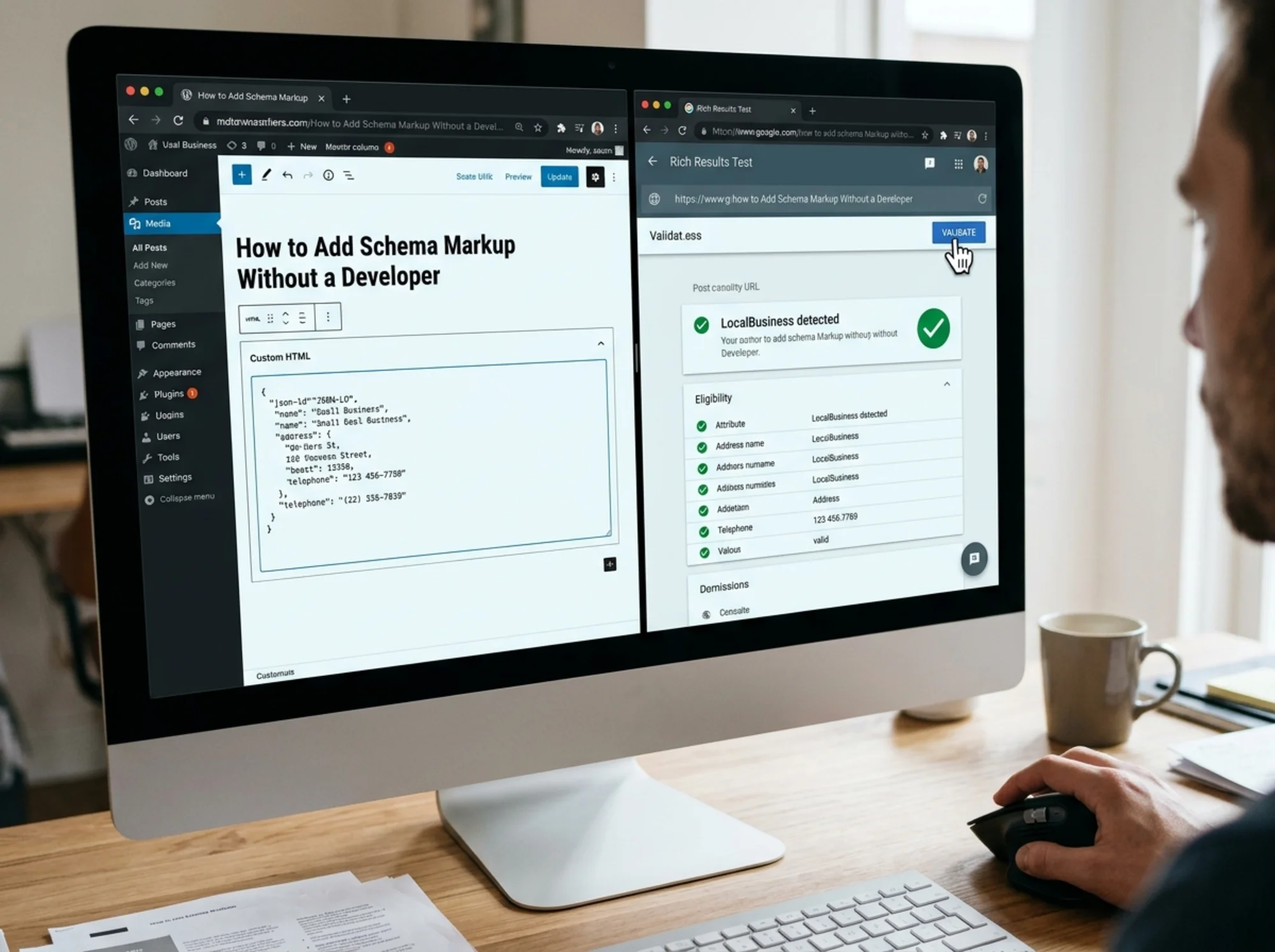
A Real Walkthrough: LocalBusiness Schema for a Plumber
Say you run Dave's Plumbing in Denver. WordPress site, no developer, and you want your hours and rating to show up in Google.
Generate. Open a JSON-LD generator and choose "LocalBusiness." Fill in:
- Name: Dave's Plumbing
- Type: Plumber
- Address: 456 Cherry Creek Dr, Denver, CO 80206
- Phone: +1-303-555-0142
- Hours: Mon–Fri 7am–7pm, Sat 8am–4pm
- URL: davesplumbing.com
- Price range: $$
- Aggregate rating: 4.8 from 127 reviews — only include if those reviews are visibly displayed on the page
The generator produces a JSON-LD block.
Add. In WordPress, edit your homepage. Add a Custom HTML block at the bottom. Paste the JSON-LD (including the