LocalBusiness Schema: What to Include and What to Skip
Learn which LocalBusiness schema properties Google actually uses in search results and which ones you can safely skip. A practical, property-by-property guide.
# LocalBusiness Schema: What to Include and What to Skip
LocalBusiness schema is one of the most useful types of structured data for any business that serves customers in a specific location. It tells search engines exactly what your business is, where it operates, and when it is open — in a format machines can read instantly.
The problem is that the schema.org specification lists dozens of properties. Some directly influence what Google shows in search results. Others do nothing visible. A few can cause problems if filled in incorrectly. For a busy business owner or a developer tasked with implementing structured data, knowing which properties to prioritize and which to ignore saves real time and avoids potential penalties.
This guide covers which LocalBusiness schema properties to include, which to skip, and how to avoid the mistakes that trip up most site owners. We will walk through every important property with concrete examples so you can implement or audit your own schema with confidence.
What LocalBusiness Schema Does
When Google reads LocalBusiness schema on your page, it can use that data to:
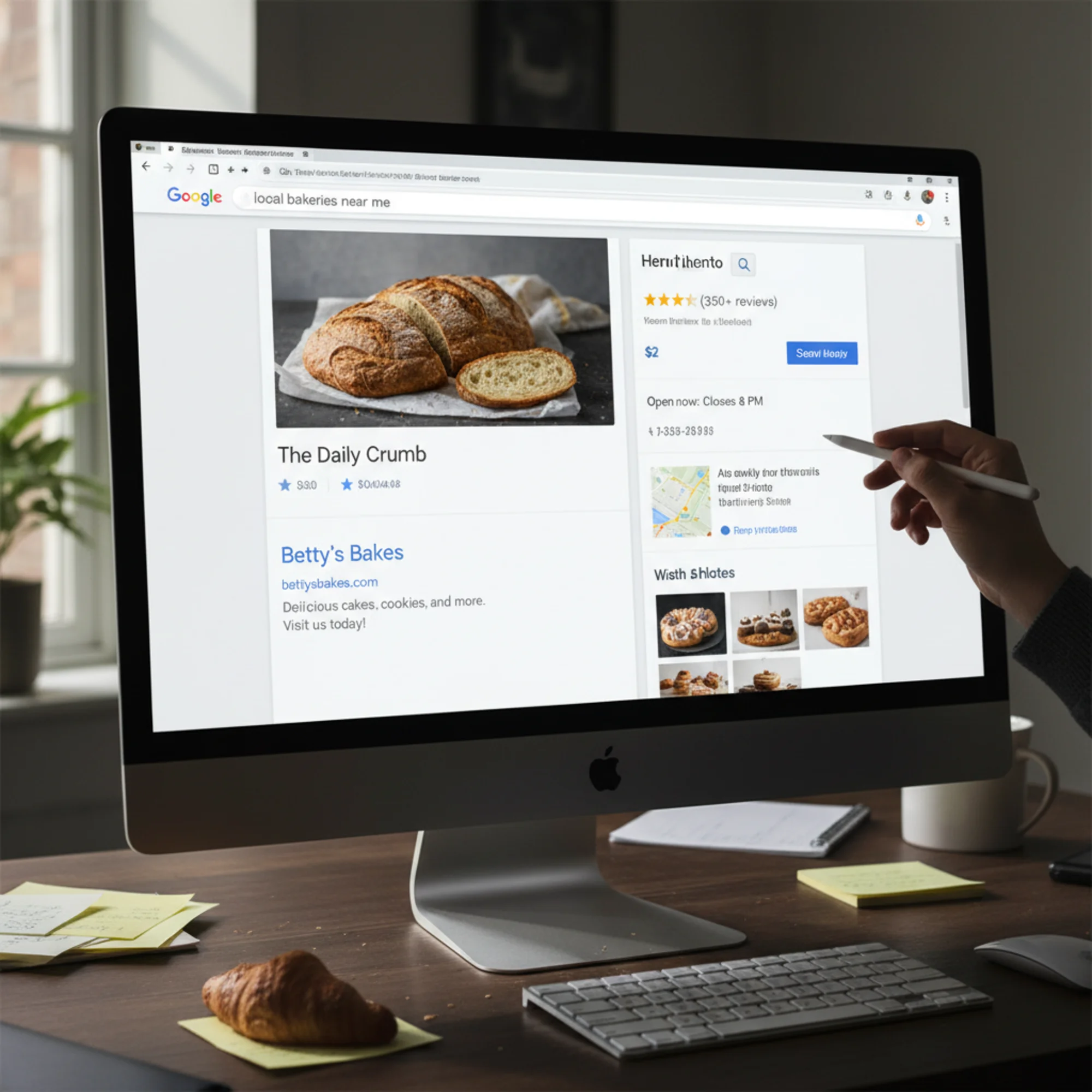
- Populate your knowledge panel with hours, address, phone number, and price range
- Connect your website to your Google Business Profile
- Help voice assistants answer questions about your business
- Provide map integrations and directions directly in search results
- Enable features like "Open now" labels next to your listing
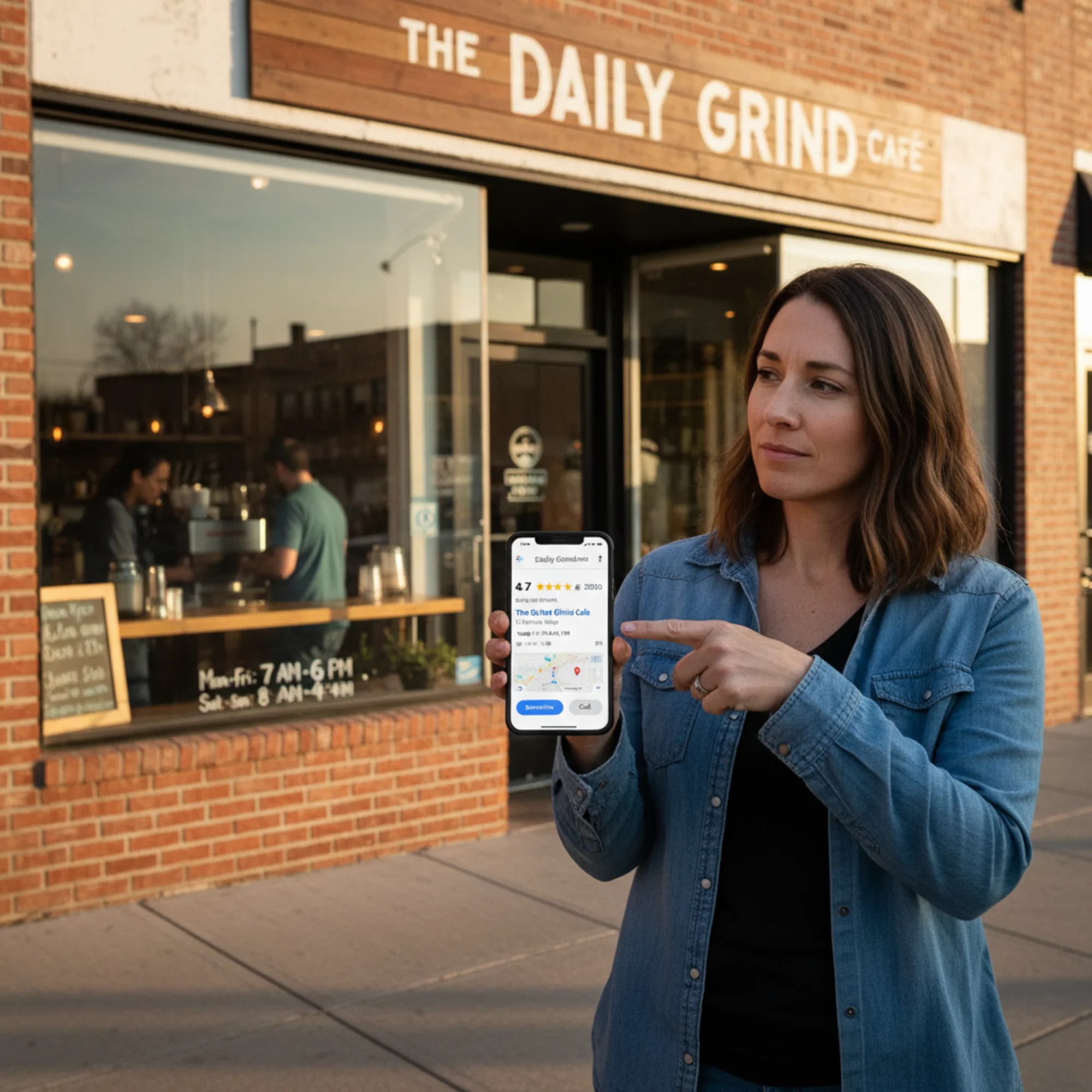
Google does not guarantee it will use your structured data. But without it, you leave the interpretation entirely up to the algorithm. With it, you provide a clear, machine-readable description of your business. Think of it as handing Google a well-organized fact sheet instead of hoping it finds the right details by crawling your page content.
Structured data does not directly improve your ranking position. What it does improve is how your listing looks in results, how much space it occupies, and how much useful information a searcher sees before clicking. A listing with hours, a star rating, a phone number, and a price range wins attention over a plain blue link every time.
Properties You Must Include
These are the properties Google explicitly documents as recommended or required for LocalBusiness structured data. Skip them and your schema is essentially decorative.
@type
Use the most specific business type available. Do not use LocalBusiness if a more precise subtype fits. Schema.org includes subtypes like Restaurant, Dentist, AutoRepair, HairSalon, LegalService, and dozens more.
Google uses the type to determine how your business appears in search. A Restaurant gets different treatment than a generic LocalBusiness. Restaurants, for instance, can display menus and reservation links. Medical practices may get special health-related features.
Common subtypes by industry:
- Food:
Restaurant,Bakery,BarOrPub,CafeOrCoffeeShop,FastFoodRestaurant,IceCreamShop - Health:
Dentist,Physician,Optician,Pharmacy,MedicalClinic,Chiropractor - Home services:
Plumber,Electrician,HVACBusiness,Locksmith,RoofingContractor,MovingCompany - Professional:
LegalService,AccountingService,InsuranceAgency,FinancialService,RealEstateAgent - Personal care:
HairSalon,DaySpa,TattooParlor,NailSalon - Auto:
AutoRepair,AutoDealer,GasStation,AutoBodyShop - Fitness:
HealthClub,GolfCourse,SportsActivityLocation - Retail:
Store,ShoeStore,ClothingStore,HardwareStore,PetStore
If your exact type is not listed, use the closest parent type. A dog groomer should use LocalBusiness rather than pick an inaccurate subtype like AnimalShelter. Accuracy matters more than specificity — an incorrect type is worse than a generic one.
name
Your official business name — nothing else. Not "Best Pizza in Chicago — Joe's Pizzeria." Just Joe's Pizzeria. Google warns against keyword stuffing in the name field. Match it exactly to your storefront signage and Google Business Profile.
This consistency matters more than people realize. If your Google Business Profile says "Joe's Pizzeria & Italian Kitchen" but your schema says "Joe's Pizza," Google may not confidently connect the two. Copy the name character for character from your Google Business Profile.
address (PostalAddress)
Include the full address as a structured PostalAddress object:
streetAddress— the street number and name (e.g., "742 SE Division Street")addressLocality— the city (e.g., "Portland")addressRegion— the state or province, ideally as a two-letter code (e.g., "OR")postalCode— the ZIP or postal code (e.g., "97202")addressCountry— the two-letter country code (e.g., "US")
Do not put your full address in a single string. Break it into individual fields so Google can parse each component. This also enables features like directions and map pins that depend on geocoding accuracy.
For service-area businesses that do not want a public address, you can omit streetAddress and rely on areaServed instead. However, if you have a physical location customers visit, always include the full address.
telephone
Your primary business phone number with country code, formatted consistently with your website and Google Business Profile. The recommended format is +1-503-555-0142 — the international prefix followed by dashes.
If you have multiple numbers (main line, scheduling, fax), only include your primary customer-facing number. The point is to give Google one clear number to display, not to list your internal directory.
openingHoursSpecification
This is where most businesses either skip entirely or get wrong. Use OpeningHoursSpecification to define your hours for each day:
"openingHoursSpecification": [
{
"@type": "OpeningHoursSpecification",
"dayOfWeek": ["Monday", "Tuesday", "Wednesday", "Thursday", "Friday"],
"opens": "09:00",
"closes": "17:00"
}
]
If your Saturday hours differ, add a separate object. If you are closed Sunday, omit it or set opens and closes to the same time.
Common mistake: Using 12-hour format. Schema expects 24-hour format. Write 17:00, not 5:00 PM.
Handling special scenarios:
- Split hours (e.g., closed for lunch): Create two entries for the same day — one for the morning block and one for the afternoon block.
- 24-hour businesses: Set
opensto00:00andclosesto23:59. - Holiday hours: Use
specialOpeningHoursSpecificationwith avalidFromandvalidThroughdate range. This is one of the most underused properties and can prevent the "showed up to a closed store" problem during holidays.
Here is an example of a business that closes for lunch on weekdays:
"openingHoursSpecification": [
{
"@type": "OpeningHoursSpecification",
"dayOfWeek": ["Monday", "Tuesday", "Wednesday", "Thursday", "Friday"],
"opens": "08:00",
"closes": "12:00"
},
{
"@type": "OpeningHoursSpecification",
"dayOfWeek": ["Monday", "Tuesday", "Wednesday", "Thursday", "Friday"],
"opens": "13:00",
"closes": "17:30"
}
]
url
Your website homepage URL. This links your structured data to your domain and helps Google confirm the connection between your website and your Google Business Profile. Use the canonical version of your URL — https://www.yourbusiness.com, not http://yourbusiness.com.
image
At least one image of your business or storefront. Google recommends a minimum of 112x112 pixels, though larger is better — 1200 pixels wide is ideal. Use a real photo, not stock imagery. Google can detect stock photos and they undermine trust. A clear photo of your actual storefront, product, or team helps both Google and potential customers.
Multiple images are supported. Consider including your storefront, interior, and a signature product or service.
Properties Worth Adding
Not strictly required, but these directly improve what Google can display about your business and help differentiate your listing.
priceRange
A string indicating your price level. Google accepts $, $$, $$$, or ranges like $10-50. This can appear in your knowledge panel and helps searchers gauge affordability at a glance.
Match your price range to what you actually charge. A fine dining restaurant marking itself as $ will confuse customers and hurt trust. A quick reference:
$— Budget-friendly (under $15 per person for restaurants, under $50 for services)$$— Moderate (typical mid-range pricing)$$$— Upscale (above-average pricing for the category)$$$$— Premium (high-end, luxury pricing)
geo (GeoCoordinates)
Your latitude and longitude. While Google can geocode your address, explicit coordinates remove ambiguity for businesses in rural areas, multi-building complexes, or locations inside shopping centers.
"geo": {
"@type": "GeoCoordinates",
"latitude": 45.5051,
"longitude": -122.6750
}
To find your exact coordinates, right-click your location in Google Maps and the lat/long appears at the top of the context menu. Copy those values directly.
areaServed
Essential for service-area businesses like plumbers, landscapers, or mobile mechanics. Tells Google where you operate. You can specify cities, states, or a GeoCircle with a radius — especially useful if your address is in one city but you serve surrounding areas.
"areaServed": [
{
"@type": "City",
"name": "Portland"
},
{
"@type": "City",
"name": "Beaverton"
},
{
"@type": "City",
"name": "Lake Oswego"
}
]
For a business with a defined service radius, GeoCircle with geoRadius works well:
"areaServed": {
"@type": "GeoCircle",
"geoMidpoint": {
"@type": "GeoCoordinates",
"latitude": 45.5051,
"longitude": -122.6750
},
"geoRadius": "30 mi"
}
sameAs
Links to your official social media profiles and directory listings. Helps Google confirm your identity across platforms and can contribute to your entity graph.
"sameAs": [
"https://www.facebook.com/yourbusiness",
"https://www.instagram.com/yourbusiness",
"https://www.yelp.com/biz/yourbusiness",
"https://www.linkedin.com/company/yourbusiness"
]
Only include profiles you actively maintain. Dead profiles with no posts, wrong hours, or old branding send mixed signals and may confuse customers who find them.
logo
Your business logo URL. Google may use this in your knowledge panel. Use a clean, high-resolution image hosted on your own domain. Avoid logos with transparent backgrounds that might render poorly on Google's white or light-gray panel backgrounds. A square or near-square aspect ratio works best.
department
If your business has distinct departments with their own hours or phone numbers, use the department property. This is particularly useful for businesses like a store with a pharmacy inside, or a car dealership with separate service and sales departments.
Properties to Skip
These properties exist in the schema.org specification, but Google either ignores them or does not surface them in local search results. Including them does not hurt, but spending time on them brings no measurable benefit.
founder / foundingDate
Google does not display founding information in knowledge panels for local businesses. Unless you are a Fortune 500 company, this is trivia that adds bytes to your page without adding value in search.
employee / numberOfEmployees
No local search feature uses employee count. It does not appear in knowledge panels or affect ranking. If company size matters for your customers, mention it in your page copy instead.
currenciesAccepted / paymentAccepted
Google does not display accepted payment methods from schema in local results. Mention Apple Pay, contactless payments, or other methods on your website content instead — ideally on your contact or FAQ page where customers look for that information.
hasMap
Google generates maps from your address automatically. A hasMap property linking to Google Maps is redundant and adds no visible feature to your search presence.
slogan / description
Counterintuitively, Google has stated it does not use the description field from structured data in search results. It generates snippets from your page content instead. Your meta description and on-page content control what shows in the snippet — not the schema description property.
This is one of the most common time-wasters. Business owners spend effort crafting a perfect description in their schema, not realizing Google ignores it entirely.
review / aggregateRating
While reviews matter enormously for local SEO, Google does not want you self-serving reviews through schema. Google's guidelines warn against marking up reviews not visible on the page. Google collects review data from its own platform and third-party sites like Yelp and TripAdvisor. Adding self-selected reviews to your schema can trigger a manual action penalty — meaning Google may remove your rich results entirely.
This is the one property that can actively hurt you if misused. If you display genuine customer reviews on your page, you can mark those up — but only if they are visible to users on that page. Never inject hidden review markup.
Complete Example: A Local Bakery
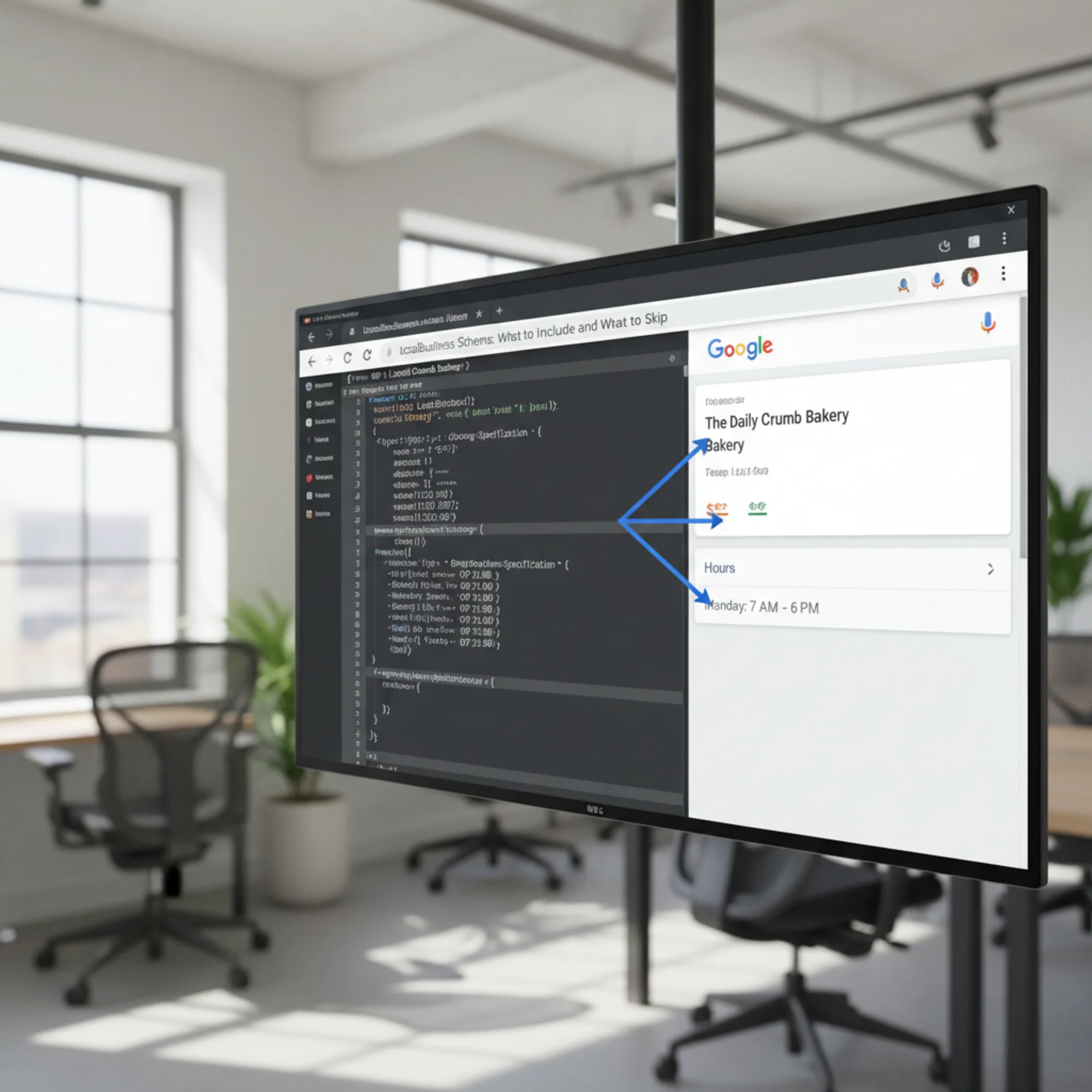
Here is a clean, complete LocalBusiness schema for a bakery in Portland, Oregon, open Tuesday through Saturday:
{
"@context": "https://schema.org",
"@type": "Bakery",
"name": "Sunrise Bakery",
"url": "https://www.sunrisebakerypdx.com",
"telephone": "+1-503-555-0142",
"image": "https://www.sunrisebakerypdx.com/images/storefront.jpg",
"logo": "https://www.sunrisebakerypdx.com/images/logo.png",
"priceRange": "$$",
"address": {
"@type": "PostalAddress",
"streetAddress": "742 SE Division Street",
"addressLocality": "Portland",
"addressRegion": "OR",
"postalCode": "97202",
"addressCountry": "US"
},
"geo": {
"@type": "GeoCoordinates",
"latitude": 45.5051,
"longitude": -122.6750
},
"openingHoursSpecification": [
{
"@type": "OpeningHoursSpecification",
"dayOfWeek": ["Tuesday", "Wednesday", "Thursday", "Friday"],
"opens": "07:00",
"closes": "18:00"
},
{
"@type": "OpeningHoursSpecification",
"dayOfWeek": "Saturday",
"opens": "08:00",
"closes": "15:00"
}
],
"sameAs": [
"https://www.facebook.com/sunrisebakerypdx",
"https://www.instagram.com/sunrisebakerypdx"
]
}
Notice what is not included: no description, no review, no paymentAccepted, no foundingDate. Every property present is something Google can actually use.
Where to Place It
Add the JSON-LD as a script tag in the of your homepage:
html
Google officially recommends JSON-LD over Microdata or RDFa. JSON-LD is easier to maintain because it lives in a single block rather than being scattered through your HTML markup.
Platform-specific instructions:
- WordPress with Yoast SEO: Go to SEO → Search Appearance → Content Types → select your homepage. Yoast generates LocalBusiness schema automatically if you fill in the Organization settings. Alternatively, use the "Local SEO" add-on for more granular control.
- WordPress with Rank Math: Go to Rank Math → Titles & Meta → Local SEO. Fill in your business details and Rank Math generates the JSON-LD.
- Squarespace: Go to Settings → Developer Tools → Code Injection → Header. Paste your JSON-LD script there.
- Wix: Go to Settings → Custom Code → Head. Add your JSON-LD block.
- Shopify: Edit your
theme.liquidfile and paste the JSON-LD in thesection. Some Shopify themes have a dedicated structured data section. - Custom HTML/static sites: Simply paste the