Core Web Vitals Explained for Non-Developers
Core Web Vitals explained in plain English. Learn what LCP, INP, and CLS mean, why they matter for your site, and what to fix this week without any code.
# Core Web Vitals Explained for Non-Developers
If you've checked your site's performance lately, you've probably seen the phrase "Core Web Vitals." It sounds technical, but these three numbers simply describe how your site feels to real visitors.
This guide is for small business owners, marketers, and agency teams who want the plain English version. You'll learn what the scores mean, why Google keeps mentioning them, and what to do next without turning into a developer.
Why people keep hearing about Core Web Vitals
Core Web Vitals are a set of three measurements Google uses to describe user experience on a website. They cover loading speed, responsiveness after someone clicks or taps, and whether the page jumps around while it loads.
Google Search Central says site owners should aim for good Core Web Vitals for success with Search and for a better user experience in general. That does not mean a slow site can never rank. It means user experience is one of the signals Google weighs alongside things like content quality, relevance, and links.
They matter for another reason too. People close slow tabs. They tap a button, nothing happens, and they leave. They try to click a link, the page shifts, and they hit the wrong thing. Those moments cost trust, leads, and sales.
Core Web Vitals are also based on real visitor data, not just lab tests. Google often talks about the 75th percentile. In plain English, that means your site should give a good experience to most people most of the time.

The three metrics in plain English
You only need to remember three short names: LCP, INP, and CLS.
LCP: how fast the main thing shows up
LCP stands for Largest Contentful Paint. It measures how long it takes for the biggest visible piece of content on the page to appear. That is often the hero image, the main headline, or a big banner.
Good: 2.5 seconds or less.
Needs improvement: between 2.5 and 4 seconds.
Poor: more than 4 seconds.
If LCP is slow, visitors feel like the site is dragging before they even get started.
INP: how quickly the site reacts
INP stands for Interaction to Next Paint. It measures how quickly the page reacts after someone clicks, taps, or presses a key.
This is the newer metric. INP replaced FID, which stood for First Input Delay. That change matters because FID only looked at the first interaction. INP looks at responsiveness across the whole visit, which gives a much more honest picture of how the site feels.
Good: 200 milliseconds or less.
Needs improvement: between 200 and 500 milliseconds.
Poor: more than 500 milliseconds.
If a menu opens late or a button feels sticky, INP is usually part of the story.
CLS: how much the page jumps around
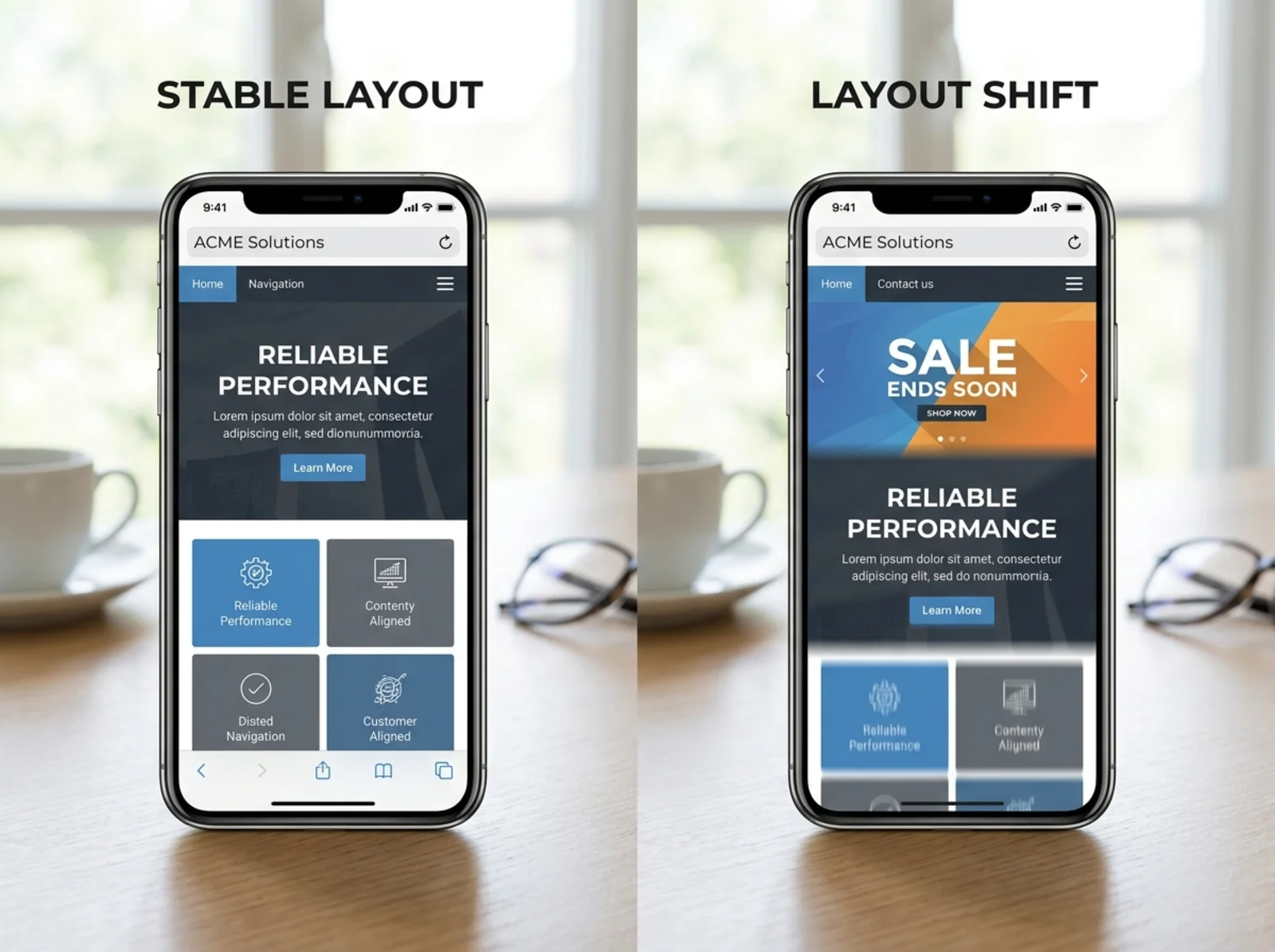
CLS stands for Cumulative Layout Shift. It measures unexpected movement while the page is loading.
You've seen this before. You try to tap a button, then a banner loads above it and pushes everything down. You end up clicking the wrong thing. That is a layout shift.
Good: 0.1 or less.
Needs improvement: between 0.1 and 0.25.
Poor: more than 0.25.
Unlike LCP and INP, CLS is not measured in seconds. It is a score, and lower is better.
What usually makes Core Web Vitals scores bad
You do not need to know how a browser works to spot the common causes.
Big, unoptimized images
Large images are one of the most common reasons for poor LCP. A giant homepage photo straight from a phone or camera often slows the page far more than people expect.
If you only fix one thing this month, fix your images. Our image optimization playbook covers practical ways to shrink them without making the site look worse.
Heavy third-party scripts
Chat widgets, popups, analytics tools, A/B testing tools, and review badges all add extra work for the browser. Too many of them can make a page feel slow to react, which hurts INP.
Sometimes the answer is removing tools. Sometimes it is loading them only where they are needed.
Slow hosting or weak caching
If the hosting is slow, the site starts behind. If browser caching and compression are missing, visitors download more than they should. Our browser caching and compression guide covers some of the easiest wins in this area.
Banners, ads, and embeds that load late
CLS problems usually come from things that appear late and push the page around. Cookie banners, video embeds, ad slots, and popups are common examples. If space is not reserved for them ahead of time, the layout shifts.
Too much code blocking the page
Some files have to load before the browser can show the page properly. If those files are heavy, visitors stare at a blank or half-finished screen longer than they should. We break that down in render-blocking CSS and how to speed up above-the-fold content.
What non-developers should do first
You do not need to become technical to make progress. Start with a few simple actions.
1. Check your current numbers
Run a quick test with the speed snapshot tool. If you want help reading the results, our guide on how to check your website speed and what the numbers mean walks through it in plain English.
Write the numbers down so you can compare them later.
2. Test on a phone
Many visitors are on phones with weaker connections than yours. A site that feels fine on a laptop at home can feel painfully slow on mobile. Test mobile first.
If you want a deeper cleanup list, read mobile page weight audit: what to remove first.
3. Compress images before upload
This is one of the simplest wins available to a non-technical owner. Resize oversized images. Use modern formats like WebP or AVIF when your platform supports them. A single heavy hero image can drag down LCP by a lot.
4. Audit popups, trackers, and extras
Make a list of everything loading on the site that did not come with the site itself. If a tool is rarely used, remove it or load it only where it matters.
5. Ask better questions to your developer or platform
If someone else maintains the site, send them your numbers and ask:
- What can we do this week to improve LCP?
- Are browser caching and compression set up properly?
- Can we reserve space for banners, embeds, and ads so the page stops shifting?
Even if you do not know the technical answer, those are the right questions.

A simple weekly checklist
If you want a routine that is easy to stick with, use this:
Monday: Run a speed test on your homepage and top landing pages. Record LCP, INP, and CLS.
Tuesday: Pick the page with the worst score. Check the main image first. Compress it, replace it, and test again.
Wednesday: Review any new popups, scripts, banners, or tracking tools added recently. Remove what you do not need.
Thursday: Test the site on a real phone. Browse like a customer and note any slow taps or shifting layouts.
Friday: Send the findings to whoever maintains the site, or make a short fix list for next week.
This routine will not solve everything overnight, but it will stop speed problems from hiding for months.
Do bad Core Web Vitals stop you from ranking?
Not by themselves. A page with strong content and authority can still rank with average or weak Core Web Vitals.
But poor scores still matter. They can make it harder to compete with faster pages, and they can frustrate visitors even when rankings stay decent. In many cases, the business cost shows up in bounce rate, conversion rate, and lead quality before it shows up anywhere else.
Think of poor performance as a quiet tax on every visit. Some people wait. Some leave. Over time, the losses add up.

Wrapping up
Core Web Vitals are not magic. They are just three measurements: how fast the main content appears, how quickly the page reacts, and how steady the layout stays while loading.
Aim for LCP at 2.5 seconds or less, INP at 200 milliseconds or less, and CLS at 0.1 or less, measured using the 75th percentile of real visits.
You do not need to be a developer to improve those numbers. Compress images, cut unnecessary tools, test on a phone, and ask the right questions.
Want a quick read on where your site stands today? Run a free audit on FreeSiteAudit and get a plain English starting point for what to fix first.
Sources
- Google Search Central: Understanding Core Web Vitals and Google search results, https://developers.google.com/search/docs/appearance/core-web-vitals
- Web.dev: Core Web Vitals, https://web.dev/articles/vitals
- Web.dev: Interaction to Next Paint (INP), https://web.dev/articles/inp
- Web.dev: INP becomes a Core Web Vital, https://web.dev/blog/inp-cwv-launch
Related Tools
Check your website for free
Get an instant score and your top 3 critical issues in under 60 seconds.
Get Your Free Audit →