GitHub Copilot Website Audit: What to Check Before Your AI-Built Site Goes Live
Built a website with GitHub Copilot? Here are the SEO, speed, mobile, and rendering issues to fix before launch so real visitors can find and use your site.
# GitHub Copilot Website Audit: What to Check Before Your AI-Built Site Goes Live
GitHub Copilot is a genuinely useful coding assistant. It helps you write code faster, suggests whole functions, and can scaffold an entire website in an afternoon. For small business owners who know a bit of code or who are working with a developer, Copilot can cut weeks off a build.
But there is a gap between "the site works" and "the site is ready for real traffic." Copilot focuses on helping you write functional code. It does not think about whether Google can crawl your pages, whether your images are slowing everything down, or whether your contact form works on a phone. Those are your problems.
This post walks through what to check before launching a Copilot-assisted website. No fluff, just the practical stuff that affects whether people find your site and stick around.
Why Copilot-Built Sites Need Their Own Audit
Copilot generates code based on patterns it has learned. It produces code that runs. It is not designed to produce code that ranks well in search, loads fast on slow connections, or follows accessibility basics.
Here is what tends to happen. A business owner uses Copilot to build a React or Next.js site. The site looks great on their laptop. They push it live. Then weeks pass and Google has not indexed half the pages. Or the site loads in six seconds on mobile. Or the meta titles all say "Home" because nobody changed the defaults.
These are not Copilot bugs. The problem is that nobody asked it to handle SEO and performance. That is what this audit covers.
If you have used other AI tools to build sites, the issues are similar. We have covered audits for sites built with Claude Code, Vercel v0, Cursor AI, and Replit. The patterns overlap, but each tool has its own quirks.
Rendering and Crawlability: Can Google Actually See Your Content?
This is the most common problem with Copilot-built sites, and it causes the most damage.
If Copilot helped you build a single-page React app or a heavily JavaScript-dependent site, there is a real chance Google cannot see your content properly. Google's indexing process has multiple stages. First it crawls your HTML. Then it renders the JavaScript. Then it indexes what it finds. According to Google's own documentation, this rendering step can be delayed. If your content only exists after JavaScript runs, it may take much longer to appear in search results or may not appear correctly at all.
Google recommends server-side rendering or pre-rendering for both users and crawlers. If your site uses Next.js, check whether your pages use Server Components or whether everything is client-rendered. The difference matters enormously for search visibility.
Quick test: open your site in Chrome, right-click, and choose "View Page Source." If you can see your actual content in the raw HTML, you are probably fine. If the source is mostly empty JavaScript bundles and a single div tag, Google may struggle with your site.
Run your URL through our speed snapshot tool to see how your pages perform from a crawler's perspective.
Title Tags, Meta Descriptions, and the Basics Copilot Skips
Copilot is unlikely to write unique, keyword-aware title tags for each page. It will give you a working HTML structure, but the metadata is usually generic or missing entirely.
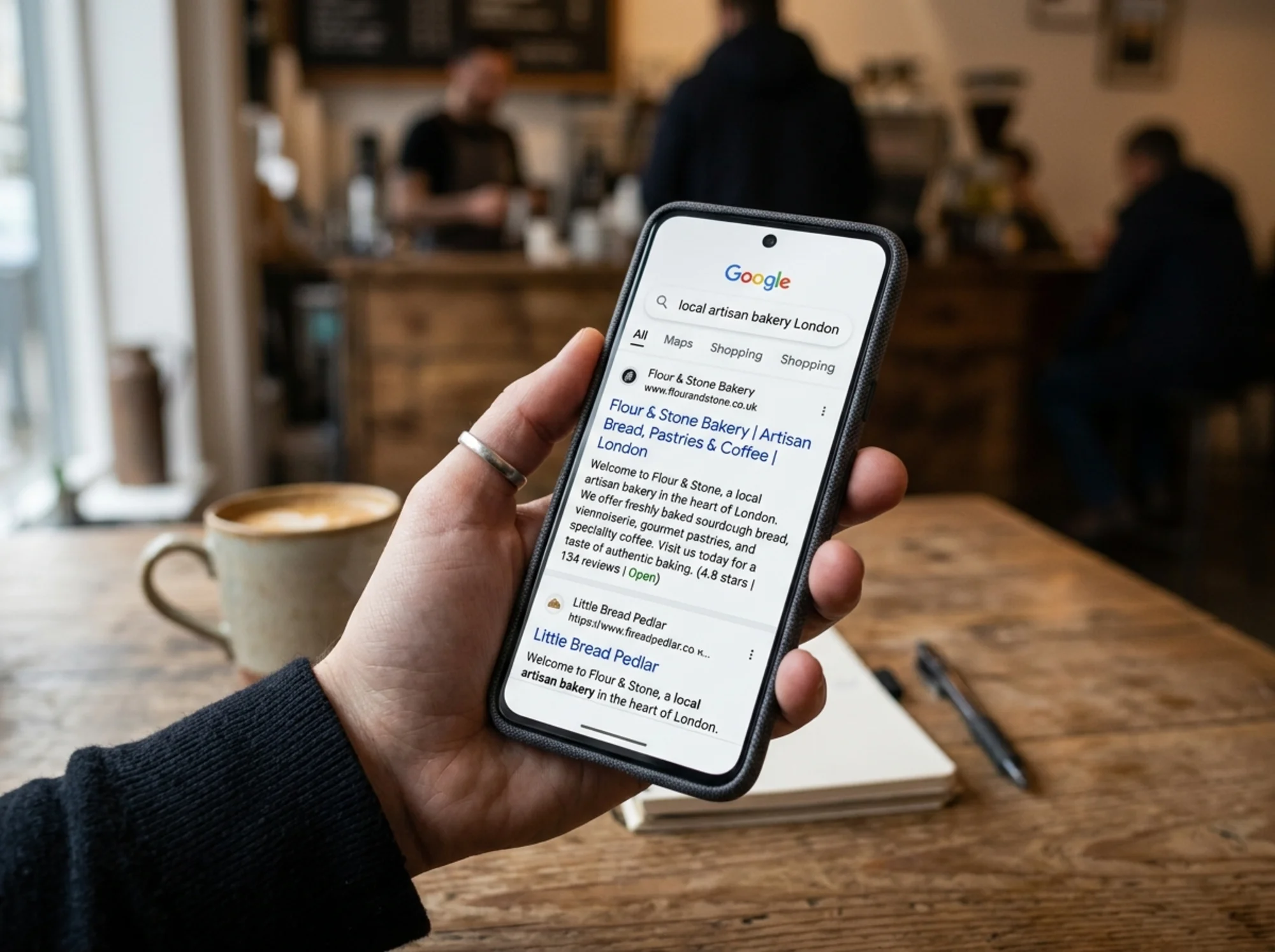
Google's documentation is clear: unique titles and meta descriptions help users understand what each page is about. Google may use the meta description you provide when it better describes the page than what it can pull from the content itself. A well-written meta description can directly affect whether someone clicks your result.
Check every page for these basics:
Title tags. Each page needs a unique, descriptive title under 60 characters. Not "Home." Not "Page 1." Something like "Custom Wedding Cakes in Portland | Baker's Name." Use our meta title checker to scan your pages quickly.
Meta descriptions. Write a clear summary of each page in 150 to 160 characters. Tell the reader what they will find. Verify these with our meta description checker.
Canonical tags. If your site can serve the same content at multiple URLs (with or without trailing slashes, with query parameters), canonical tags tell Google which version to index. Copilot almost never adds these. Google's documentation confirms that canonical tags help consolidate duplicate URLs and prevent indexing confusion.
Open Graph tags. When someone shares your page on Facebook, LinkedIn, or Twitter, OG tags control what image and text appear. Without them, the platform grabs whatever it can find, which usually looks terrible. Check yours with our Open Graph checker.
Core Web Vitals and Performance Bloat
Copilot tends to generate code that works but is not optimized for performance. It might import an entire library when you only need one function, skip image optimization, or add scripts that block rendering.
Google's Core Web Vitals measure three things, according to web.dev:
LCP (Largest Contentful Paint): How fast your main content loads. If your hero image is a 4MB uncompressed PNG, your LCP will suffer. Aim for under 2.5 seconds.
INP (Interaction to Next Paint): How quickly the page responds when someone clicks or taps. Heavy JavaScript bundles slow this down. If Copilot added client-side libraries you do not actually need, strip them out.
CLS (Cumulative Layout Shift): Whether elements jump around as the page loads. This happens when images lack width and height attributes, or when fonts load late and cause text to reflow. Copilot-generated code frequently skips image dimensions.
Run your site through the speed snapshot tool to get a read on all three metrics.
Mobile UX and Form Problems
More than half of web traffic comes from phones. Copilot can help you write responsive CSS, but it does not test the result on an actual small screen.
Common mobile problems on Copilot-built sites: text too small to read without zooming, buttons too close together to tap accurately, horizontal scrolling caused by elements wider than the viewport, and forms where input fields are tiny or the keyboard covers the submit button.
If your site has a contact form, test it on a real phone. Fill it out. Submit it. Check that the confirmation message appears and that you receive the submission. Copilot can generate form markup, but it rarely handles the full submission flow, validation, and error states well.
Use our mobile-friendly test to catch layout and usability problems before your customers do.
Heading Structure, Internal Links, and Schema
These structural elements help both Google and your visitors understand your site.
Heading structure. Every page should have exactly one H1 tag that describes what the page is about. Copilot sometimes generates pages with no H1, multiple H1 tags, or headings that skip levels. Check that your headings follow a logical hierarchy.
Internal links. Your pages should link to each other in ways that make sense. If you have a services page and a blog post about one of those services, they should link to each other. Copilot will not build your internal linking strategy.
Schema markup. Structured data helps Google understand what your business is, where you are located, and what you sell. Copilot almost never adds schema. At minimum, add LocalBusiness schema if you serve a local area. Check your markup with our schema audit tool.
Real Example: A Fitness Studio Site Built with Copilot
A personal training studio in Austin used Copilot to help build a Next.js website with a class schedule, trainer bios, and a contact form. The site looked polished and worked fine in the browser.
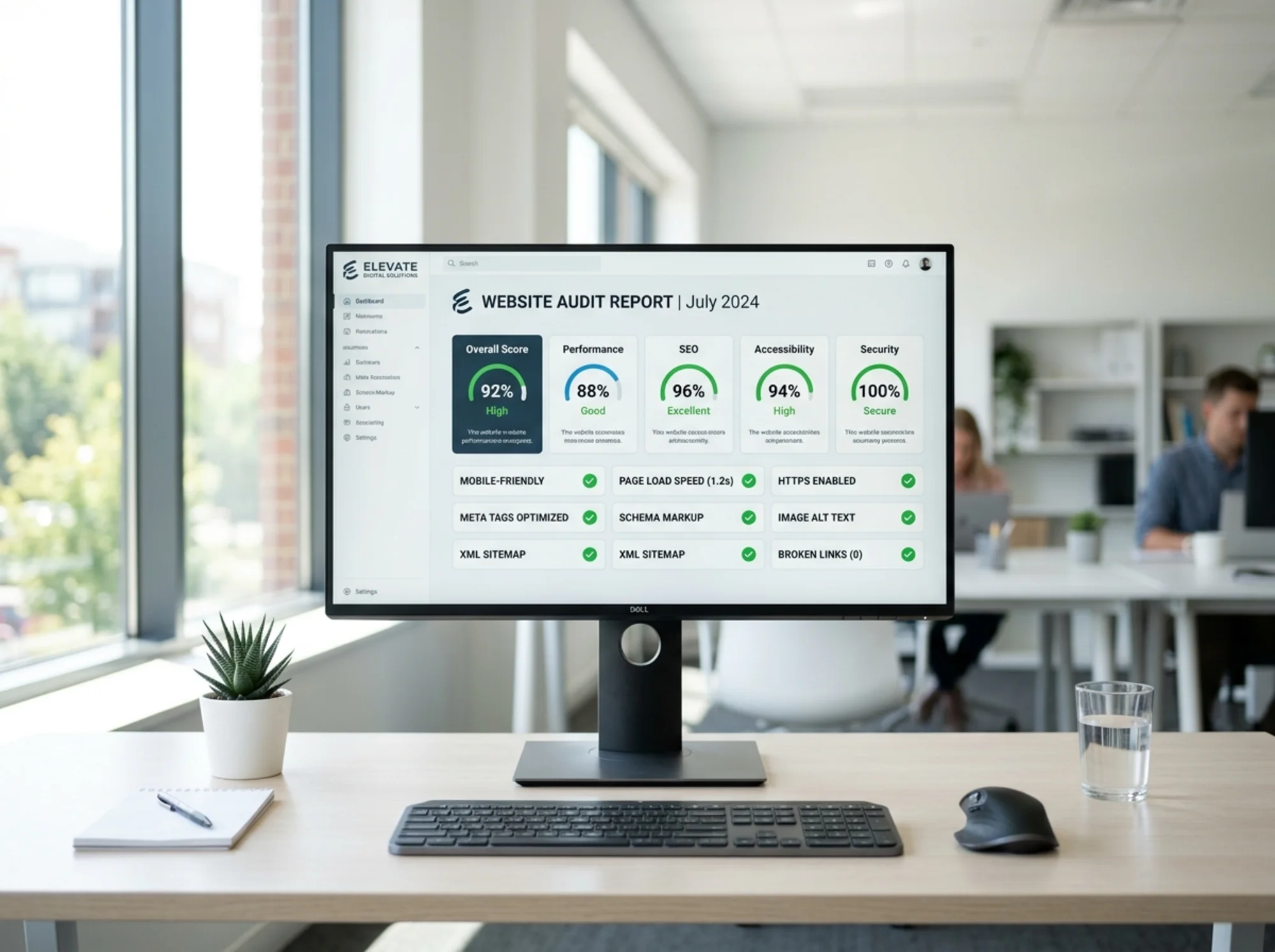
An audit before launch found these issues. The entire class schedule was rendered client-side only, so Google could not see any class names or descriptions. Every page had the same title tag: "FitStudio Austin." The trainer bio images were full-resolution photos from a phone camera, averaging 3MB each, pushing LCP past eight seconds on mobile. The contact form's submit button was hidden behind the keyboard on iOS. And there was zero schema markup.
After fixing these issues (server-side rendering for the schedule, unique titles, compressed images, adjusted mobile form layout, and LocalBusiness schema), the site was ready for launch. None of the fixes were hard. They just would not have happened without a deliberate audit step.
Pre-Launch Checklist
Before you push your Copilot-built site live, walk through this list:
- Crawlability. View the page source for every key page. Confirm your content is in the HTML, not hidden behind JavaScript.
- Title tags. Every page has a unique, descriptive title under 60 characters.
- Meta descriptions. Every page has a clear summary in 150 to 160 characters.
- Canonical tags. Set on every page, pointing to the preferred URL.
- Open Graph tags. Title, description, and image set for every page you want shared on social media.
- Image optimization. All images compressed, served in modern formats (WebP or AVIF), with explicit width and height attributes.
- Core Web Vitals. LCP under 2.5 seconds, no major CLS issues, responsive INP.
- Mobile testing. Test every page and form on a real phone.
- Heading structure. One H1 per page, logical heading hierarchy.
- Internal links. Key pages link to each other naturally.
- Schema markup. At minimum, add Organization or LocalBusiness schema.
- Forms. Every form submits correctly and you receive the submission.

When to Use FreeSiteAudit
You can check many of these items manually, but it is tedious and easy to miss things. FreeSiteAudit runs through SEO, performance, mobile usability, and trust signals in one pass and gives you a clear list of what needs fixing.
If you built your site with Copilot and you are about to launch, run a free audit first. It takes a couple of minutes and catches the problems that cost you traffic and customers if they go live unchecked. You can also check out our trust signals tool to make sure your site looks credible to first-time visitors.
The goal is not perfection. It is catching the obvious problems before your customers find them for you.
Sources
Check your website for free
Get an instant score and your top 3 critical issues in under 60 seconds.
Get Your Free Audit →