How to Fix Slow Loading Times on Your Website
Plain English guide to spotting why your website feels slow, finding the real cause, and fixing the highest impact things first without getting technical.
# How to Fix Slow Loading Times on Your Website
A slow website is one of those problems that's easy to feel and hard to explain. You click your own homepage on your phone, wait a beat too long, watch the layout jump around, and think, "that can't be good." You're right. It isn't. But the fix is usually not a full rebuild or a new host. Most slow sites are slow for a small handful of reasons.
This guide walks you through what "slow" actually means, how to figure out what's causing it on your site, and what to fix first.

What "slow" actually means
When people say a site feels slow, they usually mean one of three things, and it helps to separate them.
The first is how long it takes for the main thing on the page to show up. If you land on a homepage and stare at a white screen for four seconds before the headline and hero image appear, that is a loading speed problem. Google has a name for this. It is called Largest Contentful Paint, or LCP. A good LCP is 2.5 seconds or less. Anything past 4 seconds is poor.
The second is how the page responds when you tap or click. You hit a menu button, nothing happens, you tap again, then suddenly two things happen at once. That is a responsiveness problem. The measure here is called Interaction to Next Paint, or INP. A good INP is 200 milliseconds or less. That is a fifth of a second.
The third is when the page jumps around while it loads. You are about to tap a link, an ad slides in above it, and you tap the wrong thing. That is a layout shift problem. The measure is Cumulative Layout Shift, or CLS. A good CLS is 0.1 or less.
These three numbers, taken together, are called Core Web Vitals. They are a useful shorthand for how a real person experiences your site. If you remember nothing else, remember these three numbers: 2.5 seconds, 200 milliseconds, and 0.1.
Why a fast site is worth the effort
Page speed is not magic. A slow site will not tank a great business, and a fast site will not save a bad one. But slow pages do lose visitors, especially on mobile, and Google does treat page experience as one ranking factor.
So speed matters for conversions and for search visibility. Aim for "good enough that nothing about the experience feels broken," and you will capture most of the upside.
Step one: measure before you change anything
Before you touch a single setting, get a baseline. Otherwise you will not know if your changes helped, hurt, or did nothing.
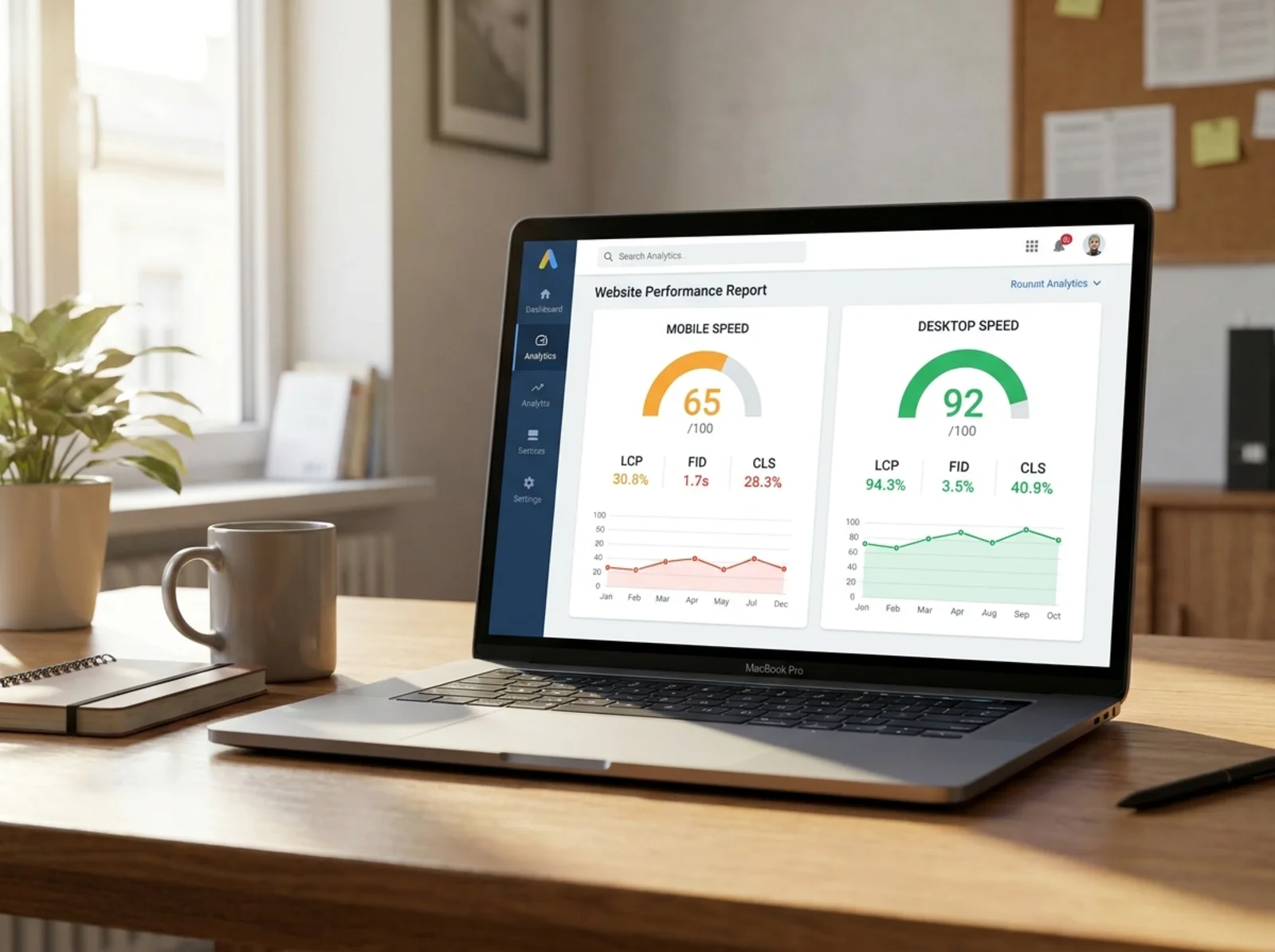
The standard free tool is Google's PageSpeed Insights. You paste in a URL, wait a moment, and it gives you a score plus the Core Web Vitals numbers. It shows you two kinds of data, and it is worth knowing the difference.
Field data is based on real Chrome users who visited your page in the last 28 days. If field data says your LCP is 4.2 seconds on mobile, that is what your actual visitors are experiencing.
Lab data is a single test run on a simulated phone in a Google data center. It is useful for spotting issues, but it is still just one snapshot. Trust field data for "how bad is this really," and use lab data to dig into "why."
If you want a friendlier starting point, our speed snapshot tool gives you the highlights without the wall of metrics. For a deeper walkthrough of what every number on the report means, our guide to checking website speed breaks it down line by line.
Run the test on your homepage and at least one other important page, like a product page, service page, or contact form. Run it on mobile, not desktop. Write the numbers down so you can compare later.
Step two: figure out the likely cause
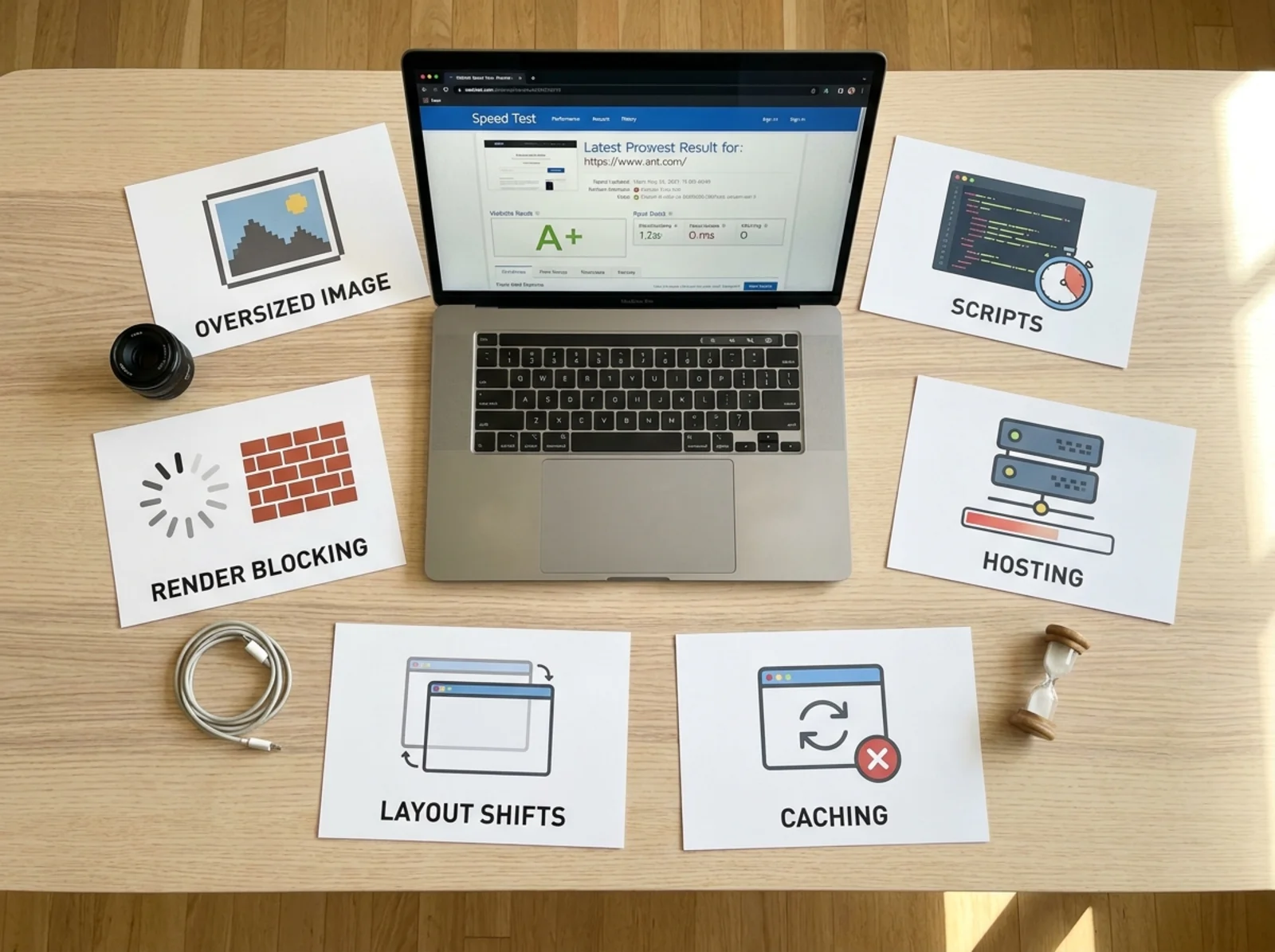
Slow pages almost always come down to one or more of these six culprits. Read through them and see which sound like your site.
Big images. This is the number one cause of slow pages, and it is not close. Someone uploads a 4,000 pixel wide photo straight from a phone or stock site, the page tries to load all 3 megabytes of it on a phone screen that is 400 pixels wide, and everything grinds. Hero images, banner backgrounds, and product galleries are the usual offenders. If your homepage hero is a giant photograph, that is where I would start. Our post on hero images and performance explains why this happens so often.
Render-blocking files. When a browser loads your page, it has to download and process certain files before it can show anything. These are usually CSS files (which control how the page looks) and JavaScript files (which make things interactive). If those files are large or load in the wrong order, the visitor sees a blank screen while the browser waits. Most page builders and themes load more of these than they need to.
Too many scripts. Every chat widget, analytics tag, heatmap tracker, ad pixel, popup tool, and review embed adds weight. Each one is a small slowdown, but they stack.
Weak hosting. Cheap shared hosting plans pack lots of sites onto the same server. If your time to first byte is over a second, hosting is probably part of the problem.
No caching or compression. Caching lets returning visitors load the page faster because their browser has already saved parts of it. Compression shrinks files before they are sent. Both are usually a checkbox or a plugin away. Many sites just never turn them on. Our browser caching and compression guide covers the easy wins here.
Layout shifts. Images and ads without set dimensions, fonts that swap in late, and content that loads in chunks can all cause that annoying "the page is jumping" feeling. This is the CLS number. It rarely makes a page feel slow on a stopwatch, but it makes a page feel broken.
Step three: fix the right things first
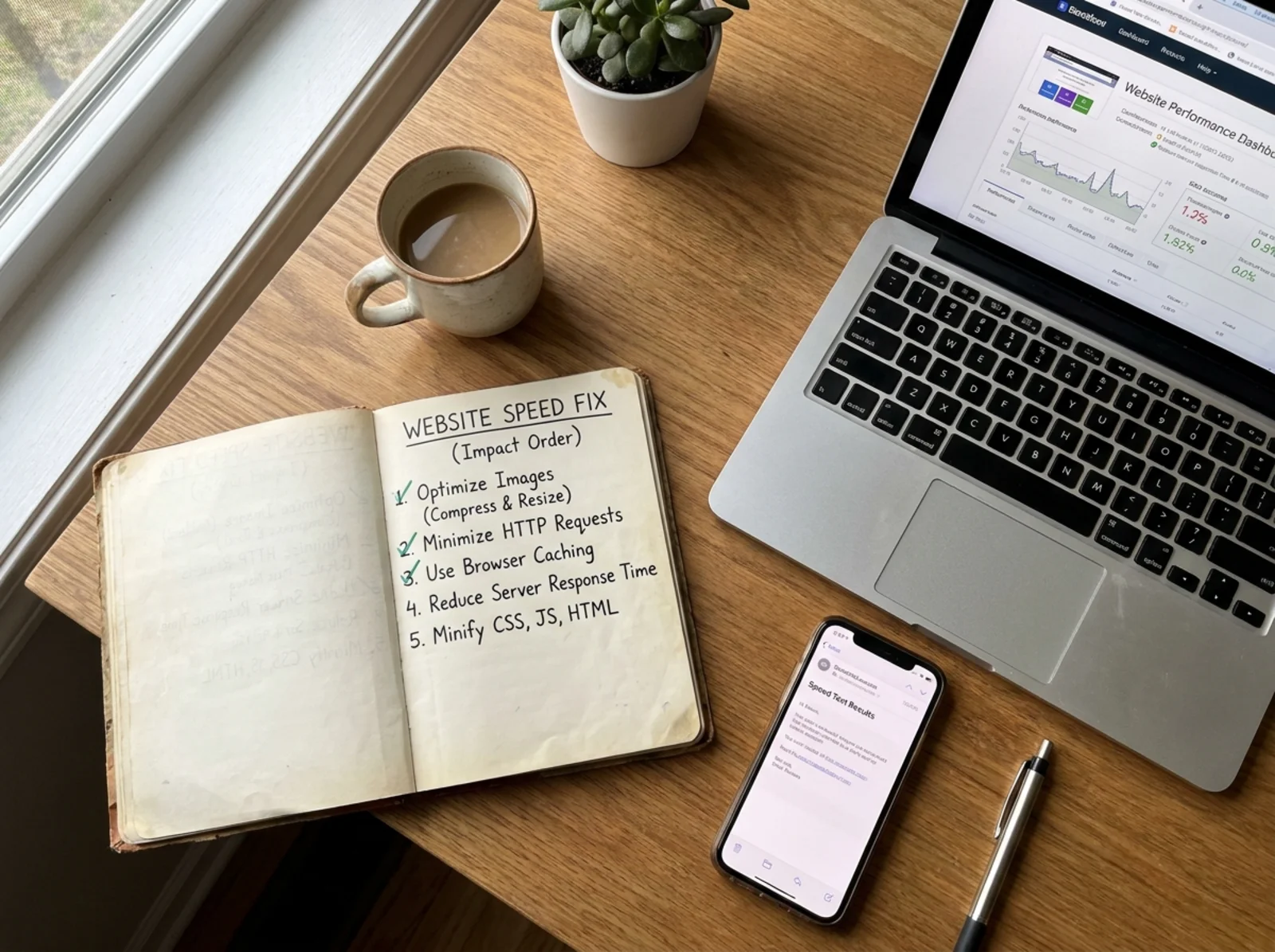
The trap with speed work is fiddling with things that do not matter. A 2 percent improvement on something invisible is not worth your afternoon. Here is the order I would tackle things in for a typical small business site.
Start with images. This is almost always the highest impact, lowest effort win. Three things to check.
First, make sure your images are sized for the web. A photo that is 4,000 pixels wide on a page where it displays at 800 pixels is wasting most of those pixels. Most platforms will resize on upload if you let them, but old images often slip through.
Second, use modern image formats. WebP and AVIF are formats that look the same as JPEG or PNG but are much smaller. Most modern site builders, WordPress plugins, and content management systems support them now. Turn that setting on.
Third, lazy load images that are not visible right away. Lazy loading means images further down the page only load when the visitor scrolls near them. Almost every modern platform does this by default for non hero images, but it is worth checking. Our image optimization playbook walks through all three of these in plain language.
Next, prune your scripts. Open your site in a browser, right click, and choose "Inspect" or "View Page Source." Look for tags from tools you do not recognize or do not use anymore. Old chat widgets, retired analytics platforms, abandoned popup tools. If you cannot tell what something does, ask whoever set up your site, or your developer. Removing five unused scripts often shaves a full second off load time.
Then turn on caching and compression. If you are on WordPress, a caching plugin or your host's built in caching usually handles both. If you are on Shopify, Wix, Squarespace, or similar, check your theme settings for image and script optimization toggles.
Look at render-blocking content. This is more technical, but the friendly version is: ask your developer or theme support if your site is loading critical CSS inline and deferring non critical JavaScript. If those words mean nothing, send them to our render-blocking CSS guide and they will know what you are asking. If you do not have a developer, look for a "performance" or "speed" section in your theme settings. Most modern themes have toggles for this now.
Trim mobile page weight. Phones are slower and on weaker connections. A page that is 3 megabytes on desktop might be the same 3 megabytes on a phone, and that is where the pain shows. Our mobile page weight audit shows you what to cut first.
Talk to your host last. Hosting matters, but switching hosts is a project. Do it after you have fixed images, scripts, and caching. If your time to first byte is still over 800 milliseconds, it is time to look at moving.
Step four: measure again, and do not chase a perfect score
After you have made changes, wait a few days and run PageSpeed Insights again. You want field data to update, and that takes time because it is based on real visits.
Compare the new numbers to your baseline. Did LCP drop? Did CLS get under 0.1? Are your scores in the green or at least the orange? That is the win.
Do not chase a 100. The score is a rough summary, not a target. A site with a score of 85 and an LCP of 2.1 seconds is doing better than a site with a score of 98 that loads slowly for actual visitors. Aim for "good" on the three Core Web Vitals, then move on.
When to call for help
If you have worked through this list and your site still feels slow, or if you are on a custom built platform where none of these settings exist, it is worth bringing in a developer. Be specific when you ask for help. "The site is slow" is hard to act on. "Our LCP on mobile is 4.5 seconds, mostly from the homepage hero image and a marketing script we cannot remove without losing tracking" is much easier to fix.
You can also start with our free speed snapshot to get a list of issues in plain English, then take that to whoever maintains your site.
Pick the biggest two or three problems on your site, fix those, and you will be ahead of most of the web.
For more on getting your site in shape, browse the rest of our blog or run a fresh audit any time something feels off.
Sources
- Google, web.dev, Core Web Vitals: https://web.dev/articles/vitals
- Google, web.dev, Largest Contentful Paint (LCP): https://web.dev/articles/lcp
- Google, web.dev, Interaction to Next Paint (INP): https://web.dev/articles/inp
- Google, web.dev, Cumulative Layout Shift (CLS): https://web.dev/articles/cls
- Google, PageSpeed Insights documentation: https://developers.google.com/speed/docs/insights/v5/about
- Google Search Central, Page Experience: https://developers.google.com/search/docs/appearance/page-experience
Related Tools
Check your website for free
Get an instant score and your top 3 critical issues in under 60 seconds.
Get Your Free Audit →